
Availability
Availability enables you to:
- manage working hours configurations for their teams that can be used across multiple Handovers,
- manage out of office exceptions that override standard working hours and enable our users to easily create temporary exceptions for events such as public holidays or internal trainings.
Availability enables you to define working hours for their teams and supports advanced use cases. This gives you the flexibility to configure settings based on which end customers will receive different experiences, for example during working hours they will be redirected to human agents while outside of working hours they can be redirected to automated Survey.
Introduction to Working hours
You can use the same Working hours across many different Handovers. The less Working hours you have, the easier the maintenance. Working hours are required to set up Handovers.
In principle, the less Working hours in the options, the better. However, we recommend creating separate Working hours when:
- Teams operate across different time zones – you might have a team in Europe and in the US, in which case it is advised to create two separate Working hours.
- Teams operate in different hours – team around Support might operate from 9am to 5pm, and Sales from 9am to 3pm, in which case we advise to create separate Working hours.
- Support is offered in different hours between channels – if you want to offer support on social media channels 24/7, while on Zowie Widget from 9am to 5pm, it is advised to create separate Working hours.
Creating a new Working hours
1. Set up Working hours
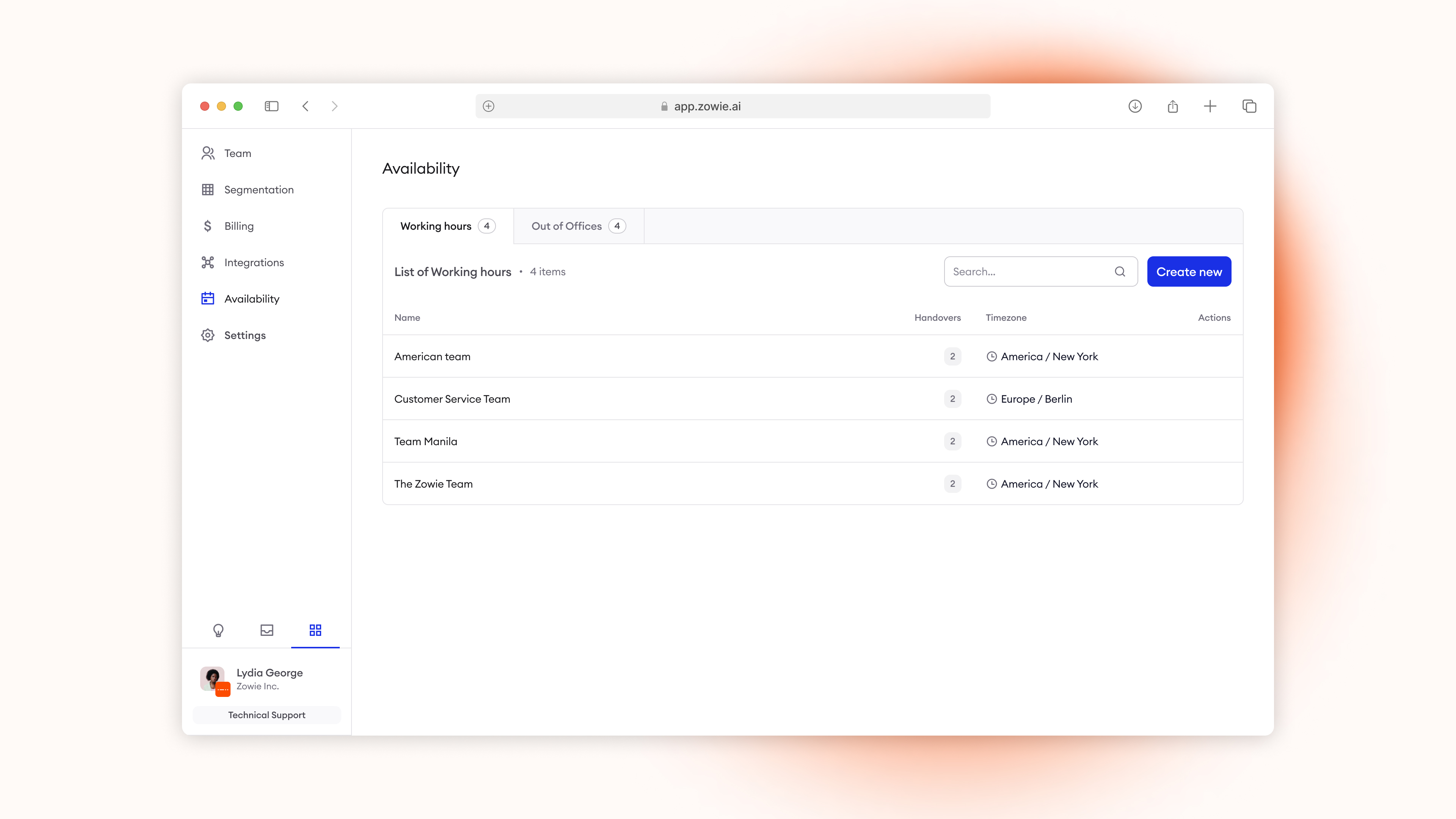
In order to create a new Working hours head over to Workspace > Availability > Working hours and select "Create new".
2. Select your name
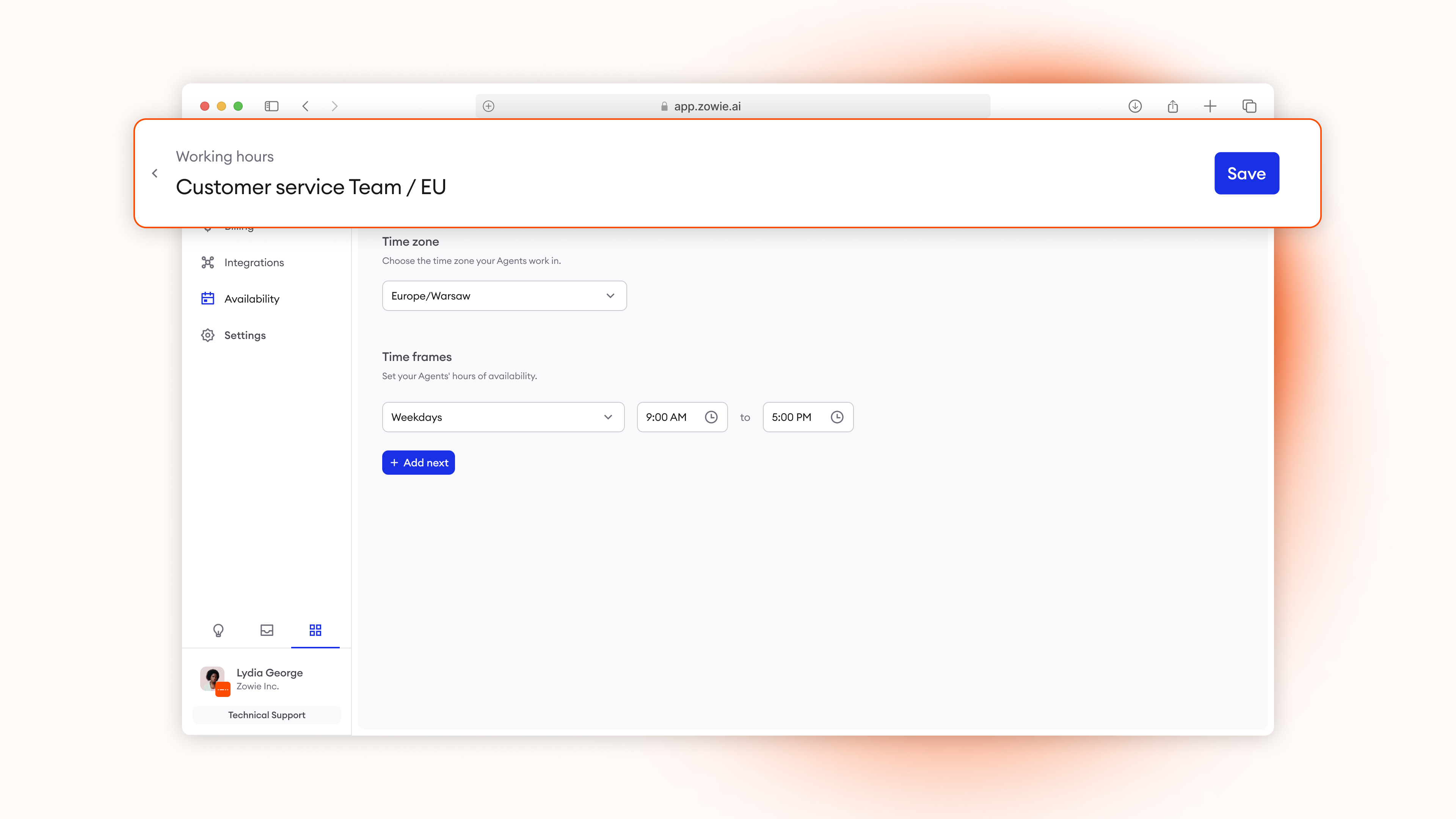
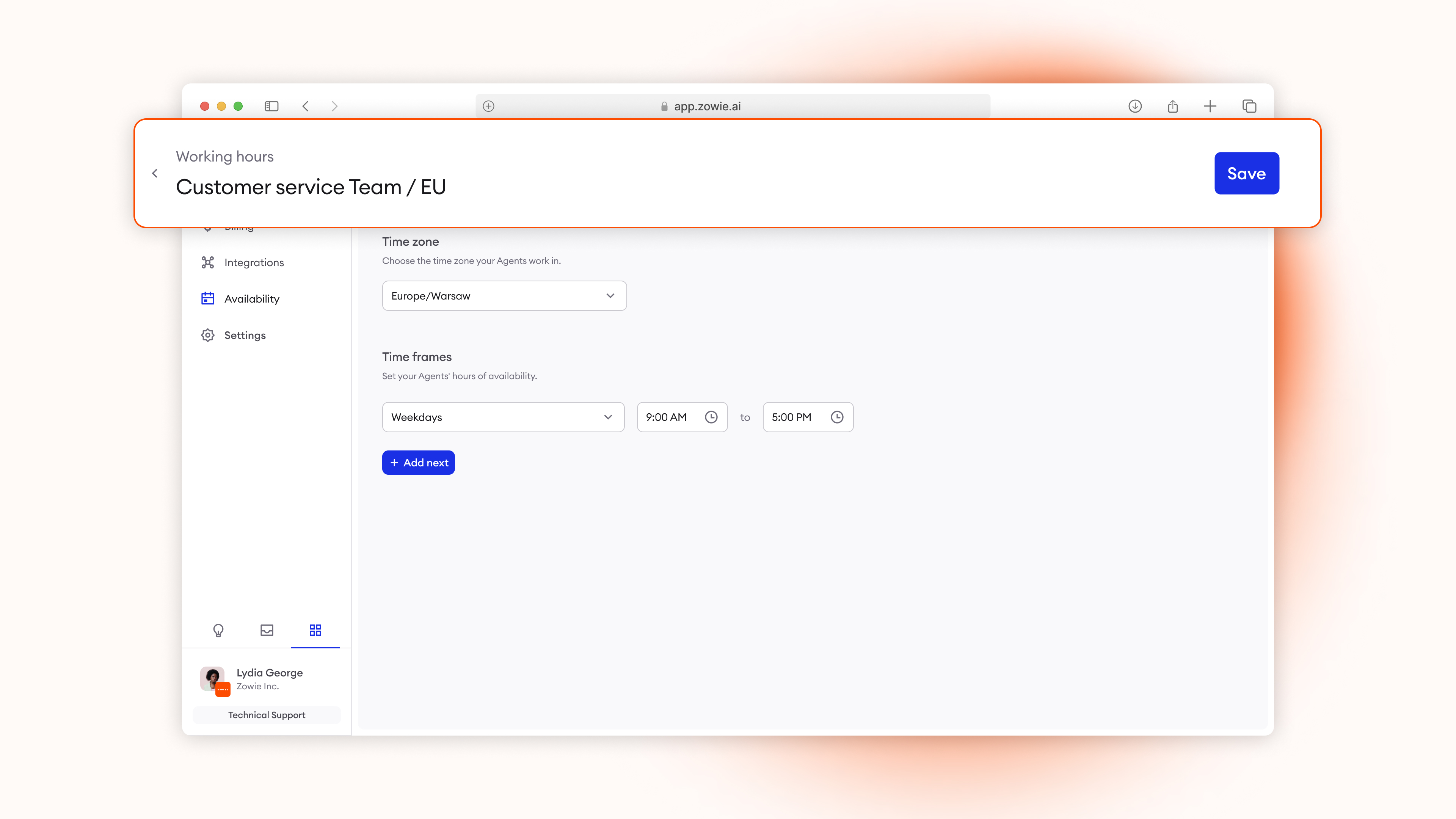
Set the name of your Working hours, for example "Customer service Team / EU."
3. Select your timezone
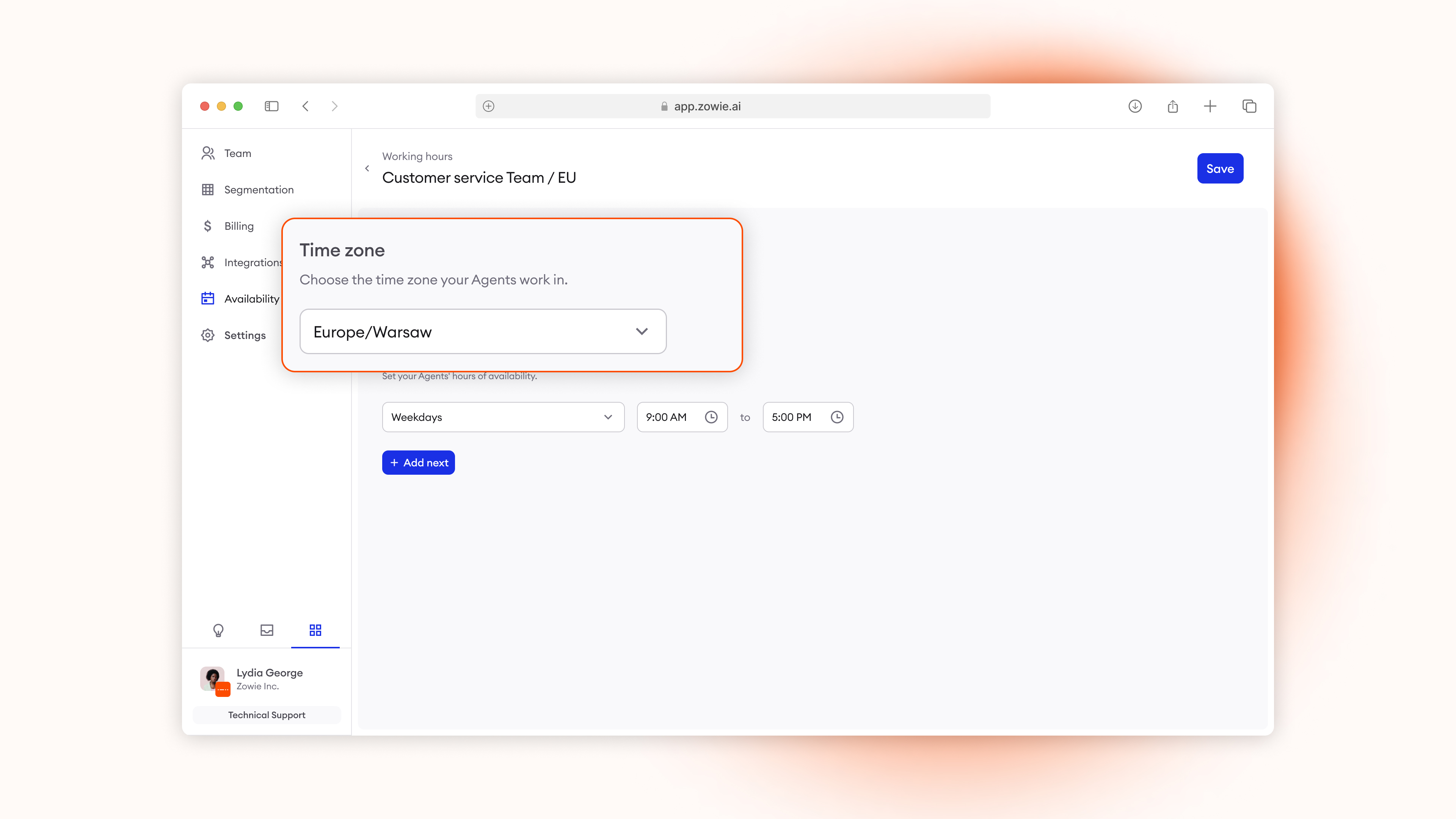
Start by selecting the timezone in which the Working hour should be operating within.
4. Set up your time frames
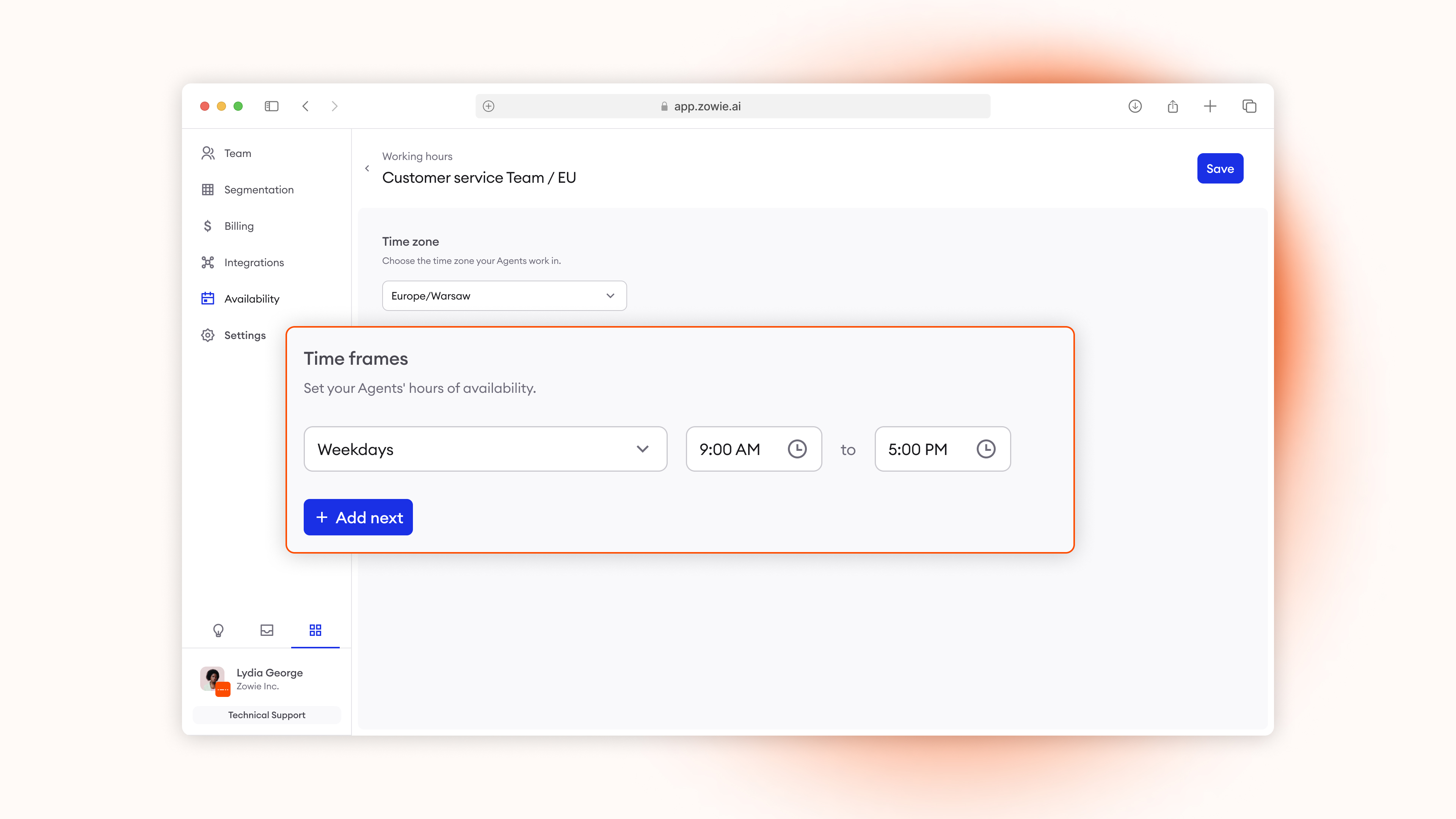
Time frames serve as rules dictating when the team works and when not. You can for example set the following settings:
- Example Setting #1: America / New York (Monday - Friday, 9am - 5pm; Saturday, 9am - 3pm)
- Example Setting #2: Europe / London (Monday 9am - 7pm; Tuesday - Friday, 9am - 5pm)
Working hours time frames are based on days of the week.
5. Save the Working hours.
Once done, select "Save" to save the working hour.
Introduction to Out of office
Out of office (“OOO”) enables users to create exceptions from “Working hours” that override the typical behaviour set through Working hours. Thanks to OOO managing holidays is now very easy – you can create holiday settings (exceptions) in centralised place. They will override Handover time settings & messages sent to customers.
Creating a new Out of office
1. Set up Out of office ("OOO")
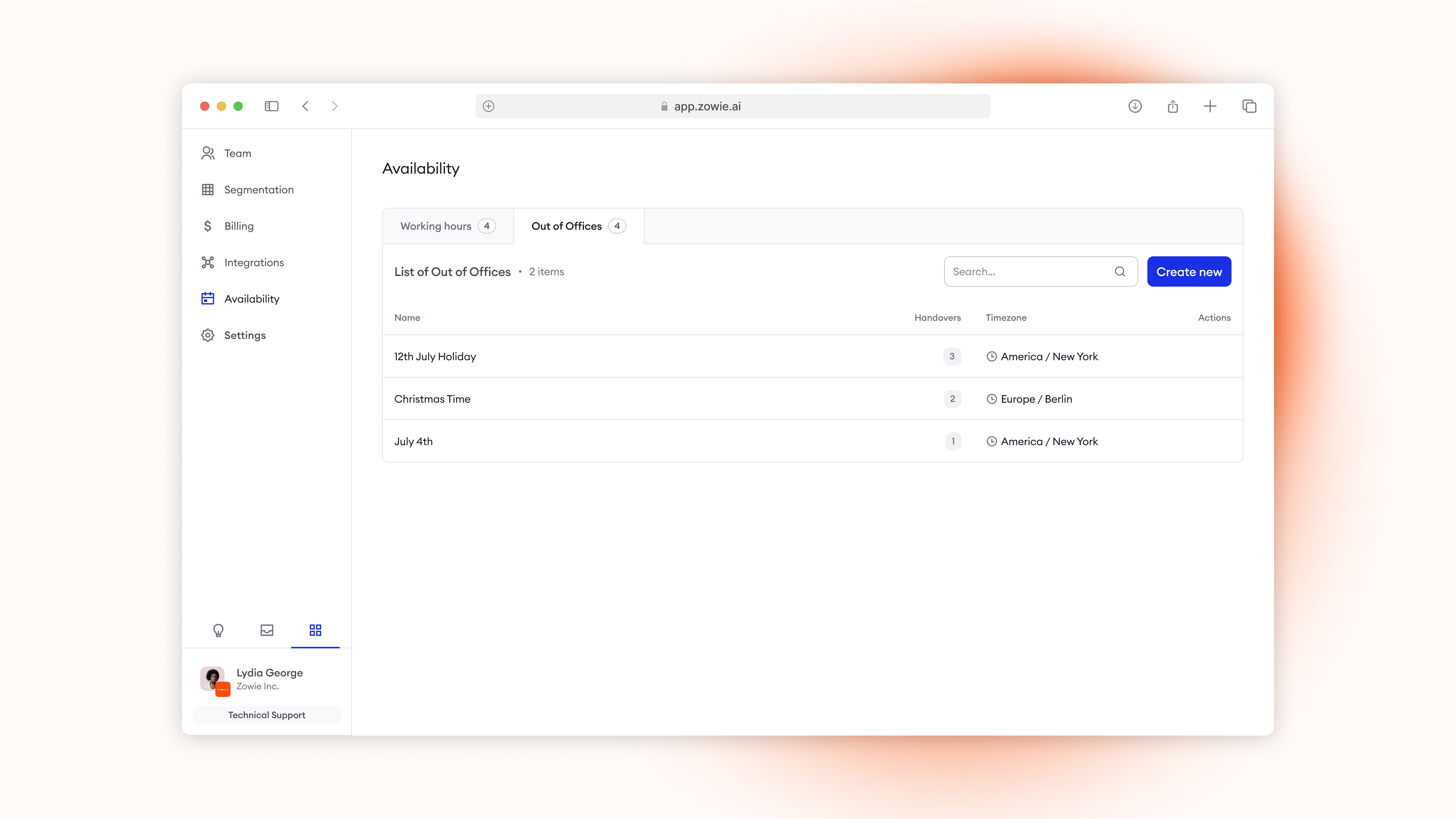
In order to create a new OOO head over to Workspace > Availability > Out of office and select "Create new".
2. Select your name
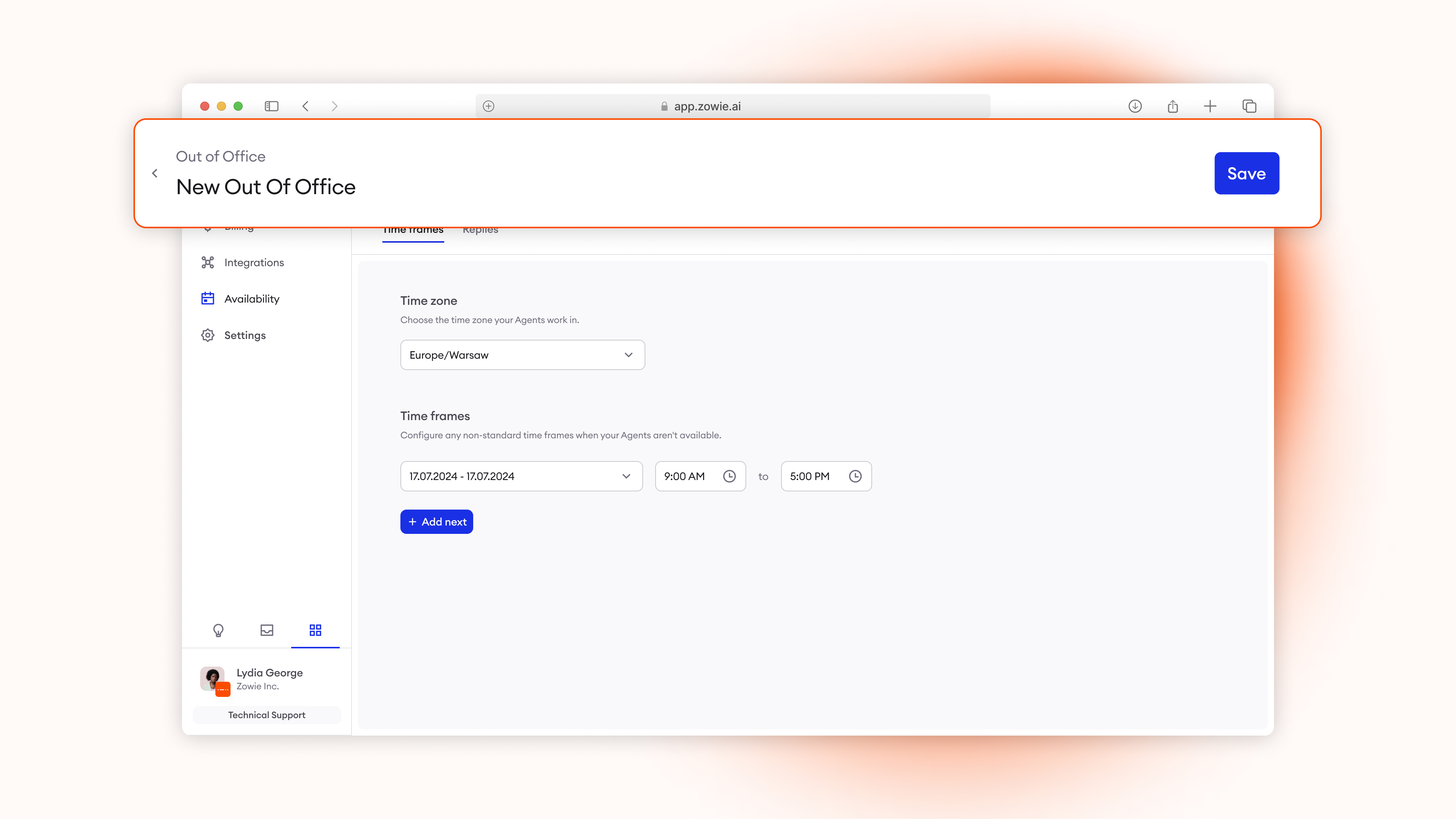
Set the name of your OOO, for example "Winter holidays"
3. Select your timezone
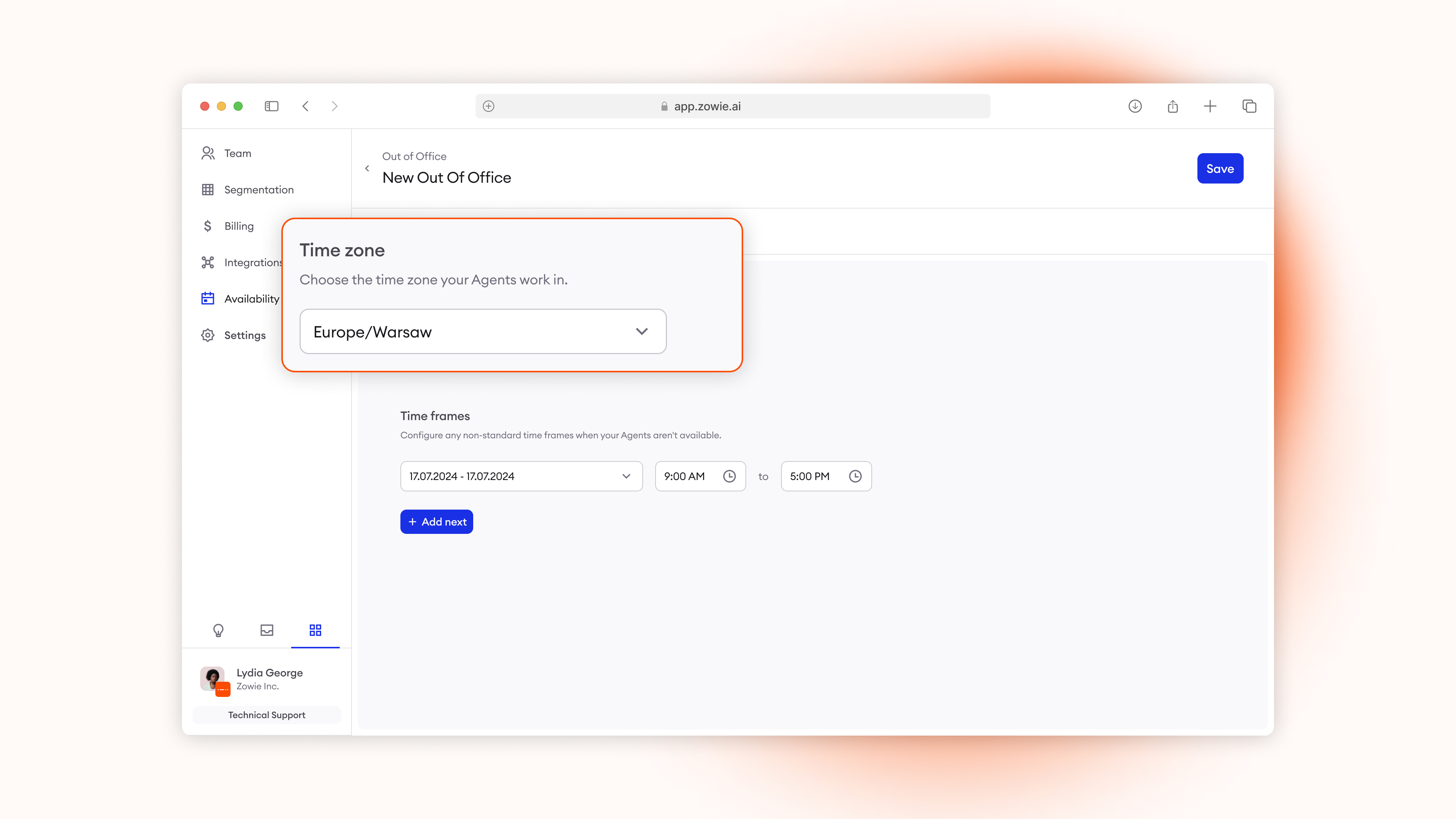
Start by selecting the timezone in which the OOO should be operating within.
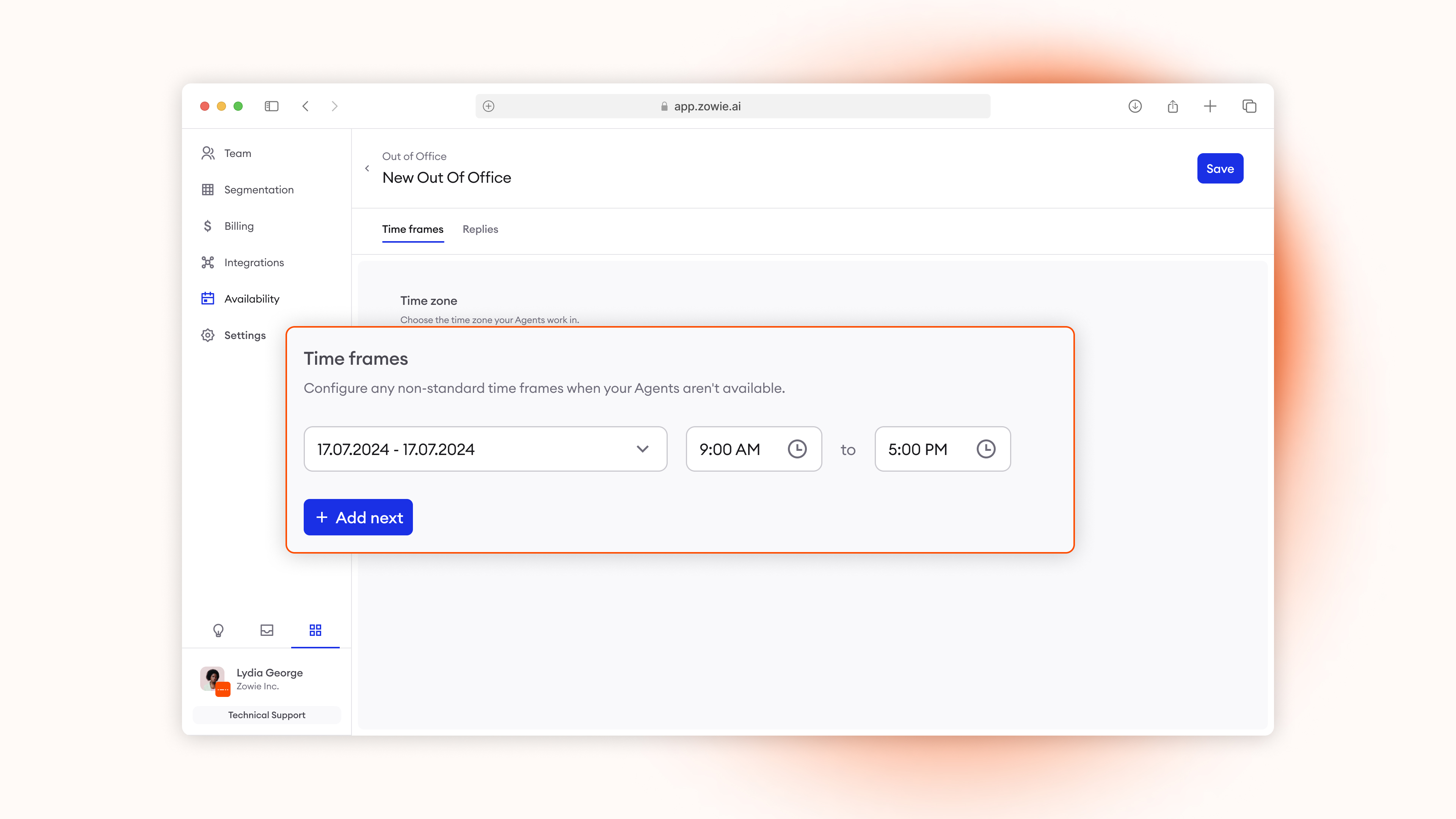
4. Set up your time frames
Each OOO enables you to define time frames for when customer service team are not available / not working. Compared to “Working hours” OOO are configured for specific date and time, for example:
- 4th of July 2026, All day (this means that on 4th of July teams will not work at all),
- 24 - 26th of December 2026, 1pm - 5pm (this means that team will not be working during those hours, but if their working hours are set between 9am - 5pm, it means they will operate 9am - 1pm).
5. Set up your Replies
Replies enable you to assign Handovers that should be operating under the OOO and configure messages for those selected Handovers (within selected Chatbots). Those messages will override typical messages set in Handover within time period of OOO.
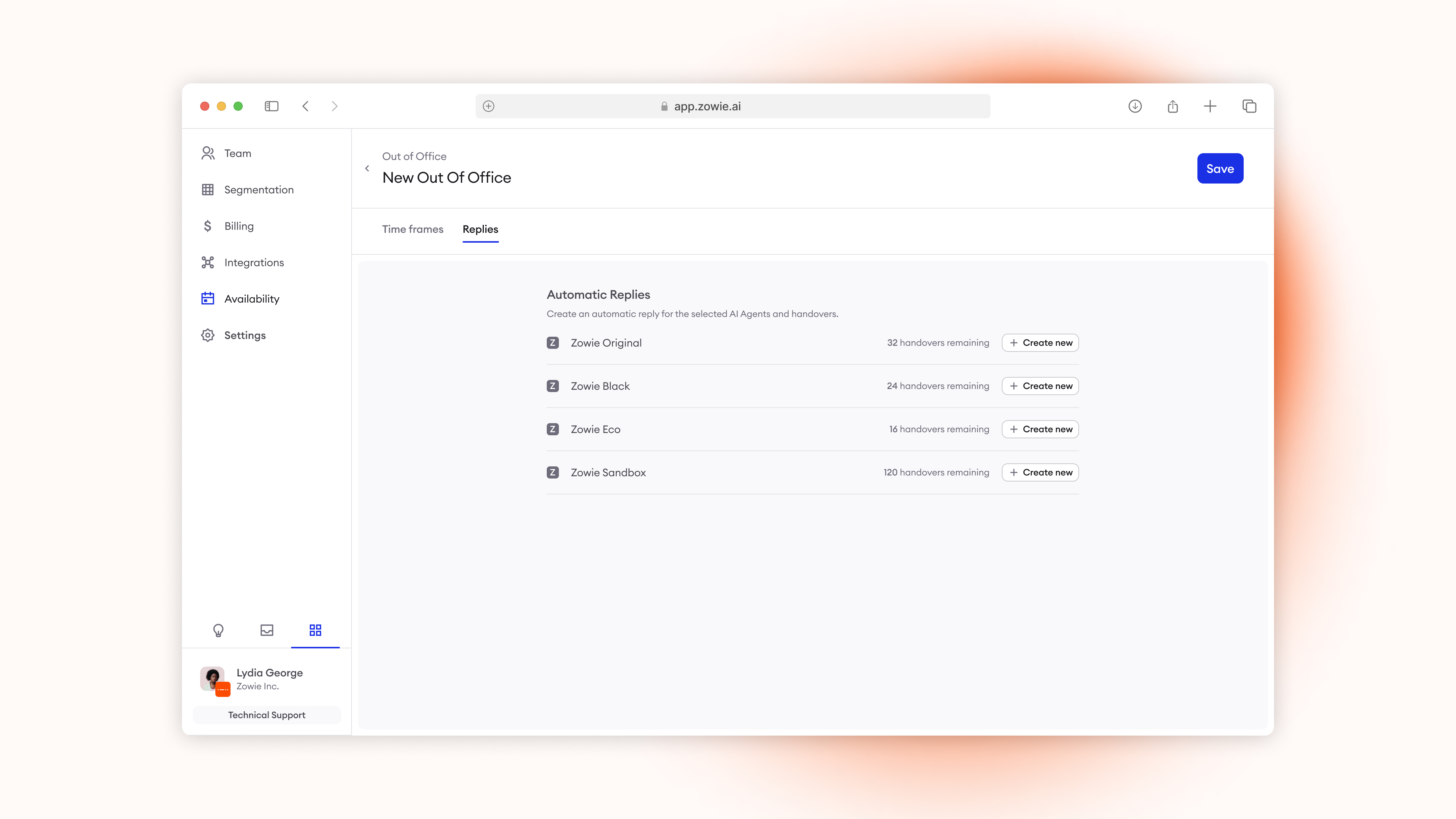
Set up replies by:
- Clicking "Create new" next to AI Agent you want to configure.
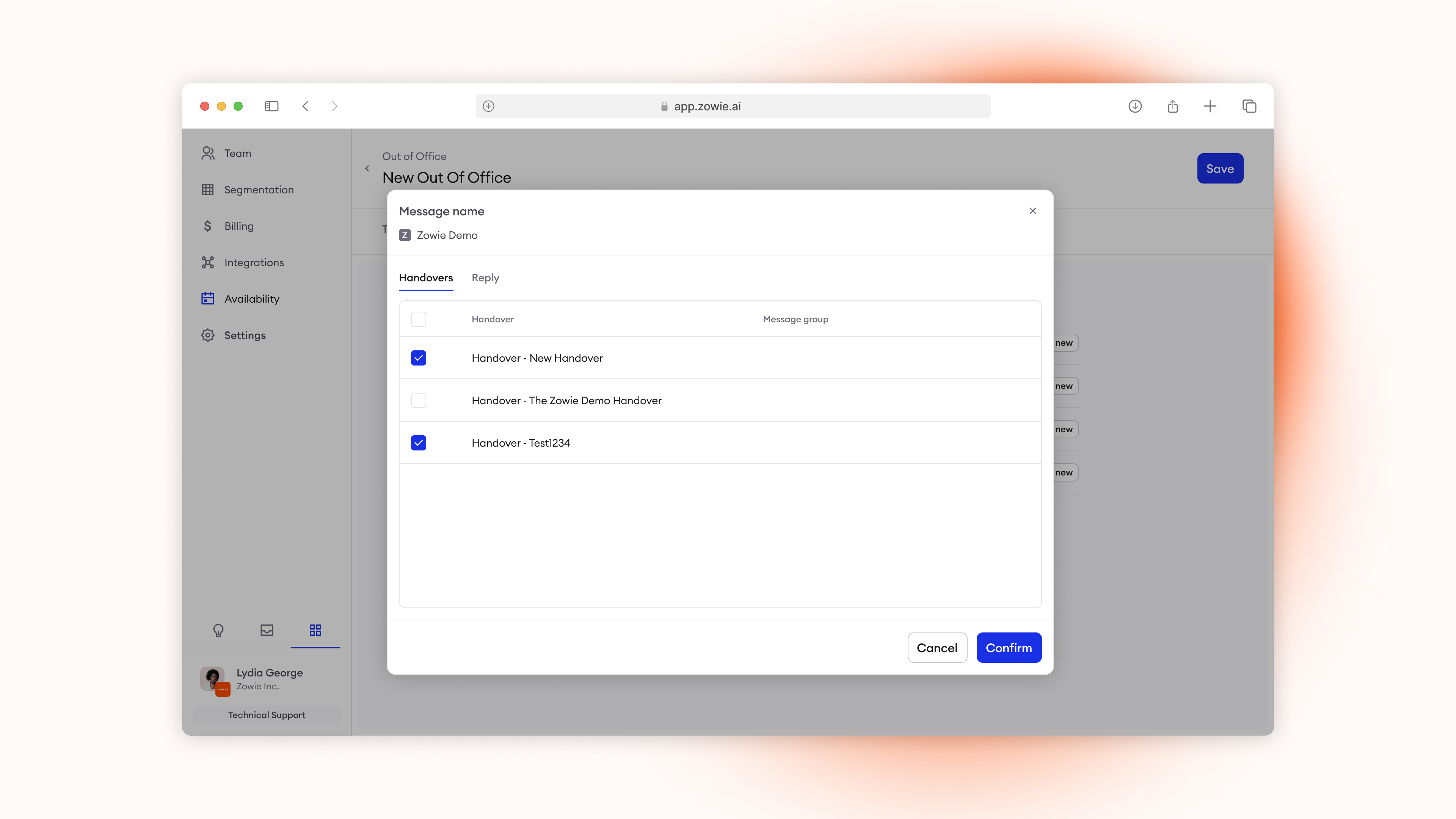
- Select which Handovers should be having the exception of the OOO in tab "Handovers". You can select all or only limited few.
- To set up Replies that will override messages set up within Handovers in "During working hours" and "Outside of working hours" go to tab "Reply" and set up the messages by clicking "Add element."
- Once done, hit "Confirm"
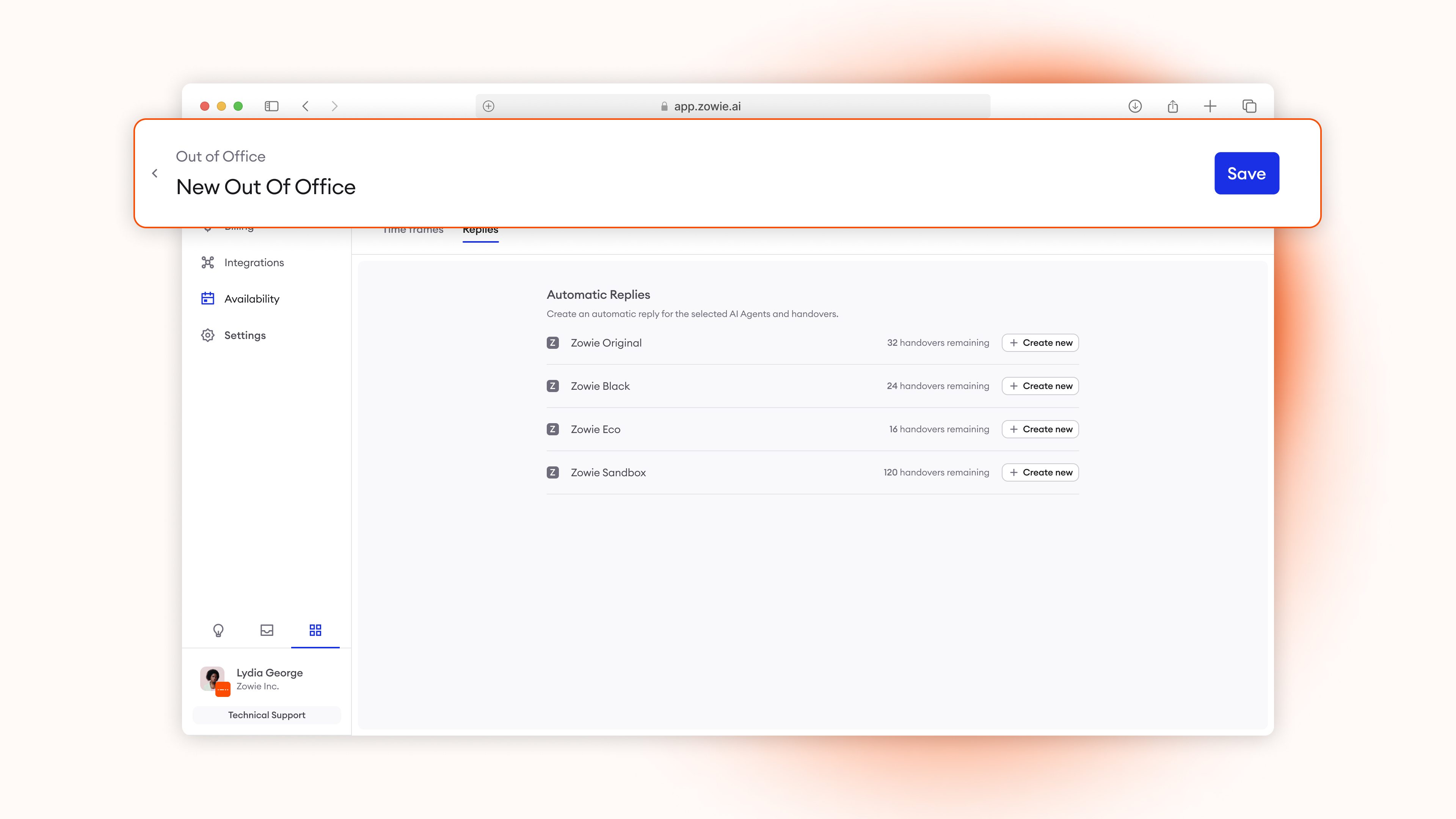
6. Save the OOO.
Once done, select "Save" to save the OOO.
Updated over 1 year ago