
Team section
What is the Team section?
The Team section allows you to invite people to your environment and manage the permissions assigned to your users.
How to access the Team Section?
To access Team, go to the Workspace > Team section.
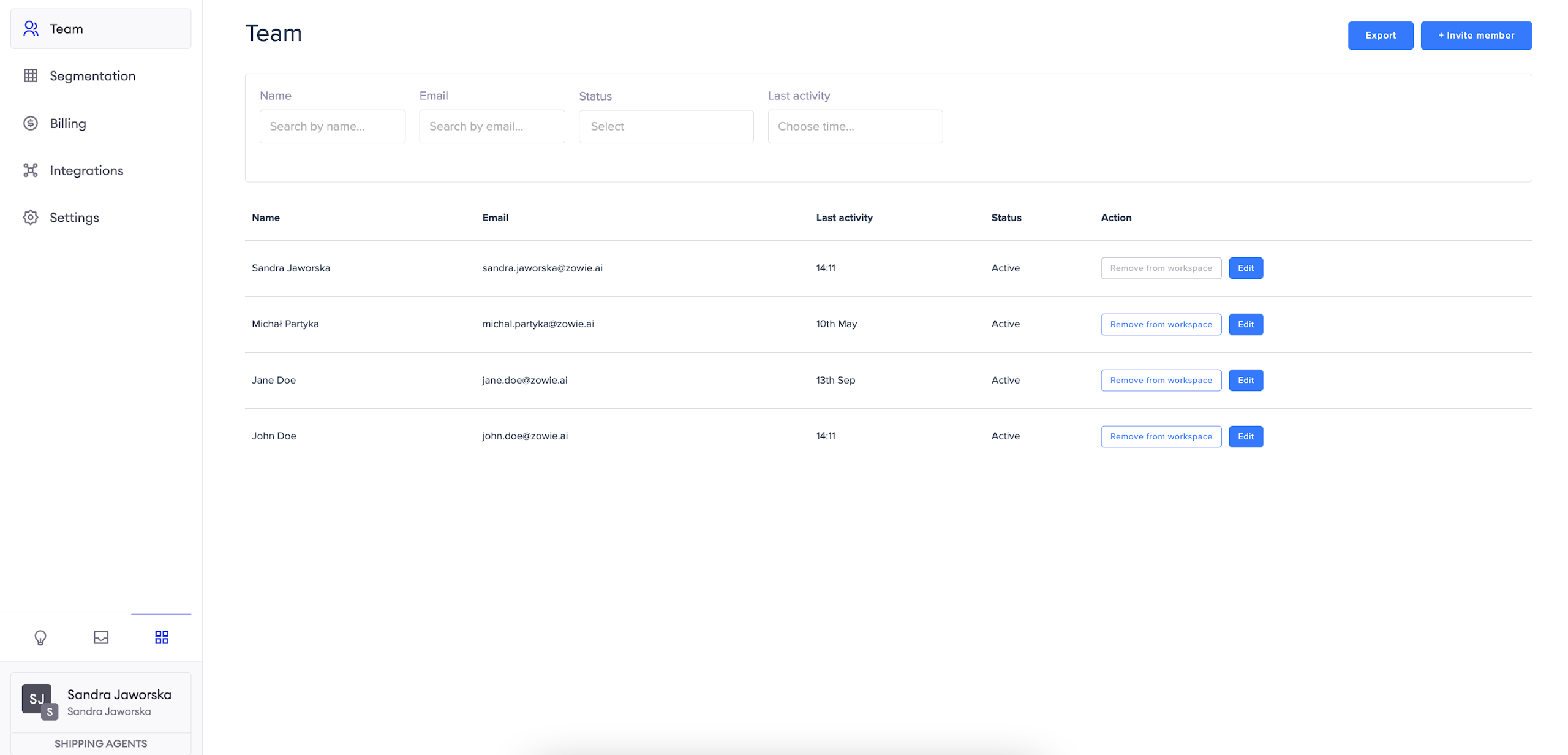
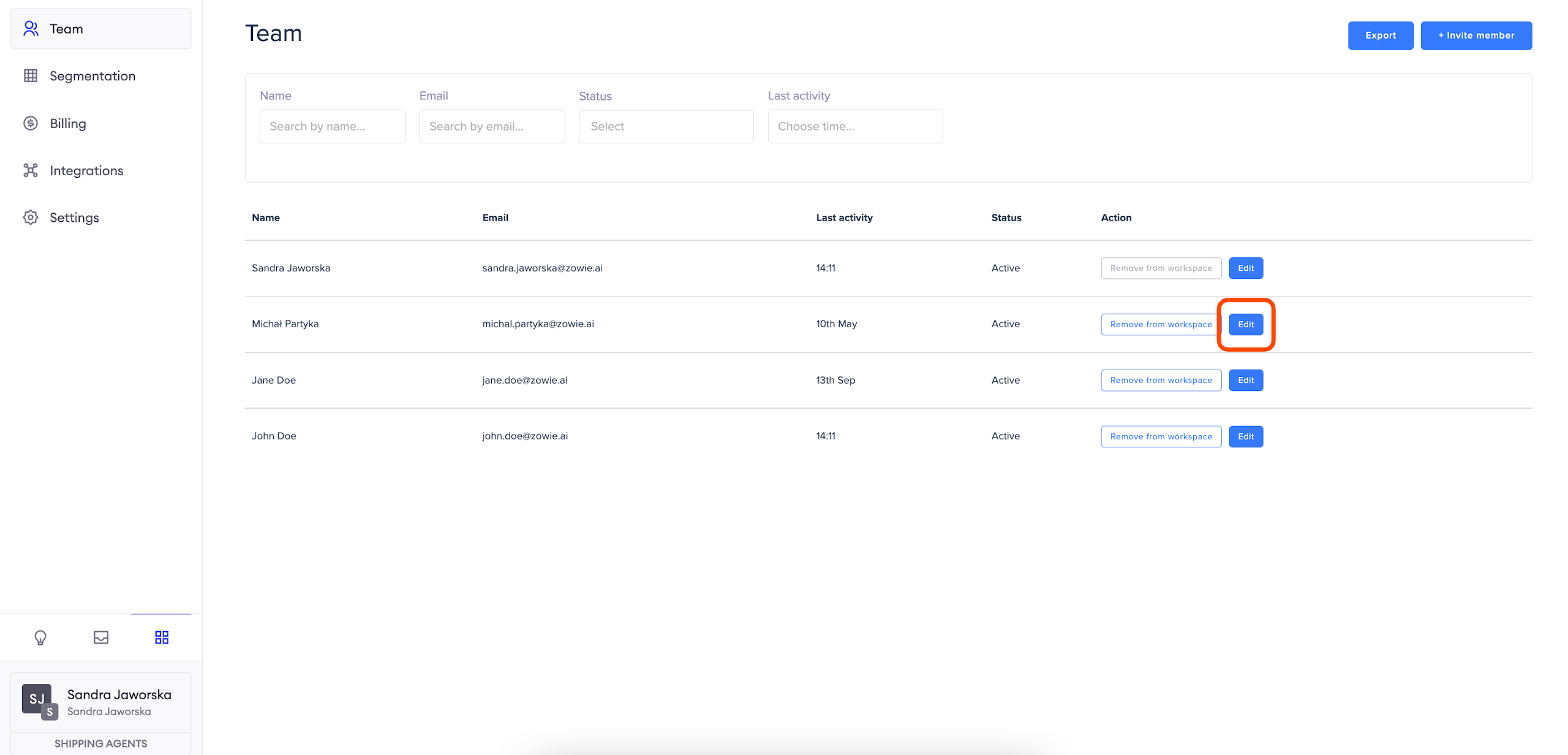
View the list of users
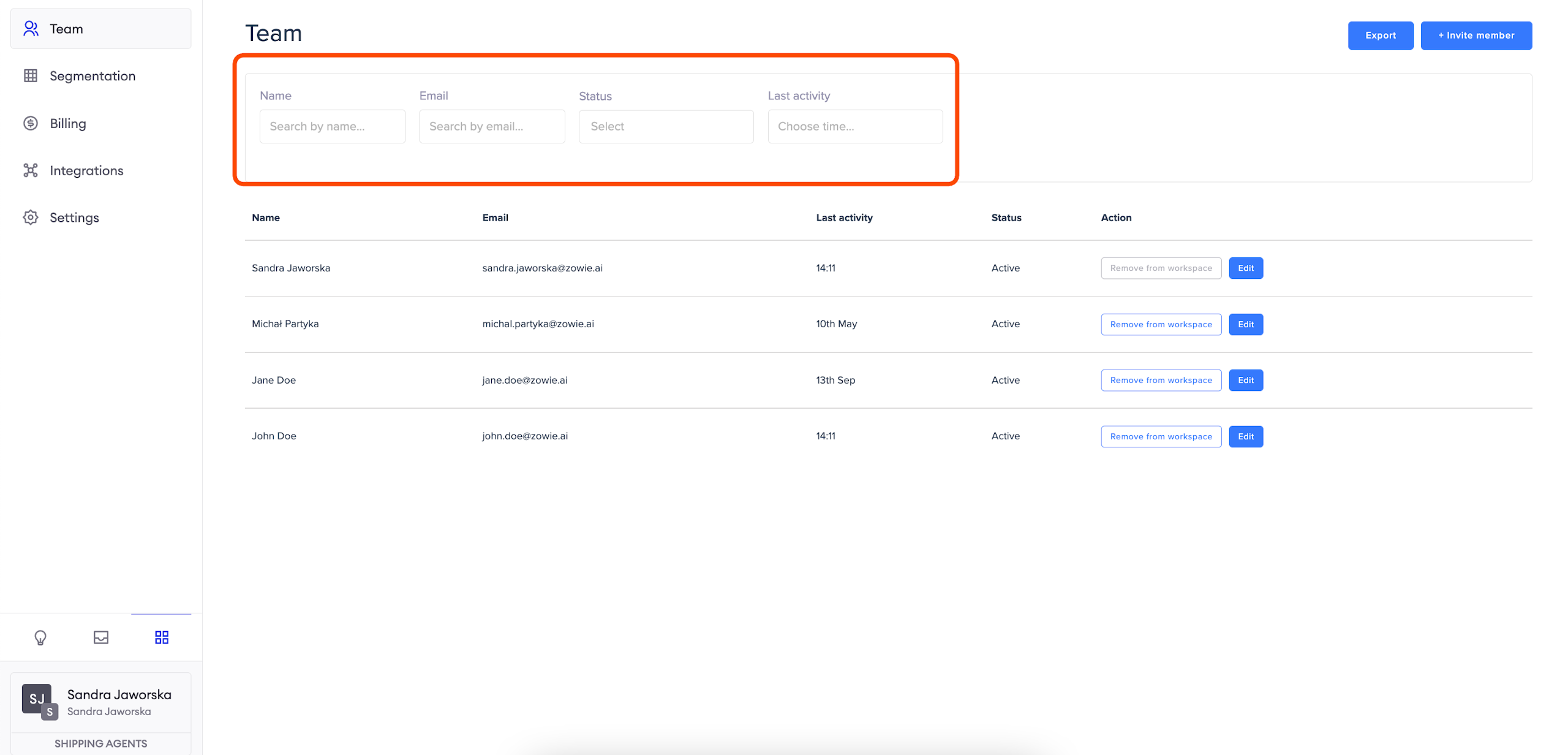
You can filter the list of accounts by user’s:
- Name;
- Email;
- Status;
- Last activity.
You can also export the list as a .csv or .xls file and remove users from the workspace.
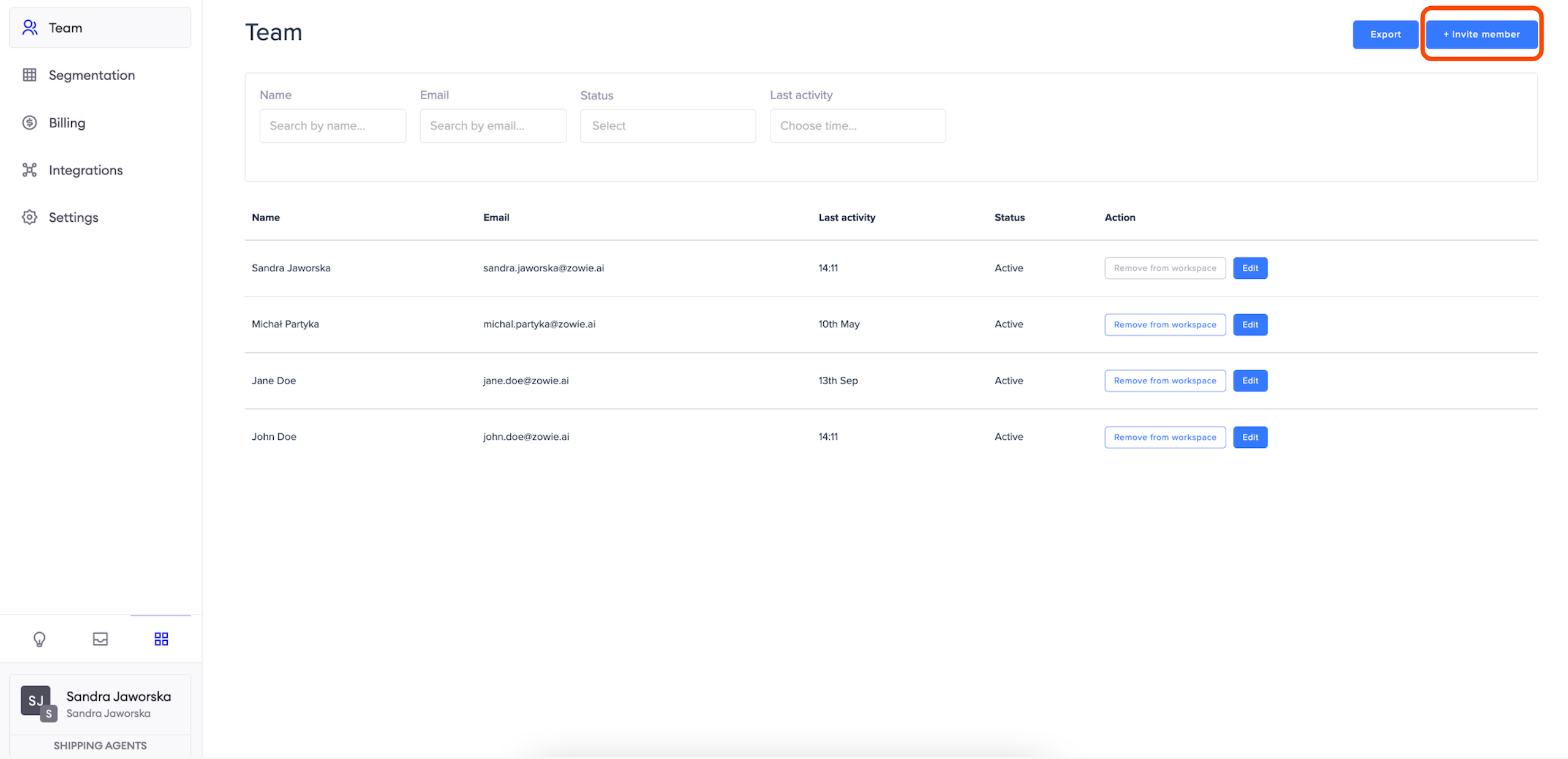
Invite a new user
Click the button
To invite a new member, you need to click the button in the top right corner.
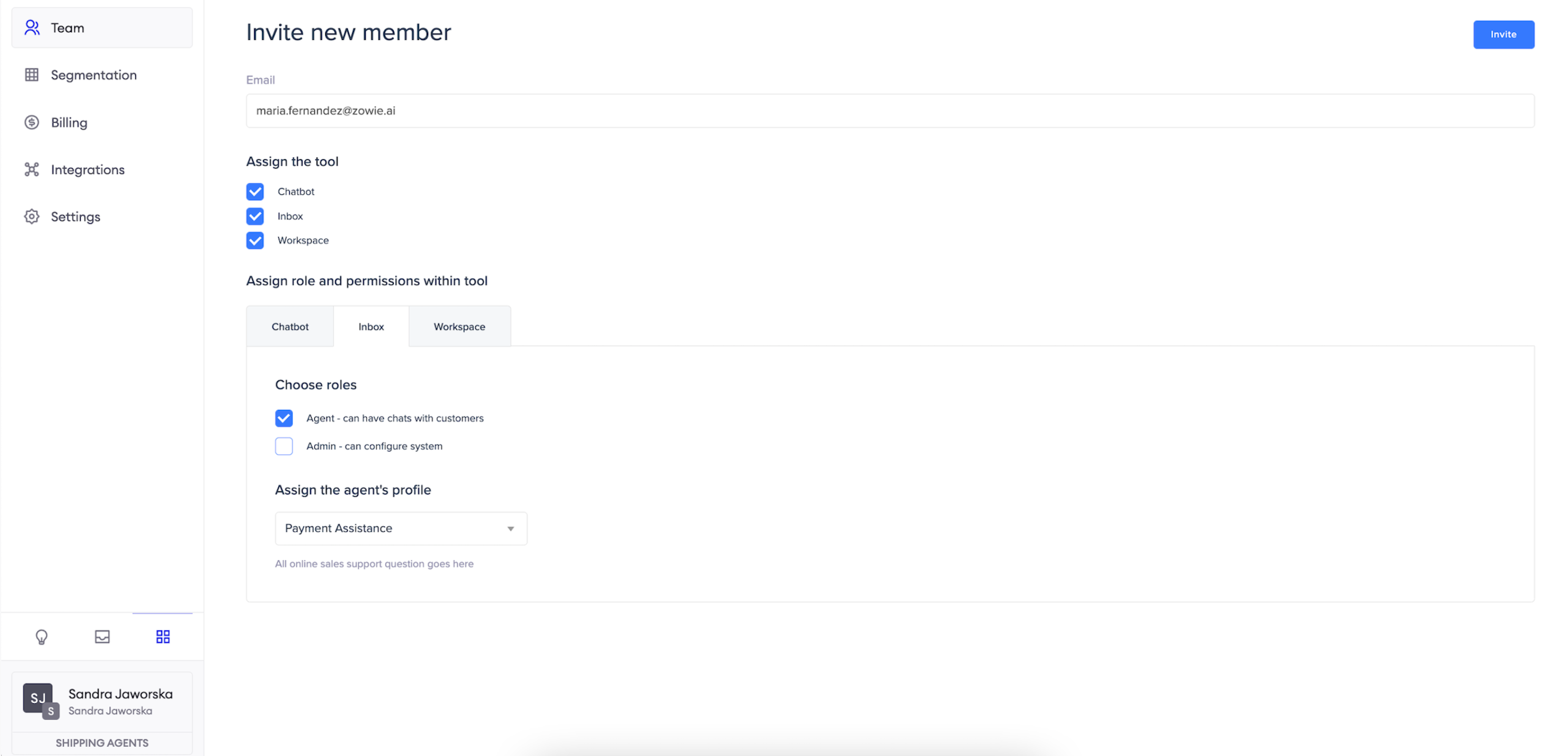
Fill the details
In this view you have to enter a user’s email address and define access each section of the platform. After you send the request, the user will receive an invitation email from which they can go to the account creation form.
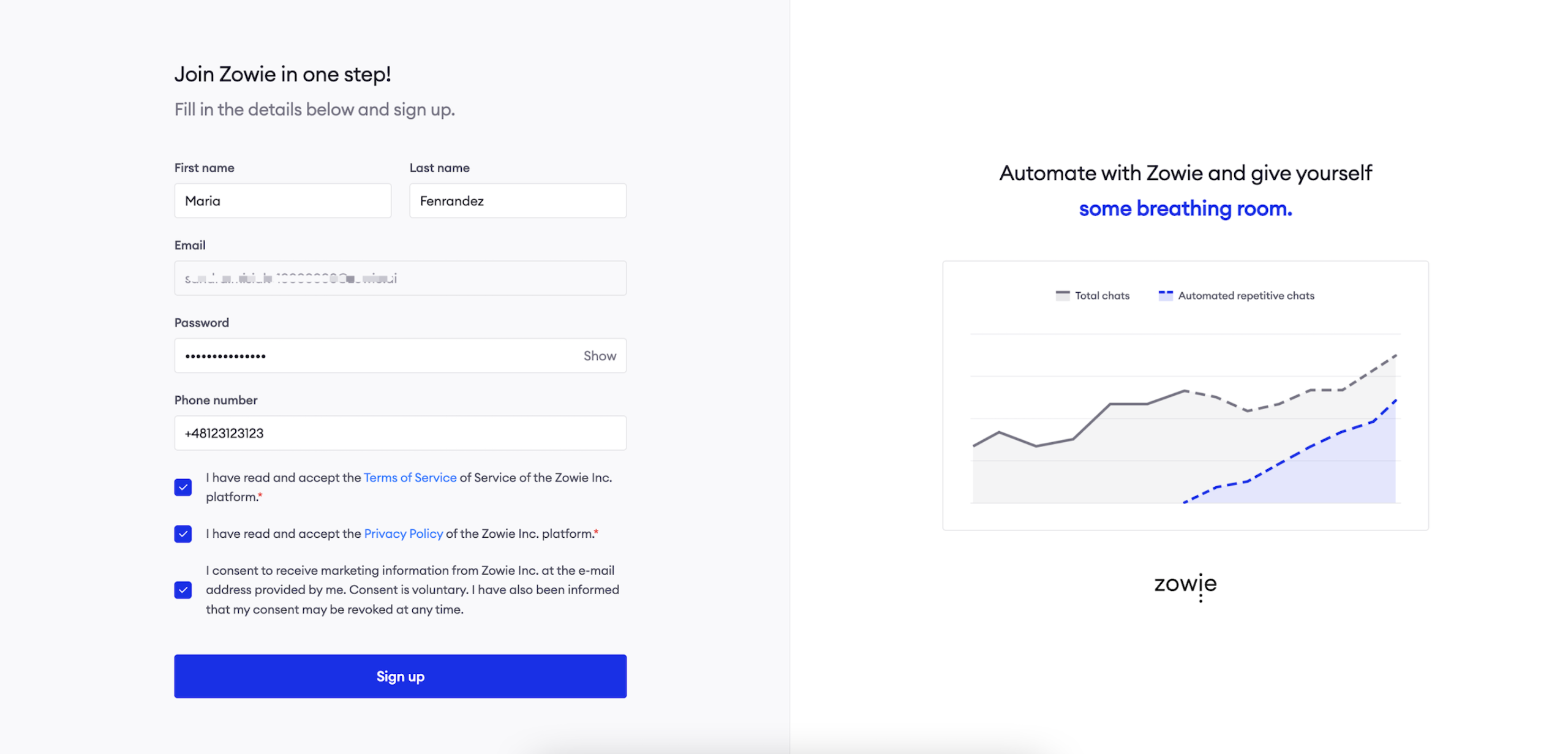
Fill the form
During that step, the agent set their account password and provide their phone number. After submitting the form, they can access the platform.
AttentionNote that a user who already has a platform account does not need to set their password again and is automatically added to a new environment instead.
Change user's access
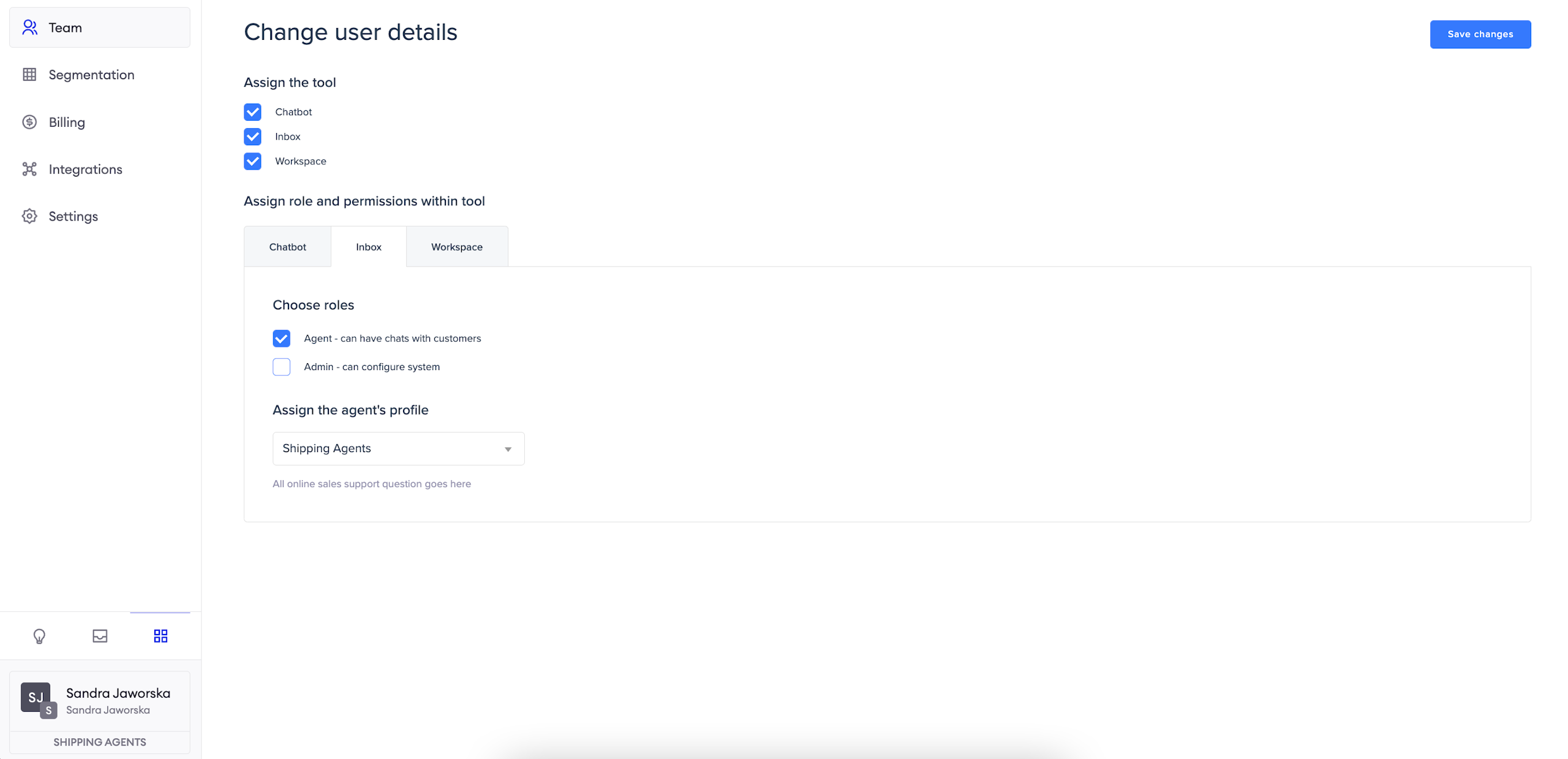
To change a user’s access, just click the "Edit" button next to their account. From there, you can assign a profile or change permissions to different sections of the platform.
AttentionRemember that users need to accept the invitation to the environment before you can update their profile.
Updated over 1 year ago