
Staging
The Staging is a dedicated testing space that allows you to safely experiment with configuration changes, new setups, and additional use cases without impacting your live Production version or real customers. This isolated space enables you to validate updates thoroughly before deploying them to Production, ensuring a smooth and risk-free experience for your actual users.
Key information
- Your Staging version will be created by cloning the existing Production setup. Once the Staging is created it mirrors you Production up to the point then you start applying changes to either of the versions.
- You can have one Staging version that is consistent to all Zowie users (everyone has access to the same Staging version).
- Independent changes in Staging (do not affect Production until published) support:
- Personality
- Moments
- Intent Routing
- Decision Engine Flows (including Data Type settings linked to them)
- Shared settings between Staging and Production (changes apply to both Production and Staging version):
- Knowledge Base Policies
- Localisation (including Regions and Segments)
- Handovers
Access to Staging may vary depending on your environment and configuration. Some capabilities may need to be enabled for your account. If you don’t see a feature described in this documentation, please reach out to your Customer Success Manager for assistance with activation.
Using Staging Version in practise
Prepare your Production
Make sure your current Production setup is in a state you’re happy with — this will be the base copy for your Staging version.
Create your Staging
You can create your Staging Version by clicking on the green icon in the navigation tab next to your AI Agent’s name. When you create Staging:
- Your Production configuration is copied into Staging.
- You can then make changes to Personality, Moments, Intents and Decision Engine flows without impacting Production.
Make Adjustments
Use your Staging space to:
- Adjust your AI Agent's Tone of Voice, Business Context, Guidances (all covered under Personality settings)
- Experiment with new Intents
- Update routing logic
- Adjust or Add Decision Engine flows
Test your Changes
- Open the Test Widget in Staging mode — it will automatically run tests in the Staging version. Testing Widget can be found in the top right corner of the Zowie panel.
- To test the Production version, simply switch the widget to Production.
Publish to Production
When you’re satisfied with your updates Publish your Staging version live. This replaces your current Production version and begins serving real traffic.
If you make changes in Production after creating Staging, those changes won’t be in your Staging copy. Update your Staging version to include them before publishing.
Review changes between Staging and Live (Diffs)
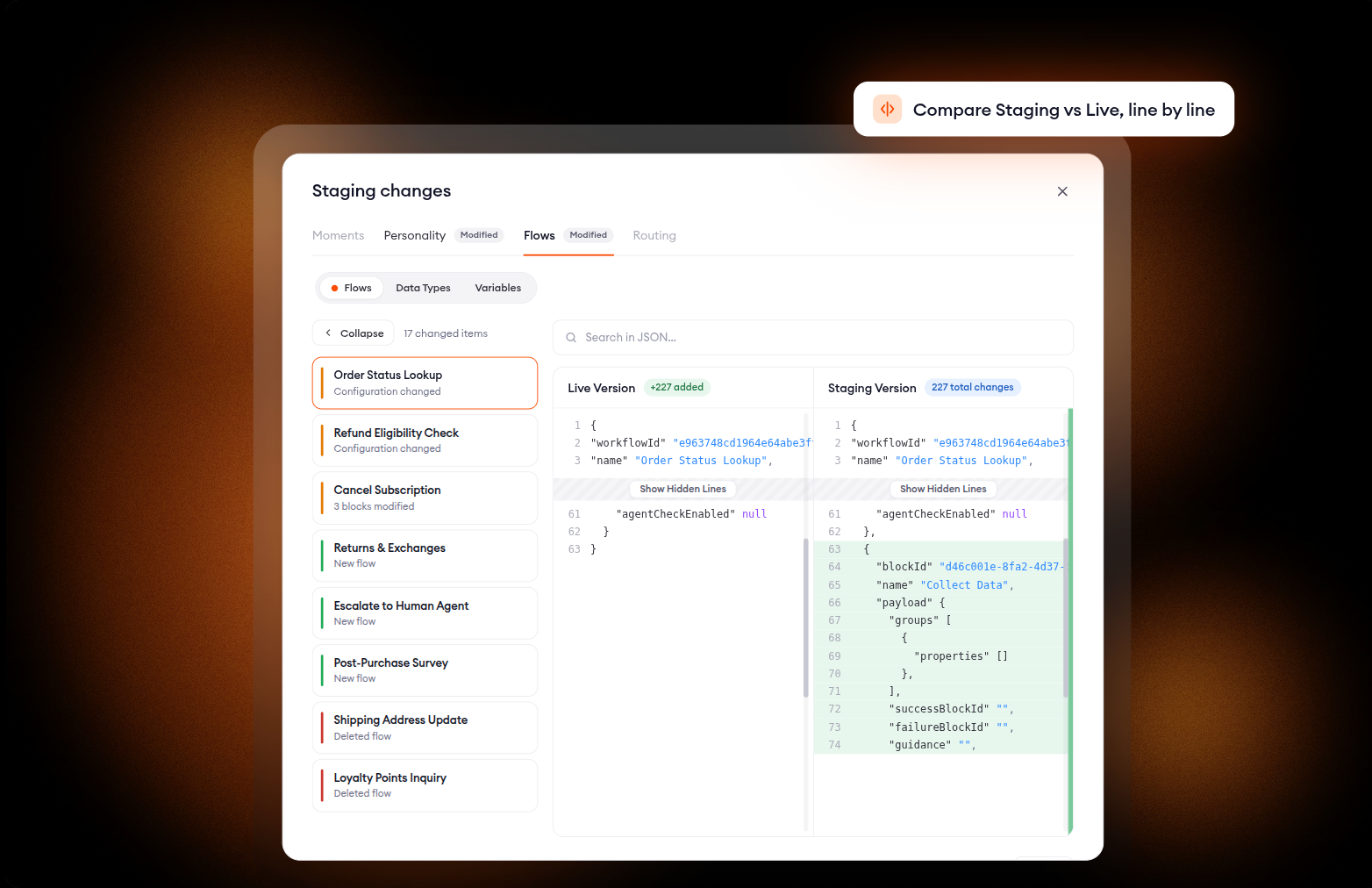
At any given point in time you can see the exact diff between Staging and Live before anything goes out. Click View changes in Staging mode at any point, or review the same comparison as part of the publishing flow before you confirm.
Rolling Back to a Previous Version
If something goes wrong after publishing:
- Go to Version History. It can be accessed by clicking on the three dots next to the Live Mode tab.
- Select the previous Production version you want to restore.
- Copy it to Staging. This means that the selected archive Production version will become your new Staging.
- Publish the selected version to Production.
Using Different Version values for Staging and Production
If you maintain separate systems for testing and live operations (for example, a Production Shopify and a Staging Shopify), you may want to use different Version values when integrating with Zowie. This ensures the Zowie AI Agent interacts correctly with the corresponding version of your platform. You might have separate values for things like:
- API URLs
- Tokens
- Variables
With Zowie, you can set version-specific constants so that:
- Production values are only used in Production
- Staging values are only used in Staging
These Version values will automatically switch during:
- Copying Production to Staging
- Publishing Staging to Production
Example: Let’s say you want the Zowie AI Agent to fetch an order’s status from Shopify. Your Shopify Staging and Production versions might have different API URLs:
Staging: https://staging-shop.myshopify.com/admin/api/2023-10/orders/{order_id}.json Production: https://prod-shop.myshopify.com/admin/api/2023-10/orders/{order_id}.json
When Zowie runs the Check Order Status action:
- In Staging, it calls the Staging API
- In Production, it calls the Production API
Zowie automatically uses the right Version value depending on the version, so you don’t need to manually switch values when moving from testing to live.
Best practices for using Staging
To get the most out of your Staging version, follow these tips:
- Start with a neat Production – Always create your Staging from a stable, well-functioning Production version.
- Apply changes on Staging not the Production – make sure that for Intents and Processes you use Staging to apply your changes. This will ensure that you don’t overwrite your Production when publishing the Staging version live.
- If you need to apply a hot-fix to your Production, make sure to include this change in your Staging too.
- Test thoroughly – Use the Test Widget to check multiple scenarios before publishing.
- Use separate version values – Keep API keys, URLs, and other sensitive settings version-specific.
- Publish intentionally – Only push Staging live when you’re 100% confident in your changes.
- Roll back quickly if needed – Don’t hesitate to revert if you spot issues post-publish.
The Staging Version of your Zowie AI Agent is your testing playground — a place to explore new ideas, tweak configurations, and trial new use cases without risking disruption to your live customers.
By working in Staging, you can confidently test changes, review results, and only push updates to Production when you know they’re ready. It’s all about giving you the freedom to innovate while keeping your customer experience safe and uninterrupted.
Updated 6 months ago