
Contest
What is the Contest Module?
The Contest module enables you to run fully-fledged contests directly in the chatbot. You can set up a contest task, and the module will take care of collecting applications. You can then look through the applications in a user-friendly manner. There is a list that can be either viewed in the browser or exported to a CSV file.
Why use Contest?
By using Contest, you can organize an engaging contest that will increase the audience's activity in the chatbot. Create an original contest assignment and select what type of interactive piece the attendees need to submit. At the end, announce the winners and reward the attendee with some special surprise.
How to access Contest?
To access the Survey Module, navigate to Modules > Contest from the navigation bar.
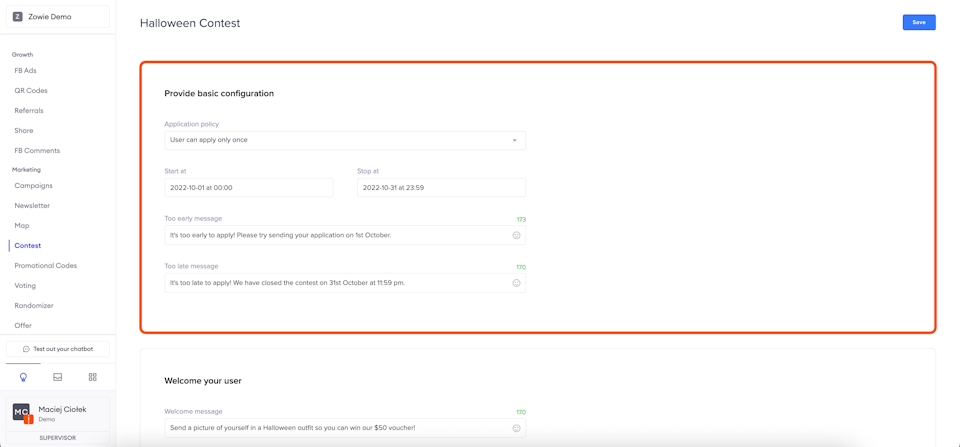
Application policy
Configure the Application policy (how many times users can send an application). Available options are:
- Users can apply only once;
- Users can apply many times;
- Users can apply once a week;
- Users can apply twice a week;
- Users can apply three times a week.
Then, set the contest’s start date in the Start at _field and the ending date in the **_Stop at** field.
Additionally, provide a message that will be sent to the user if they attempt to send an application before the start of the contest in the Too early message _field and a similar message inToo late message._
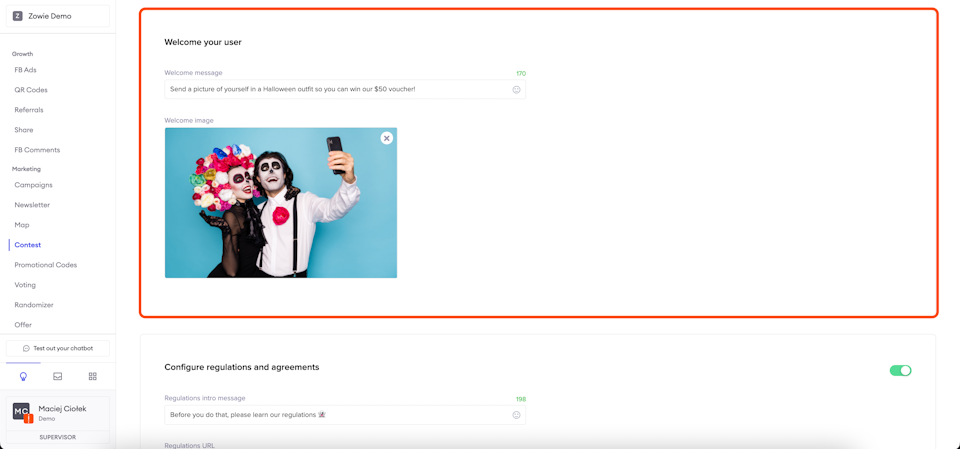
Welcome message
Provide a Welcome message sent to the user when they enter the module. Optionally, you may also provide a Welcome image that will be sent before the Welcome message.
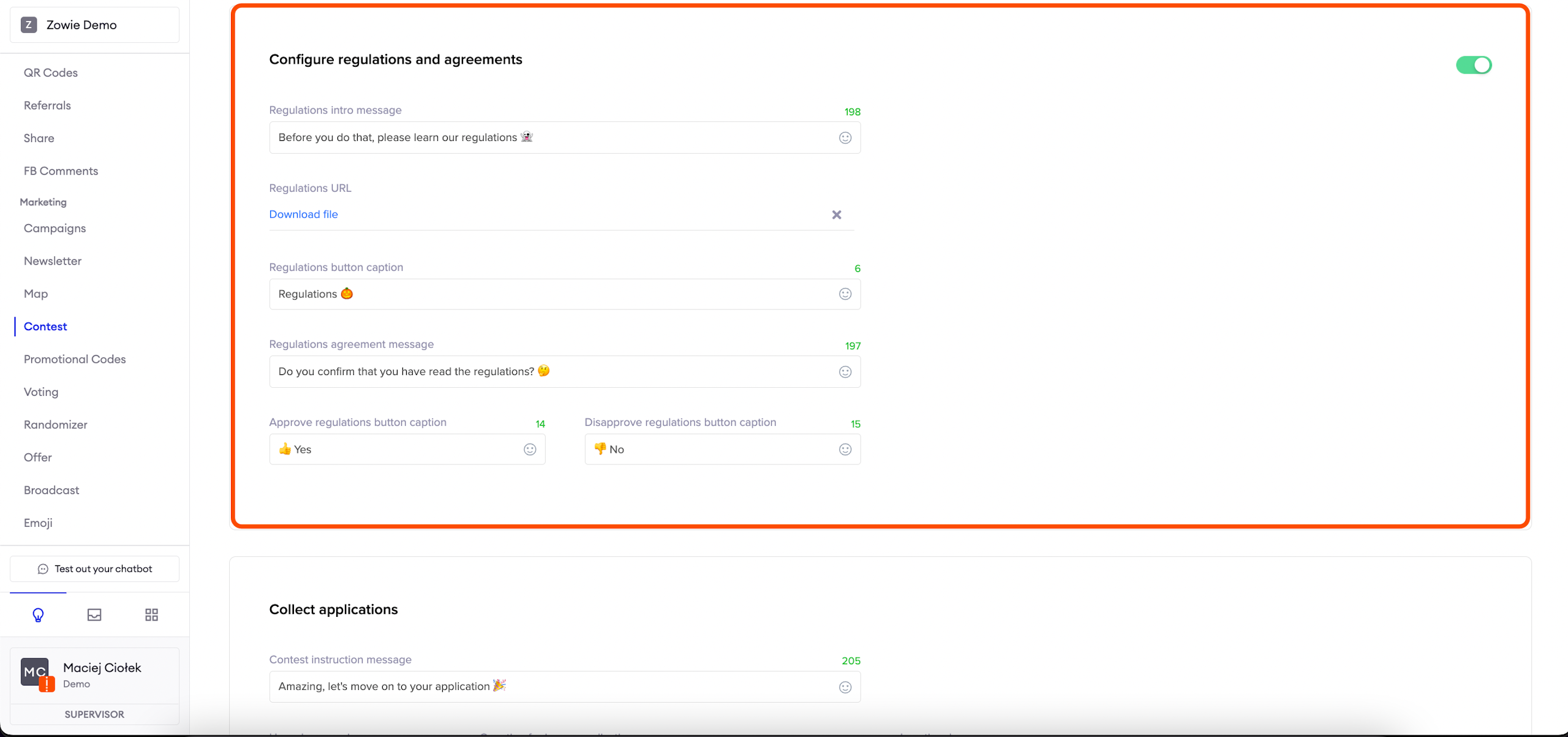
Regulations and agreements
AttentionThis section of the module is optional.
Type the message instructing the user to read the rules in the Regulations intro message field. Then upload a PDF file with rules and type in the caption on the button that will show the user the regulations. Proceed to type in the content of a message with two buttons in which you will ask the user if they read the regulations.
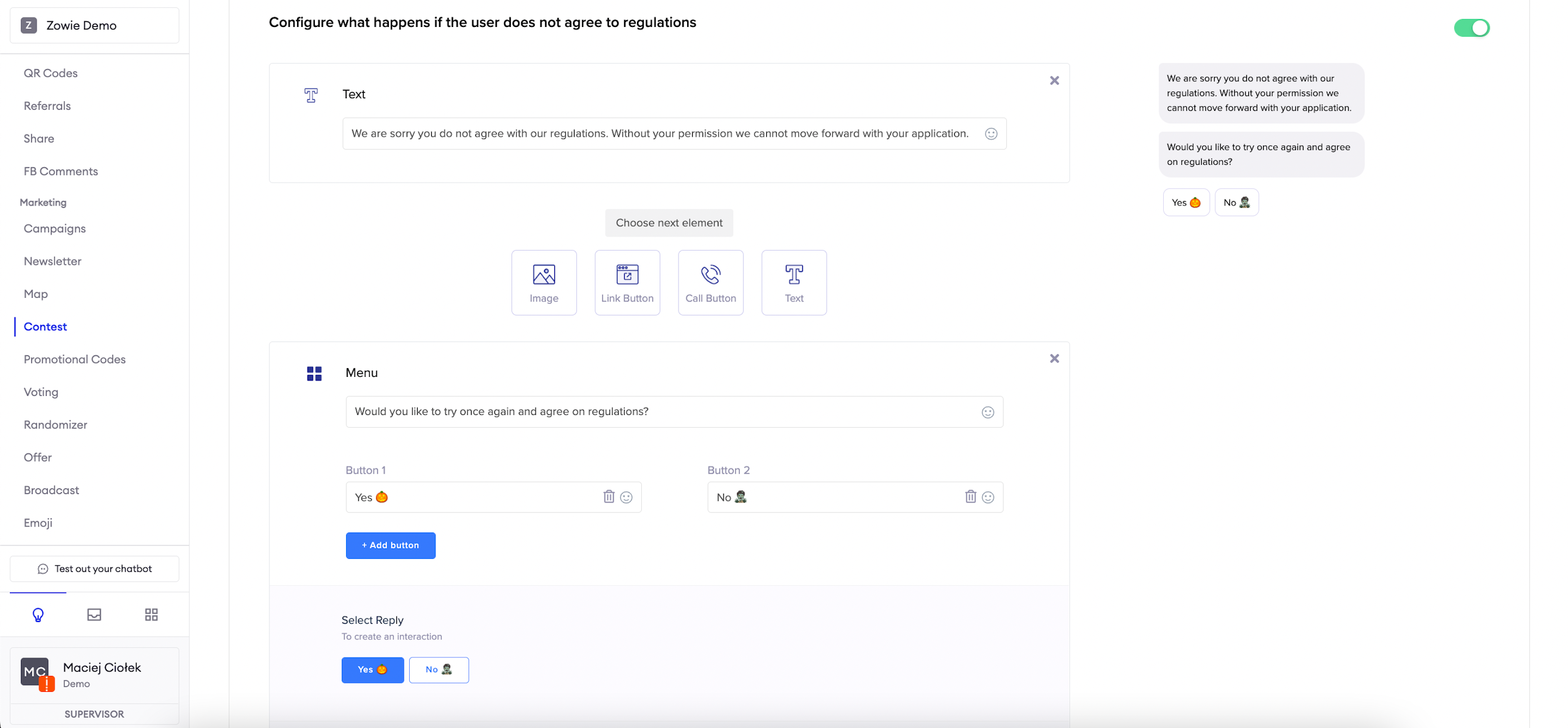
The chatbot’s response in case the user doesn't agree to the regulations can be customized. Enable the Configure what happens if the user does not agree to regulations section at the very end of the page and configure the content using the Creator available there.
Collecting applications
Type in the instruction of the contest in the Contest instruction message field and decide what types of applications are accepted in your contest. The available options are:
- images;
- text applications;
- GPS location.
AttentionYou can freely mix the types of applications. It’s possible to launch a contest in which an application is composed of both an image and a text.
Wrong type of message
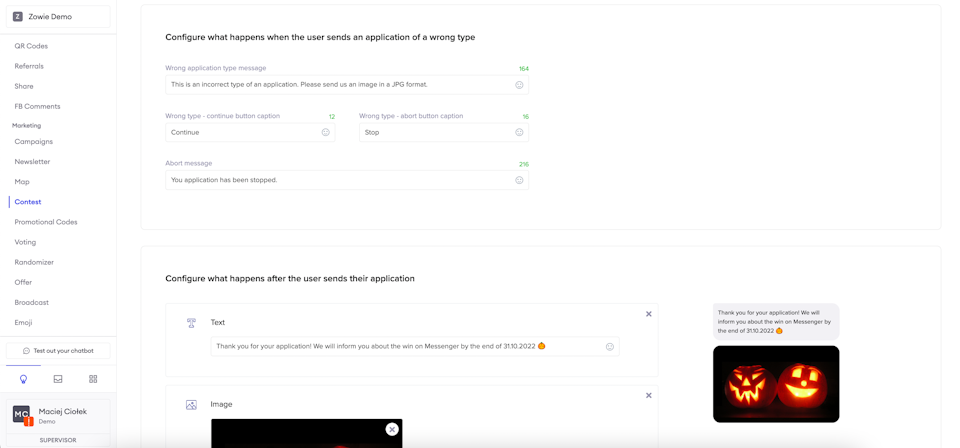
The user might send an incorrect or unsupported application. To properly handle such a scenario, provide a message to send to the user in the Wrong application type message field. Then, configure the captions on the buttons that allow them to proceed further or abort applying entirely in the Wrong type - continue button caption and Wrong type - abort button caption fields, respectively. Finally, type in the message that will be sent when the user decides to abort their application in the Abort message field.
Thank the user for taking part
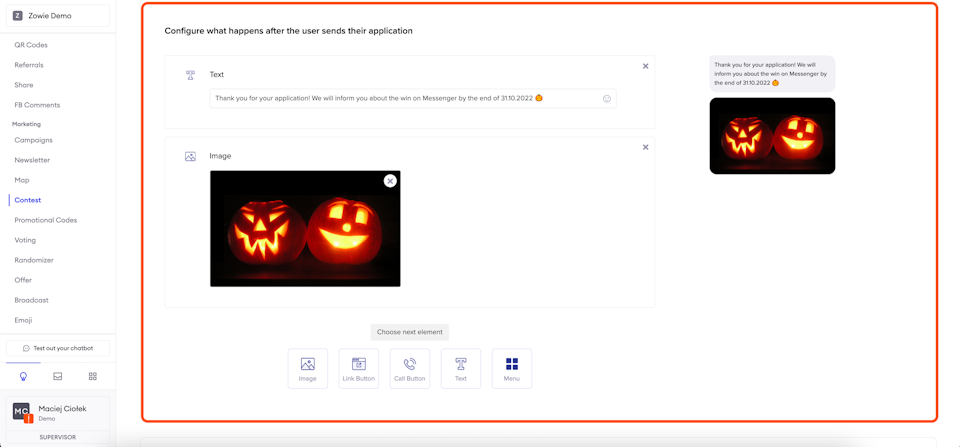
Thank the user for their application in the Configure what happens after the user sends their application section using the Creator available.
Reviewing applications
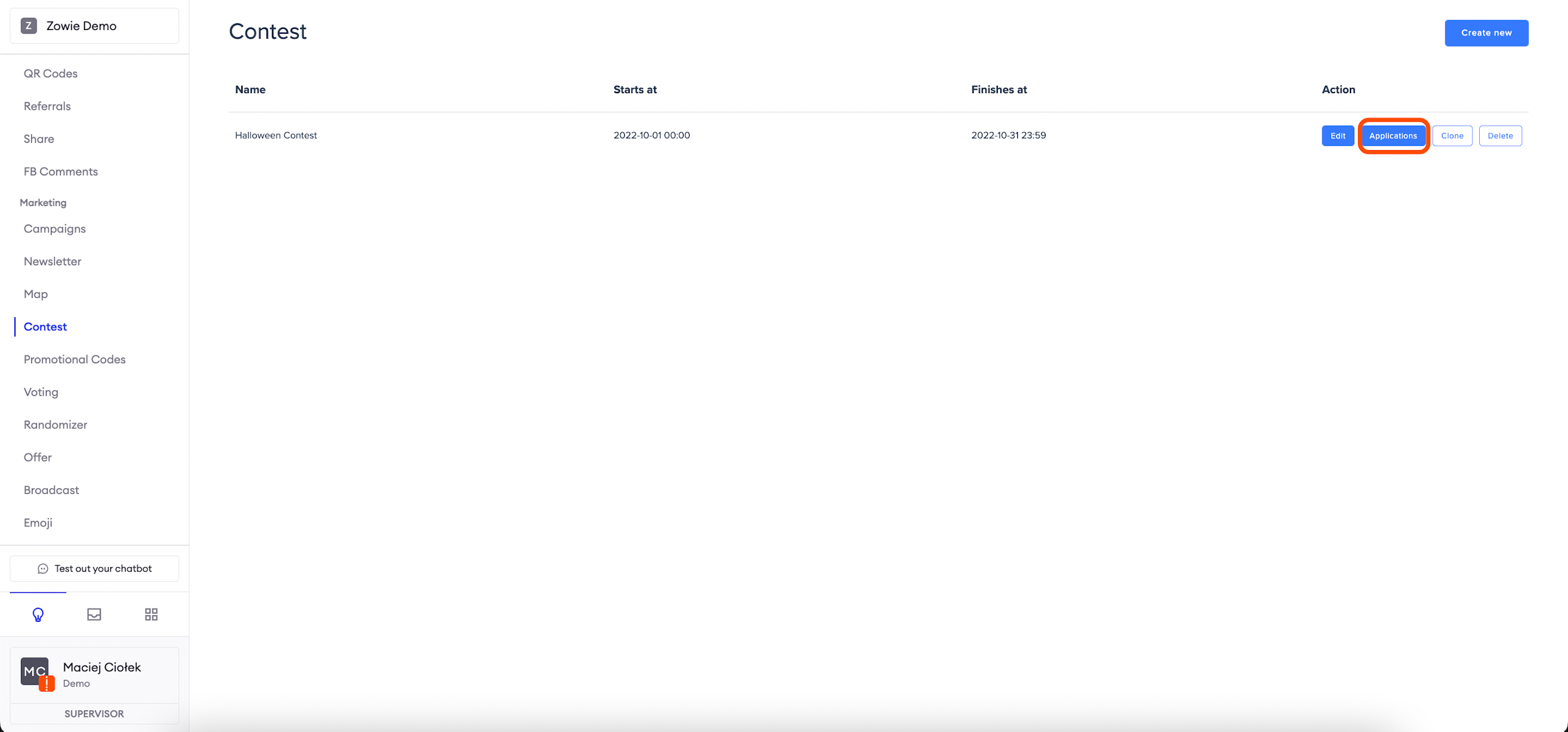
The Module automatically collects the applications. If you want to review the applications, click the "Applications" button in the list of Contests you have created. Make sure to choose the right Contest instance.
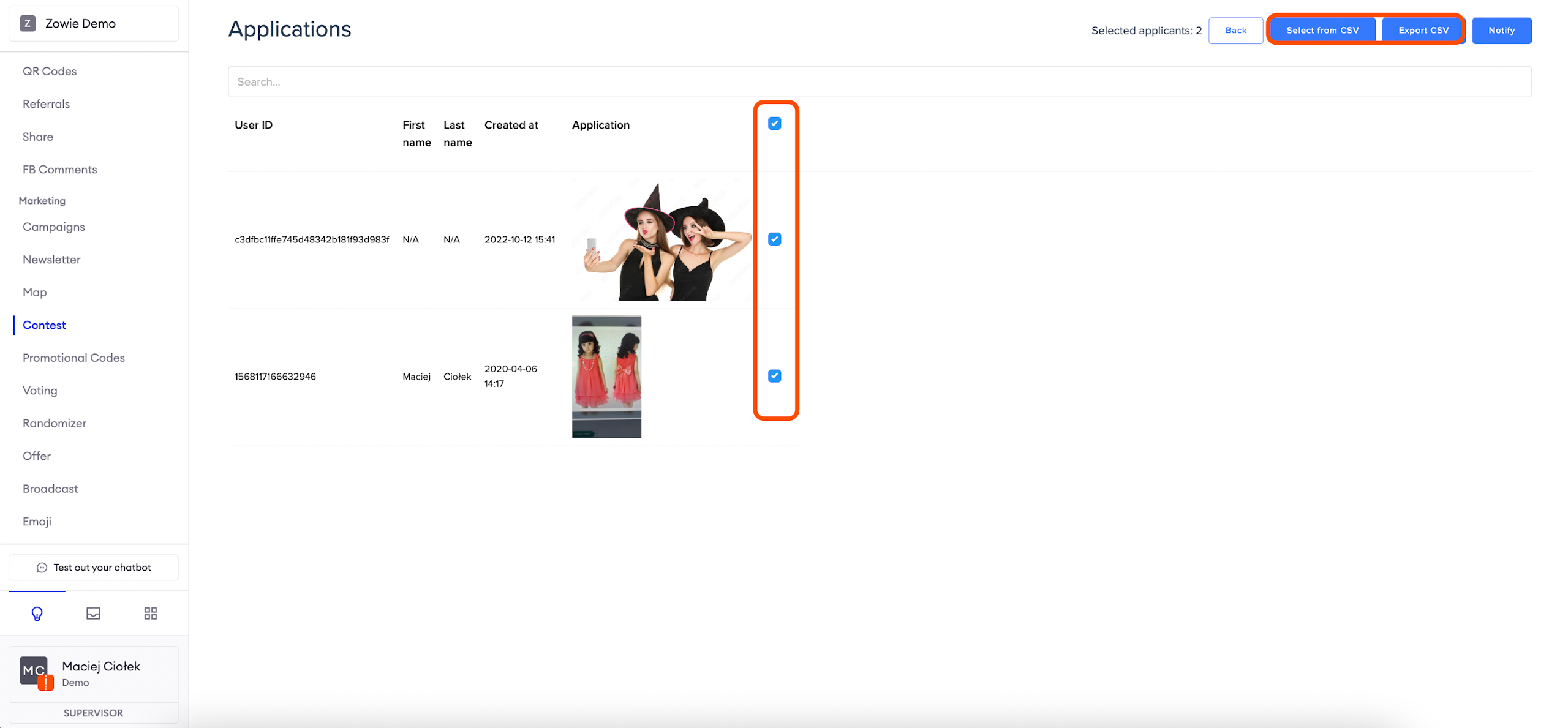
Here you can see a list of all the applications collected during the contest. You can either export them to a CSV file using the "Export CSV" button and then, having selected the winners in the CSV file, upload it again using the "Select from CSV" button to automatically mark them.
Notifying users
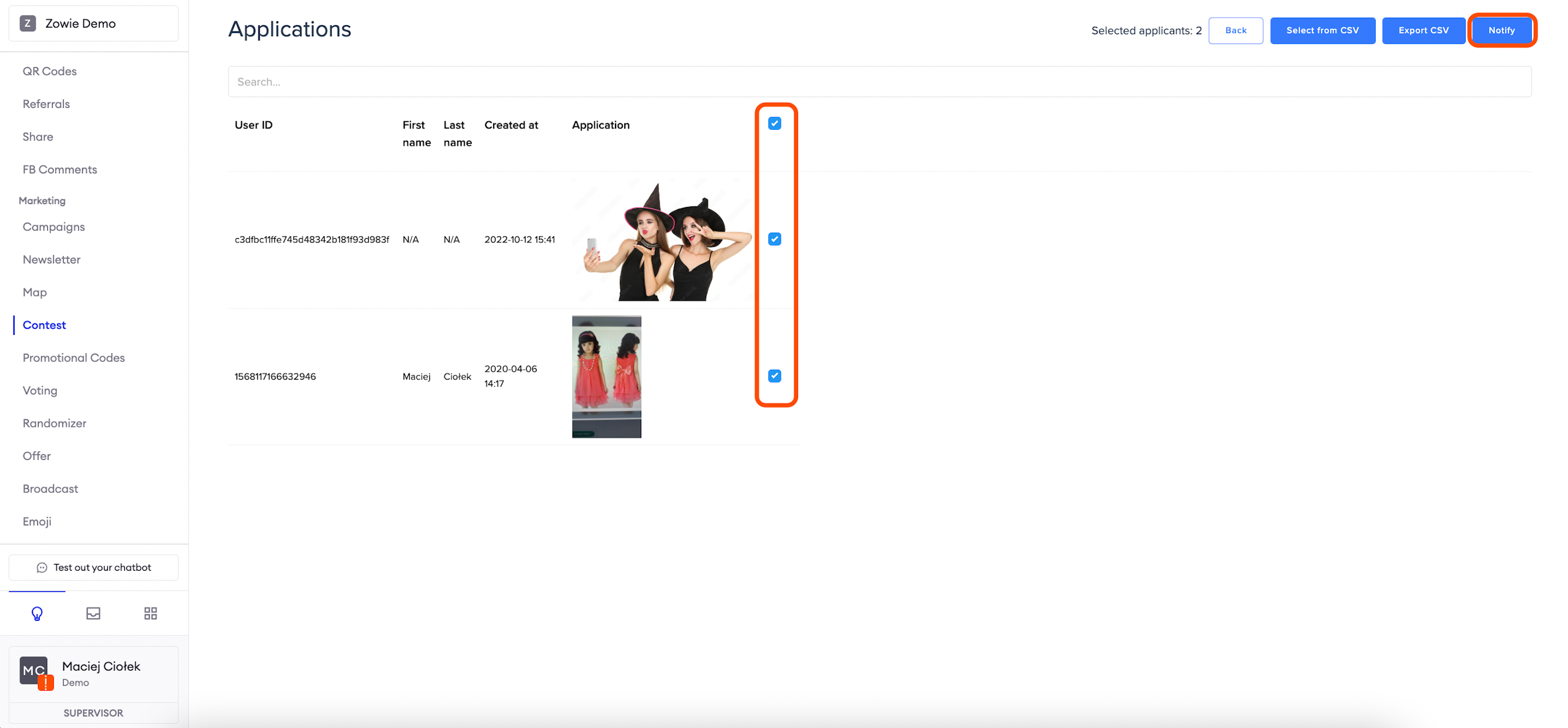
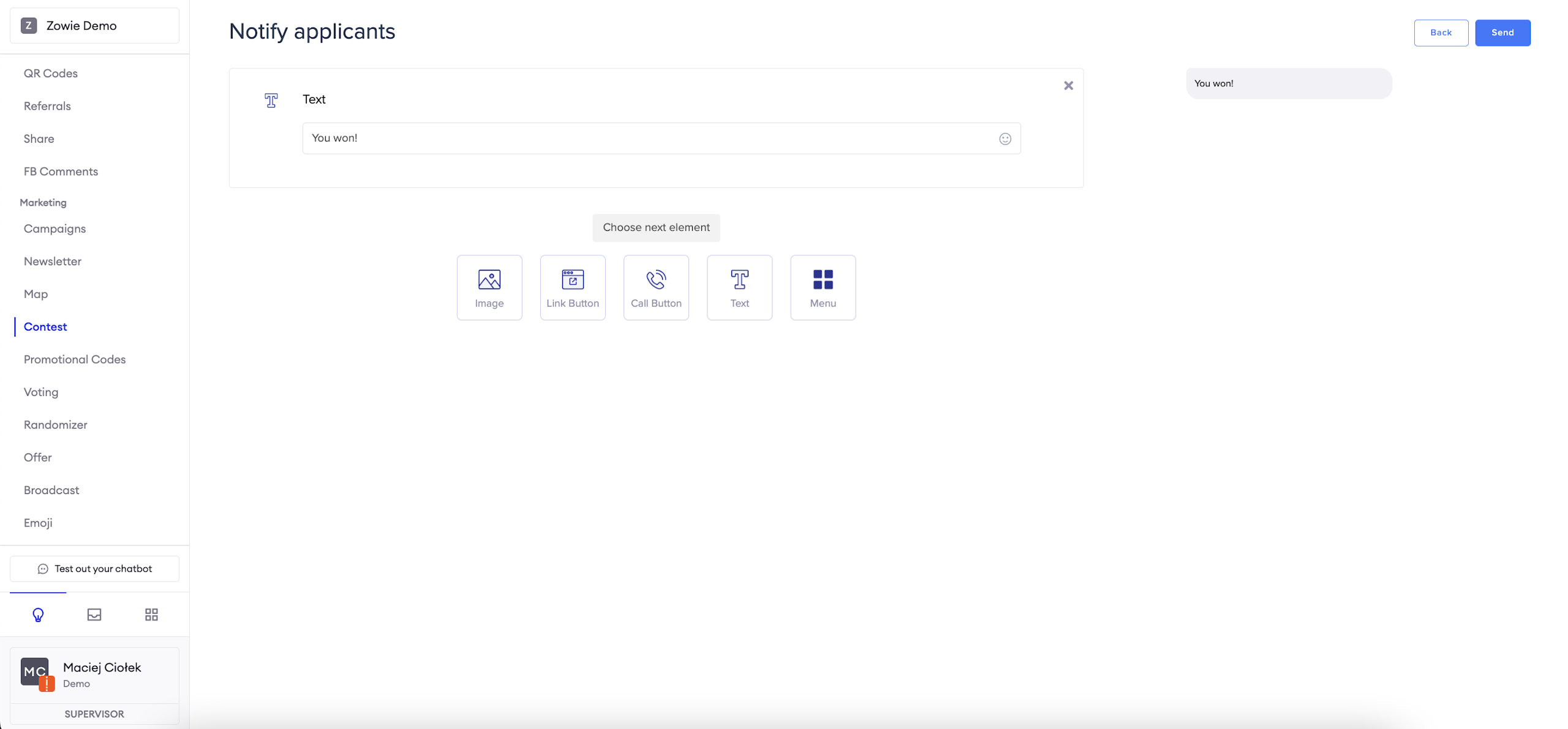
Alternatively, you can mark the winners in the view provided by the list. After marking the winners, click the "Notify" button to let them know about their success! What’s more, by using the Survey Module, you can collect all the necessary information about the winners to send them a prize.
Updated over 1 year ago