
Threads section
What is the Threads Section?
This section allows you to see any thread (conversation between user and agent, not including bot interactions) that happened in this workspace. From this view, you can filter to find threads meeting specific criteria across a range of factors.
Why use the Threads Section?
The Threads section allows you to find current or previous interactions, pick back up where a discussion was left off, and to understand what happened during customer interactions.
How to access the Threads Section?
To access this page, while in the Inbox portion of Zowie, click Threads on the main navigation panel.
AttentionIf you have trouble finding anything, make sure you have correct permissions and belong to the Profile with access.
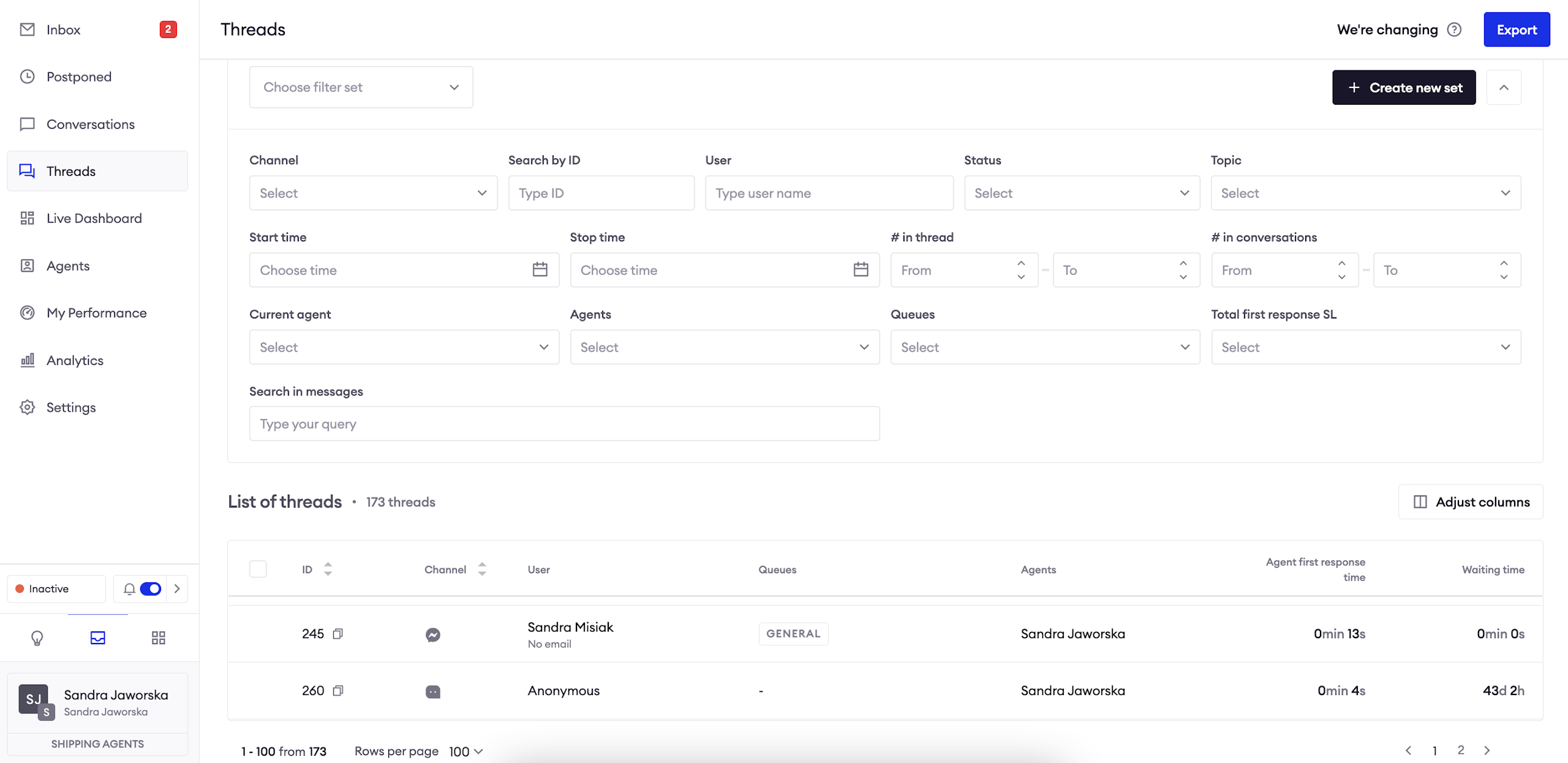
View the list of Threads
The list of Threads displays all threads that match current filter. The page is paginated which means that you can adjust how many rows per page you want to see.
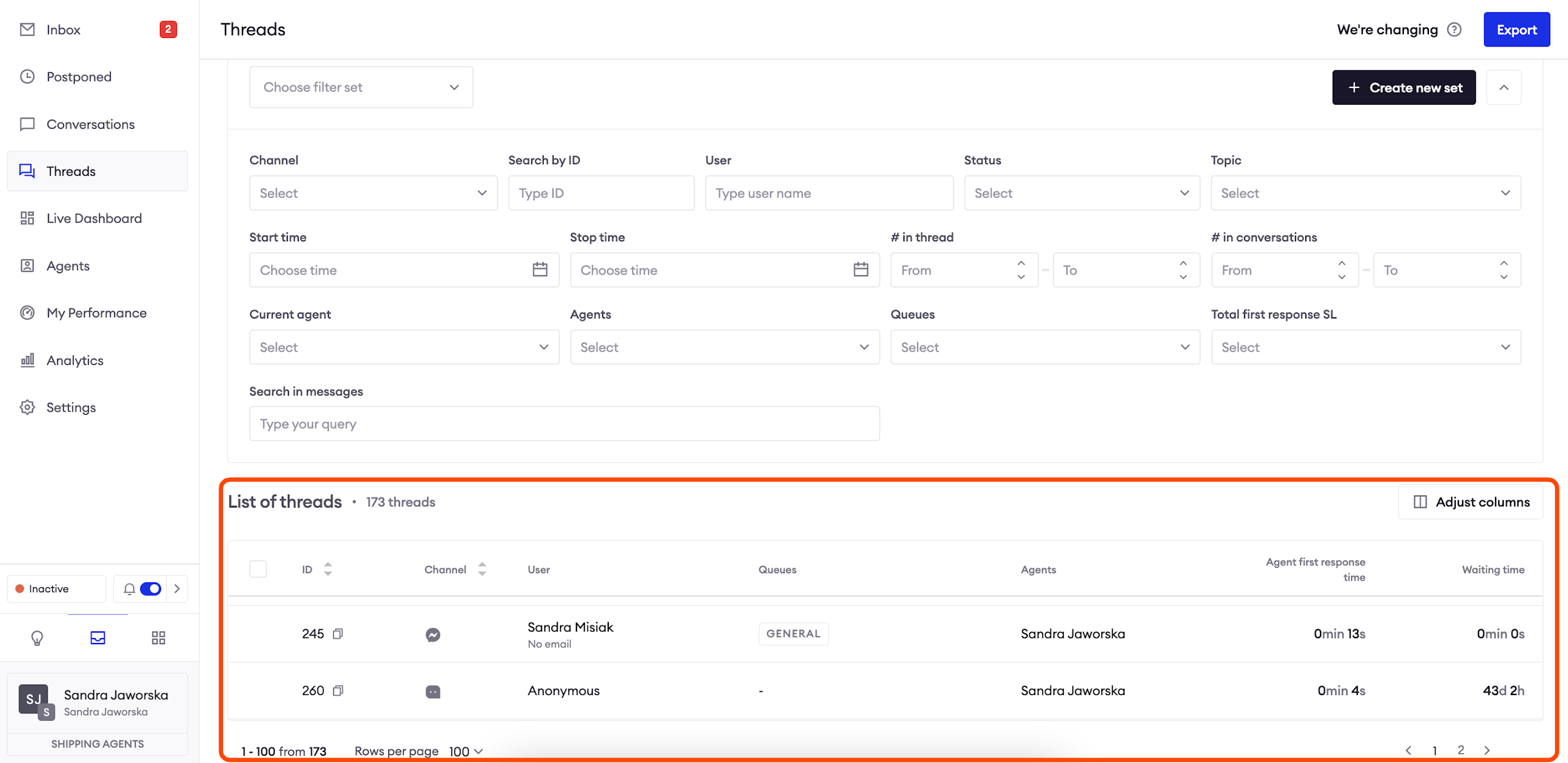
Export the list of Threads
In order to export the list of threads, click on the "Export" button in the top right corner.
AttentionThe exported file has .csv format.
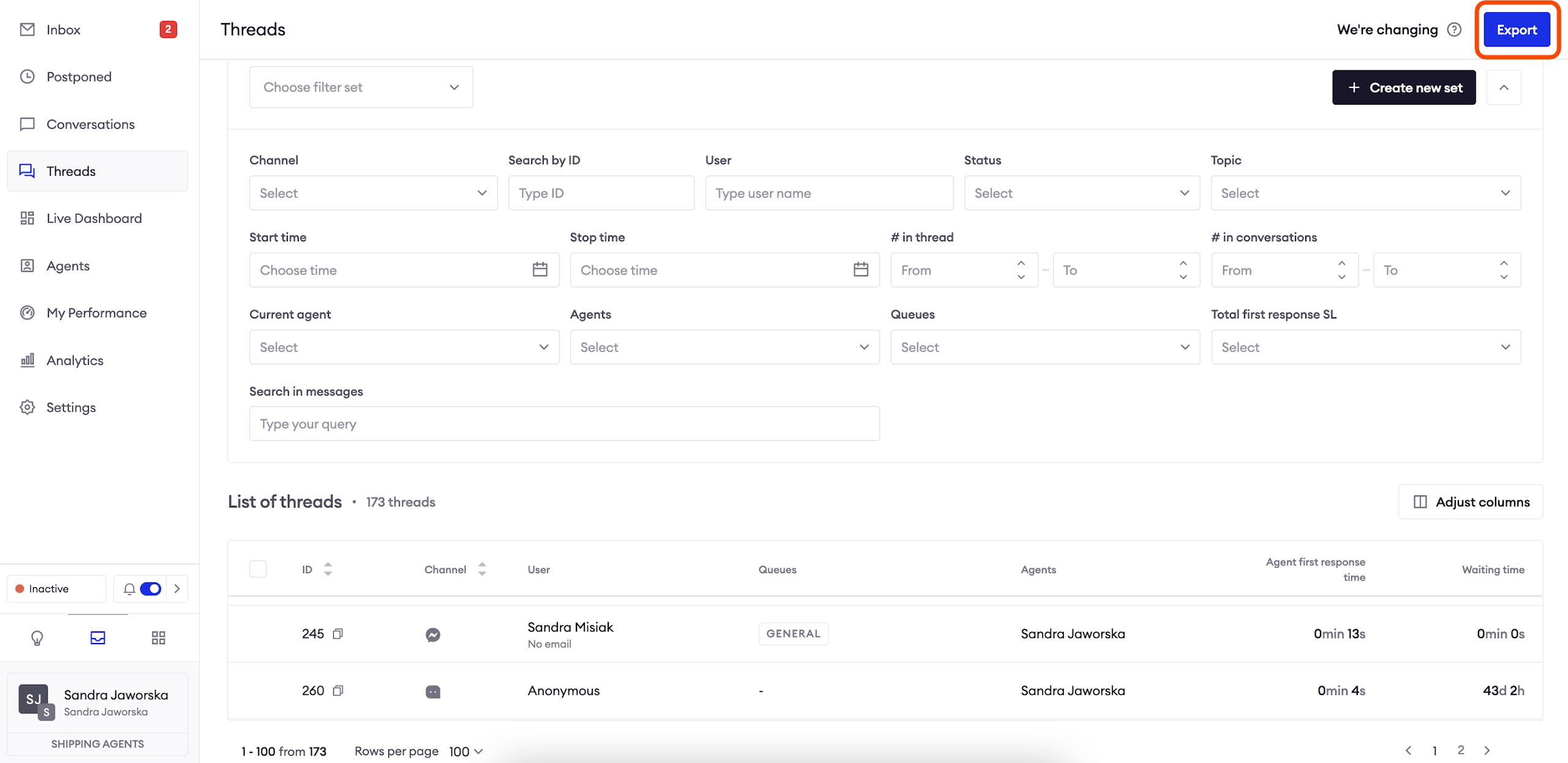
Adjust columns
In order to access this window, click on the "Adjust columns" button on the right.
This functionality allows you to change the order in which the columns are displayed on the list of threads, as well as check which columns you want displayed.
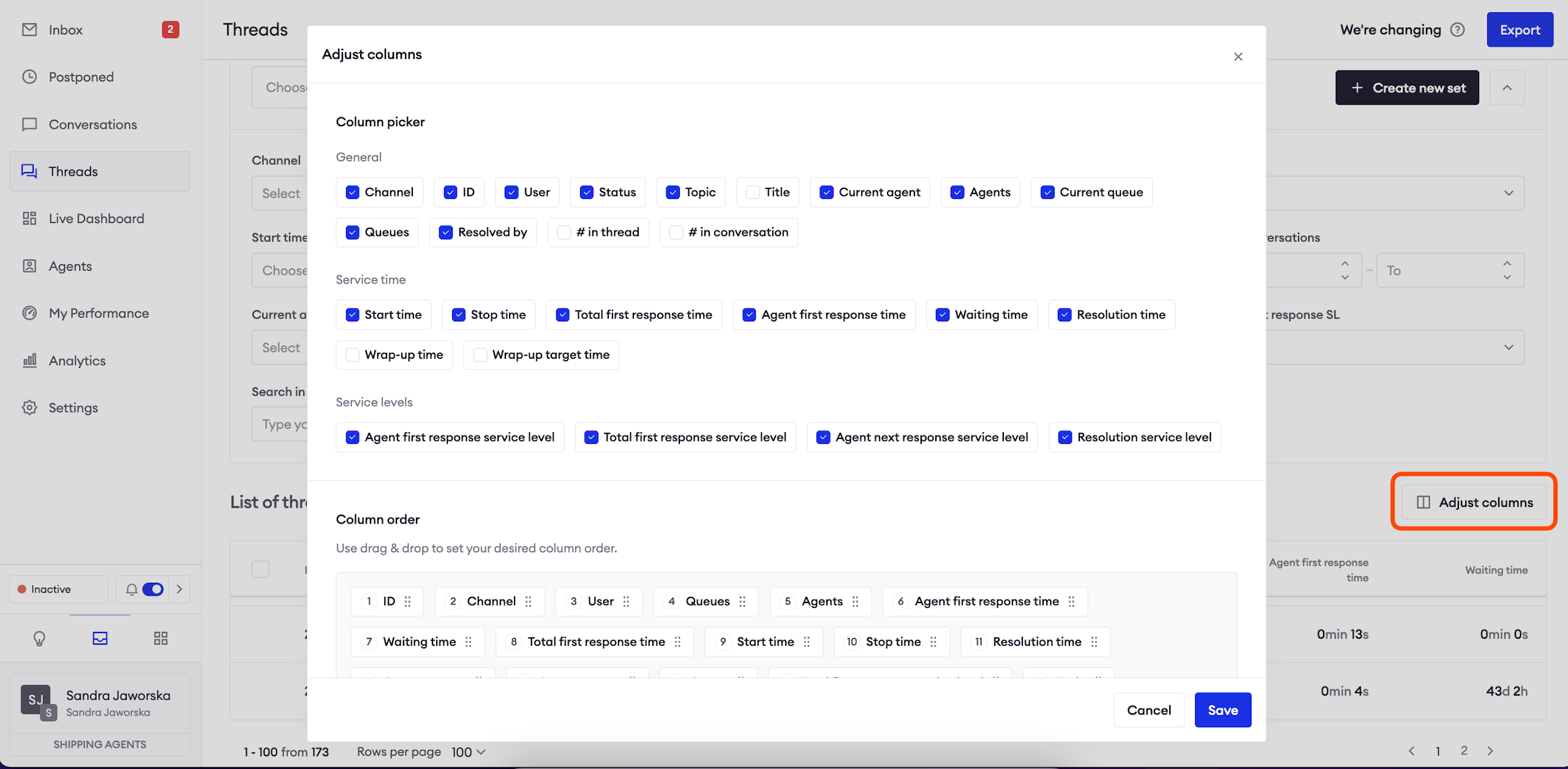
Filter the list of Threads
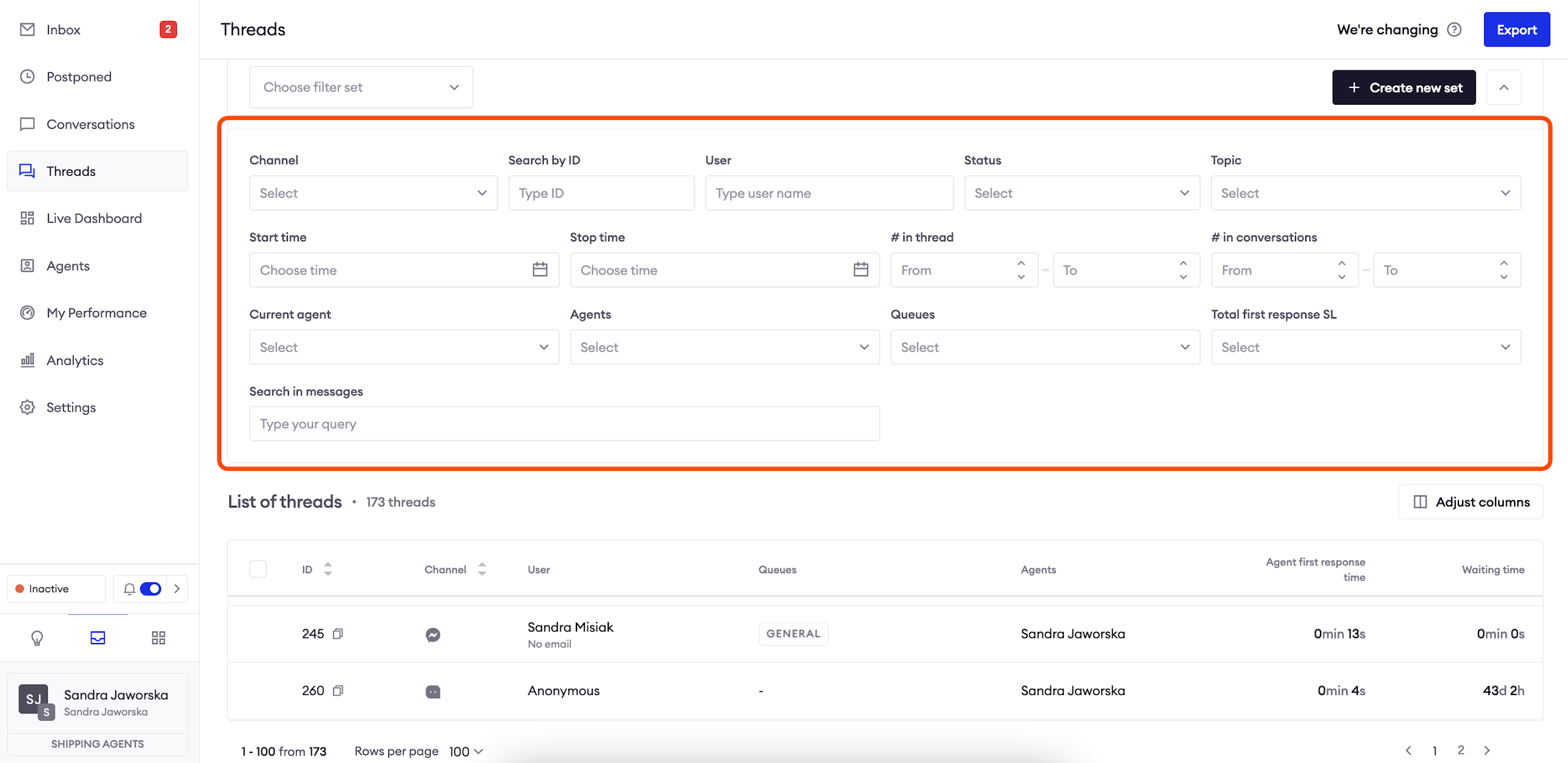
Available filters
Channel filters by the source of the conversation.
Search by ID allows you to type conversation ID and find it.
Status limits the results to selected statuses.
Topic limits the results to selected topics.
Start time and Last message time allow you to pick date ranges.
# in thread and # in conversations filters the threads by the number of messages.
Current Agent, Agents and Queues limit the list to conversations assigned to a particular agents and queues.
Total first response SLA helps you find threads which exceeded or met the configured SLA.
Search in messages allows you to type a text and find an exact match in all available conversations.
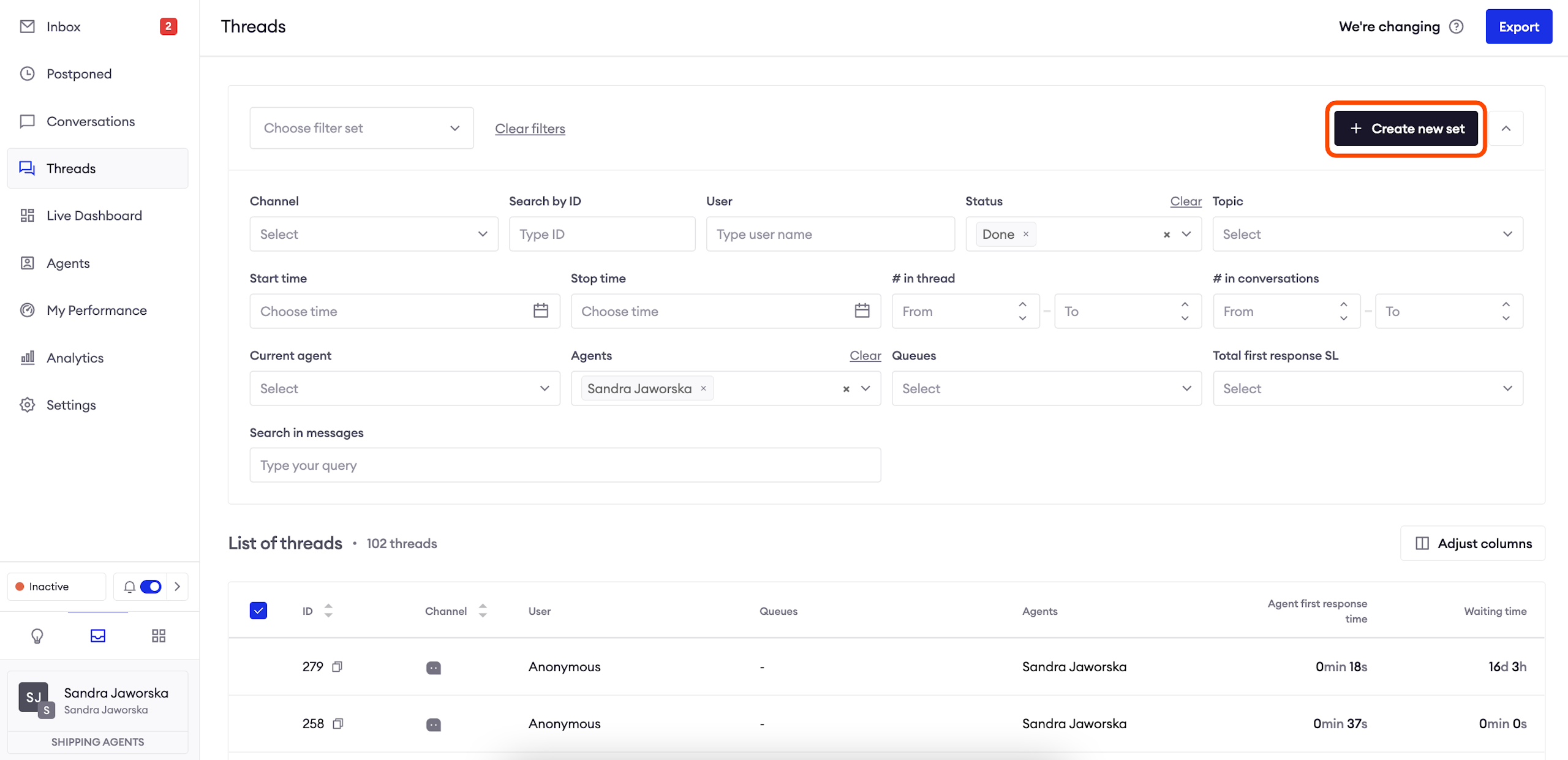
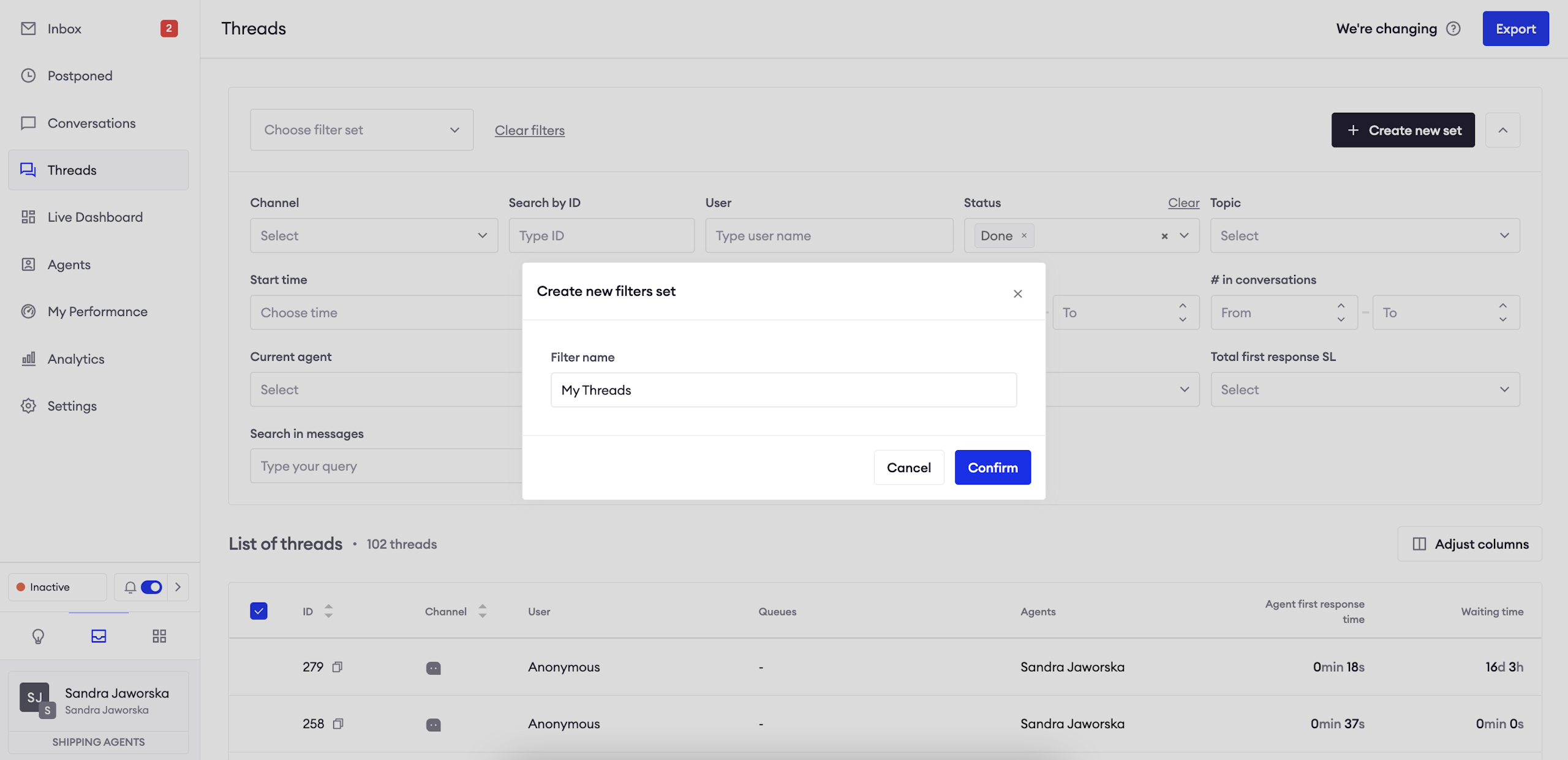
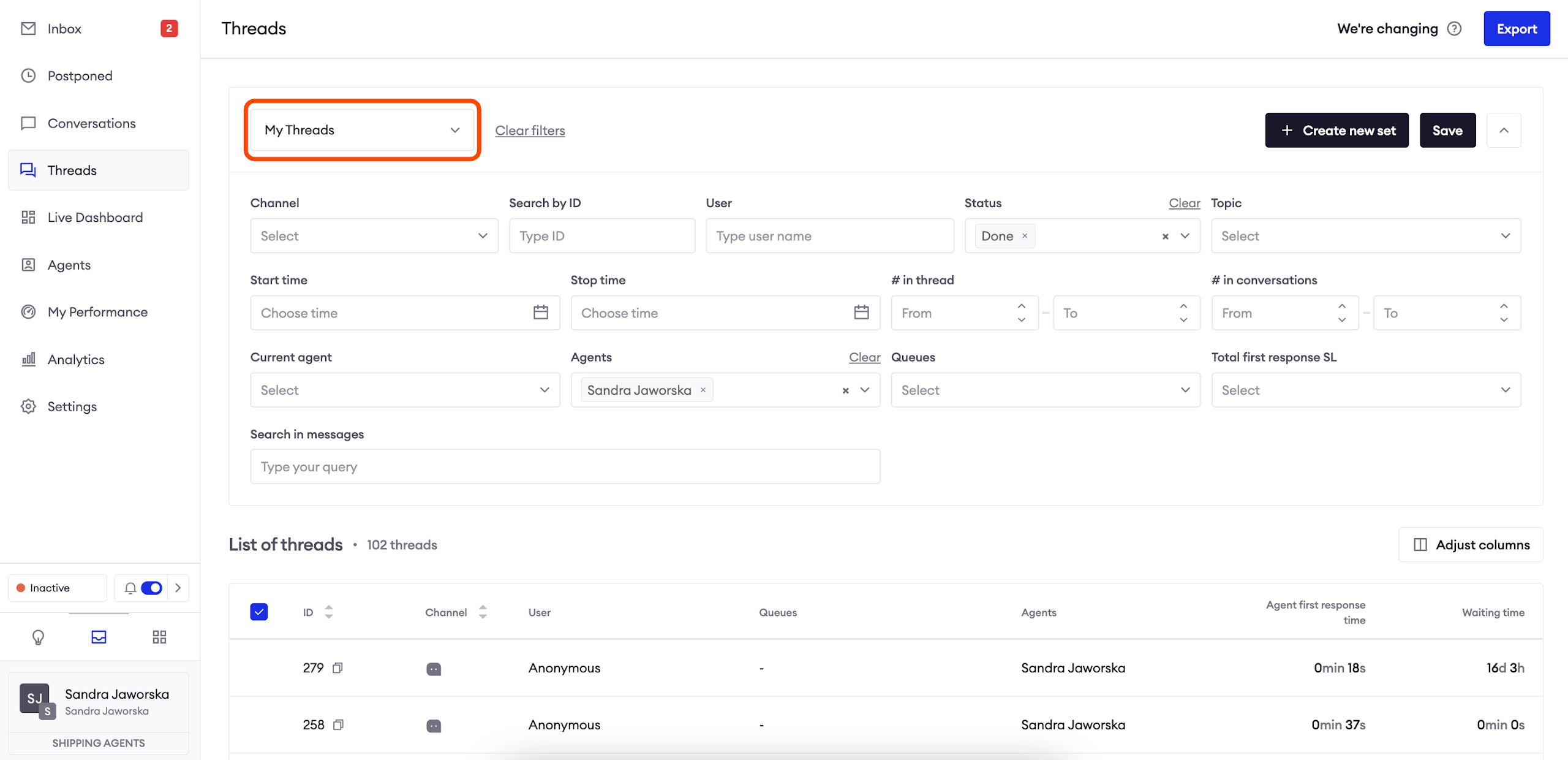
Create a filter set
You will find this option useful if you often use the same filter to find relevant threads.
In order to set it up, select desired filters, click on the "+ Create new set" button, type a new and save. Now it's available for you to choose in the main view.
Sort the list of Threads
To help you manage your threads more efficiently, we offer several sorting options in your Inbox.
Added to Inbox (default)
This option sorts your thread list based on the moment the thread appears in Inbox - when the thread is assigned to you (a particular Agent) or returns from the Pending folder.
Last message
This option arranges your threads based on the time of the last message received by end customer or sent by you.
Thread start
This option sorts your thread list based on when the thread started - keeps the list in a fixed position.
Service level
This option sorts your thread list by the length of time they've been waiting for a response, according to your SLA.
Each option will allow the ascending and descending sorting direction.
We also allow grouping threads by channel type - if this option is enabled - threats from chat channels will appear first, followed by social media comments and lastly emails.
If grouping is applied, thread are first grouped and than sorted according to your settings.
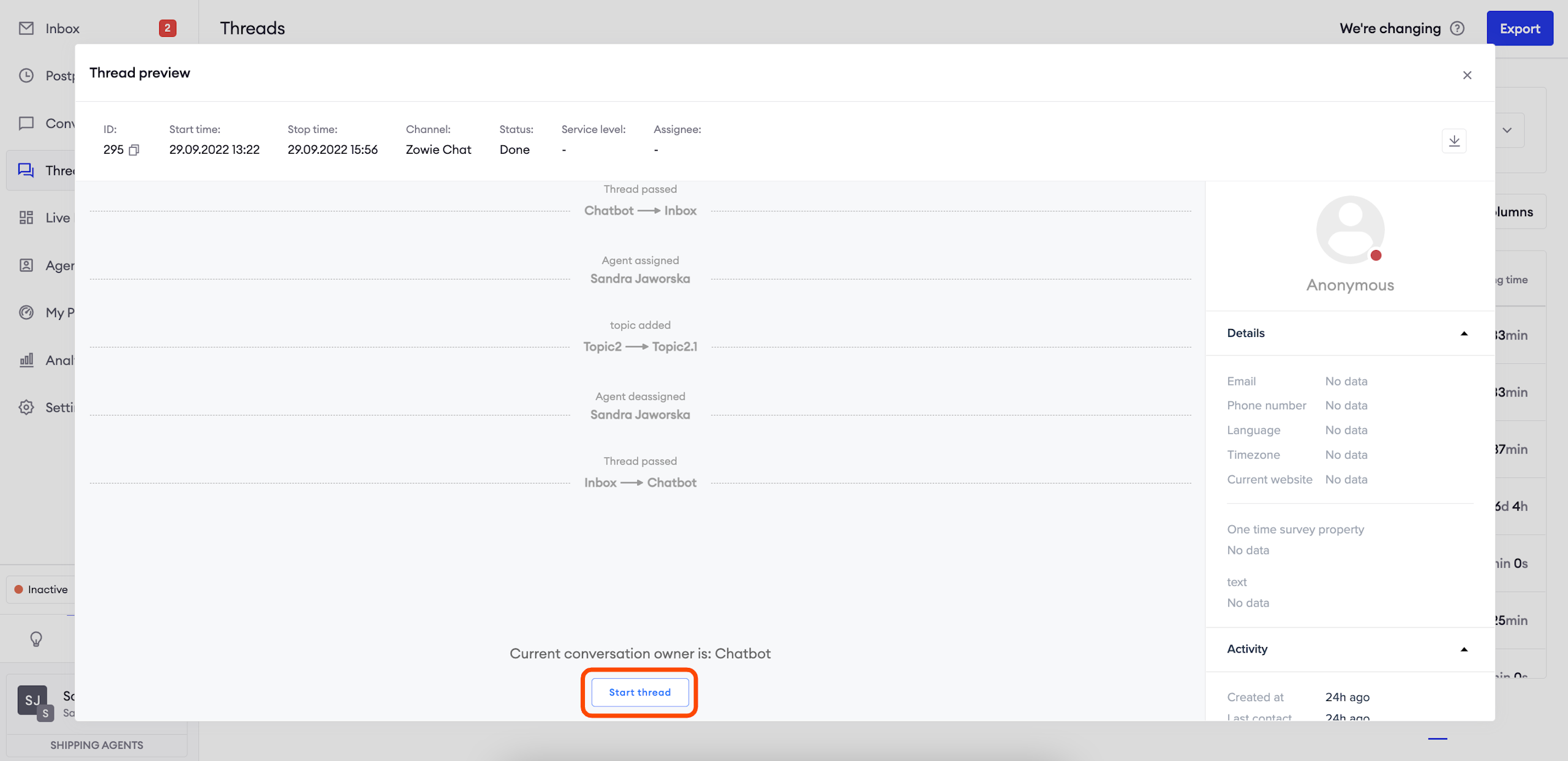
Preview a Thread
In order to preview a thread, click on it on the list of threads.
This view doesn't differ from what you can see in the Inbox, except for the fact that it's impossible to send new messages unless you assign the thread to yourself (Start thread).
Updated over 1 year ago