
Loop Returns
Zowie offers integration with Loop Returns that allows easier return processing.
About
This integration allows customer support agents to manage a return and access Admin Panel/Customer Portal from within Zowie Inbox.
Use cases
- Agents can access returns for customer within Inbox’s sidebar.
- Agents can process a return from Inbox’s sidebar.
- Agents can close a return from Inbox’s sidebar.
- Agents can cancel a return from Inbox’s sidebar.
- Agents can flag a return from Inbox’s sidebar.
- Agents can access Admin Panel/Customer Portal from Inbox’s sidebar.
Prerequisites
Customers must meet the following requirements in order to set up this integration:
- Zowie Inbox is used.
- Shopify is being used as ecommerce platform.
- Loop Returns is being used as returns management platform.
- Loop Returns account is connected to a Shopify store.
- Same Shopify store is conencted as integration to Zowie Inbox.
Configuration
- Make sure that you created API key to Loop Returns according to their documentation with Returns scope.
- Login to Zowie and go to Workspace → Integrations → Loop Returns.
- Click the "Connect" button that will start the process of integration.
- Provide the name of integration, API key, list of connected Shopify stores and select the features you would like to enable for your Loop returns integration.
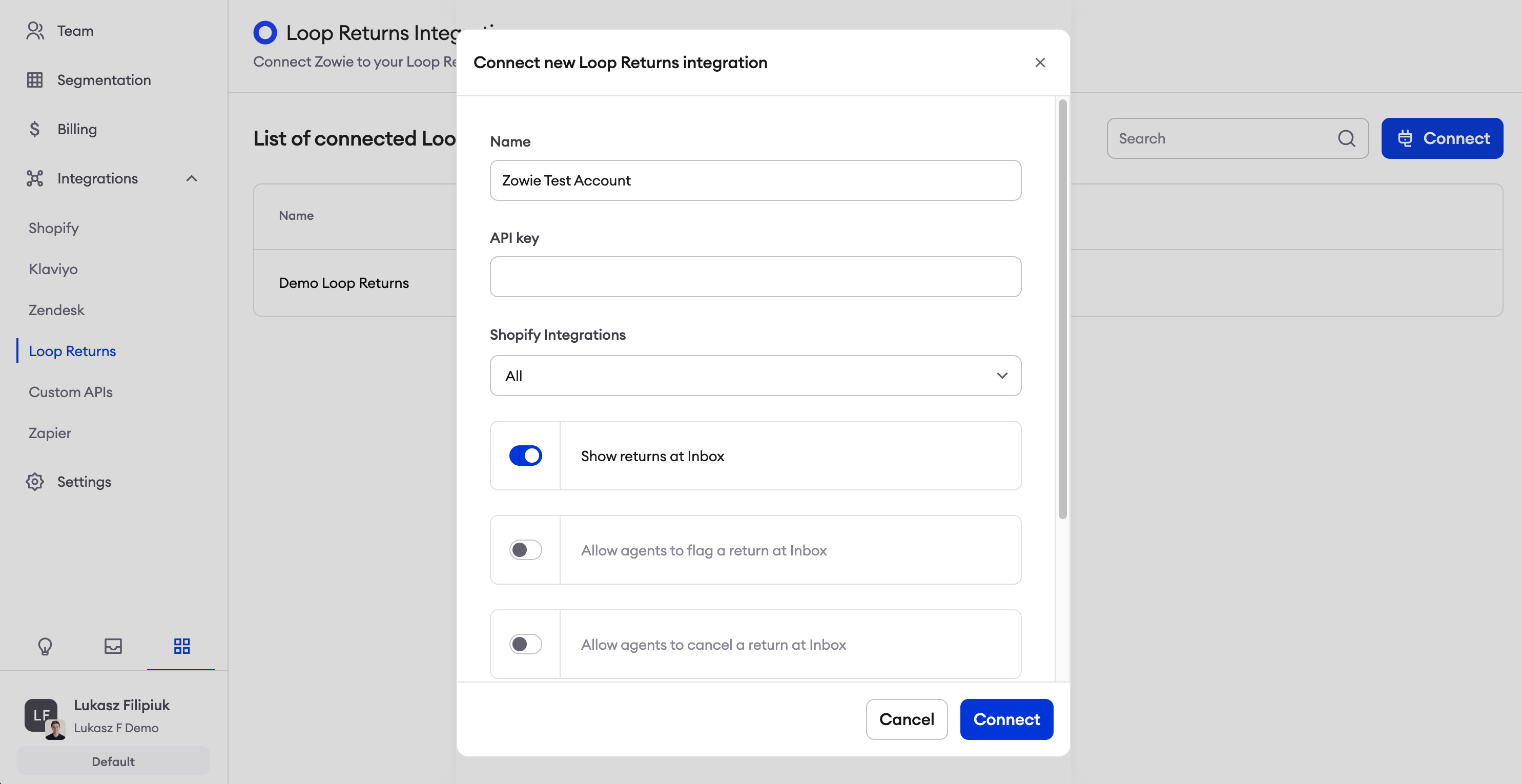
Please note that you must connect Shopify to Zowie as integration before connecting Loop Returns. On top of this a Shopify store you connect must be the same which is integrated with Loop Returns.
| Feature | Description |
|---|---|
| Show returns at Inbox | Agent can see list of returns in Inbox’s sidebar. |
| Allow agents to flag a return at Inbox | Agent can click a button to flag a return at Inbox’s sidebar. |
| Allow agents to cancel a return at Inbox | Agent can click a button to cancel a return at Inbox’s sidebar. |
| Allow agents to close a return at Inbox | Agent can click a button to close a return at Inbox’s sidebar. |
| Allow agents to process a return at Inbox | Agent can click a button to process a return at Inbox’s sidebar. |
Features
Show returns at Inbox
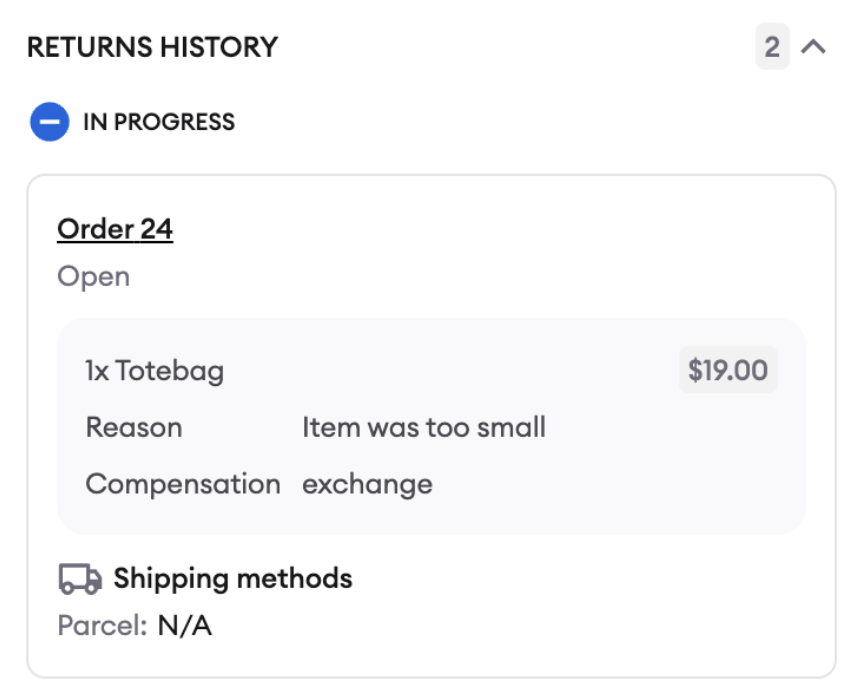
After the integration is connected, agents can access return orders in Loop Returns using the Show returns at Inbox flag.
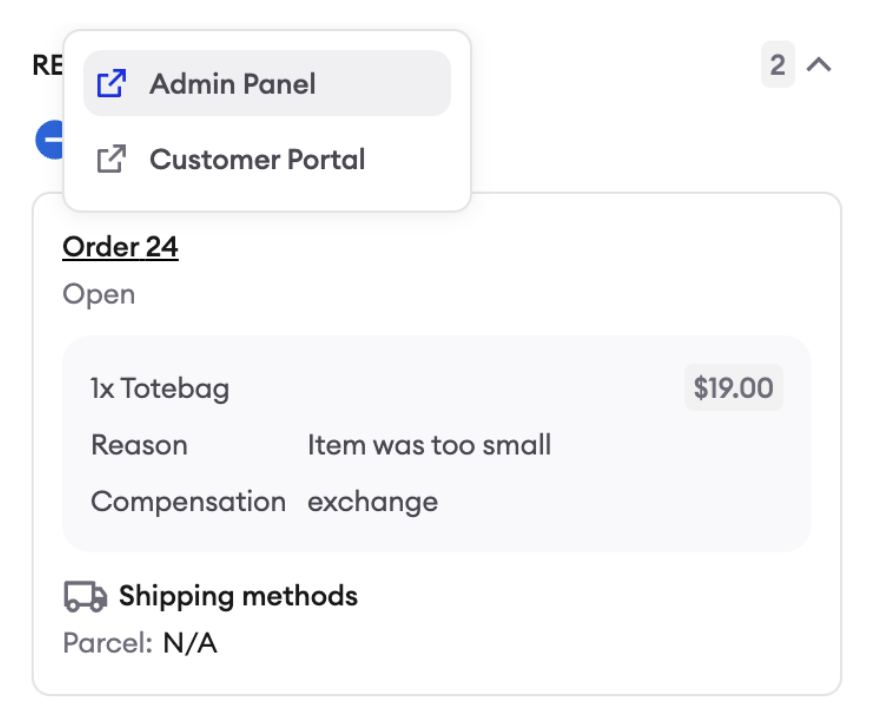
By clicking on order number, agents can access Admin Panel and Customer Portal.
Agent Processes Return Claim
After the integration is connected, agents can process returns in Loop Returns using the Allow agents to process a return at Inbox flag.
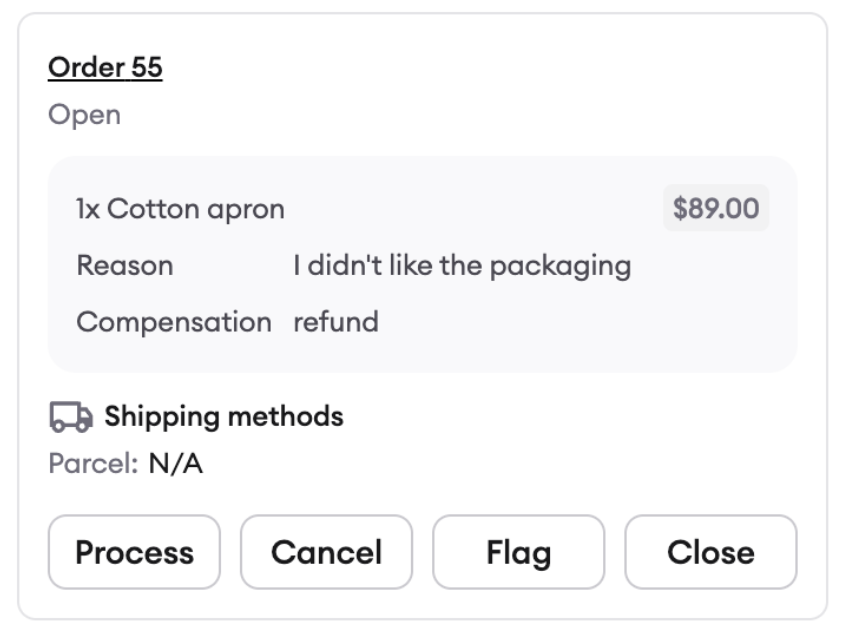
Open return ready for action to be taken
Once return is processed it will be closed.
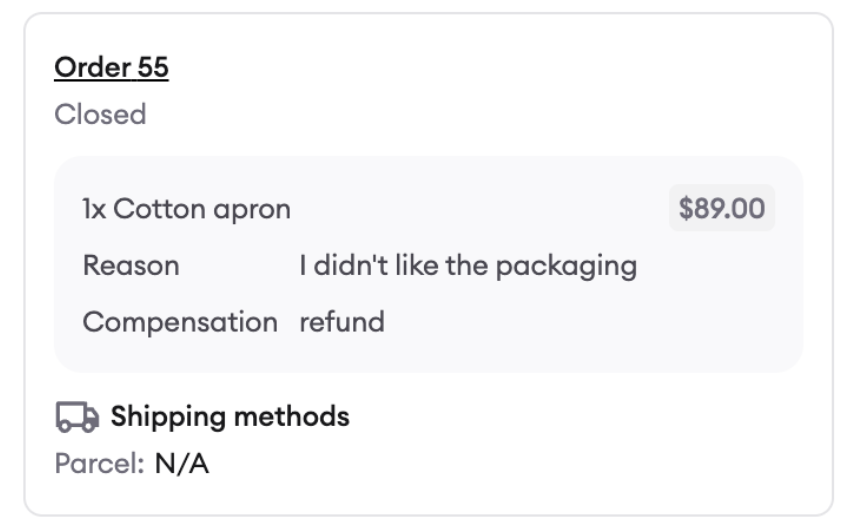
Closed return
Agent Cancels Return Claim
After the integration is connected, agents can cancel returns in Loop Returns using the Allow agents to cancel a return at Inbox flag.
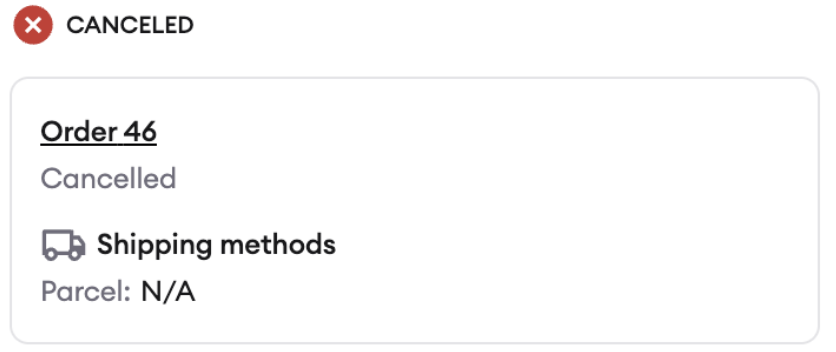
Cancelled return
Agent Flags Return Claim
After the integration is connected, agents can flag returns in Loop Returns using the Allow agents to flag a return at Inbox flag.
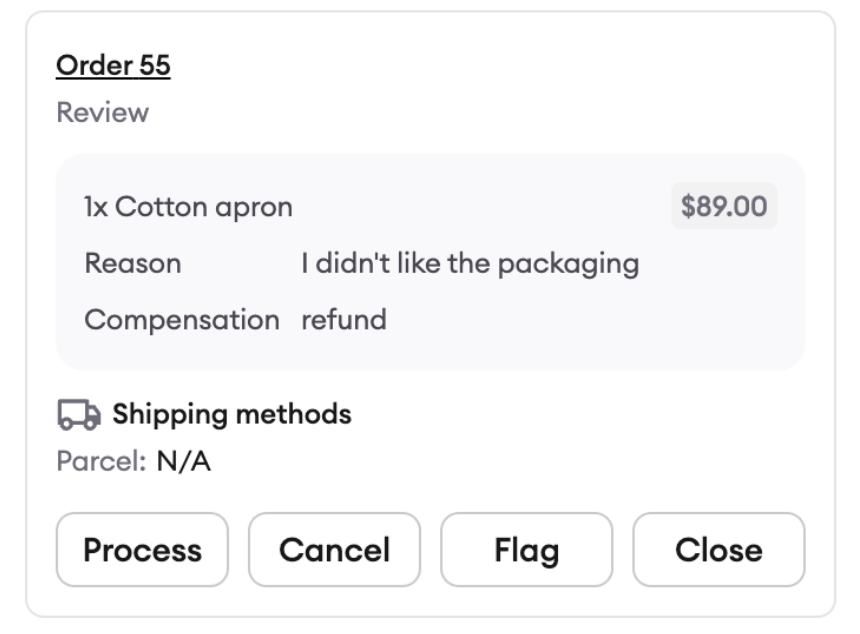
Return in review. It can’t be processed or closed until it’s been manually reviewed by an agent in Admin Panel. It can be cancelled.
Agent Closes Return Claim
After the integration is connected, agents can close returns in Loop Returns using the Allow agents to close a return at Inbox flag.
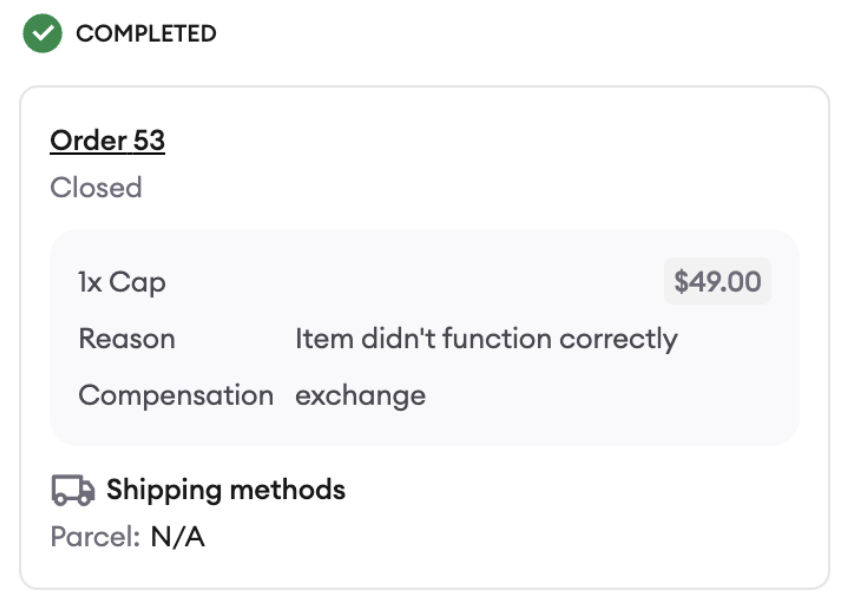
Closed review
Updated over 1 year ago