
Workflows
What are Workflows?
Workflows are scenarios that take advantage of Zowie's dynamic rules-based conditions that offers end users customized responses based on decisions or inputs made in Zowie's chatbot.
Why use Workflows?
Workflows positively impact your automation and deflection ratios through designed flows to answer more complex questions asked by your end users.
Workflow can be used for lots of different purposes, e.g.:
- building simple product recommendation guidance/gift pickers where users can answer product-related questions and as a result of completing such workflow, get a well-suited recommendation,
- creating automated answers for more complicated processes, such as returns or refunds, in which the answer depends on several conditions.
- troubleshoot common issues by asking users to select their device and other options that are relevant to our product or system administration set up
How to access Workflows
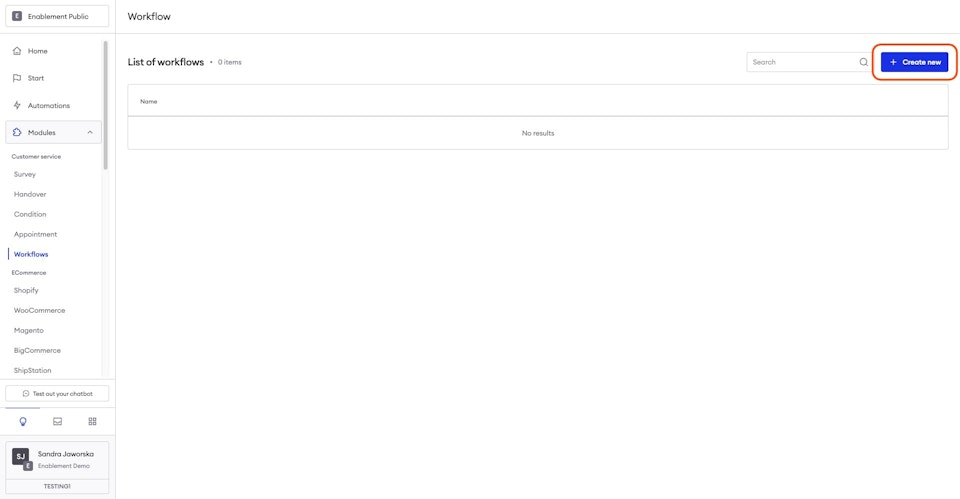
To access workflows, navigate to Modules > Workflows from the navigation bar.
Add a new Workflow
To add a new Workflow, simply click the "Configure new" button in the top right corner of your screen.
Add a title
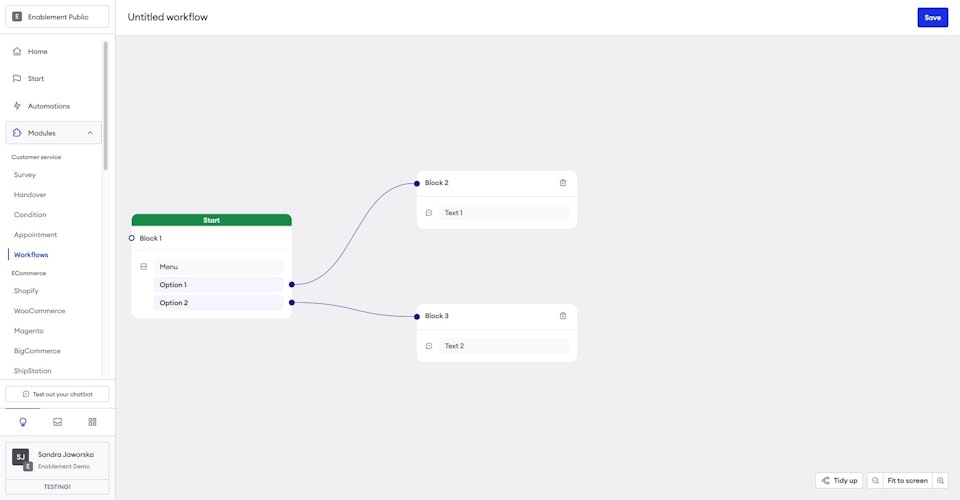
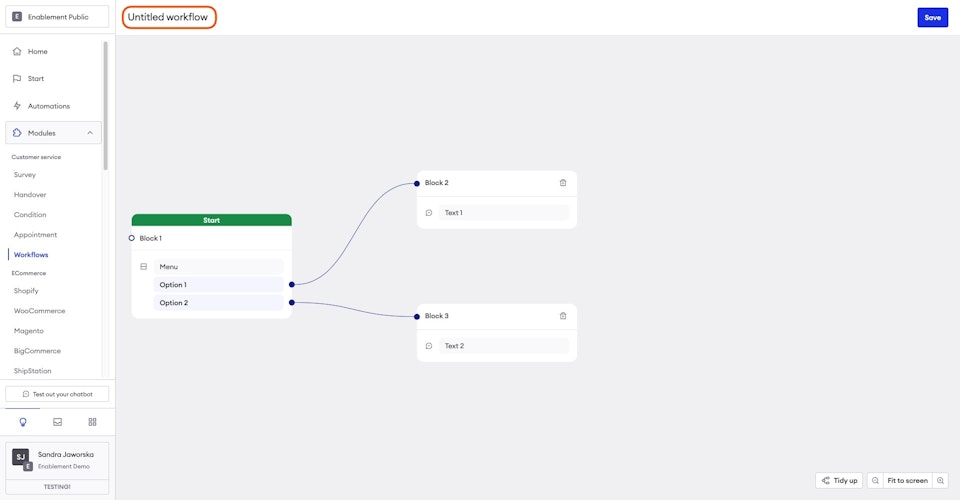
Start with entering the title of your Workflow in the top left corner.
Configuring the first block
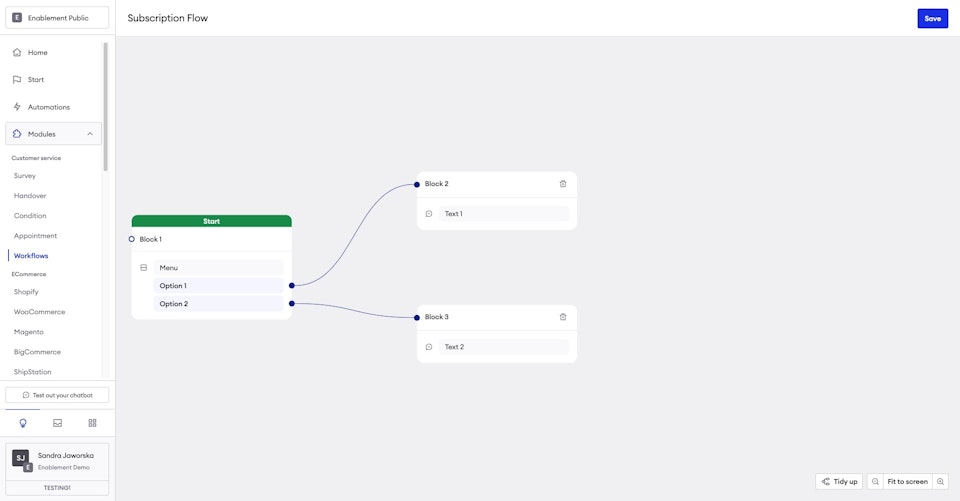
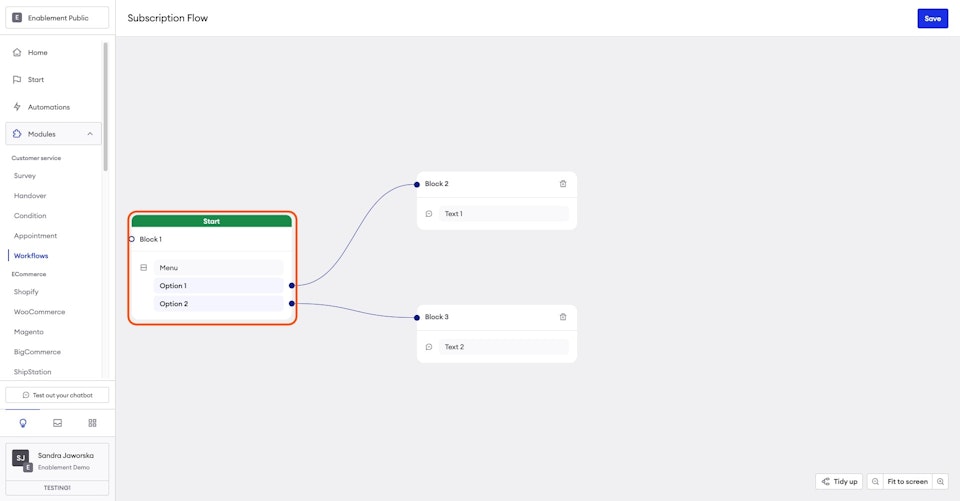
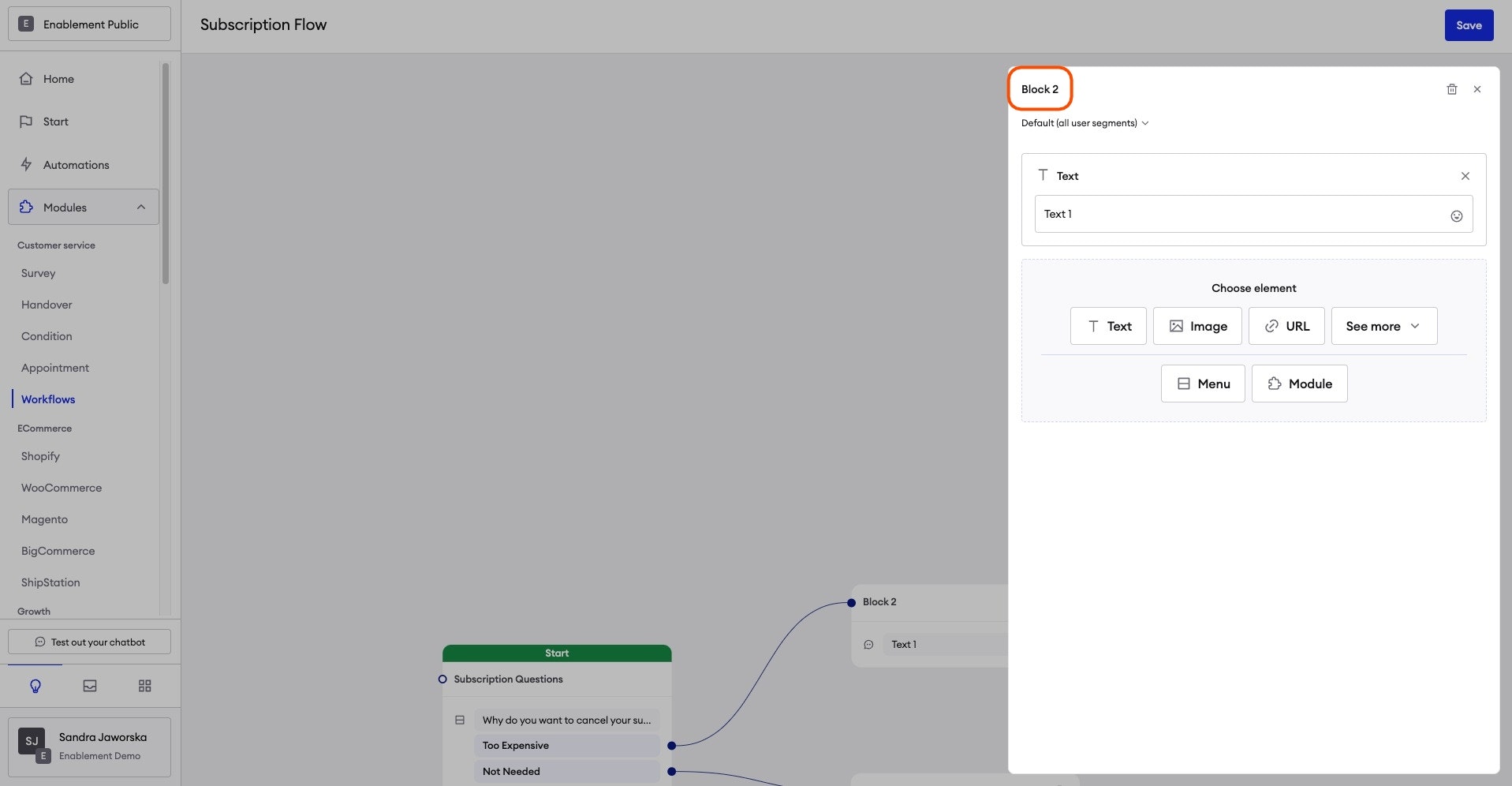
When you create a new workflow, you will see a box with a green header named the first block, to edit it just, simply click on the box. A menu will appear on your right-hand side where you can configure the box.
Editing the first block
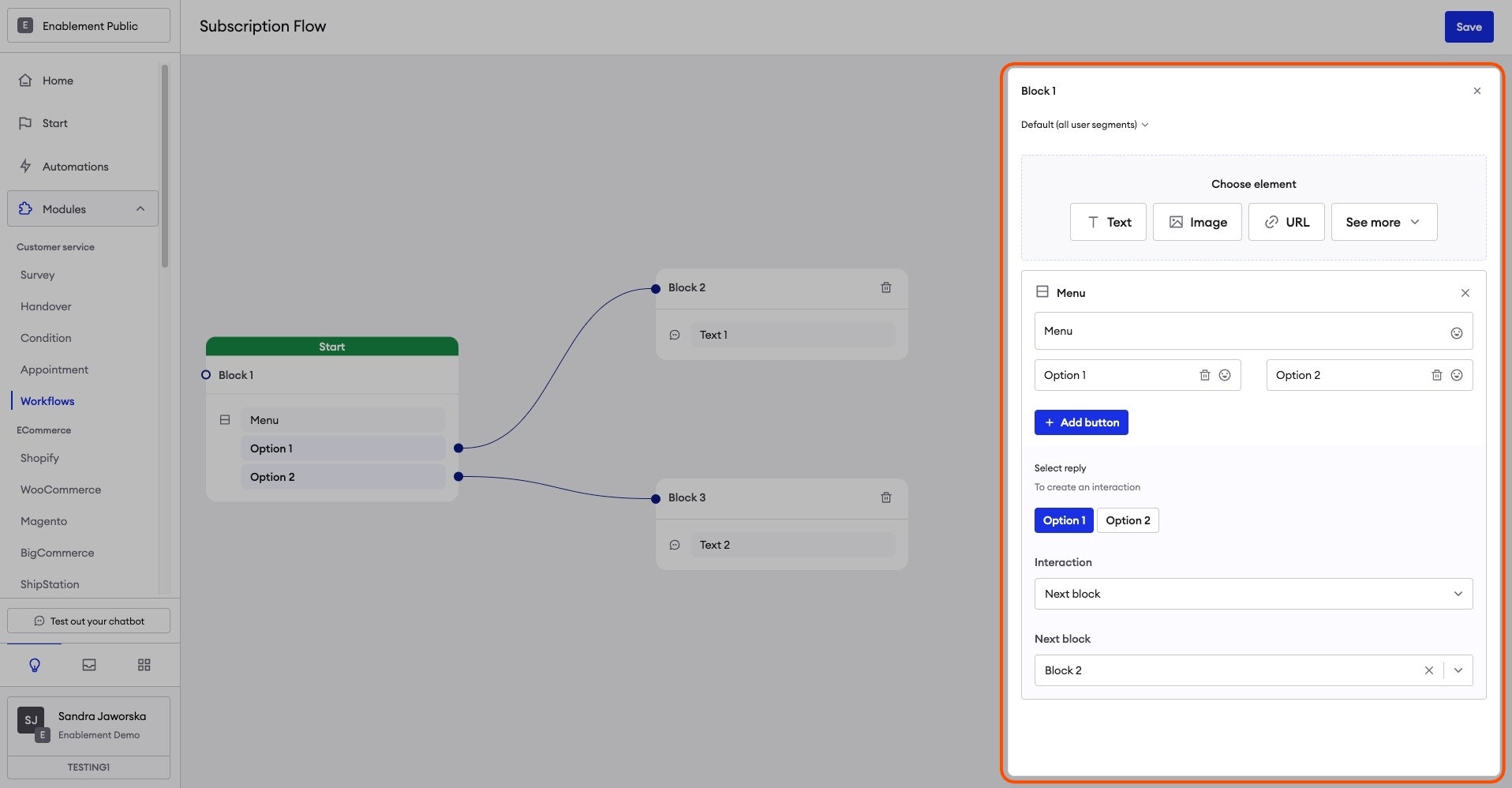
Proceed to give the block a name - you can name the block the same question you'll ask the users, so later, you'll have the context in the preview.
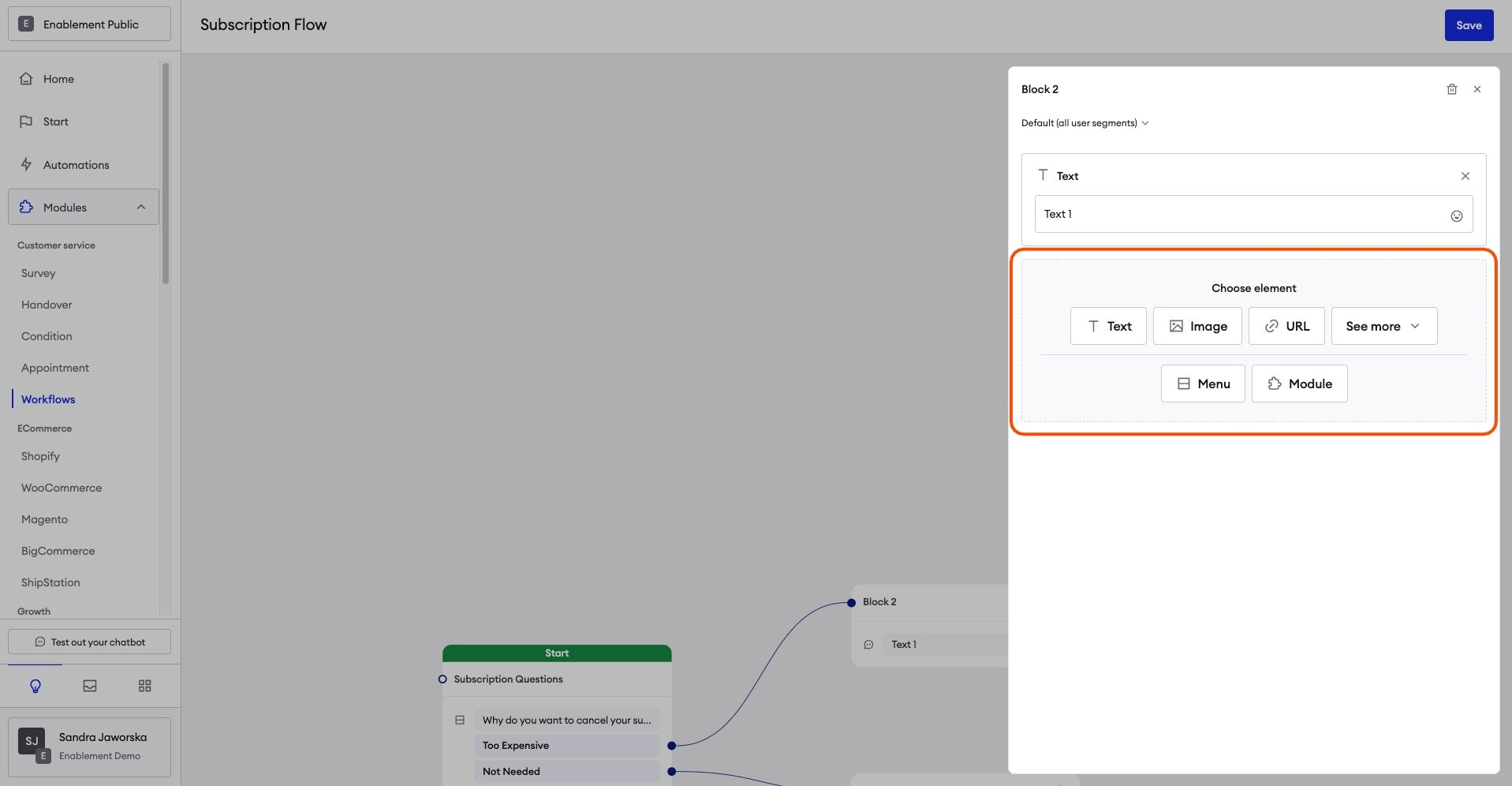
Highlighted is the Creator, the Creator allows you to select many different options to configure the block, such as:
- Text
- Images
- URL
- Menu element
- Module
Creating multiple choice options
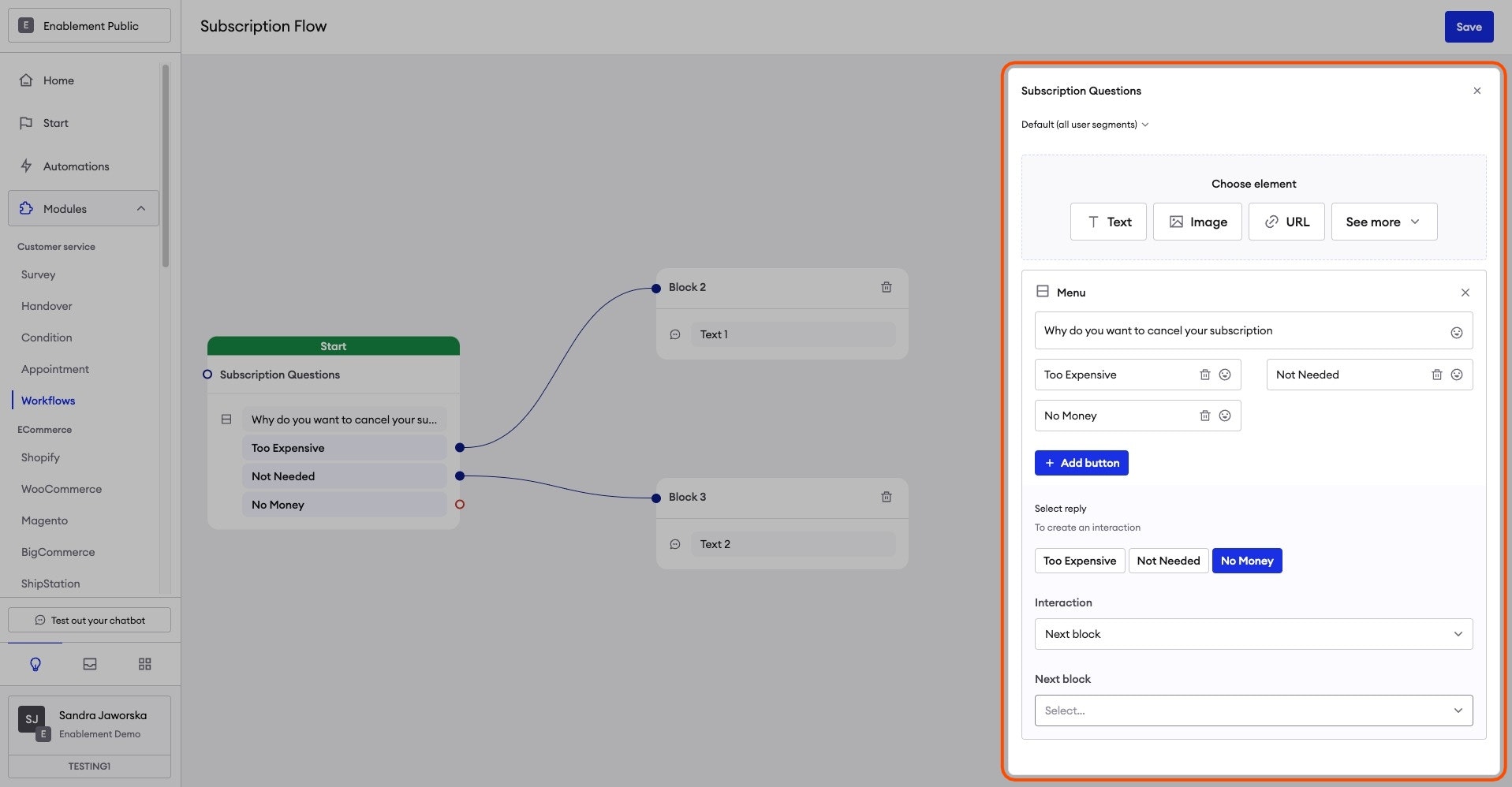
Using Menu element from the Creator to configure the content with options that will be shown to the user. The menu element allows you to create questions that will direct them into a new block.
From this new block, you can create further questions to narrow down the customer's inquires.
Define actions per menu selection
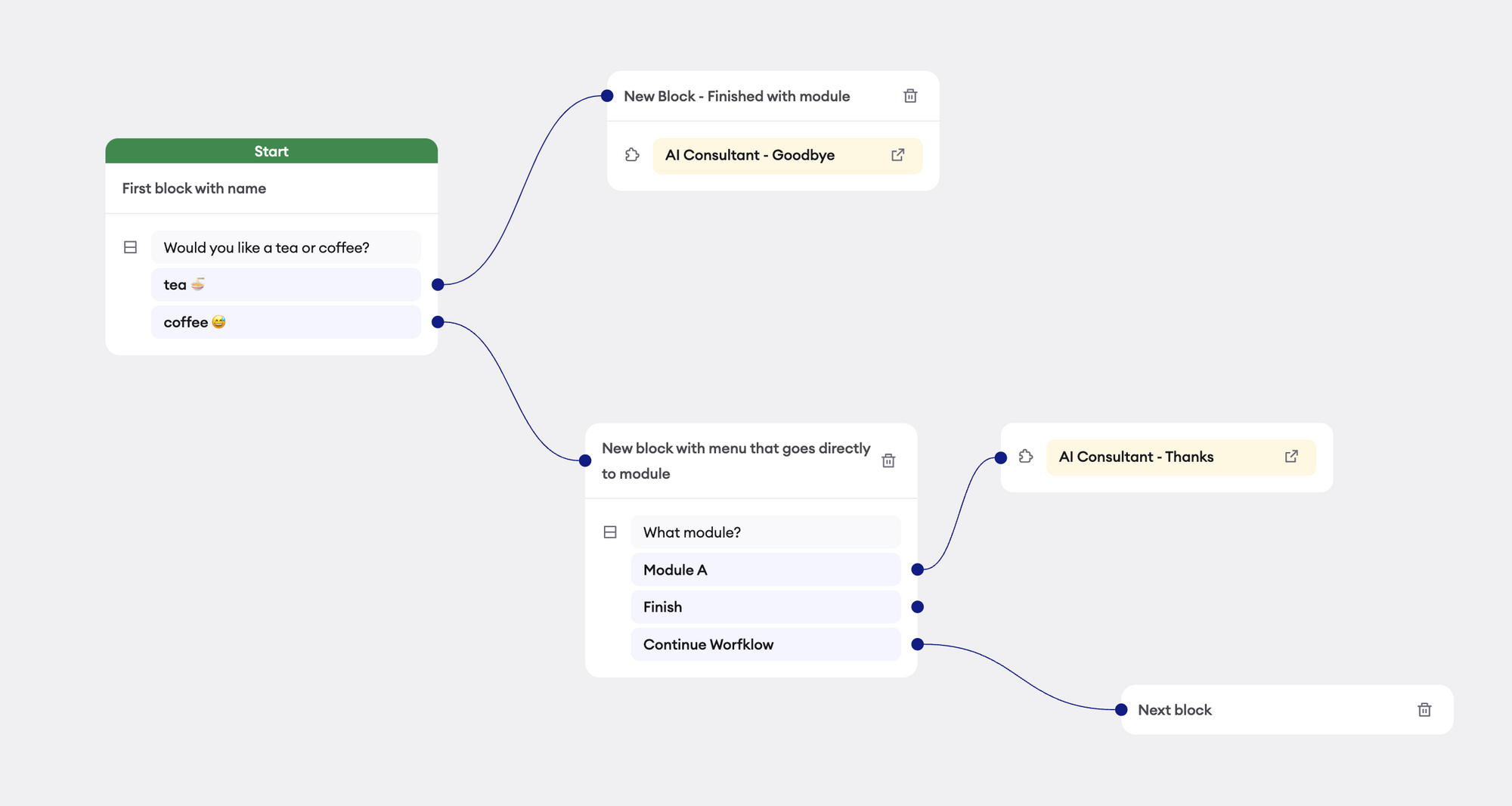
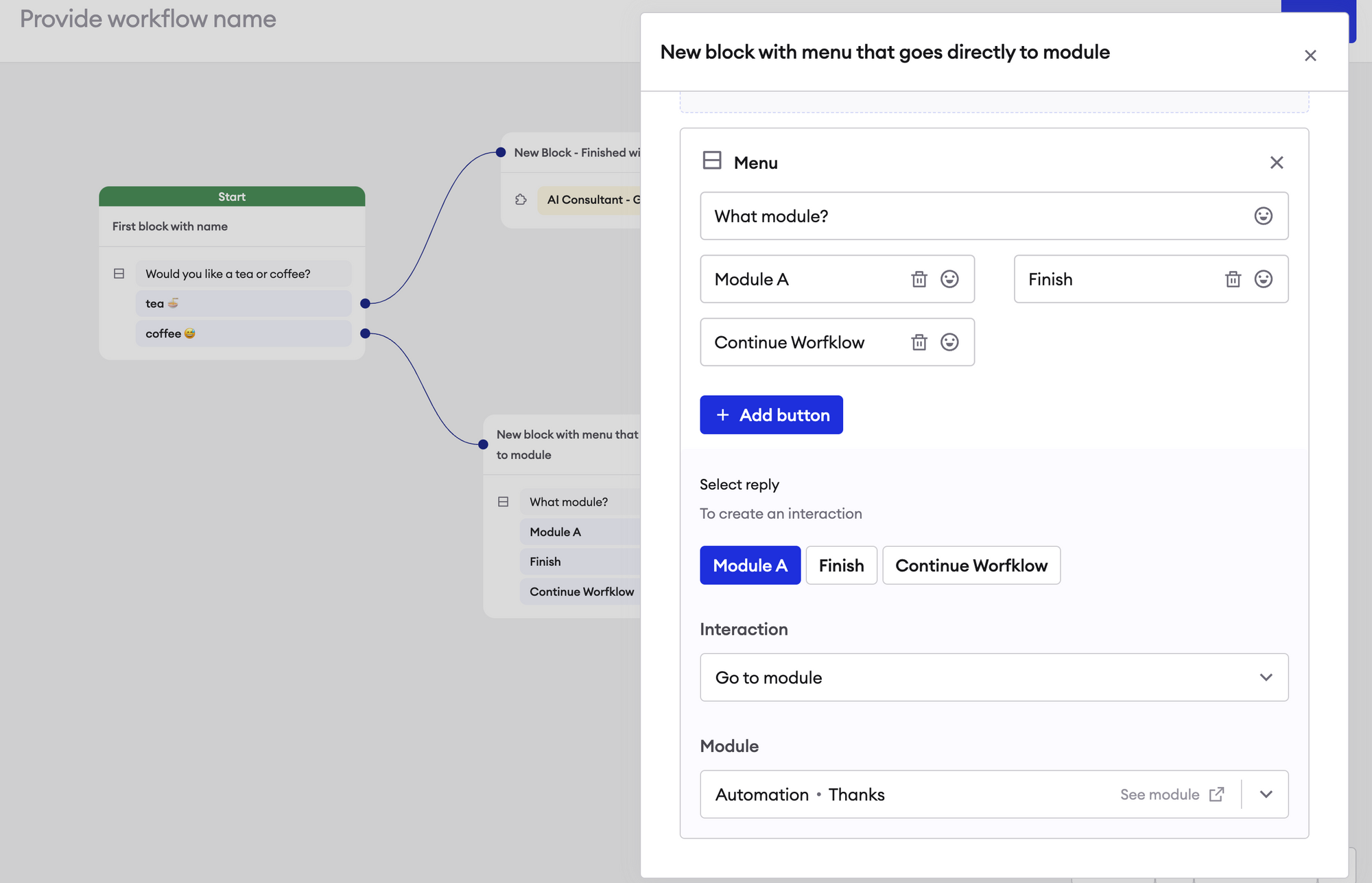
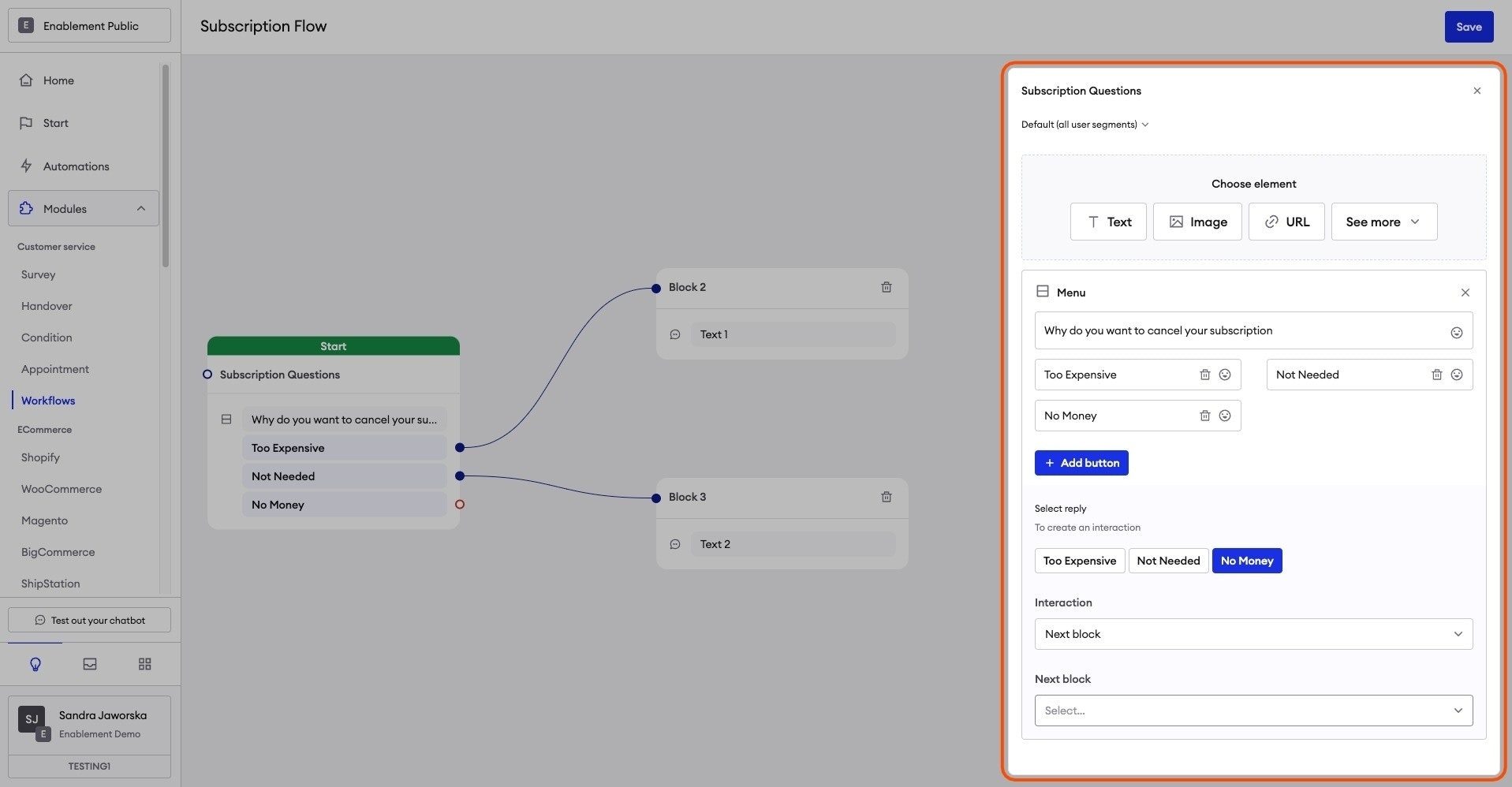
After configuring the menu selection, you want to continue defining conversation with a chatbot, you can create another block or, select a module that you want to run or Finish.
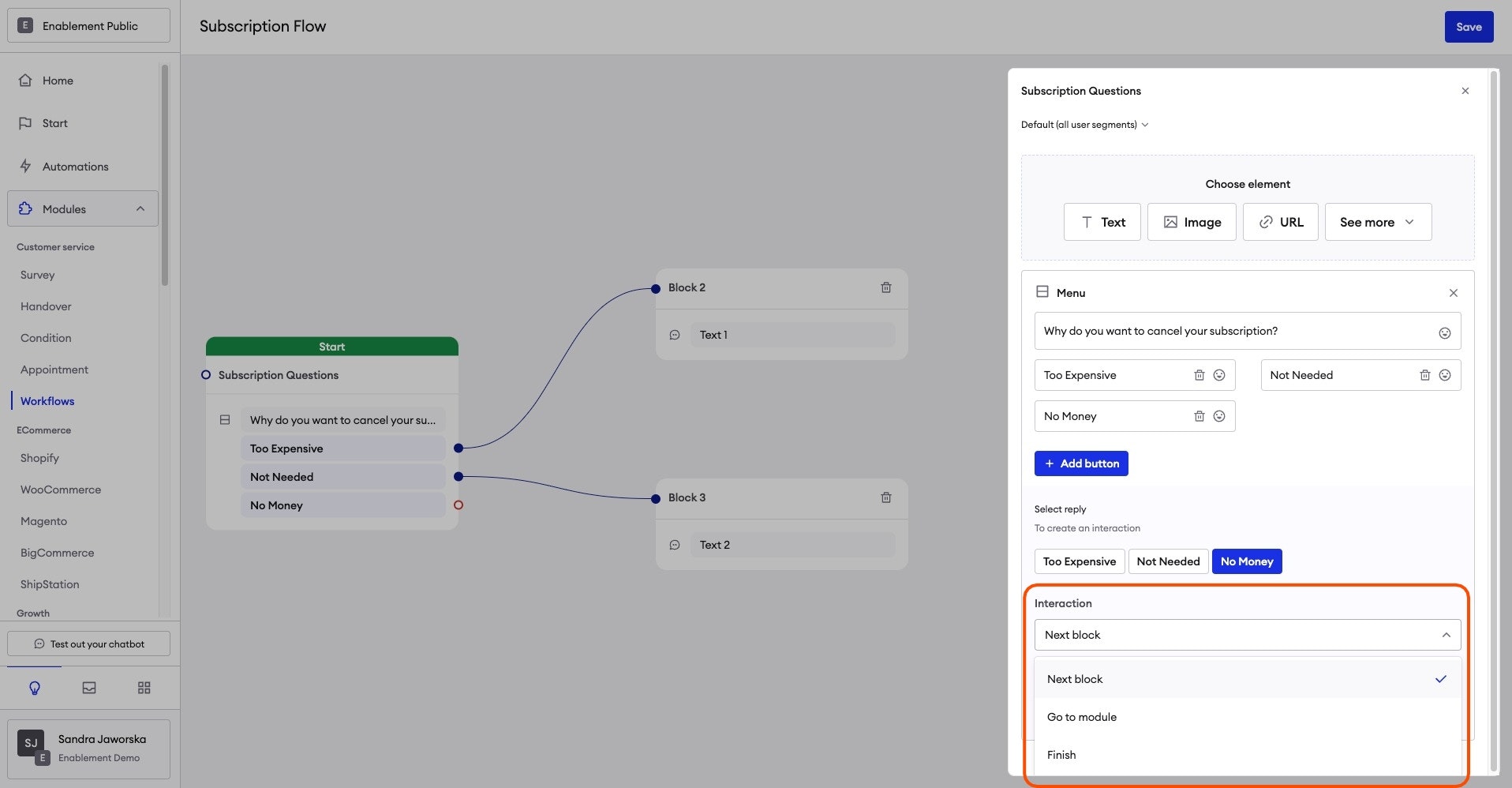
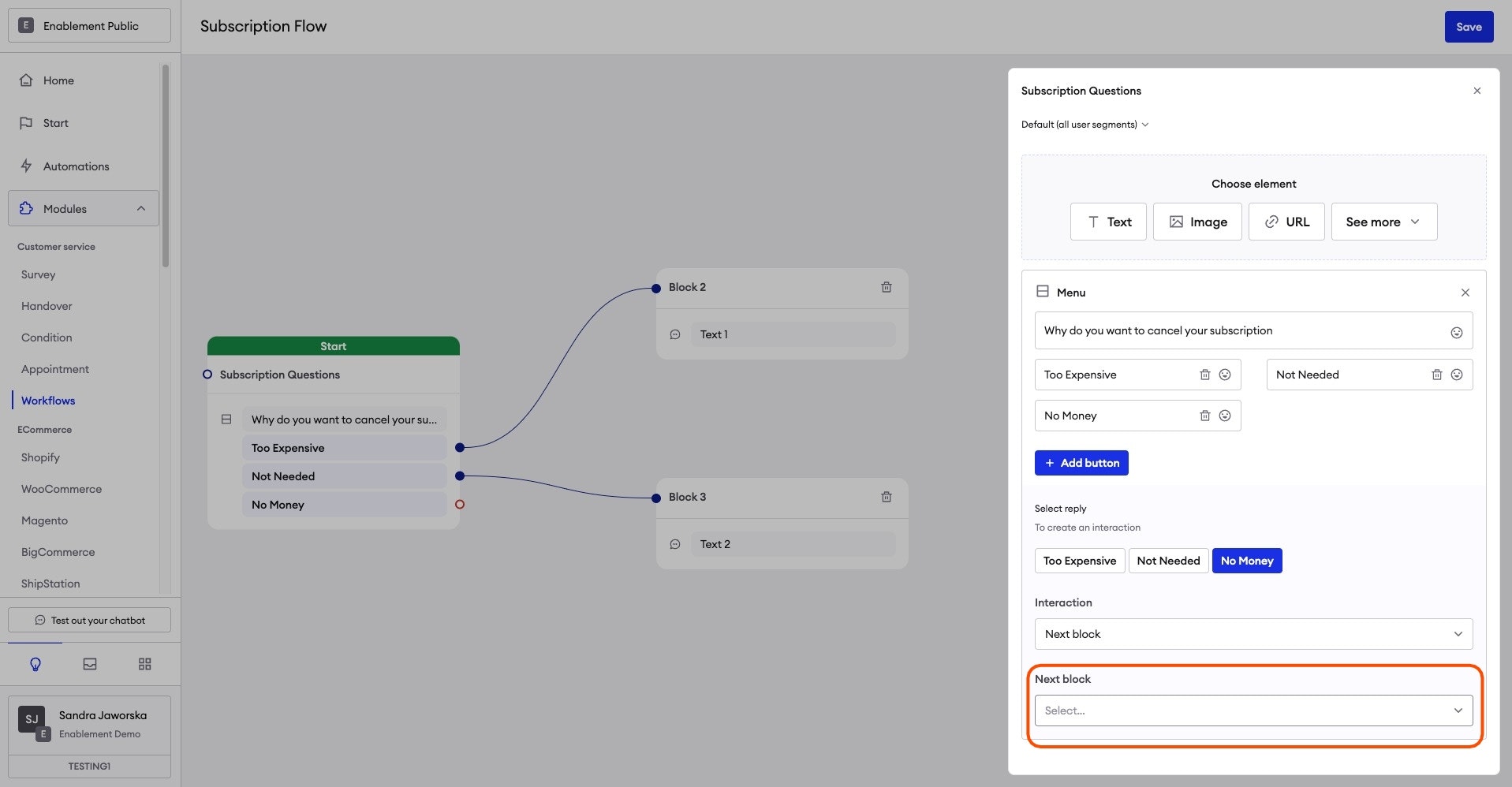
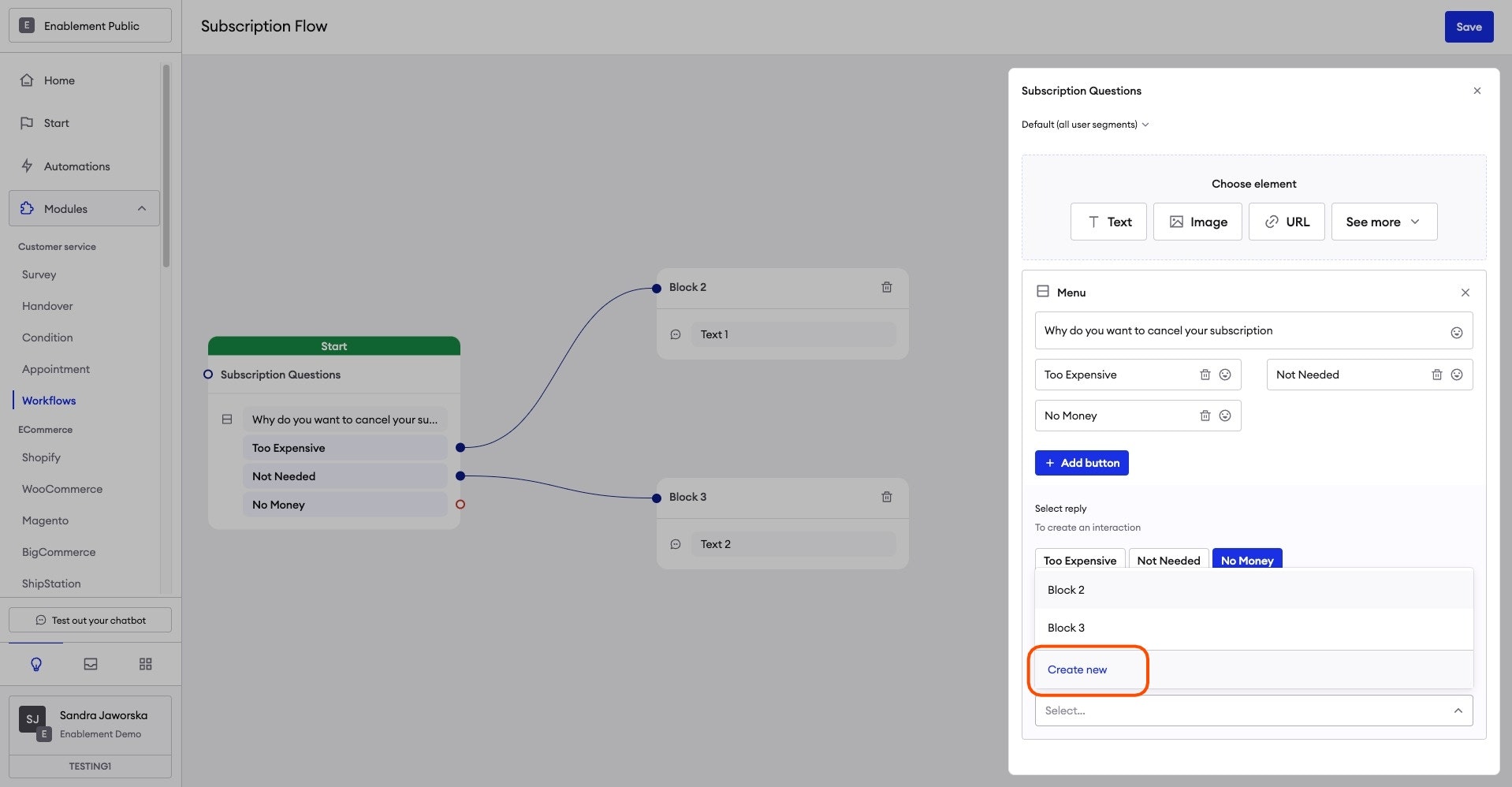
To create another block, select the Menu Button you want to create one for, go to the Interaction type menu box and select Next Block. Then, click on the menu area called Next Block and select create new, It will appear next to the original block and from there you can configure it.
If you want to end the workflow, select the Finish interaction type.
If you want to go to another module, select the Go to module interaction type.
Configuring Segmentation
What is Segmentation?
Segmentation is a powerful tool that allows you to customize chatbot interactions based on user characteristics (called Properties). It can reflect your internal processes that aim to create crafted experiences. User properties are characteristics that group users which can be used to define your core user Segments. They’re also visible in Inbox during user conversations.
Why use Segmentation?
Segmentation allows you to define different responses or workflows when automations are triggered depending on user properties mentioned above.
Configuring Segmentation for Workflows
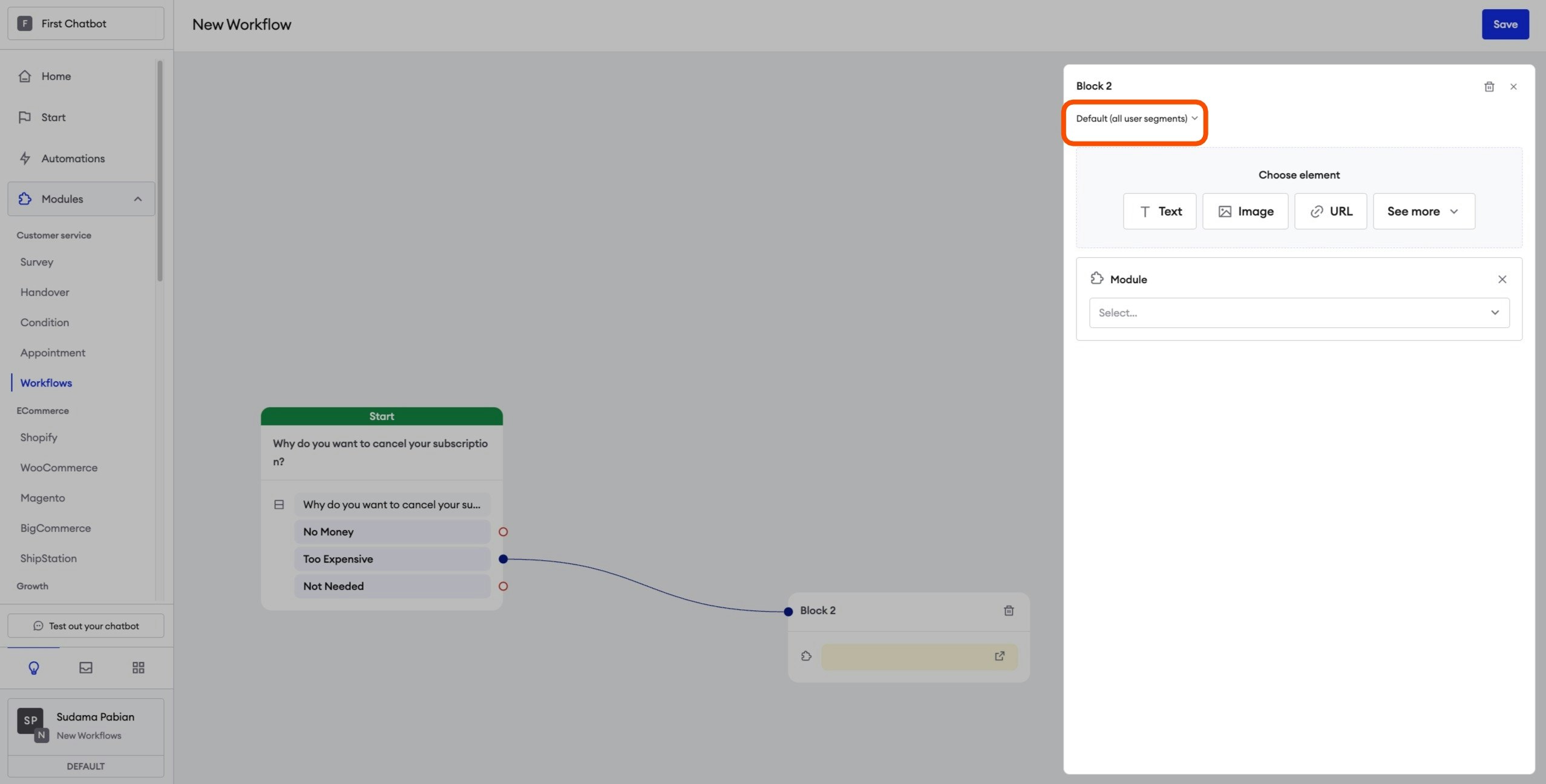
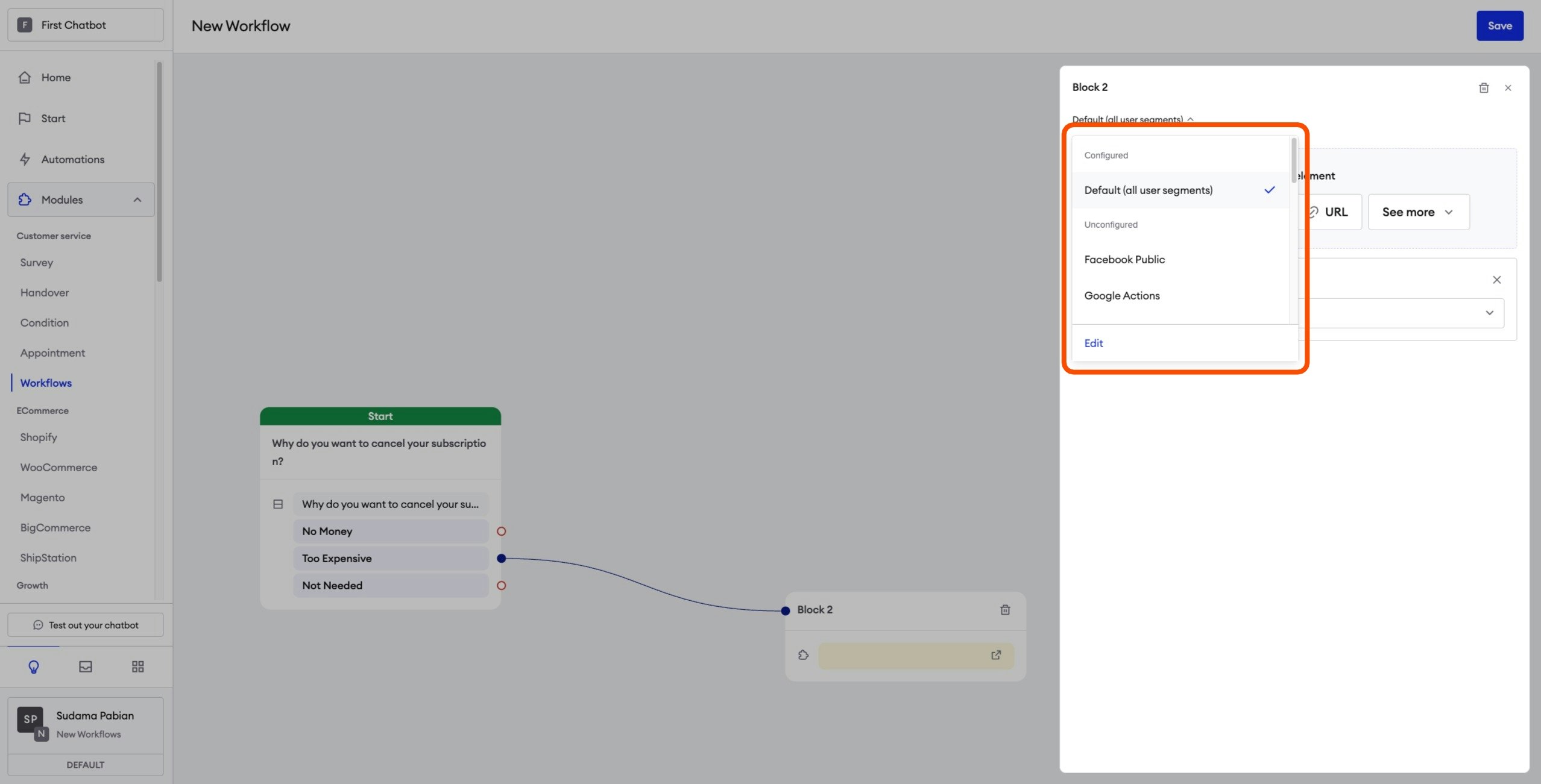
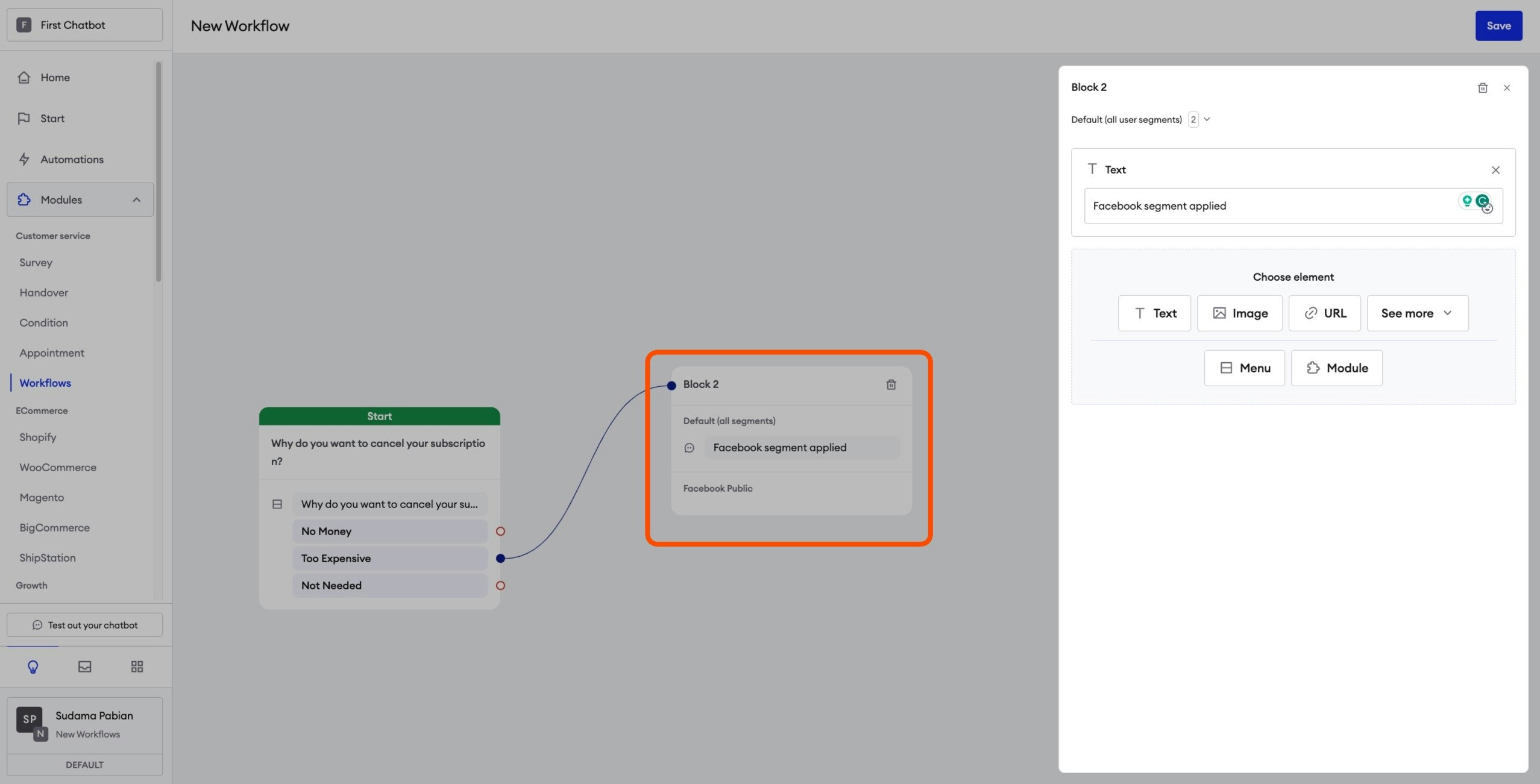
You can find Segmentation at the top left corner of the Menu block. Normally it will display "Default (all user segments)" Click this drop-down menu, and you will be able to see the different segments you can configure.
Navigate
How To Navigate
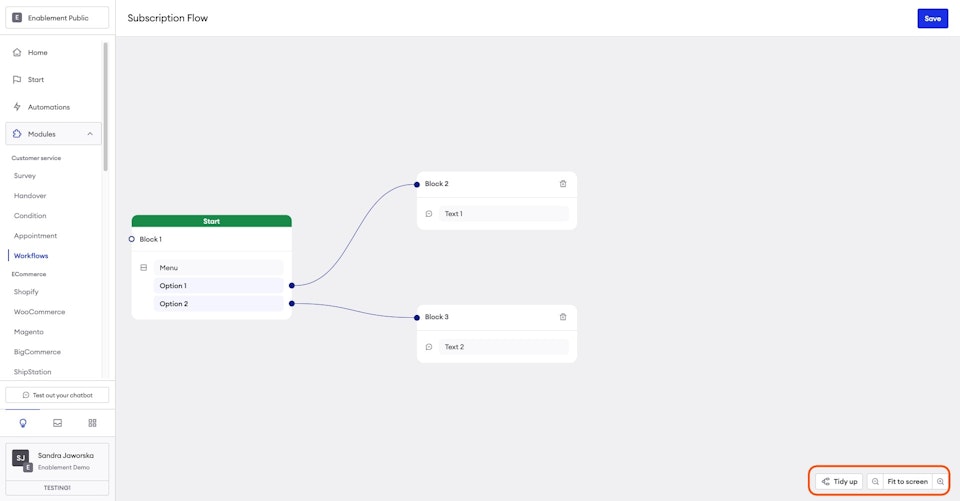
To Navigate your workflows, you can simply grab the foreground and move to which direction. Or by using a couple of different buttons on the screen.
Such As:
- Tidy Up - This allows the program to rearrange all blocks and screens to fit and look Tidy.
- Magnifying glass icon - You can zoom in and out by either scrolling or using the Magnifying Glass.
- Fit to Screen - Positions your screen to optimally adjust the screen size to your own screen.
Use cases for Workflows
How to apply Workflows
Here you can find various real-world scenarios where workflows can bring value to your business. By leveraging Zowie's chatbot and its dynamic rules-based scenarios, workflows enable you to deliver customized responses and automate complex processes. Discover how workflows can enhance customer interactions, streamline operations, and improve overall efficiency.
Different Examples of Workflow Use Cases
Handover RoutingWorkflows are great for directing customers to the right agent or department based on their specific needs. By gathering information about the area they want to contact, workflows intelligently route the chat to the designated team, ensuring customers receive assistance from the appropriate experts. This streamlined approach reduces wait times, improves efficiency, and enhances overall customer satisfaction.
Complex GuidesComplex guide Workflows simplify complex groups of information by offering step-by-step assistance to customers who are unsure where to find information. Instead of searching through extensive documentation, customers can follow a guided workflow with targeted questions, options, and instructions, helping them quickly access the specific information or solution they need.
Subscription Cancelation / Deflection:
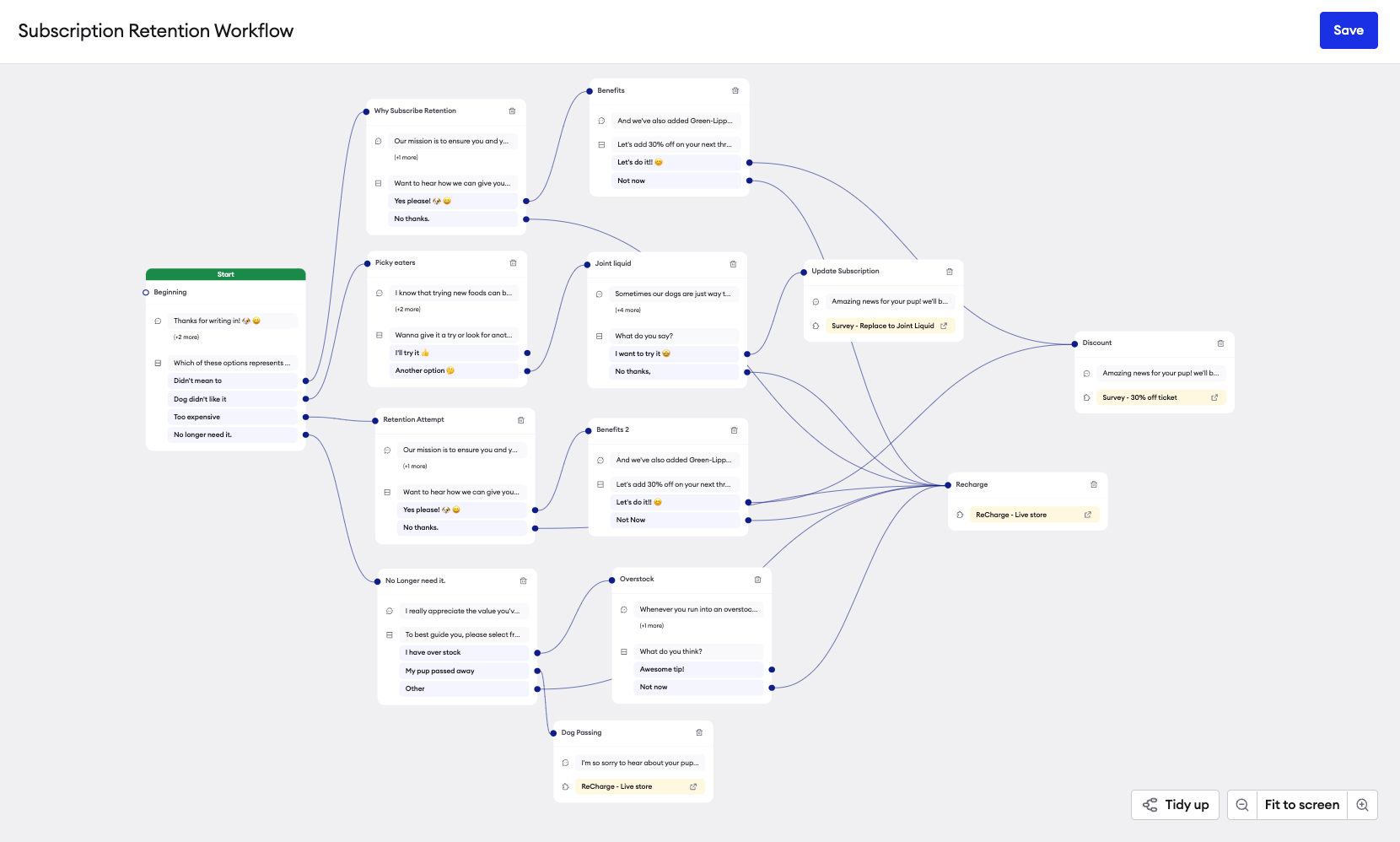
Subscription / Retention Workflows are beneficial for managing customer cancellations of subscriptions as they allow businesses to gather information on the reasons for cancellations, provide personalized responses, offer dissuasion techniques, present retention offers, explore re-engagement opportunities, and collect valuable feedback.
Product Advice
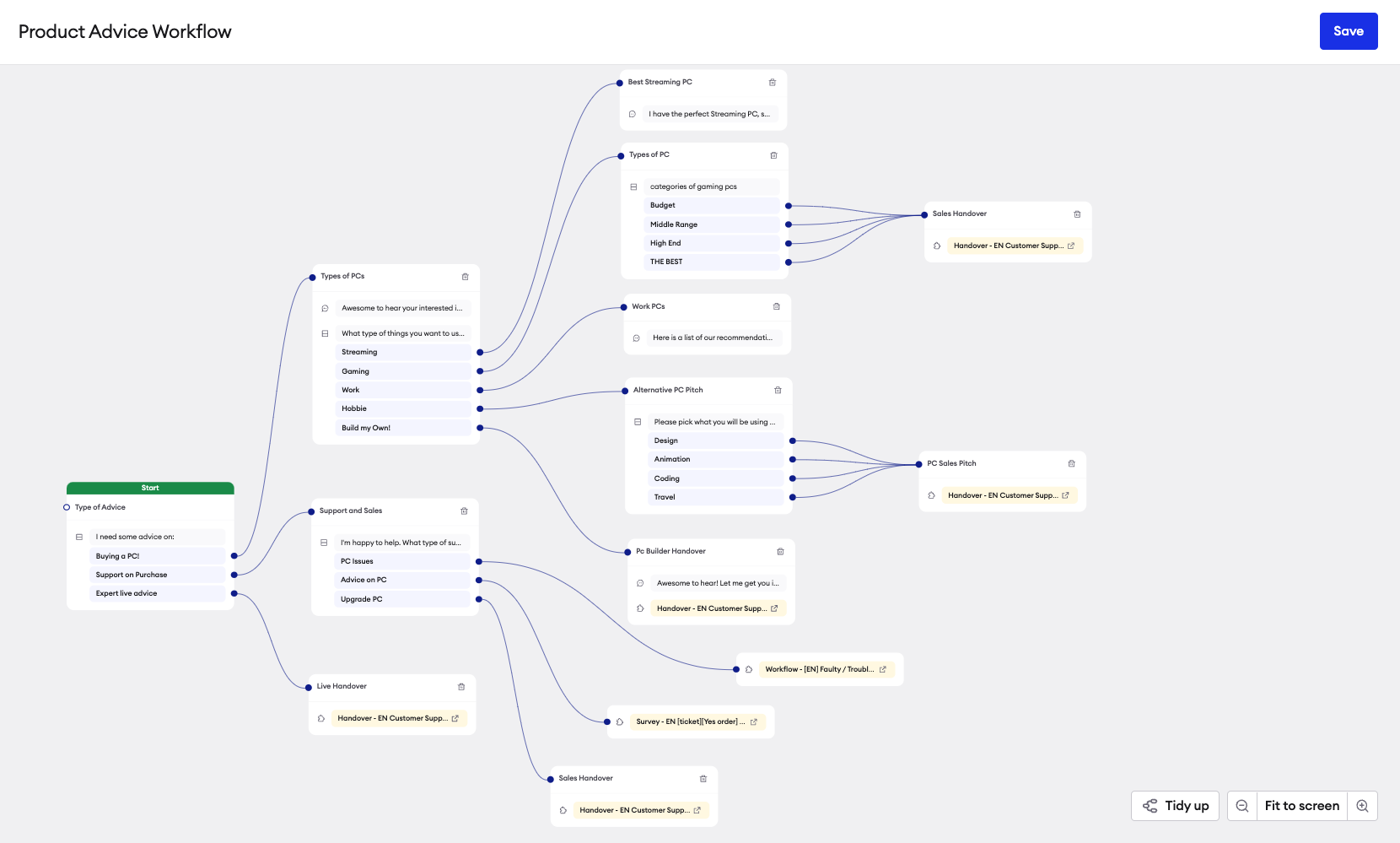
Product Advice Workflows are a great way to offer personalized product advice. By engaging customers in a guided conversation and asking about their preferences, needs, and requirements, businesses can generate tailored recommendations. This interactive approach improves the customer experience, increases the chances of finding the right product, and ultimately leads to higher customer satisfaction and sales.
Updated over 1 year ago