
Live translation
What is Live translation?
Live translation is a feature that allows you to automatically translate all incoming and outgoing messages in real-time. It supports over 180 languages and works across multiple communication channels, including:
- Zowie Widget (Hero Chat)
- Facebook Messenger
- Instagram Direct
- Telegram
- Viber
This feature is available as an add-on and requires a separate package for activation. Please get in touch with your CSM for additional details.
Who can use Live translation?
Live translation is available to any agent with the appropriate package. It’s designed for businesses that interact with customers who speak different languages and want to streamline communication.
How to use Live translation?
Once Live translation is enabled in your Zowie account, you can start using it immediately in your conversations. Here's a breakdown of how it works.
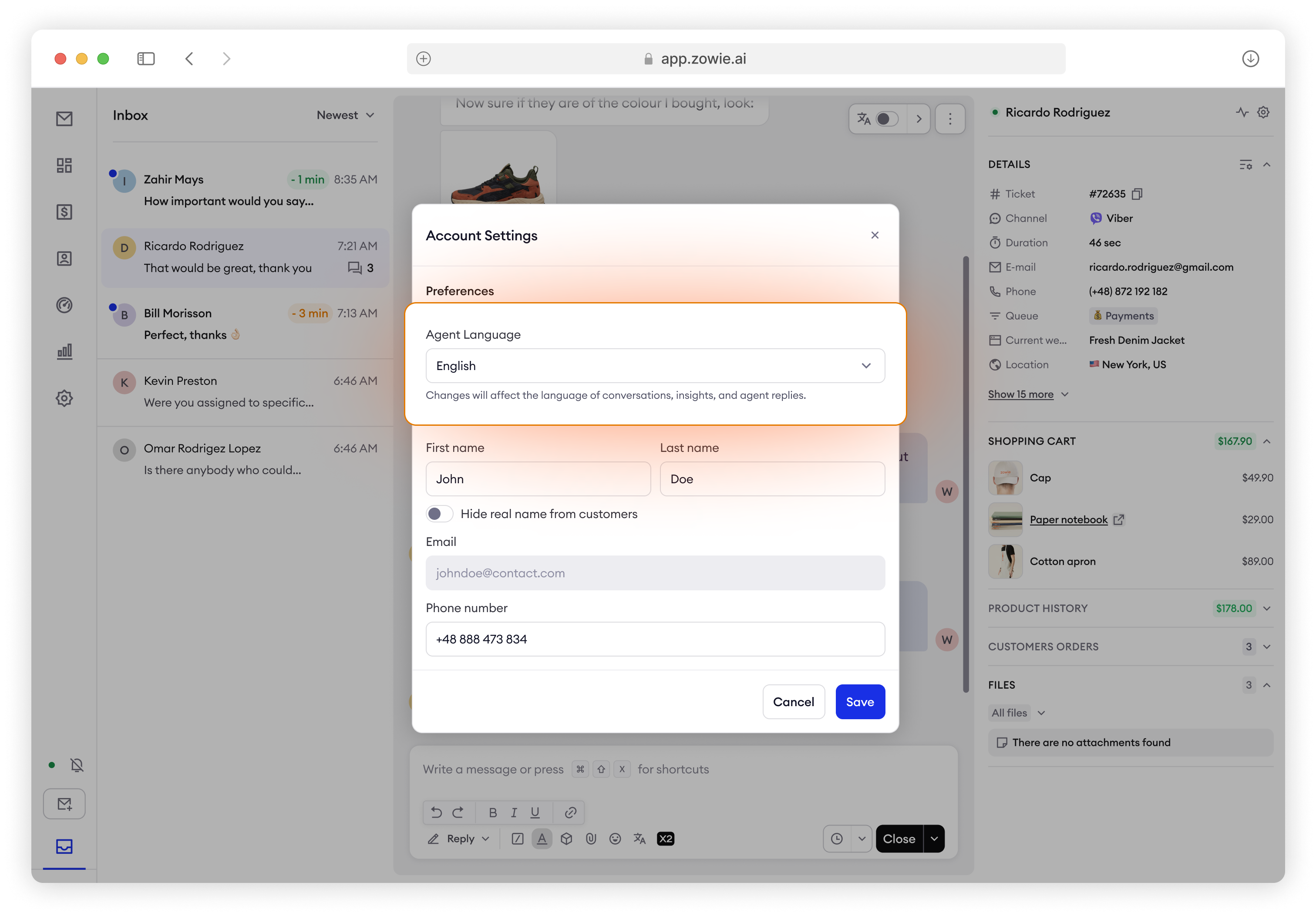
Your language settings
Ensure that the language settings in your Account Settings are configured correctly. The language that you provide as “Agent language” will be considered your default, meaning that you will provide answers in this language, and we will automatically translate them into the customer’s language when sending messages.
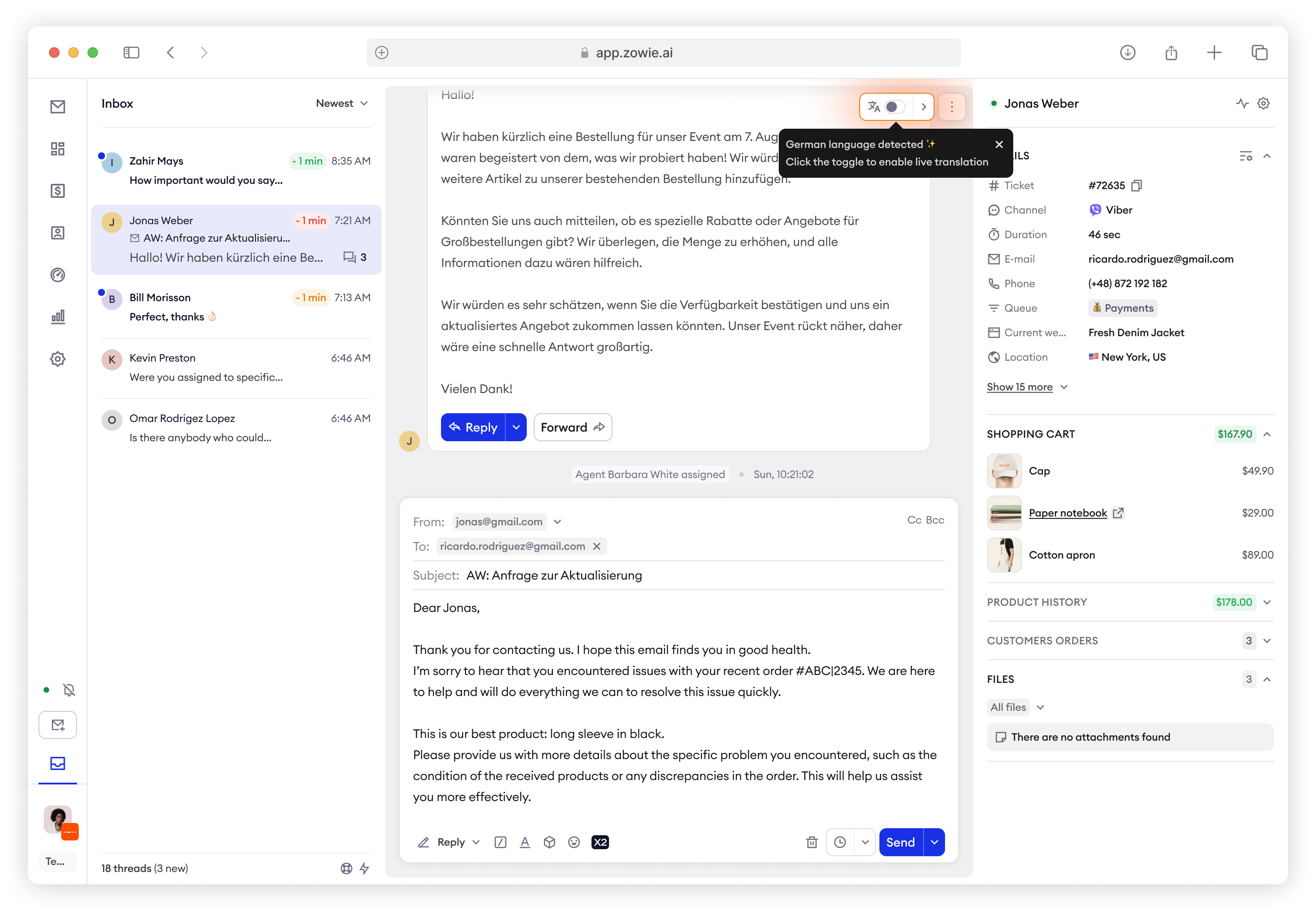
Live translation On/Off toggle
In the top-right corner of the Conversation area, there is a toggle switch that allows you to turn Live translation on or off as needed. When the system detects that the customer's message is in a different language from your default language, it will automatically suggest the customer’s language and prompt you to enable the Live translation feature.
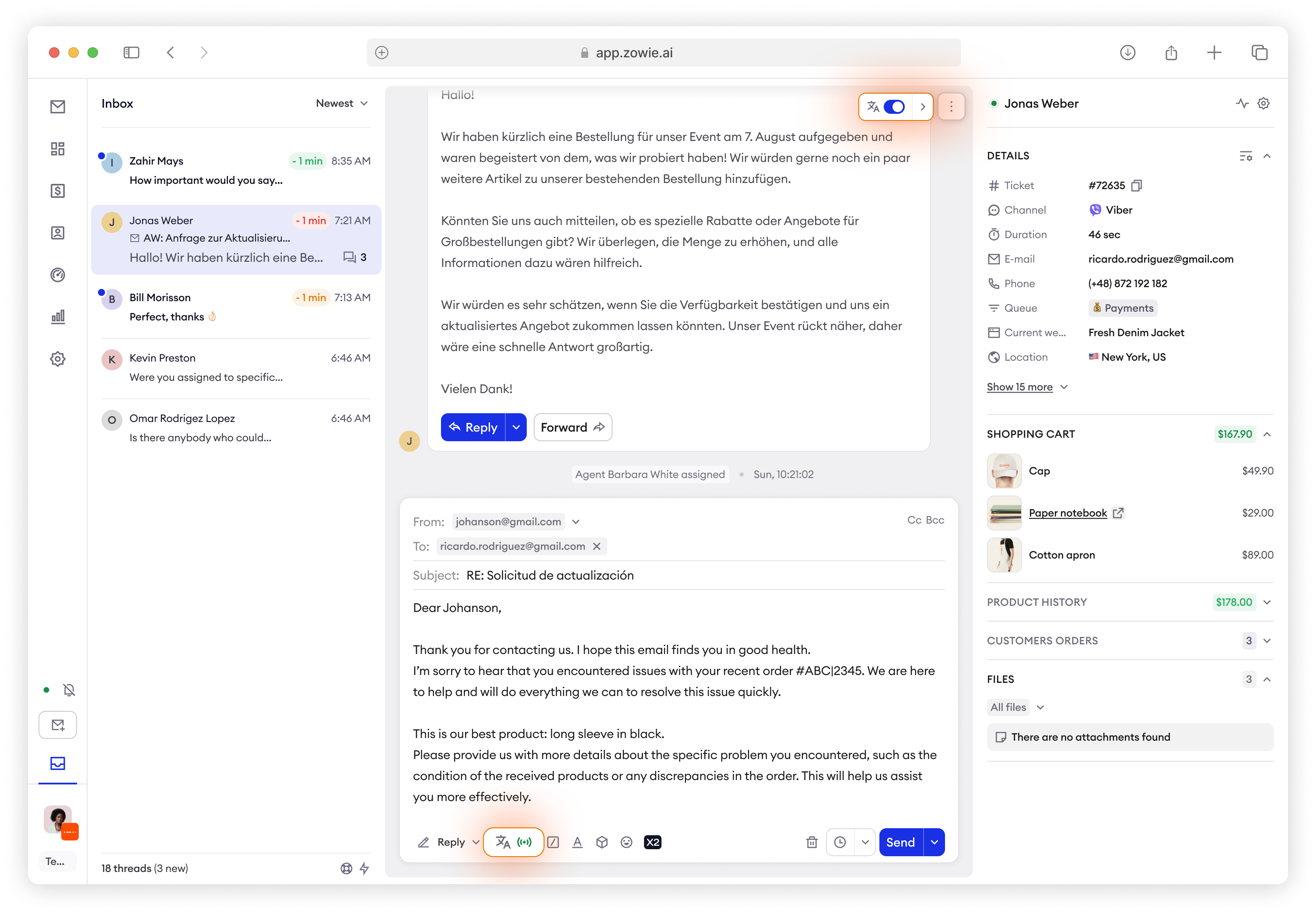
Writing indicator
When typing a message in the Composer area, a small indicator will appear, notifying you that the outgoing message will be translated before it is sent to the customer.
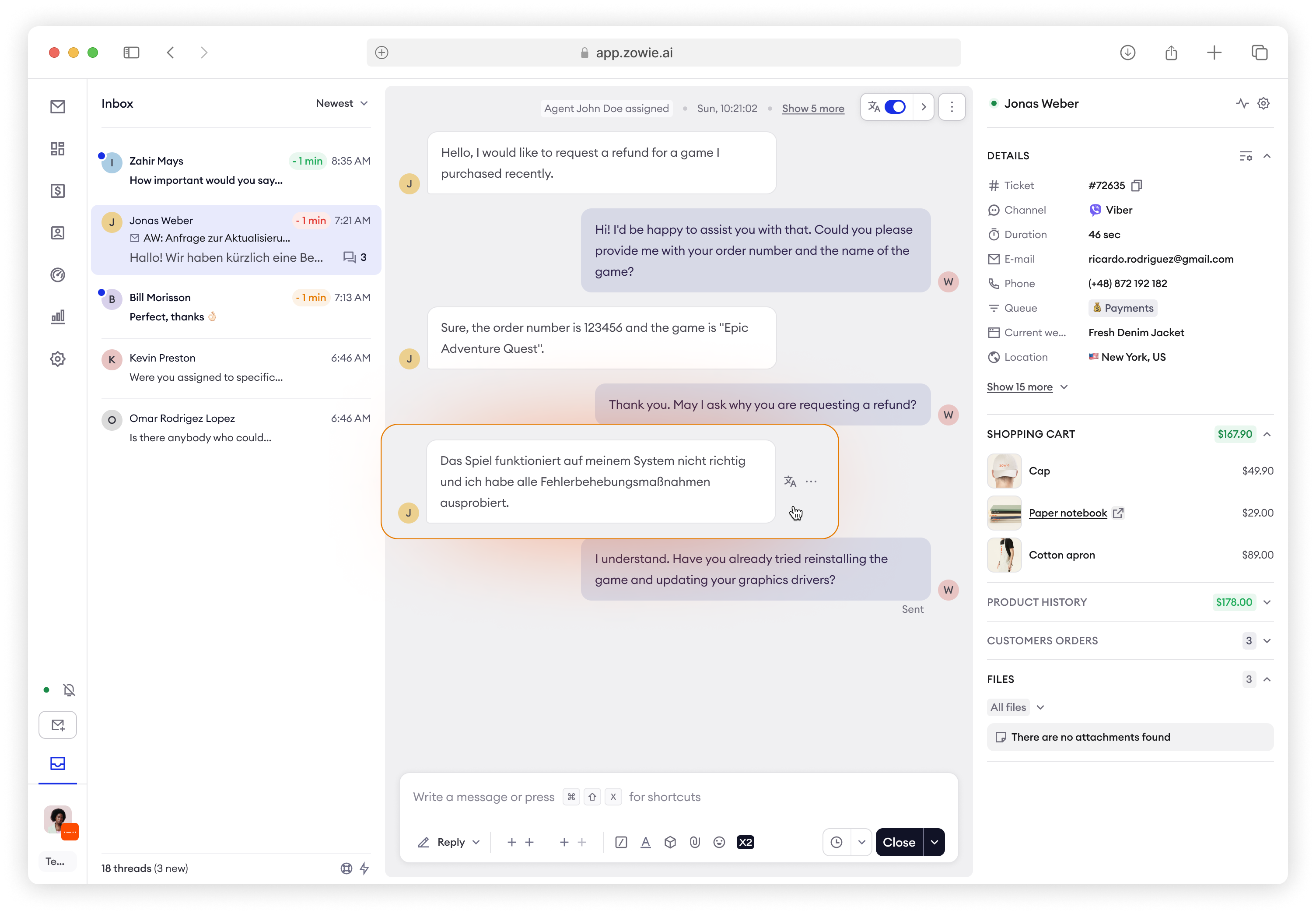
Translated/Original message switch
For each message, you can hover over it to switch between the translated version and the original text.
Prompt to confirm sending the translated message
Before hitting the "Send" button you will be asked to confirm that you would like to send an autotranslated message. You can always skip this modal if you are already familiar to the process by checking the “Don’t show this message again” checkbox.
How to enable Live translation?
To enable Live translation, you will need to ensure that the following steps are completed:
- Configuration: Make sure that the feature is properly configured within your system settings.
- Feature activation: The Live translation activation flag must be enabled. Contact your Zowie support team or account manager for assistance with this step.
Once these steps are done, you can begin using Live translation in your day-to-day customer interactions.
Updated about 1 year ago