
Randomizer
What is the Randomizer Module?
The Randomizer Module allows your users to play draw games in your chatbot. You can configure a set of possible results from which one will be randomly selected when the drawing is performed and then sent to your user.
Why use Randomizer?
With Randomizer you can engage and reward your users. It allows your users to draw their prize which is randomly picked from a list previously predefined by you. Use this feature to give away promotional codes or access to otherwise unavailable parts of the chatbot with some catchy custom content.
How to access Randomizer?
To access the Randomizer Module, navigate to Modules > Randomizer from the navigation bar.
Drawn results
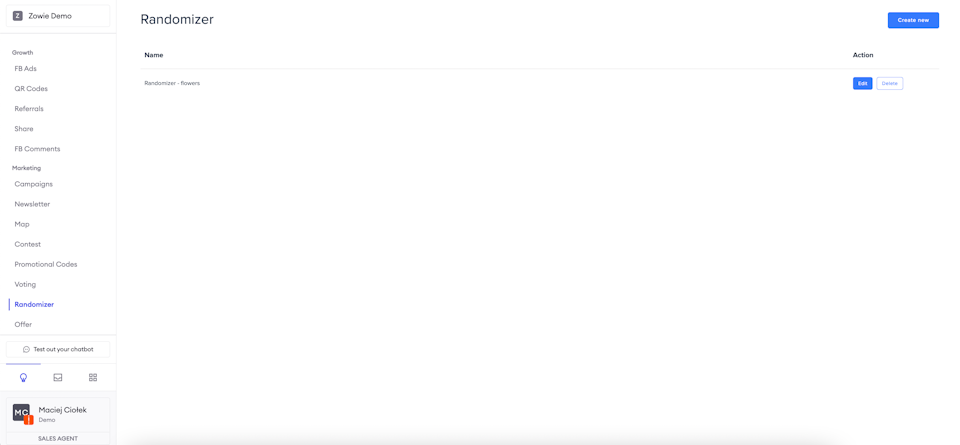
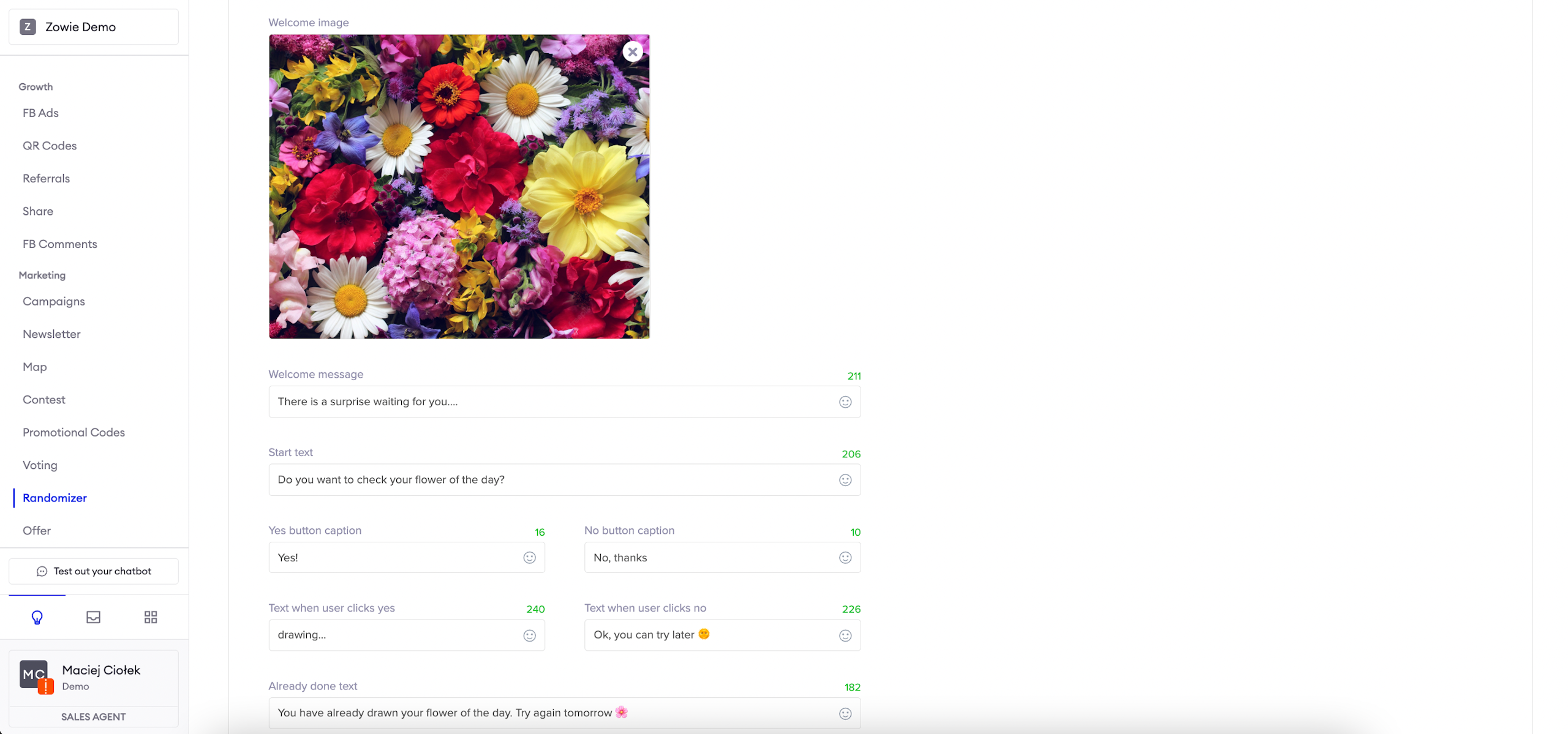
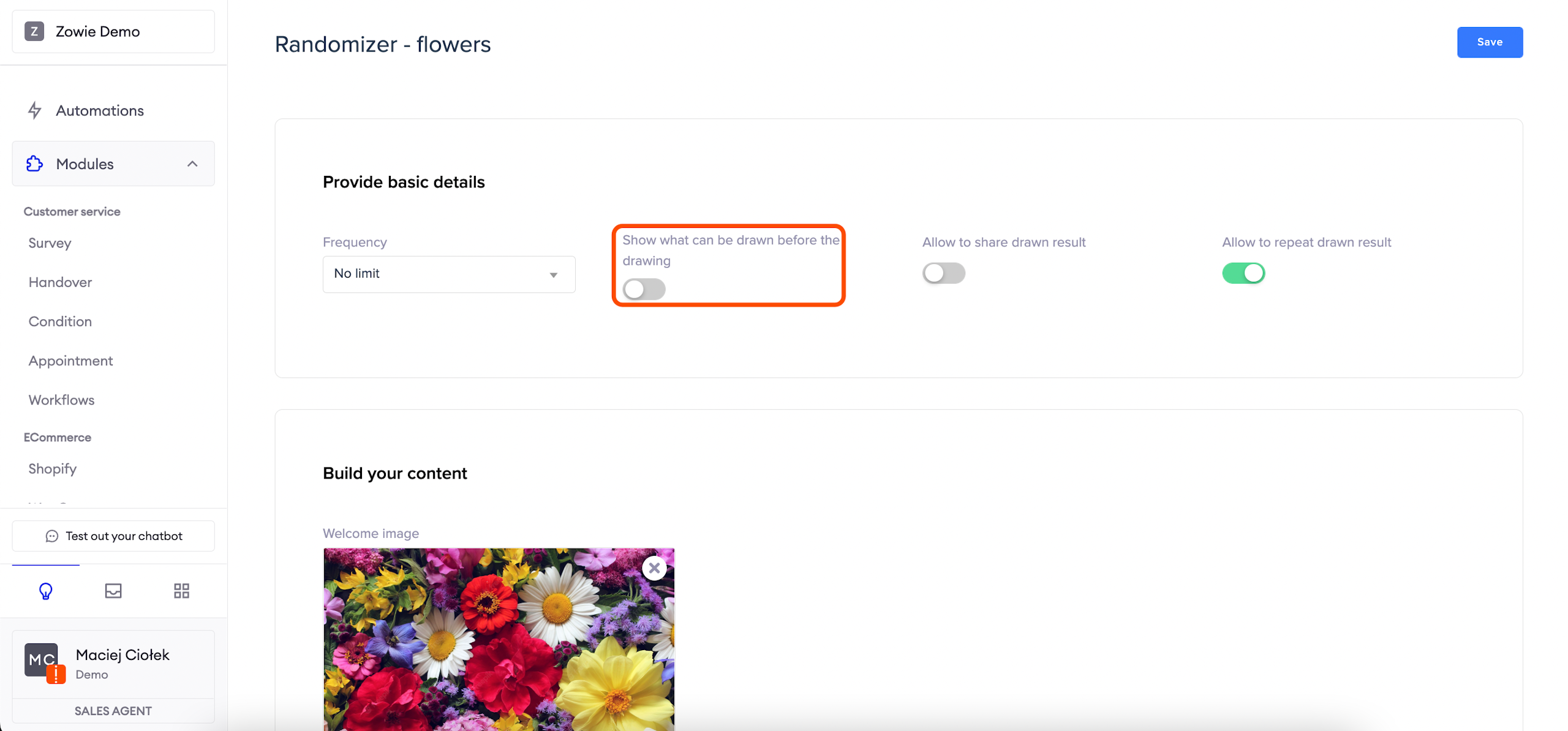
If you toggle Show what can be drawn before the drawing on, the user will see a carousel with possible drawing results.
Allow to share drawn result makes it possible for users to share their results.
Allow to repeat drawn result causes that the result can be drawn again by the same user.
Then you can tweak the frequency of the drawing, meaning how often the user can draw something.
No limit allows your users to draw an unlimited number of times.
One time allows users to draw the results only once.
Every day, Every week and Every month allow users to draw once per specified period.
Welcome message
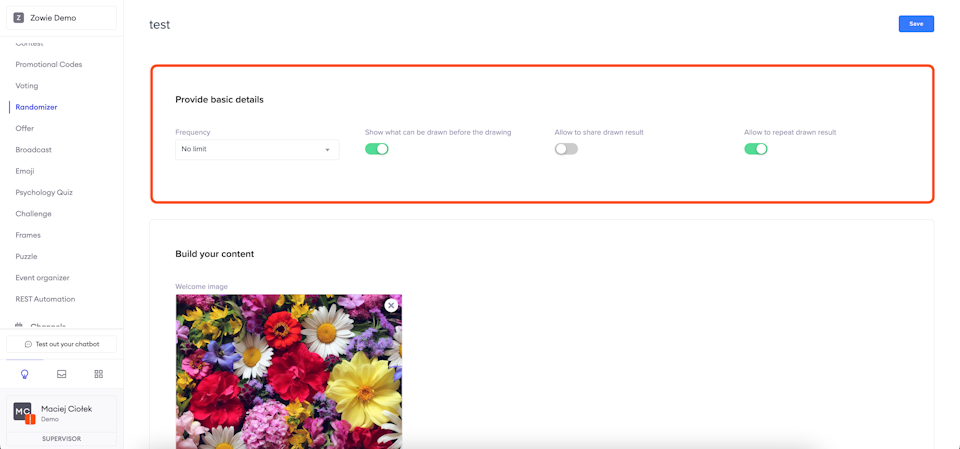
The content to be configured in this module is mainly a dialogue with the user. Start by filling in the Welcome message that is displayed when they enter the module. Additionally, you may upload a Welcome image that is sent before the Welcome message. Right after that, the user receives a Start text with two buttons attached. The Start text message should be a question asking the user whether they want to proceed to the drawing. You can configure the text on the respective buttons by filling in the Yes and No button captions.
Then type the messages that are sent after the user clicks either button—those are the Text when user clicks yes and Text when user clicks no fields.
Lastly, configure the Already done text.
Results - preview enabled
The results can be configured in a tabbed editor where each tab represents a different result that can be drawn. The editor looks slightly different depending on whether the preview of the results is enabled or not.
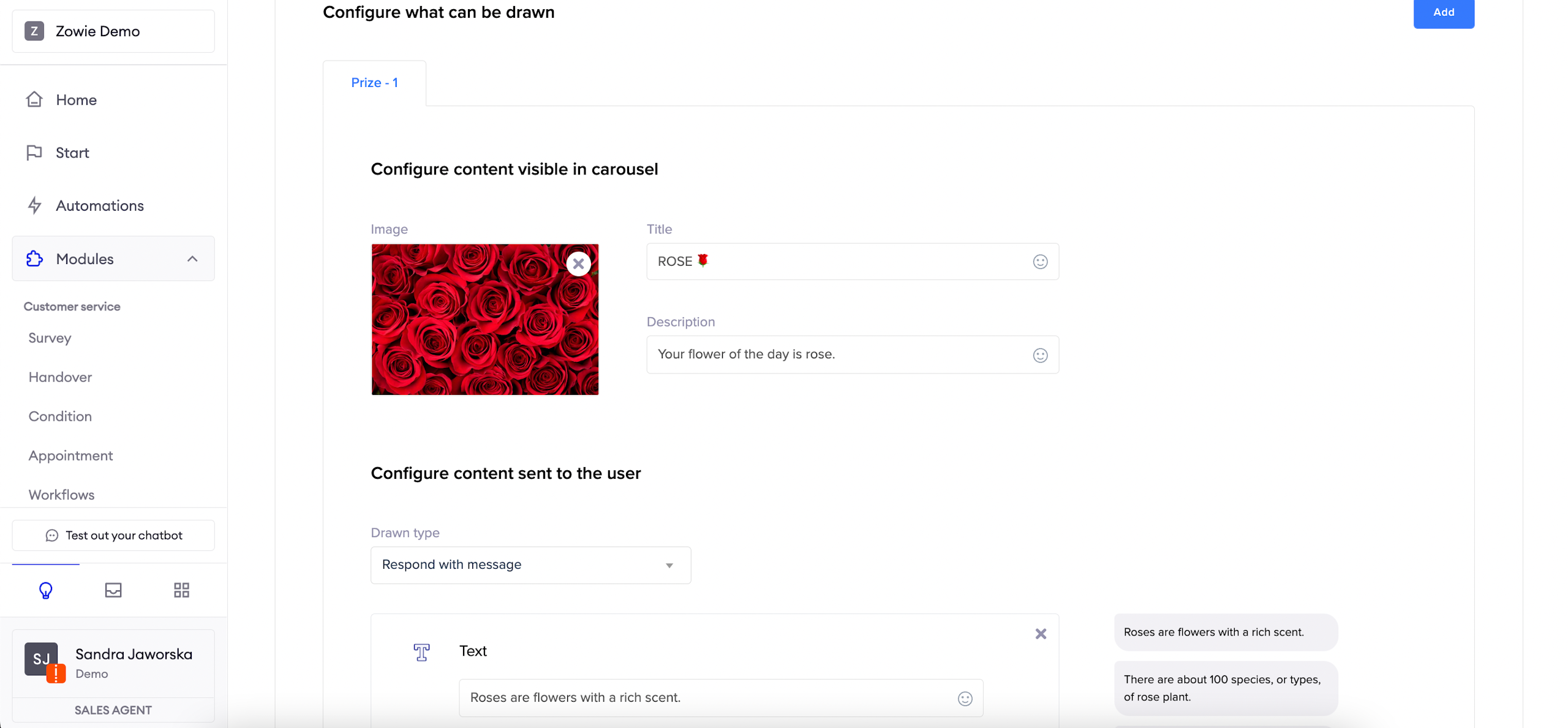
If the preview is enabled, add your results with the "Add" button and proceed to configure the previews. Upload an Image, enter the Title, and a short Description.
After that, you can configure the actual results using the Creator. Note that the content is separate for each result.
If you want to remove a result, click the "Remove" button.
Results - preview disabled
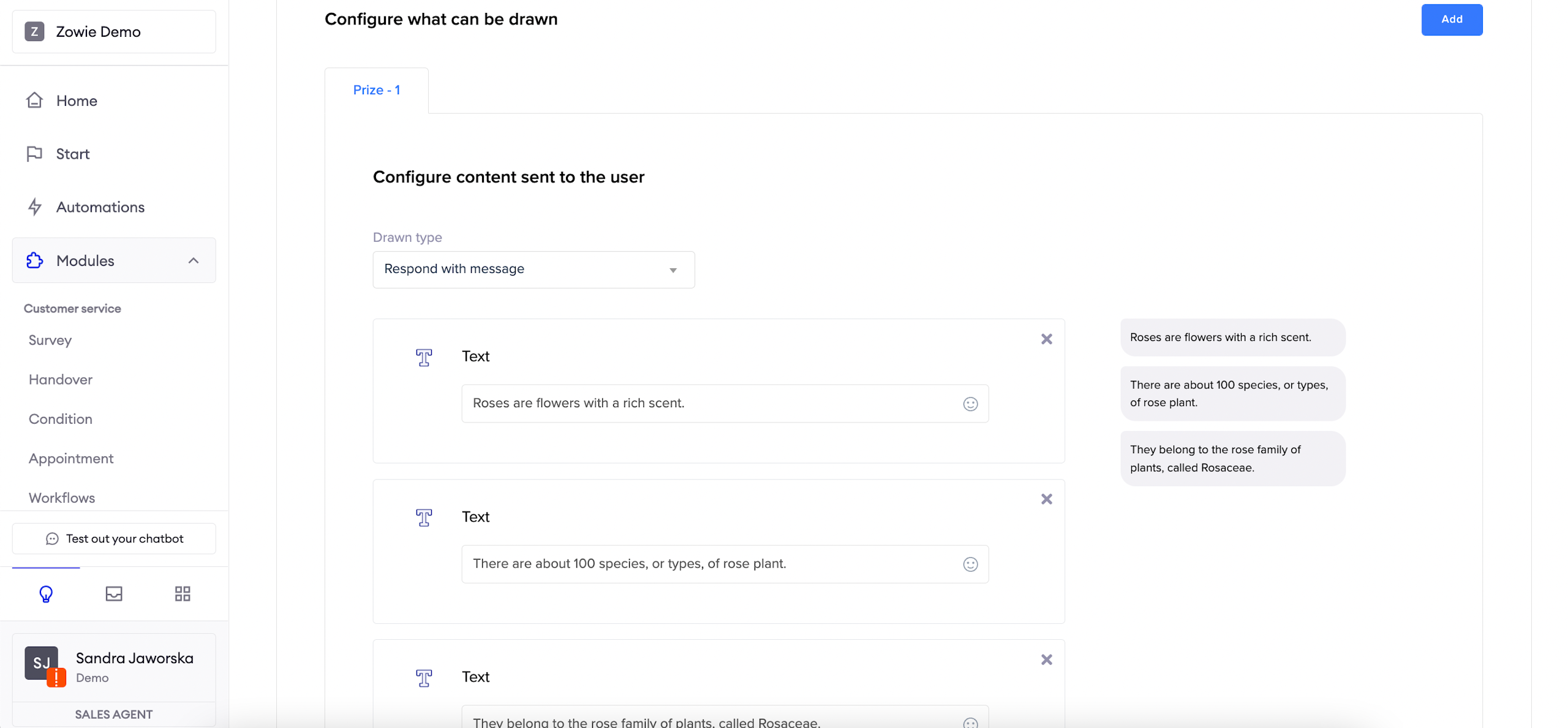
If the preview is disabled, add your results with the "Add" button and proceed to configure them using the Creator. Note that the content is separate for each result.
If you want to remove a result, click the "Remove" button.
Updated over 1 year ago