
NetSuite
What are Zowie capabilities to integrate with NetSuite?
Below are the different use cases Zowie can support with our NetSuite integrations:
| Use case | Solution |
|---|---|
| Accessing order status and tracking from Zowie at NetSuite | Zowie can pull sales order data with API call to NetSuite API exposed with RESTlet using built-in REST Automation module. The data we fetch can be used to personalize the experience in Zowie. |
| Accessing RMA from Zowie at NetSuite | Zowie can pull RMA data with an API call to NetSuite API exposed with RESTlet to fetch any object data from NetSuite using the built-in REST Automation module. The data we fetch can be used to personalize the experience in Zowie. |
| Case creation by Zowie at NetSuite | Zowie can create case objects with API calls to NetSuite API exposed with RESTlet using built-in REST Automation module. The type of input data to create a case can be customized both on the NetSuite and Zowie side. |
| RMA creation by Zowie at NetSuite | Zowie can create an RMA object with an API call to NetSuite API exposed with RESTlet using built-in REST Automation module. The type of input data to create a case can be customized both on the NetSuite and Zowie side. |
How to connect Zowie to NetSuite API?
In order to allow Zowie to access data in NetSuite, you need to enable RESTlet support and prepare API credentials for Zowie to access APIs. Please follow the below steps:
- Make sure that RESTlet feature is enabled in your NetSuite by accessing:
Setup > Company > Enable Features > SuiteCloud > Server SuiteScript. - In order to securely access your data Zowie will use token-based authentication. You can enable it by accessing the following configuration page:
Setup > Company > Enable Features > Suite Cloud > Manage Authentication. SelectEnable Token-Based Authenticationand clickSave. - Then you will need to create an integration that Zowie is going to use. To create integration please proceed with the following steps:
- Navigate to
Setup > Integration > Manage Integrationsand selectNew. - Provide a name for your integration in the
Namefield eg.Zowie. - Enable
Token-Based AuthenticationandTBA: Issuetoken Endpoint. - Disable
TBA: Authorization FlowandAuthorization Code Grant - Enable
User Credentialsand clickSave.
- Navigate to
- After creating the integration you will receive a
Consumer KeyandConsumer Secret, you will need to share this with the Zowie Team. - Once the integration is created, you will need to create a new role for Zowie that will be used by a Zowie user to authenticate the API. Please proceed with the following steps:
- Navigate to
Setup > Users/Roles > Manage Roles > New. - Provide a name for a role in
Namefield eg.Zowie. - In the
Setuptab of thePermissionssection please make sure to selectUser Access Tokenspermission and any other objects that Zowie must have access to integrate eg. accessing sales order data. - Click
Saveto accept changes.
- Navigate to
- As the next step, it's recommended to create a dedicated Employee account for the Zowie integration. Please proceed with the following steps:
- Naviagte to
Lists > Employees > Employeesand create a new Employee. - Make sure that you assigned the
Roleyou created in step 5.
- Naviagte to
- For recently created Employee please generate an Access Token to authenticate the API as follows:
- Navigate to
Setup > Users/Roles > Access Tokens > New. - Select Application, Employeer and Role you created in above steps.
- After creating an Access Token you will receive a
Token IDandToken Secret, you will need to share this with Zowie Team.
- Navigate to
- Share the following parameters with the Zowie Team to configure authentication with your NetSuite:
- Netsuite URL
- Consumer Key
- Consumer Secret
- Token ID
- Token Secret
How to expose API for Zowie with RESTlet?
NetSuite RESTlet allows you to expose an API endpoint using a RESTlet script. RESTlet scripts are specific to the business use case and will be prepared by a Zowie Solution Engineer. You will receive RESTlet script from Zowie that you can use to create a deployment according to the following steps:
- Navigate to
Customization > Scripting > Scripts > New. - Upload a RESTlet script received from Zowie.
- Click
Save and Deployon the uploaded script. - Provide
Script IDandDeployement IDto Zowie Team to configure the integration.
Example RESTlet for order status and tracking
Here is the example RESTlet script that allows Zowie to access sales order data:
/**
 *@NApiVersion 2.x
 *@NScriptType Restlet
 */
define(['N/search', 'N/error'],
    function(search, error) {
        //Loading sales order based on saved search 4541158 and provided number
        function _get(context) {
            //Validate if we have number
            if(context.number === undefined) {
                throw error.create({
                    name: 'MISSING_REQ_ARG',
                    message: 'Missing a required argument number.'
                });
            }

            var savedSearchId = ‘3205’; //provide your saved search ID

            try {
                //Load saved search for tranid search
                var ordersSearchForTranId = search.load(savedSearchId);

                //Copy the filters from ordersSearch into defaultFilters
                var defaultFiltersForTranId = ordersSearchForTranId.filters;

                //Create custome filter for SO number
                var customFilterForTranId = search.createFilter({
                    name: 'tranid',
                    operator: search.Operator.IS,
                    values: context.number
                })

                //Add the customFilter into defaultFilters
                defaultFiltersForTranId.push(customFilterForTranId);

                //Modify filters in loaded search
                ordersSearchForTranId.filters = defaultFiltersForTranId;

                //Run modified search
                var ordersResultSetForTranId = ordersSearchForTranId.run();


                //Take one order
                var ordersResultRangeForTranId = ordersResultSetForTranId.getRange({
                    start: 0,
                    end: 1
                });

                //Load saved search for web number search
                var ordersSearchForWebNumber = search.load(savedSearchId);

                //Copy the filters from ordersSearch into defaultFilters
                var defaultFiltersForWebNumber = ordersSearchForWebNumber.filters;

                //Create custome filter for Web Number
                var customFilterForWebNumber = search.createFilter({
                    name: 'weborder', //Customize this filter field based on your Netsuite setup
                    operator: search.Operator.IS,
                    values: context.number
                })

                //Add the customFilter into defaultFilters
                defaultFiltersForWebNumber.push(customFilterForWebNumber);

                //Modify filters in loaded search
                ordersSearchForWebNumber.filters = defaultFiltersForWebNumber;

                //Run modified search
                var ordersResultSetForWebNumber  = ordersSearchForWebNumber.run();


                //Take one order
                var ordersResultRangeForWebNumber = ordersResultSetForWebNumber.getRange({
                    start: 0,
                    end: 1
                });


                var results = ordersResultRangeForTranId.concat(ordersResultRangeForWebNumber);

                return JSON.stringify(results);
            } catch (error) {
                throw error.create({
                    name: 'EXECUTION_ERROR',
                    message: error.name + ': ' + error.message
                });
            }

        }
        return {
            get: _get
        };
    });
Please note that in the 17th line there is a need to provide a saved search ID.
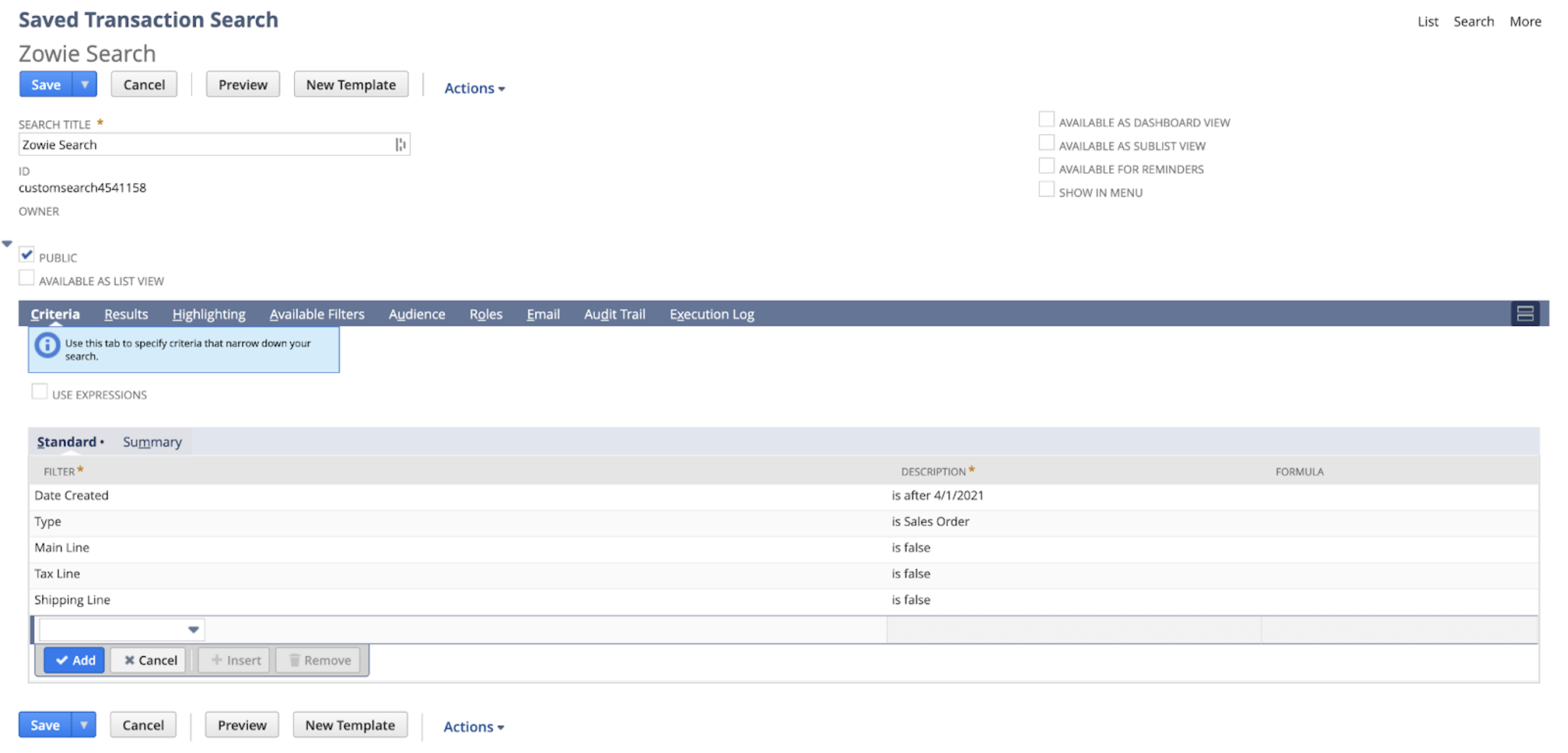
To create a Saved Search follow the steps:
- Create a
Saved Searchand name it eg.Zowie Order Tracking. - Make it
Publicand introduce the followingCriterias:
- Select data (columns) that Zowie should access to provide updates on order status and tracking:
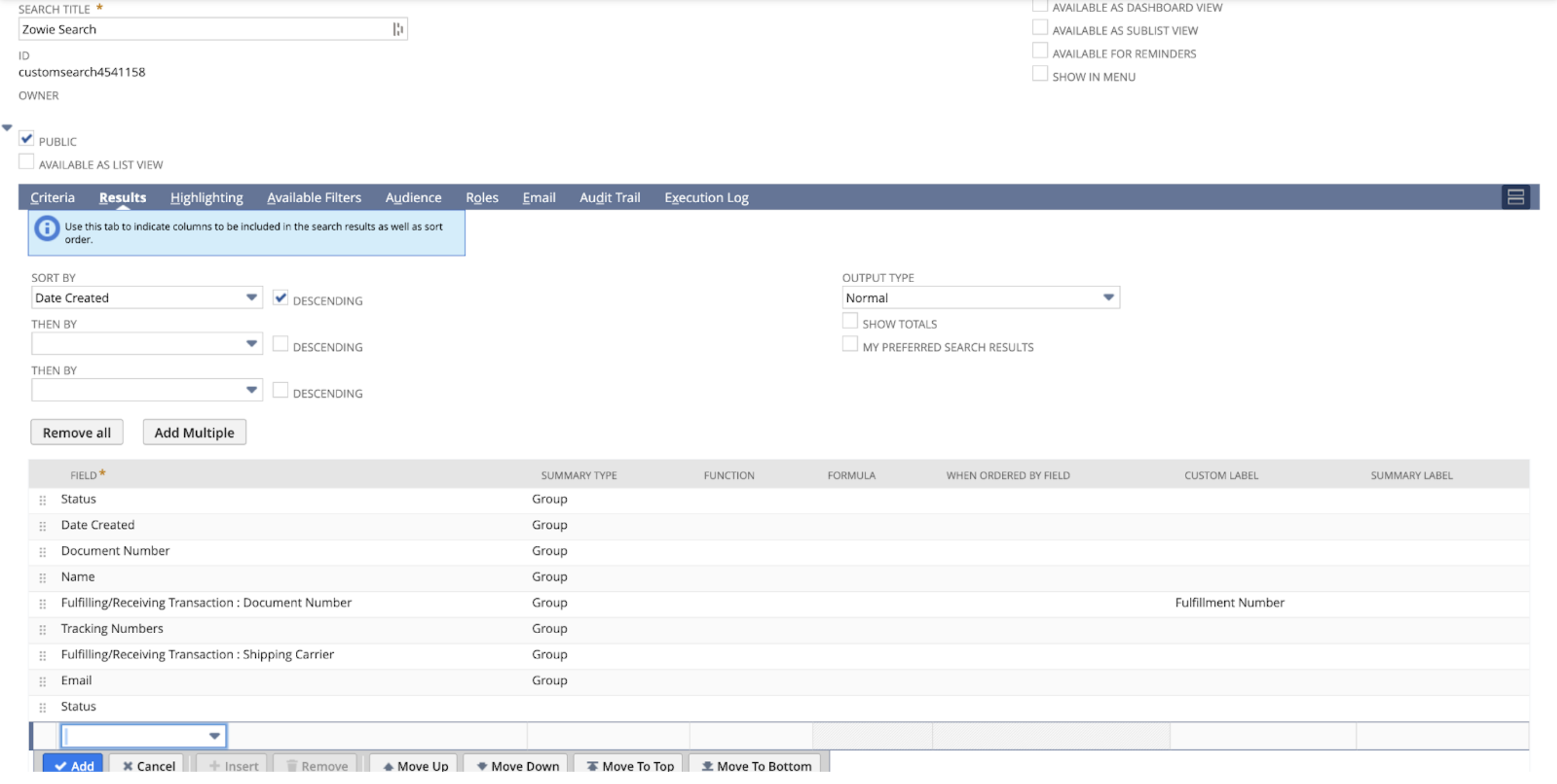
- Save the created
Saved Searchand update theIDin the above RESTlet script with the one you received for created Saved Search.
Updated over 1 year ago
Did this page help you?