
Salesforce
What are Zowie capabilities to integrate with Salesforce?
Please get familiar with the different use cases Zowie can offer you with our Salesforce integrations:
| Use case | Solution |
|---|---|
| Live chat handover to an agent at Salesforce Service Cloud | Zowie is natively integrated with Salesforce Chat REST API via Handover module to start a chat session whenever handover is required. |
| Case creation at Salesforce Service Cloud | Zowie is natively integrated with Salesforce REST API via Handover module to create a Case object whenever an agent is available, or we want Zowie to create business-specific case escalation. |
| Pulling object specific data (fields) from Salesforce | Zowie can make any API call to Salesforce REST API to fetch any object data from Salesforce via REST Automation module. The data we fetch can be used to personalize experience in Zowie. |
| Creating/updating object specific data (fields) at Salesforce | Zowie can make any API call to Salesforce REST API to create (POST, PUT, PATCH, DELETE) fields in any object via REST Automation module. This will allow you to make any actions on behalf of customer to automate business processes. |
| Accessing order status and tracking | Zowie is integrated with B2C Commerce API offered by Salesforce. With this API we can access customers' orders. |
| Accessing product information | Zowie is integrated with B2C Commerce API offered by Salesforce. With this API we can access products catalogue and related information. |
How to integrate Zowie with Salesforce REST API?
Zowie uses Salesforce OAuth via Connected Apps to ensure we offer a secure connection between the systems. To connect our Survey or REST Automation we would need the following parameters:
domain- your Salesforce subdomainemail- an email of a user you created for Zowie integrationpassword- a password of a user you created for Zowie integrationsecurity token- a value for Security Token that is provided by Salesforce for a created userclient id- the client ID of OAuth Connected App you created for Zowieclient secret- the client Secret of OAuth Connected App you created for Zowie
Please follow the steps to create a new Connected App to collect the above parameters:
- Create a connected app at Salesforce for Zowie.
- Provide
https://app.getzowie.com/oauth/salesforcefor a callback url field. - Please select
Enable OAuth Settings. - Please select
Enable Client Credentials Flow. - Click
Manage Consumer Detailson the success page to get yourclient idandclient secret
- Provide
- Create a user and specify a role at Salesforce for Zowie, you will get an
emailand apassword - Reset a security token for a created user, you will receive it via email. Please use a concatenation of
passwordandsecurity token(without any space) for Zowie configuration. - Use the collected parameters to configure Survey module or REST Automation module.
How to integrate Zowie with Salesforce Chat API?
To support live chat handover Zowie is integrated with Salesforce Chat API. This API is a public API so it doesn't require any authentication. To connect our Handover we would need the following parameters:
chat domain- the domain of Salesforce chat deploymentorganizationId- the ID of your Salesforce organizationdeploymentId- the ID of your Salesforce chat deploymentbuttonId- the ID of your Salesforce chat button to route Zowie to right queue
Please follow the steps to create a new Chat Deployment to collect the above parameters:
- Create a deployment at Salesforce for Zowie
- You will receive the following JS code:
<script type='text/javascript' src='https://c.la5-c2-ia4.salesforceliveagent.com/content/g/js/60.0/deployment.js'></script>
<script type='text/javascript'>
   liveagent.init('https://d.la5-c2-ia4.salesforceliveagent.com/chat', '5728c000000QOlL', '00D8c000005uScR');
</script>- Please extract the following information from this code:
d.la5-c2-ia4.salesforceliveagent.com(1st parameter in liveagent.init function) would be yourchat domain5728c000000QOlL(2nd parameter in .init function) would be yourdeploymentId00D8c000005uScR(3rd parameter in .init function) would be yourorganizationId
- Create a chat button at Salesforce for Zowie.
- You will receive the following JS code:
<a id="liveagent_button_online_5738c000000QQPR" href="javascript://Chat" style="display: none;" onclick="liveagent.startChat('5738c000000QQPR')">
   <!-- Online Chat Content -->
</a>
<div id="liveagent_button_offline_5738c000000QQPR" style="display: none;">
   <!-- Offline Chat Content -->
</div>
<script type="text/javascript">
   if (!window._laq) { window._laq = []; }
   window._laq.push(function(){liveagent.showWhenOnline('5738c000000QQPR', document.getElementById('liveagent_button_online_5738c000000QQPR'));
   liveagent.showWhenOffline('5738c000000QQPR', document.getElementById('liveagent_button_offline_5738c000000QQPR'));
   });
</script>- Please extract the following information from the received code:
5738c000000QQPRwould be yourbuttonId
- Use the collected information to configure live chat handover from Zowie to Salesforce Service Cloud.
How to integrate Zowie with Salesforce B2C Commerce?
- Please use the following tutorial from Salesforce to configure access for Zowie.
- Please configure the following scope access:
- sfcc.orders
- sfcc.promotions
- sfcc.catalogs
- sfcc.products
- sfcc_inventory_availability
- sfcc.shopper-categories
- sfcc.shopper-productlists
- sfcc.shopper-products
- sfcc.shopper-baskets-orders
- sfcc.shopper-stores
- Please share with us following information from above configuration:
API Client ID- you can find in the table of API clients that appears after savingPassword- you will provide it at step 5.
- We will also need
Short Code,Tenant ID,Organization ID. Please use the tutorial from Salesforce how to access above parameters.
How to integrate Zowie with Salesforce Knowledge Base?
This integration allows import of Salesforce Knowledge Base.
Use cases
- Zowie can expose articles in X2 Knowledge
Prerequisites
Customers must meet the following requirements in order to set up this integration:
- Salesforce is used
Configuration
- Please prepare API configuration using steps described at How to integrate Zowie with Salesforce REST API.
- Provide required configuration in Workspace -> Integrations -> Salesforce:
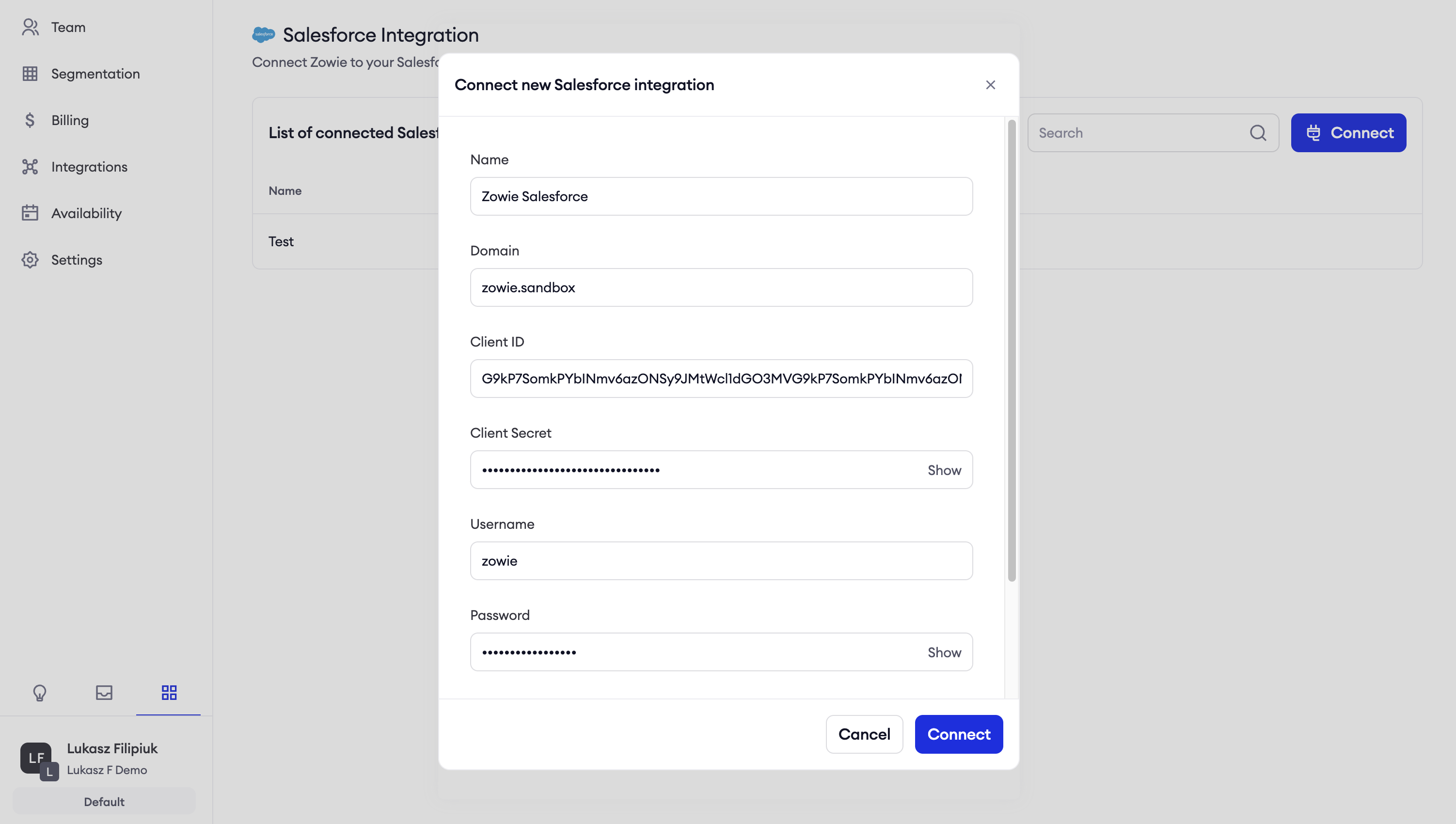
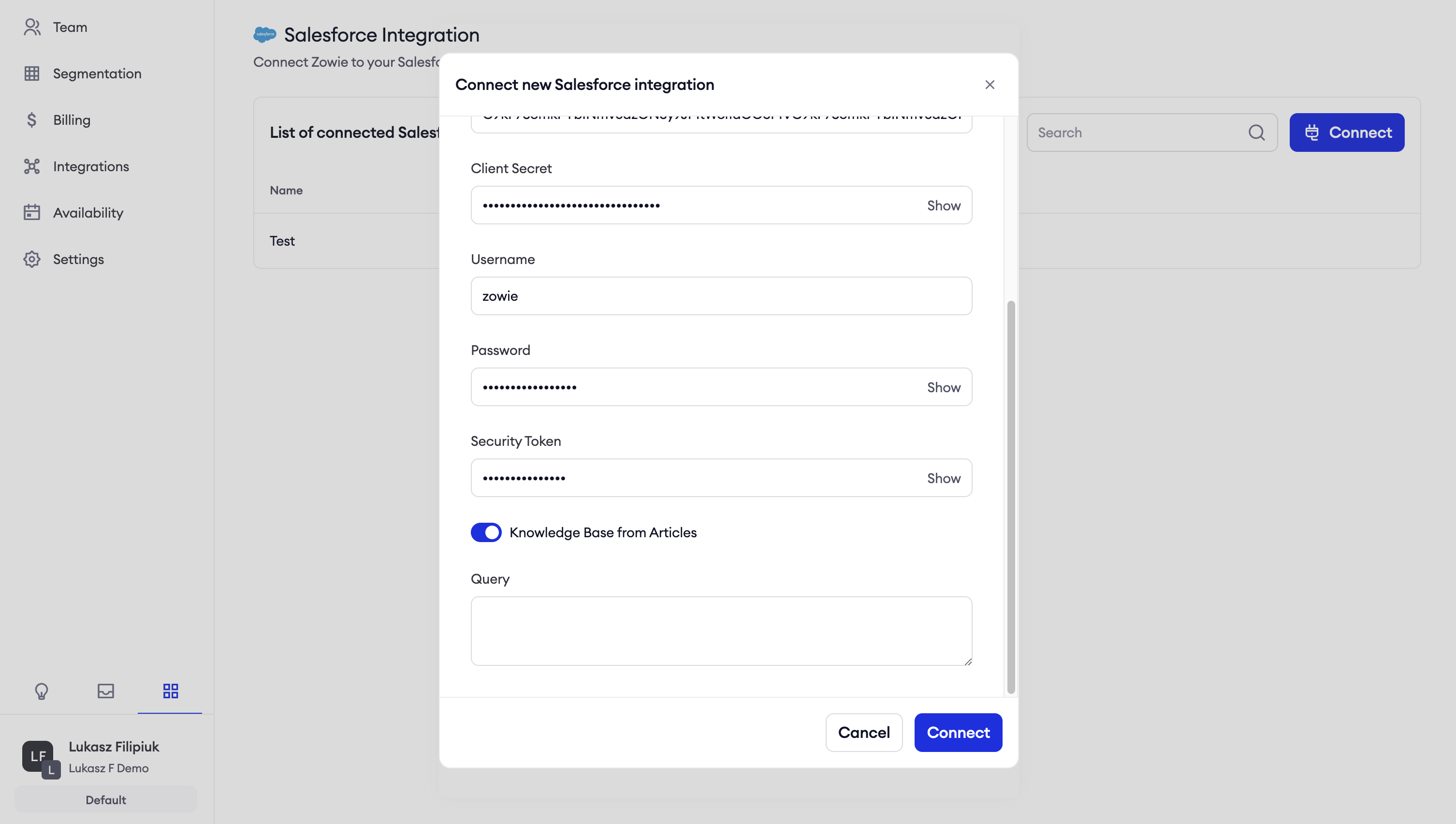
- You may need to provide security token depending on your Salesforce configuration.
- Once you enable Knowledge Base from Articles, Zowie will pull articles from your Salesforce Knowledbase.
- Zowie supports SOQL that allows you to add query, that will be automatically added to API call after
WHEREclause. You can learn more about this in the Salesforce documentation. The example value for query: can be:PublishStatus IN ('online').
How to integrate Zowie with Salesforce Messaging?
This integration allows to pass chats from Zowie Chat to Salesforce Messaging using Messaging for In-App and Web API.
Prerequires
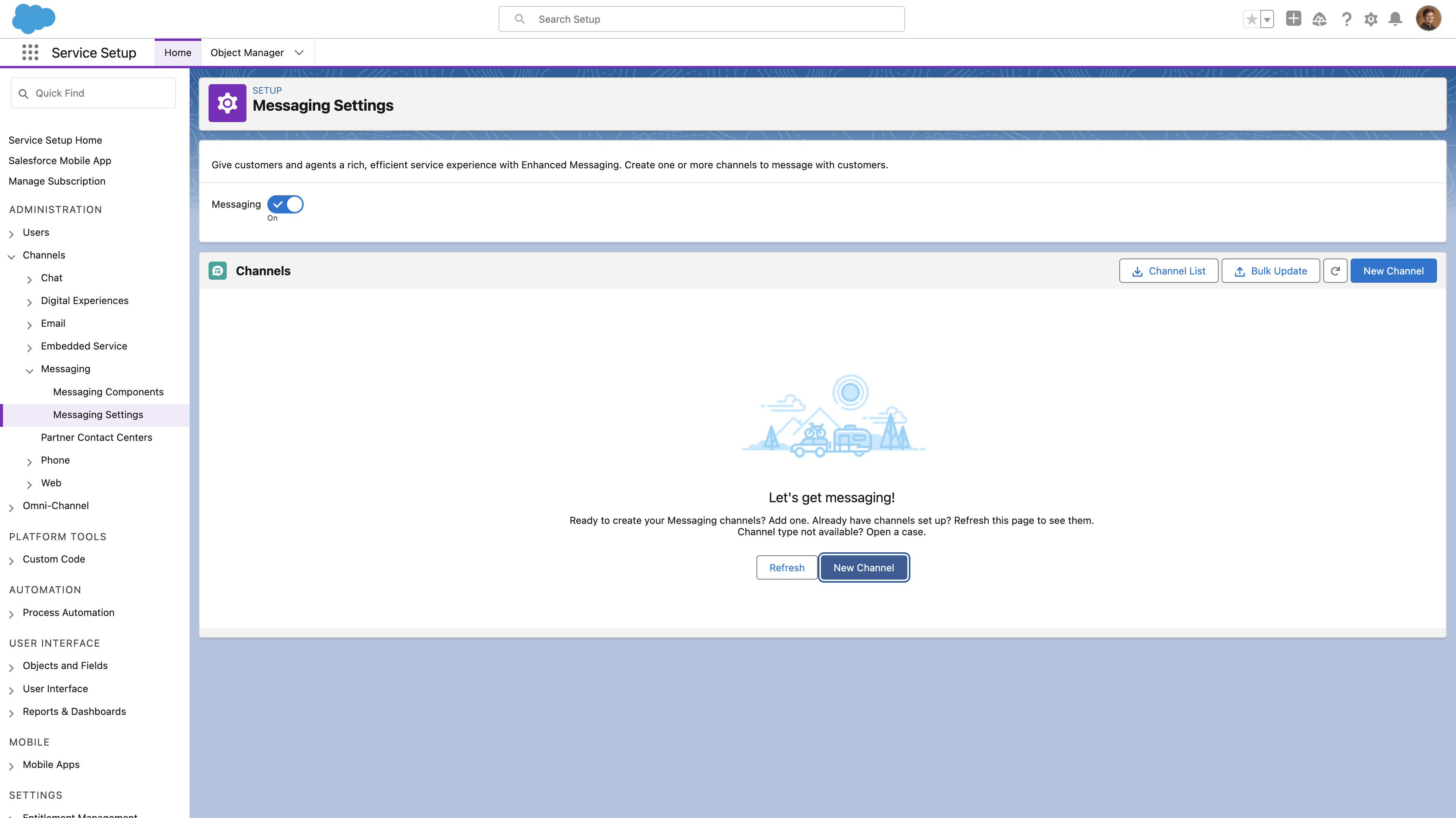
- Make sure Messaging is enabled in Salesforce Service Cloud. Use Quick Find to search for Messaging Settings, and confirm that the checkbox is turned on.
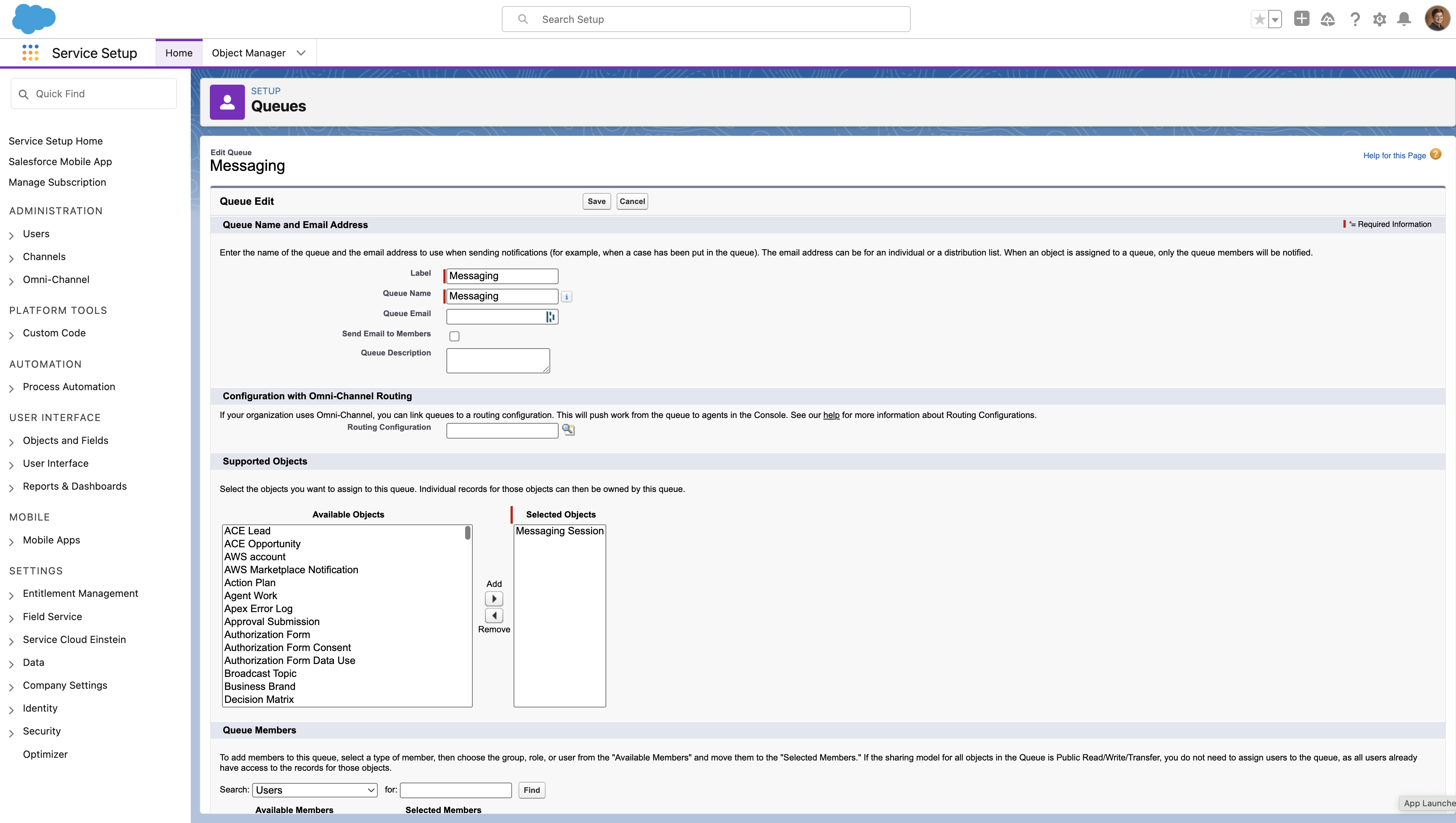
- Make sure you have at least one queue available with Messaging Sessions configured for the supported objects.
Creating a channel
- In Messaging Settings, click New Channel.
- Select the Messaging for In-App and Web option.
- Provide the following configuration details:
- Channel Name: Zowie Chat
- Developer Name: Zowie_Chat
- Deployment Type: Mobile
- For Channel Routing, we recommend selecting Omni-Queue for the routing type. If you’d like to use flows, you can preconfigure a flow and select it instead.
- Accept the terms and conditions, then create your channel.
Creating Embedded Service Deployment
- Use Quick Find to search for Embedded Service Deployment Settings.
- A service deployment is automatically created for the new channel. Do not use this one, as it has the wrong type and will only work for the mobile SDK.
- Click New Deployment, then select Messaging for In-App and Web.
- Select Custom Client and provide the following configuration:
- Embedded Service Deployment Name: Zowie Chat Custom
- API Name: Zowie_Chat_Custom
- Messaging Channel: Select the channel you created (e.g., Zowie Chat)
- Click Save to create the new deployment.
- From the list, select the newly created service named Zowie Chat Custom.
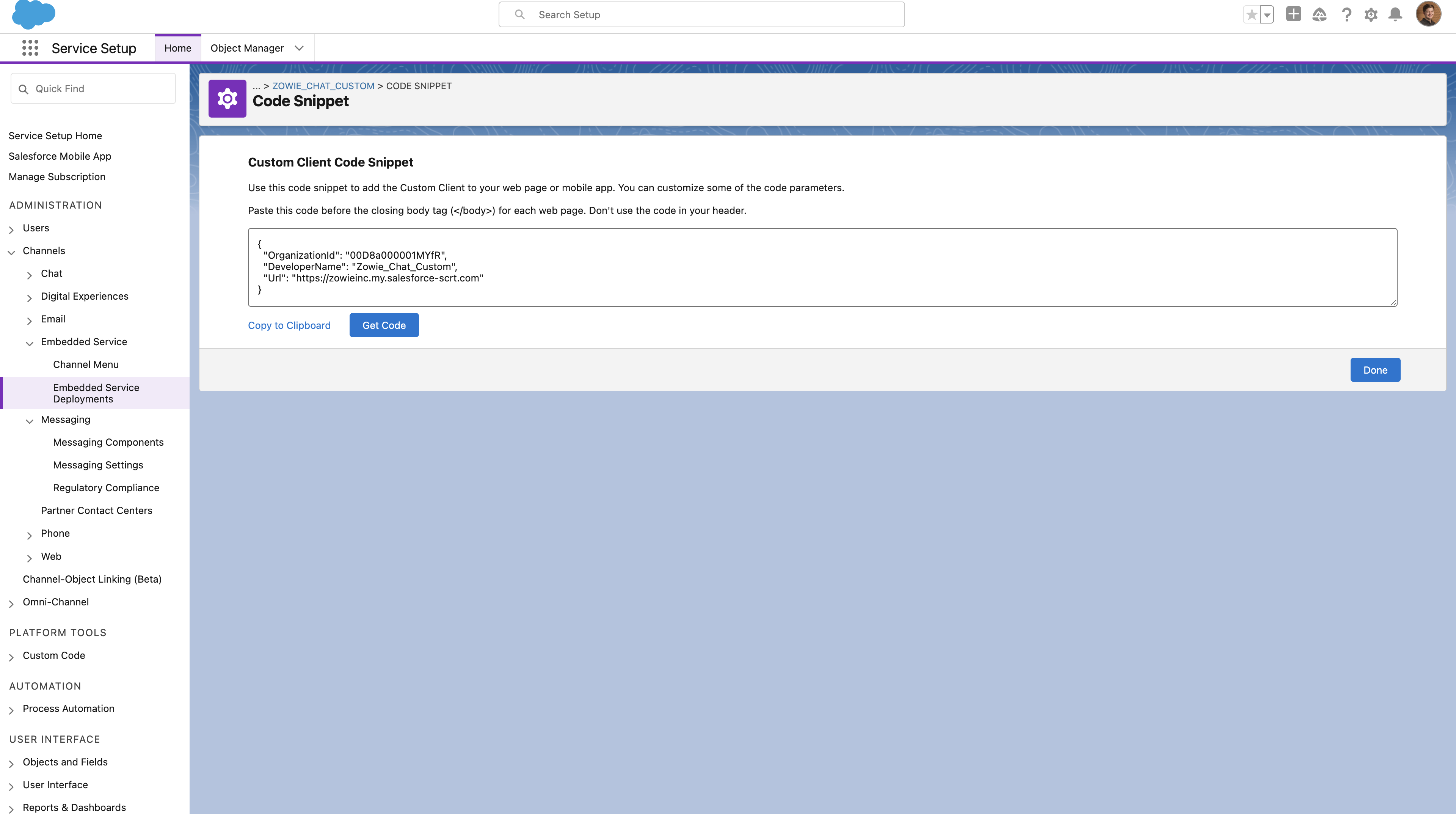
- In the Code Snippet section, click Install Code Snippet.
- Copy the snippet to your clipboard and share it with your Zowie Technical Account Manager to finalize the setup on Zowie’s side.
For more advanced configuration with Omni-Flows and mapping attributes passed from Zowie to Salesforce Messaging please refer to this tutorial.
Updated about 1 year ago