
Inbox: General
What are Threads in Zowie Inbox?
Threads in Zowie Inbox are all of the interactions that your agents have with customers across channels. Any incoming chat, email, or other interaction on a channel integrated with Zowie will appear as a thread. As an agent, you can use this guide to understand how to interact with customers via the Zowie platform.
Why use Threads in Zowie Inbox?
Managing threads in Zowie Inbox is how you as an agent can interact with customers across channels. It allows you to provide personalized assistance, read customer responses, and eventually close out each open thread once it's been resolved.
How to access Threads?
Access Threads by clicking the Inbox view from Zowie's main navigation panel. It will be empty unless there's a thread assigned to you.
AttentionRemember that your organization needs to configure Handover, Queues, and Profiles in order to receive messages into Inbox.
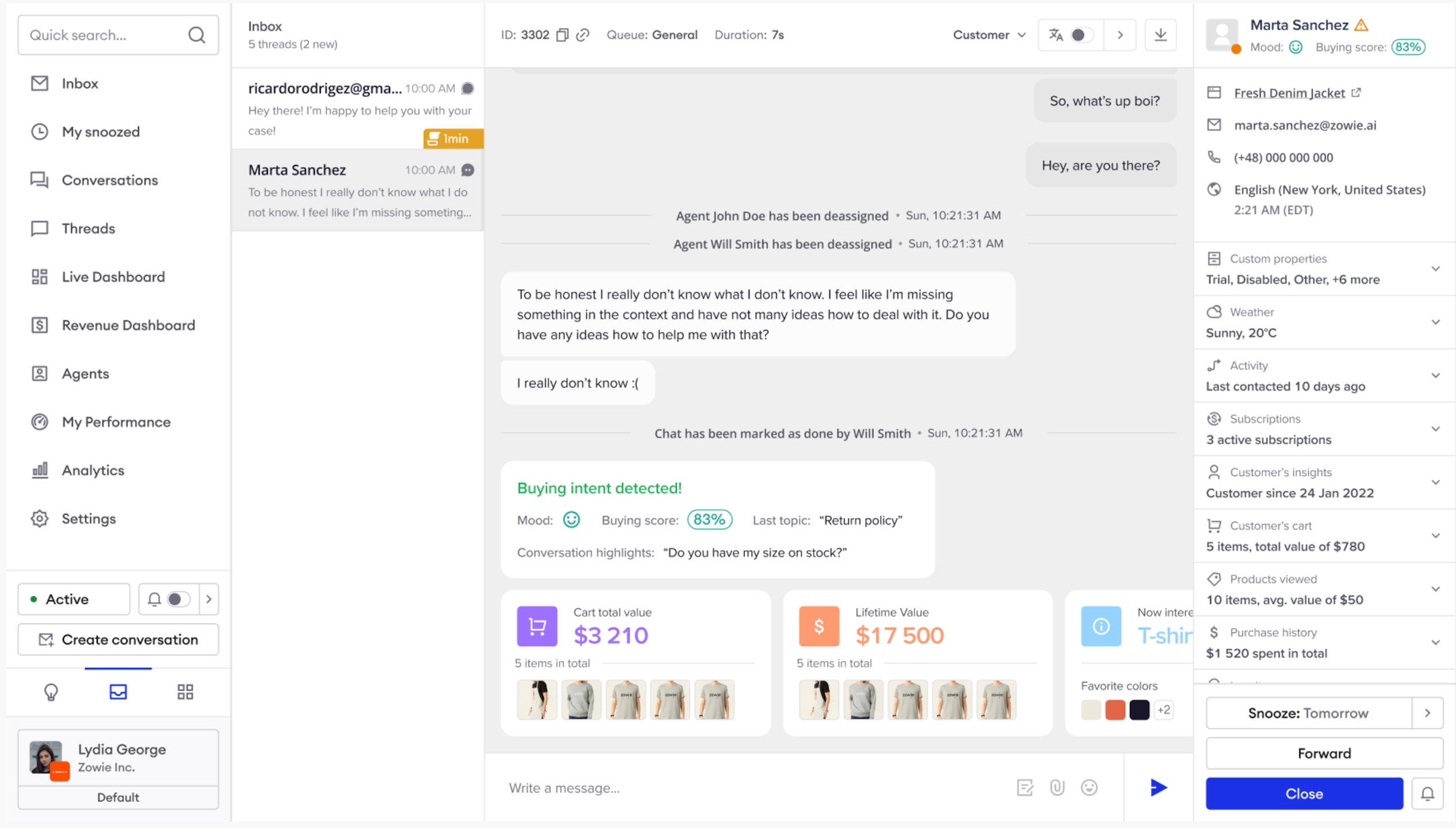
View the Threads list
In this section, you will see all threads currently assigned to you (which are not snoozed). You can use the search bar to find particular threads and see basic thread information (source, First Reponse Time SLA if it's configured). New message badges are shown there as well.
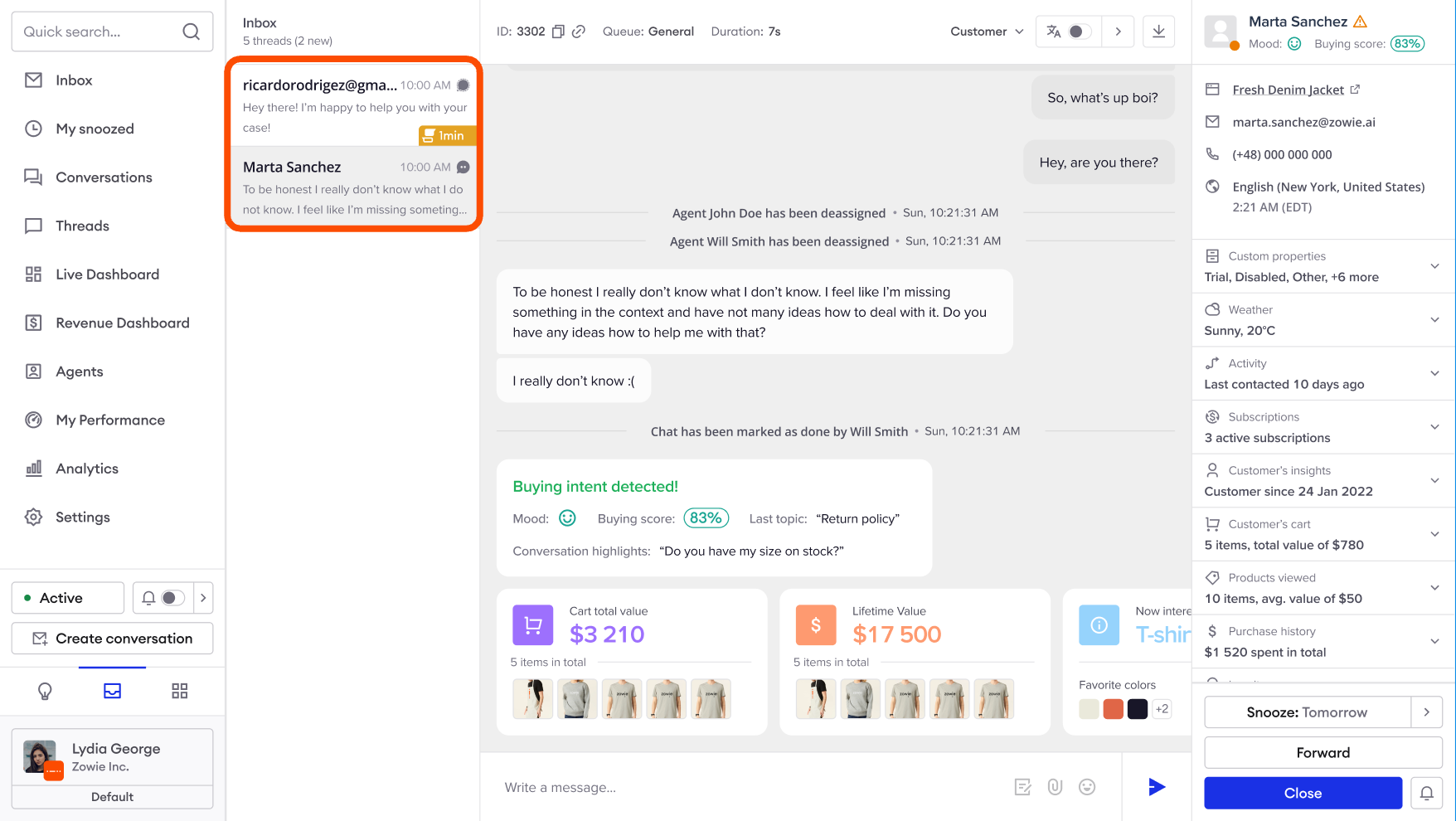
Actions on threads (Snooze, Forward, Close)
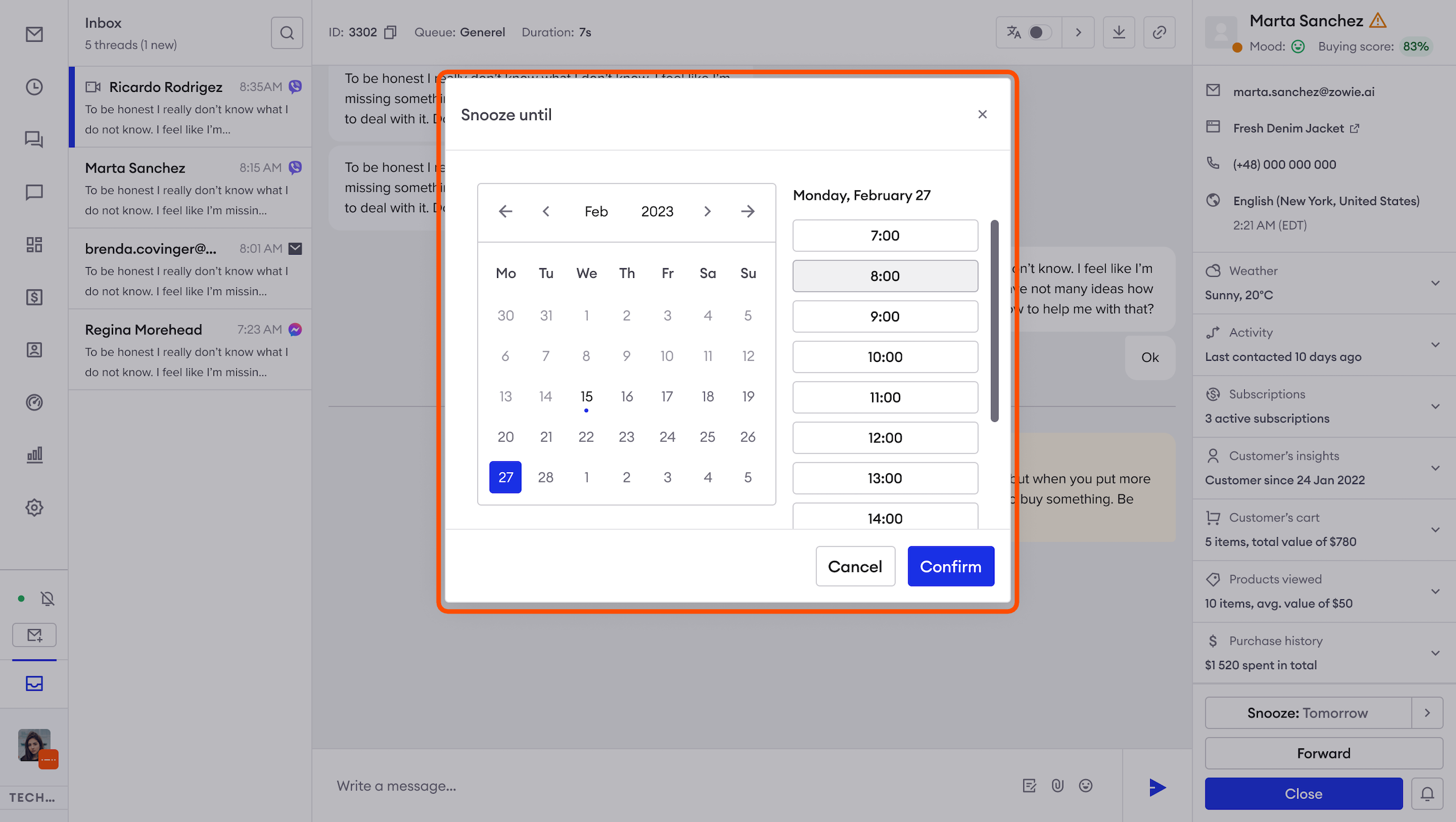
Snooze a Thread
You need to enable Access snooze button in order to perform this action.
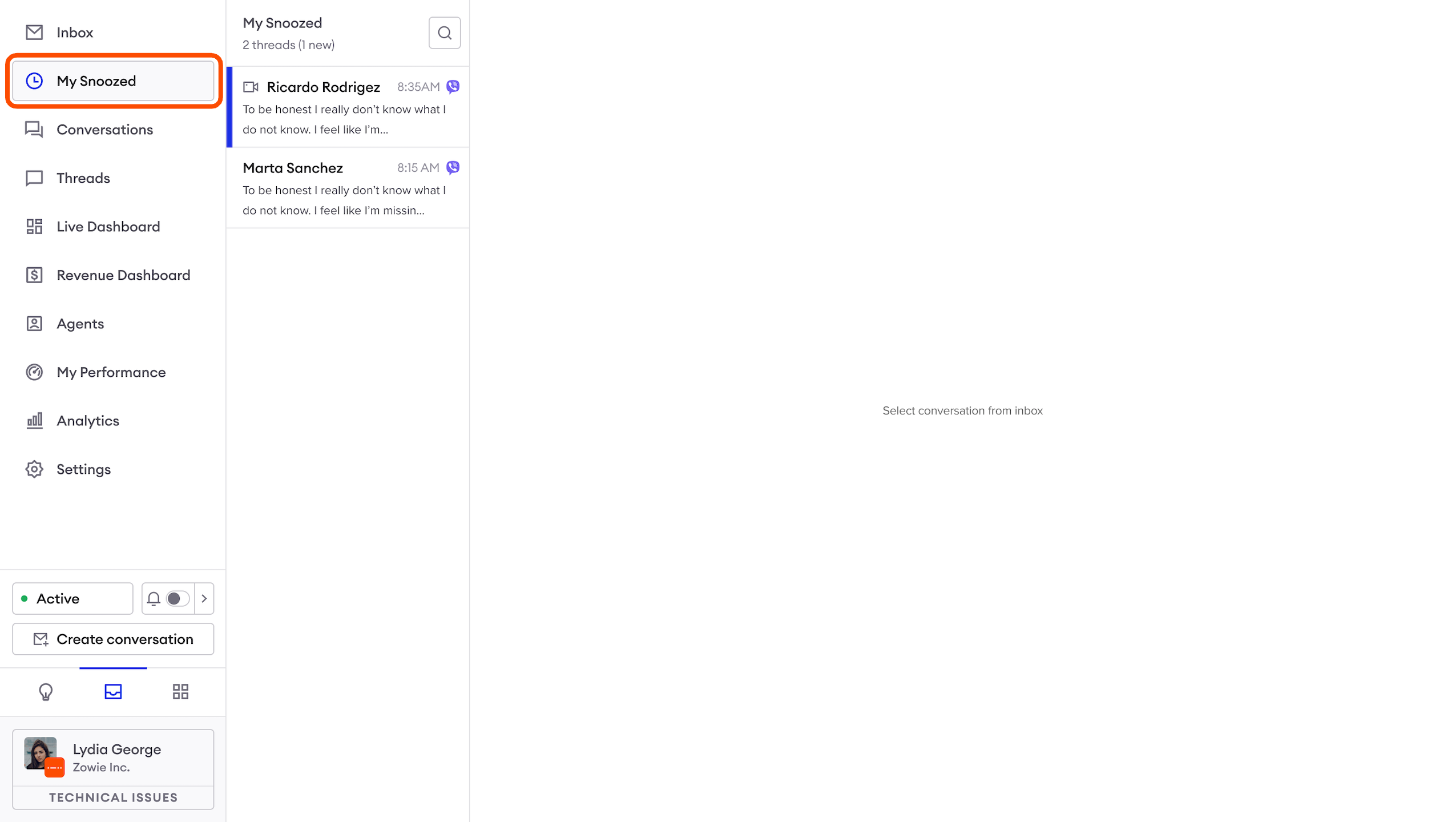
If you decide that resolving the case needs to be postponed (for example, you're waiting for information from the warehouse about a missing parcel), you can snooze the thread. It will go to the dedicated folder (My Snoozed).
My Snoozed folder will only show tickets assigned to specific agents. In order to see all Snoozed tickets please use "Threads" or "Conversations" views.
Messages in the My Snoozed will stay there until:
- you process the ticket (forward or close);
- the user sends a message in that thread;
- the time for reminder has passed.
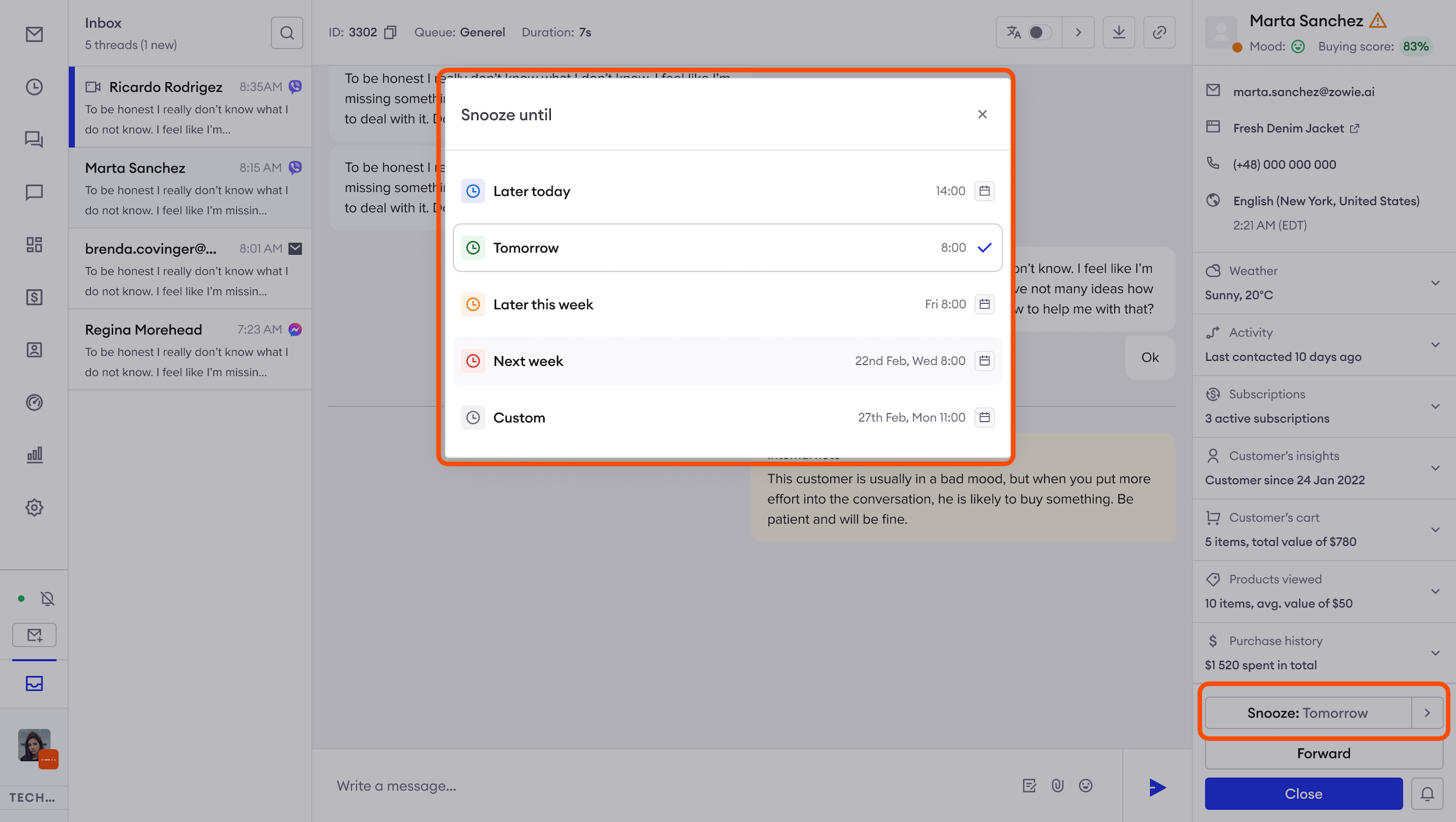
Snooze will require users to select a snoozing time so that tickets automatically return to Inbox. This will ensure no tickets sit open in the Snooze folder for too long.
Snooze will also enable agents to select custom time in the future. Using this function agents can select any day and time in the future when the ticket should return to Inbox.
Forward a Thread
AttentionIn order to forward a thread to a queue, you need to enable this option in Profile settings.
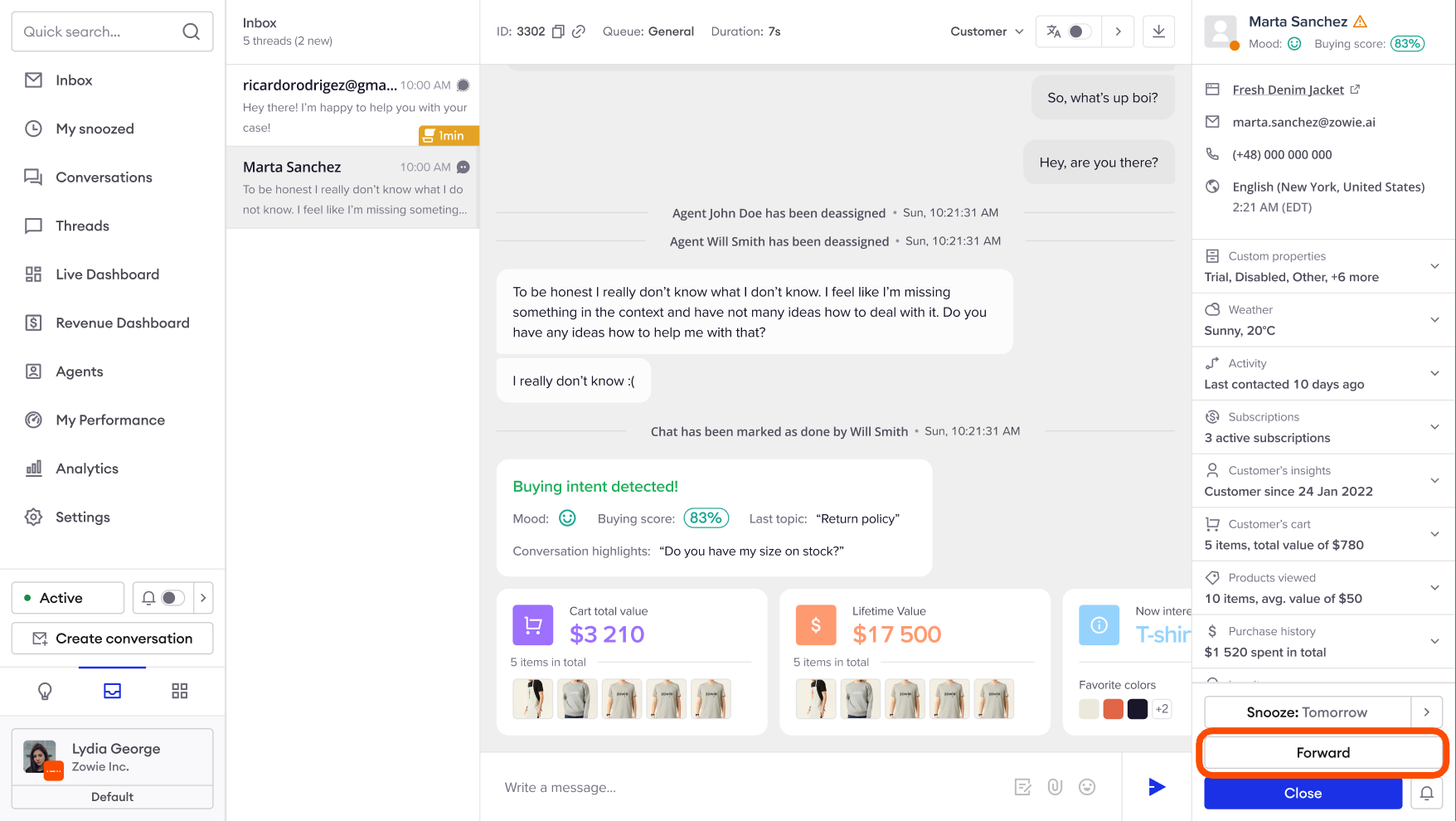
You can pass a thread to another agent whenever you feel that they are better suited to handle it.
You can also forward the thread to another queue which will then be handled according to the queue configuration.
Close a Thread
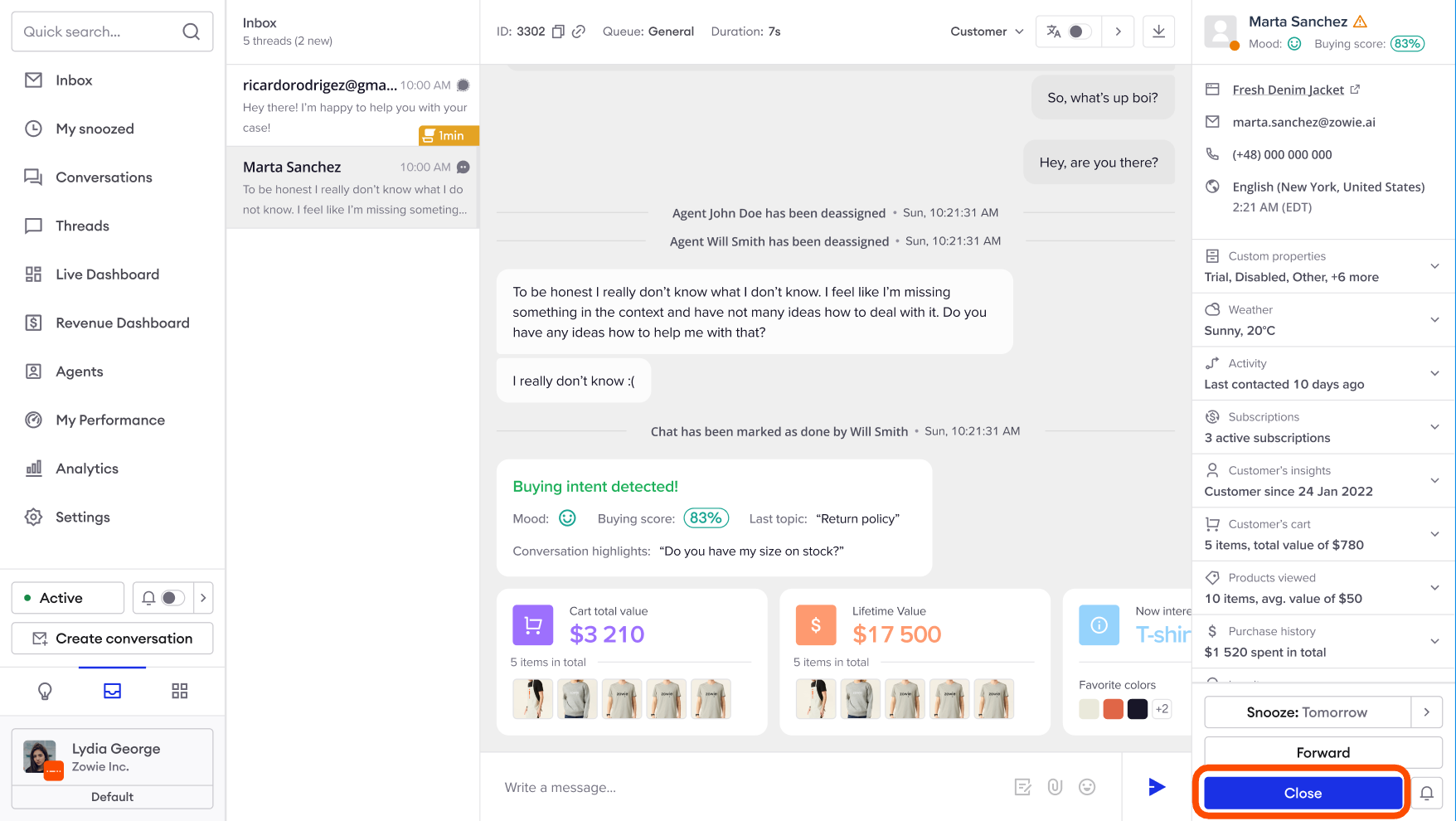
When you finished talking to the user, you can use "Close" button to finish the chat. It will disappear from active threads so that another thread can be assigned to you, according to the maximum threads limit.
The user will be redirected back to the chatbot. If you don't want the chatbot to greet the user, click the speaker button ("Welcome back"). When it's crossed, it means that the chatbot will not welcome the user.
View user details
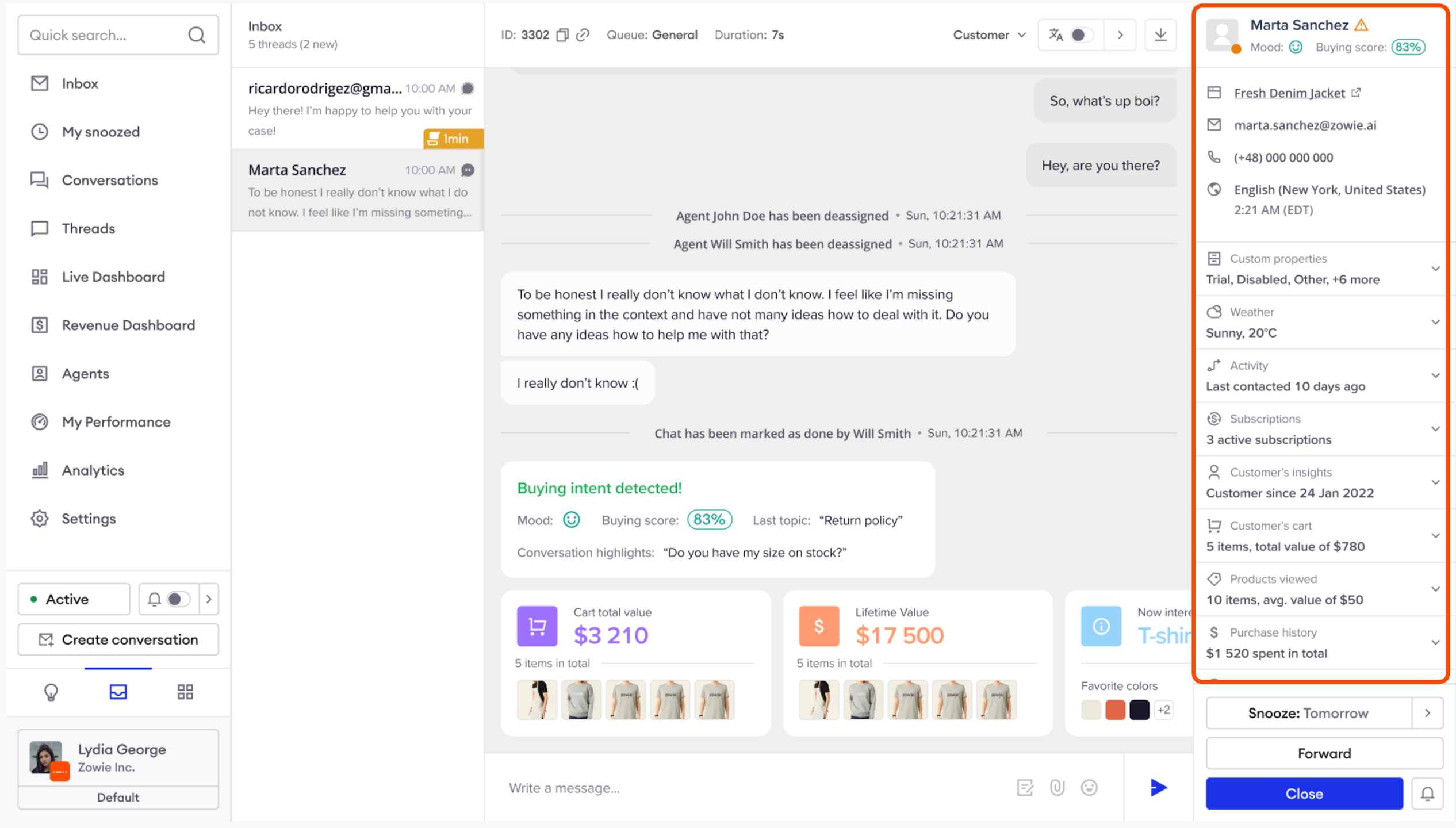
Details
This section displays:
- data from the Pre-Chat Survey (Email, Phone number);
- information from user's browser (Language, Timezone, Current website) if it's available;
- custom properties.
AttentionYou can enable or disable agents from overwriting user properties by changing the configuration in Profiles.
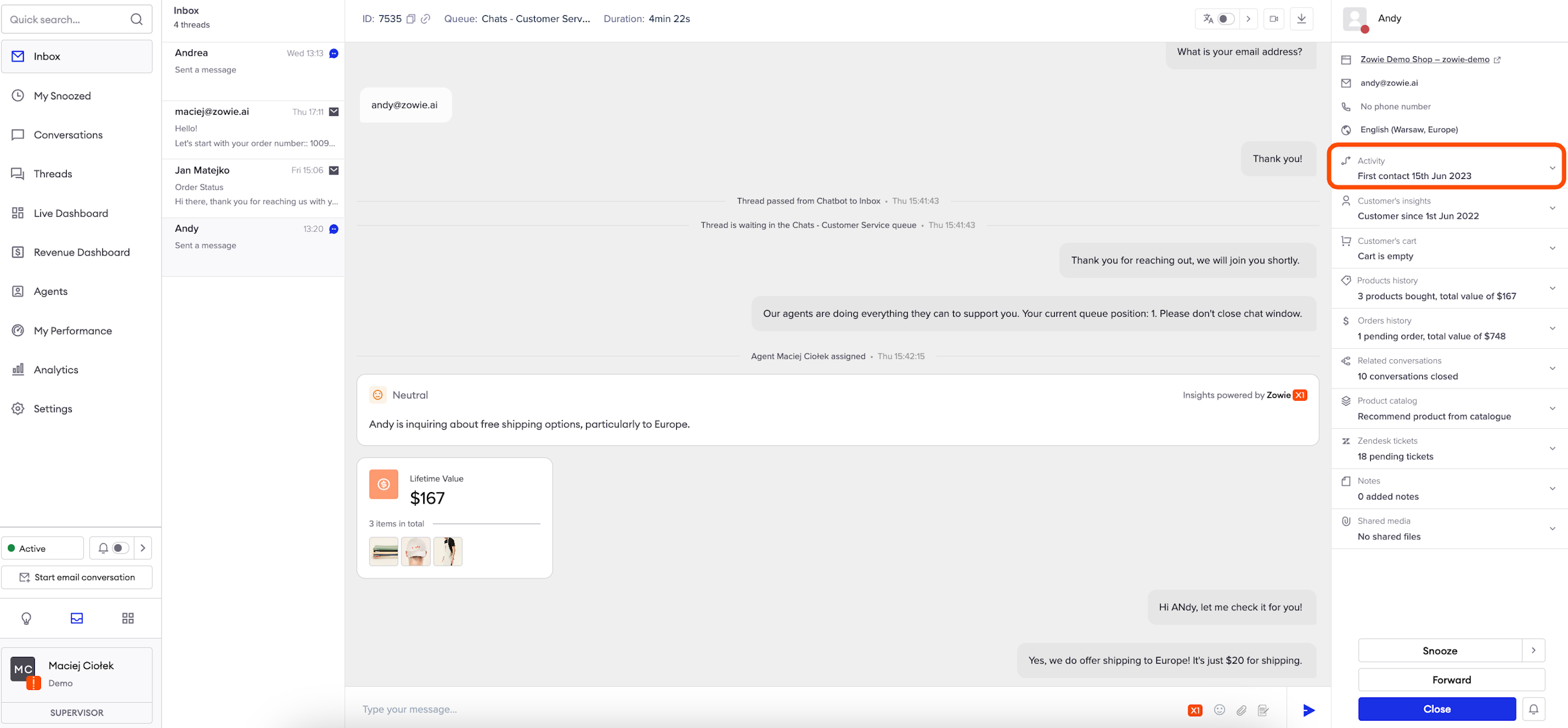
Activity
This section shows you the time of the last user activity. It can be useful to assess if that user is going to finish a purchase.
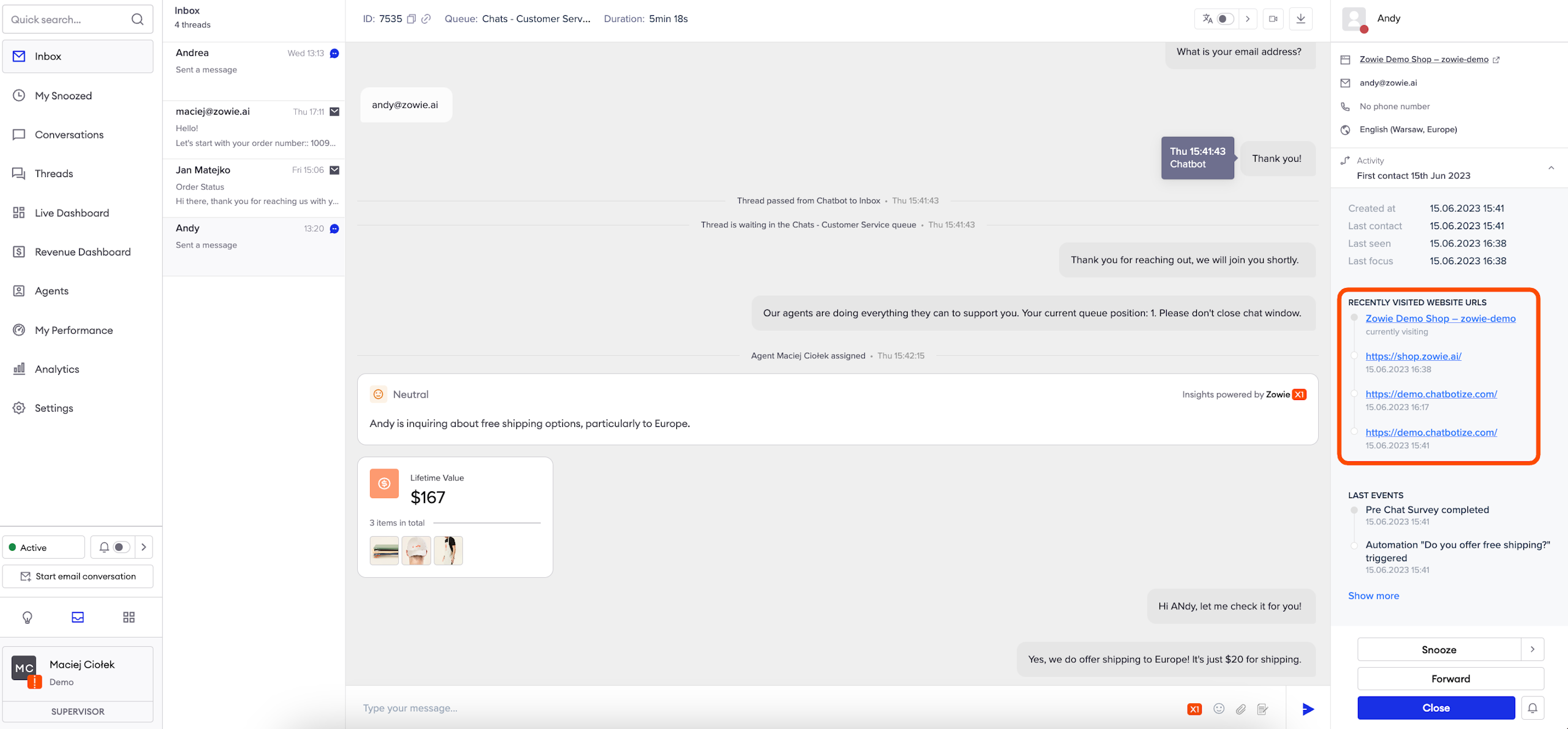
Recently visited websites URLs
If applicable, you will see there the last page that your user visited. It can give you insight into their buying intent.
This data is only available through an open Zowie Widget.
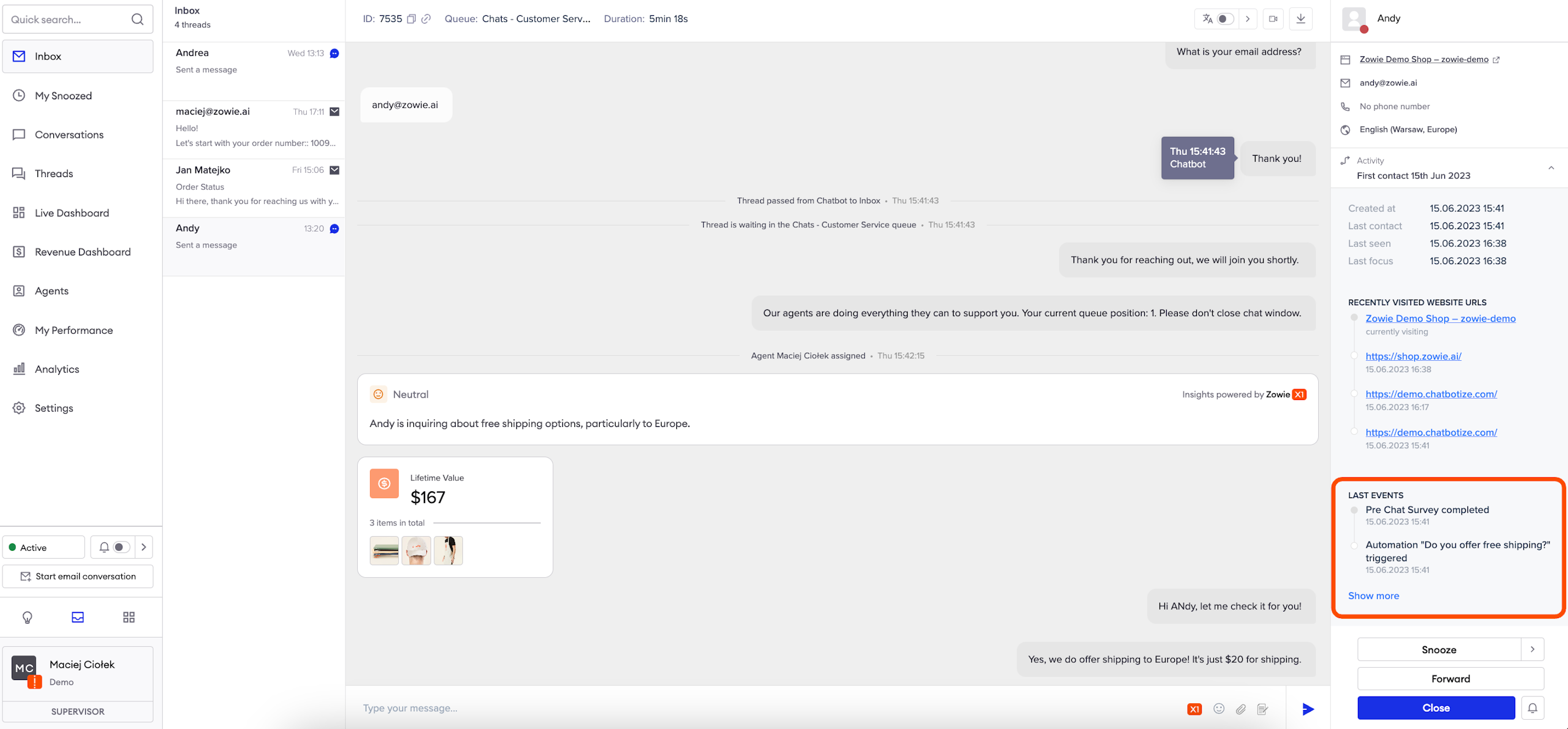
Last events
This section displays which Automations were used in the conversation and when. Feel free to click "Show more" to see the whole timeline.
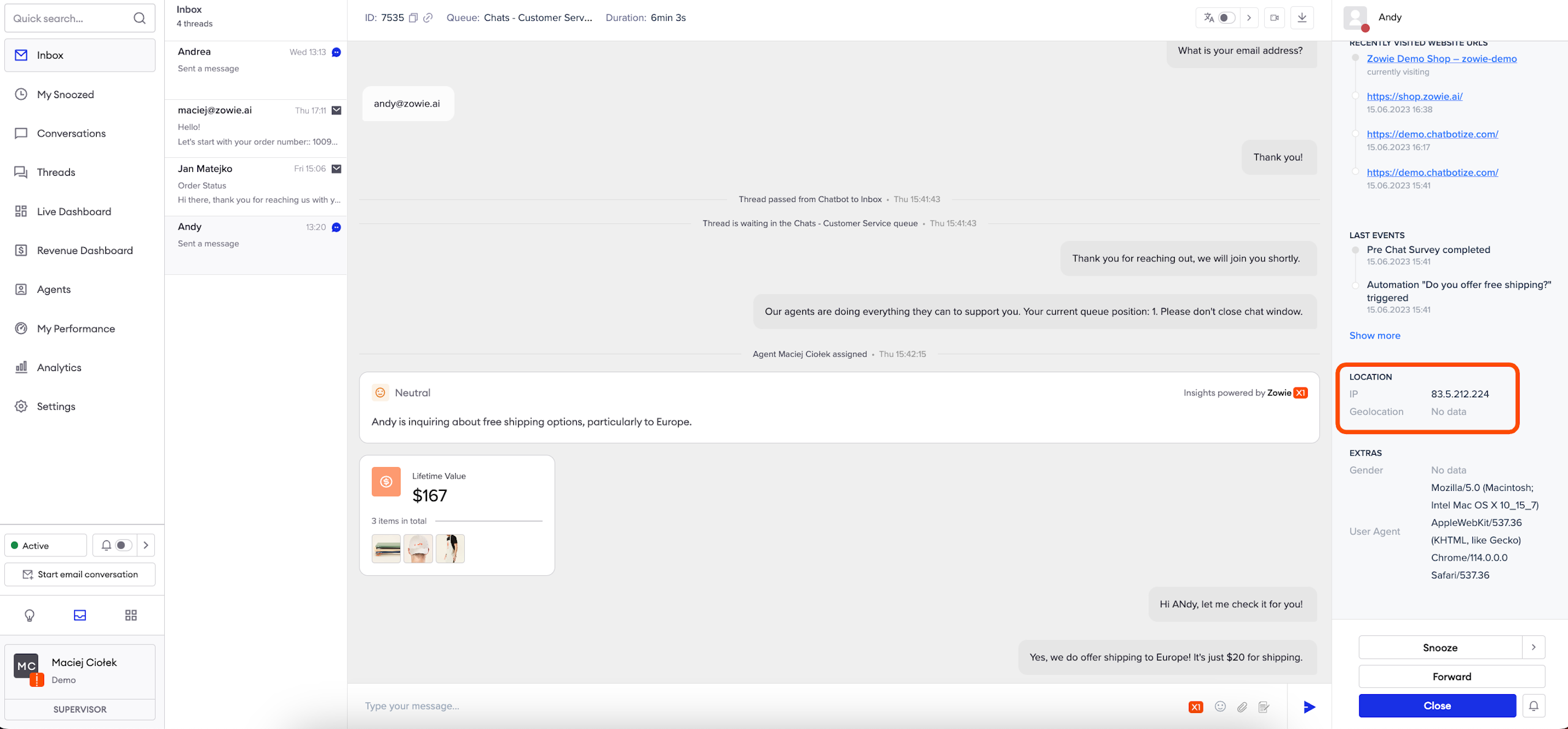
Location
This section will display user's IP and geolocation information.
User needs to enable location services in their browser to share this information with Inbox.
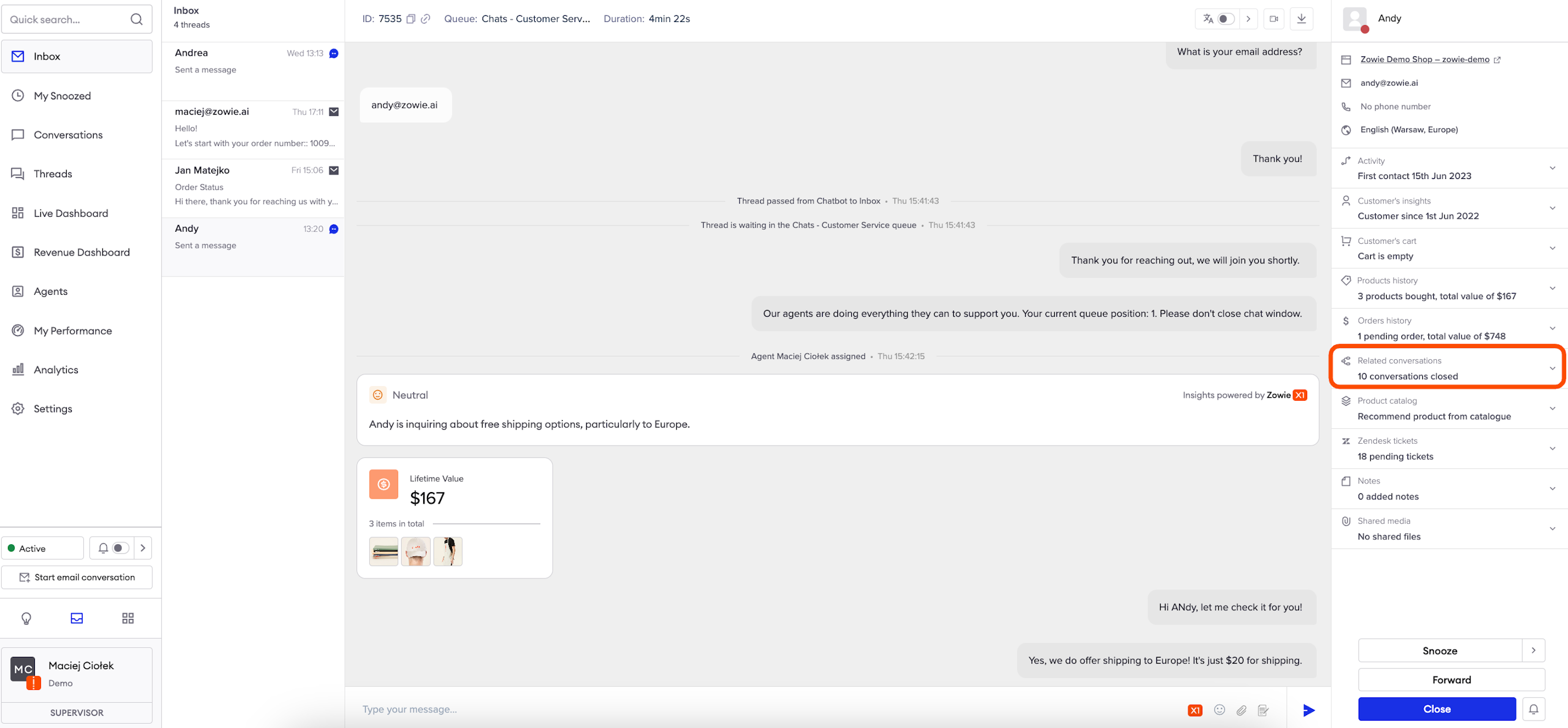
Related conversations
This section shows you all conversations in which the same email address was sent as a message. It makes it easy to find information that may be relevant to the current conversation with the customer.
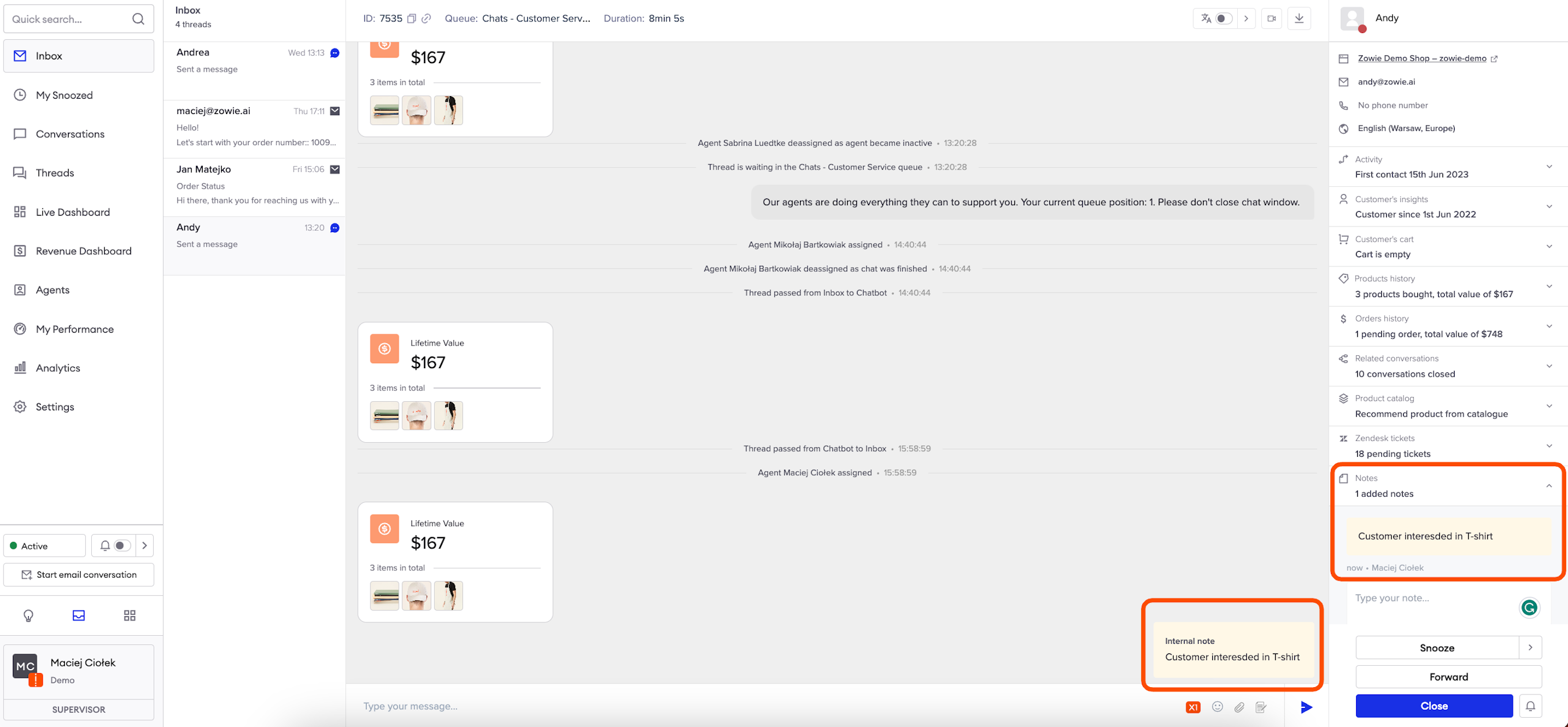
Notes
Every agent can create notes on a given conversation. They will be displayed both in the Notes section, as well as the chat window. It's not possible to edit or delete notes.
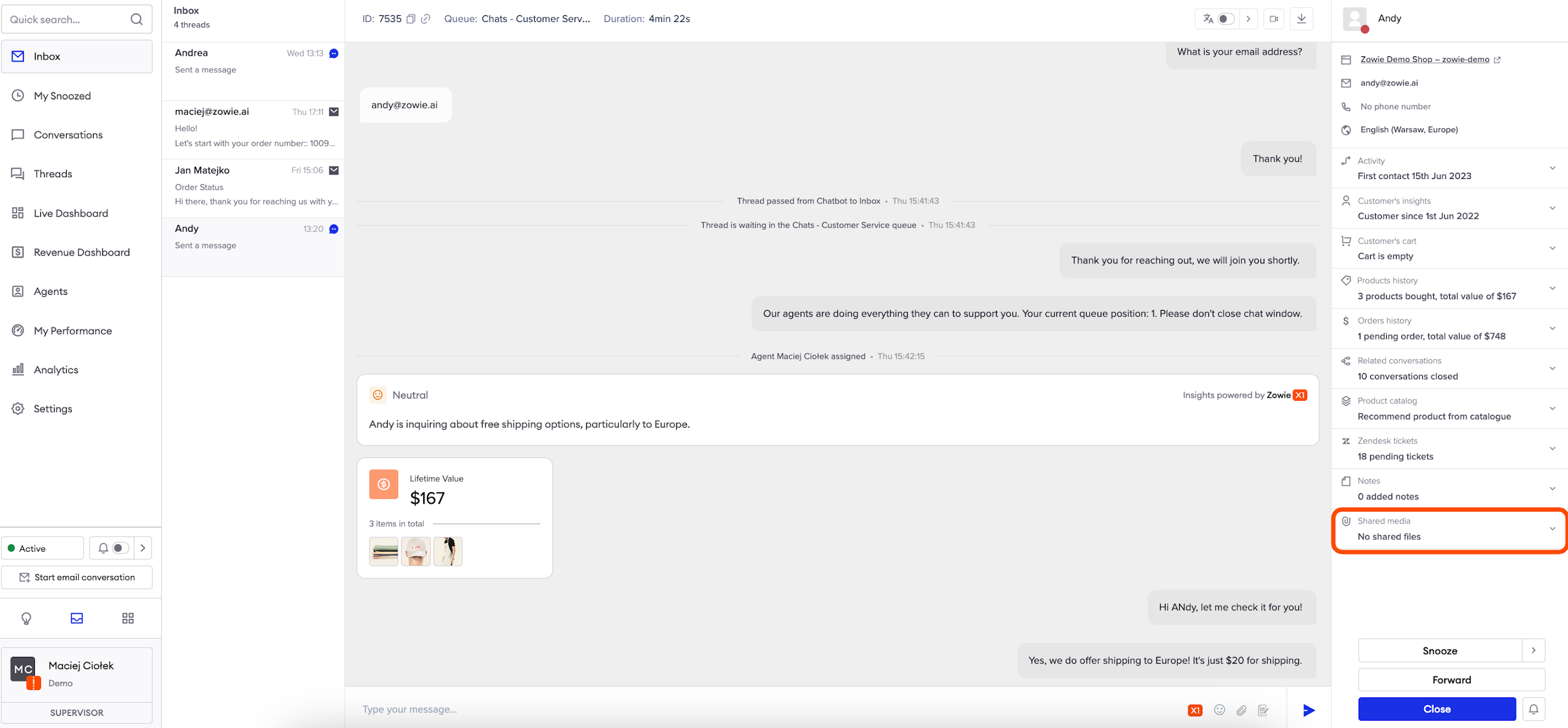
Shared media
Shared media section allows you to see all the media (images, files, videos, etc.) that the customer has sent to the agent in this thread.
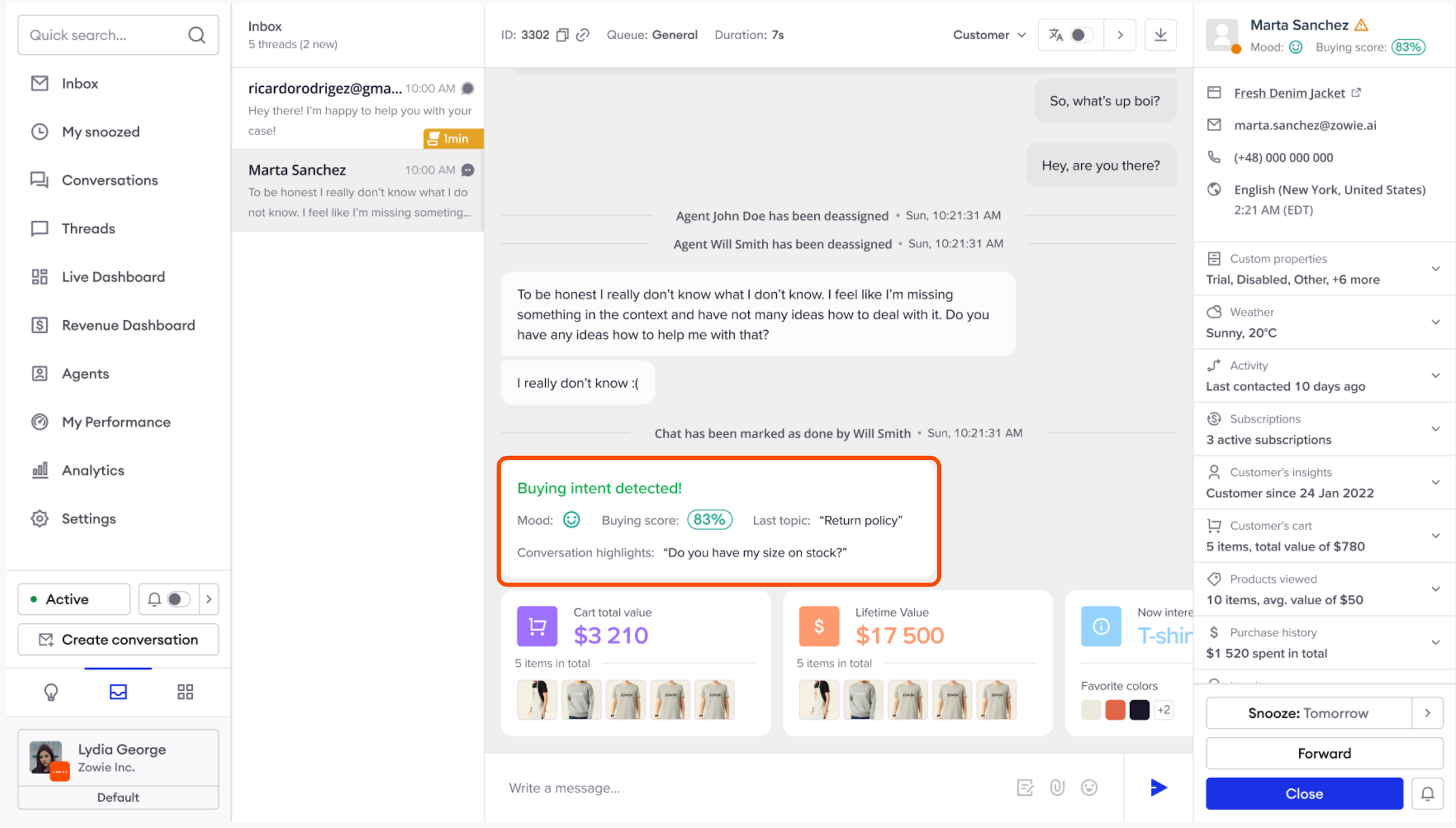
Customer Sentiment & Highlights
Get the necessary context and reply faster.
- Conversation highlights – Powered by Zowie X1, conversation highlights show the most important customer questions as a digestible summary. More information, less scrolling.
- Last topic – If you talked with a customer before, Zowie will now show you the previous conversation topic. Get up to speed without unnecessary clicks.
- Sentiment score – Read the room right from the start with a customer mood indicator given at the beginning of every conversation.
Reply to Users
Use the Thread Composer
This is the basic view which allows you to write messages to your users.
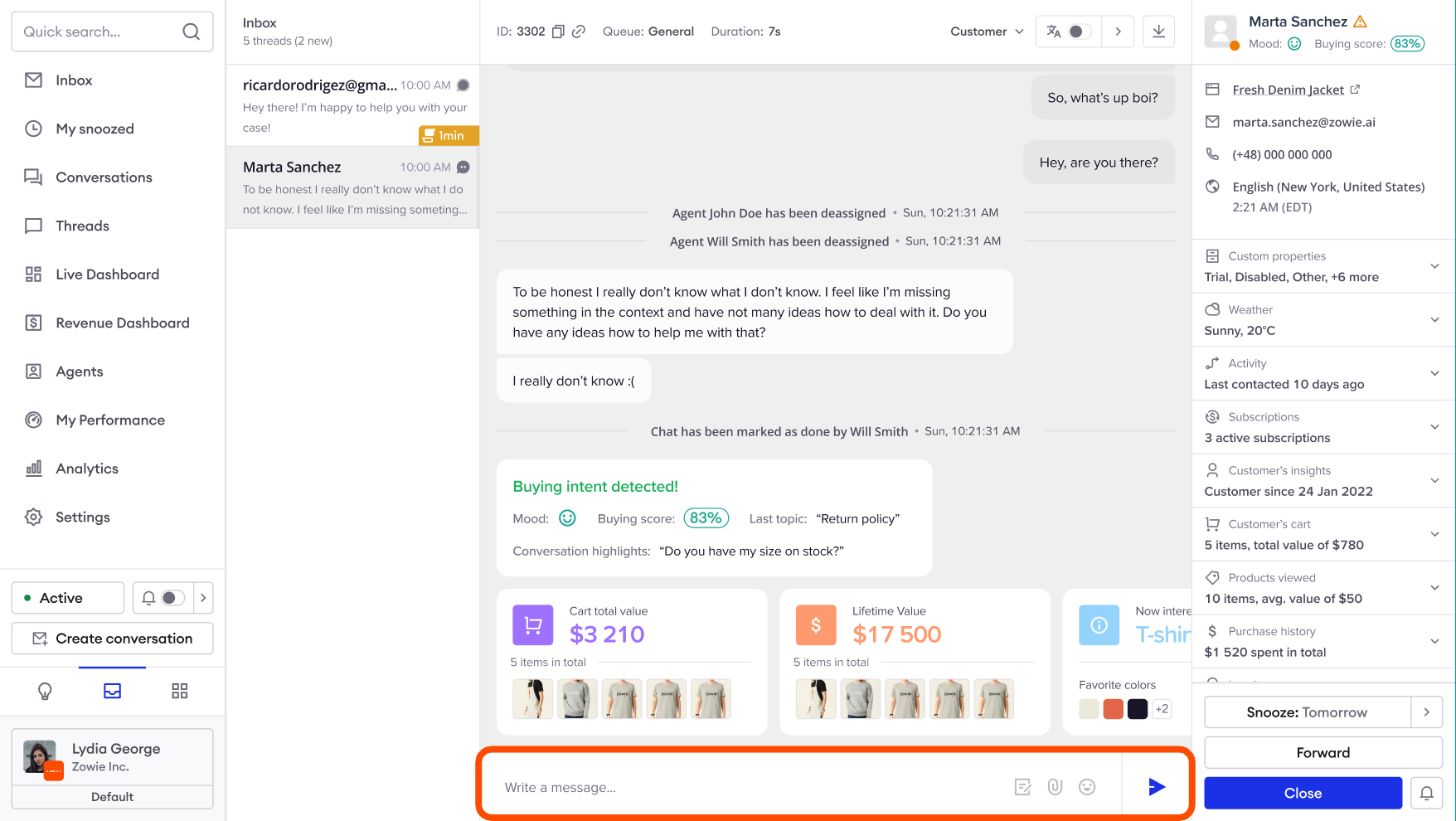
Top panel
In the top panel, you can find Thread ID and Thread duration in seconds. The icon on the right allows you to download the thread.
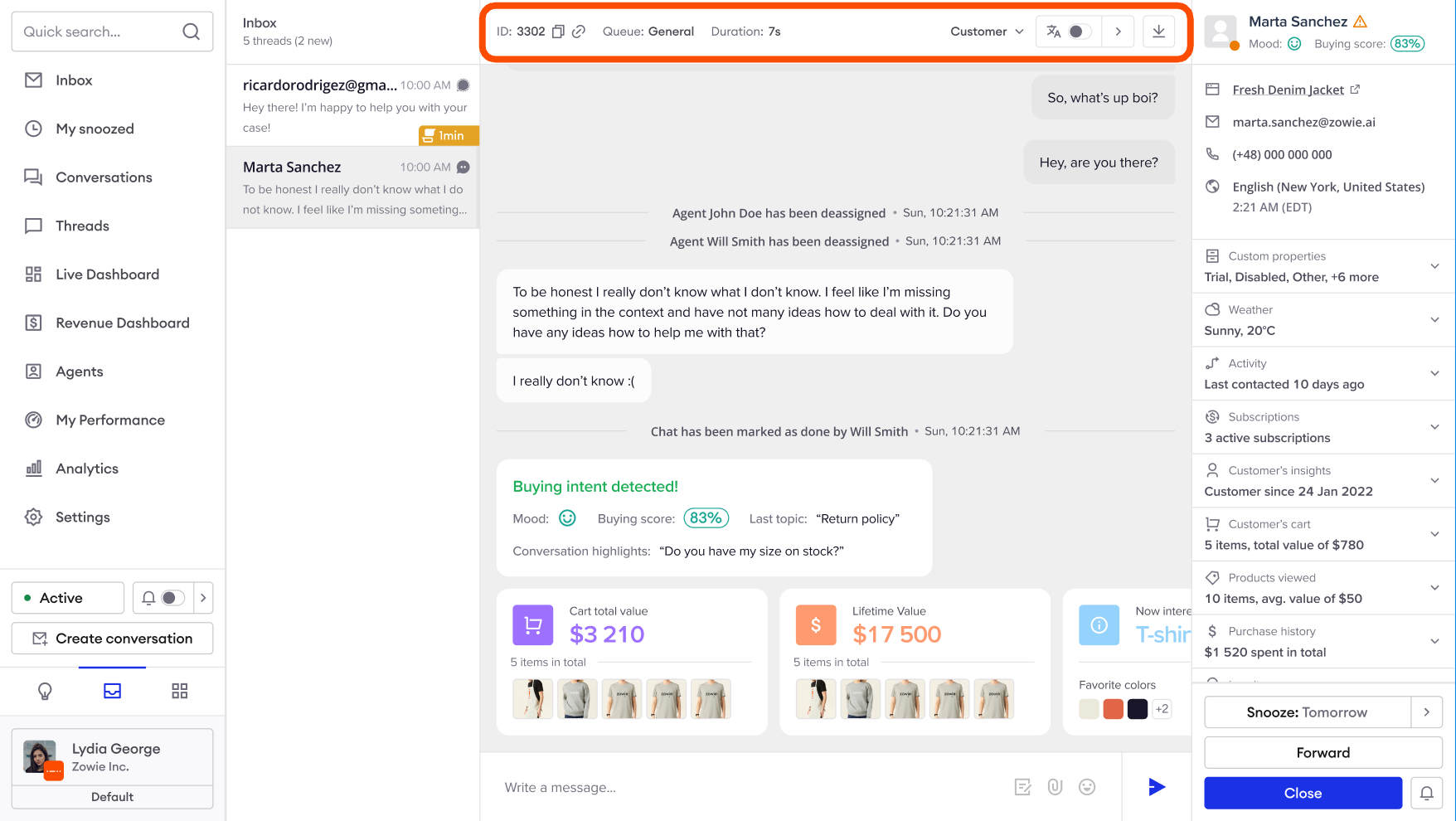
Messages window
You can find here all messages sent between an agent and a user within this thread, as well as the preceding conversation with the chatbot.
If you need to see all messages exchanged between any agent and that user, switch to the Conversation view.
Each message has a timestamp which can be expanded by clicking on it. Events listed across the thread (such as passing it, deassigning an agent, and so on) will also display more details when you click on them.
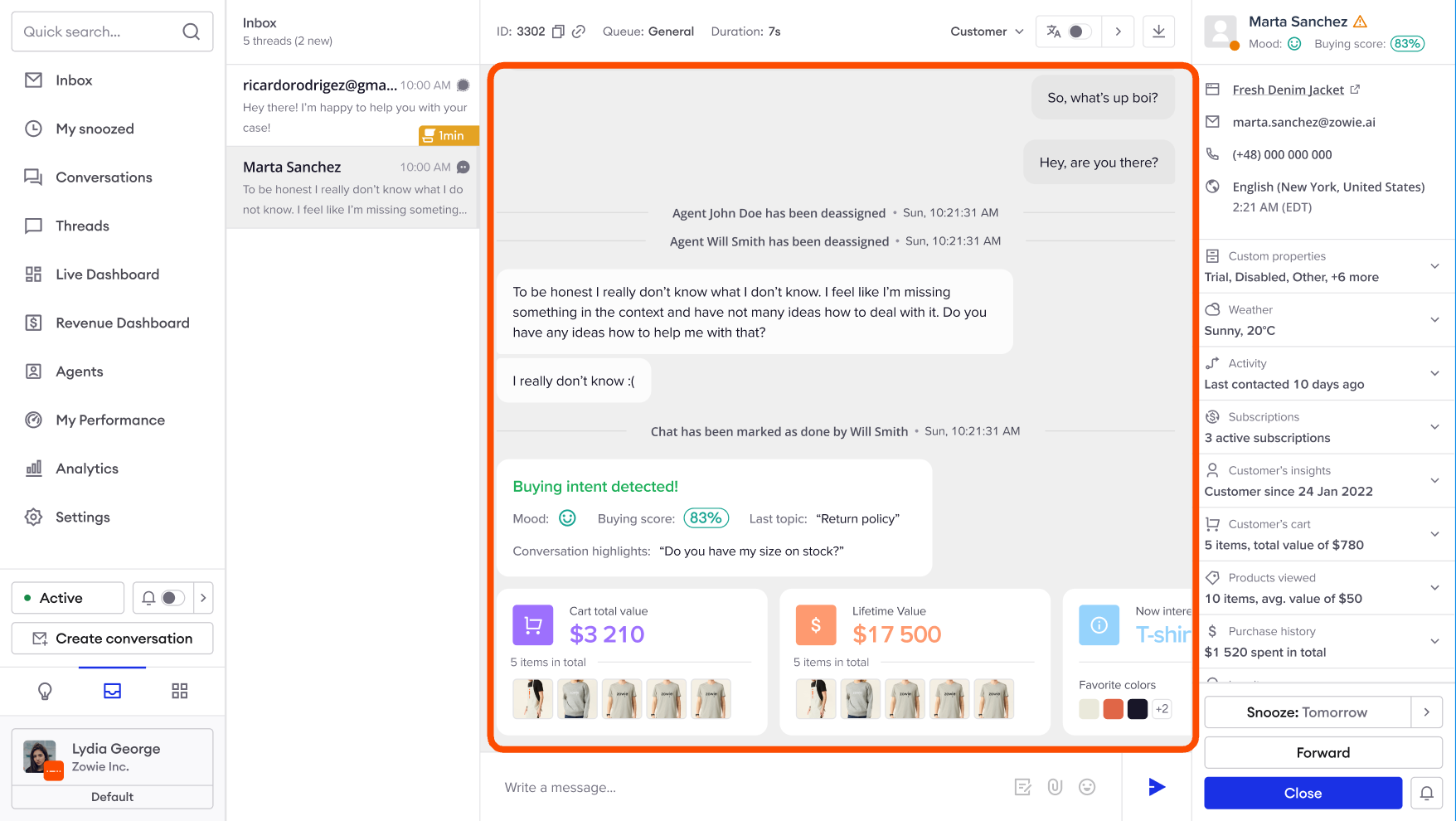
Typing a message
You can type the text and click "Send" to send it to the user. Additionally, you can add emoji, an attachment or browse through Templates.
Updated over 1 year ago