
Channels
What are Channels?
Channels allow you to integrate your chatbot with different platforms on which your users can talk to you.
Why connect additional Channels?
Connecting additional Channels allows you to grow the use of Automation within your business while extending the learning power of AI into all the ways you communicate with your customers.
How to access Channels?
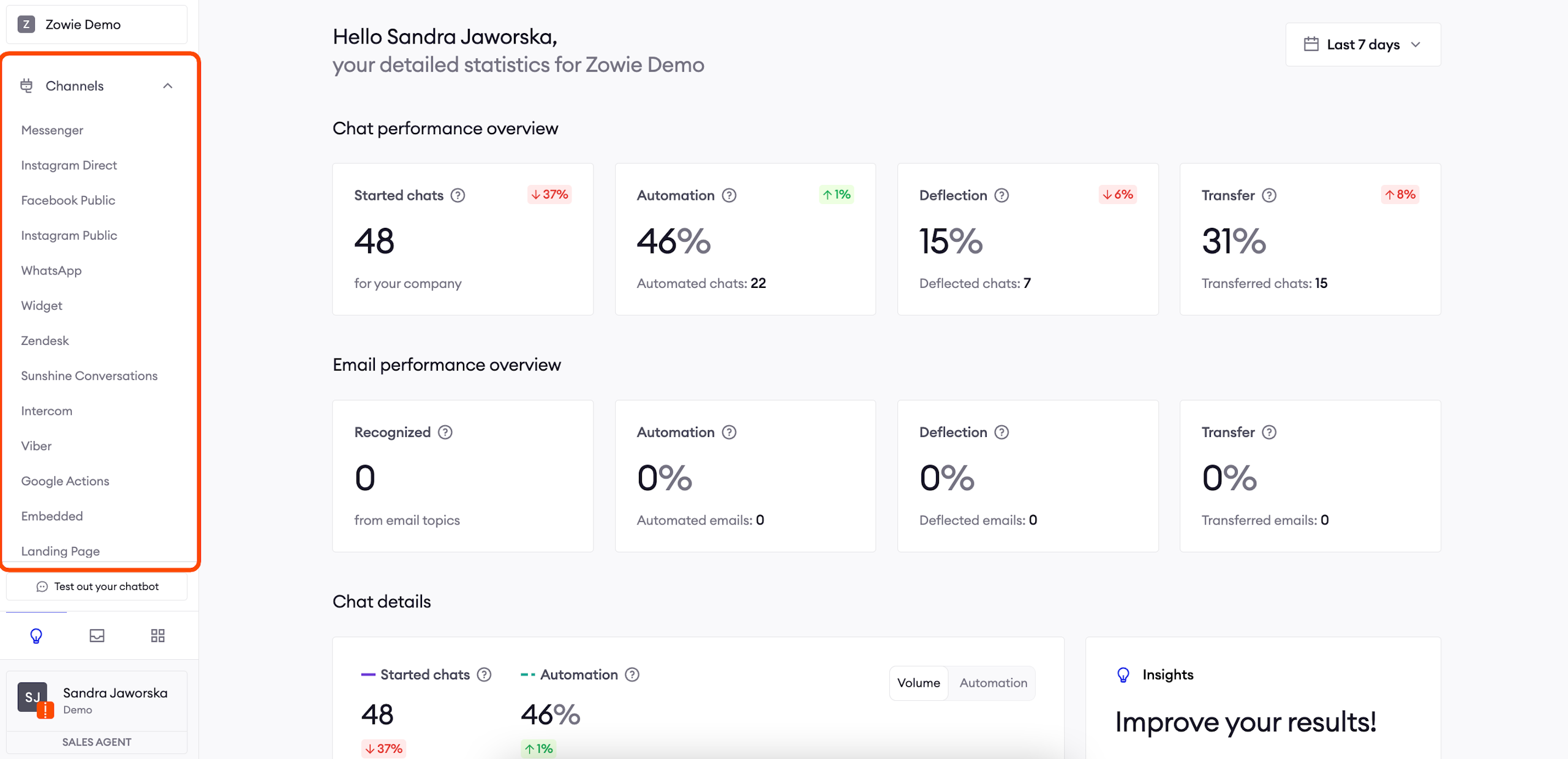
To access it, click on the Channels tab from the main menu.
Widget
The Widget channel allows you to run your chatbot as a Widget on your website. After successful configuration, a conversation bubble will appear in the bottom-right corner of the webpage. Once clicked, it will open the conversation window from which the users can chat with the bot.
In order to find the Widget, please go to Channels > Widget.
Configure yourself a Widget using Customize your branding options:
As the first step enter the title displayed at the top of your widget in the Widget name field. You can also provide an optional Logo and customize the header and message colors. Fill in the Text input placeholder and decide after what time should the widget appear on the website. You can also choose whether the user's name should be:
- hidden,
- showing only the name,
- both the name and last name.
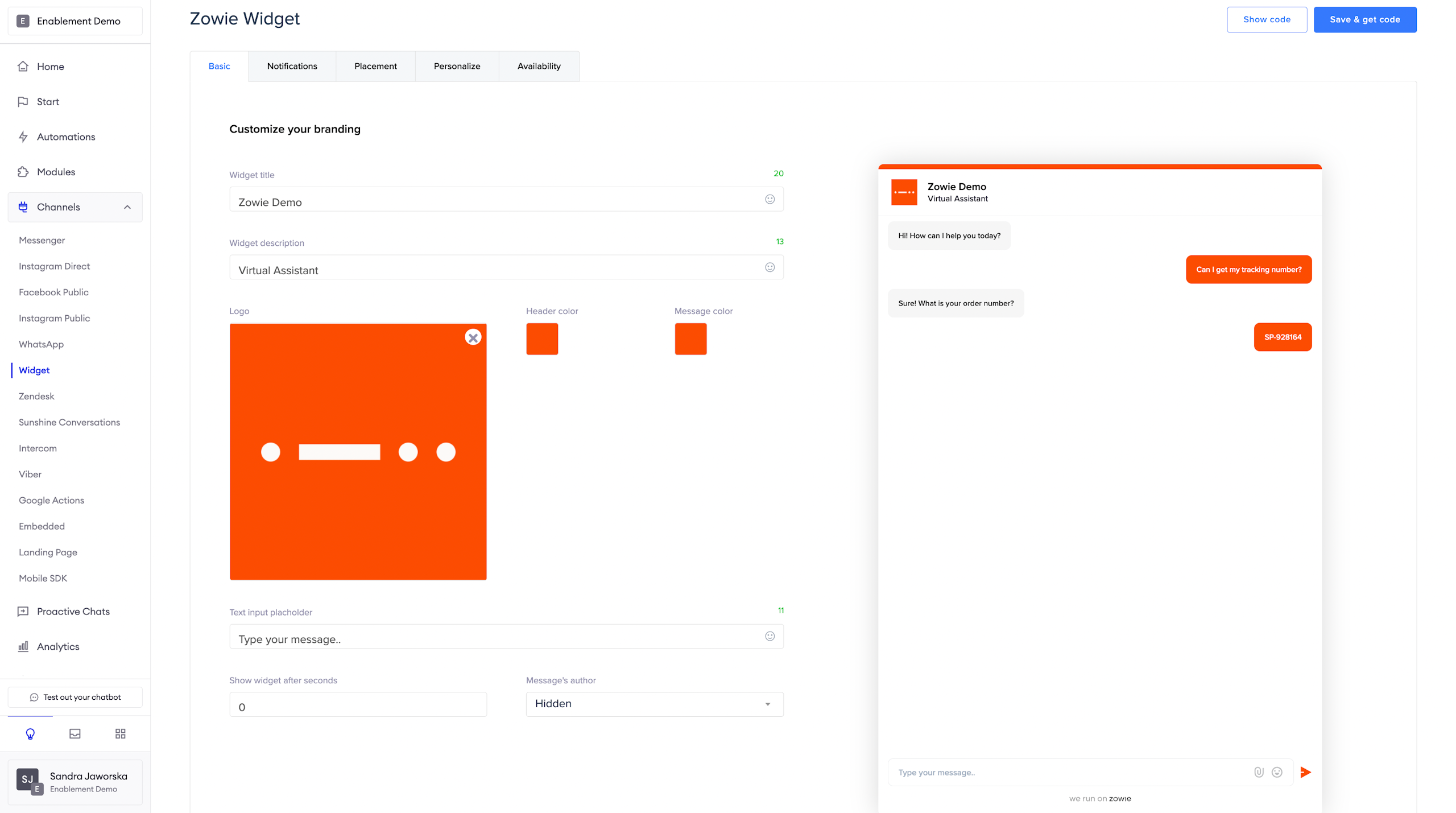
Then provide the popup header text in the CTA popup header field and the text shown when the user clicks on the header (CTA & CTA popup text fields).
Once you are done, press the Save & Update code button.
Installing the widget using JavaScript
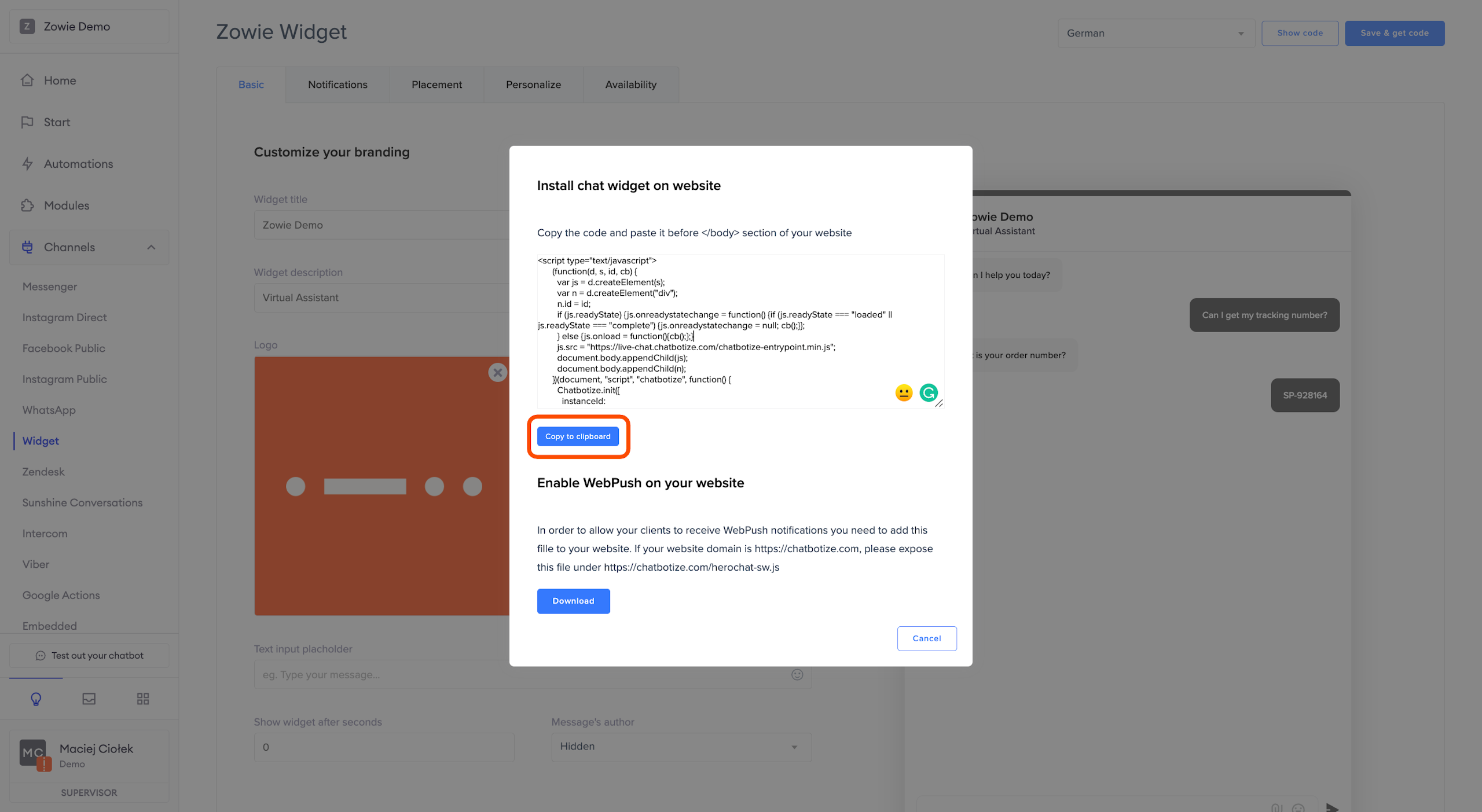
You can install the Zowie widget on your website using JavaScript code snippet.
Zowie Chat can be embedded on a given website by including the following code snippet in its <body> section:
<script type="text/javascript">

      (function(d, s, id, cb) {

        var js = d.createElement(s);

        var n = d.createElement("div");

        n.id = id;

        if (js.readyState) {js.onreadystatechange = function() {if (js.readyState === "loaded" || js.readyState === "complete") {js.onreadystatechange = null; cb();}};

        } else {js.onload = function(){cb();};}

        js.src = "https://live-chat.chatbotize.com/chatbotize-entrypoint.min.js";

        document.body.appendChild(js);

        document.body.appendChild(n);

      })(document, "script", "chatbotize", function() {

        Zowie.init({

          instanceId: "${INSTANCE_ID}",

          startOnOpen: true,

          headerMode: "white"

        });

      });

</script>
Please make sure that you have your ${INSTANCE_ID} provided.
After including the snippet in the website’s source, the widget will appear in its default position (bottom-right corner of the website.)
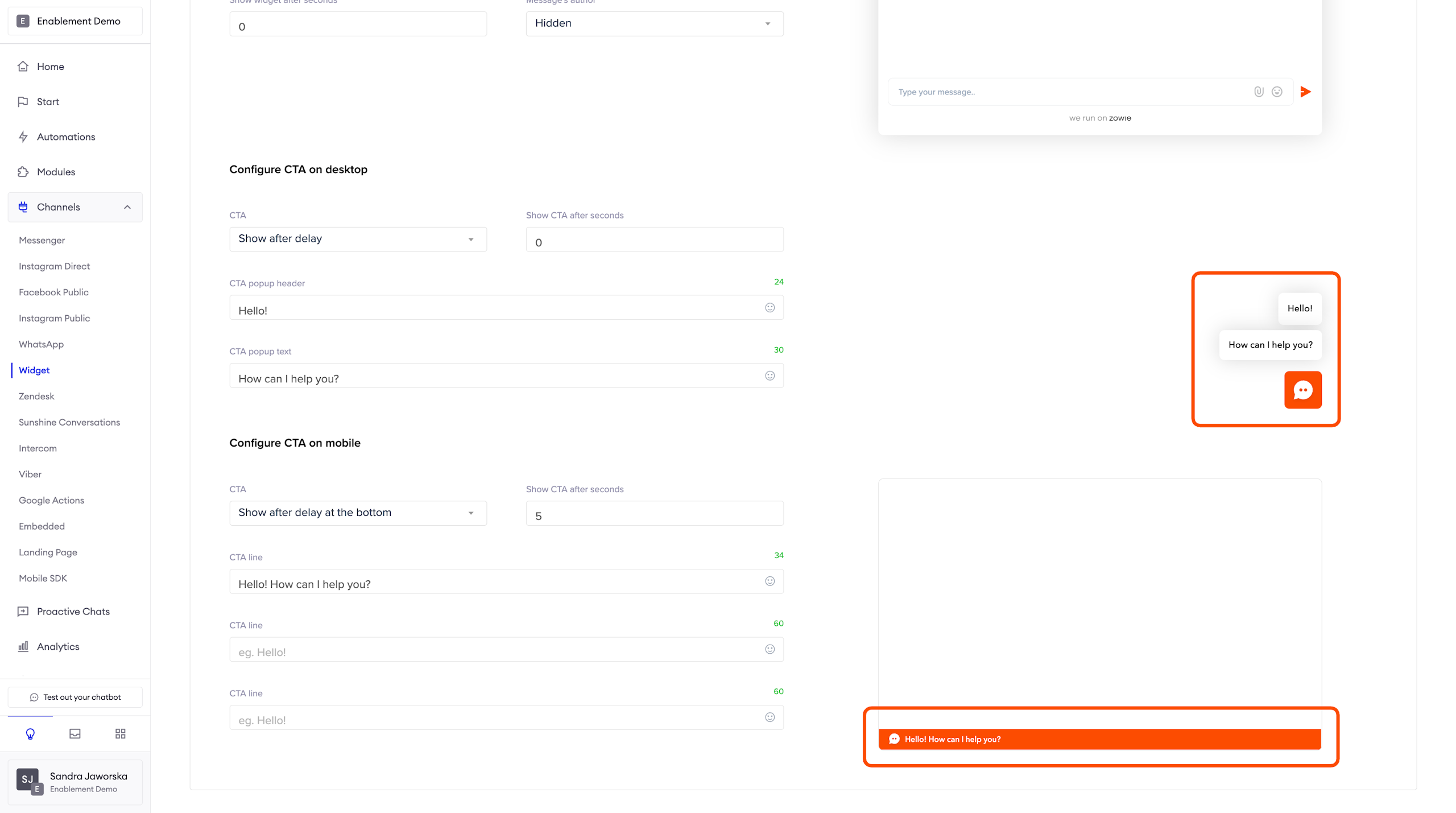
ImportantThe snippet should be downloaded directly from the Zowie app, from the Channels > Widget > Show code menu.
InformationFind a description of how to use the JS API and customize the behavior of the widget in code in Zowie Chat API
Installing the widget using Google Tag Manager
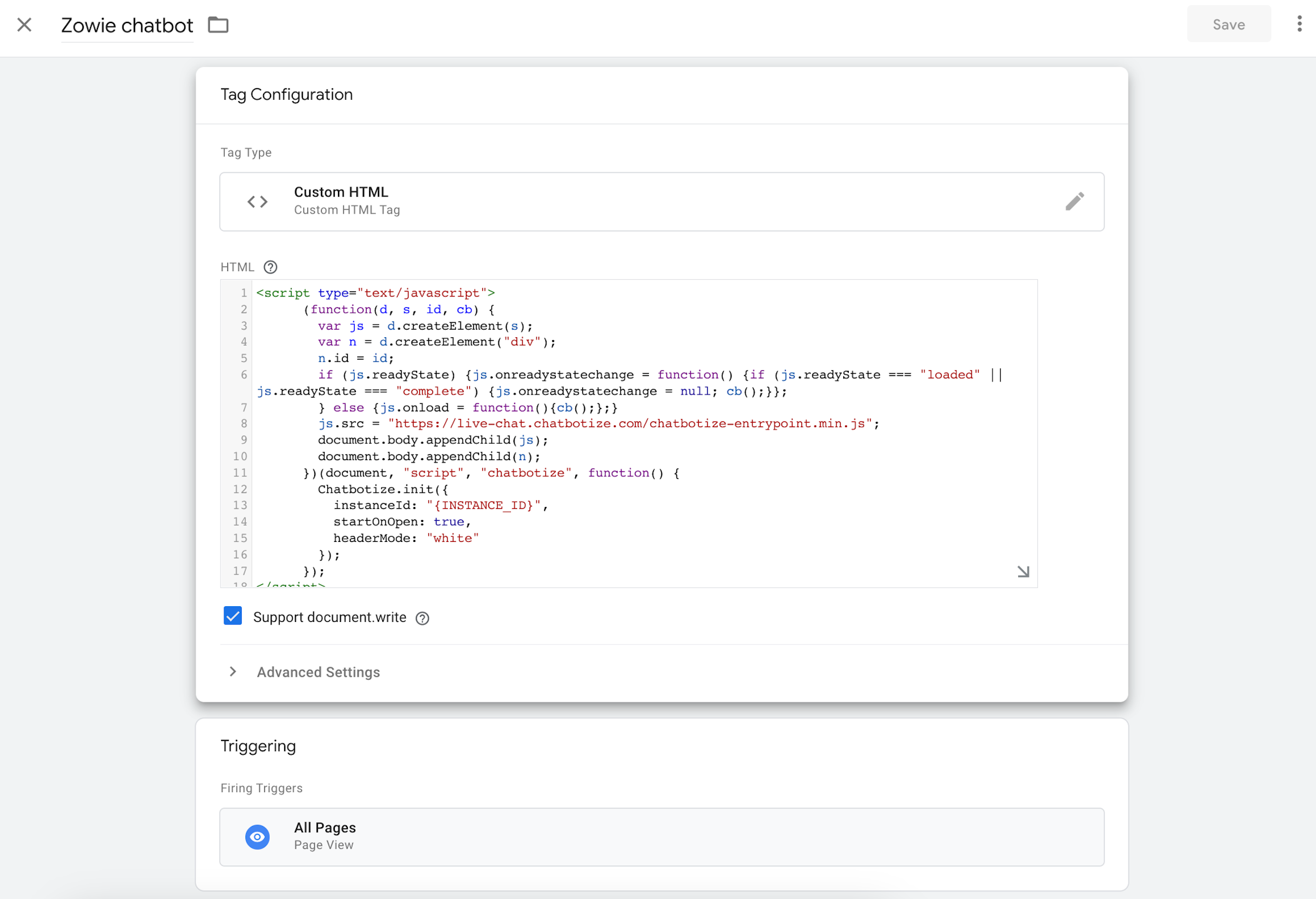
The aforementioned code can also be embedded using Google Tag Manager, if it is used in the organization. Create a new snippet and paste the code into it.
- Choose Tag Type
Custom HTML - Tick the checkbox
Support document.write - Recommended trigger should be set for
All pages
Finally, publish the snippet, and the widget will appear in its default position.
Zowie Widget vs Page Speed
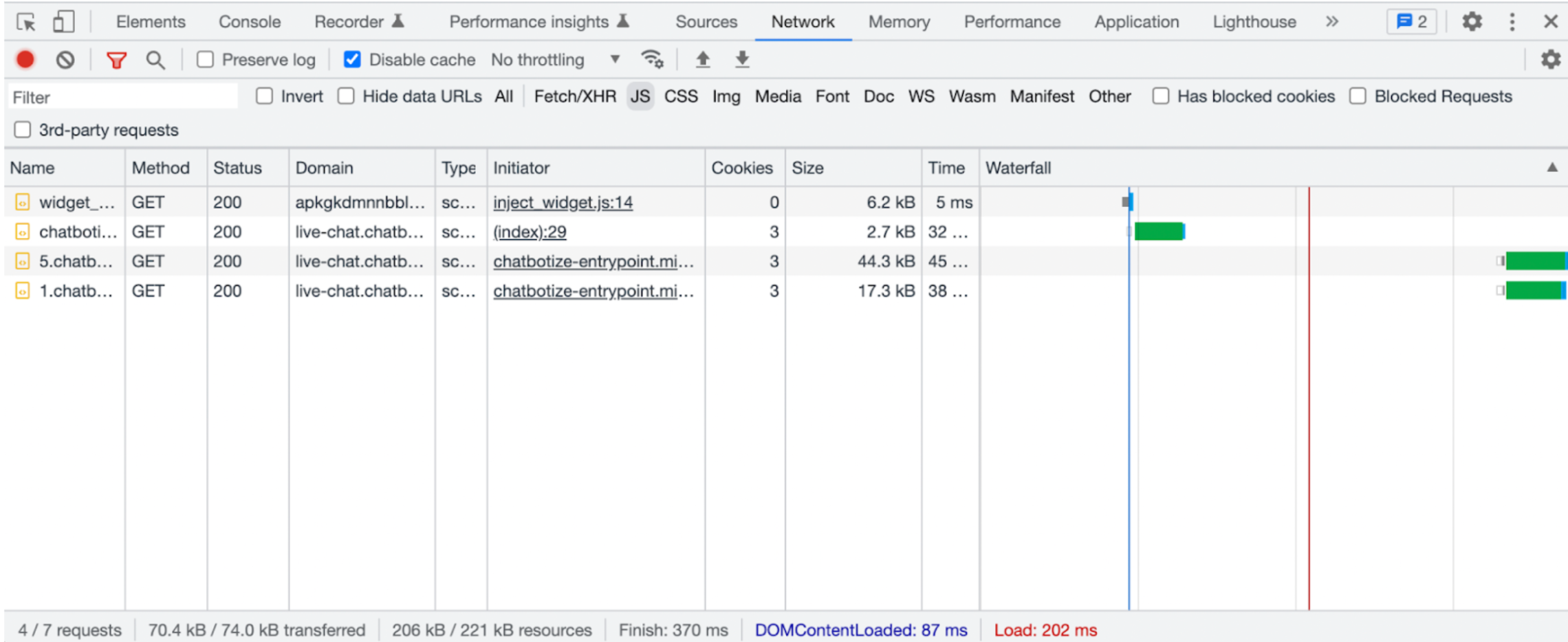
We invested a lot of time and effort to make sure that we offer the most lightweight widget for eCommerce. The widget is loaded using code-splitting technology and the maximum loaded size at page load is only 70kB.
Configure advanced features
Enabling WebPush notifications
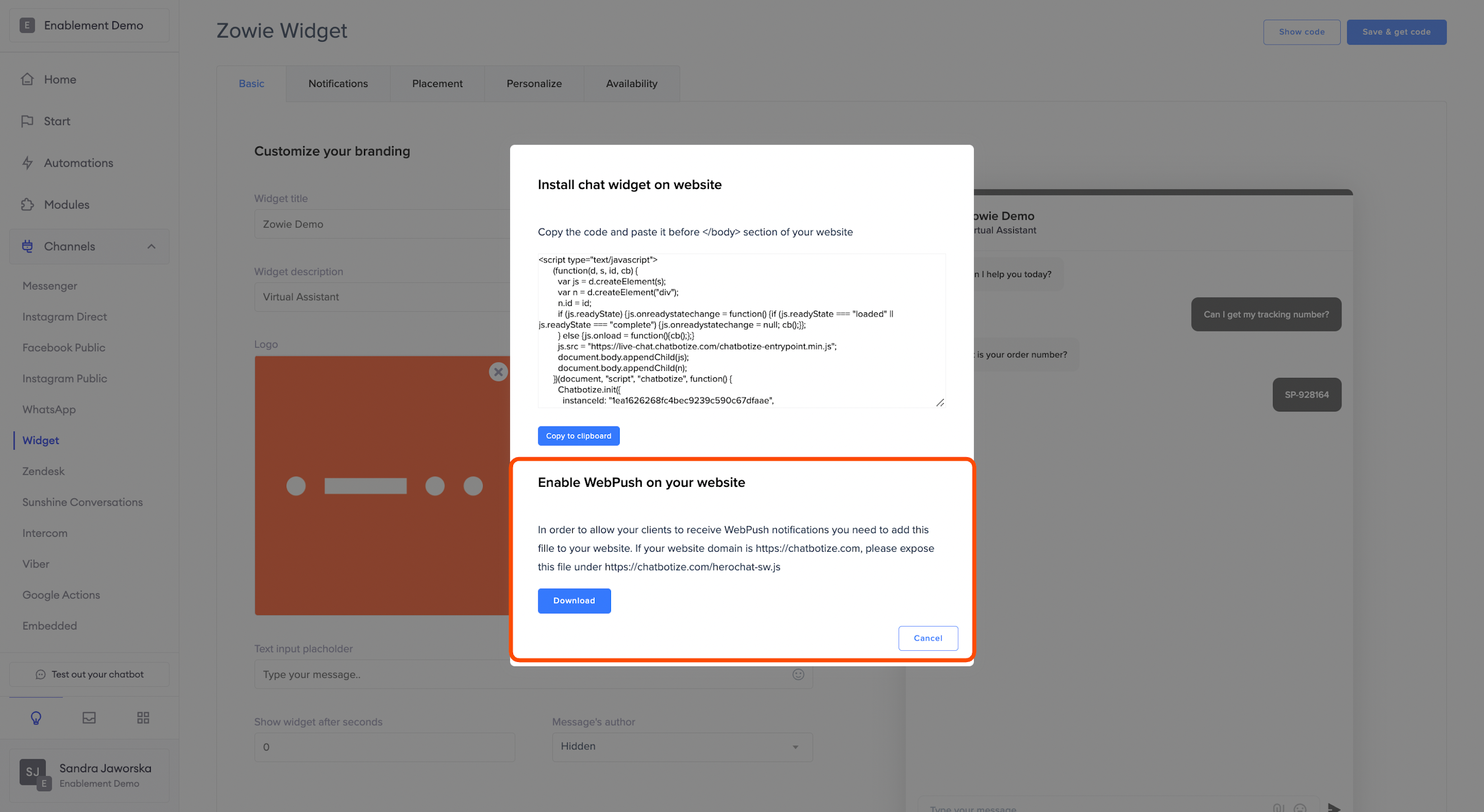
You can enable WebPush notifications for your users, allowing the chatbot to notify them about new messages each time they open the browser—given that they agree to receive them. Download the file and place it in the main directory of your domain.
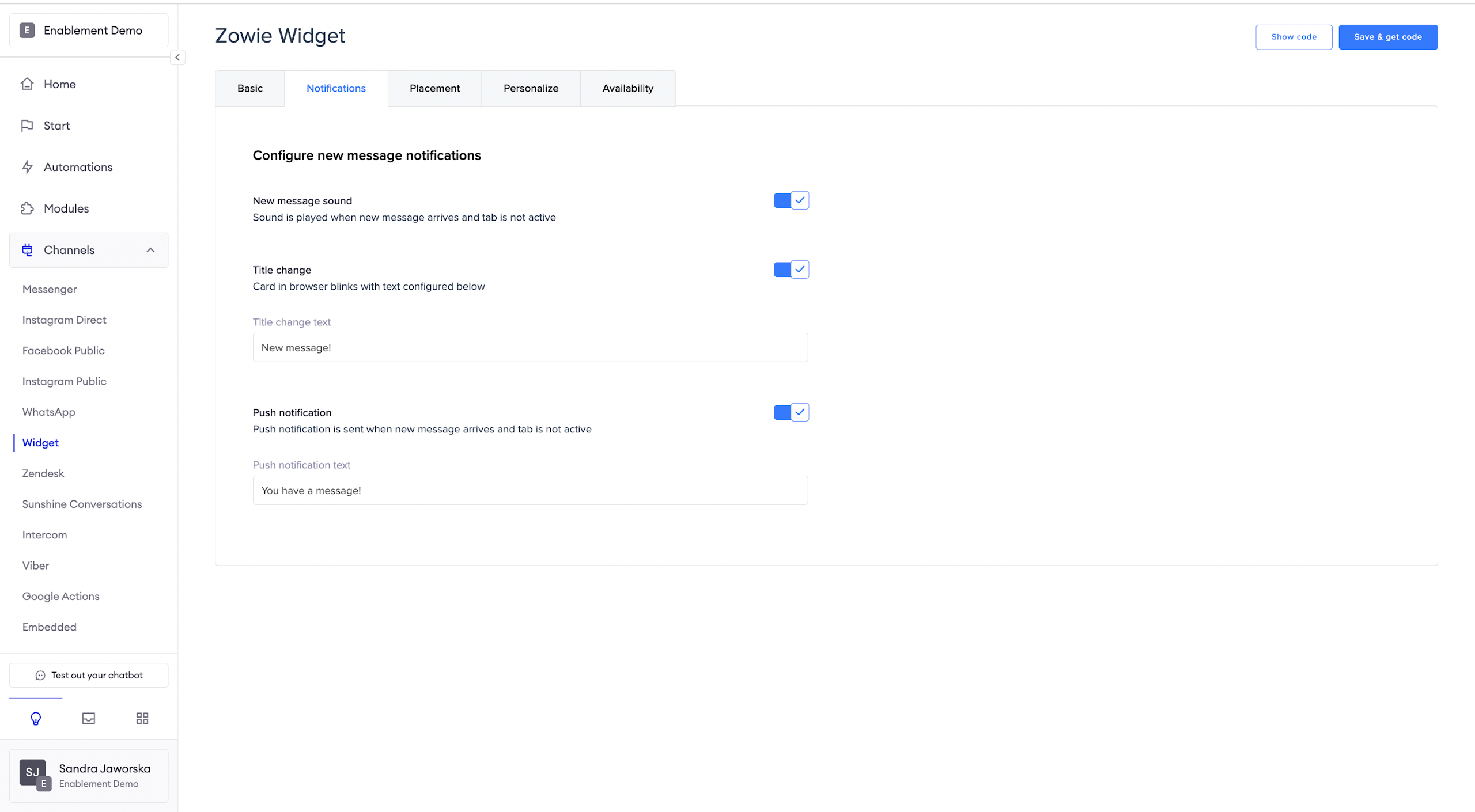
Notifications
You can enable or disable push notifications about new messages, as well as whether a sound should be played when a new message arrives. Finally, you can also configure the widget to change the title of the card to say something along the lines of "You have a new message!"
Once you complete the configuration, remember to click the Save&get code button.
AttentionYou don't need to re-install the code, the setup will be automatically updated.
Placement
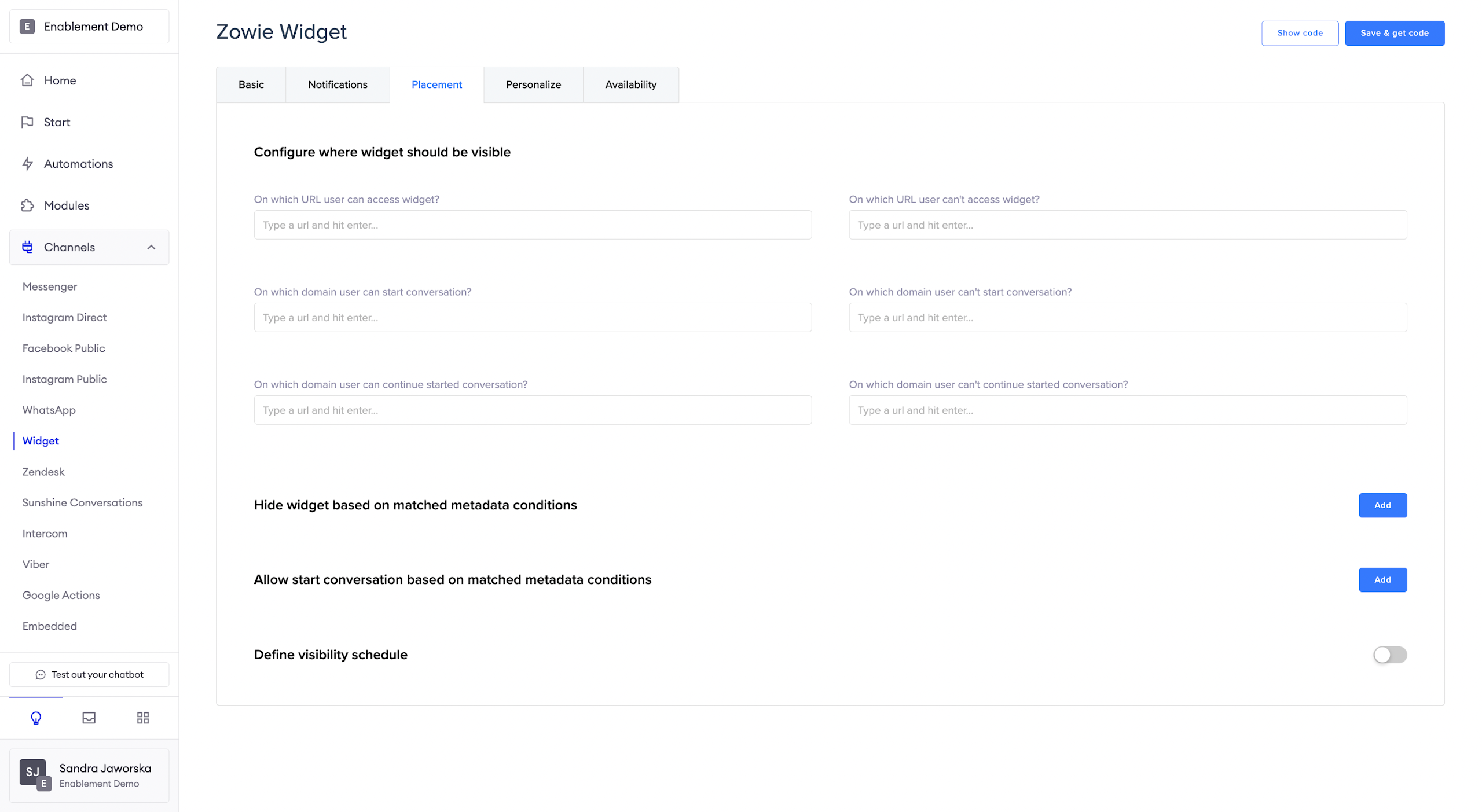
Using Configure where widget should be visible you can configure the widget to be accessible only from certain parts of your website. You can also determine from which parts of the website they can start a conversation, and from which parts they can continue the conversation.
Using the Hide widget based on matched metadata conditions and Allow start conversation based on matched metadata conditions you can use and define your own metadata conditions to hide or allow customers to start a conversation.
And through Define visibility schedule you can set up the hours using the time zone when you want your Widget to be visible to your customers.
Start at and Finish at lets you choose a specific date and time.
Once you complete the configuration, remember to click the Save&get code button.
AttentionYou don't need to re-install the code, the setup will be automatically updated.
Personalize
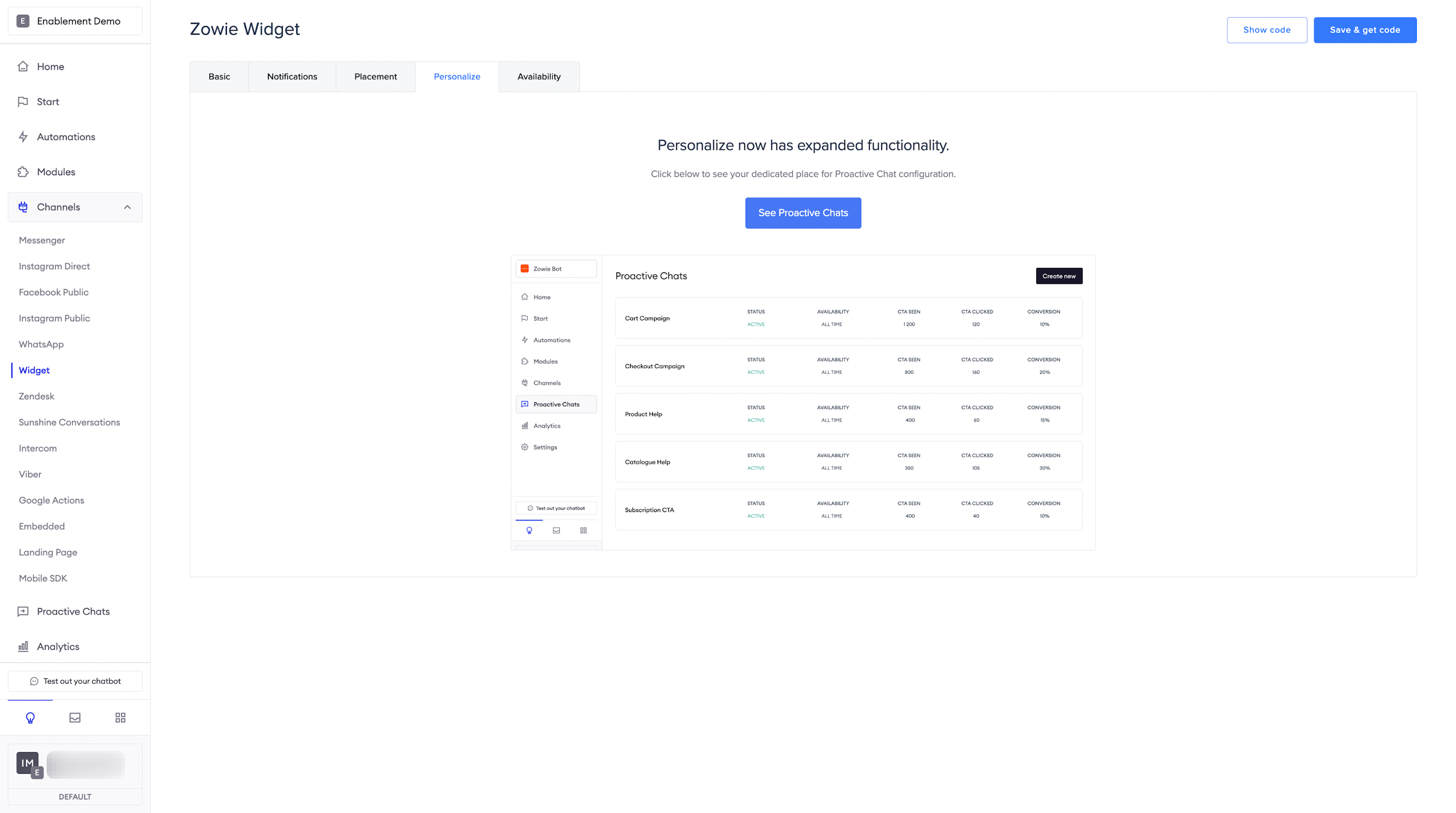
Personalize now has expanded functionality.
Click below to read more on Proactive Chat configuration.
Proactive Chats
Managing Proactive Chats
You can find information about this section here: Proactive Chats.
Advanced features
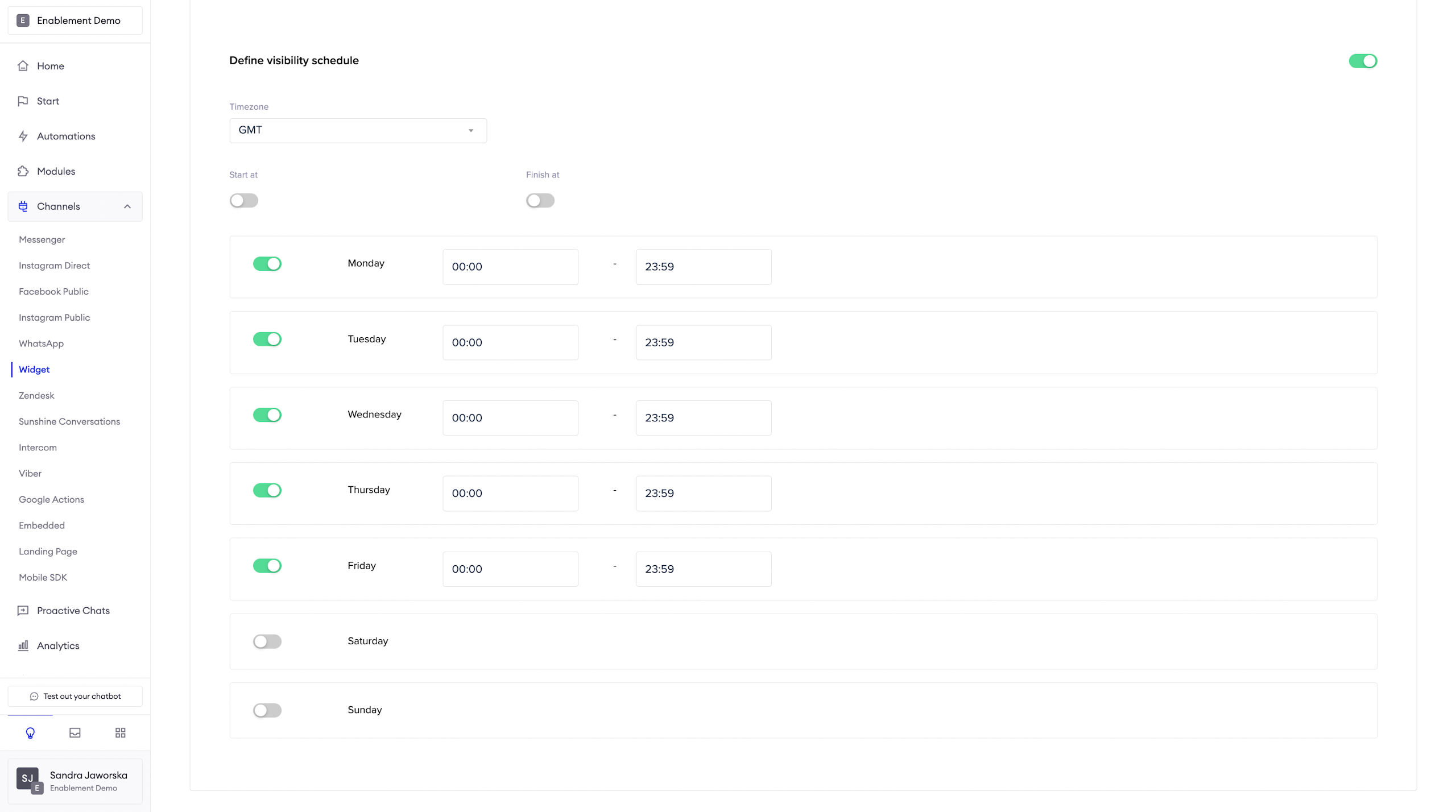
With Define visibility schedule you can set up the hours using the time zone when you want your Widget to be visible to your customers.
Start at _andFinish at _lets you choose a specific date and time.
Once you are done, click the Save & Update code button.
Availability
You can make the widget accessible only during certain parts of the day or night. Just set up the schedule, specify the correct timezone, and you're good to go!
Once you complete the configuration, remember to click the Save & get code button.
AttentionYou don't need to re-install the code, the setup will be automatically updated.
How to go live with Zowie on direct social media channels (eg. Facebook Messenger, Instagram Direct)?
Enhance your customer experience by adding the Zowie Messenger connector to your Facebook page! With this simple upgrade, customers can reach you instantly, right where they already spend their time. Easily automate support with your AI Agent or give your agents the tools to chat directly with customers for a more personal touch. Make connecting with your business easier and more engaging than ever!
Below, you can find a step-by-step guide on how to implement your AI Agent on your Facebook fanpage and customize the responses with the Automations you can create yourself.
Requirements
Here’s what needs to be done before connecting socials to Zowie:
- make sure that you have your AI Agent ready to go live
- if you want to handle specific questions and flows differently than on each platform, for example, your website, prepare a segmentation and distinguish the responses
- configure Zowie Inbox, prepare all the necessary Queues, and connect them to Profiles
- configure the Routing in the Handover modules
- if you want to connect more than one fanpage, please contact your Customer Success Manager, as it requires an online meeting
- the person who connects social media on Zowie needs full admin permissions to the Facebook and Instagram fanpages
Enablement
Step 0
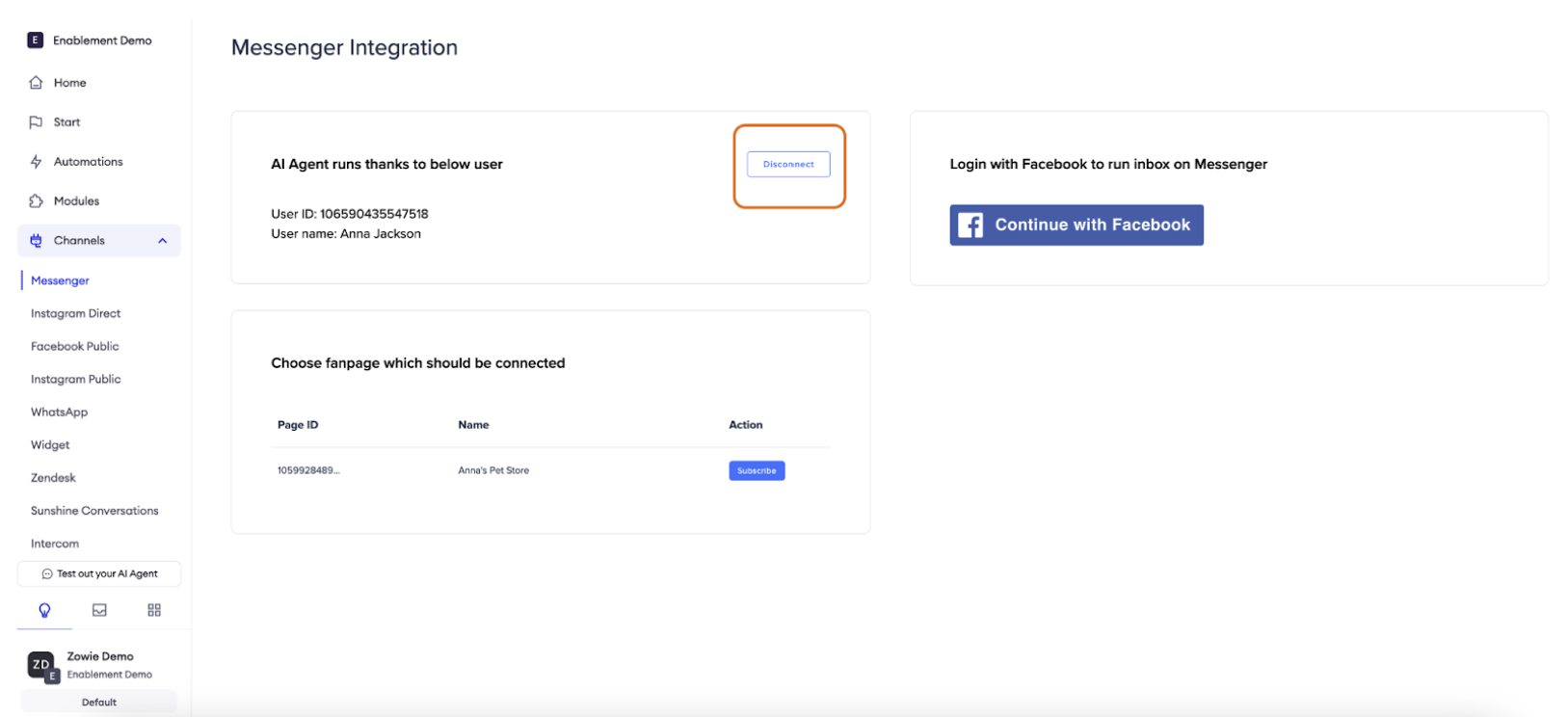
If you are using this instruction for troubleshooting, in case you don’t receive messages on your social media channels, please Log into Zowie platform, go to Automate -> Channels -> Messenger/Instagram Direct, and start with disconnecting all the fanpages.
Use the following order:
- Disconnect Inbox from Instagram
- Disconnect Chatbot from Instagram
- Disconnect Inbox from Messenger
- Disconnect Chatbot from Messenger
- Connect Chatbot for Instagram
- Connect Inbox for Instagram
- Connect Chatbot for Messenger
- Connect Inbox for Messenger
Step 1
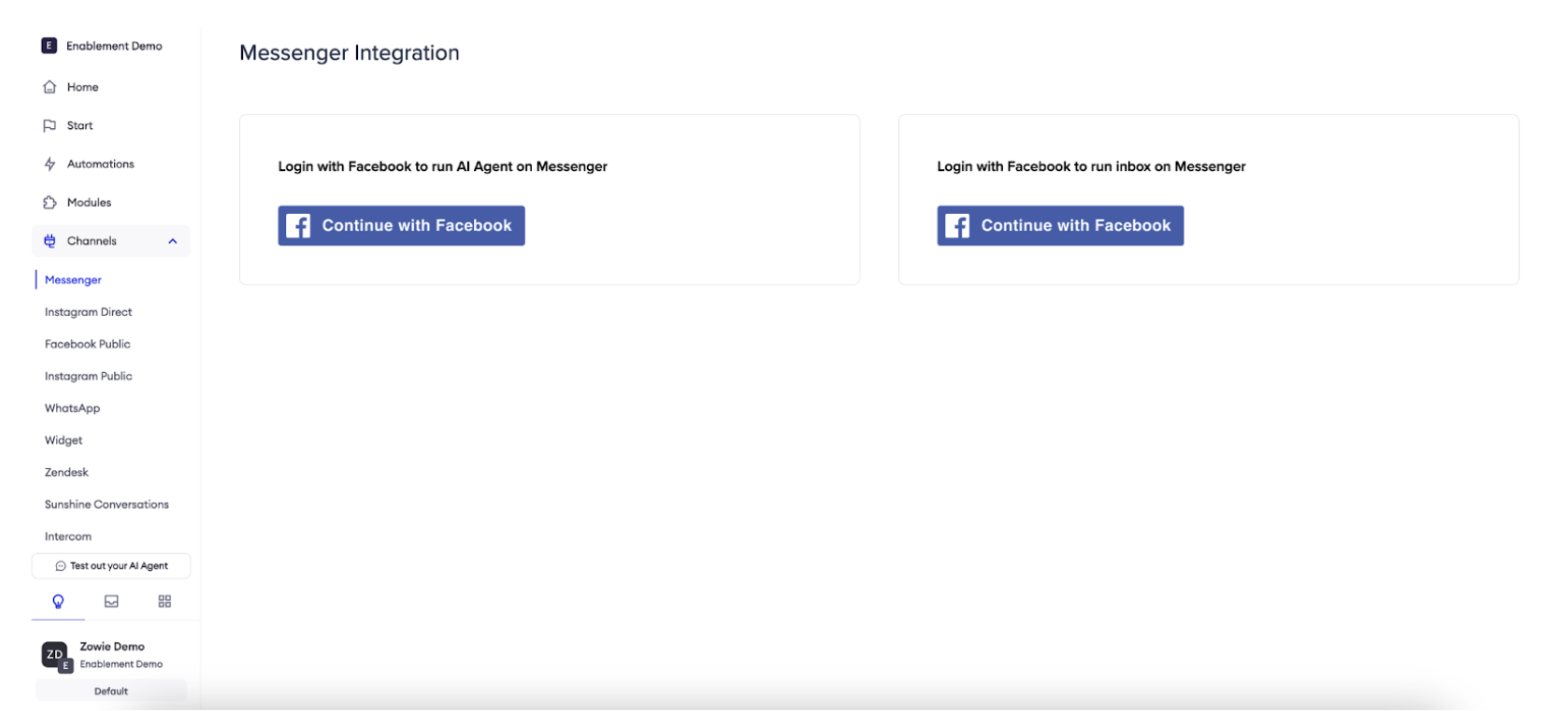
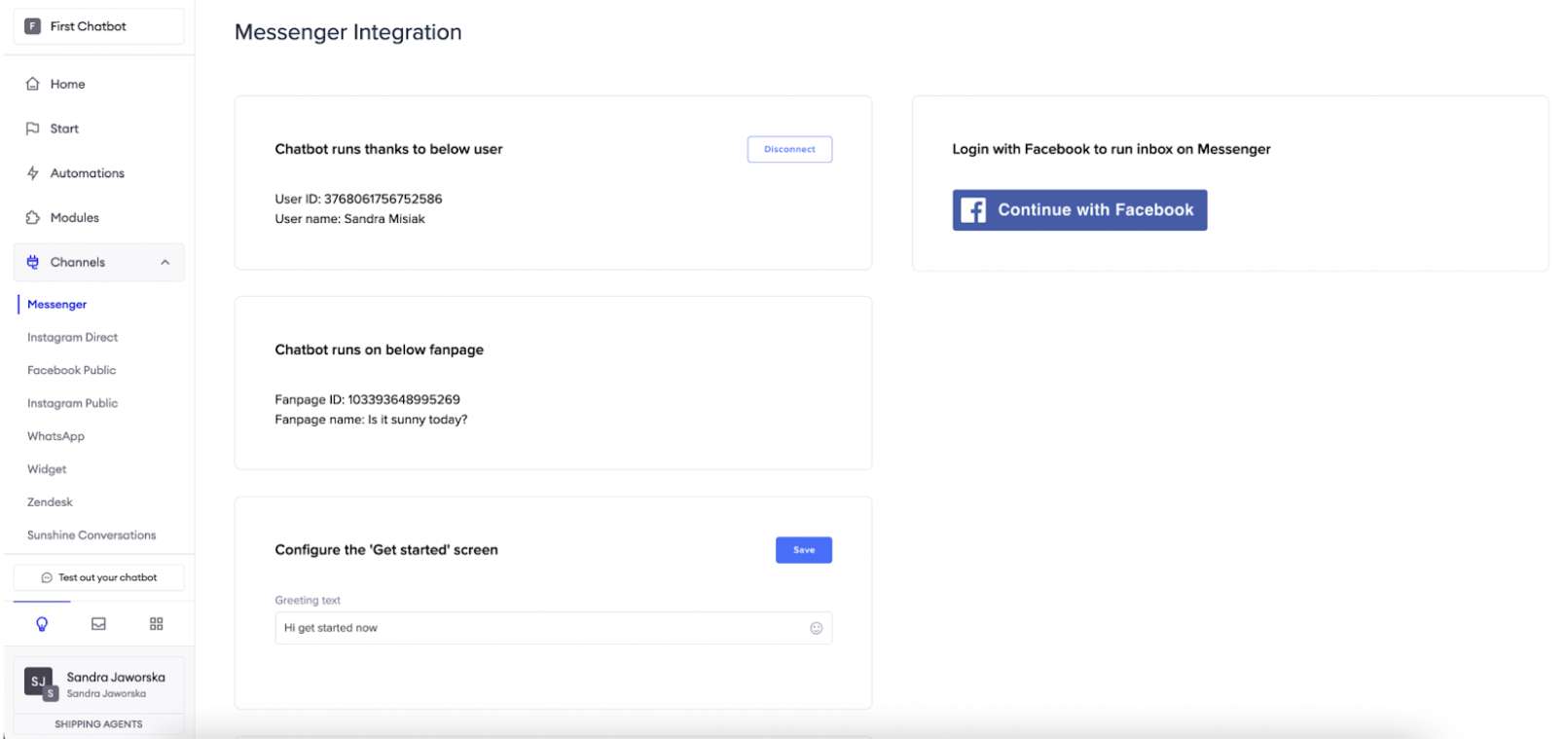
If you want to connect or reconnect social media channels, log into Zowie platform. Go to Automate -> Channels -> Messenger section and click the "Continue with Facebook" button next to the “Login with Facebook to run AI Agent on Messenger” on the left.
Step 2
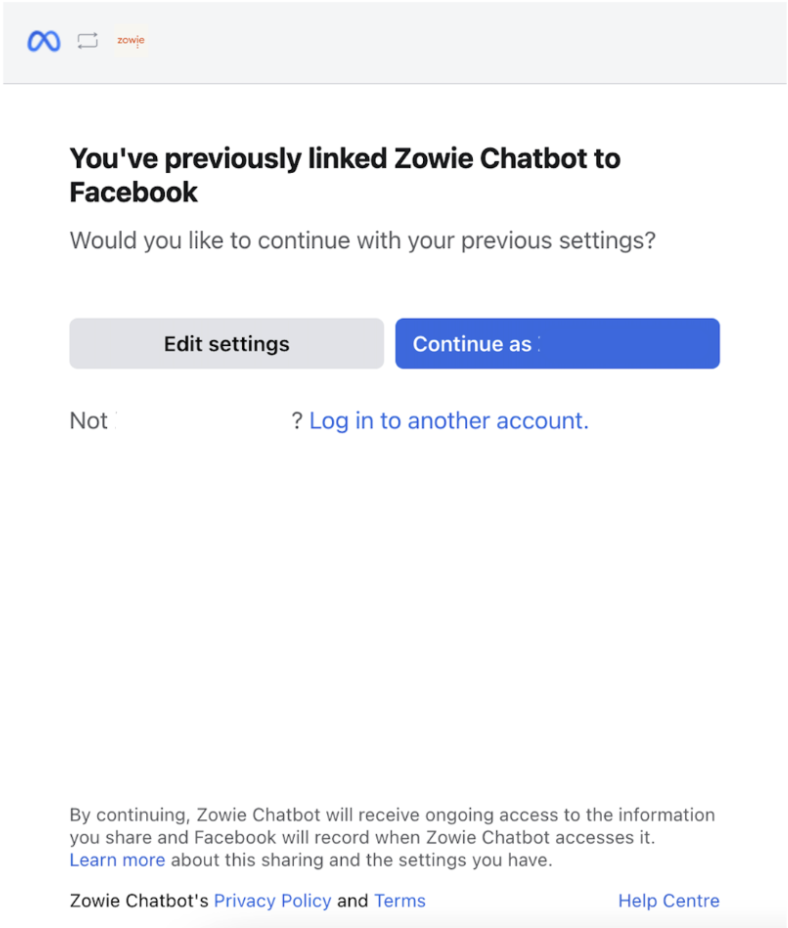
Now, follow the instructions in the pop-up to finish the installation. They are predefined by Facebook and for the integration to work, you need to accept them.
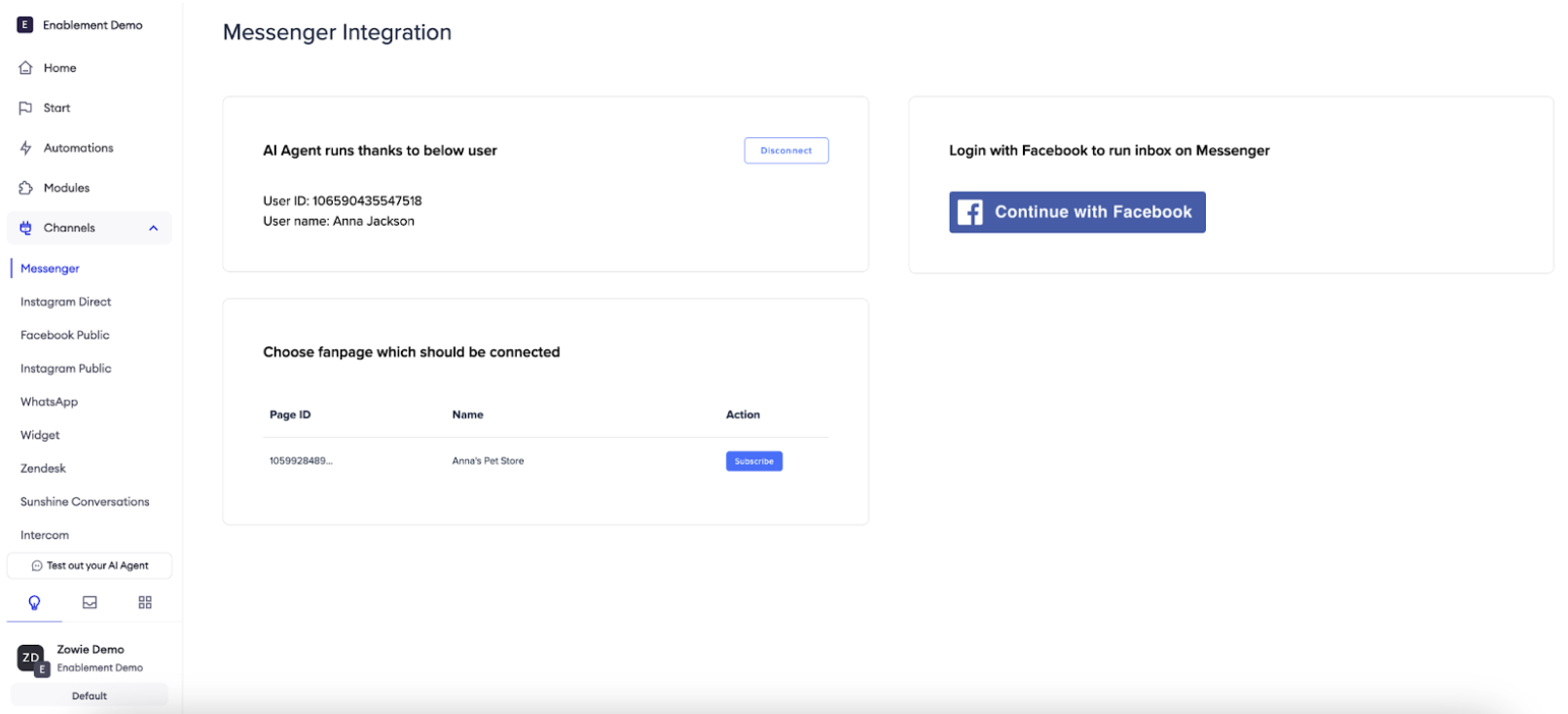
If you have multiple fanpages, click “Subscribe” next to the one you want to connect.
If there is no fanpage you want to connect, it means that you don't have full admin rights. Please see the Troubleshooting section.
Step 3
The next step is connecting Zowie Inbox to Messenger. Follow the same steps to integrate with Zowie Inbox, click "Continue with Facebook" button next to the “Login with Facebook to run Inbox on Messenger” on the right.
Step 4
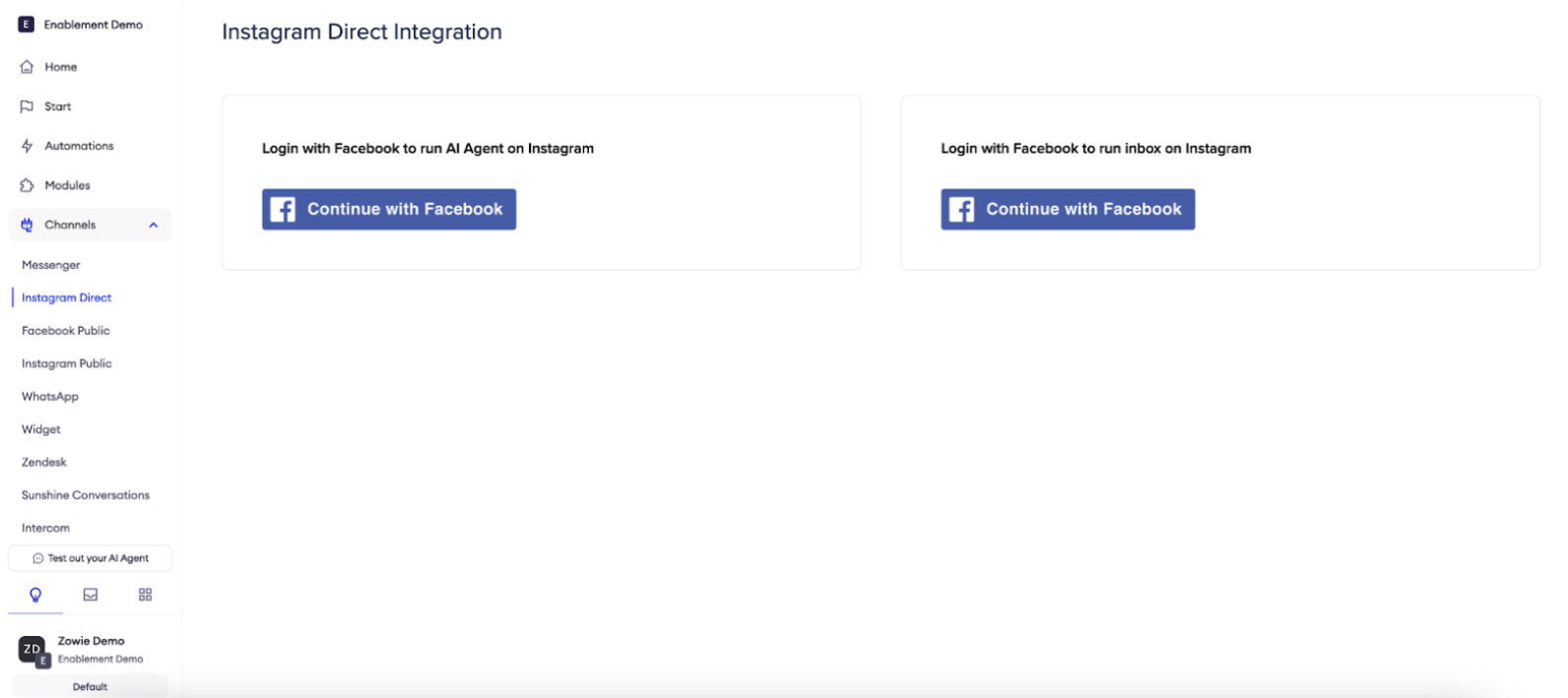
Follow exactly the same flow if you also want to connect Instagram Direct. Go to the Automate -> Channels -> Instagram Direct.
Step 5
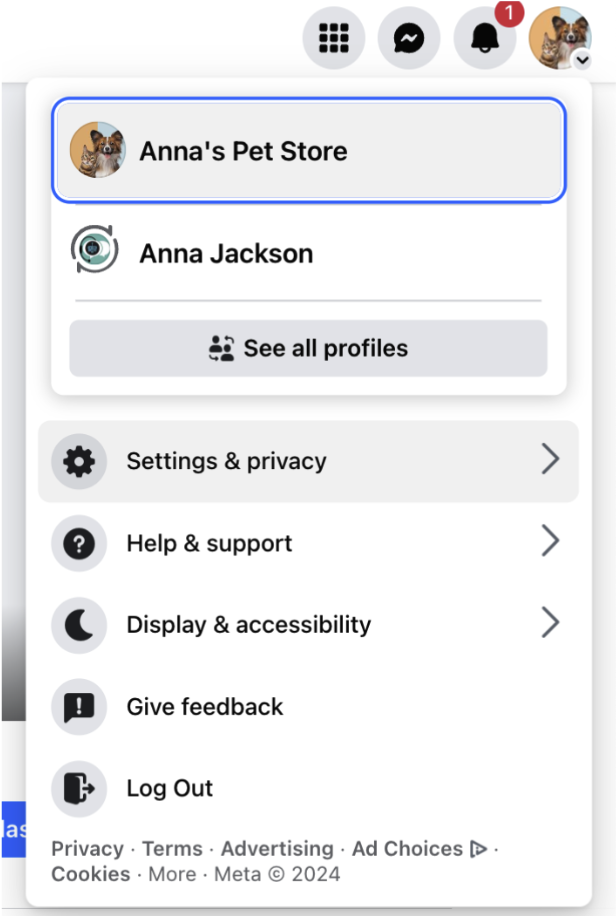
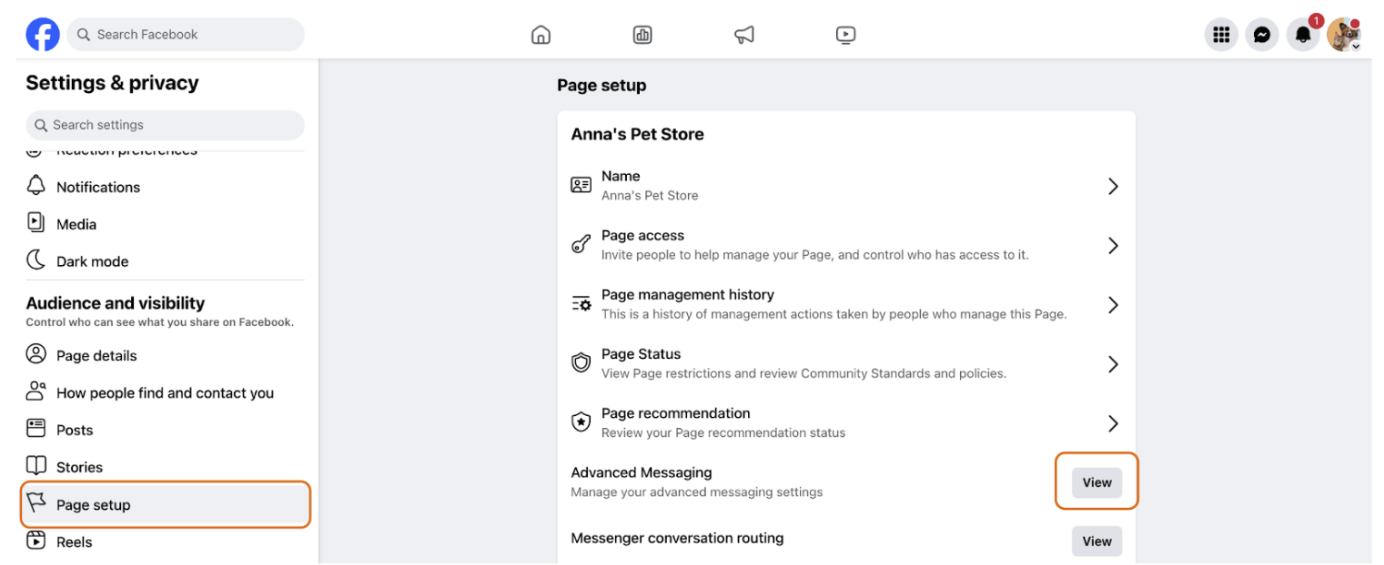
The integration process is completed. Adjust settings on the Facebook business page, ensure that Zowie is the primary receiver of all your Facebook messages. To do that, log into your Facebook account and change the user in the top right corner to the fanpage. Click on the “Settings and privacy” and then “Settings”.
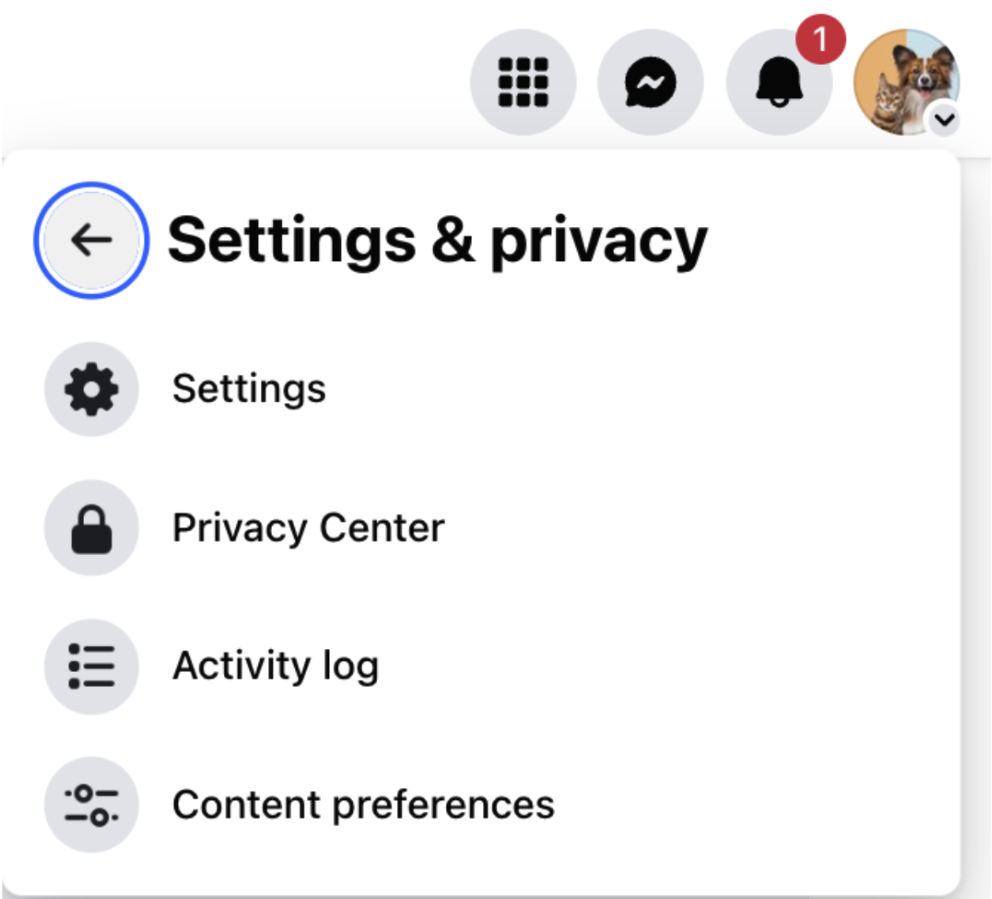
Then click on “Page setup” and “Advanced messaging”:
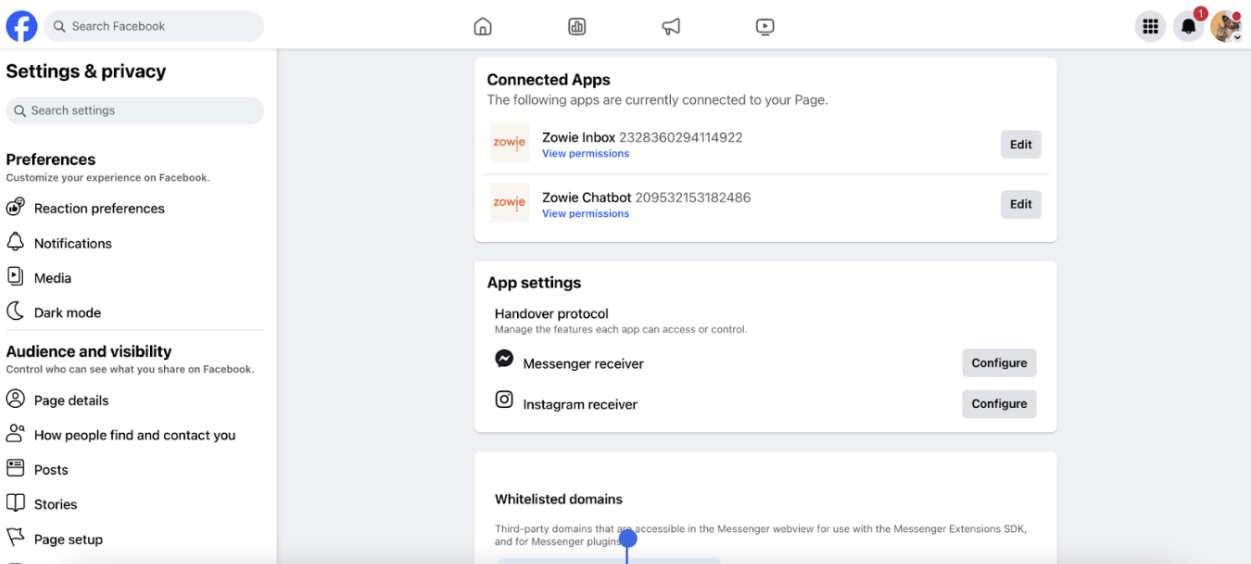
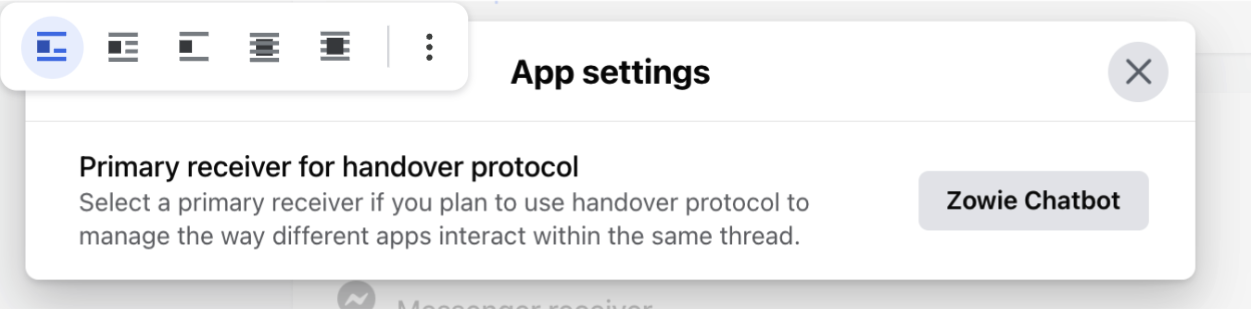
Make sure that in the “App settings” you have Handover protocol configured this way:
- For Messenger receiver - Zowie Chatbot
- For Instagram receiver - Zowie Chatbot
Now you are connected to your social media channels! 🥳
Best practices
Working hours
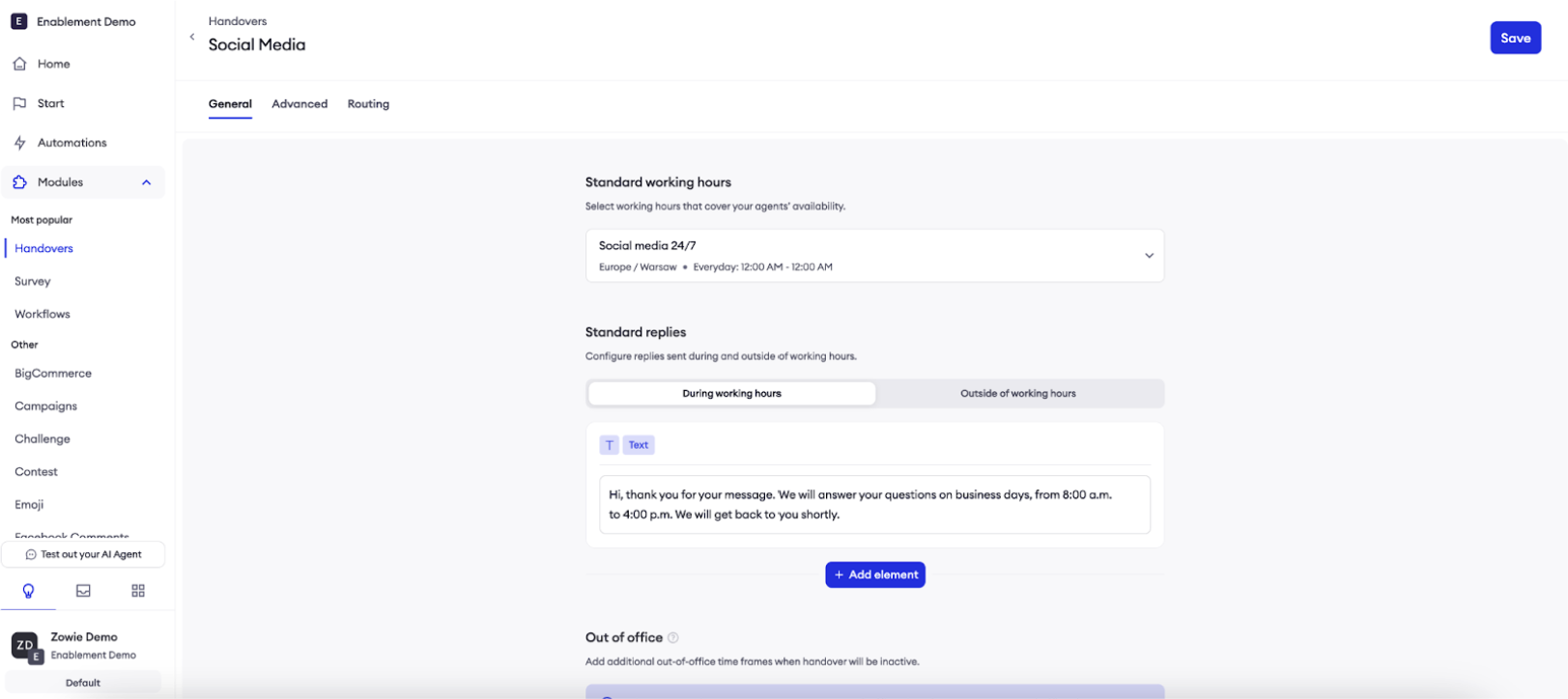
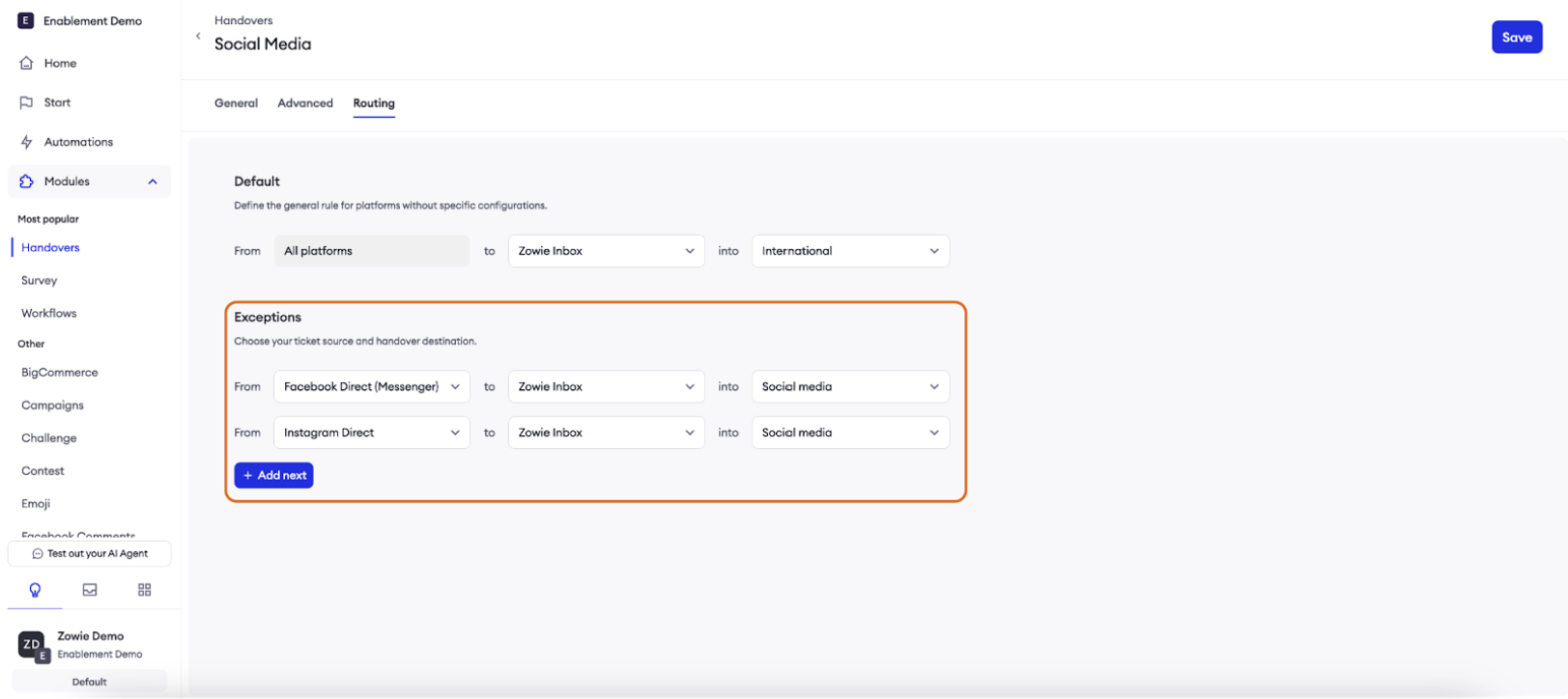
We recommend creating a separate Handover and Queue for the social media channels. Mostly since they are asynchronous channels - customers can write you anytime and you can respond to them in a couple of hours. Handover should have set the availability for 24/7, different SLA and redirect to a dedicated queue.
Specific topics
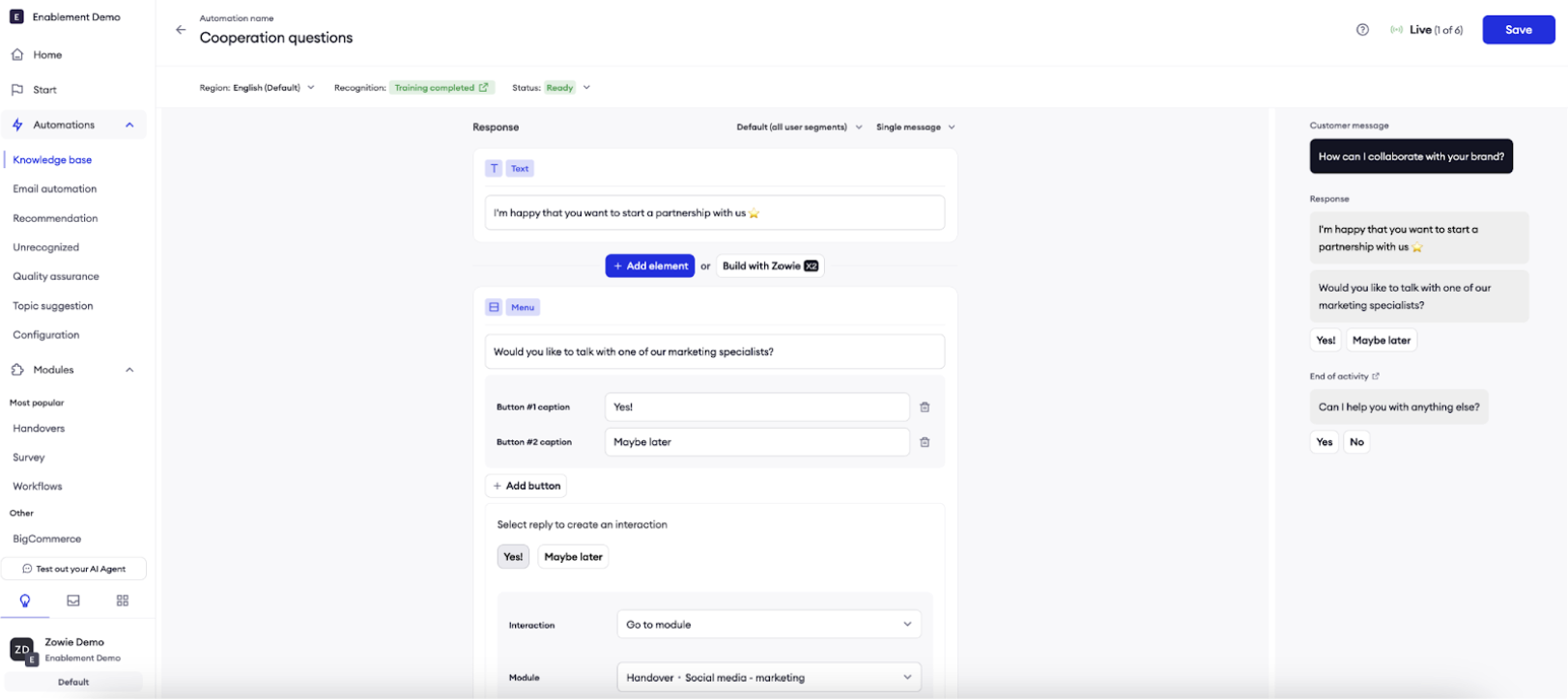
If you receive many messages regarding marketing topics, like cooperation, you can also create a separate Handover for that and redirect only these specific questions to a dedicated marketing queue.
Multiple fanpages connected to one AI Agent
If you have multiple fanpages and want to connect them to one AI Agent, please contact your Customer Success Manager. As of today it requires an online meeting with our Solution Engineering team.
Troubleshooting
I connected the chatbot but it doesn’t respond
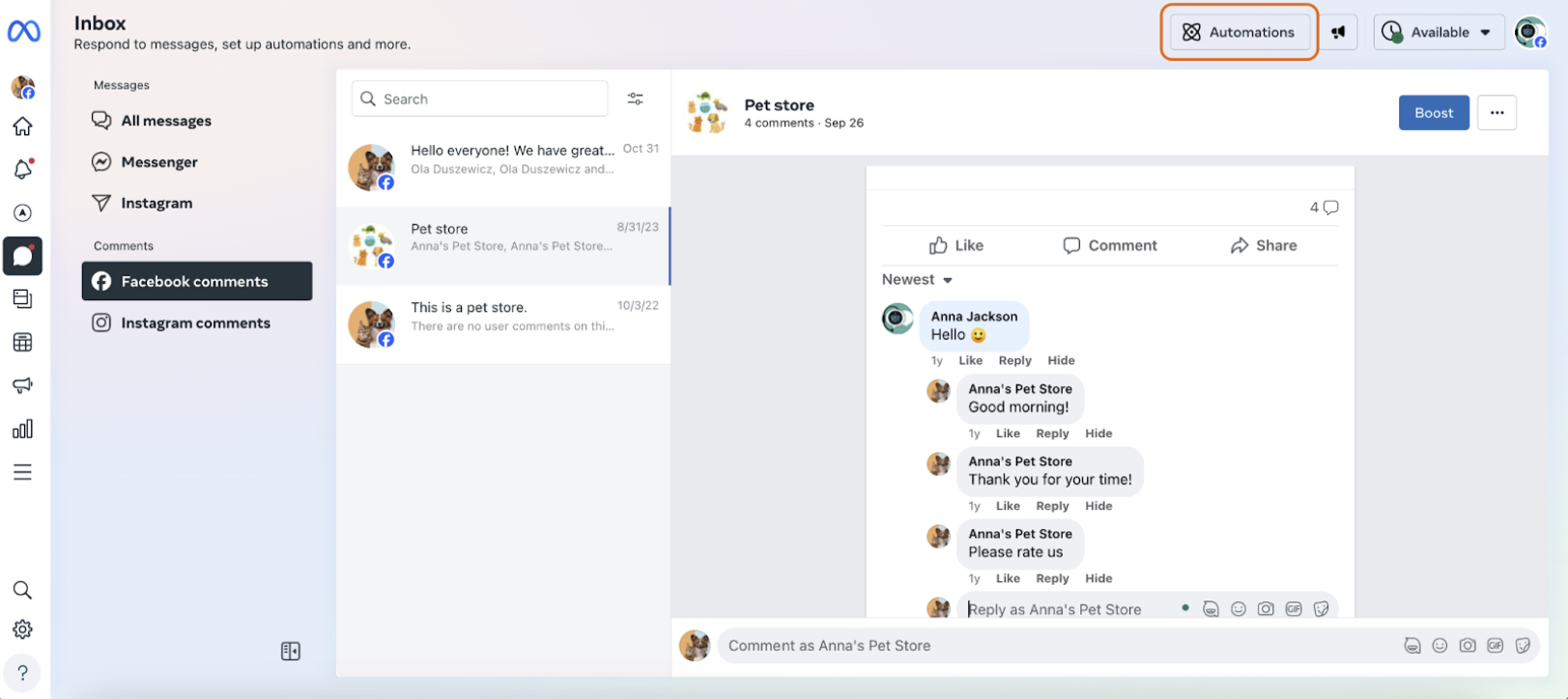
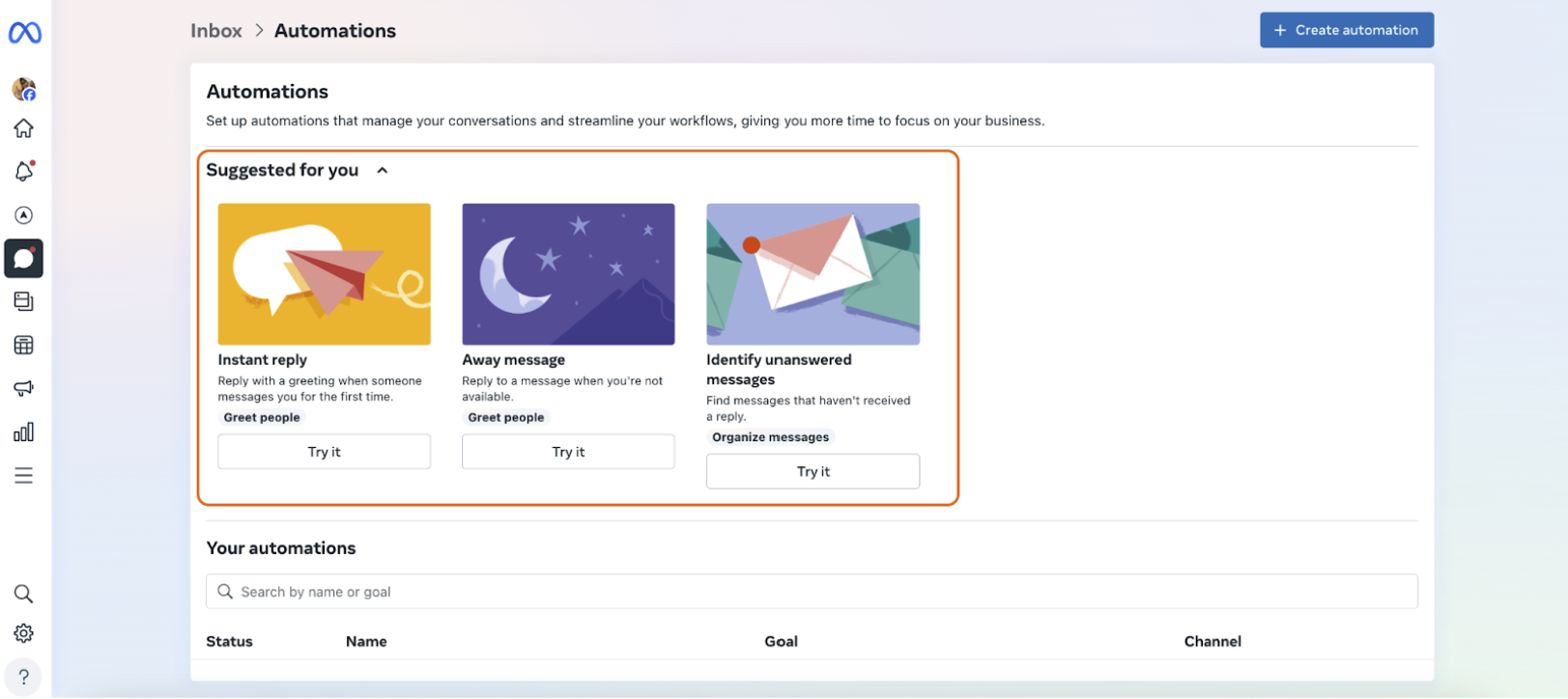
If you have any automatic messages enabled on your fanpage, you need to disable them. To do this log into Facebook, go to your business Profile and choose Messenger. Then click on the Automations in the top right corner and make sure that the messages are disabled.
I’m an admin but can’t see the fanpage in Zowie
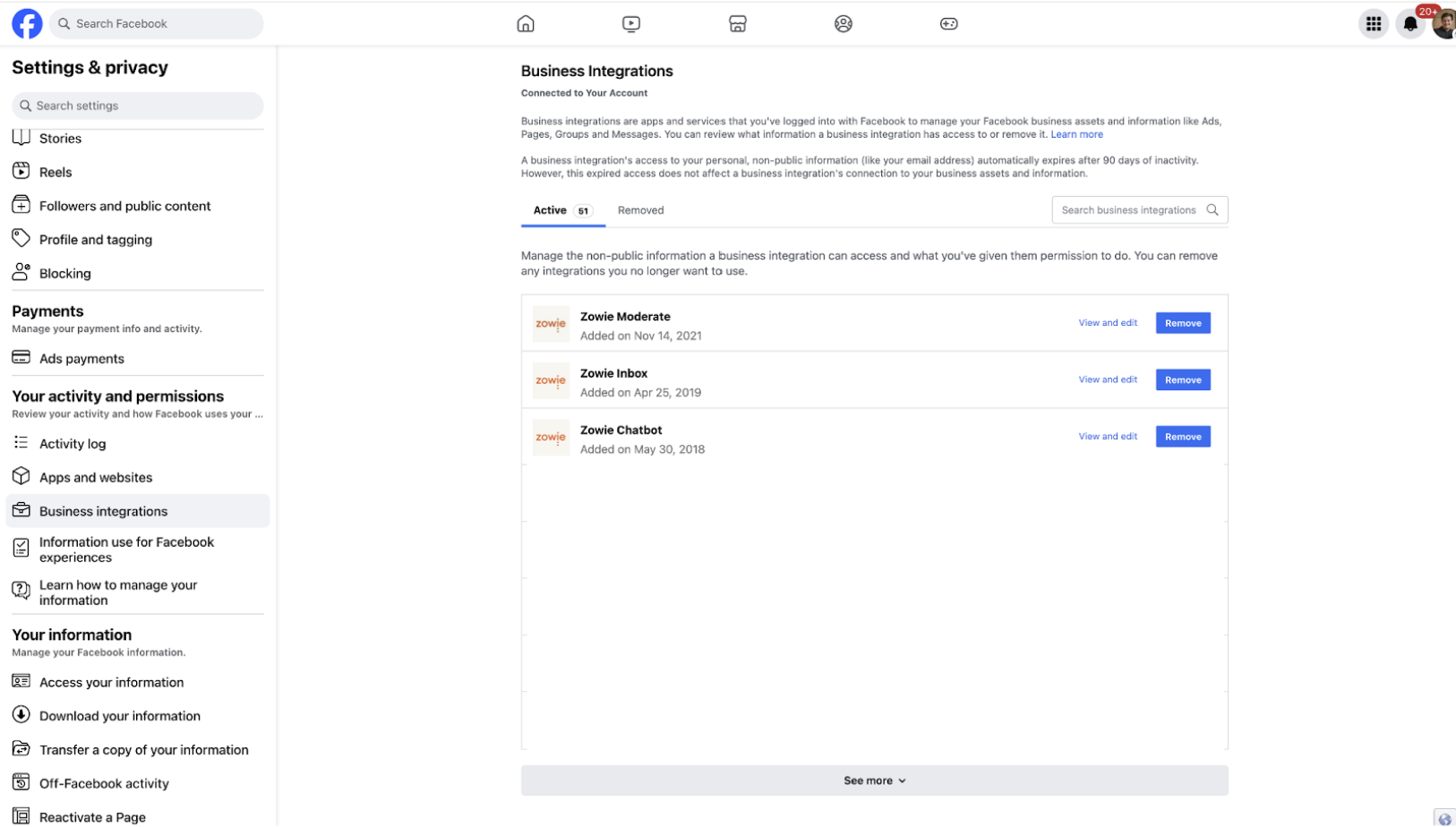
In that case please log into Facebook, go to your business Profile - Settings & privacy - Settings - Your activity and permissions - Business Integrations and remove both Zowie Inbox + Zowie Chatbot and start again. If that doesn’t help, please contact your internal team to make sure you receive the full admin access.
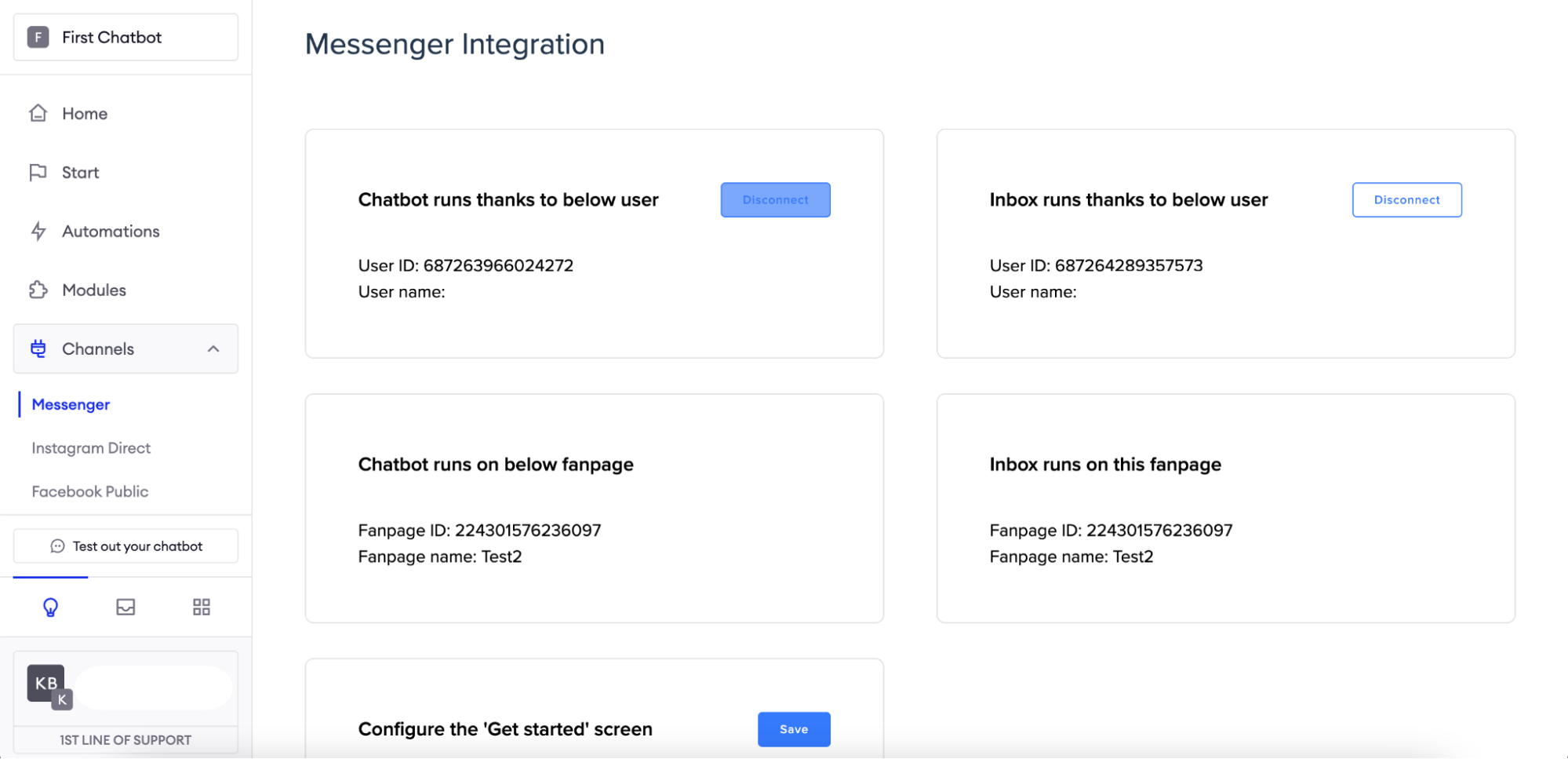
Disconnect Messenger from Zowie
To uninstall the Messenger connector, go to Chatbot -> Channels -> Messenger and click on the "Disconnect" button.
Facebook Public
We understand that this topic is important for you - that's why we're working hard on delivering quality content. Come back soon!
Instagram Public
We understand that this topic is important for you - that's why we're working hard on delivering quality content. Come back soon!
WhatsApp
In order to connect your chatbot to WhatsApp, please contact your Customer Success Manager.
Before reaching out, please be prepared with the following:
- WhatsApp Phone number that you want to connect to Zowie
- Facebook Business ID
Zendesk
We understand that this topic is important for you - that's why we're working hard on delivering quality content. Come back soon!
Sunshine Conversations
In order to connect your chatbot to Sunshine Conversations, please contact your Customer Success Manager.
Intercom
We glad to see you're interested in using this feature. In order to connect your chatbot to Intercom, please contact your Customer Success Manager.
Viber
We glad to see you're interested in using this feature. In order to connect your chatbot to Viber, please contact your Customer Success Manager.
Google Actions
Setup your Google Actions project
Next
- Go to the Actions console.
- Click on Add Project, enter a name for the project, and click Create Project.
- Under More options near the bottom of the page, click Actions SDK.
- Copy project id after '--project' argument in command.
- Download and install Google Actions CLI.
Embedded
We understand that this topic is important for you - that's why we're working hard on delivering quality content. Come back soon!
Landing Page
Offer your customers the possibility to contact you by putting the chatbot on your landing page.
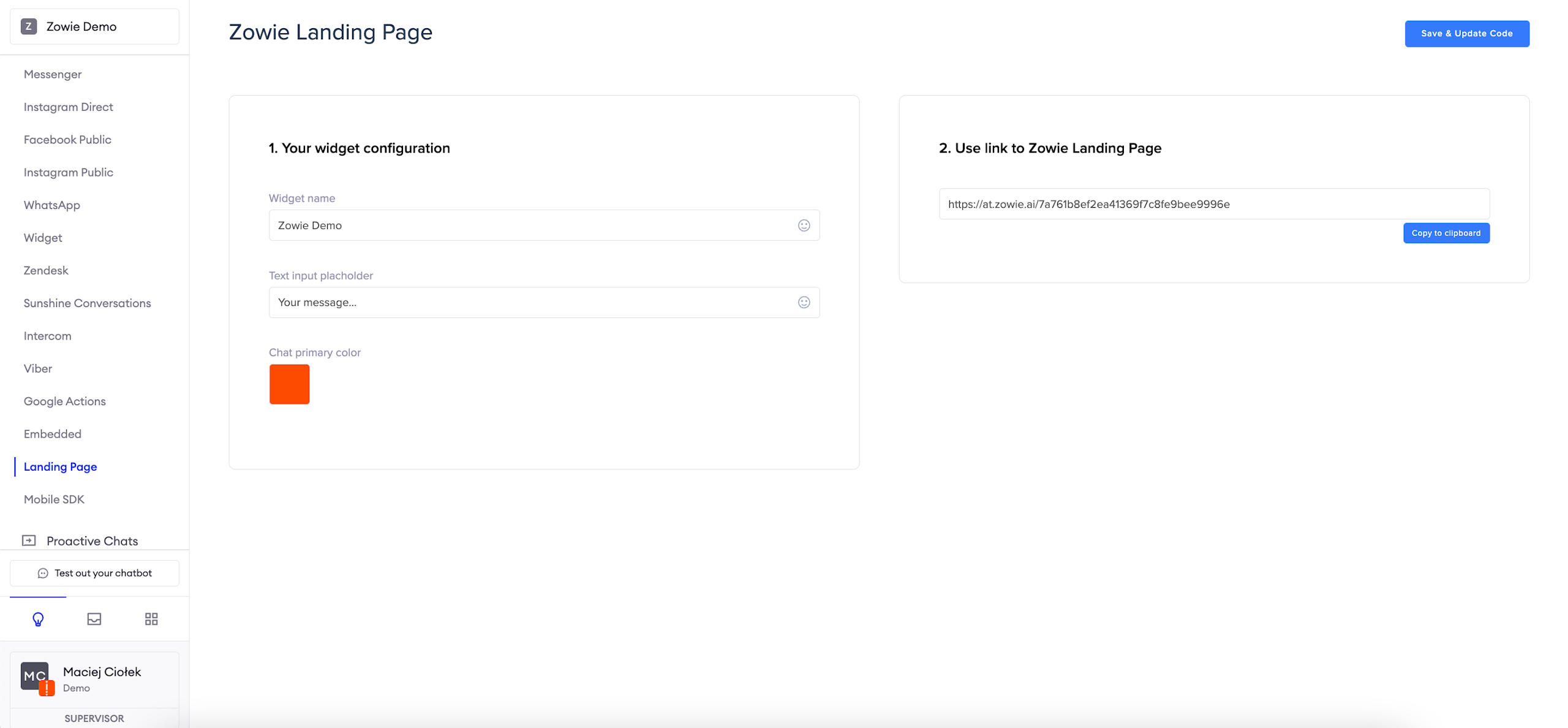
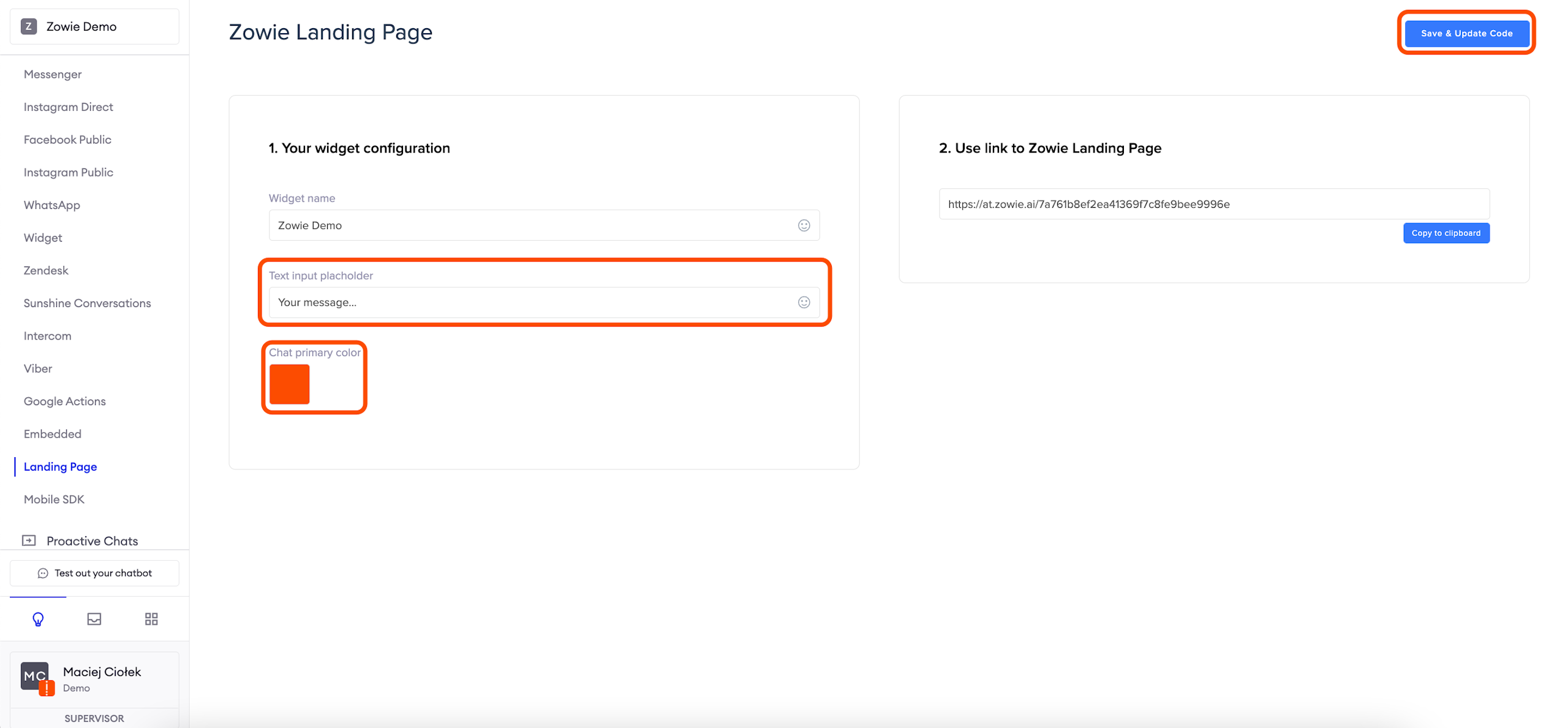
First, you need to go to Channels -> Landing Page. Once you open it, you can start configuring the widget.
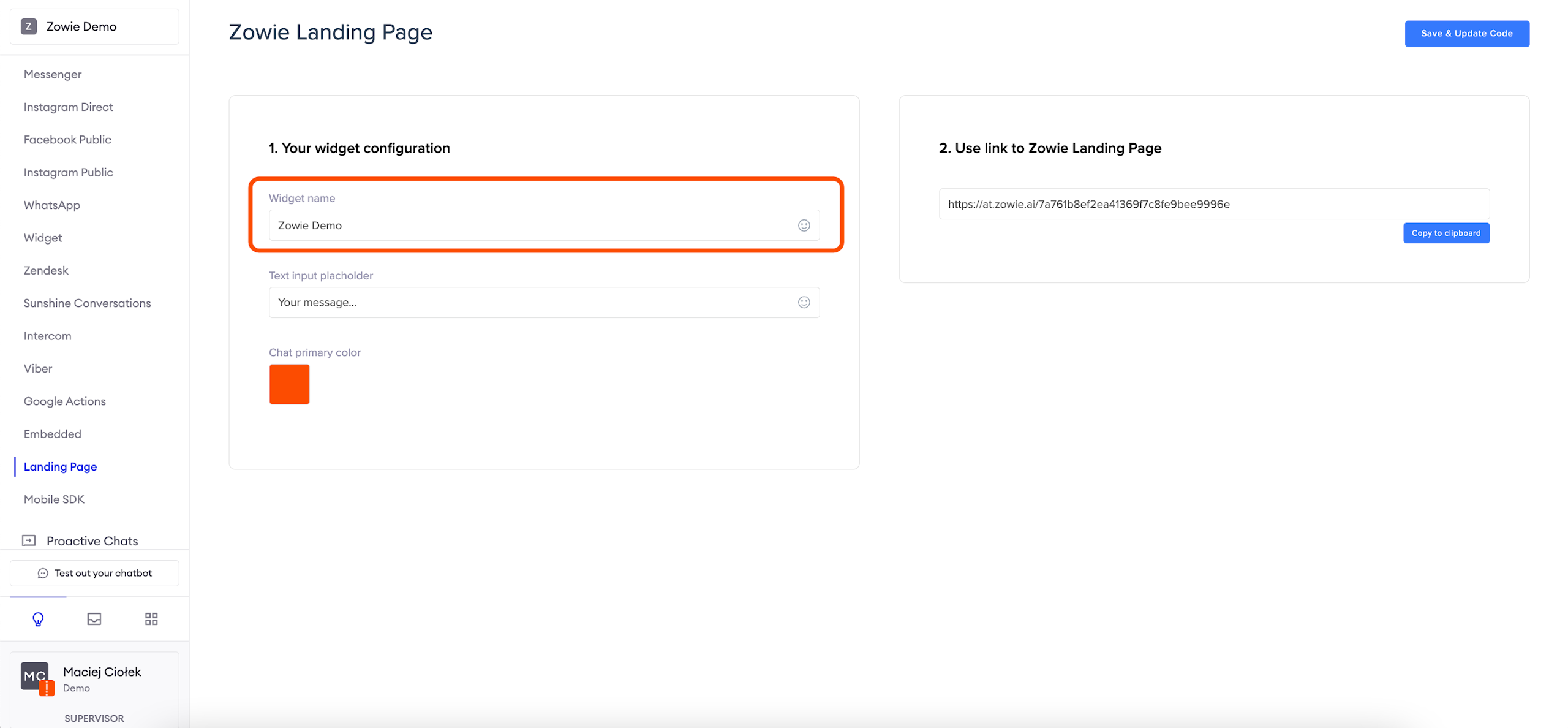
Name your Widget
You can name your widget. Click on “Widget name” and insert the name. This name will appear at the top once the Landing Page connector is on a website.
Configure first message and color
In the field Text input placeholder, you can provide a message which will be visible to the person who starts the conversation with the chatbot.
You can leave this field blank or populate it with some helpful phrase like: “Where is my parcel?”
You can pick a color for your landing page by clicking on the icon under Chat primary color.
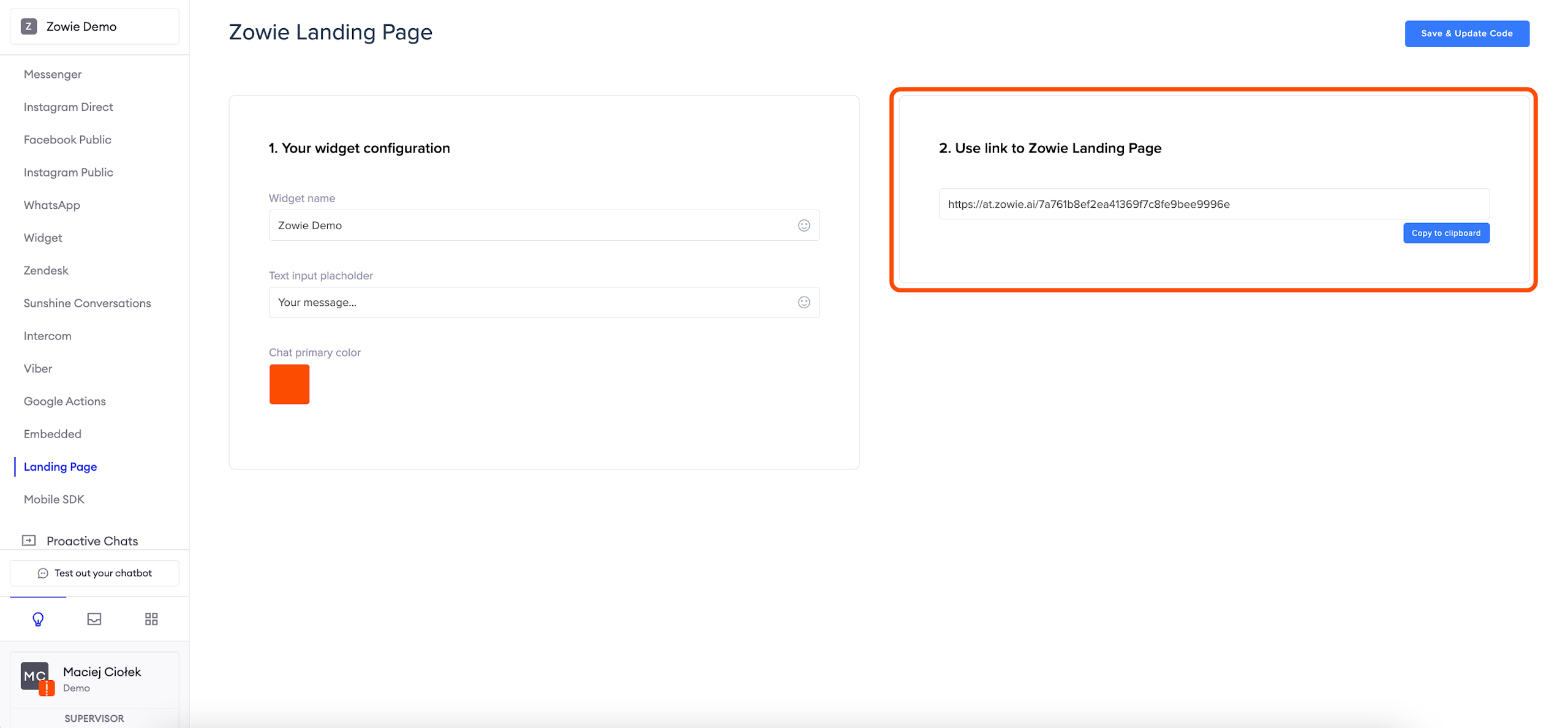
Click on Save & Update Code. Then click on Copy to clipboard to copy the address to this connector. You just set up a landing page connector. Now all that's left is to embed the code on your website.
Mobile SDK
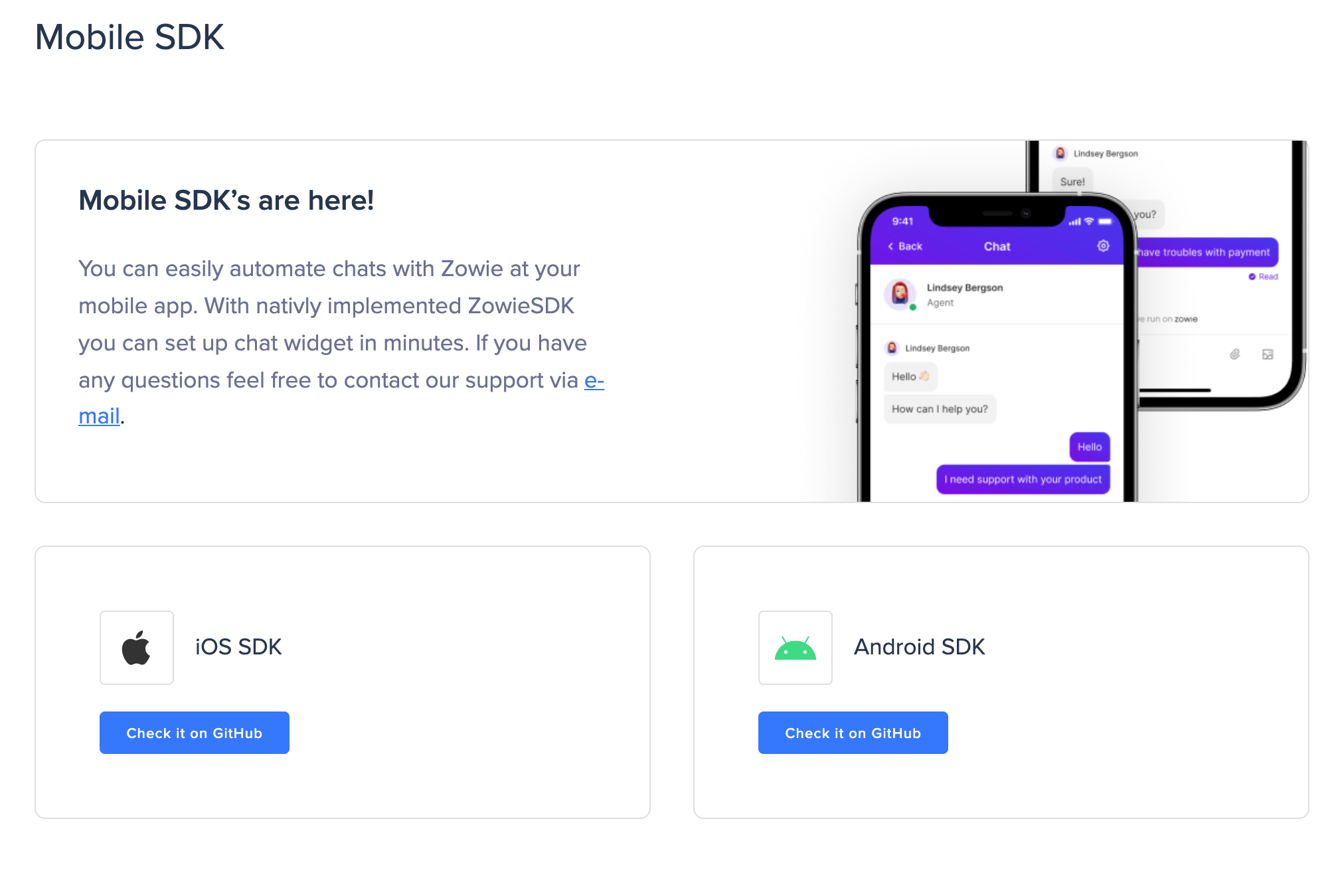
The mobile SDK allows you to effortlessly embed your chatbot within your mobile app, regardless of the platform. We support both iOS and Android. For more information please contact your Customer Success Manager and review the following documentation for iOS SDK or for Android SDK.
Updated over 1 year ago