
Handovers
Handovers enable you to direct ticket traffic from AI Agents to human agents in Zowie Inbox and others customer service tools. Handovers are a crucial part of creating efficient ticket flow.
- Using Handovers you can set what messages should be sent to end customers depending on whether they write During office hours or Outside of working hours.
- Handovers enable users to select which tickets should go to which customer service Queue.
Before you start
You can use Handovers to control and manage ticket flow from AI Agent to human agents, and to create differentiated experiences depending on the source channels and other factors. Therefore, before you start setting up Handovers it is advised to think how do you want to differentiate your different Handovers.
You can create multiple Handovers to differentiate experiences across:
- Regions and languages – customer service teams might work within different times; end customers want to receive the messages in their local languages.
- Subject – it’s desired to send different messages to customers interested in buying a product vs in need of human agent assistance,
- Channels – you might have different working hours depending on the channel, for example supporting Zowie Widget 24/7, but supporting Instagram Direct only 8h / day.
Creating a new Handover
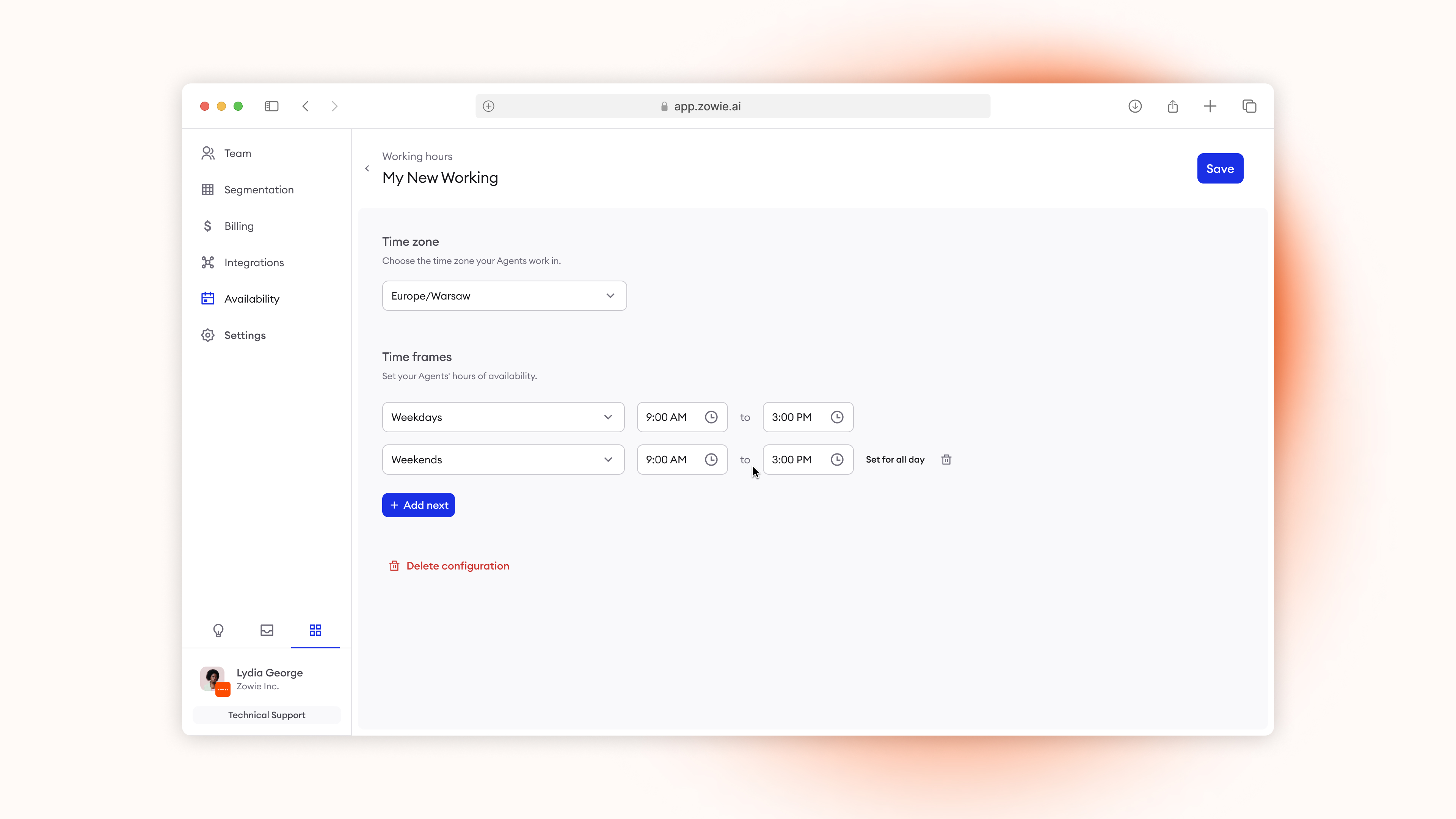
1. Set up Schedules
In order to create a new Handover you will need at least one Schedule. Follow these instructions to set up your Schedules.
2. Create a new Handover
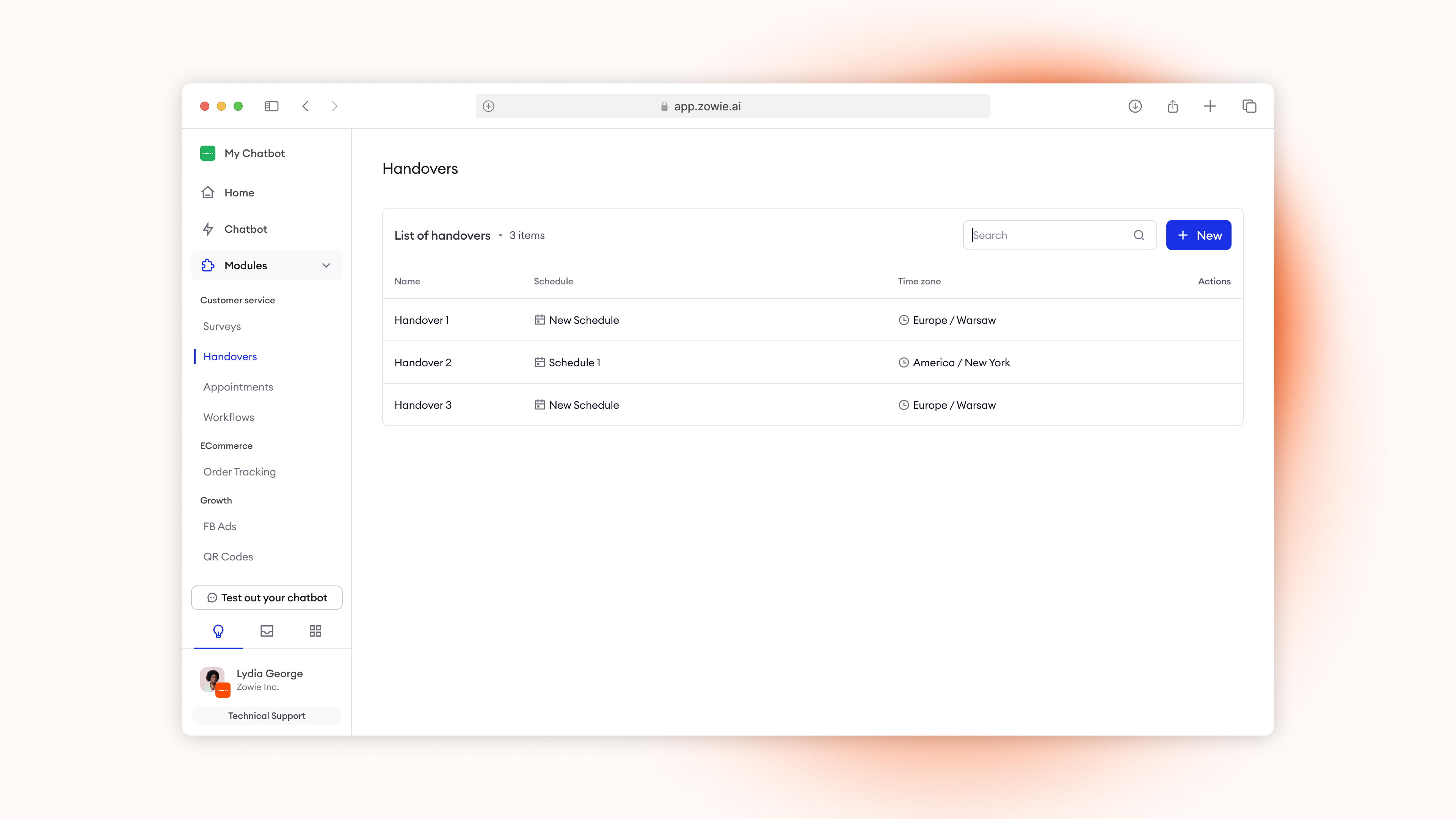
Head over to AI Agent > Modules > Handover and select "Create new".
3. Set up your General settings
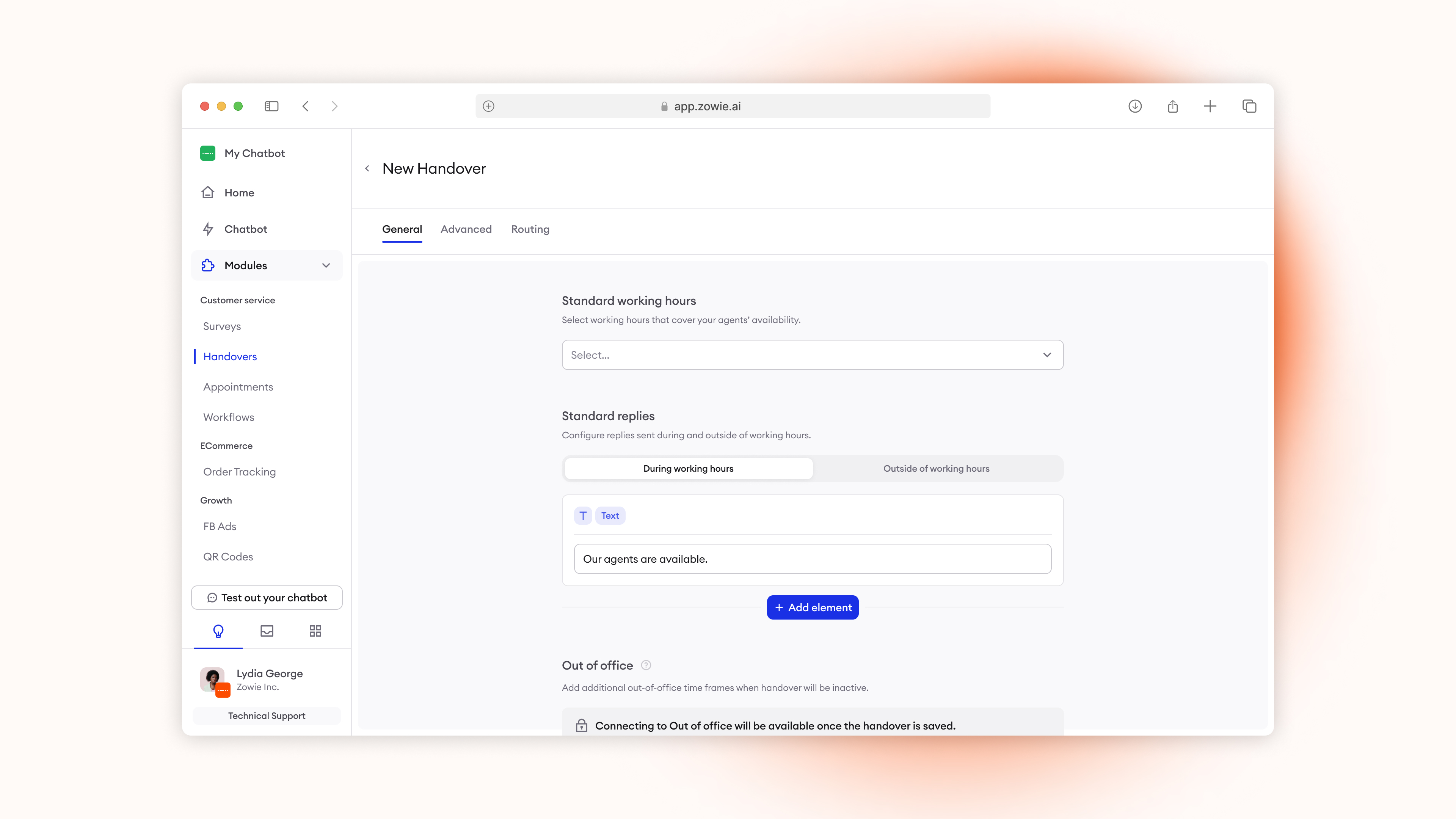
Select the Schedule that Handover should operate within, then set your During and Outside of working hours messages that are sent to end customers depending whether Handover is triggered within or outside of working hours in your Schedule.
4. Set up Advanced settings
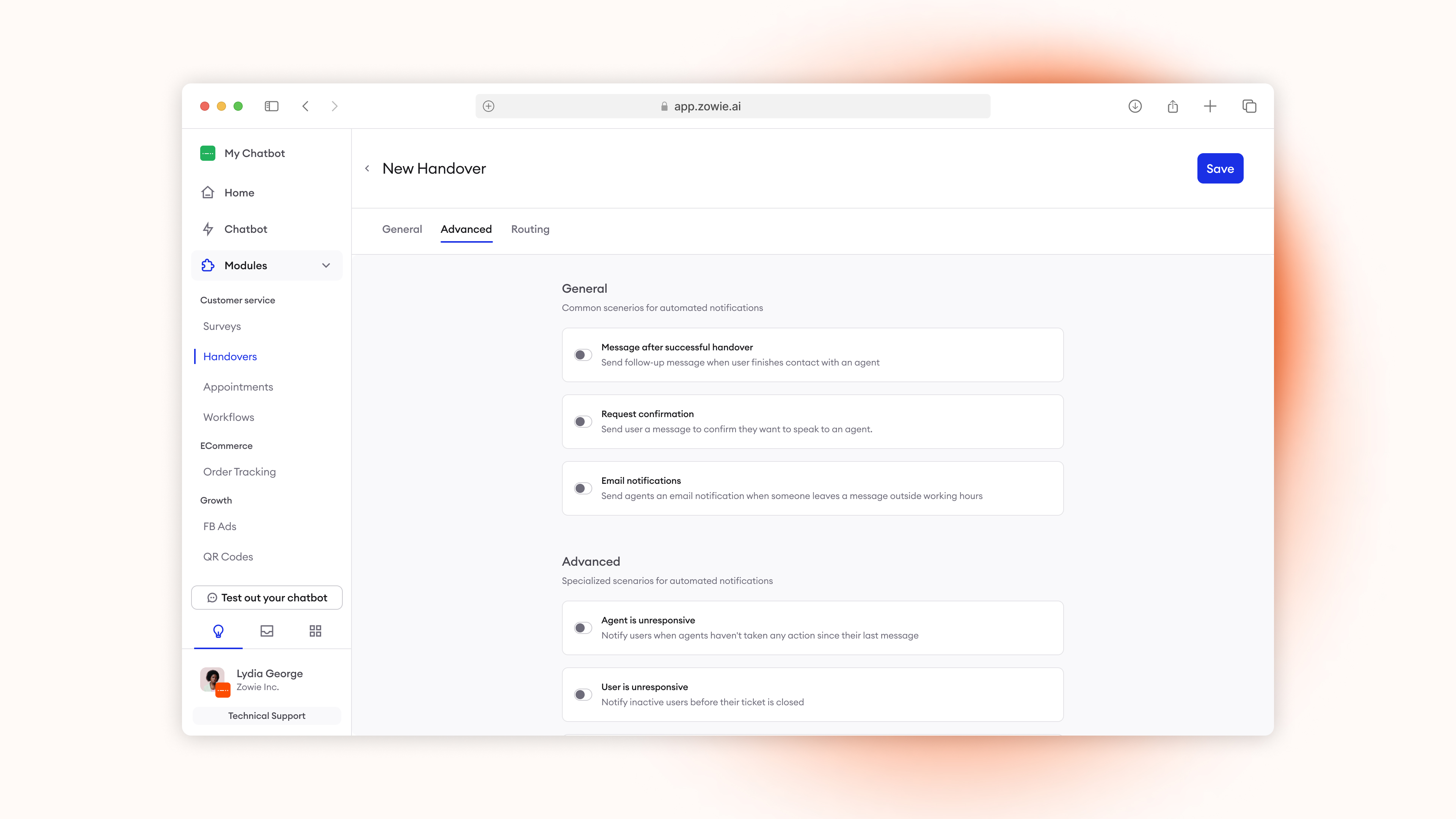
Head over to Advanced tab if you want to set up additional configuration for your Handover. Advanced settings enable you to create experiences for specific situations such as asking users for their email address outside of working hours, sending automated messages after ticket is closed by human agent, or requesting additional confirmation from user before they are assigned to human agents.
| Title | Function |
|---|---|
| Message after successful handover | Send follow-up message when user finishes contact with an agent |
| Request confirmation | Send user a message to confirm they want to speak to an agent |
| Email notifications | Send agents an email notification when someone leaves a message outside working hours |
| Agent is unresponsive | Notify users when agents haven't taken any action since their last message |
| User is unresponsive | Notify inactive users before their ticket is closed |
| Waiting in queue confirmation | Message users to confirm they're still waiting in a queue |
| Respond before handover is disabled | Confirm user is ready to respond before the end of working hours |
| Confirm waiting in snooze | Message snoozed users to confirm they're still active |
5. Set up Routing
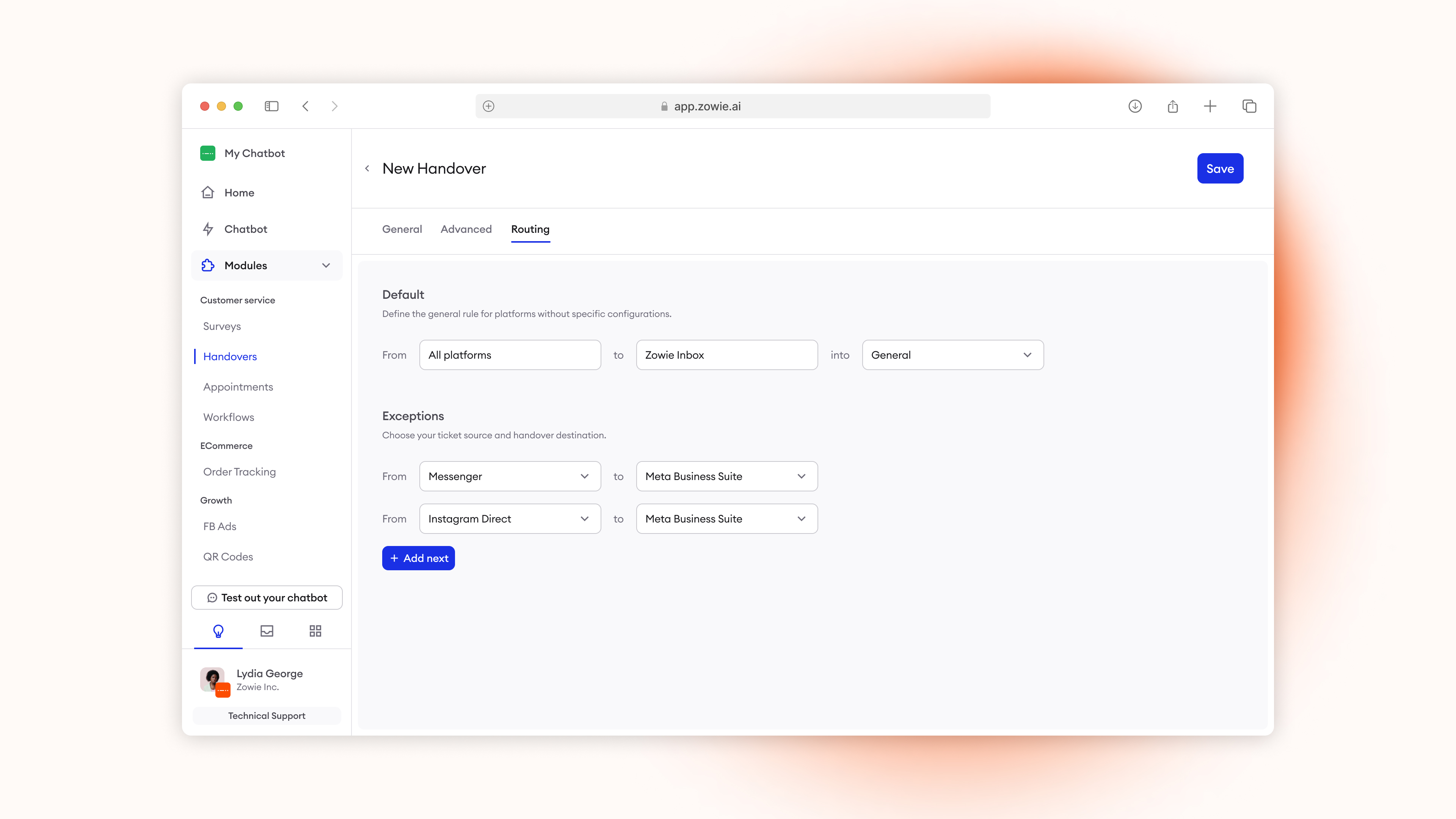
Head over to Routing if you want to direct ticket flow in a different way depending on the Channel they're coming from. Here you can set the ticket flow to:
- From AI Agent to Zowie Inbox – you can select which queue should the tickets be assigned. By default all tickets are directed towards the first Queue created which is typically called “General” unless changed by you.
- From AI Agent to Meta Business Suite – for tickets coming from Meta Channels (Facebook Direct, Instagram Direct) you can direct them to Zowie Inbox, external customer service desk or Meta Business Suite which will send them to connected Meta Business Suite Inbox.
By default all your tickets will be directed to Zowie Inbox, General queue and you can change for specific channels it by clicking "Add next", selecting the channel from which tickets are coming from and selecting "To" destination that is of interest to you.
6. Save the Handover
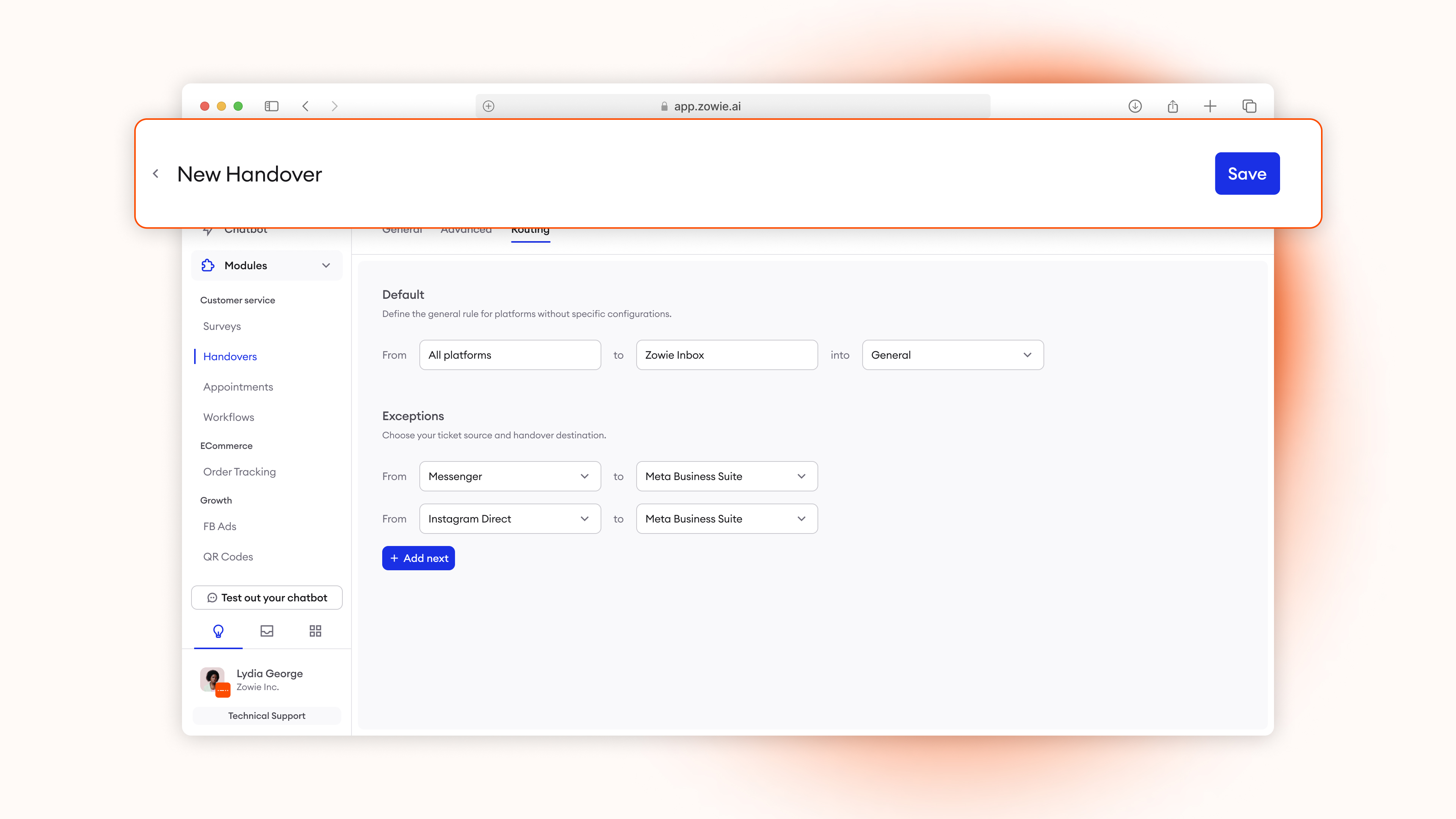
To enable the Handover simply click on "Save" once you're done with all the settings.
Updated over 1 year ago