
Navigation Bar
What is the Navigation Bar?
The Navigation Bar on the left allows you to move through different sections of Zowie (Chatbot, Inbox, Workspace Settings) and adjust the settings of your individual account.
You can click on either icon to change the section.
Note that you need to have appropriate permissions in order to see the sections mentioned in this article.
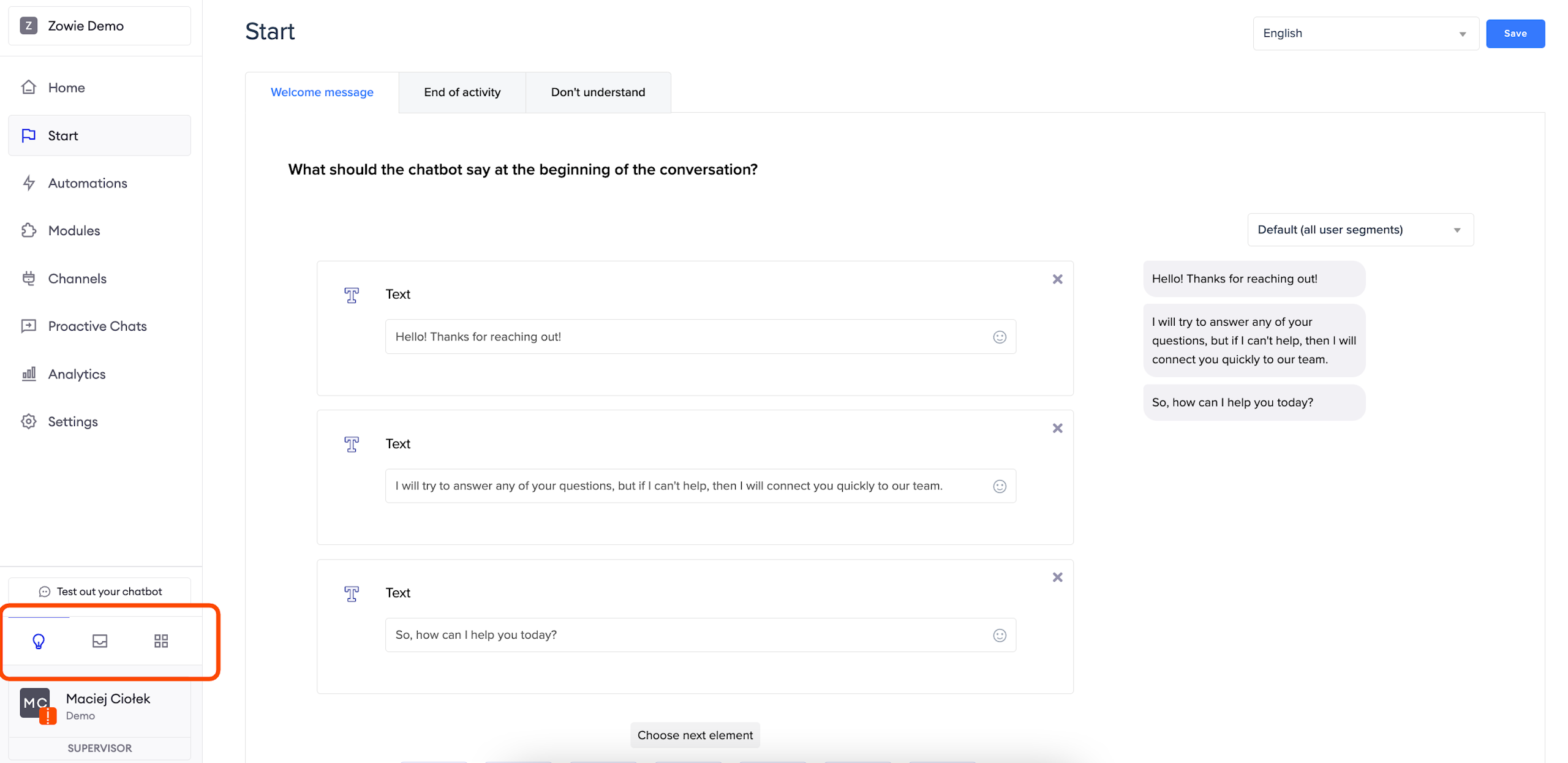
View chatbot navigation bar
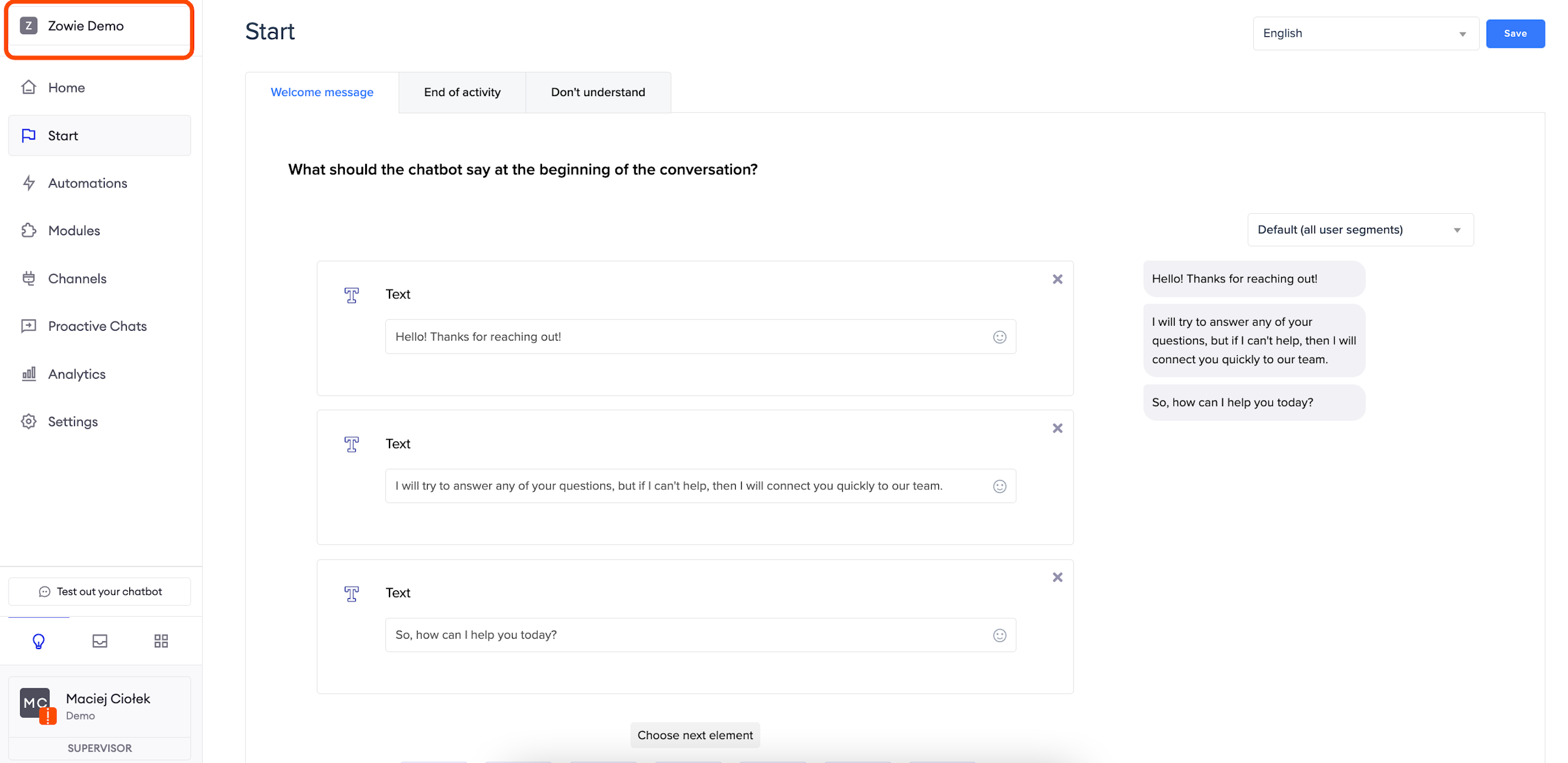
Switch between chatbots
Click on the name of the chatbot in the top of the bar to open a list of available chatbots and switch between them.
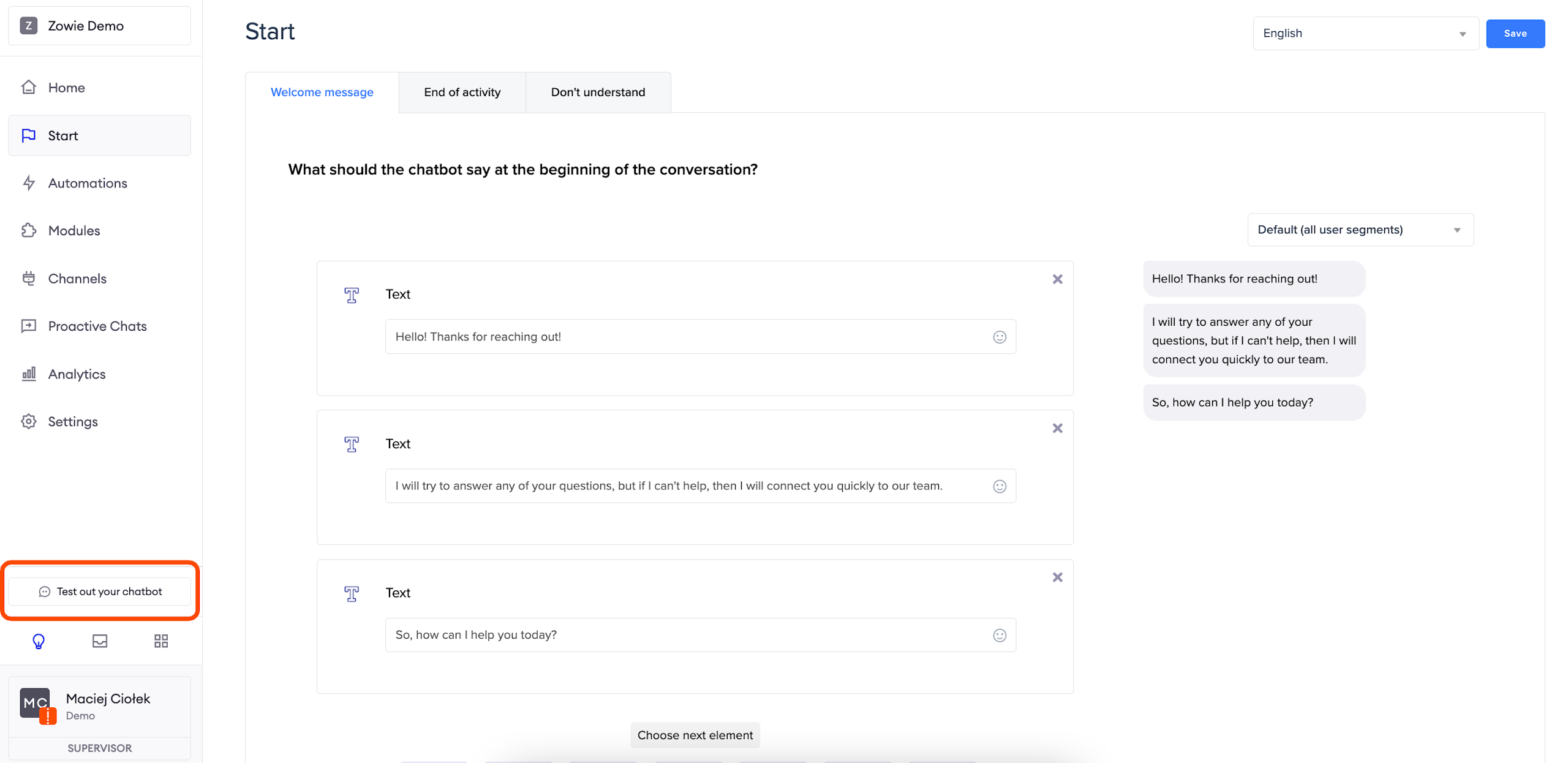
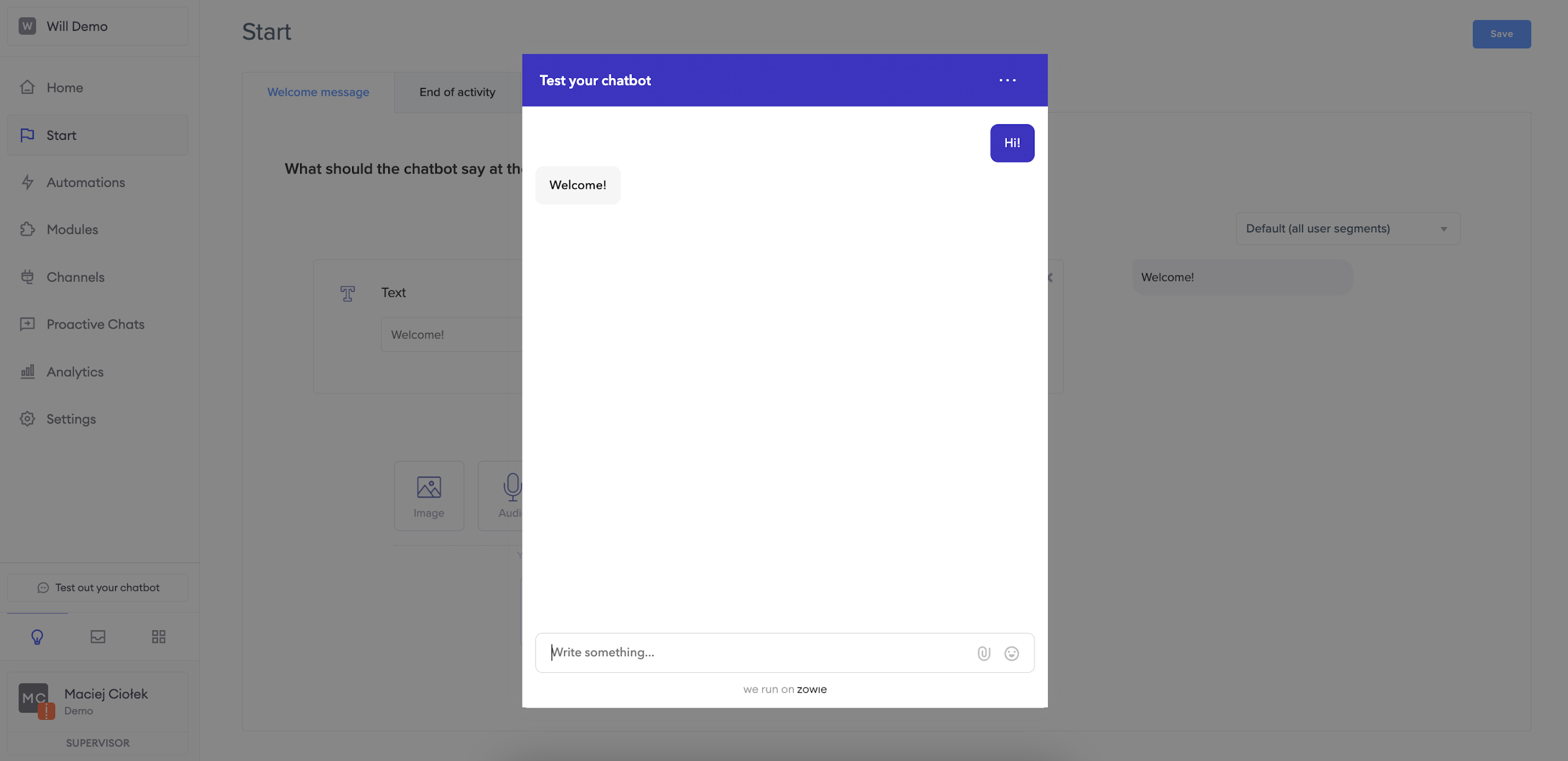
Test out your chatbot
Use Test out your chatbot to open a window with the chatbot so that you can run a quick test. This option will come in handy when you want to see if any configuration you just changed feels right from the user's perspective.
View Inbox navigation bar
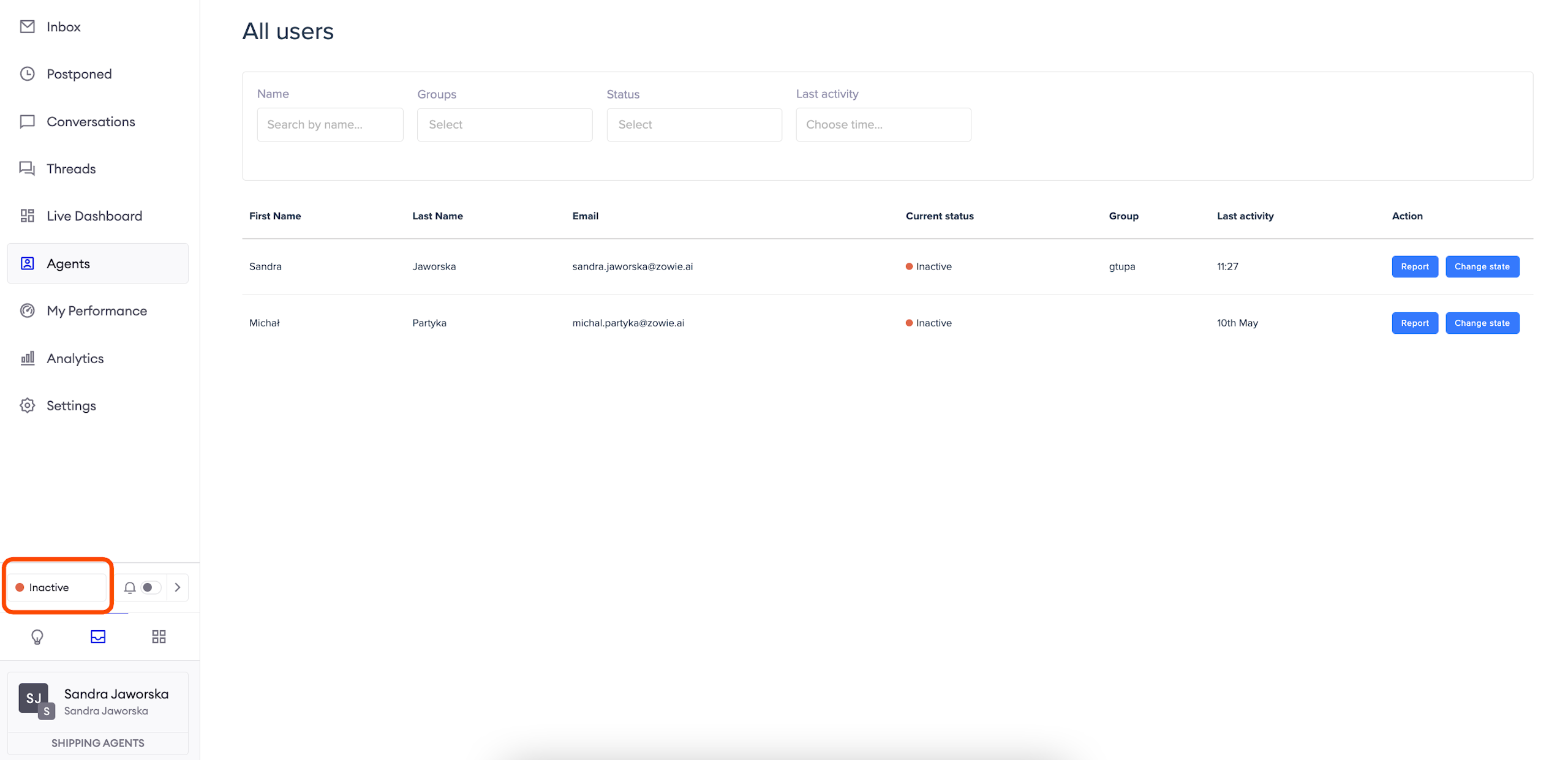
Change your status
Use the status button to quickly switch between statuses.
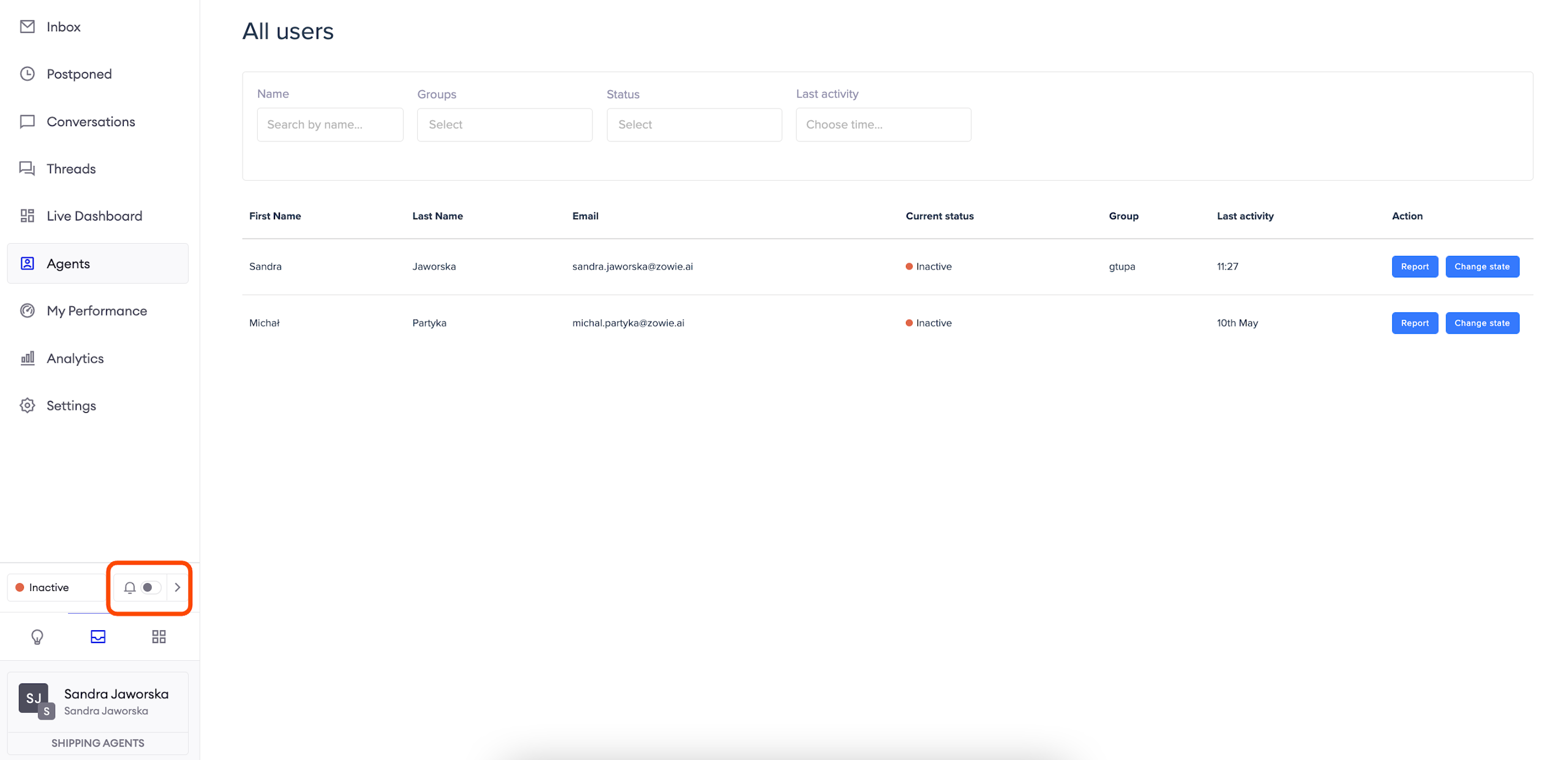
Turn on new message notifications
In order to see notifications about new messages, just toggle the bell button on.
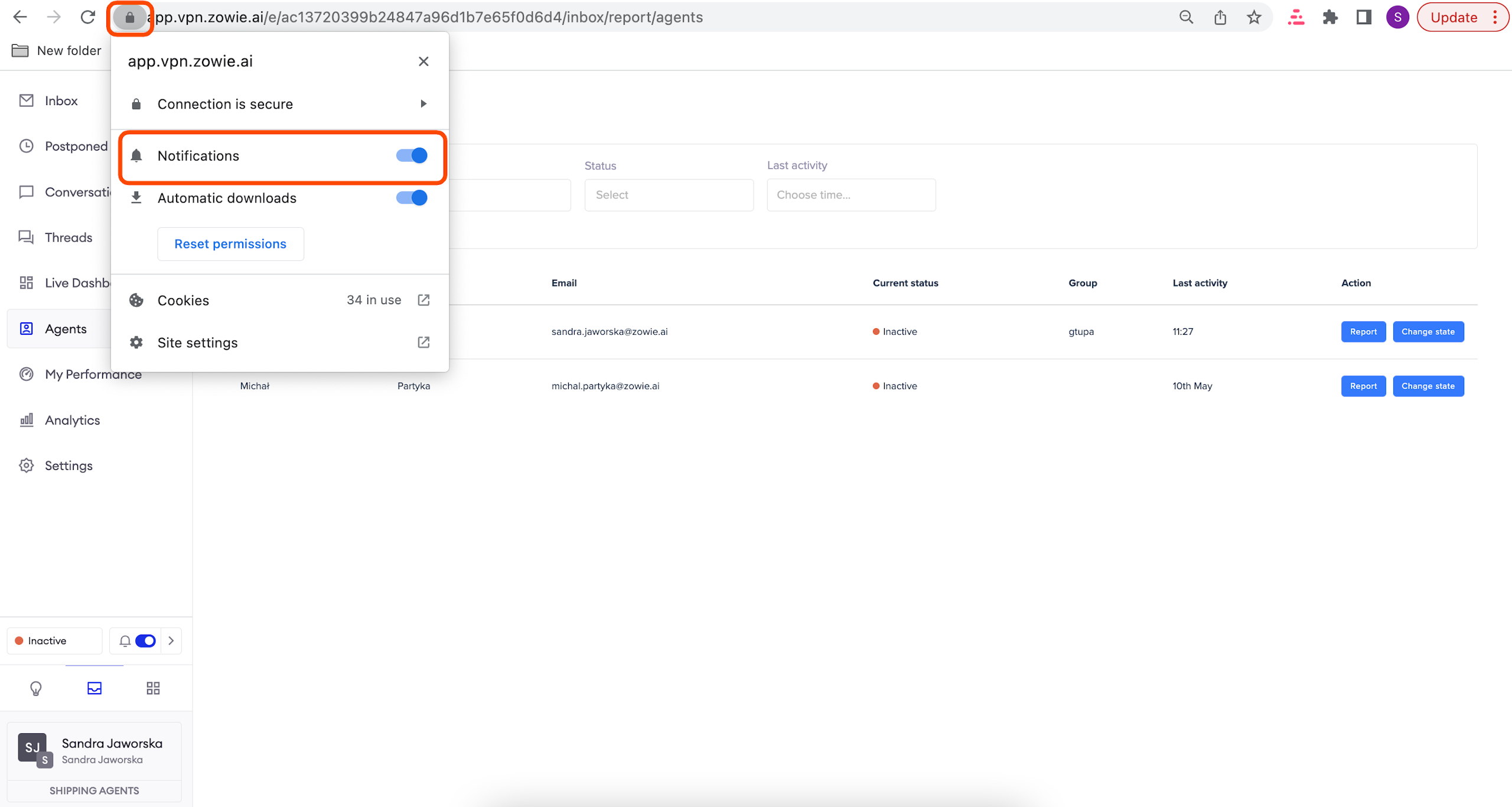
AttentionRemember to make sure that your browser isn't blocking notifications. You can do it by clicking the padlock icon in the left corner of the url bar, as displayed on the screenshot.
Notification troubleshooting
If you don't receive notifications, follow those steps:
- Check Browser Settings: Ensure that your browser allows notifications for our application. Go to your browser settings and look for the notification permissions. Make sure our application is listed and allowed.
Please, refer to your browser's official guidelines to see detailed instructions.
- Application Settings: Verify that sound notifications are enabled within our application. Go to the Inbox navigation bar and toggle the sound notification option is on.
- Device Sound Settings: Check your device's sound settings to ensure that the volume is up and not muted. Sometimes, notifications may be working, but the device is not producing sound.
Please, refer to your device's official guidelines to see detailed instructions.
- Browser Extensions: Some browser extensions may interfere with notification delivery. Temporarily disable browser extensions and check if the notifications work. If they do, re-enable each extension one by one to identify the culprit.
- Clear Browser Cache: Outdated cache files may disrupt notification functionality. Clear your browser cache and reload the application to see if the issue persists.
Please, refer to your browser's official guidelines to see detailed instructions.
- Browser Updates: Ensure that your browser is updated to the latest version. Developers often release fixes and improvements that can address notification issues.
- Operating System Settings: Confirm that your operating system is configured to allow browser notifications. Check both general notification settings and any specific settings related to our application.
Please, refer to your system's official guidelines to see detailed instructions.
- Network Connection: A stable internet connection is crucial for timely notifications. Check your network connection to ensure that it is stable and not experiencing disruptions.
- Contact Support: If the issue persists after trying the above steps, please reach out to our support team. Provide details about your browser, device, and steps you've taken so far for a more accurate and timely resolution.
By following these steps, you can systematically troubleshoot and identify the root cause of the notification issue, ensuring that you stay informed about new messages from your customers.
Change notification sound and frequency
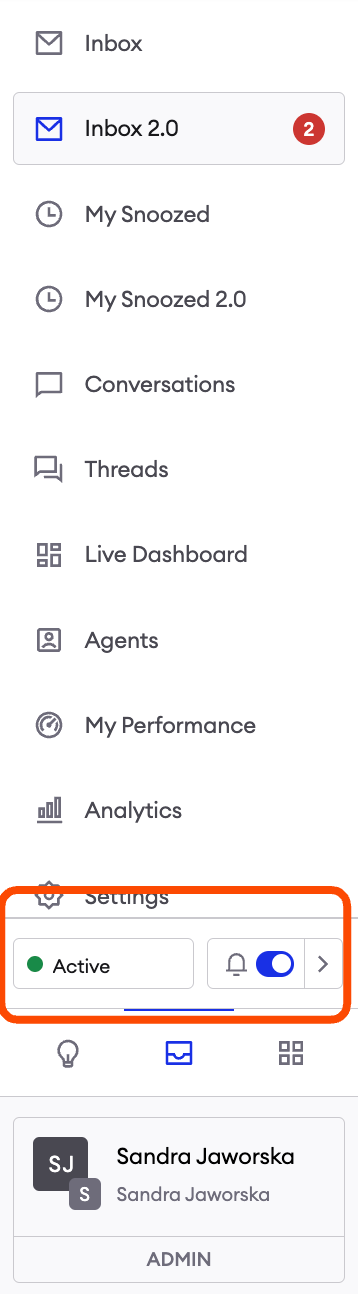
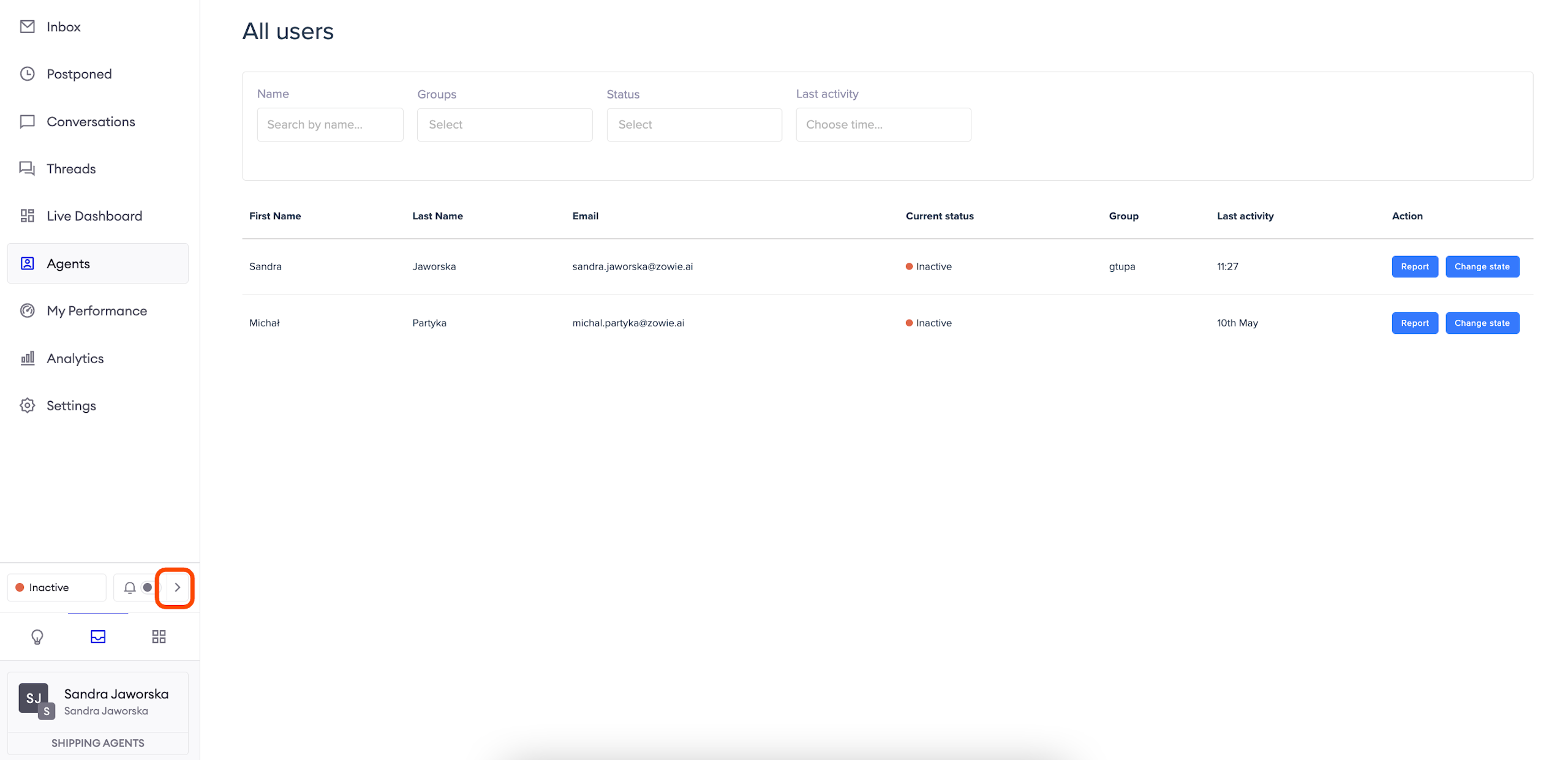
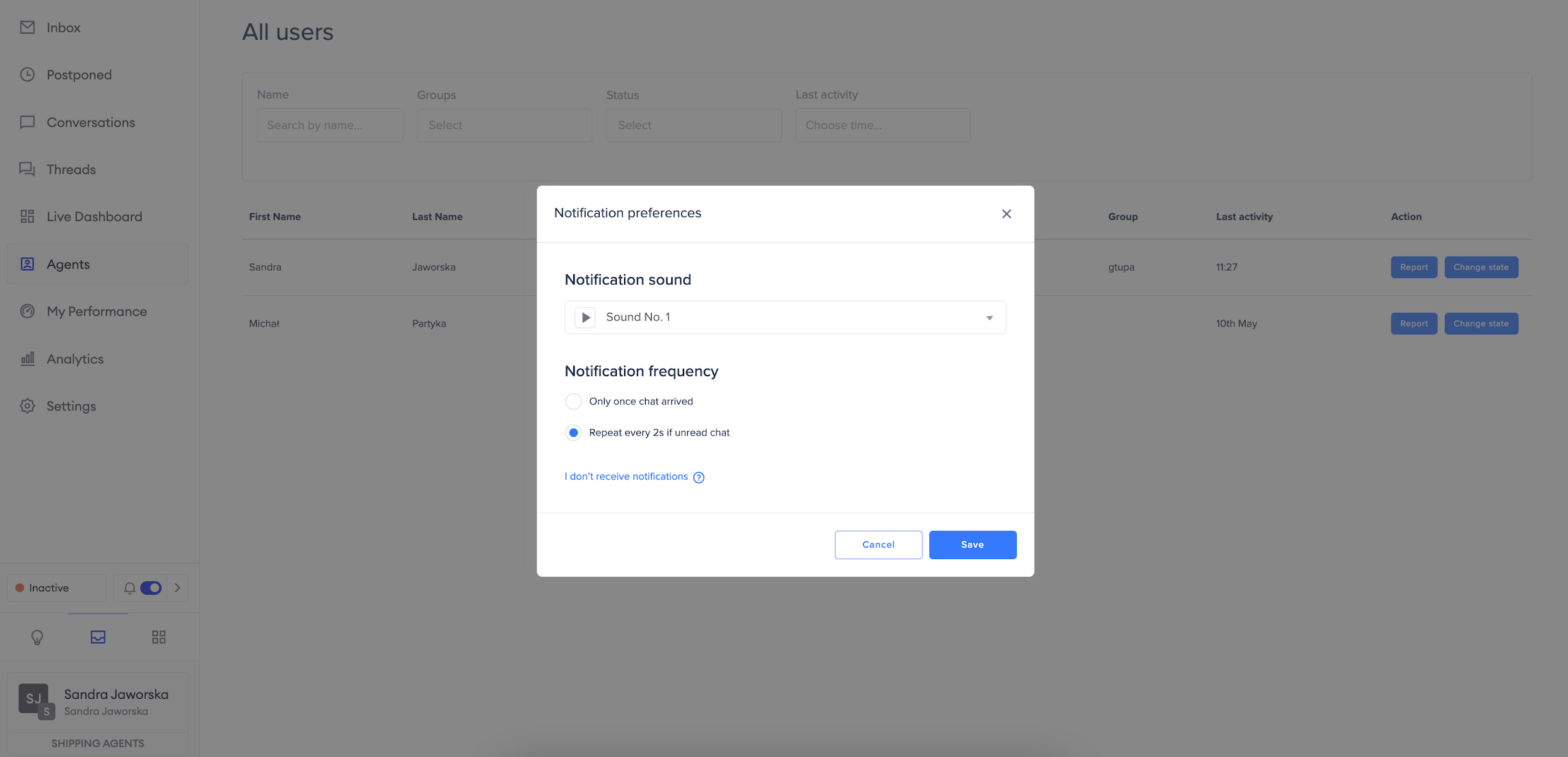
After you click on the arrow located next to the notification toggle button, you will see a window with notification sound settings.
Selecting Notification sound will come in handy when you work on speakers with other agents in the room - this way, each of you can choose a different sound.
Notification frequency allows you to configure how often you want to receive notifications until you read the new message.
Start a new email conversation
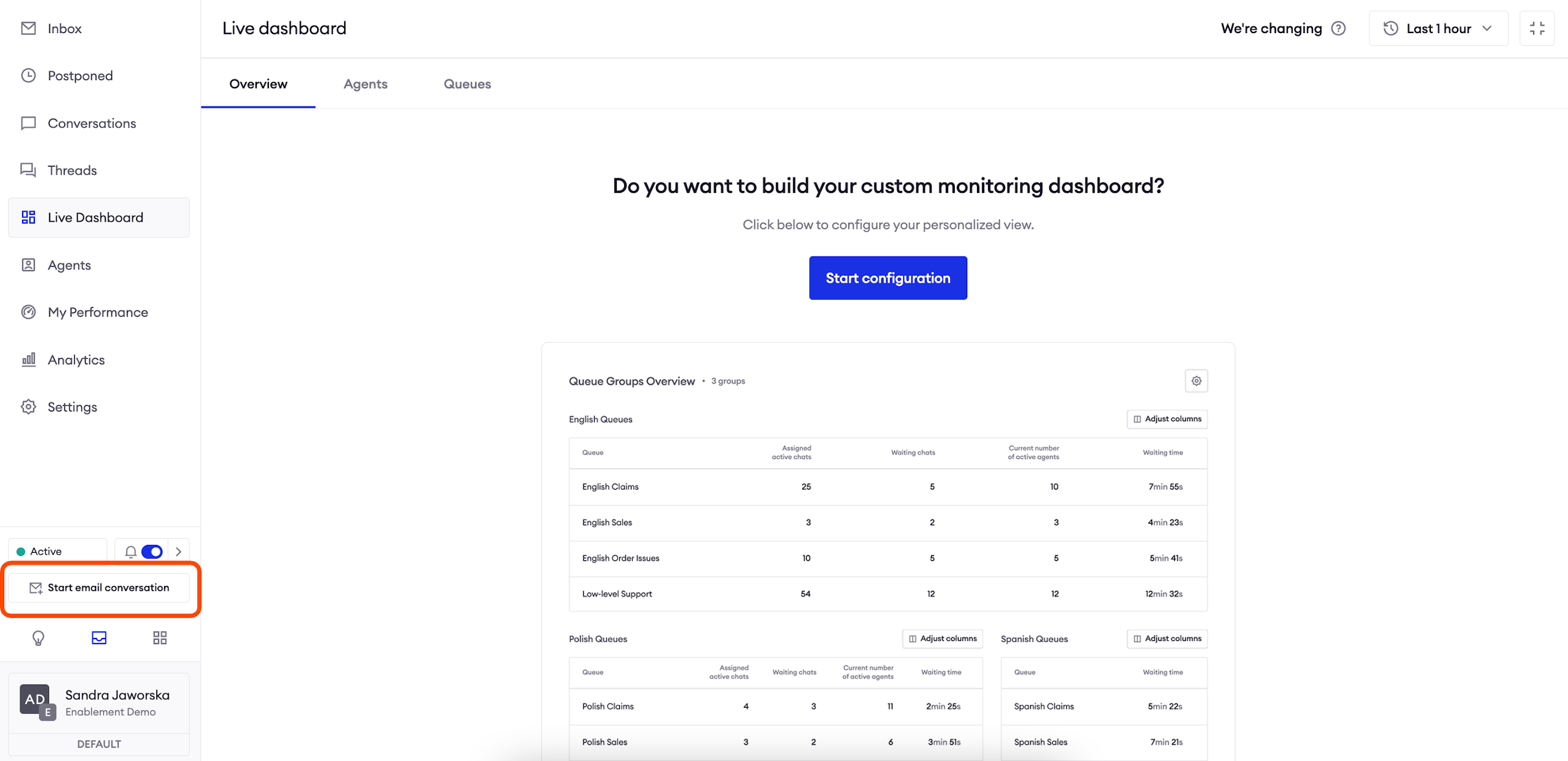
If you want to start a new email conversation, just click the available button.
AttentionRemember that you need to connect a mailbox in order to see this button.
Write an email
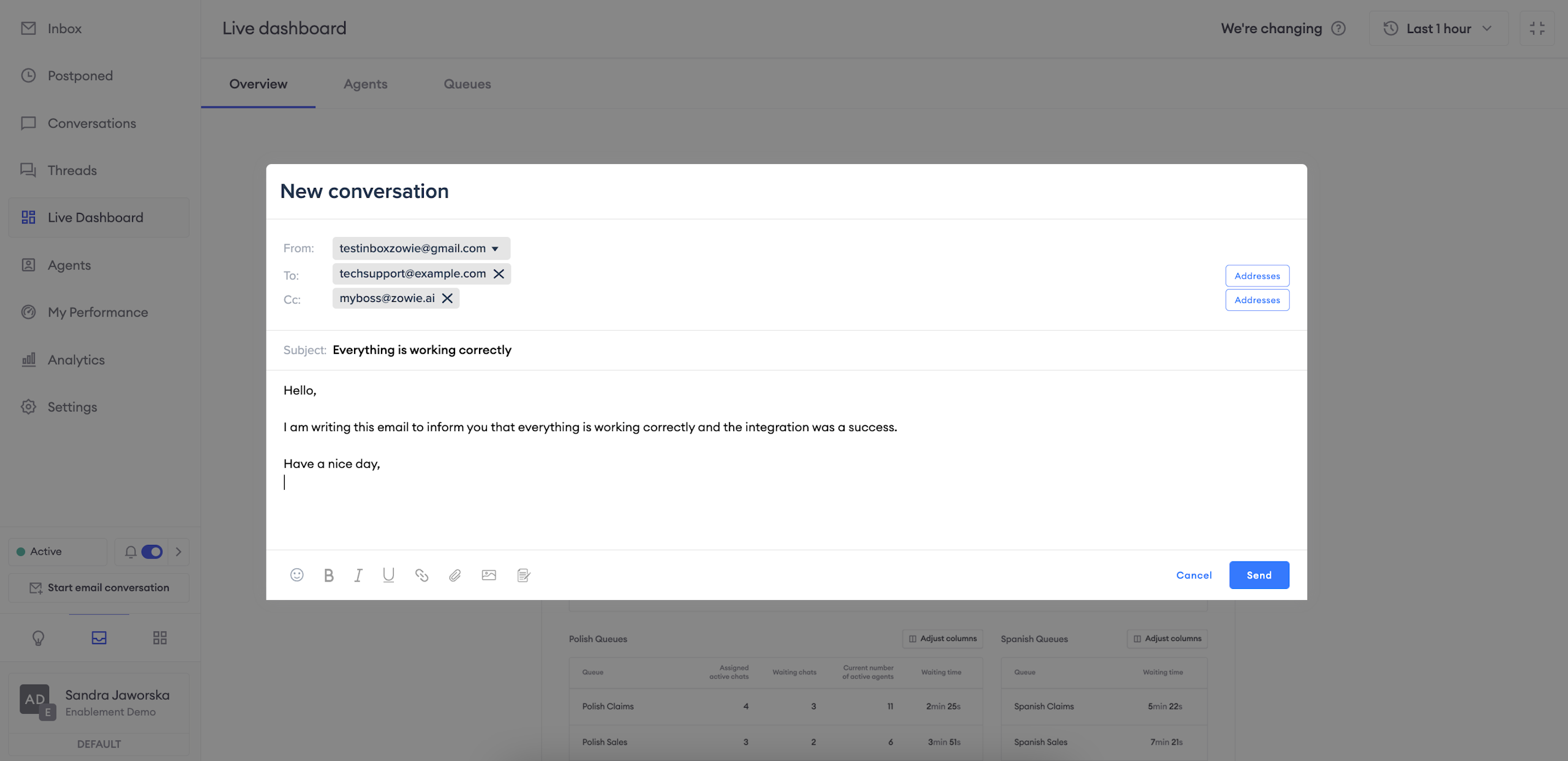
In the new window, you can compose and send the email.
View user account settings
User account settings
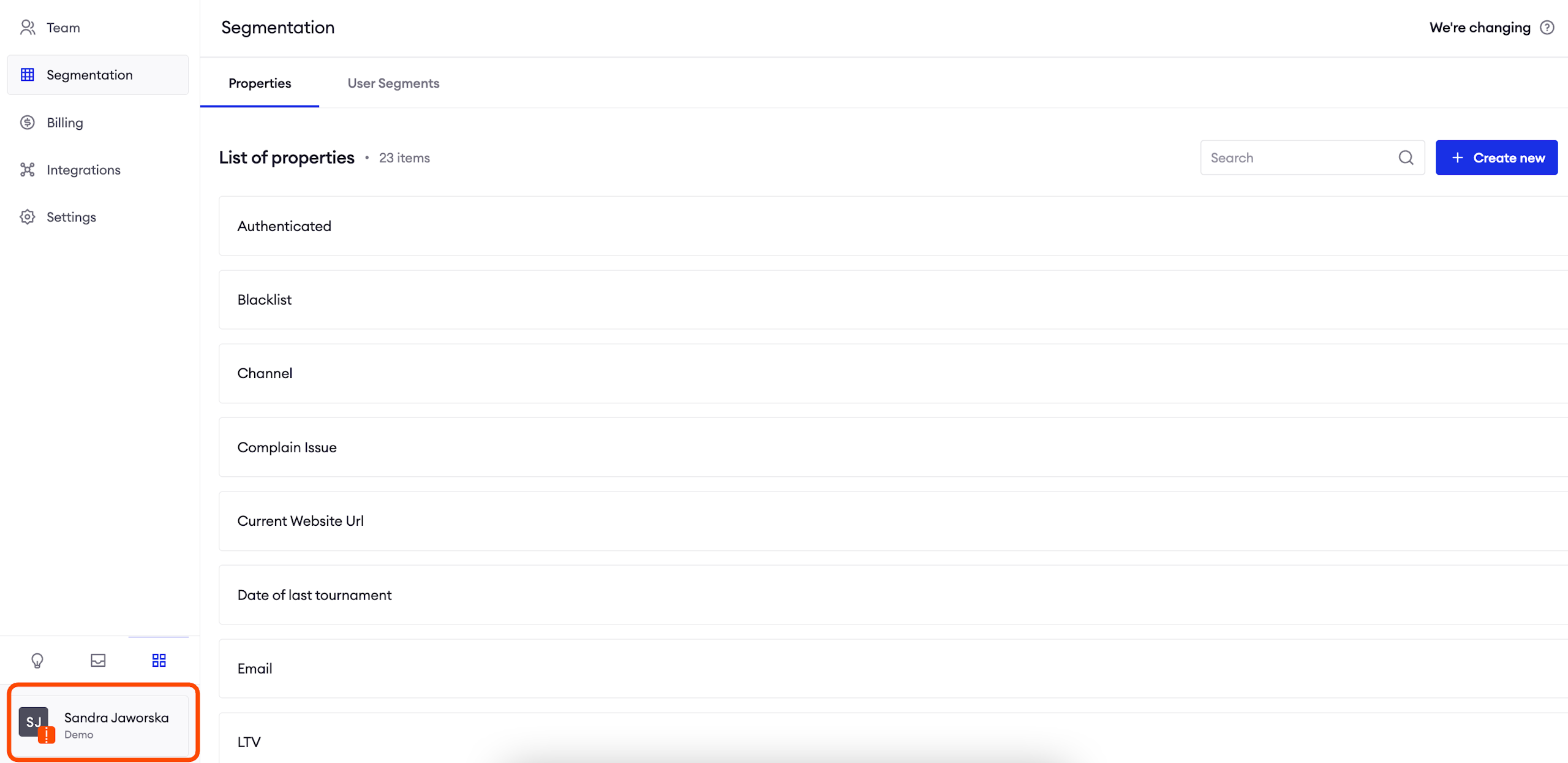
Click on your name to expand the menu.
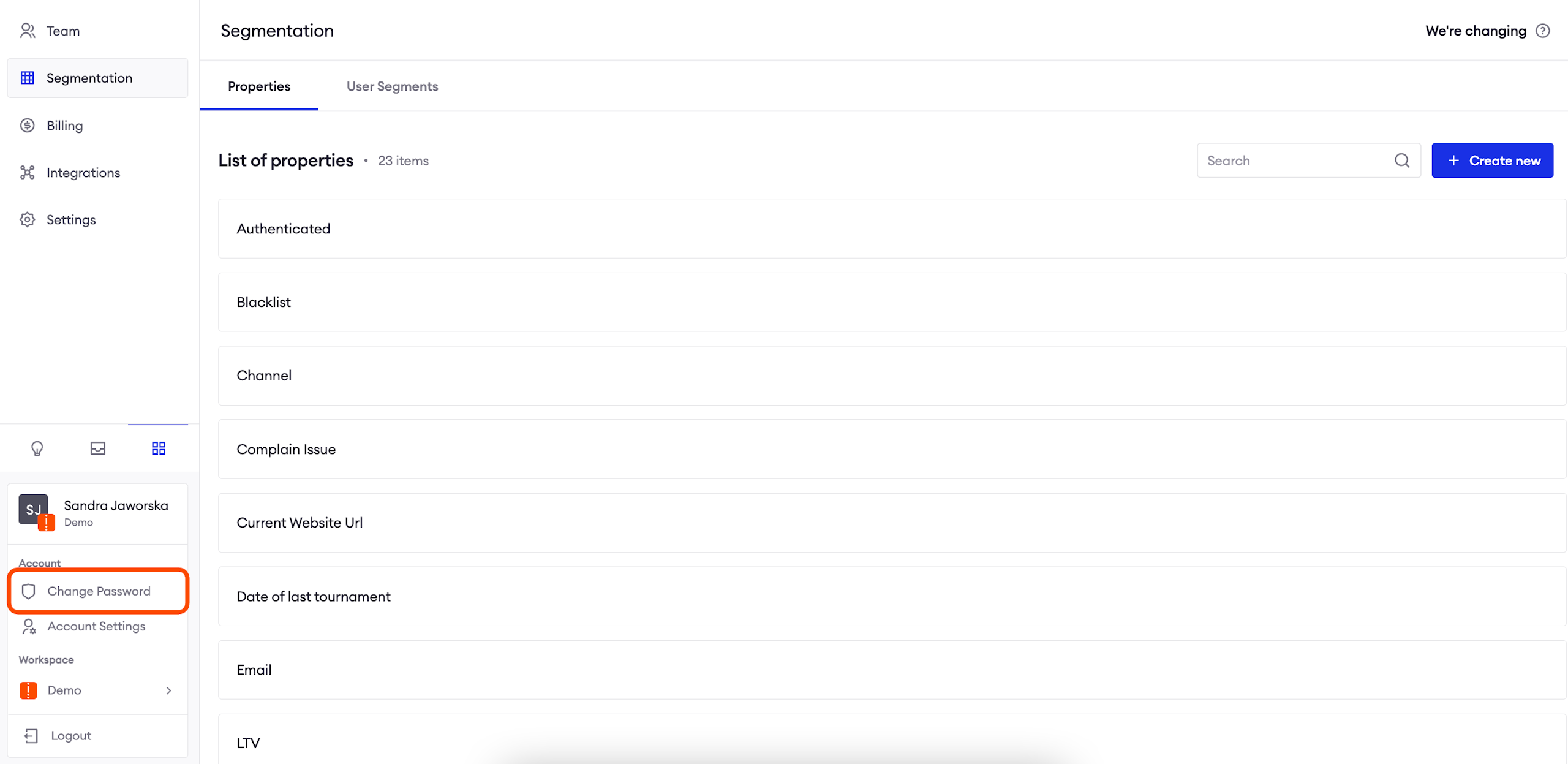
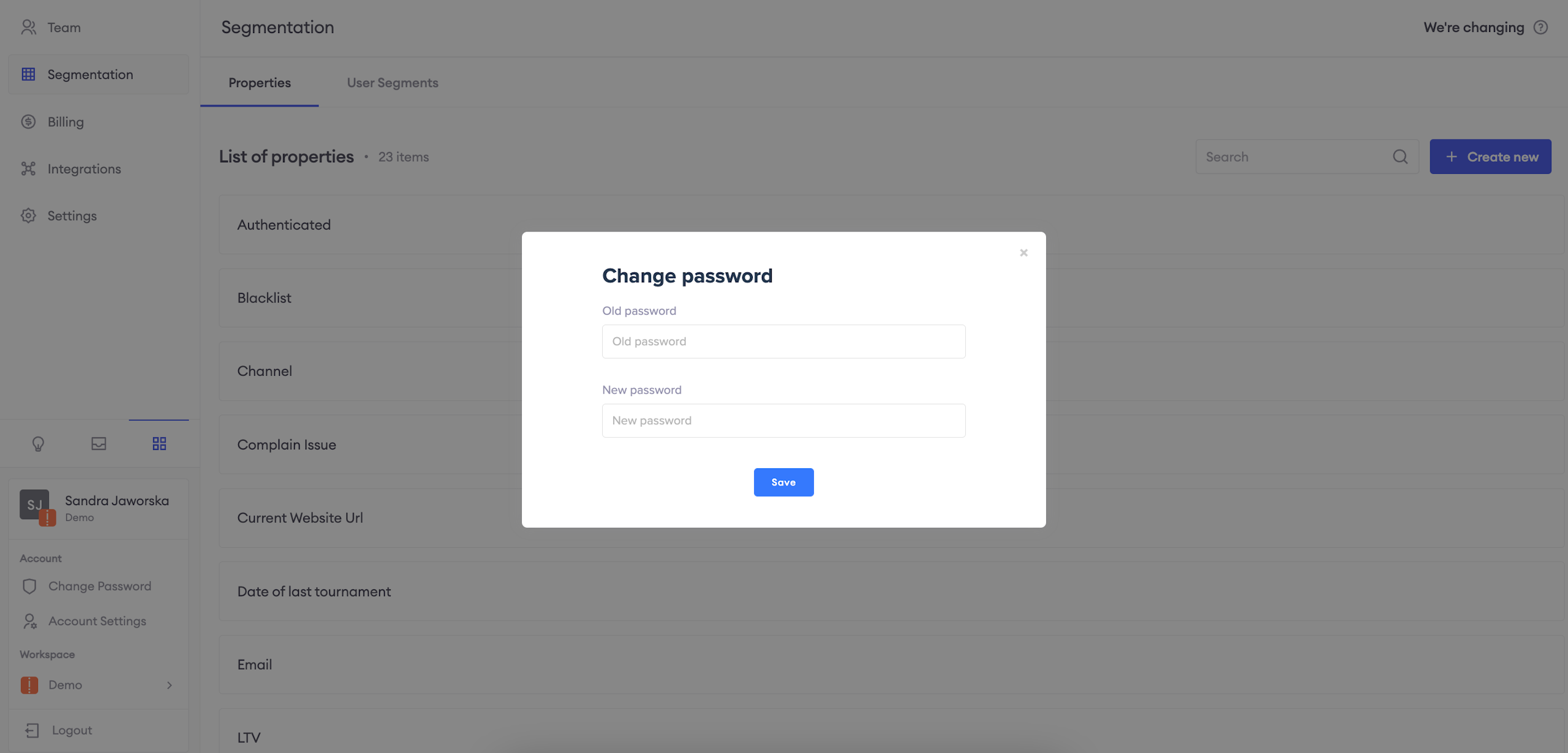
Change your password
Select this option to see a window where you can set up your new password. The change will be effective immediately.
AttentionWe recommend you use a strong password to protect your account.
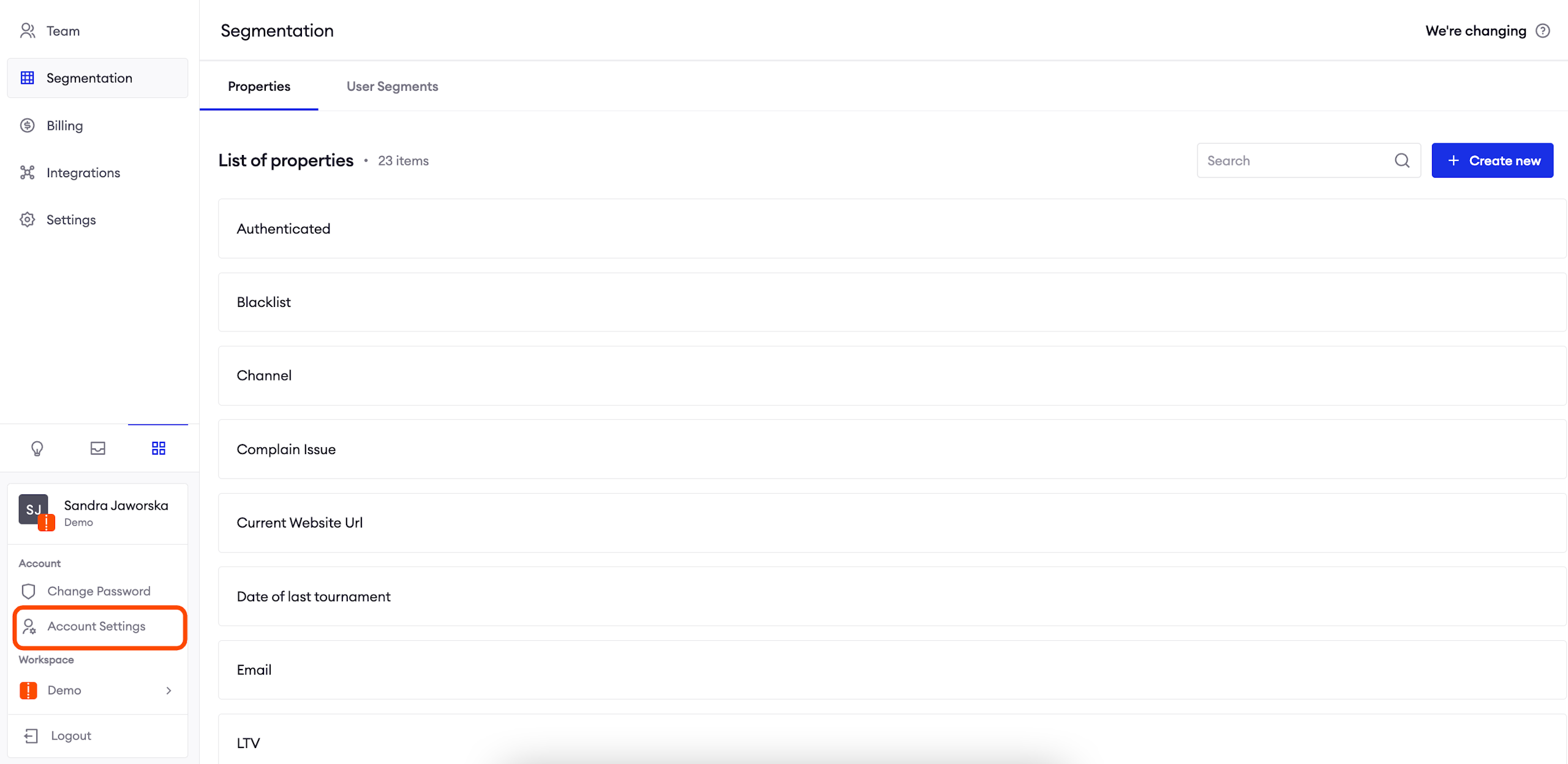
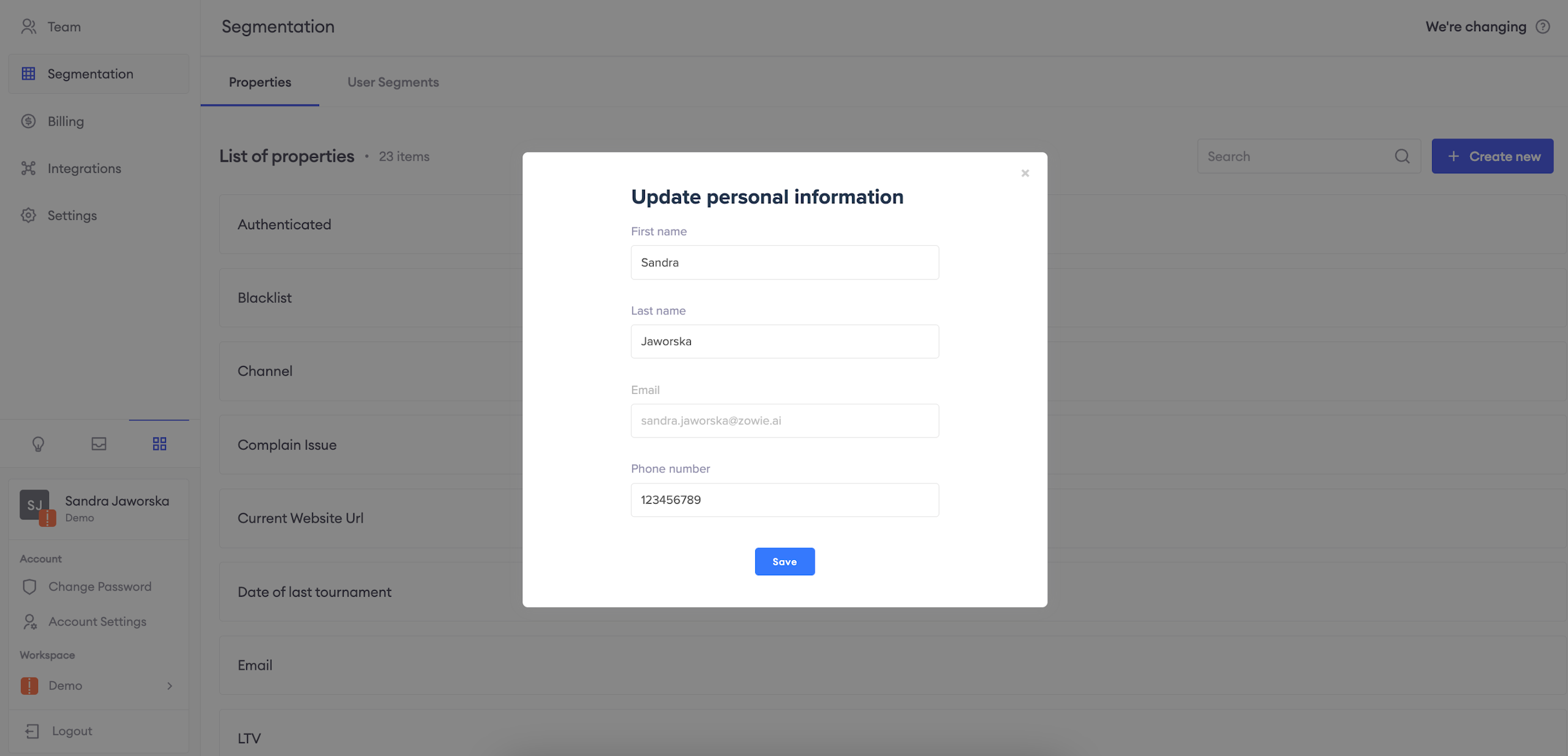
Update your personal information
Select this option to see a window where you can update your personal information. The change will be effective immediately.
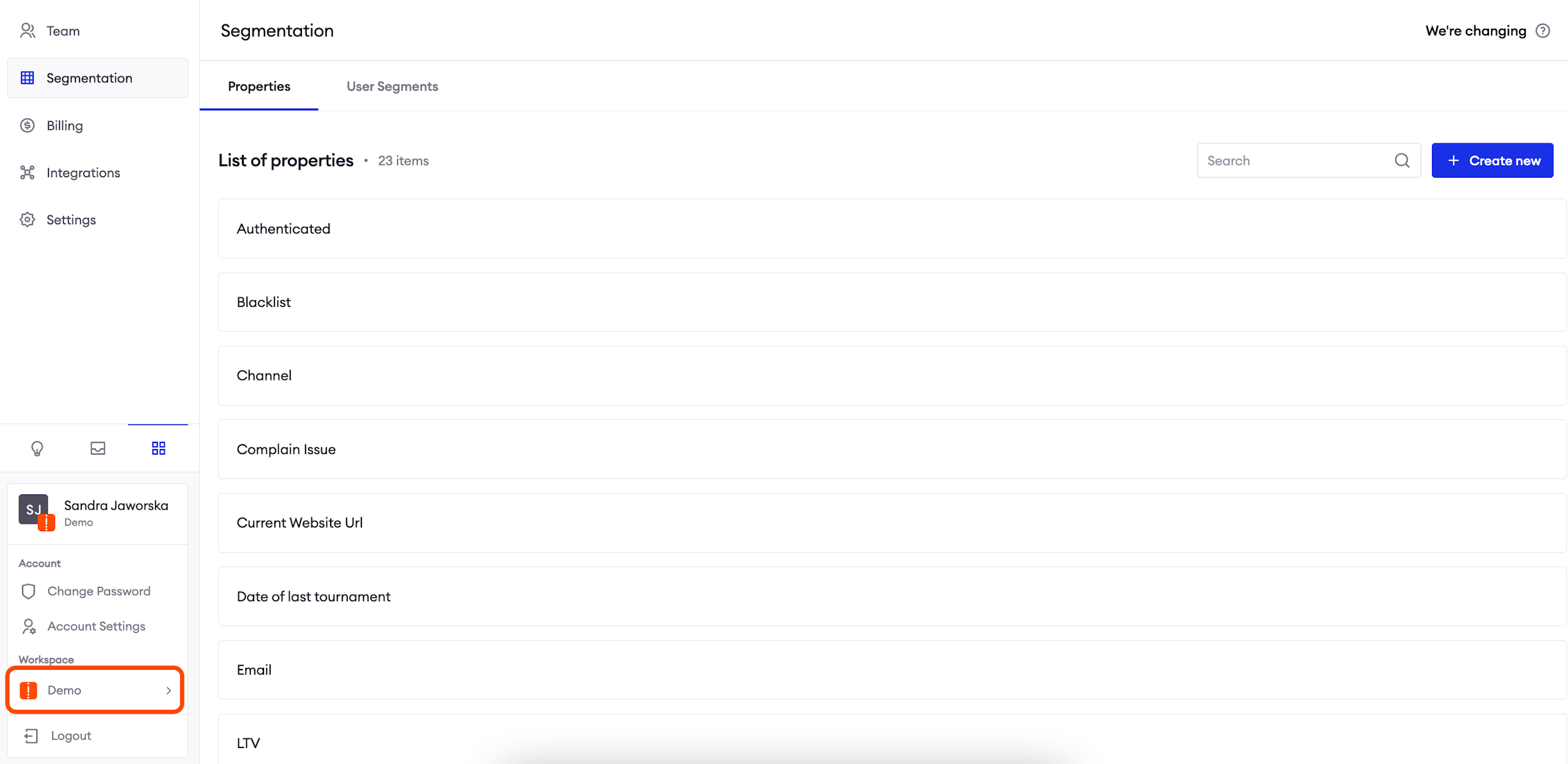
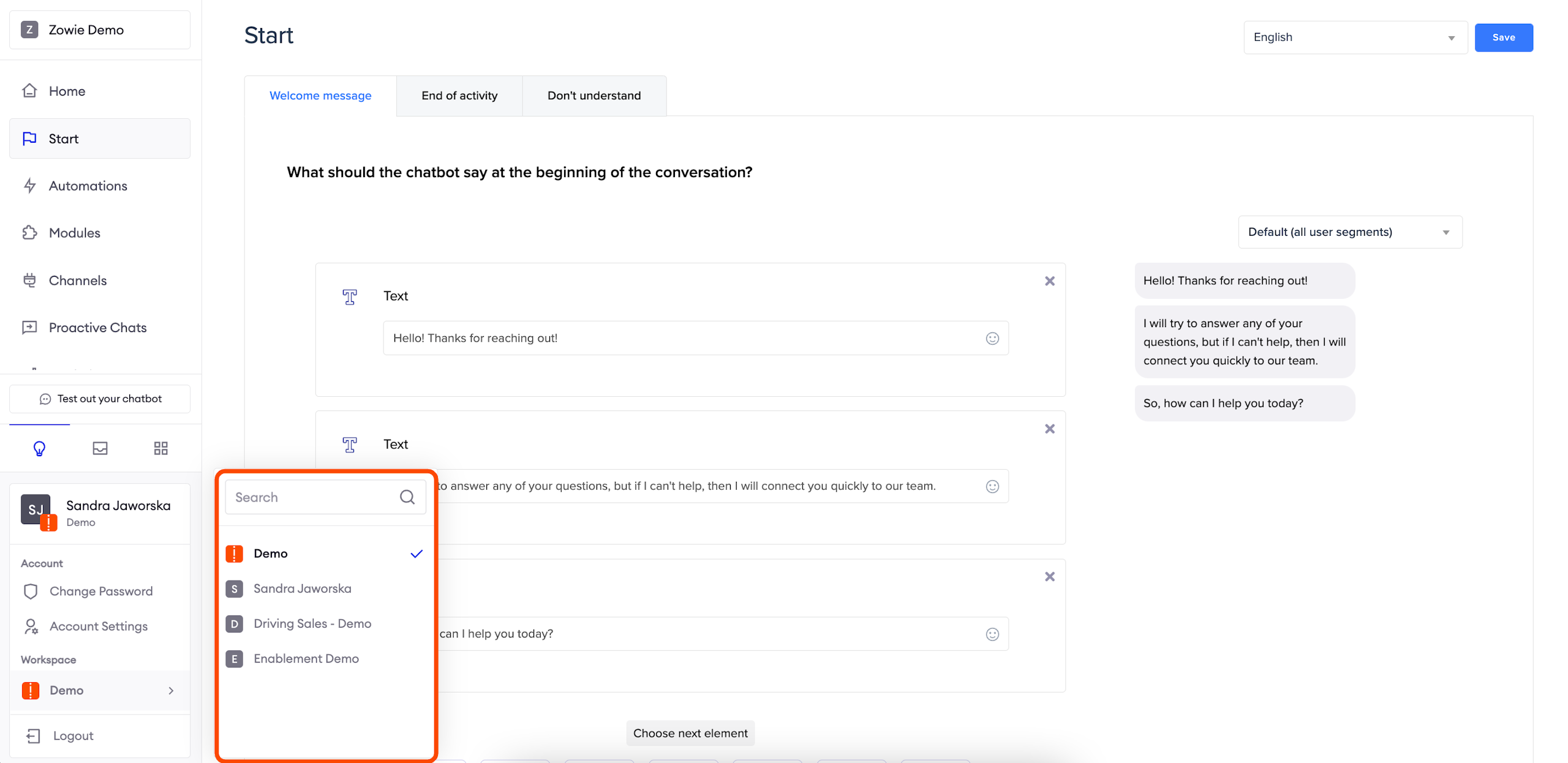
Change the workspace
Select this option to switch between workspaces where your account belongs.
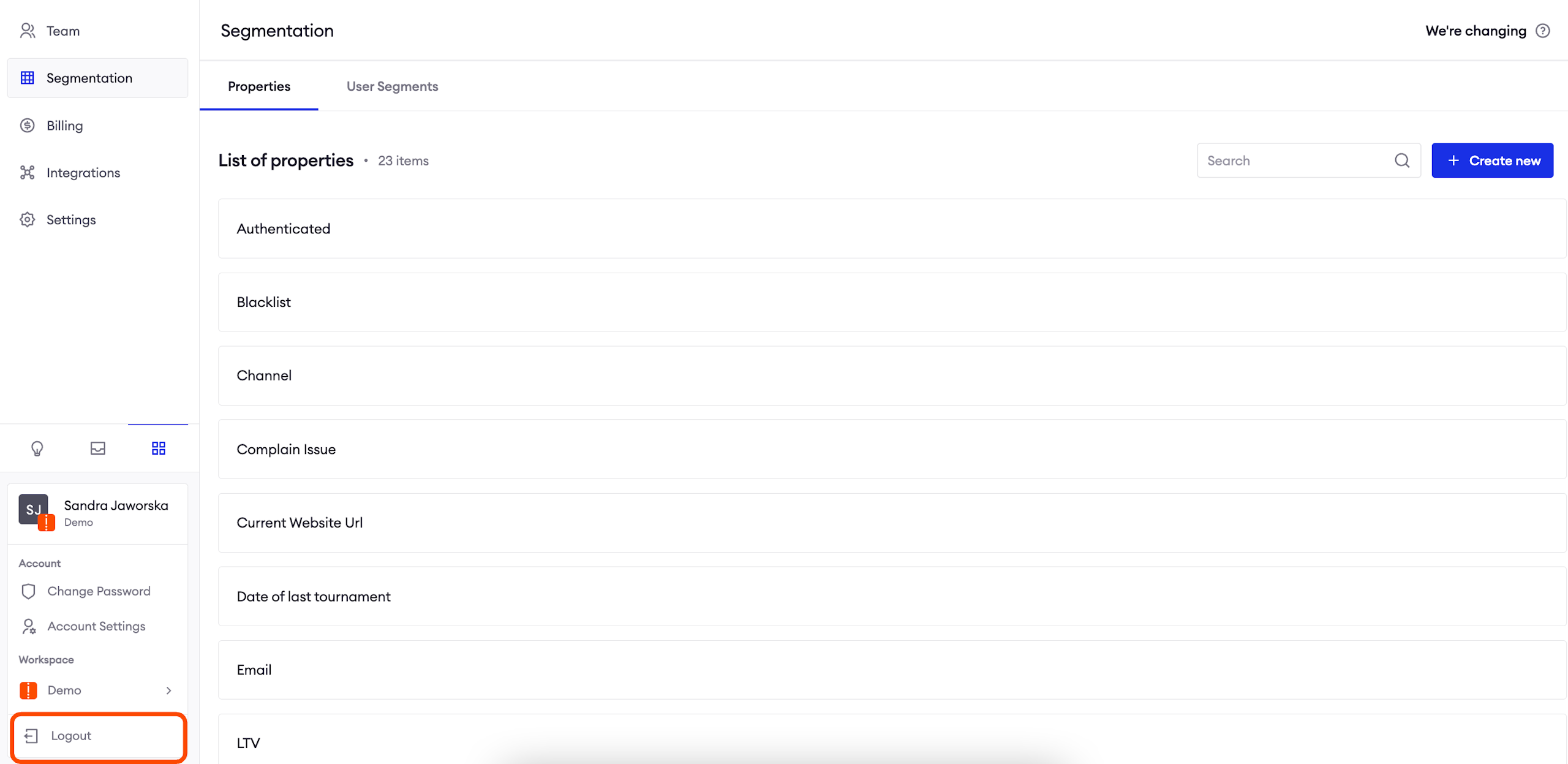
Log out
Select this option to log out of your account.
Updated over 1 year ago