
Gmail Connection
Gmail Connection
_Email: _here please provide the email address that you’re trying to get connected to Zowie.
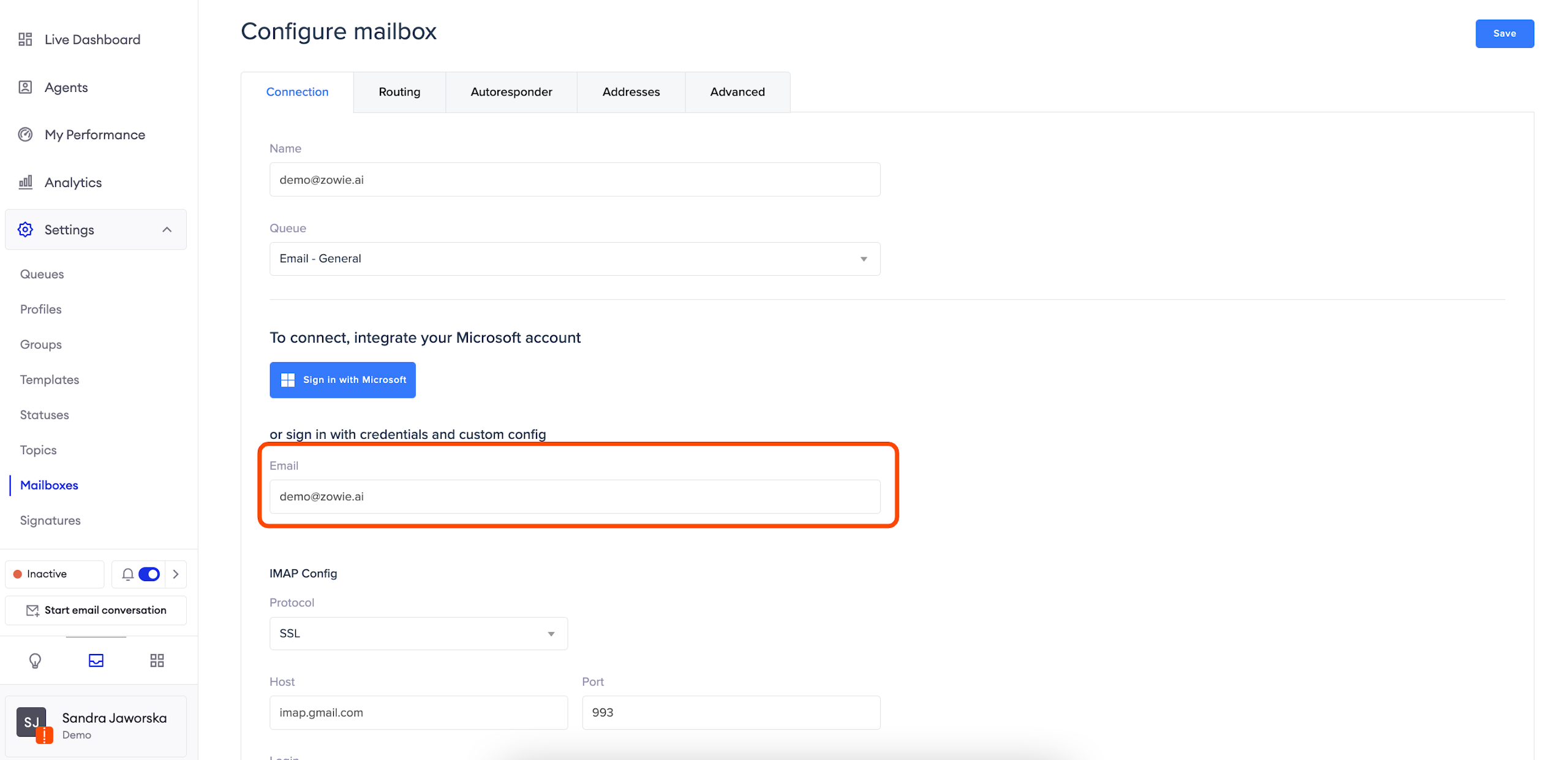
Gmail Connection - IMAP configuration
IMAP is used to retrieve messages, it works between the server and client for communication and allows users to organize emails onto the server.
Protocol: for Gmail accounts, the SSL protocol is normally used;
Host: Gmail accounts use this host: imap.gmail.com;
Port: 993 (when the protocol is SSL);
Login: the same email address that you use for the email field in the previous section (the one you’re trying to connect to the Zowie Mailbox);
Password: for security purposes, Gmail has created a separate process to create an App Password, the one we need to use here.
Click here to get more info about how to get your Gmail App Password.
AttentionIf you can’t find the App password section on account.google.com please check if 2-Step Verification is enabled for your account - it’s required to generate an App password.
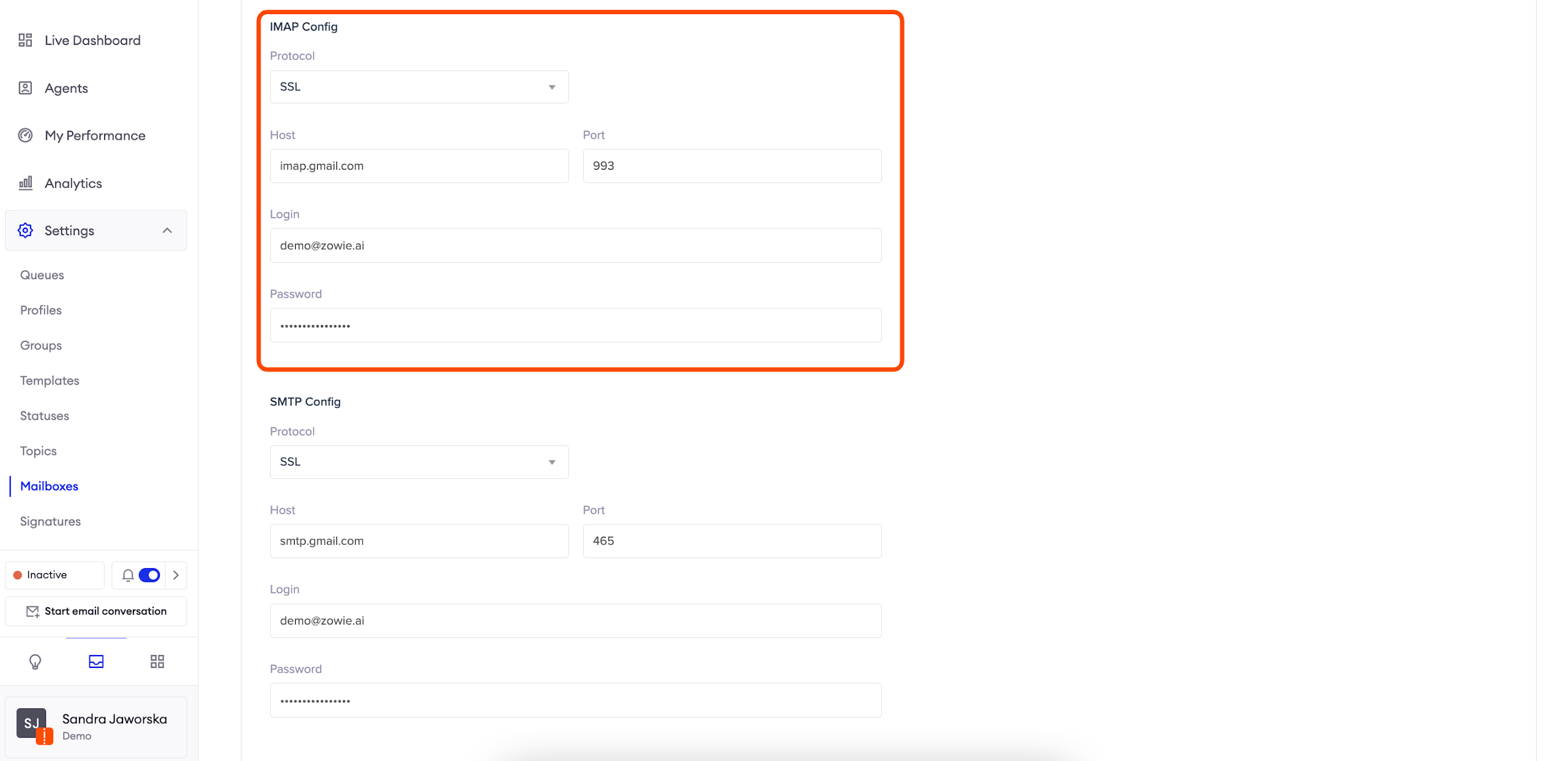
Gmail Connection - SMTP configuration
SMTP is for sending data, it works between servers to transfer information and allows organizing emails on client storage.
Protocol: for Gmail accounts, the SSL protocol is normally used;
Host: Gmail accounts use this host: smtp.gmail.com;
Port: 465 (when the protocol is SSL) / 587 (when the protocol is STARTTLS);
Login: the same email address that you use for the email field in the previous section (the one you’re trying to connect to the Zowie Mailbox);
Password: the same App Password you provided in the previous step for IMAP.
In order to finalize the connection please click the "Save button" in the top right corner.
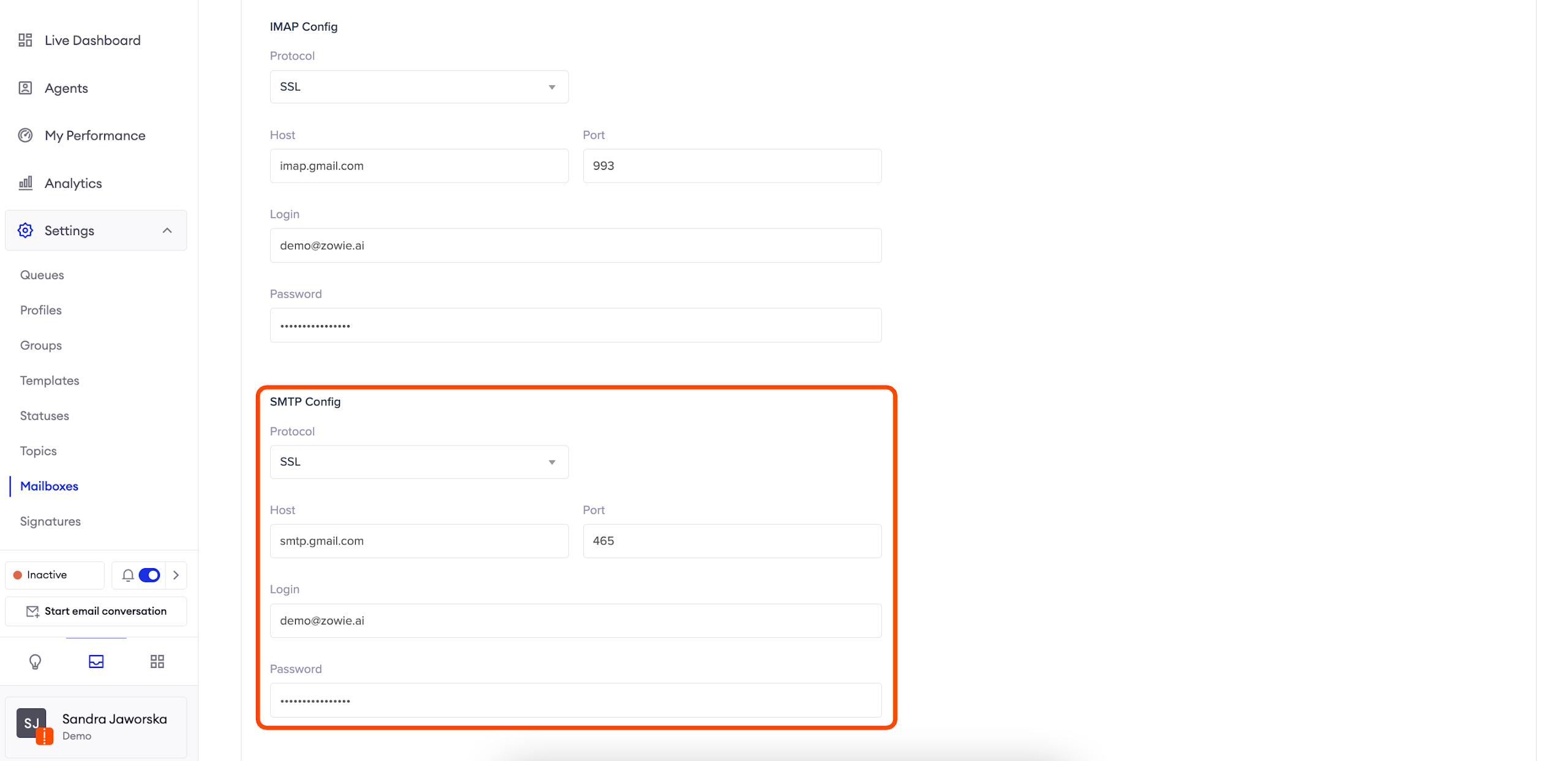
Configuring a routing
In order to find the Routing tab, please go to Inbox > Settings > Mailboxes > Routing.
To add a new routing, click the "Add group" button.
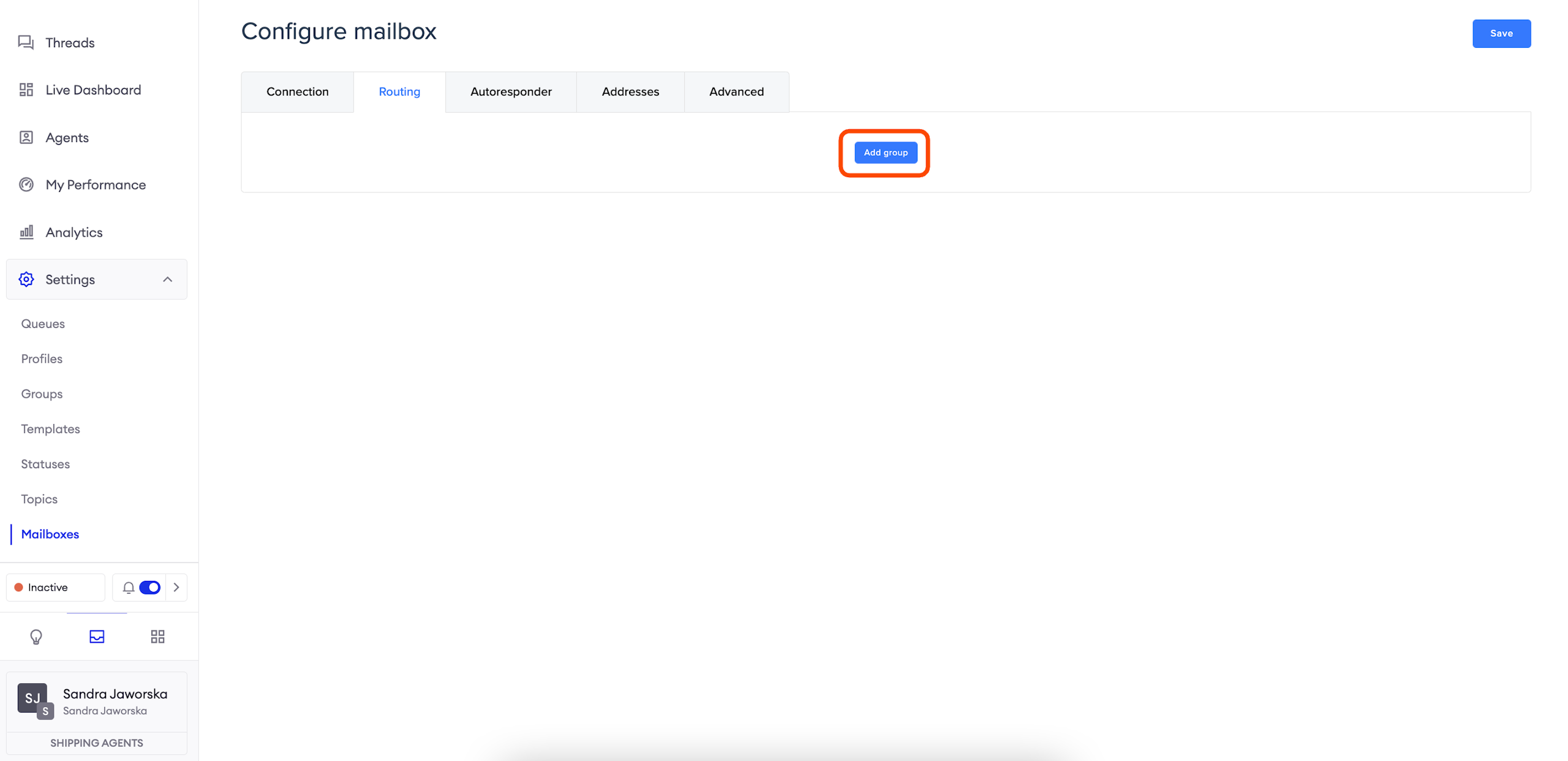
Adding a group
Mailbox is connected to the queue chosen under the Connection tab.
However, you may want some e-mails sent to this mailbox to go to a different queue than the one selected.
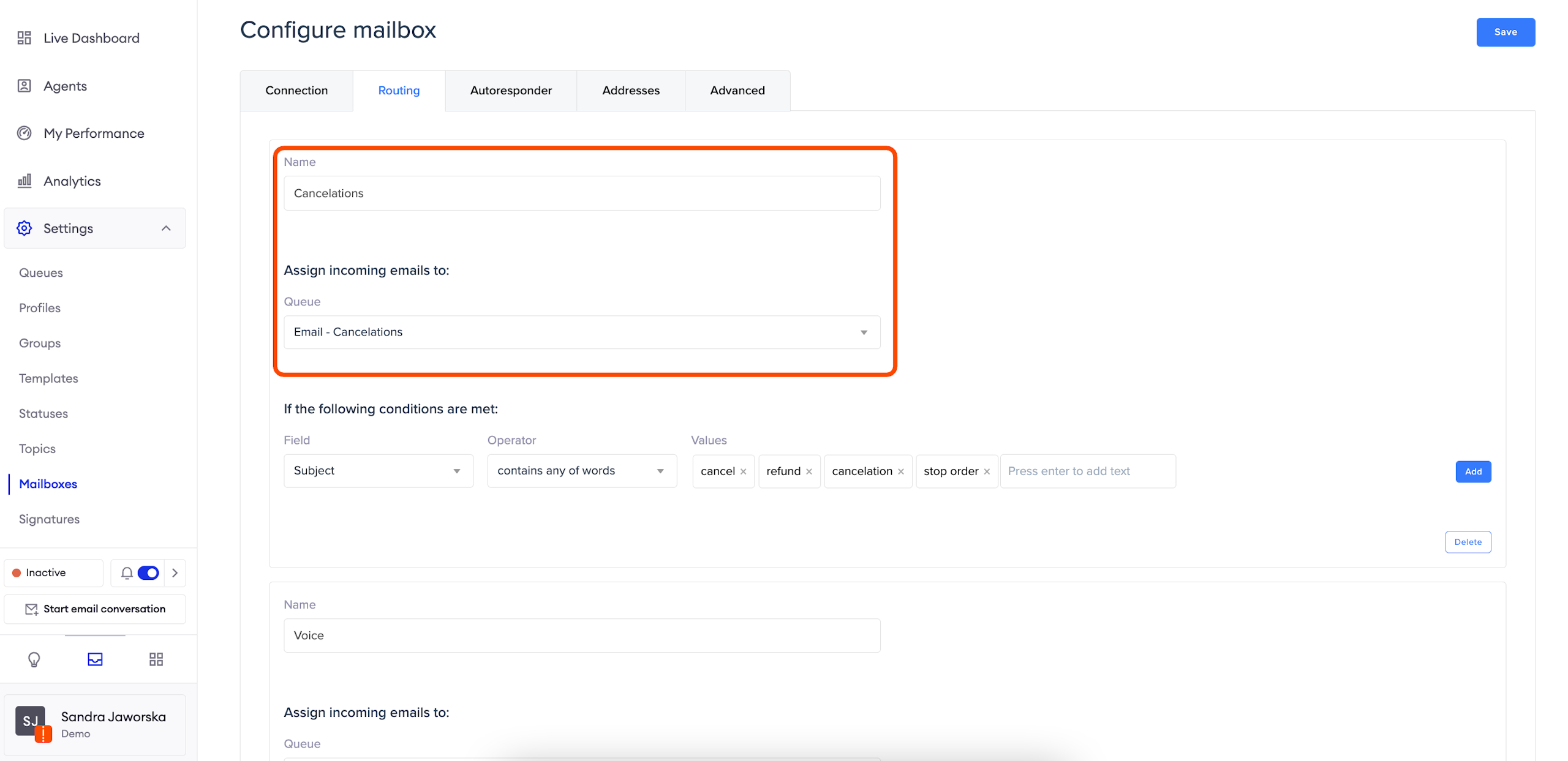
For example, we can pass all e-mails with “Cancel order” subject to the Cancelations queue. In order to do that, we need to use the following configuration:
Name: add a name for this specific routing group (for example, "Cancelations");
Assign incoming emails to: choose the queue which should be connected with this routing (for example, "Email - Cancelations").
AttentionYou can also create a separate Queue for your new routing.
Defining conditions
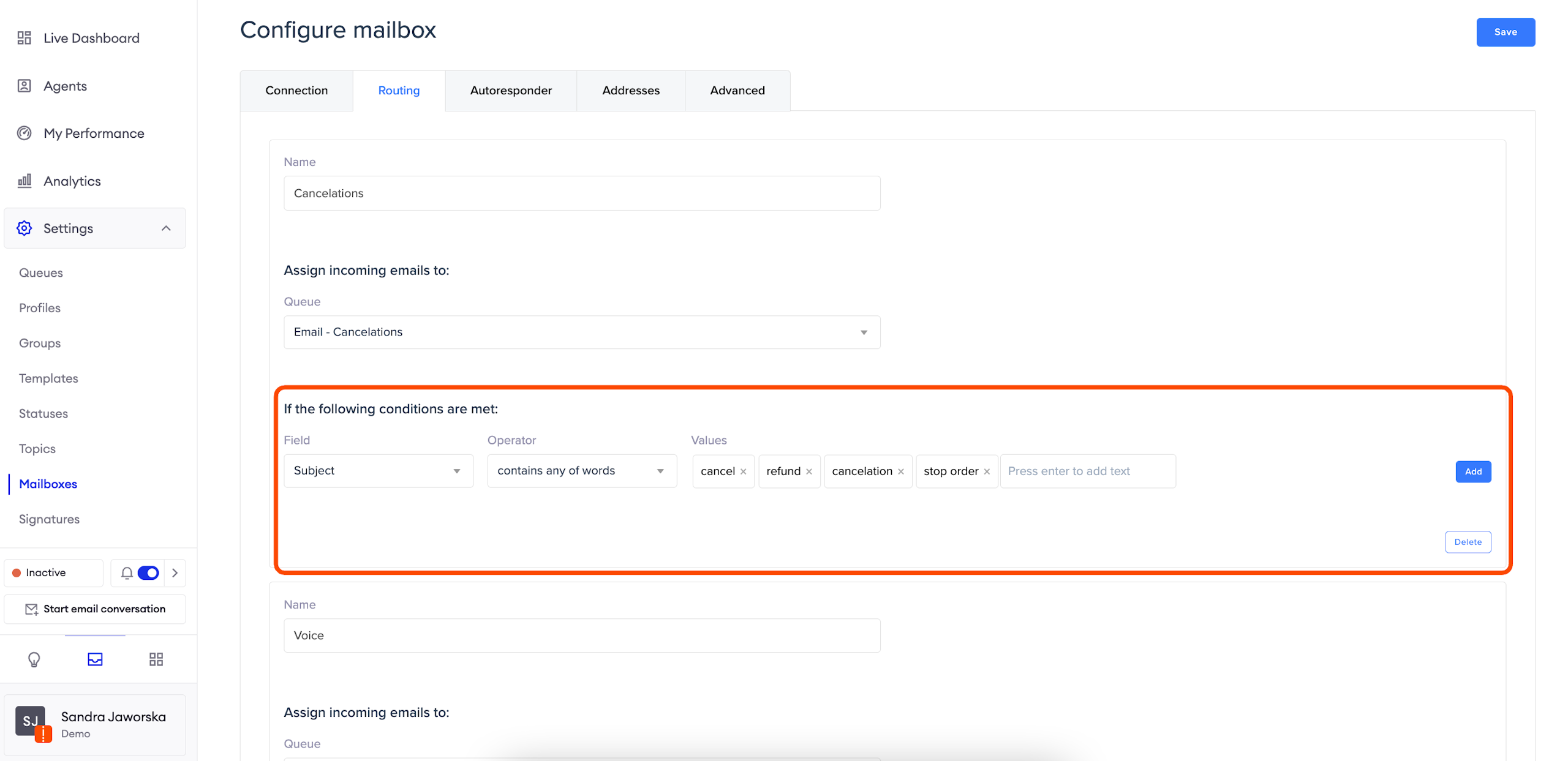
If the following conditions are met allows you to create rules for filtering emails matching this routing;
Each condition consists of:
- Field
- Operator
- List of Values
There are a couple of fields that we can divide into two categories.
Email addresses:
- From email address: allows you to create a condition based on emails received from specific email addresses;
- To email address: allows you to create a condition based on emails sent to specific email addresses;
- CC email address: allows you to create a condition based on emails that were cc'ed to specific email addresses;
Text fields:
- Subject: allows you to create a condition based on the subject of the email;
- Body: allows you to create a condition based on the body of the email;
In the configuration, they differ only by the fact that text fields can have their language recognized and matched (have language-related operators)
The Operator allows you to create a condition based on the words you'd add in the Values field. Type the values to point out specific words which will be relevant for this condition.
In order to add Values remember to hit "Enter".Please note that all of those operators are case-insensitive.
Adding more conditions
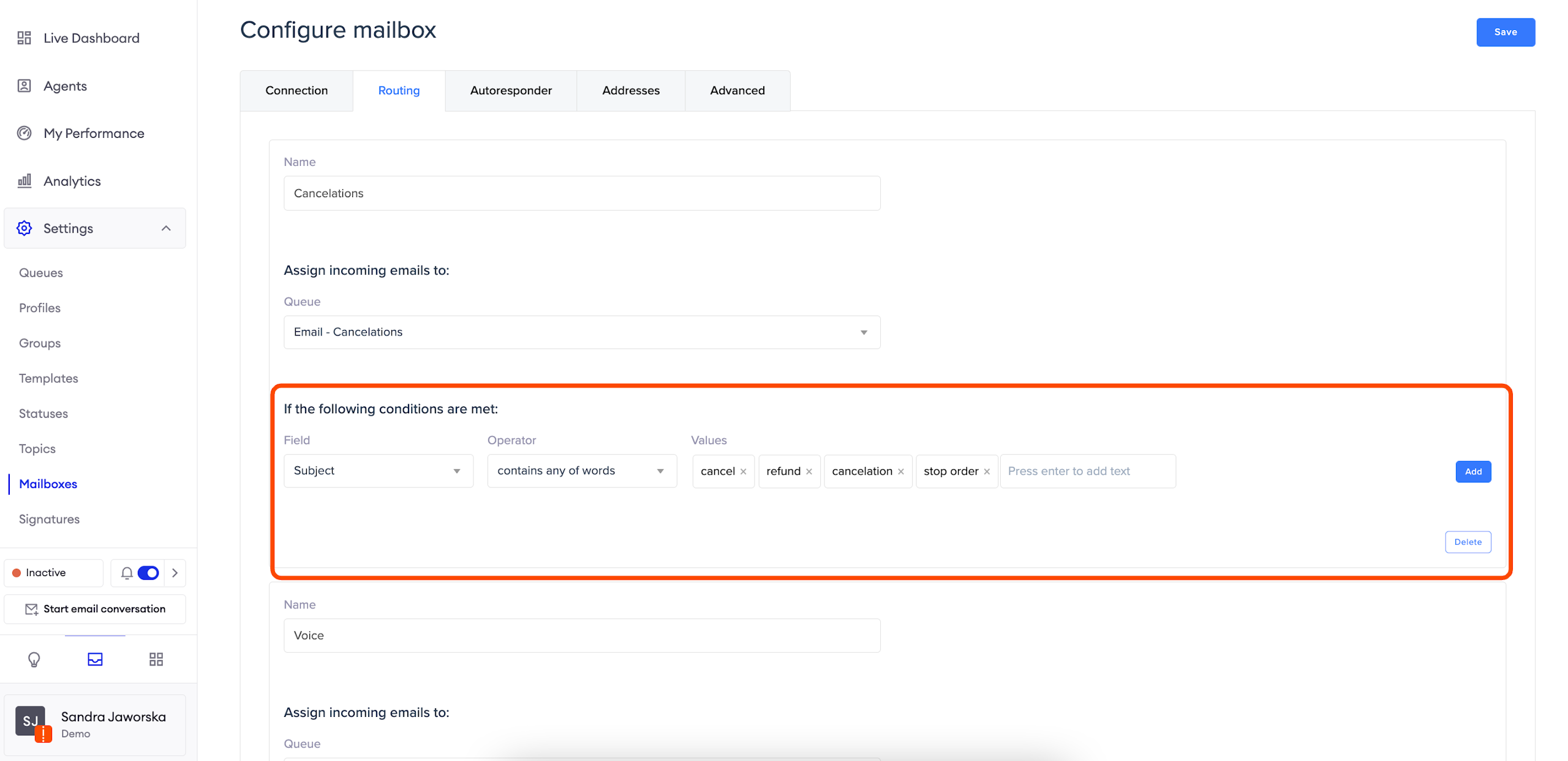
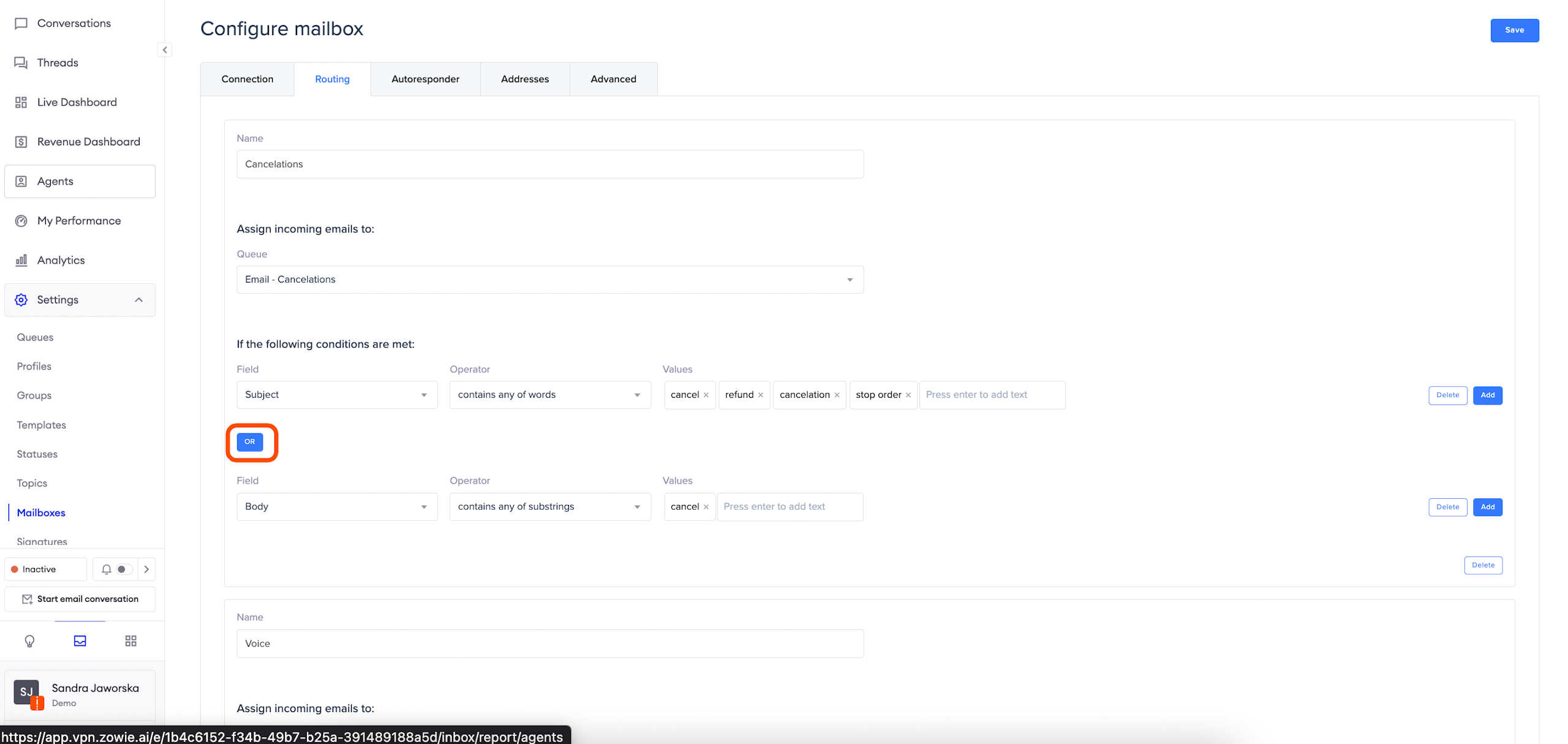
Routing configuration can contain condition groups. Each group contains one or more conditions that are evaluated, and their results are combined using either "OR" or "AND" logical operators.
When an email is matched by a group, it will be moved to a queue configured in the aforementioned group. This applies only to emails that start a new thread.
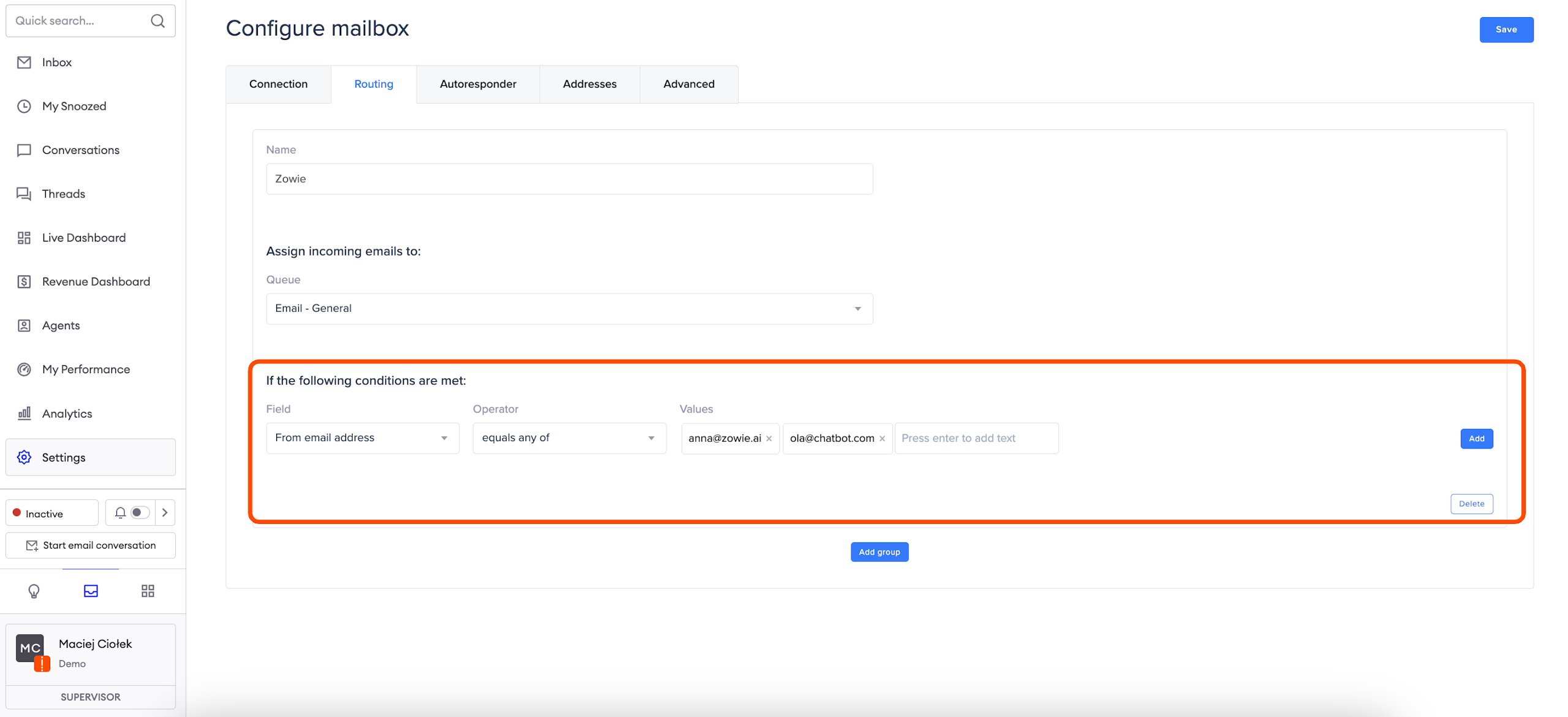
Equals operators
Those conditions check if Field matches (or not) exactly any or all values from the list of Values. There are three types of these operators:
- equals any of
- doesn’t equal any of
- doesn’t equal all of
ExampleAn email from “[email protected]” will be matched by the condition:
“From email address”, equals_any, [“[email protected]”, “[email protected]”]
Those operators are useful to match the “From email address” field due to multiple emails in "To/CC" fields.
Substring operators
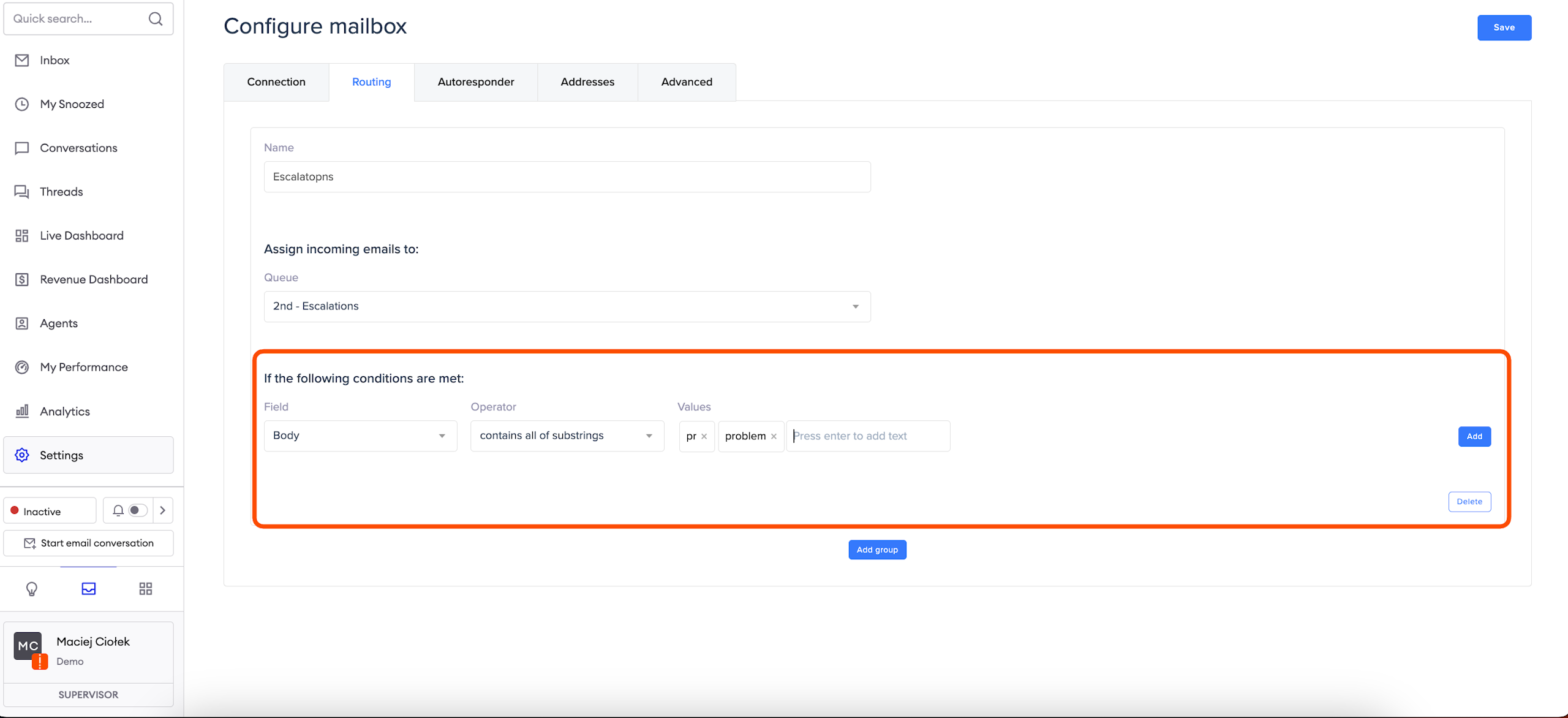
This set of operators is based on Contains substring operation which checks if a substring from the Values field is in Field.
Examples of Contains substring (“contains” to be short) operator:
- “It is weird to write so much text” contains “much”, “text”, “so much text”, “o wr”
- “I have problems” contains “PR”
- “I like trains” contains “rain”
Operators:
- contains all of substrings - all of the Values are contained in the Field
- contains any of substrings - there exists Values that are contained in Field
- doesn’t contain all of - not all of the Values are contained in Field
- doesn’t contain any of - none of the Values are contained in Field
Example(“No problemo”, “contains all of substrings”, [“PR”, “problem”]) will match as “problemo” contains “pr” and “problemo” contains “problem”.
But on the other hand condition (“No problemo”, “contains all of substrings”, [“PR problem”]) won’t be matched.
If you want to match the sequence of words, this set of conditions is the best option.
Be aware of the fact that in the current implementation, even a small deviation from substring from Values will make the “contains” operation not match the text.Example:
The subject “I like trains” does not contain the substring “I like trains” (note two spaces after “I” in the subject.
Word operators
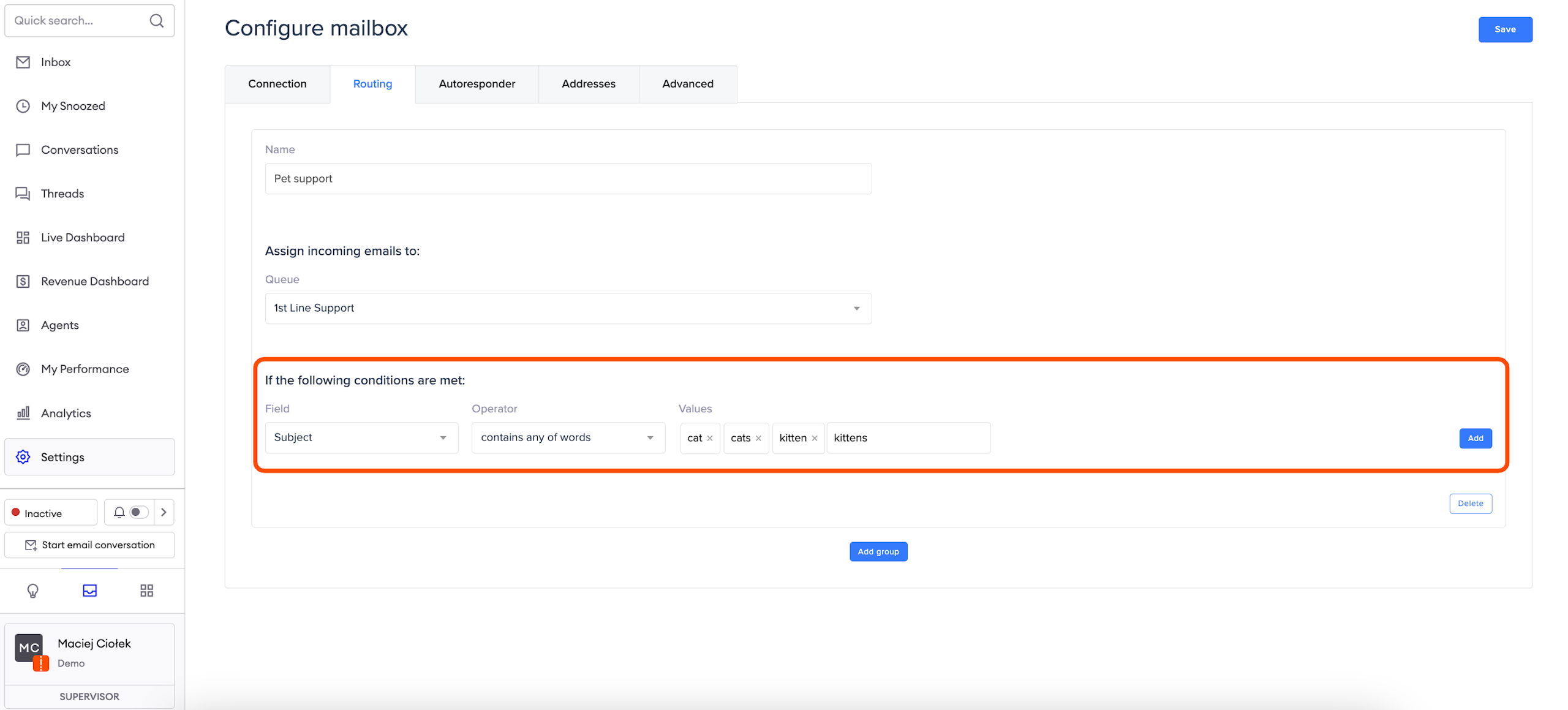
Word operators allow you to match all or any words. Words are separated by spaces and new lines.
There are two types of words operators:
- contains all of words - all of the Values are contained in the Field
- contains any of words - any of the Values are contained in the Field
This set of operators is useful for searching for keywords and avoiding false positives which can be caused by substrings.
Example(“I like cats”, “contains any of substrings”, [“cat”, “cats”, “kitten”, “kittens”]) will match
but
(“Category Theory”, “contains any of substrings”, [“cat”, “cats”, “kitten”, “kittens”]) will match too because (“Category Theory” contains “cat”).
Here if we really want to match only "cats", we would use (“Category Theory”, “contains any of words”, [“cat”, “cats”, “kitten”, “kittens”]) which will not match.
Language operators
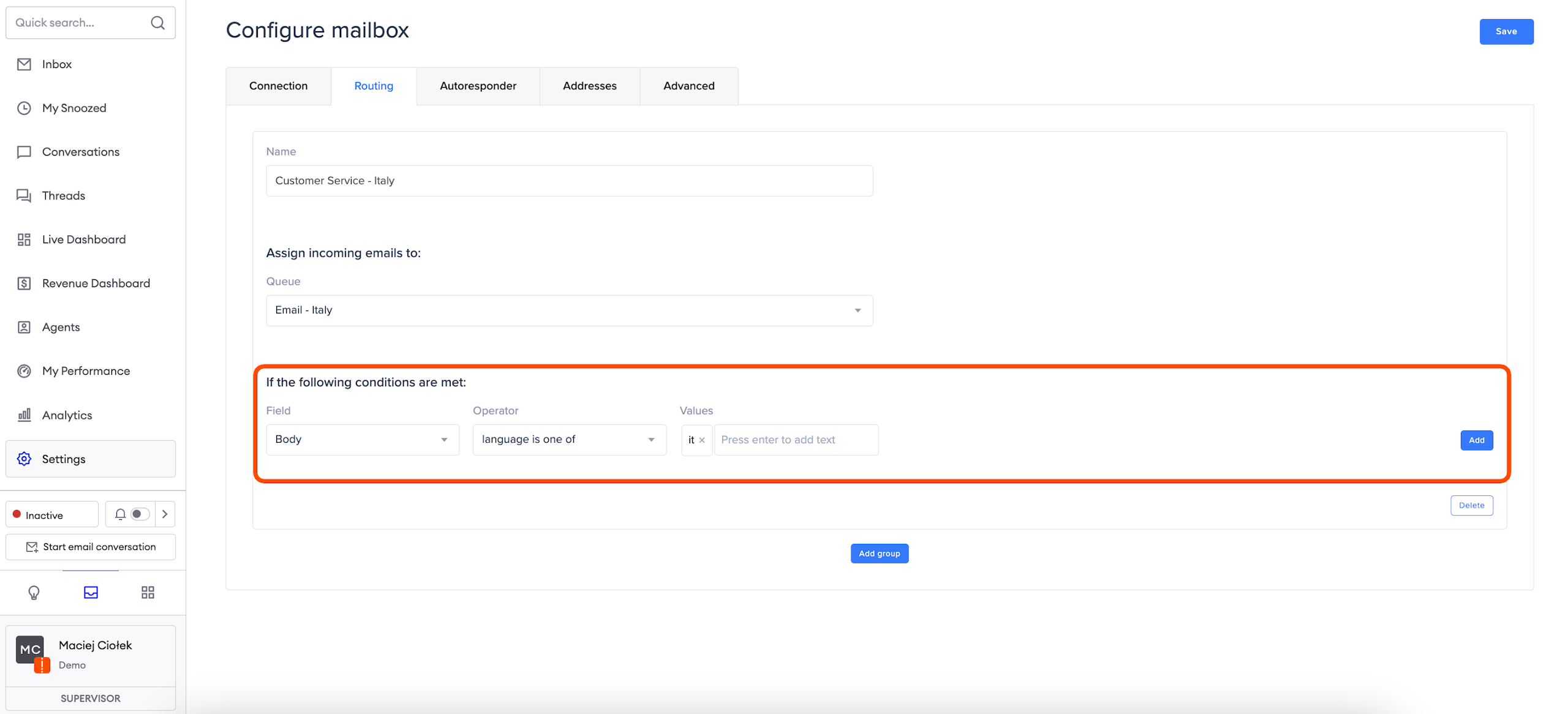
There are two types of language operators:
- language is one of - true if any of language is recognized in Values
- language isn’t one of - true if none of the language were recognized in Values
Those operators can be used only on the Body and Subject fields.
Language recognition is performed only on the first 256 characters of the field.
The language codes should follow the ISO-639-1 standard.
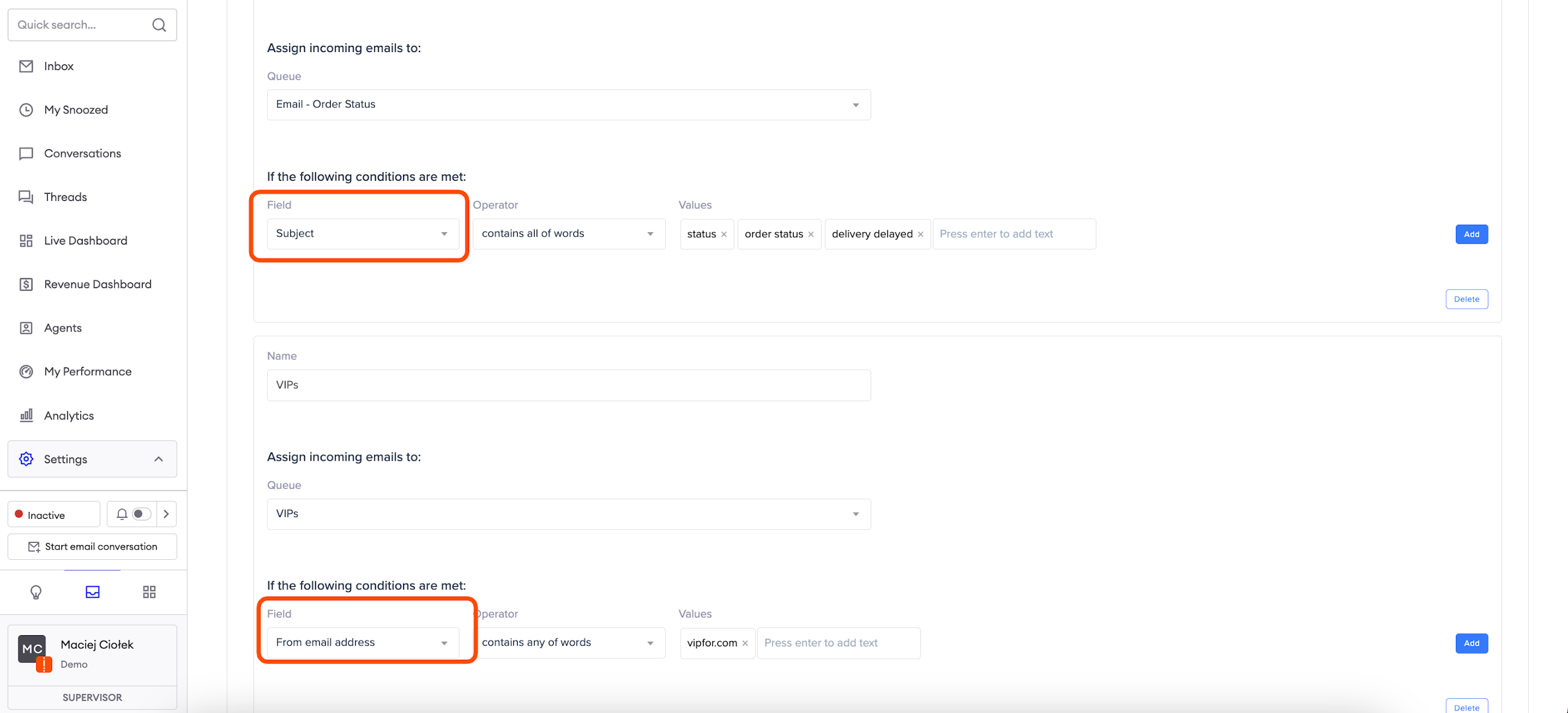
Priority of Condition groups
When more than one condition group matches an email, a priority system is used to determine the most suitable rule.
This priority is based on which part of the email the conditions are applied to:
- From, To, CC, and Subject fields have the highest priority (5 points);
- The Body field has a lower priority (1 point).
From all matching conditions, the one with the most points is used to determine the queue an email should be routed to.
ExampleCondition group with 5 conditions, all using Subject fields will have 25 points, whereas the condition group which has 15 conditions using Body field in each will have 15 points. So if both those condition groups match an email, the first one will be selected.
Real-life examples
Example 1
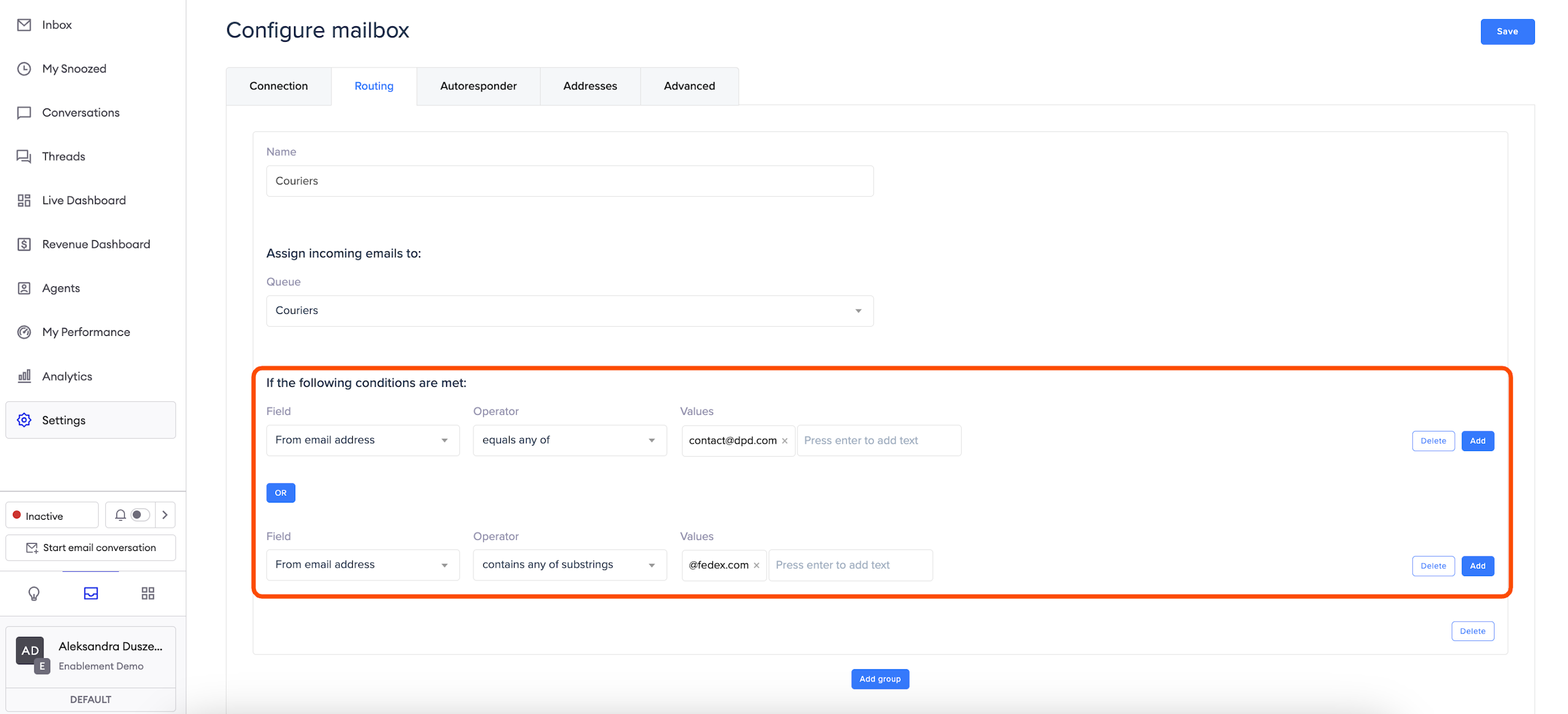
All emails from “[email protected]” and with the ending “@fedex.com” should go to the queue called “Couriers”.
Condition group consisting of 2 conditions (joined with “OR” logic operator):
From email address , equals any of , “[email protected]”
OR
From email address, contains any of substrings, “@fedex.com”
Example 2
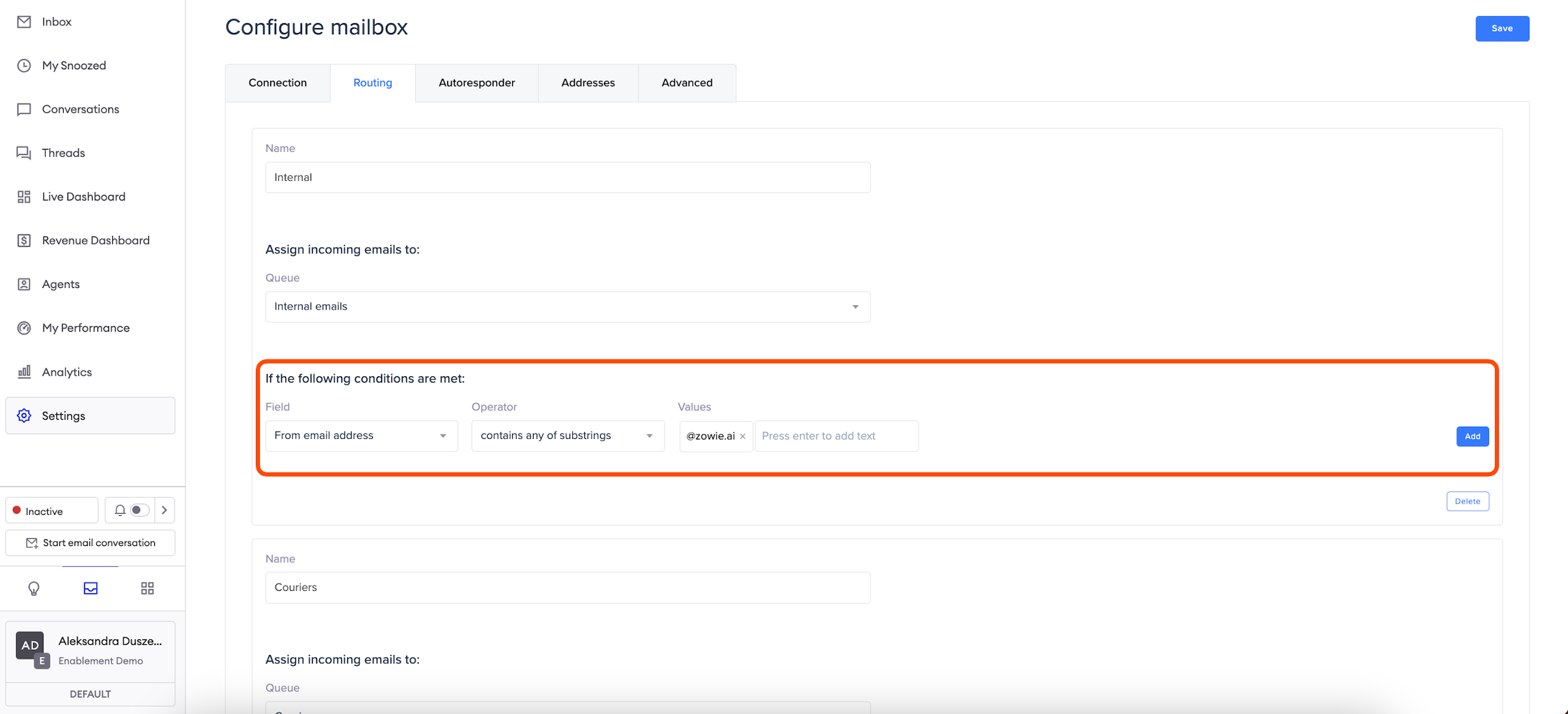
All emails with ending “@zowie.ai” should go to the queue called “Internal emails”.
From email address - contains any of substrings - “@zowie.ai”
Example 3
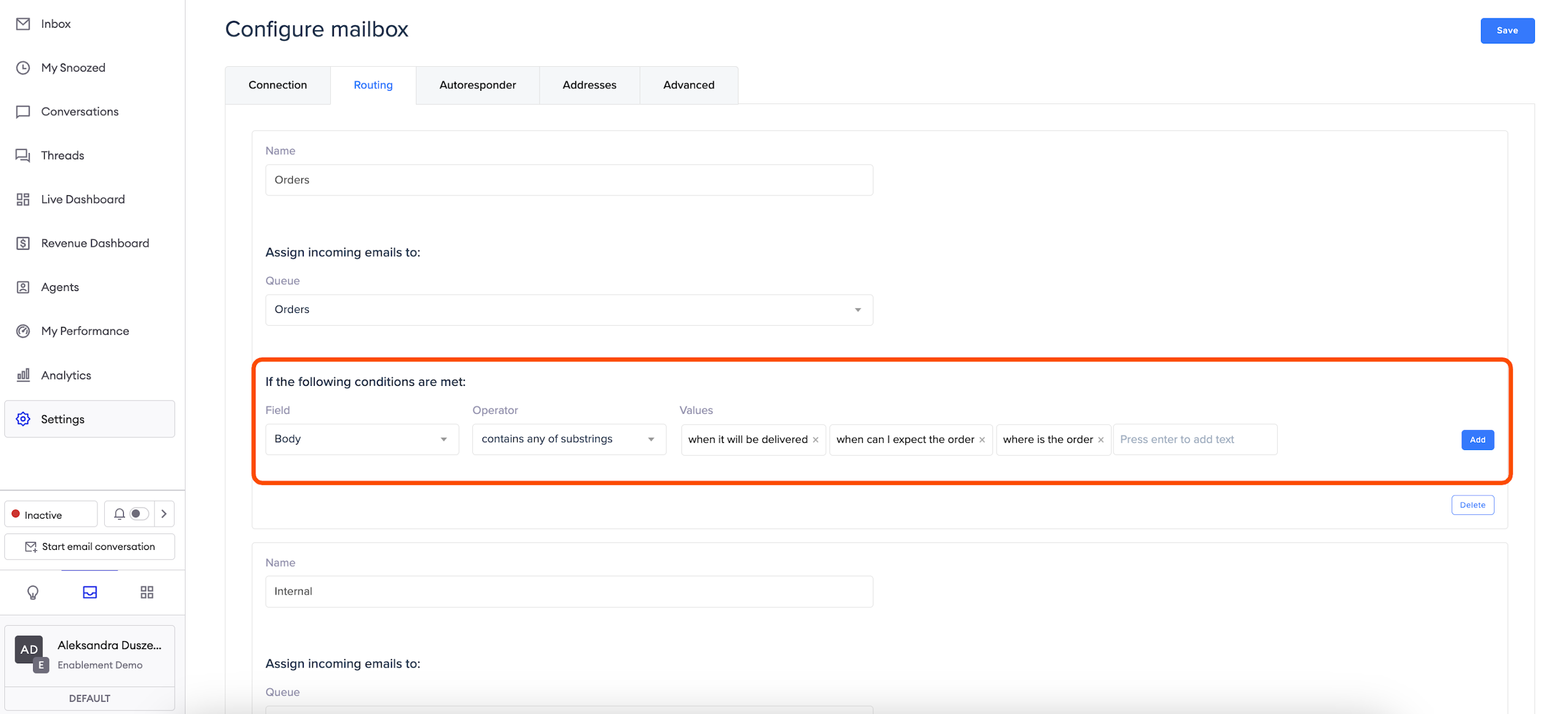
All keywords related to order status and deliveries, which are mentioned in the email’s body should go to the queue called “Orders”.
Option 1:
Body - contains any of substrings - “when it will be delivered”, “when can I expect the order”, “where is the order”
Option 2:
Body - contains any of words - “order”, “delivered”, “status”, “delayed”
There is no need to join those two conditions into one group with “OR” operator because in each phras in Option 1 is a word from Option 2, so Option 2 is going to match all what Option 1 will.
Example 4
All emails which have a specific subject, for example “This is your order confirmation” should go to “SPAM” queue.
Subject - equals any of - “This is your order confirmation"
Example 5
All emails written in French, German and Dutch should go to the queue called “International”.
Body - language is one of - “fr", "de", "nl"
Setting up Autoresponder
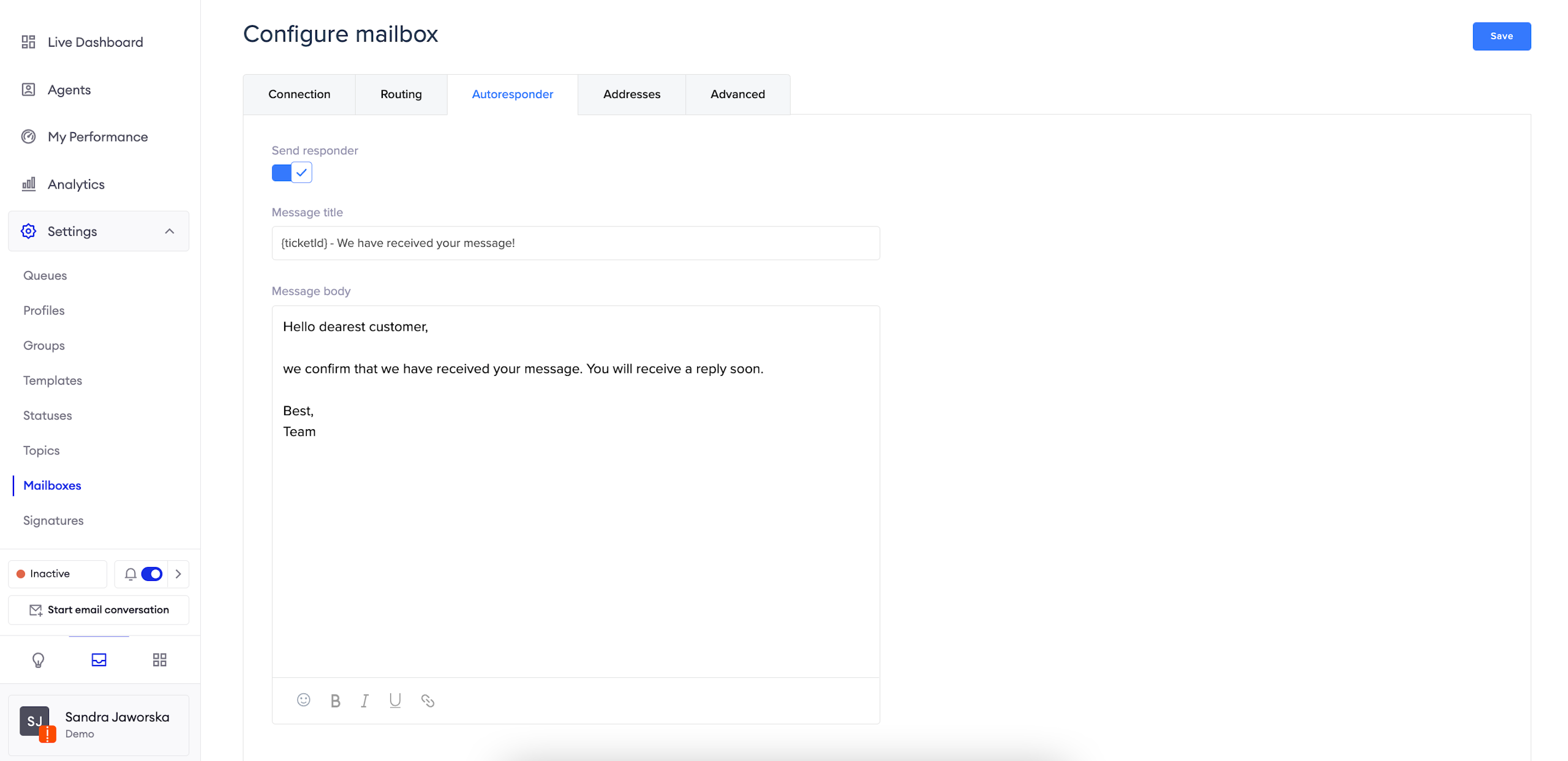
In order to find Autoresponder, please go to Inbox > Settings > Mailboxes > Autoresponder.
To add a new autoresponder, enable the "Send responder" switch.
Autoresponder allows you to set up a confirmation email, so your customers know you have received their message.
Once you've added the Message title and Message body, click the "Save button" in the top right corner.
Configuring Addresses
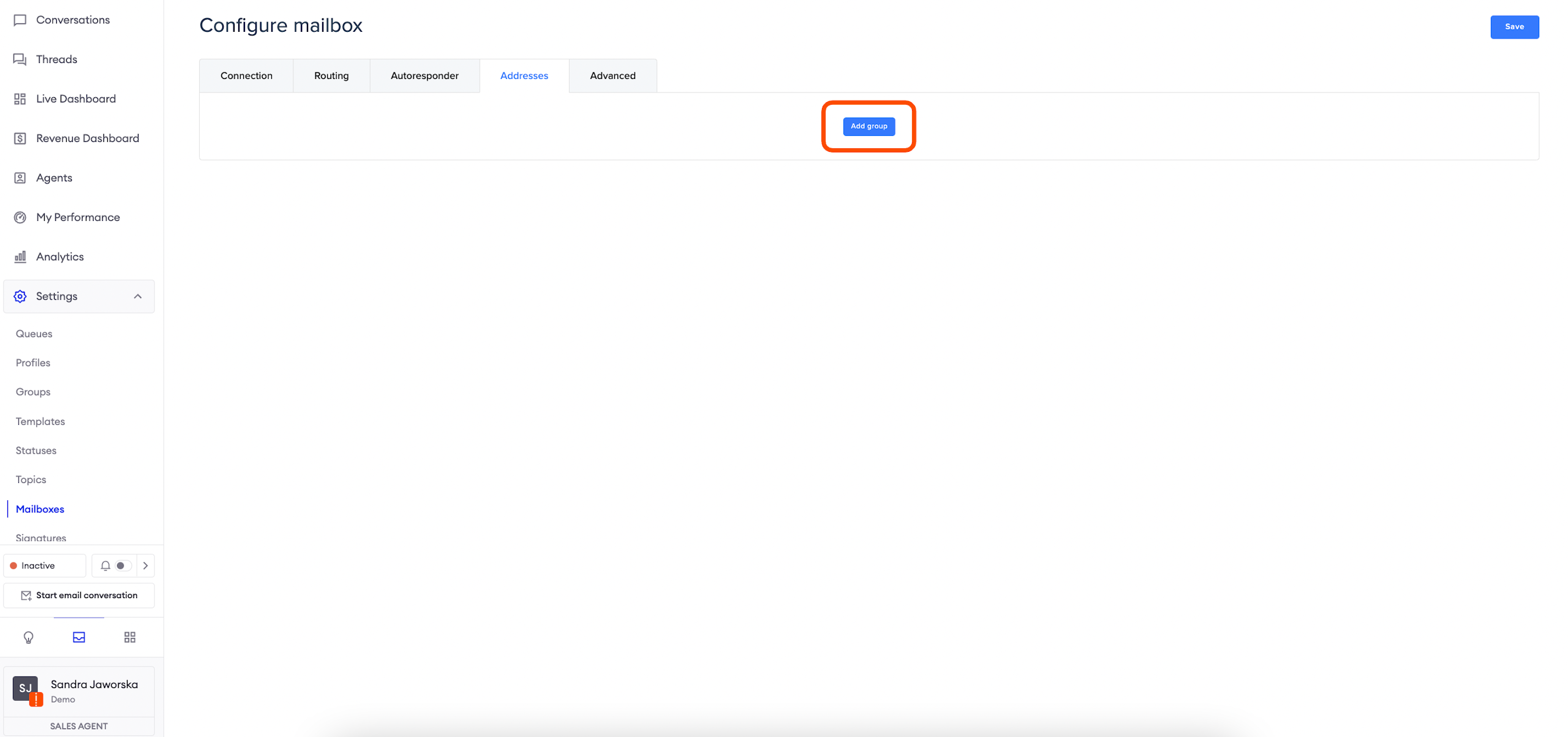
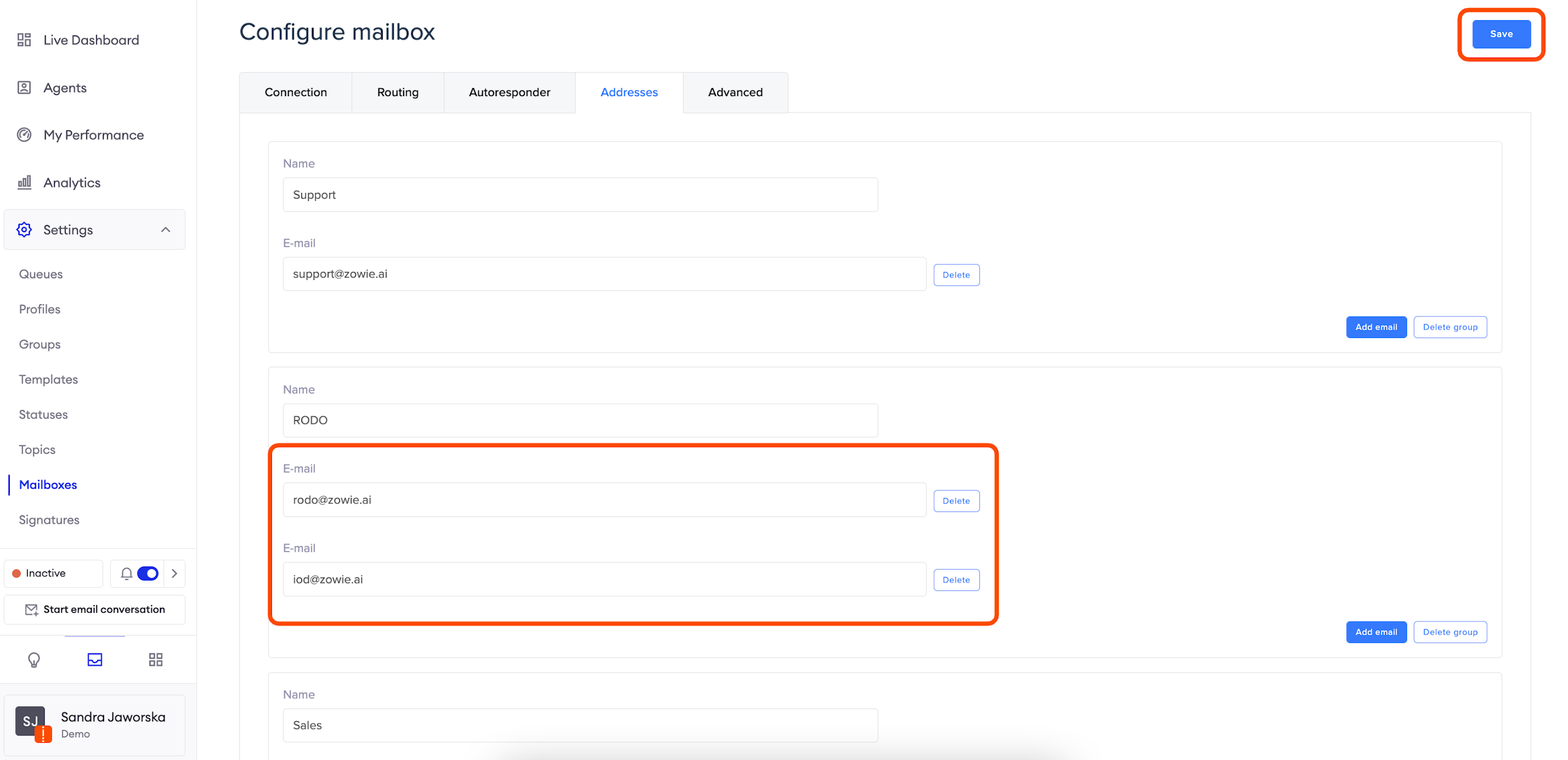
In order to find Addresses, please go to Inbox > Settings > Mailboxes > Addresses.
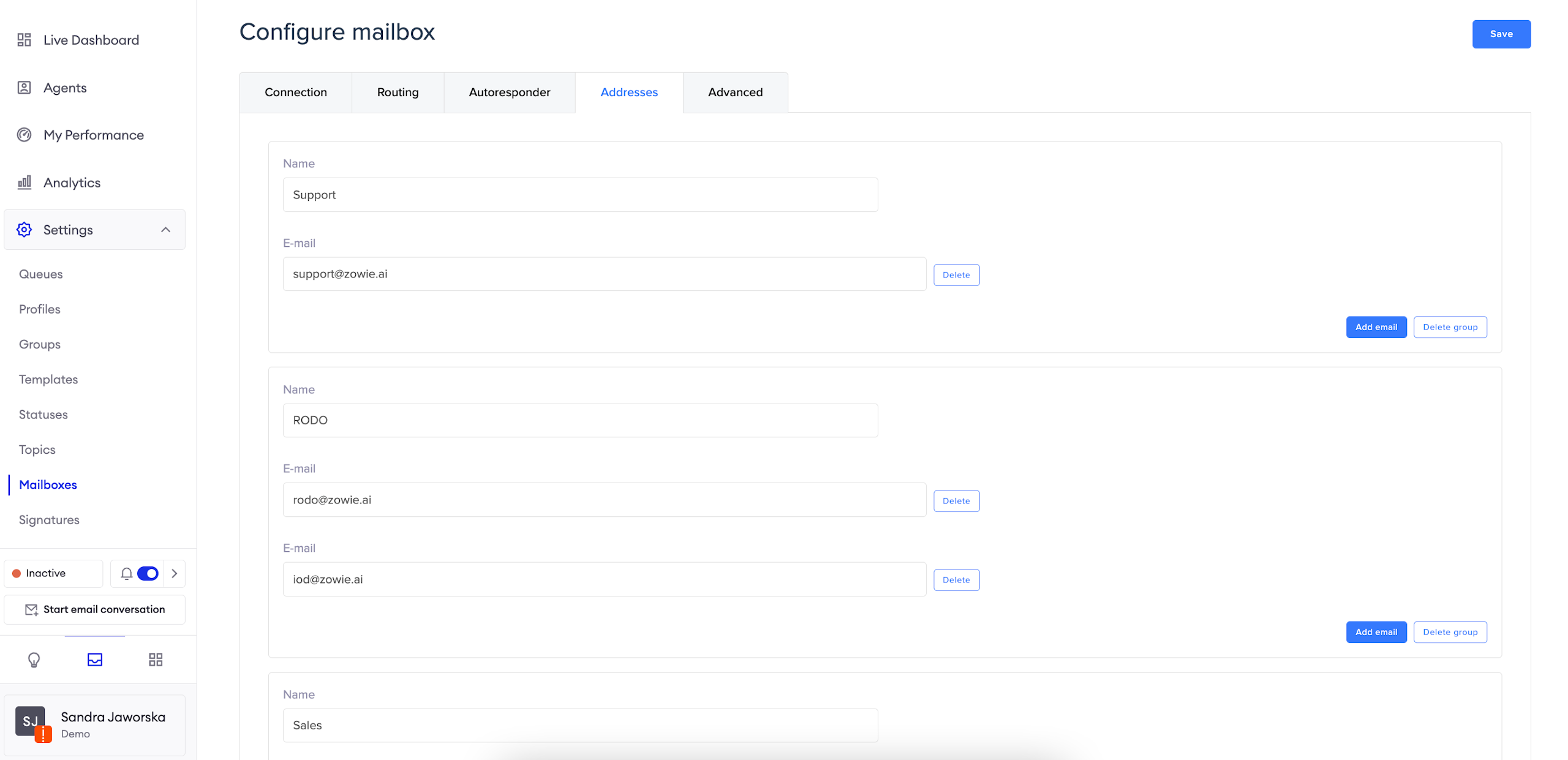
When you need to send recurring emails to different email addresses you can add these addresses under the Addresses tab.
To add new addresses, click the "Add group" button.
Adding name
Name: give a name to the group of addresses you're going to add.
Adding email addresses
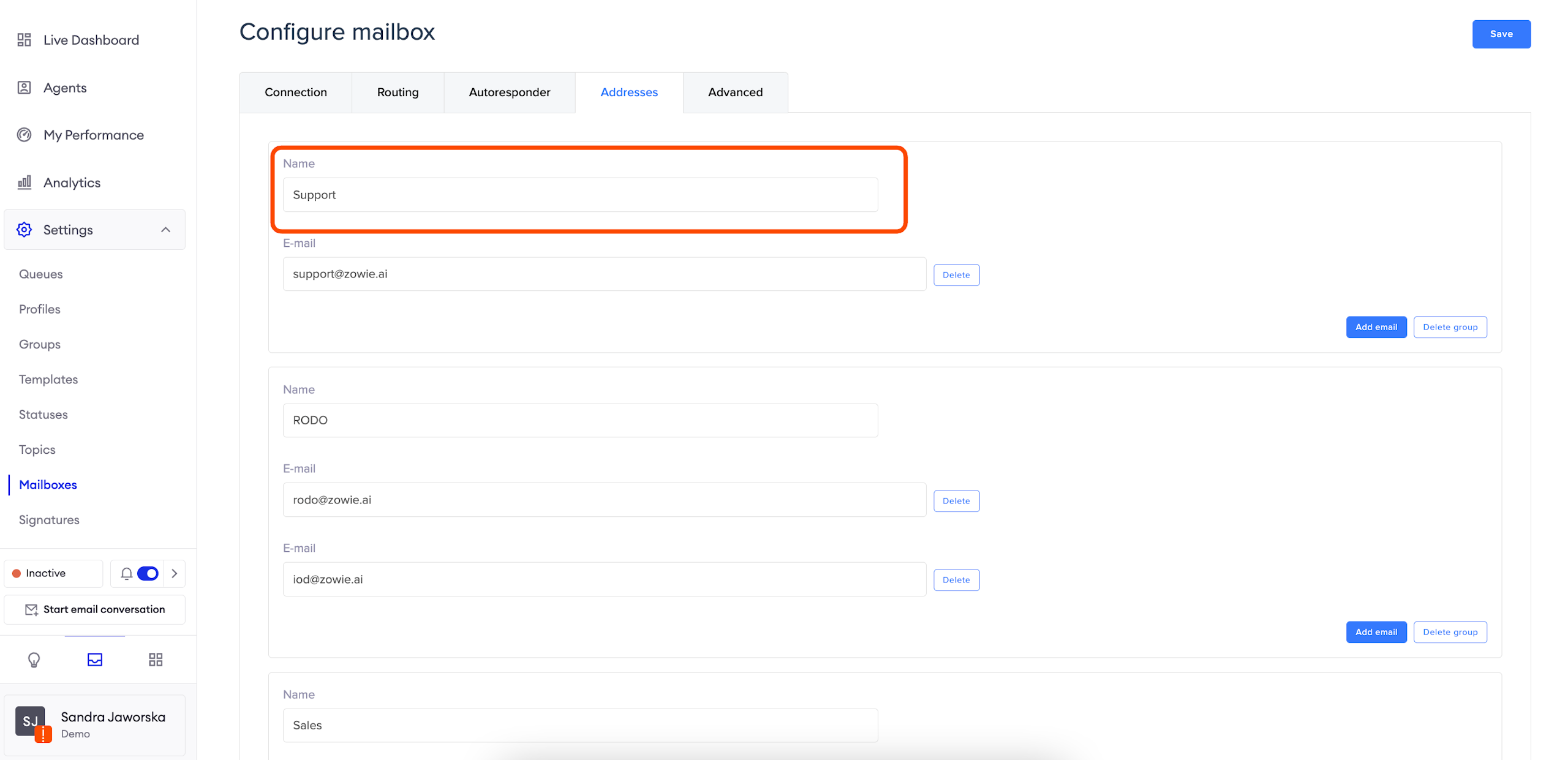
Click the "Add email" button and type in the email address.
You can add more than one email address, by clicking the "Add email" button.
Once you've added all the needed addresses click the "Save" button in the top right corner.
Email configured!
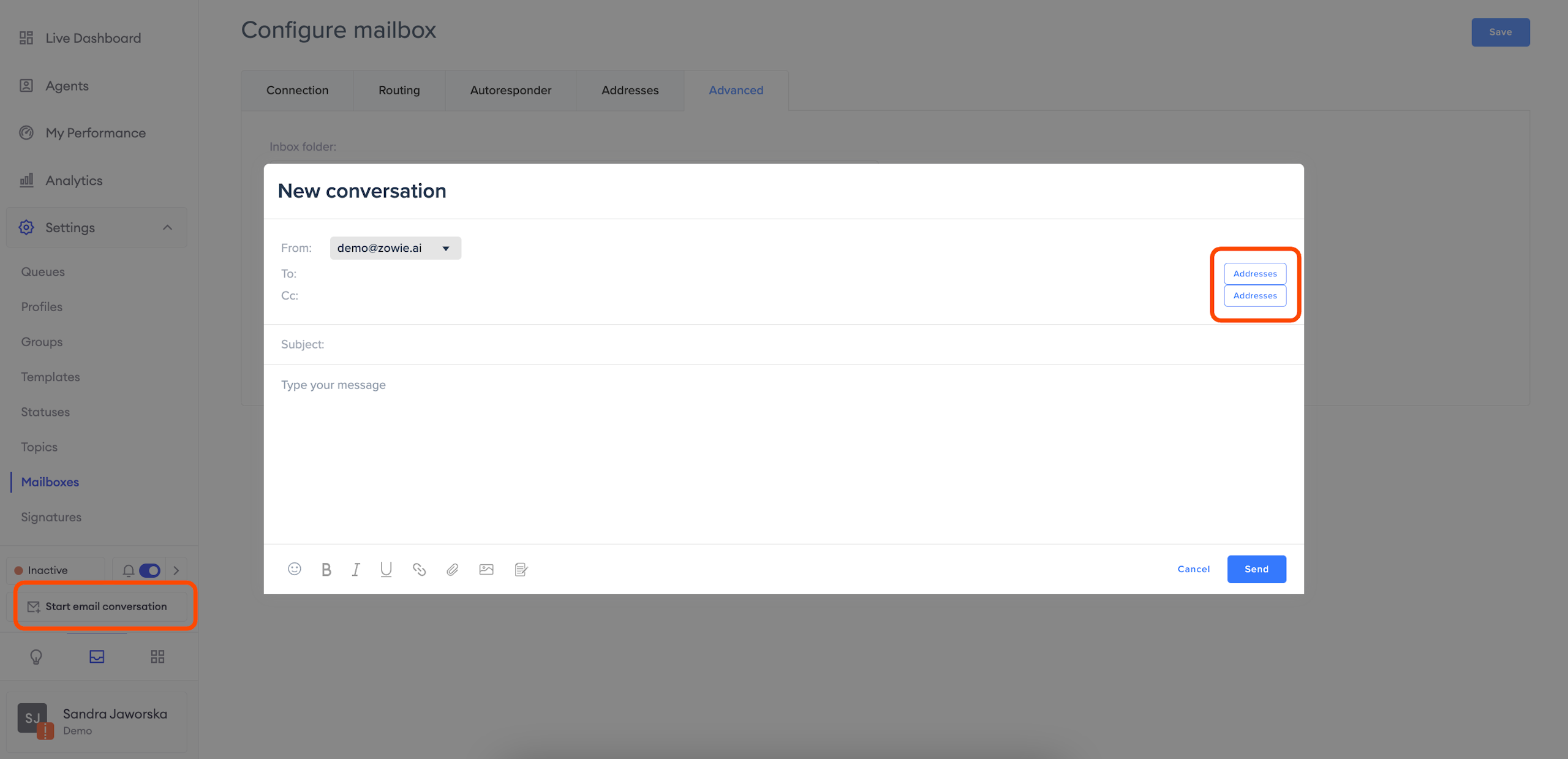
Now you will be able to send emails to the added addresses.
Updated over 1 year ago