
Recommendations
What is a Recommendation?
A Recommendation is a group of similar, automatically clustered phrases that are based on the user's questions.
Recommendations help you train existing Automations to respond to the most relevant questions or to improve your Knowledge Base by adding new Automations to answer commonly unrecognized questions.
Why use Recommendations?
Use Recommendations to get regular insights into what questions are most important to your customers and improve your chatbot's automation capabilities on an ongoing basis. Recommendations are the most effective way of training your chatbot.
By adding new Recommendations regularly you are more likely to achieve great success with Automation and Deflection ratio as your chatbot will have the capacity to understand and recognize your users' questions.
How to access Recommendations?
You can find the list of Recommendations by clicking Automations > Recommendations on the main navigation panel in Zowie.
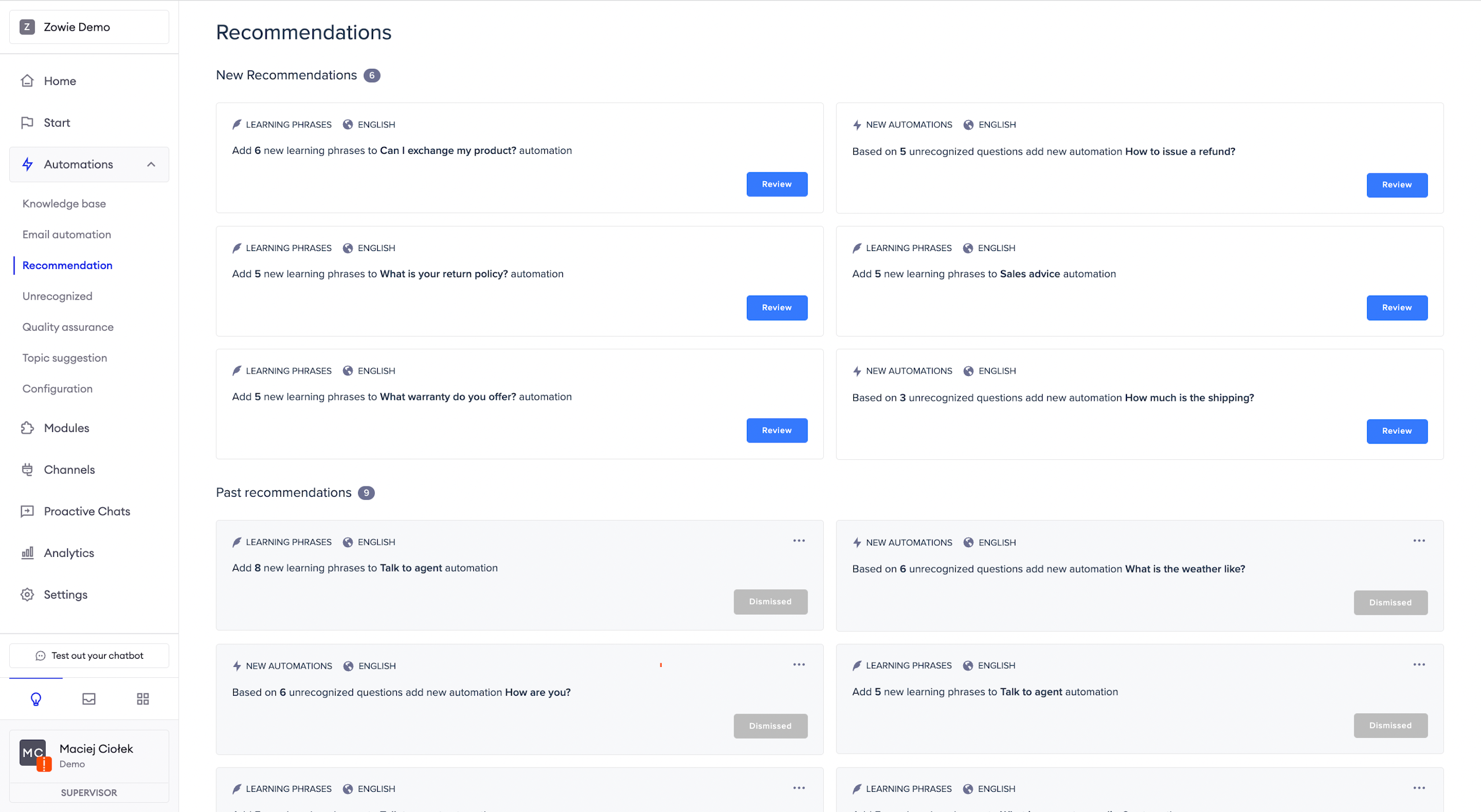
Recommendations view
There are two types of Recommendations:
- Learning Phrases, which suggest adding new phrases to an existing Automation;
- New Automations, which suggest creating entirely new Automation.
AttentionIf you have more than one Region enabled, new Recommendations will appear in all corresponding languages.
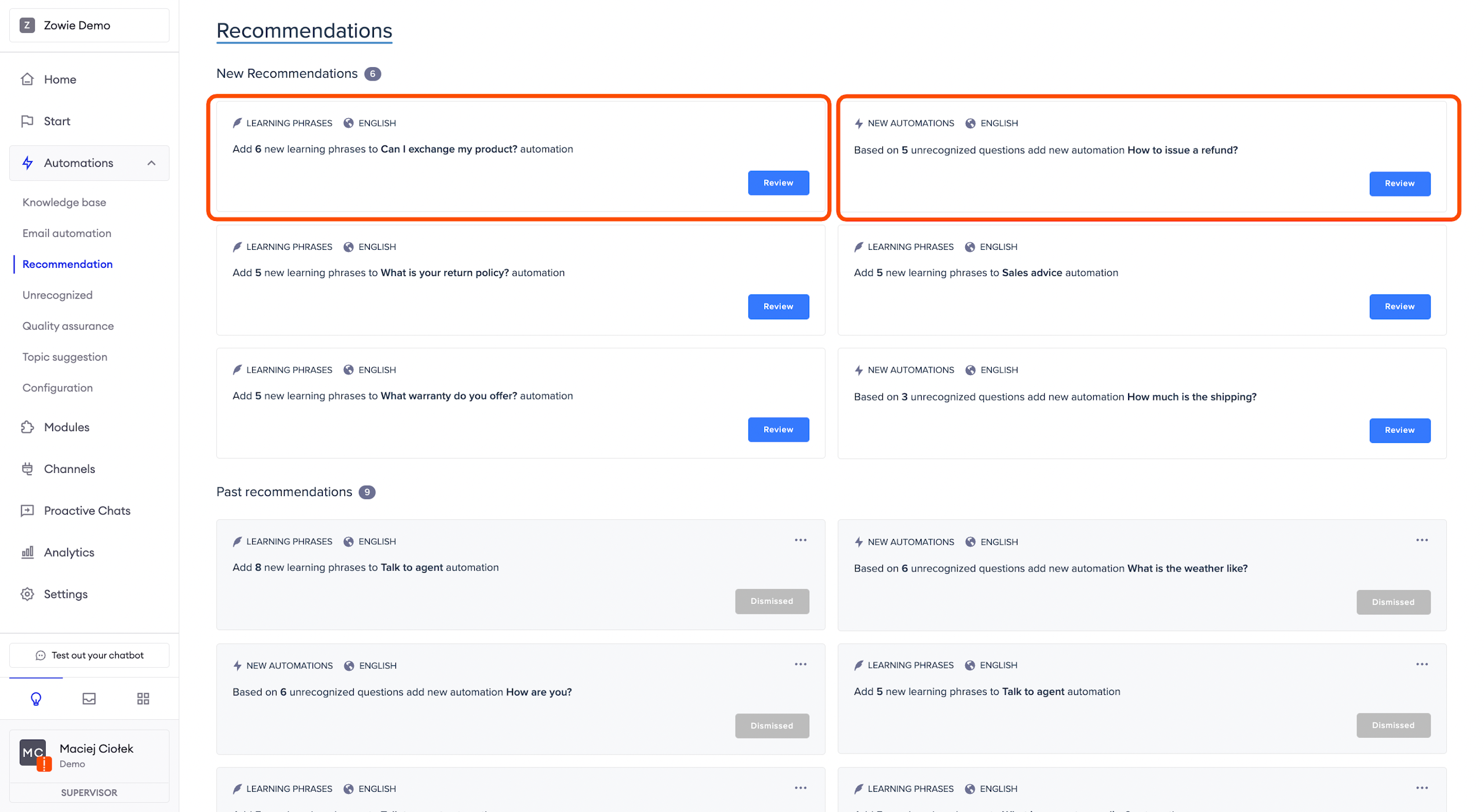
Train an existing Automation
Review Learning Phrases
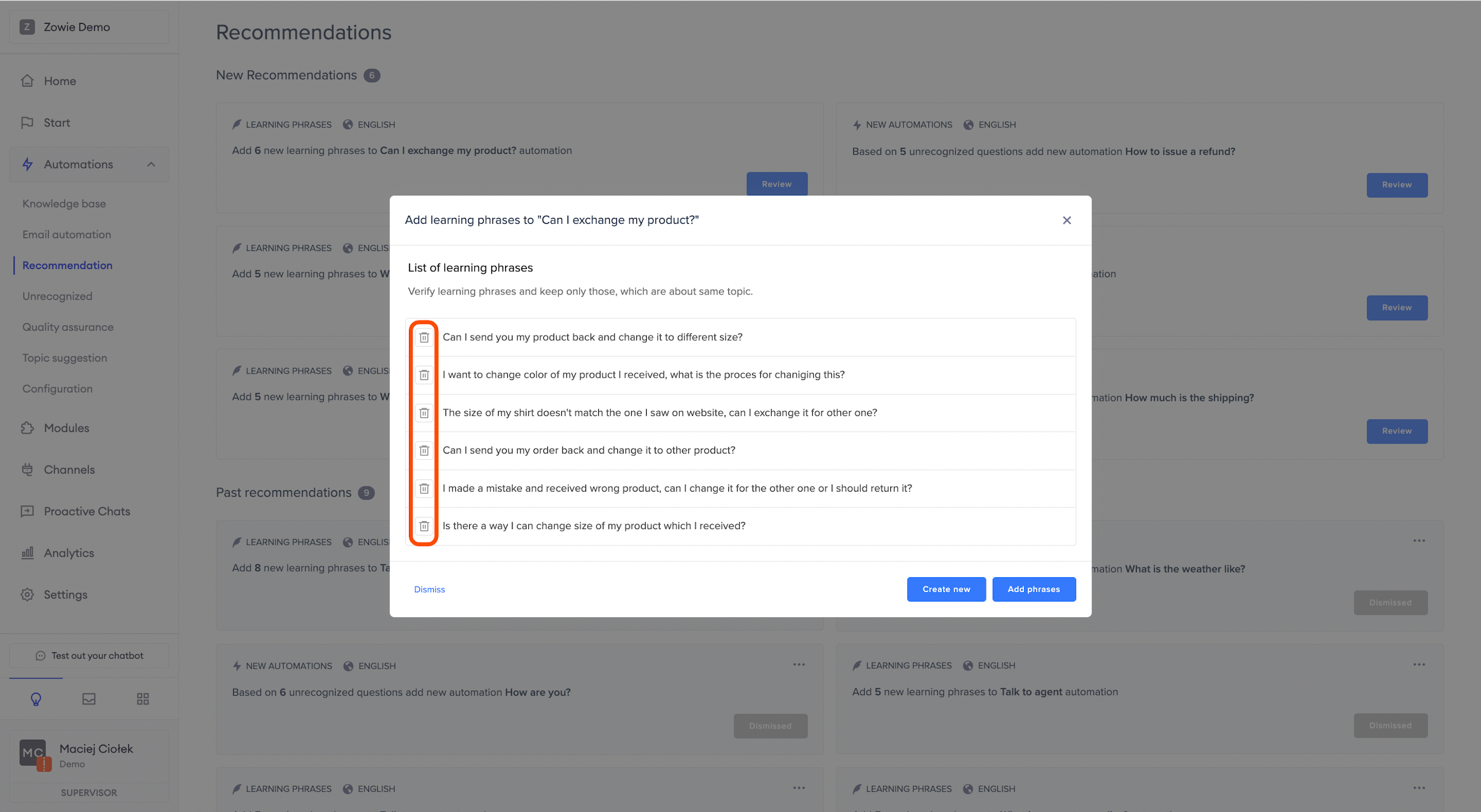
To apply the Recommendation to an existing Automation, start with reviewing the list of learning phrases.
First, open the review pop-up by clicking the blue "Review" button.
Then, verify if phrases selected by the AI are applicable. A phrase that does not belong to the suggested Automation should be removed by clicking the trash can icon.
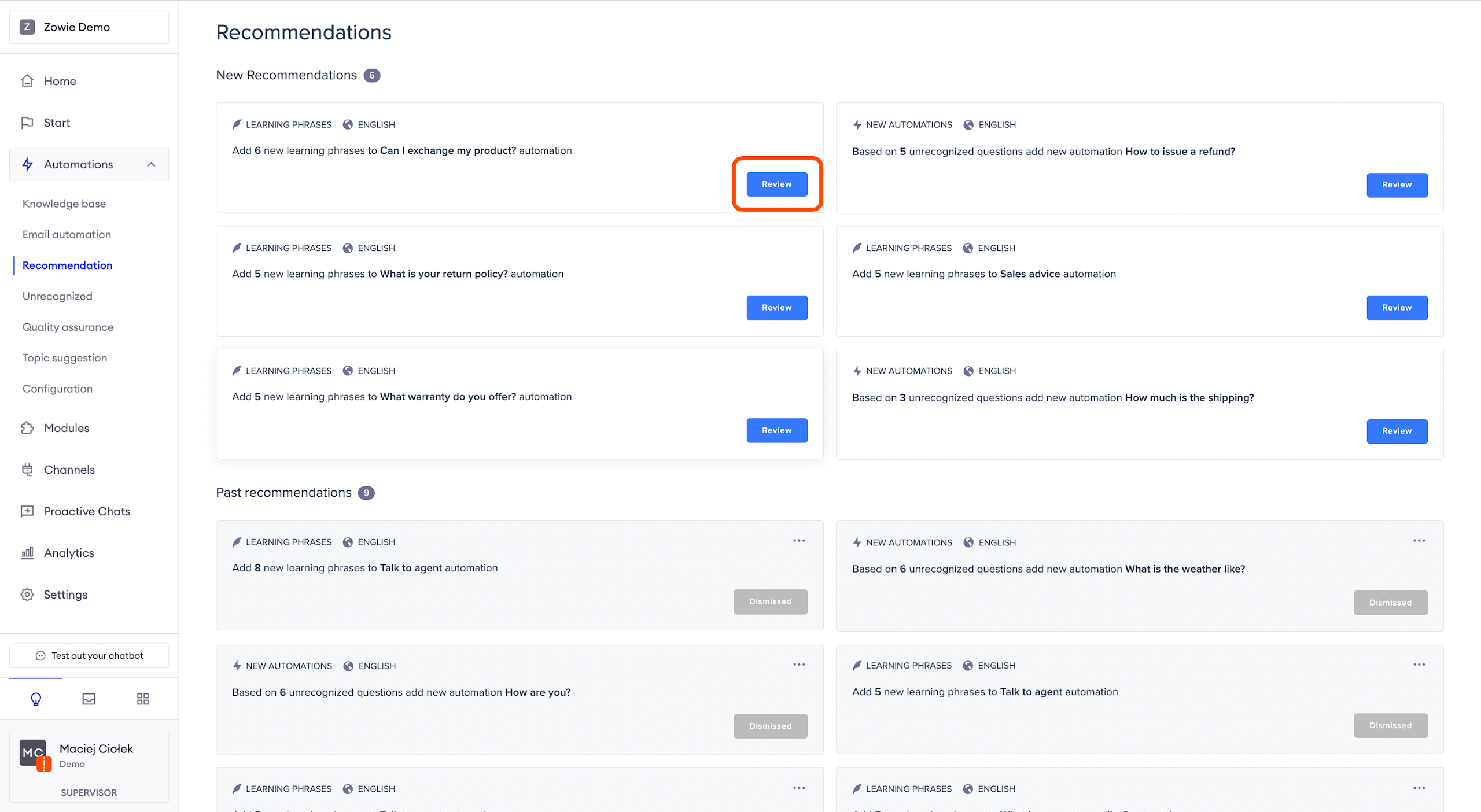
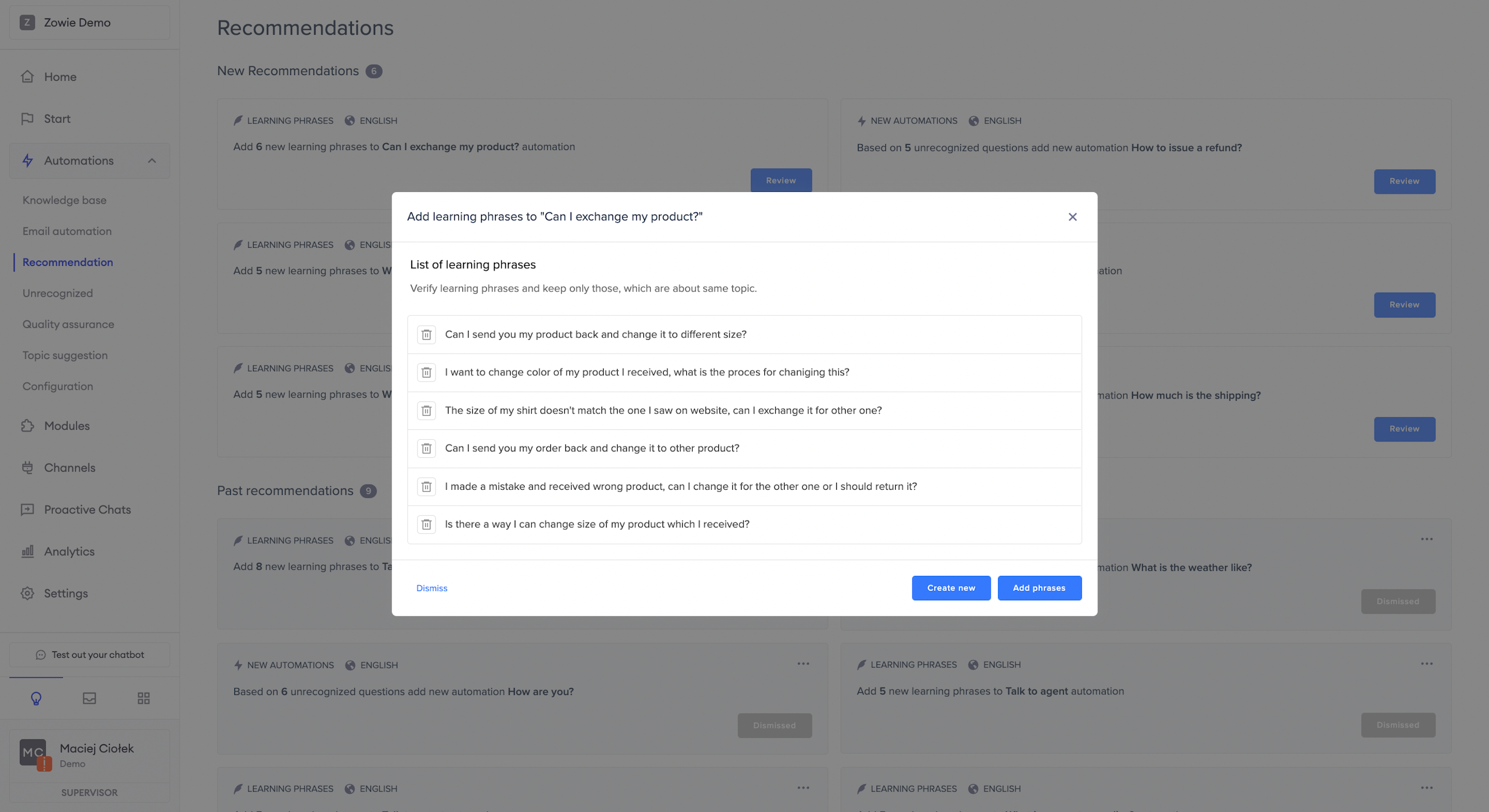
Add phrases to an existing Automation
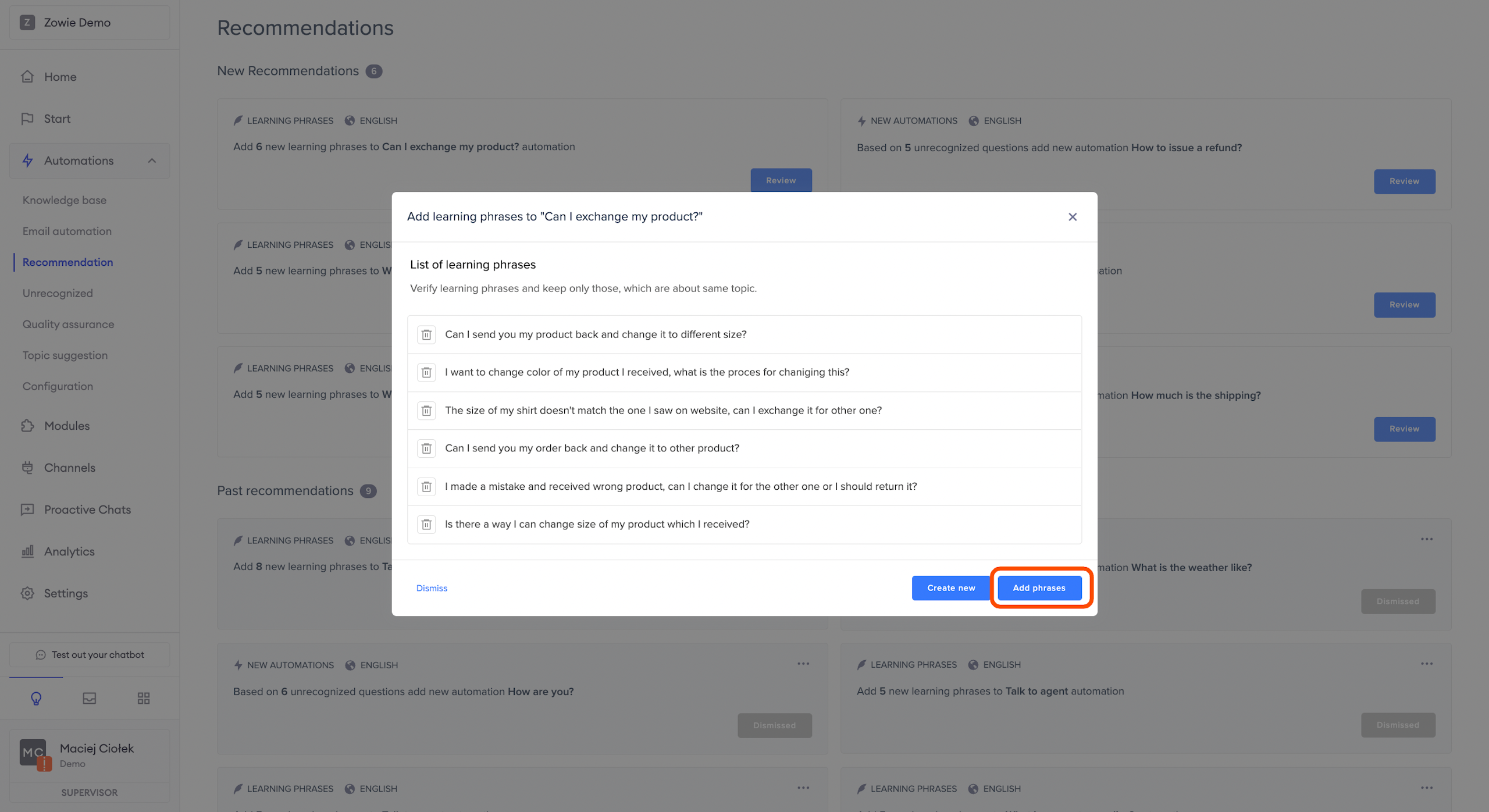
After reviewing the Recommendation, click "Add phrases" button to apply the remaining learning phrases to the existing Automation.
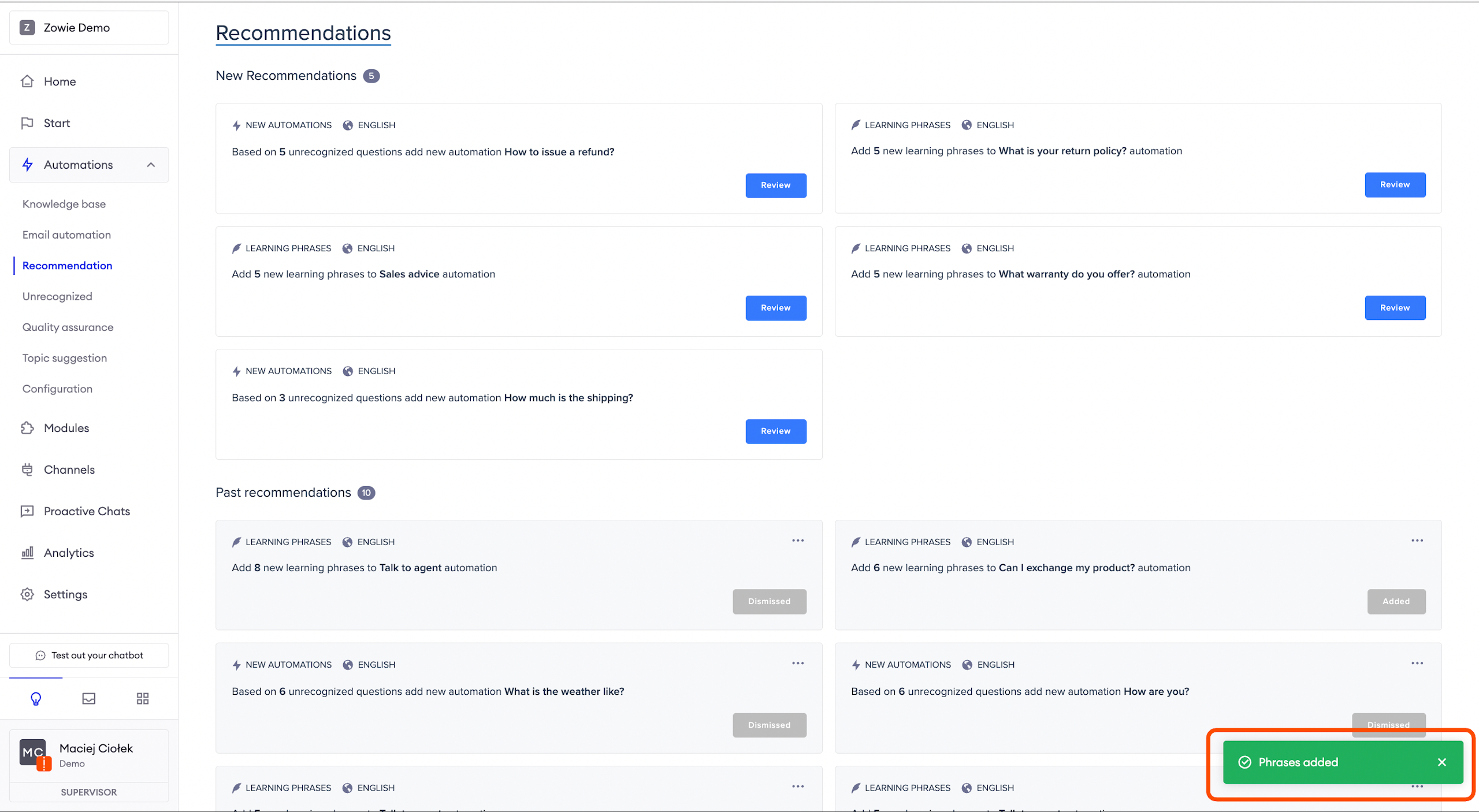
You will receive confirmation that phrases were successfully added and the Recommendation is moved to the Past recommendations section at the bottom of the page.
Create new Automation
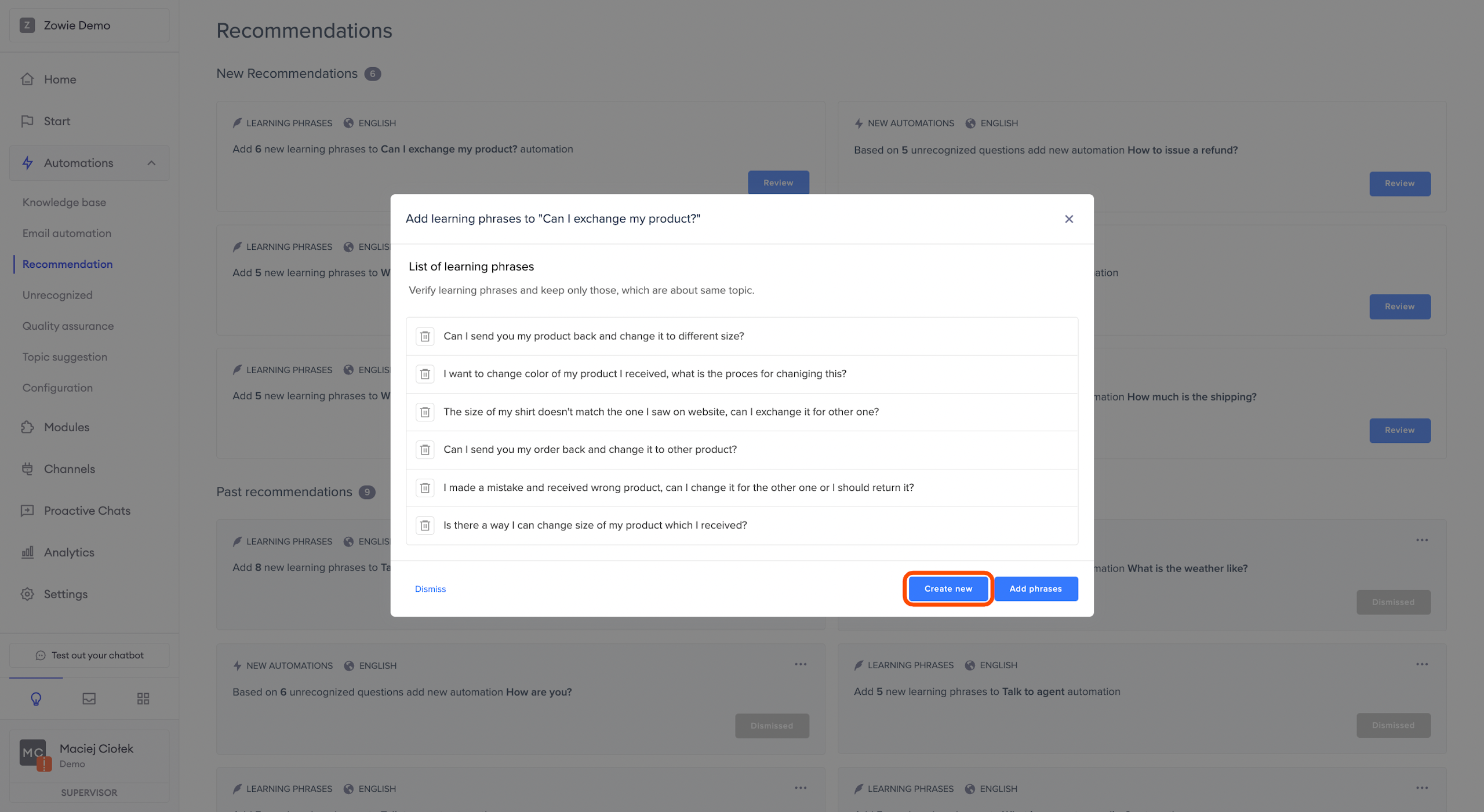
If the Recommendation suggests training an existing Automation, but all the phrases do not match the suggested Automation, you can click the "Create new" button and use these phrases to create an entirely new Automation.
Dismiss a Recommendation
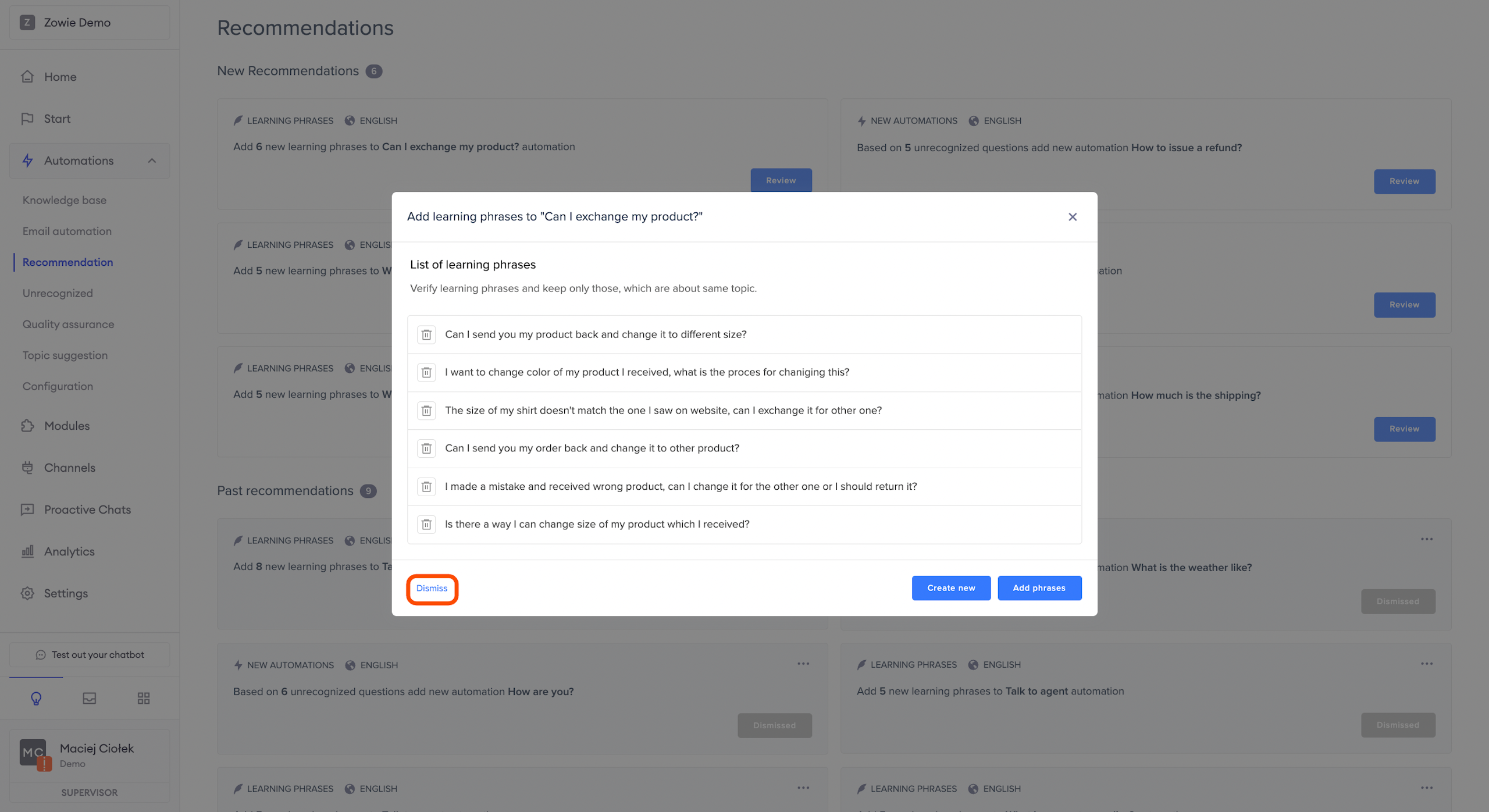
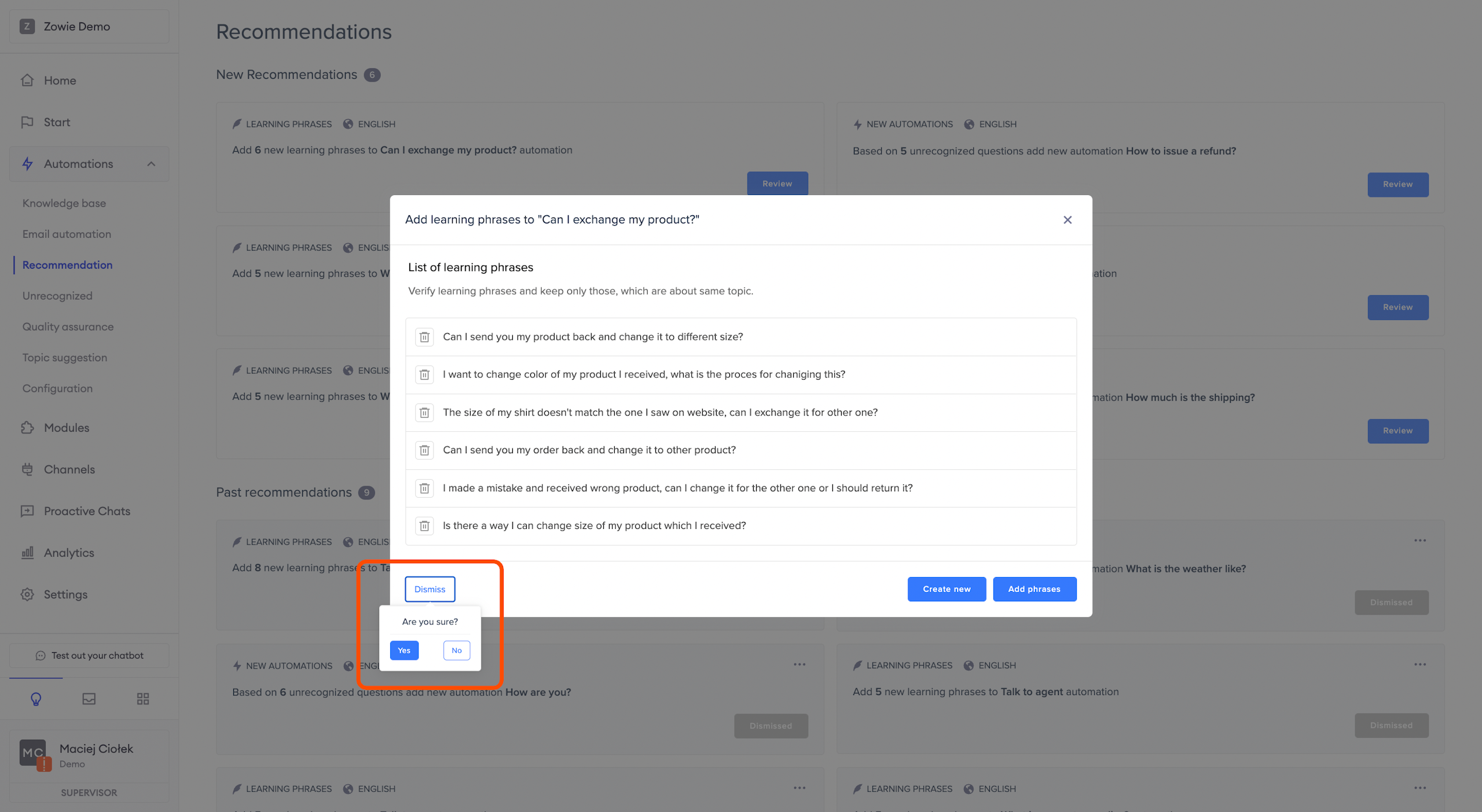
If you don't want to use suggested learning phrases to train an existing Automation or create a new one, click the "Dismiss" button and confirm your choice.
It will result in rejecting the entire Recommendation and moving it to the Past recommendations section at the bottom of the page with Dismissed status.
Create a new Automation
Review Learning Phrases
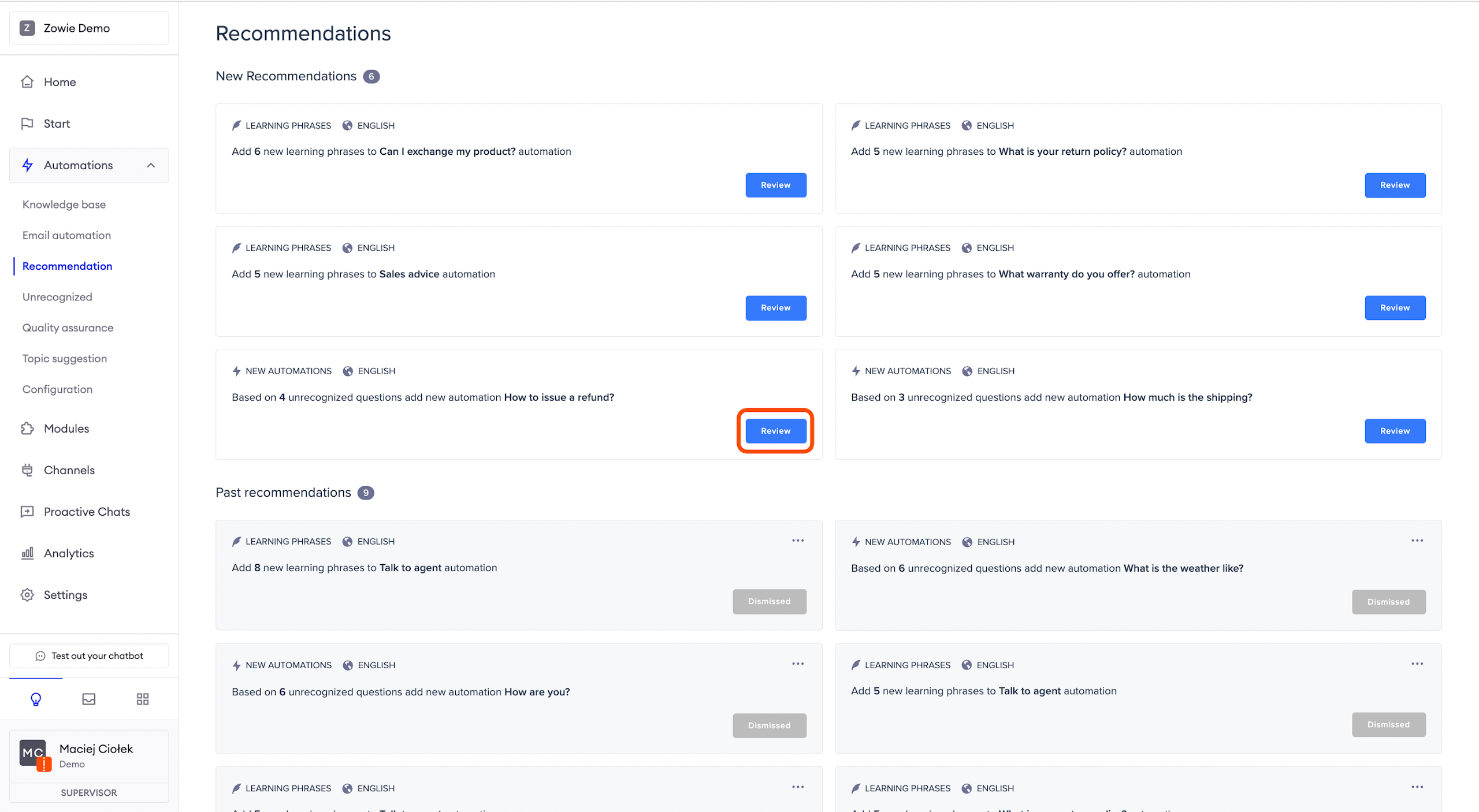
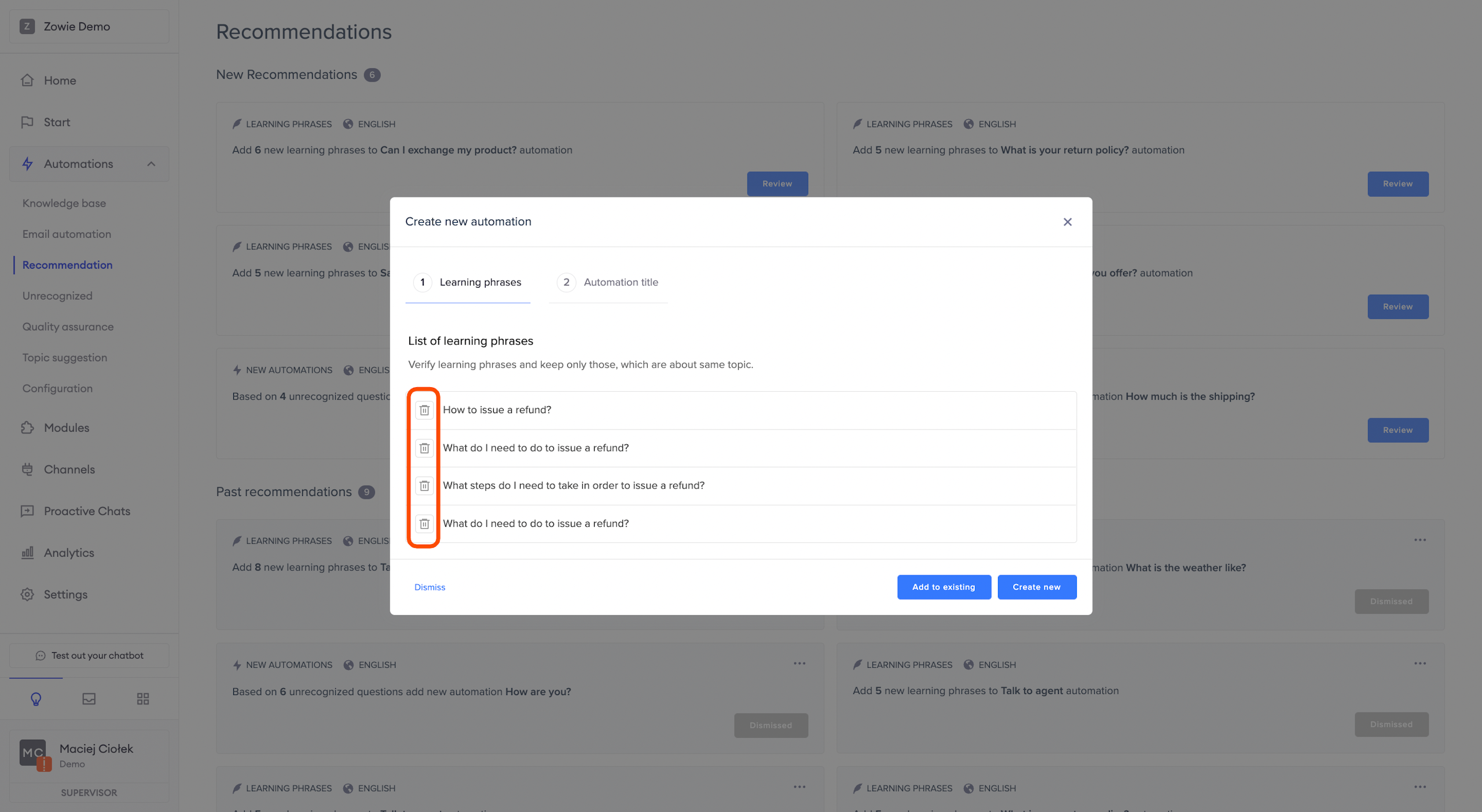
To use the Recommendation to create a new Automation, start with reviewing the list of learning phrases.
First, open the review pop-up by clicking the blue "Review" button.
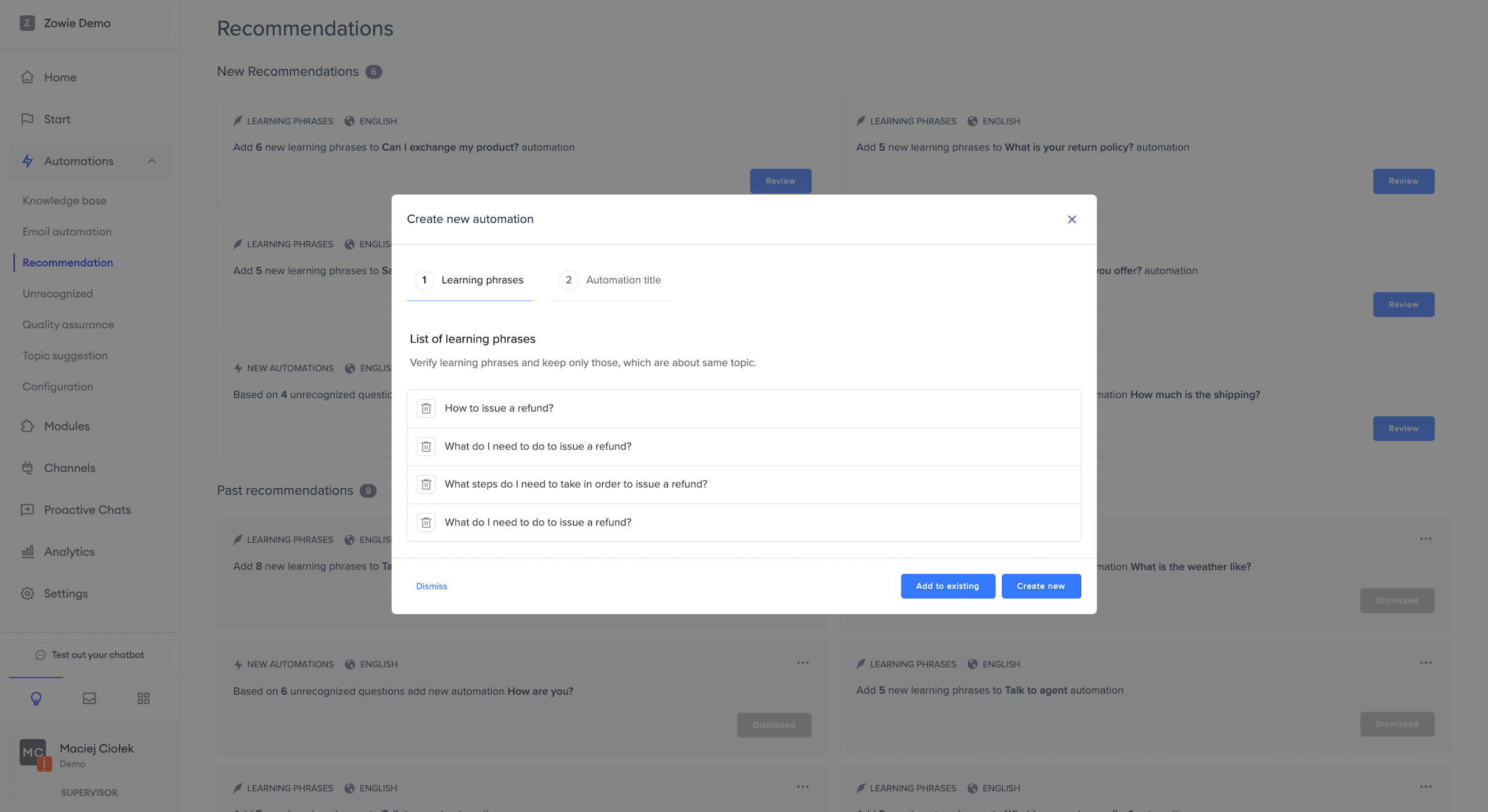
Then, verify if phrases selected by the AI are applicable. A phrase that does not match should be removed by clicking the trash can icon.
Change the Automation title
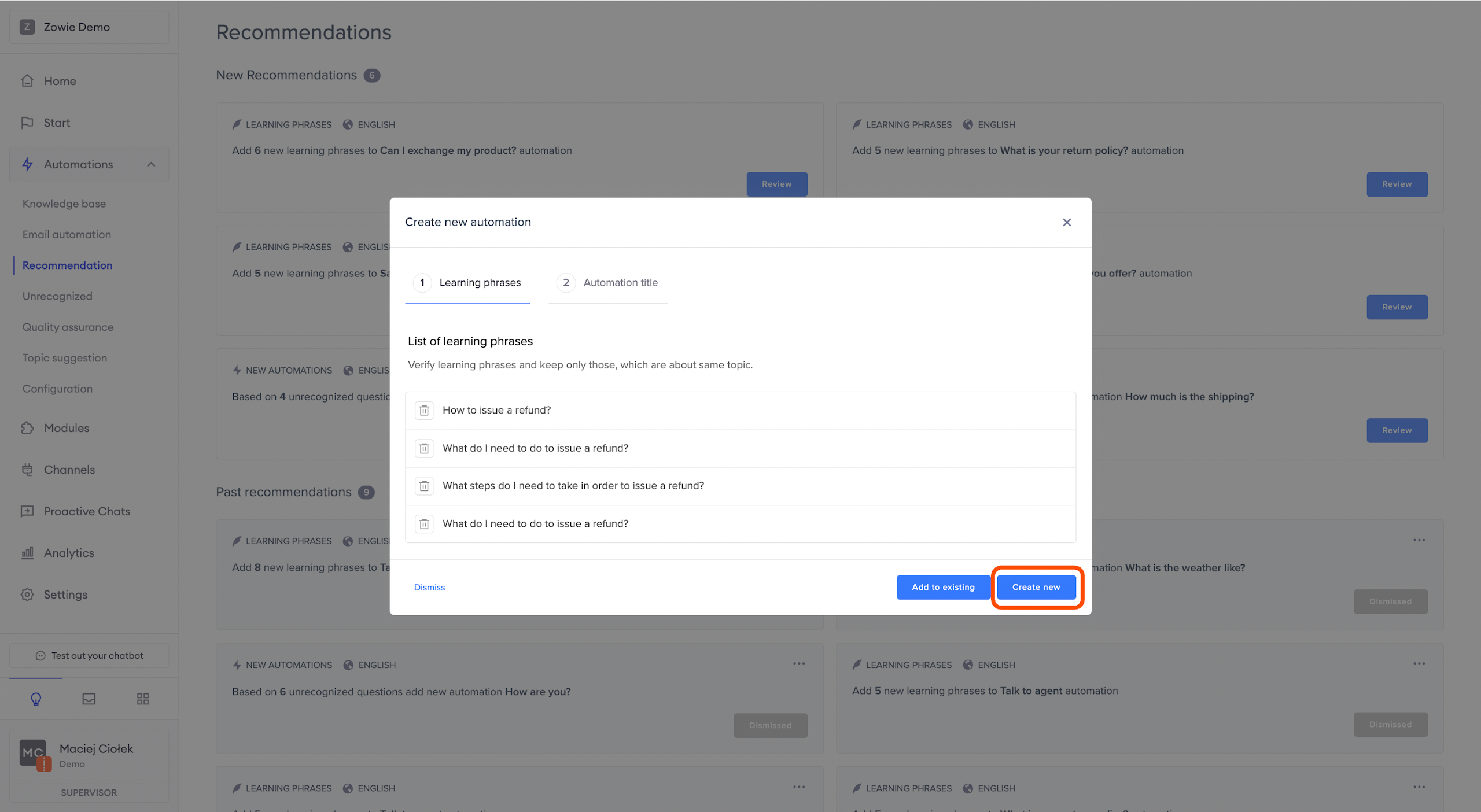
After reviewing the Recommendation, click the "Create new" button.
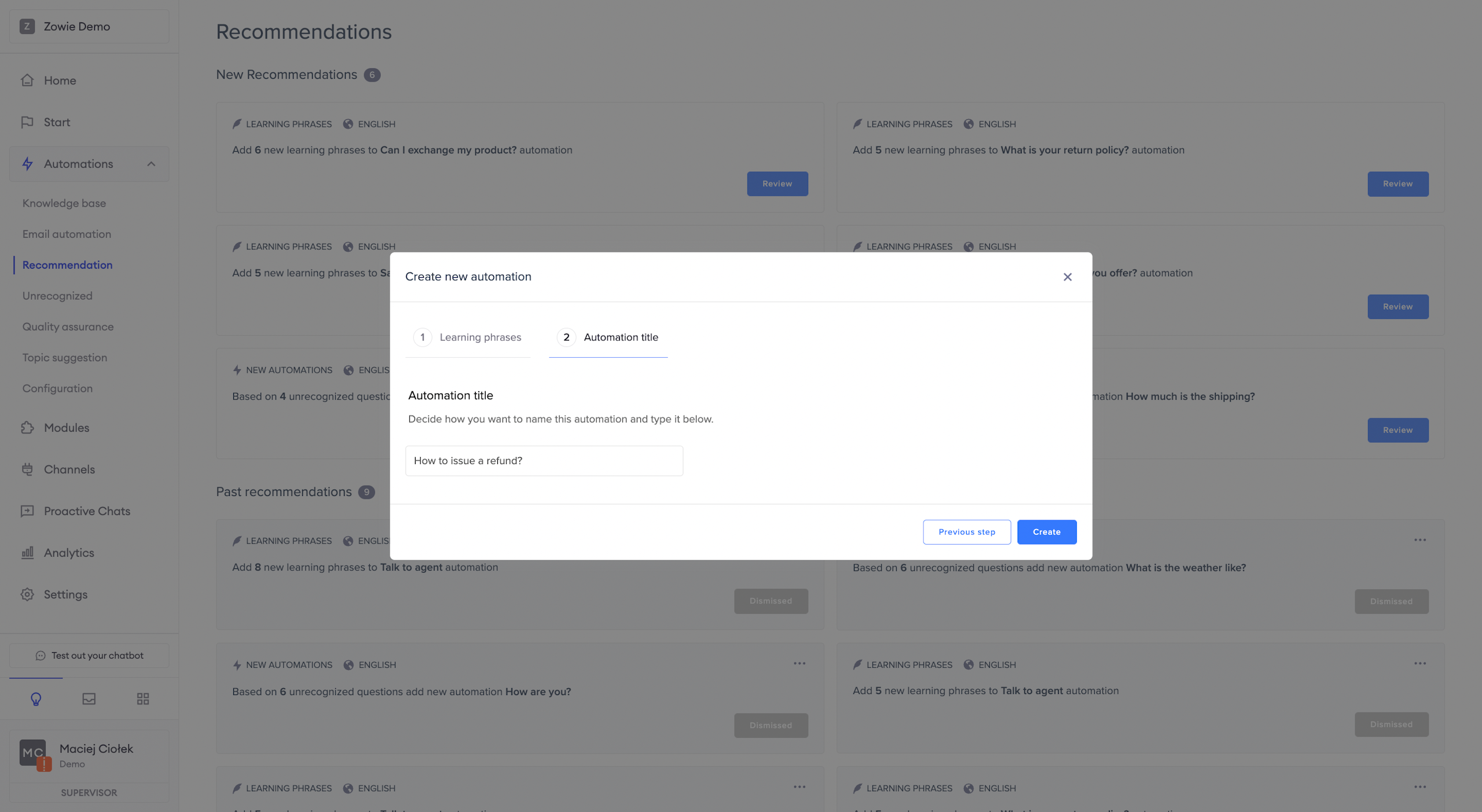
Next, you can edit the suggested title of the new Automation.
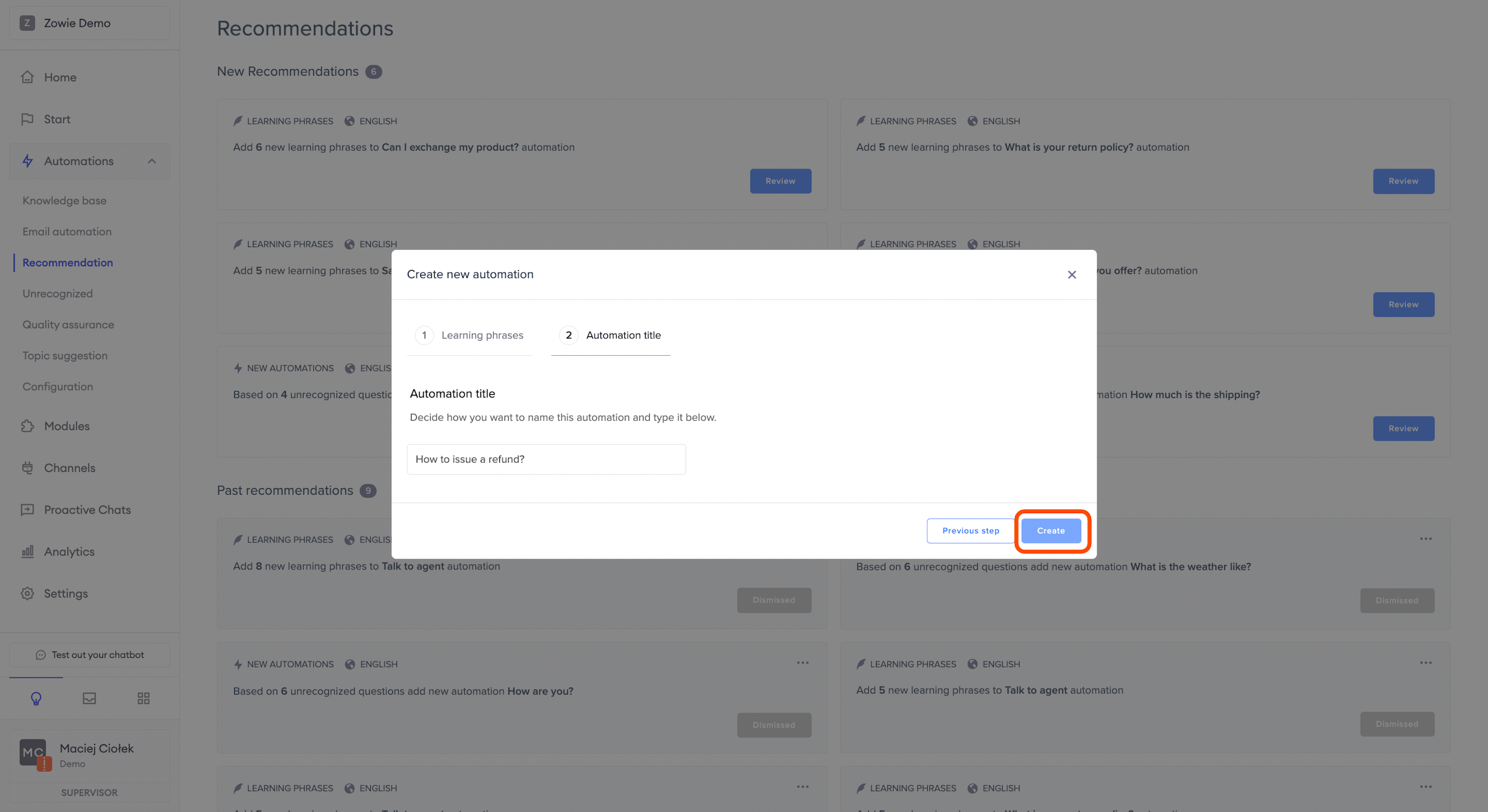
Lastly, click the "Create" button.
Configure an automated answer
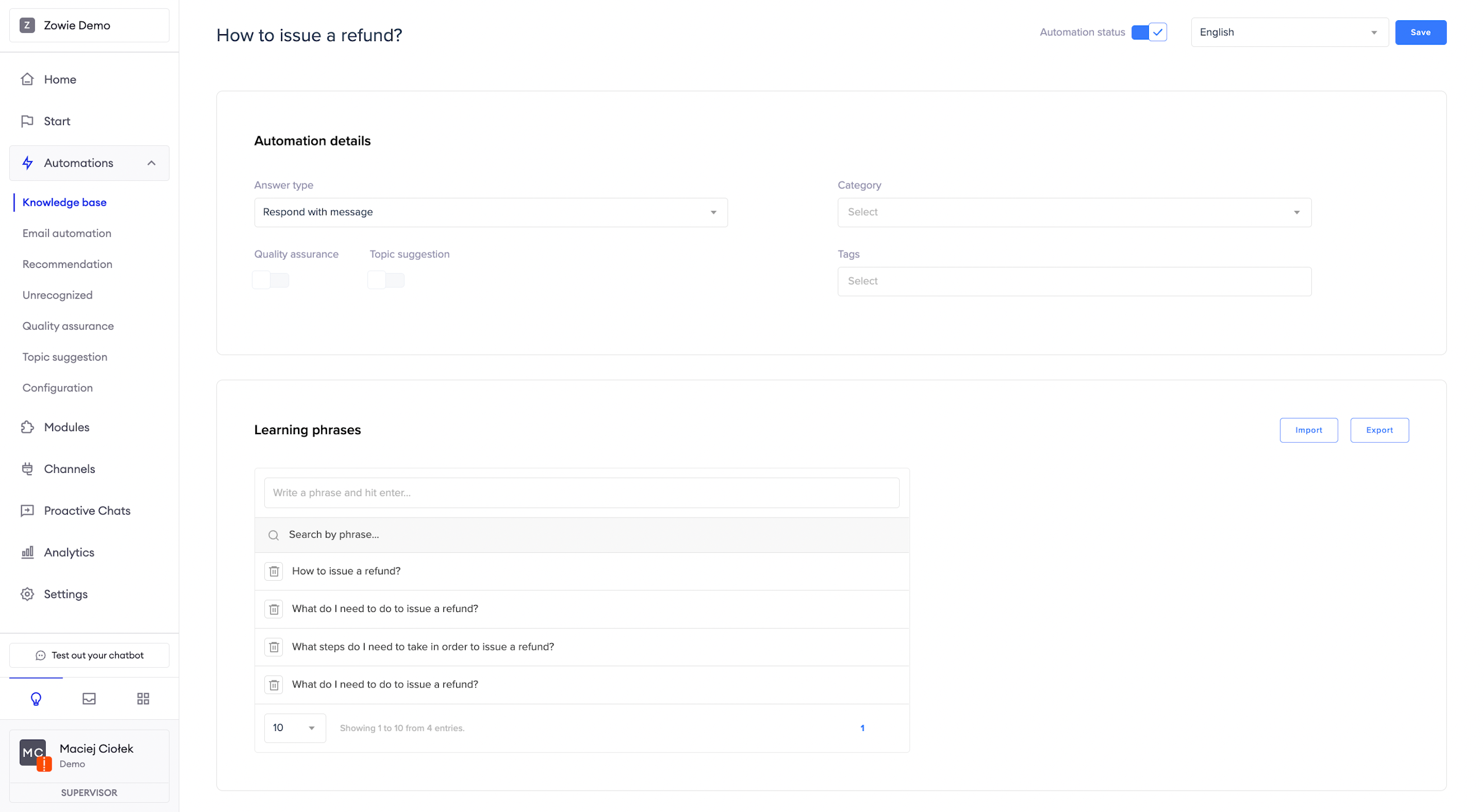
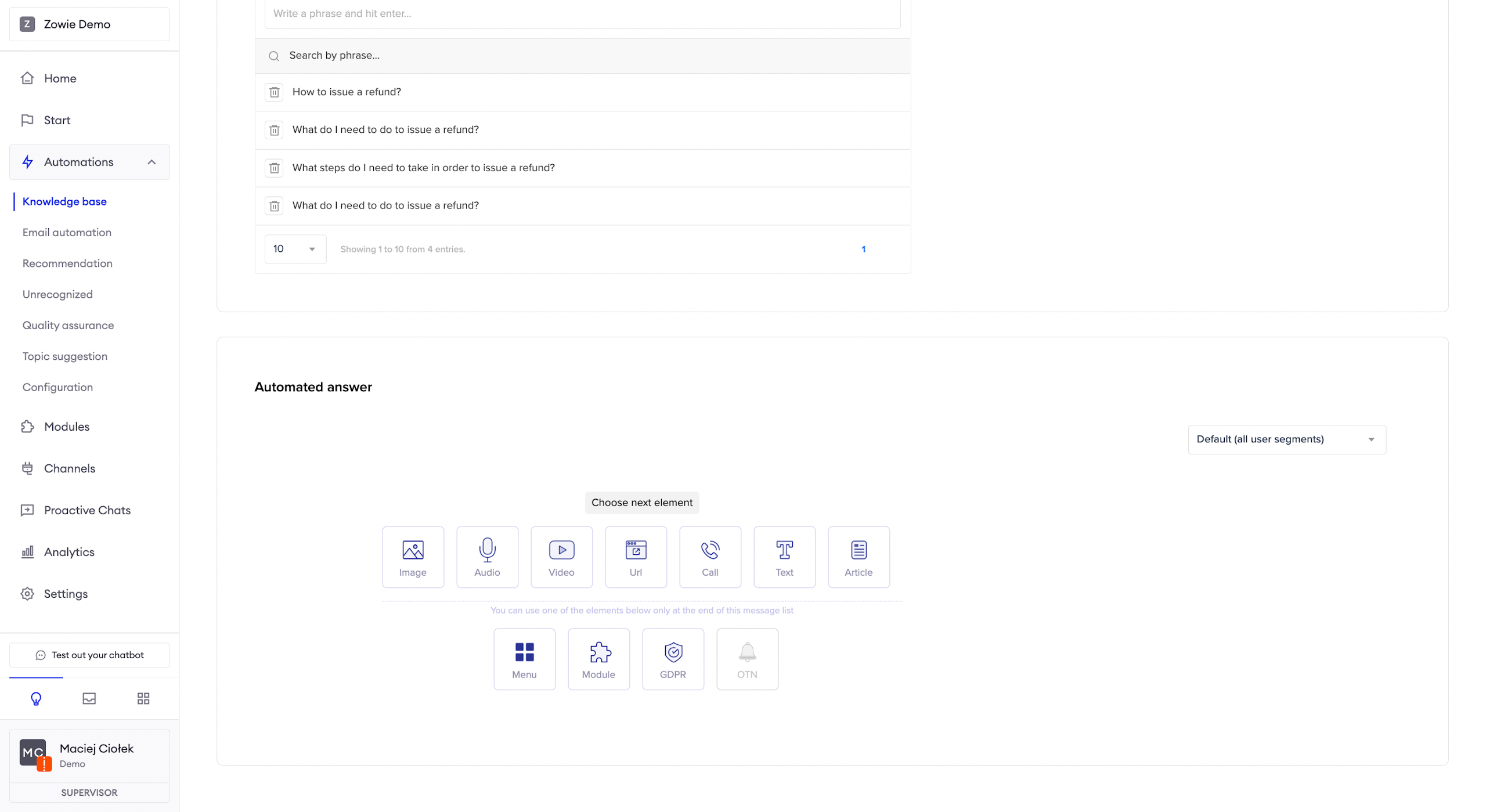
After you click the "Create" button, you will be redirected to the Knowledge Base to complete creating a new Automation.
As you can see, the title and learning phrases are already applied.
You can enable Quality Assurance and Topic Suggestions, assign Categories and Tags and configure the Automated answer.
Add phrases to an existing Automation
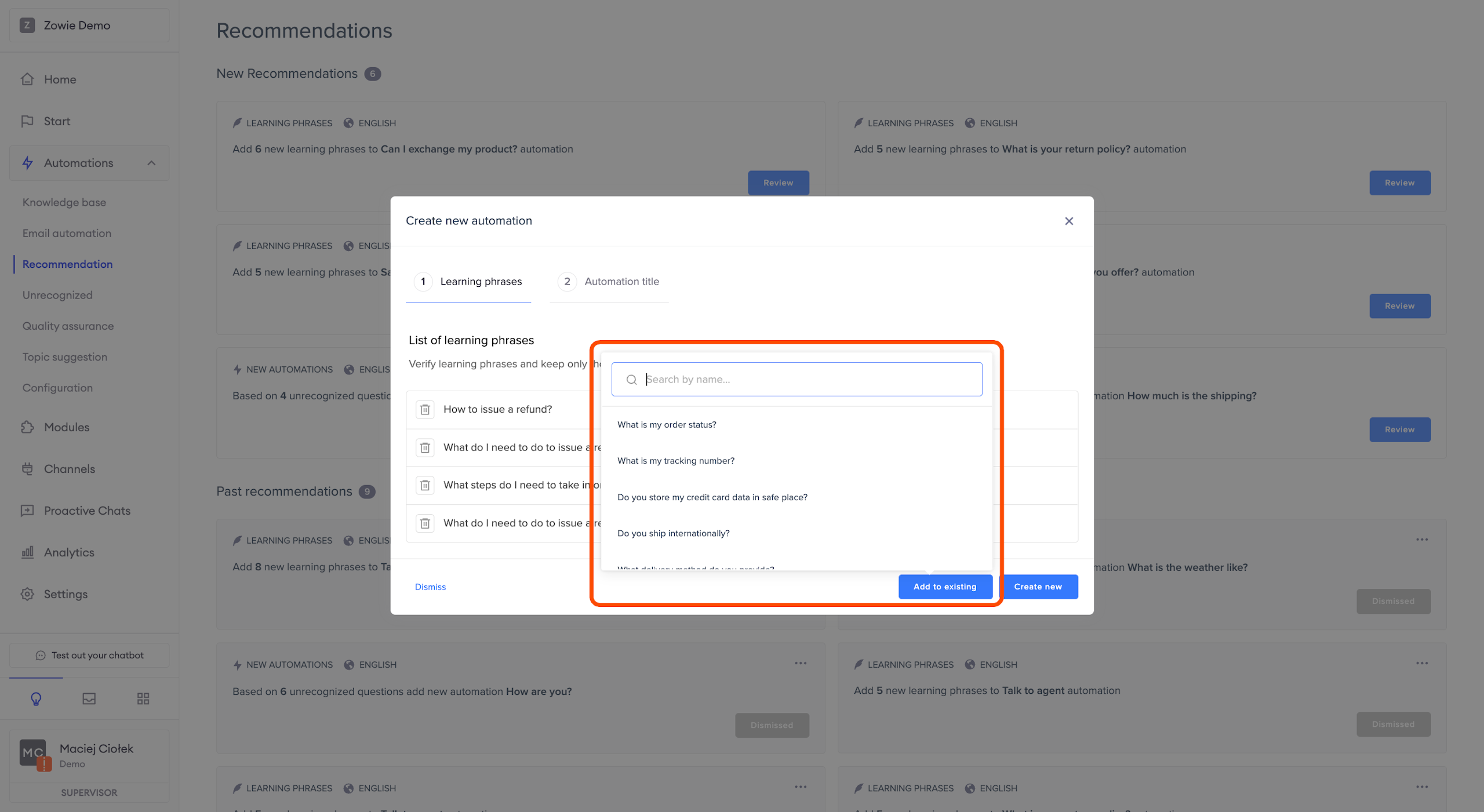
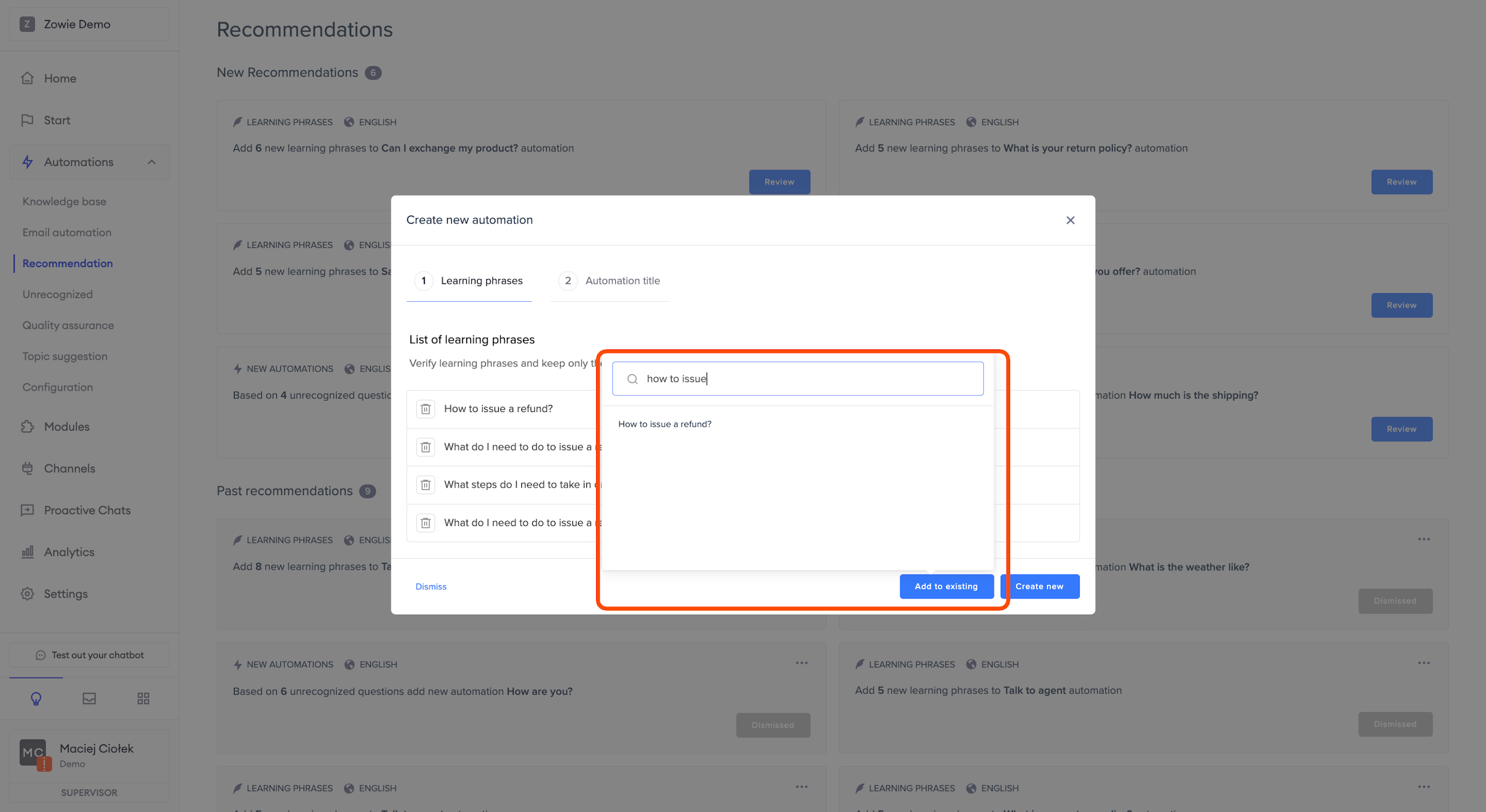
If the Recommendation suggests creating a new Automation, but you would rather use it to train an already existing Automation, click the "Add to existing" button, and choose the Automation from the list.
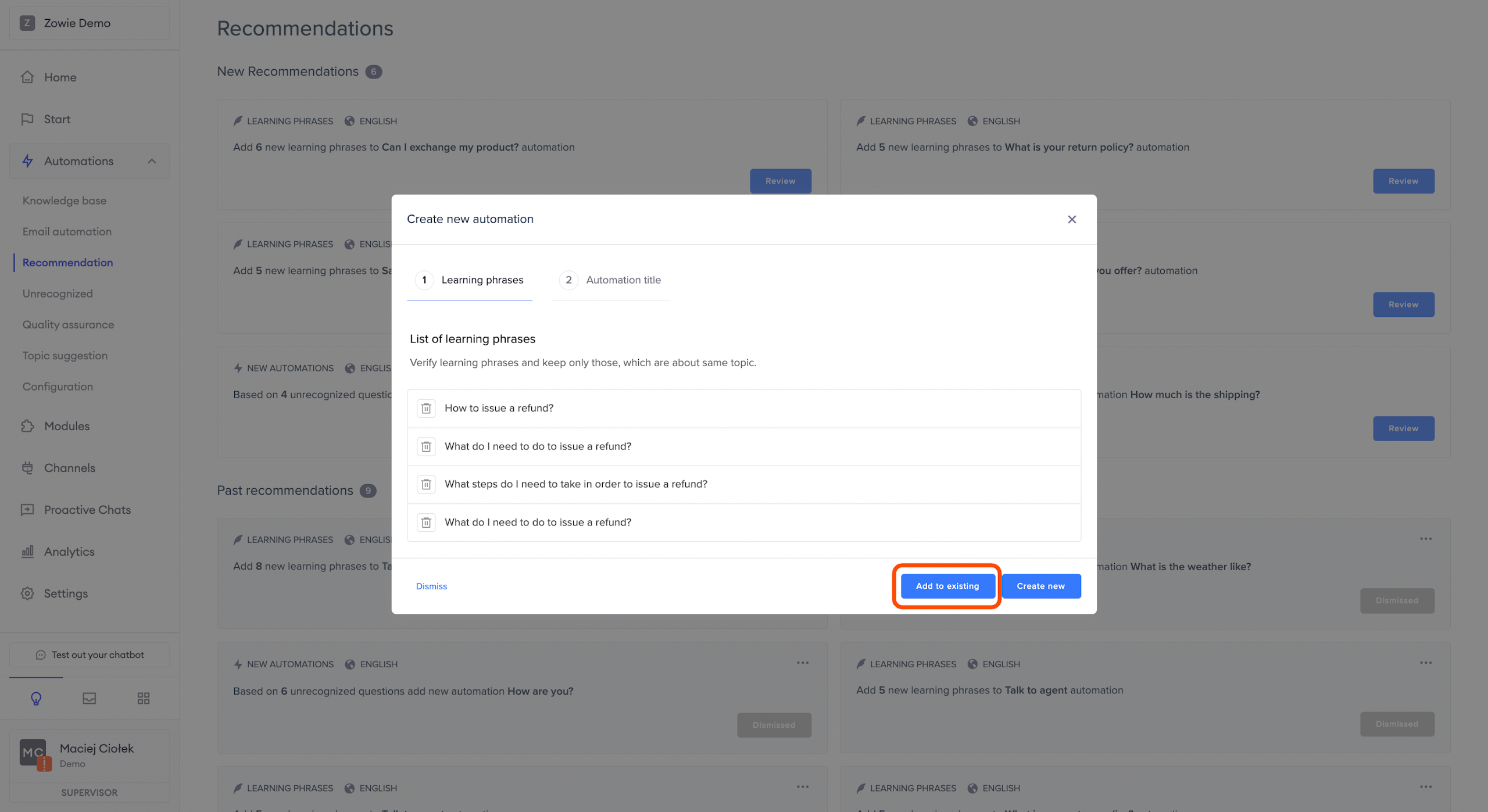
You can also search for it by typing a title of an existing Automation.
You will receive confirmation when phrases are successfully added.
Dismiss a Recommendation
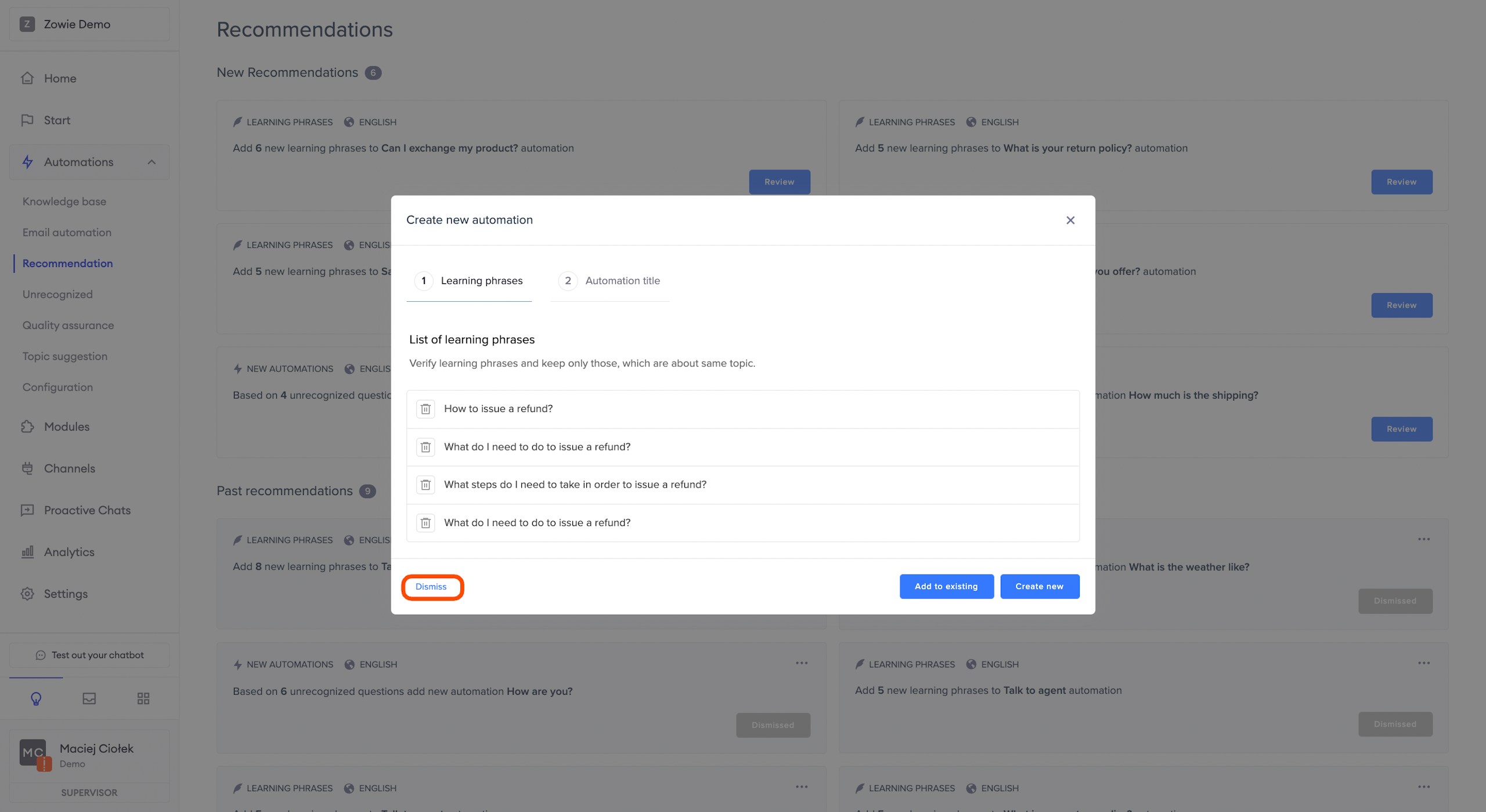
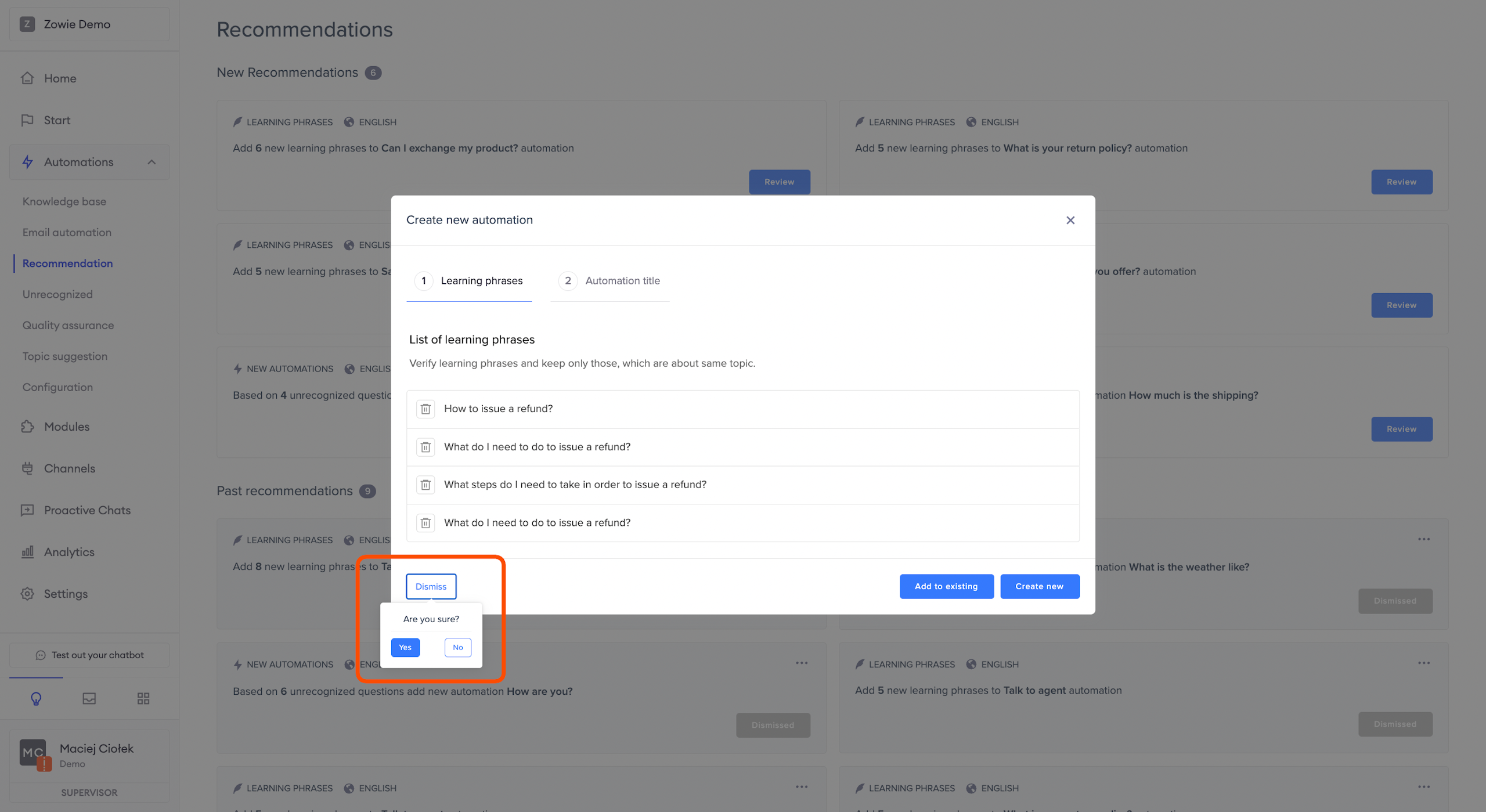
If you don't want to use suggested learning phrases to create a new Automation or train the existing one, click the "Dismiss" button and confirm your choice.
It will result in rejecting the entire Recommendation and moving it to the Past recommendations section at the bottom of the page with Dismissed status.
Updated over 1 year ago