
Email Delivery Failure
Sometimes when you send an email, it may fail to deliver, and this can be frustrating, especially when your customers are waiting for an important response. At Zowie, we understand that this can be a problem for our users, so we have come up with a solution that will help you deal with email delivery failures.
There are various reasons why an email might fail to deliver. It could be due to:
Errors that affect many tickets at once, such as wrong mailbox credentials or a problem with the connection between the email client and the sending server.
Errors that affect individual emails, such as the wrong email address for the recipient, too many attachments, or other problems.
If you’re experiencing problems with sending emails, check System-wide problems _or **_Individual problems** guides and follow the steps to solve the issue.
System-wide problems
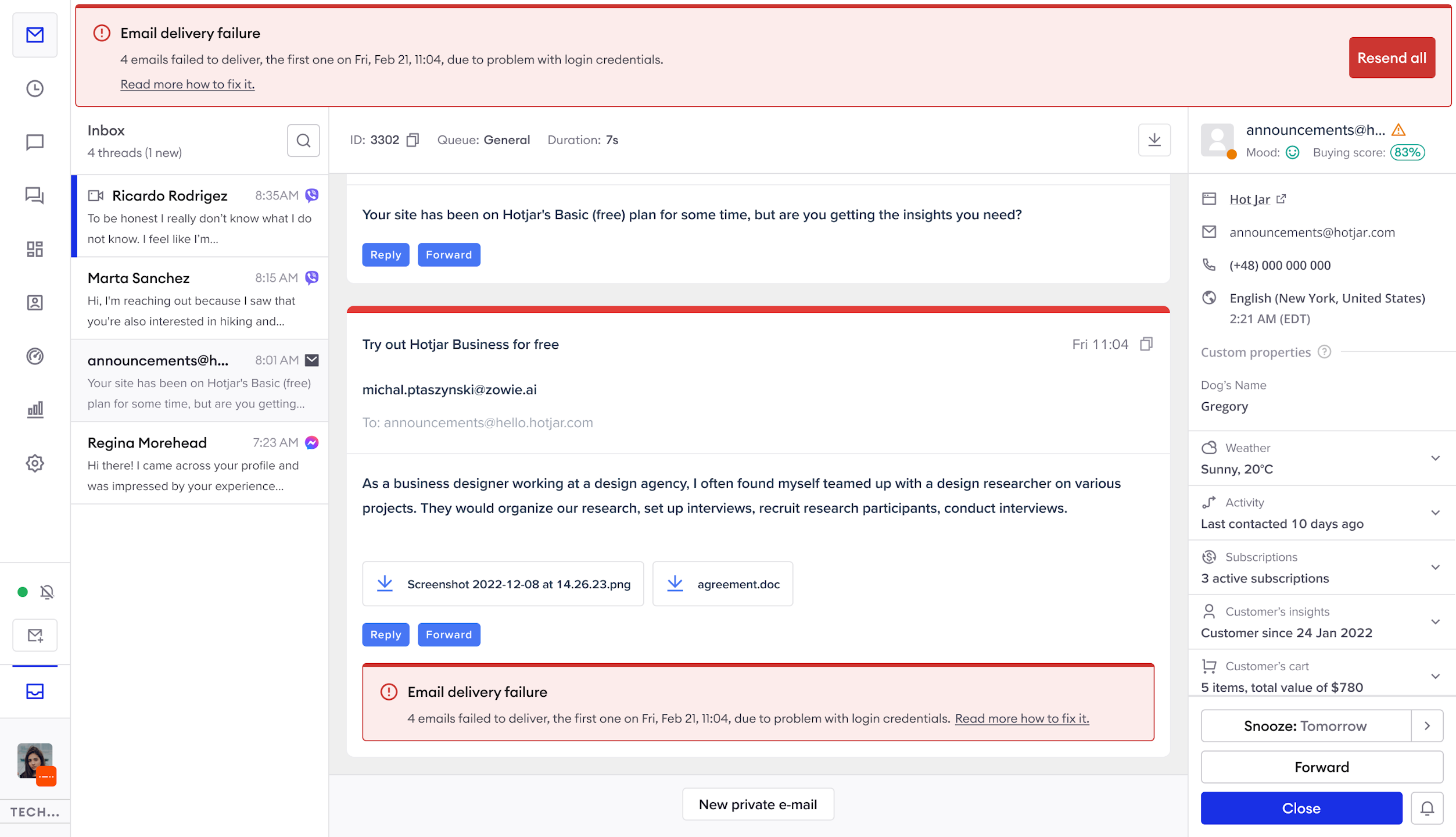
In case of system-wide errors, you will be shown a red banner that will appear on top of your inbox to inform you about the email delivery failure, its cause, and potential solutions. This way, you will know what the problem is and how to solve it.
If you’re experiencing system-wide problems with sending emails, try one of the steps from our guide on how to solve them.
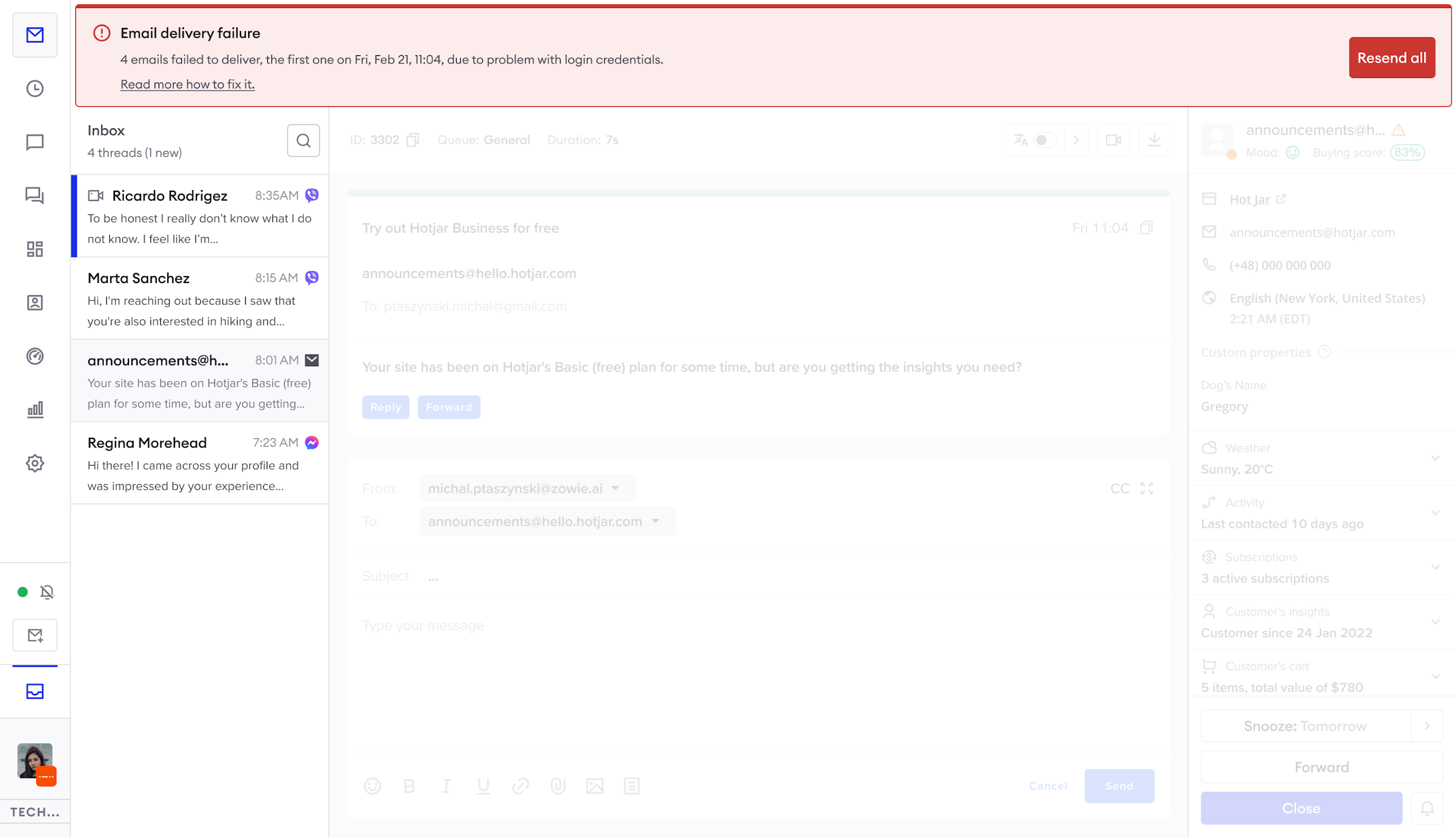
Check your login credentials
Your mailbox might get disconnected as a result of a changed password, username or setting. Follow the steps below to ensure proper connection:
- Head to Settings > Mailboxes and click on “Edit” next to the mailbox which reported delivery failure.
- Verify Login and Password and ensure that they match with Login and Password of your mailbox.
- If you’re using a Microsoft account click on “Disconnect” next to Microsoft settings, and then select “Sign in with Microsoft” again to reestablish the connection with the mailbox.
- Click “Save” in the upper right corner.
- Try sending emails again.
Check your Microsoft shared mailbox permissions
If you’re using a shared mailbox on Microsoft, the account you're connecting needs to have correct settings set in Microsoft 365 Admin Center. Follow the steps below to ensure proper connection:
- Log into your Microsoft 365 account.
- Head to Microsoft 365 Admin Center > Teams & Groups > Shared Mailboxes and select the mailbox that you want to connect to Zowie.
- Click on “Send as permissions” under "Manage mailbox permissions" section and check the boxes next to email addresses that should be given the “Send as” permissions and connected to Zowie.
- Head to Zowie app and to Setting > Mailboxes and click on “Edit” next to the mailbox which reported delivery failure.
- If you’re using a Microsoft account click on “Disconnect” next to Microsoft settings, and then select “Sign in with Microsoft” again to reestablish the connection with the mailbox.
- Click “Save” in the upper right corner.
- Try sending emails again.
Check your Microsoft Auth SMTP
If you’re connecting to a mailbox from Microsoft, the email account you're connecting to Zowie needs to have the correct "Email Apps" settings. Follow the steps below to ensure proper connection:
- Log into your Microsoft 365 account.
- Head to Microsoft 365 Admin Center > Users > Active Users and select the user that you want to connect to Zowie.
- Click on Mail > Manage Email Apps, select “Authenticated SMTP” and click “Save changes.”
- Head to Zowie app and to Setting > Mailboxes and click on “Edit” next to the mailbox which reported delivery failure.
- If you’re using a Microsoft account click on “Disconnect” next to Microsoft settings, and then select “Sign in with Microsoft” again to reestablish the connection with the mailbox.
- Click “Save” in the upper right corner.
- Try sending emails again.
Gmail sending limits
Google sets a limit on the number of emails you can send in a set time. If you’re seeing an email delivery failure due to Gmail sending limits it means you have crossed that limit.
There is no need to change or update any settings – simply try sending emails again at a later time.
Connection timeout
If you experienced delivery failure due to connection timeout contact your server provider and ensure proper functioning of the server.
If the problem persists after contacting your server provider please contact our Support.
Individual problems
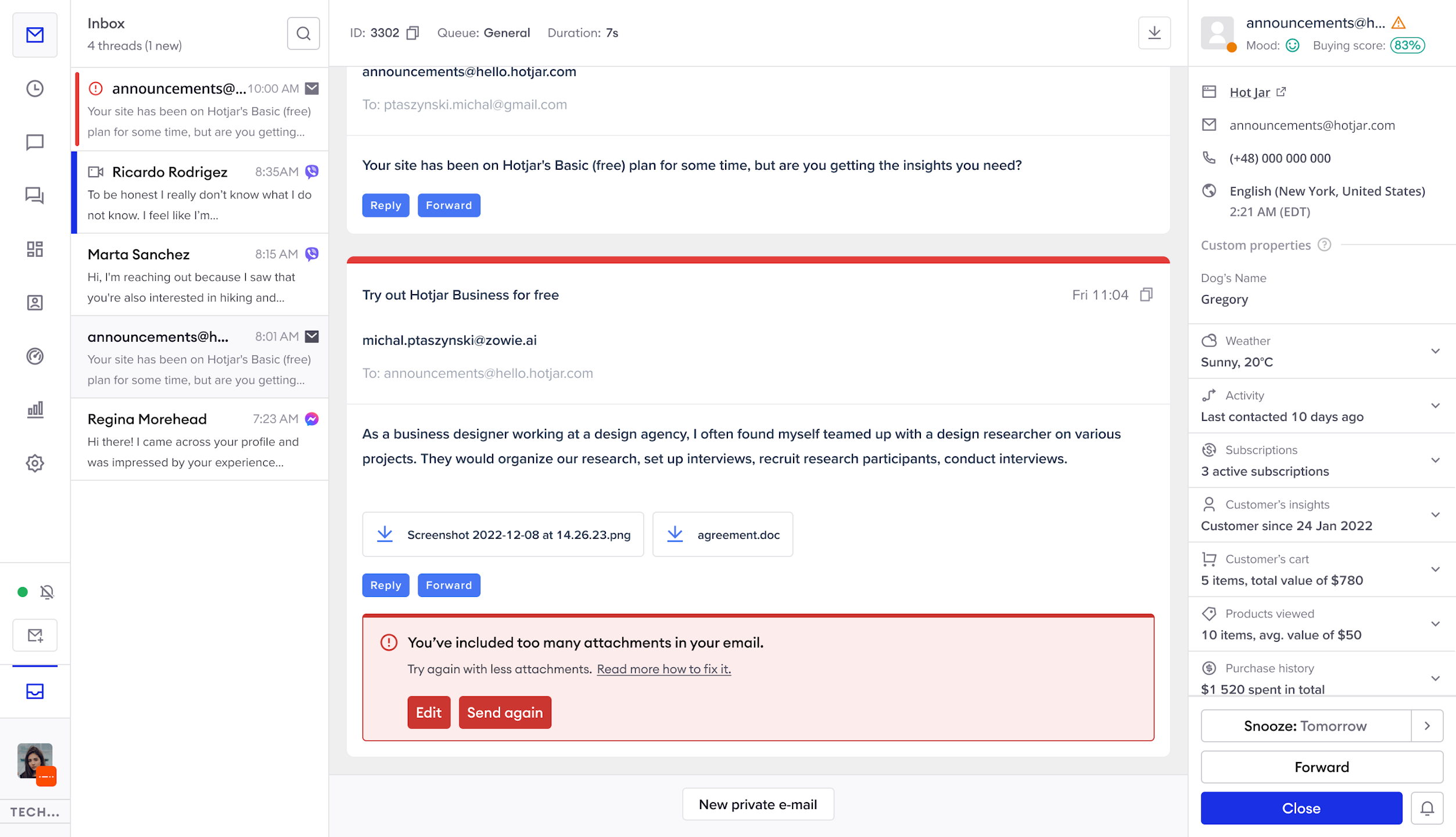
In case of individual-level errors, we will return the ticket to your inbox with a notification informing you about the reasons for the error and possible solutions. This way, you will know what the problem is and how to solve it.
If you’re experiencing individual problems with sending emails, try one of the steps from our guide on how to solve them.
Message too large
If your email failed to deliver due to exceeded size of attachments please try again with fewer / lighter attachments.
Invalid recipient
Some of the email addresses of your recipients don't exist. Verify the email addresses and try sending the email again.
If you tried sending the email to many recipients the email was delivered to all recipients whose email addresses are correct. At the moment Zowie does not provide the information on which of the email addresses are correct.
Updated over 1 year ago