
Dixa
Zowie offers integration with Dixa that enables your AI Agent to automatically create support tickets.
About
Integration with Dixa allows the Zowie AI Agent to create support tickets directly in Dixa as part of automated flows. When a ticket is created, Zowie opens a new Dixa conversation through a configured email flow, with the customer automatically set as the requester.
Use cases
- Zowie AI Agent can automatically create support tickets in Dixa during a conversation.
Prerequisites
Customers must meet the following requirements in order to set up this integration:
- Dixa is used.
- Admin access to Dixa is available.
- At least one email contact endpoint is configured in Dixa.
Configuration
-
Generate a Dixa API key:
- In Dixa, go to Settings → Integrations → API keys.
- Click Generate new API key, provide a name (e.g.
Zowie), and confirm. - Copy the generated key — it will not be shown again.
-
In Zowie, go to Workspace → Integrations → Dixa.
-
Click Connect.
-
Fill in the connection form:
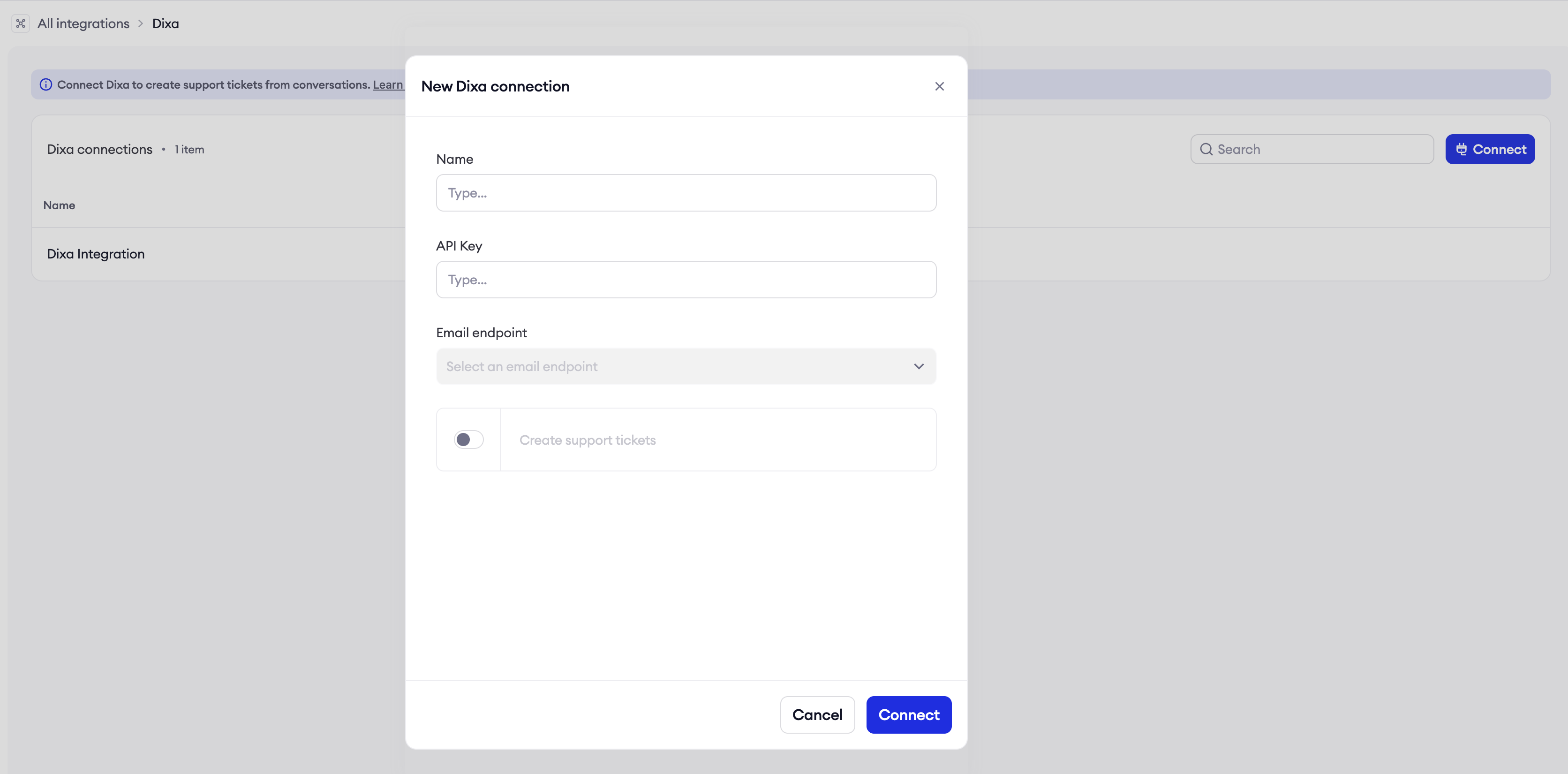
- Name — a label for this connection (e.g.
Customer Care). - API Key — the key generated in step 1. Once a valid key is entered, Zowie will automatically fetch the available email endpoints from your Dixa account.
- Email endpoint — the Dixa email flow through which tickets will be created. Select one from the dropdown.
- Create support tickets — enable this to allow the Zowie AI Agent to automatically create tickets in Dixa during a conversation, without requiring a human agent to step in.
- Name — a label for this connection (e.g.
-
Click Connect to save.
That's it! Integration is set.
You can add multiple Dixa connections — for example, one per support team or region. Each connection uses its own email endpoint.
Setting up ticket creation in AI Agent
Once the integration is connected, you can enable your AI Agent to create Dixa tickets in just a few clicks using the Flow Gallery.
- In Zowie, go to Automate → Flows.
- Click Flow Gallery in the top right corner.
- Find the Create a Ticket (to external platform) template and click Start Setup.
- Provide the configuration parameters:
- Ticket Subject — the subject line for the support ticket.
- Integration ID — the ID of your Dixa connection. You can copy it from Workspace → Integrations → Dixa.
- Click Import flow — your AI Agent is ready to create Dixa tickets.
Features
| Feature | Description |
|---|---|
| Create support tickets in Dixa | Zowie opens a new Dixa conversation via the configured email flow, with the customer set as the requester and the conversation context included. |
Updated 7 months ago