
Broadcast
What is the Broadcast Module?
The Broadcast Module allows you to send messages to subscribed users. You can do it instantly or schedule the message for an exact time.
Why use Broadcast?
The Broadcast Module allows sending a message to an audience of your choice that may be interested in that particular subject, for example, a new fragrance in your offer. The customer will receive a notification email informing them that they have a new message waiting, given that they have left you their email address in the Pre Chat Survey or a Survey module.
How to access Broadcast?
To access the Broadcast Module, navigate to Modules > Broadcast from the navigation bar.
Important:Sending out messages on social media platforms needs to be aligned with their policy.
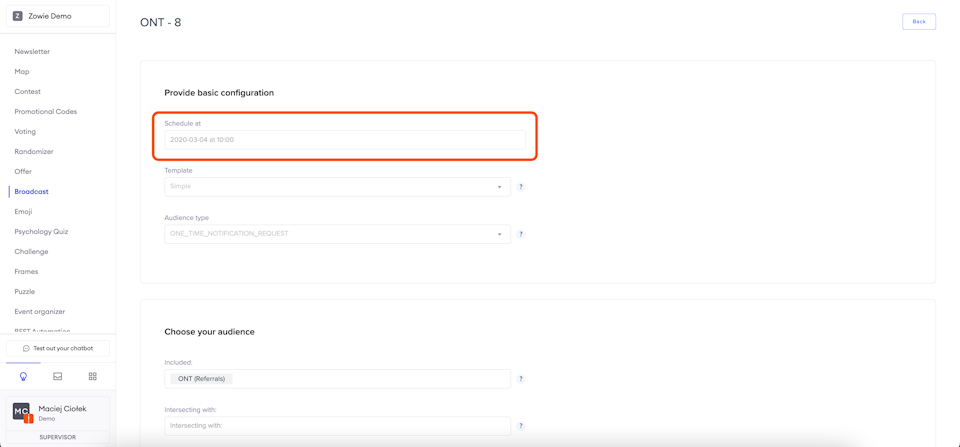
Broadcast schedule
Select the time at which the broadcast should be sent to the customers.
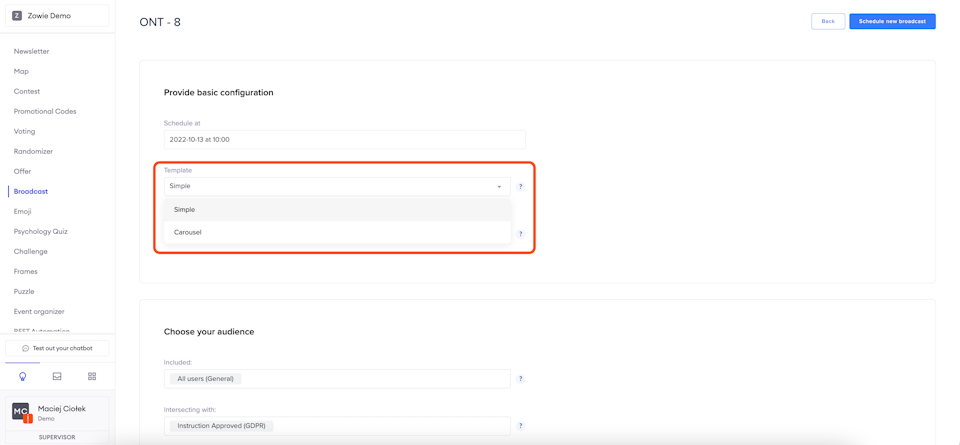
Template
Choose message type you want to sent to your subscribers. It can be displayed as simple message or carousel.
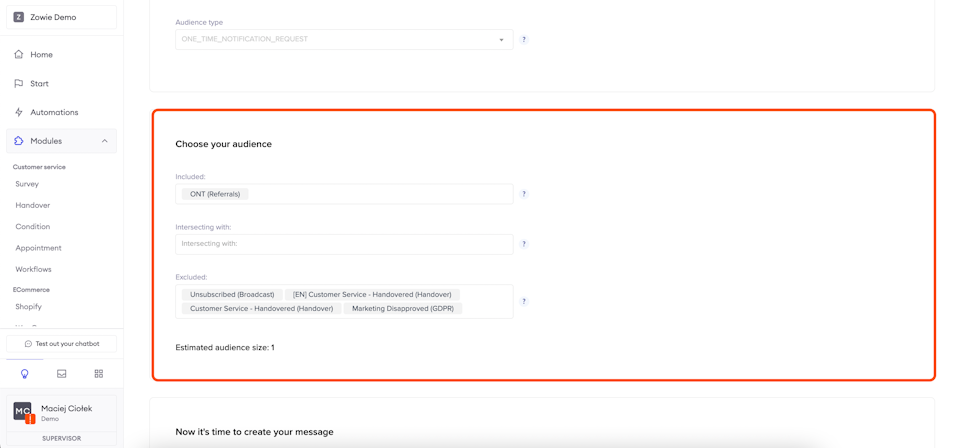
Audience
The second step in configuring the broadcast is selecting the right audience. You can browse through all possible groups by clicking on the Included field.
Additionally, in the Intersecting with field, you can select groups with which the Included groups should be matched against, and only the users found in groups from both fields will receive the broadcast.
You can also exclude certain groups from the broadcast – just select the applicable groups in the Excluded.
Specific groups are created based on actions taken by your chatbot users (e.g. you can choose a group of users who approved GDPR instructions.)
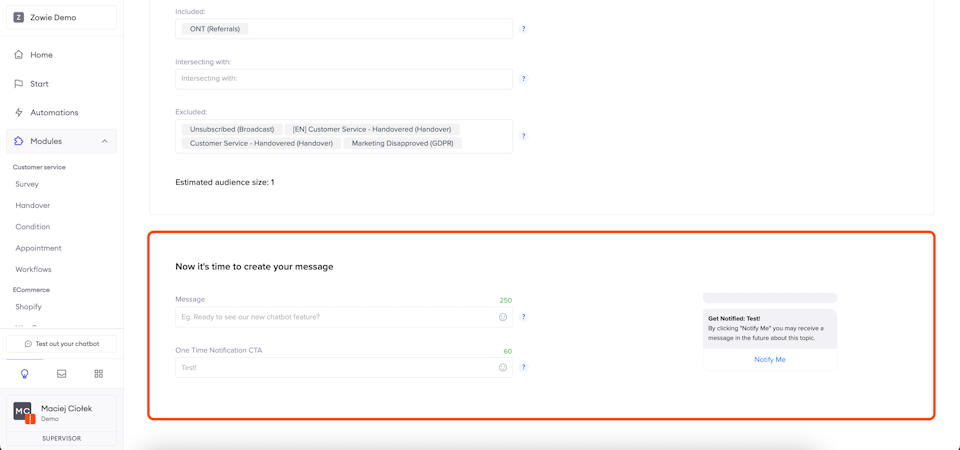
Message configuration
Enter the content in the Message field and the button caption in the One time notification CTA field. Finally, select the module or automation to which the customer will be transferred after clicking the button.
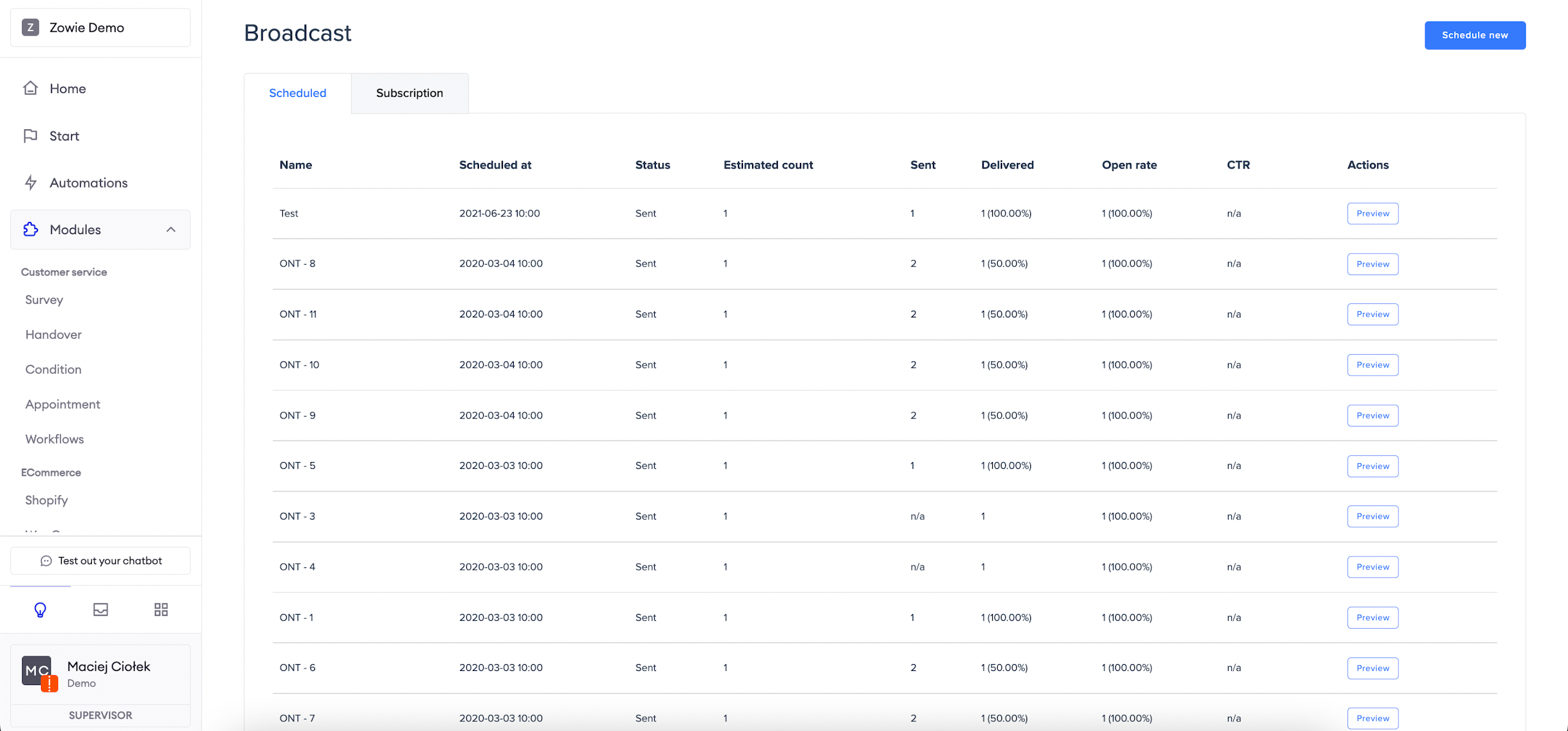
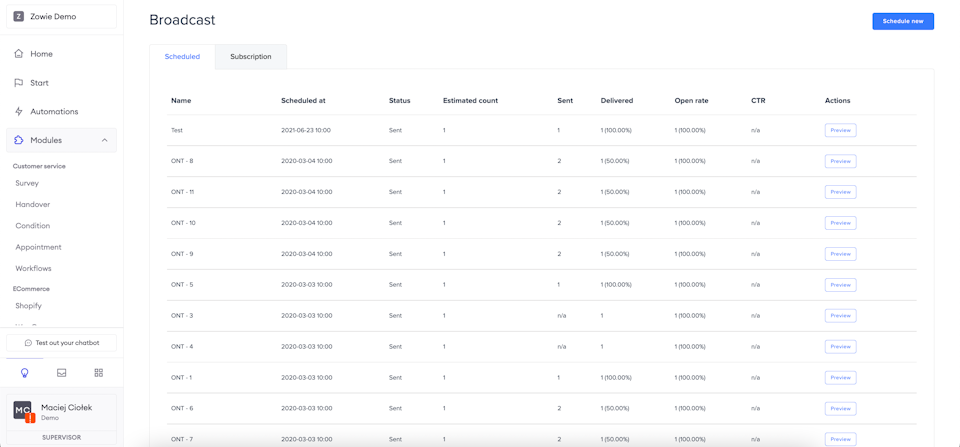
Broadcast list
The broadcast list allows you to see how your broadcast was received. You can see several metrics here:
- when the broadcast was sent (Scheduled at);
- what the status of the broadcast is (Status);
- what is the estimated number of customers to which the broadcast will be delivered (Estimated count);
- how many broadcasts have been sent already (Sent);
- how many broadcasts have been delivered already (Delivered);
- how many broadcasts have been opened already (Open rate);
- the number of clicks your Broadcast received divided by the number of times it was shown (CTR).
Subscription management
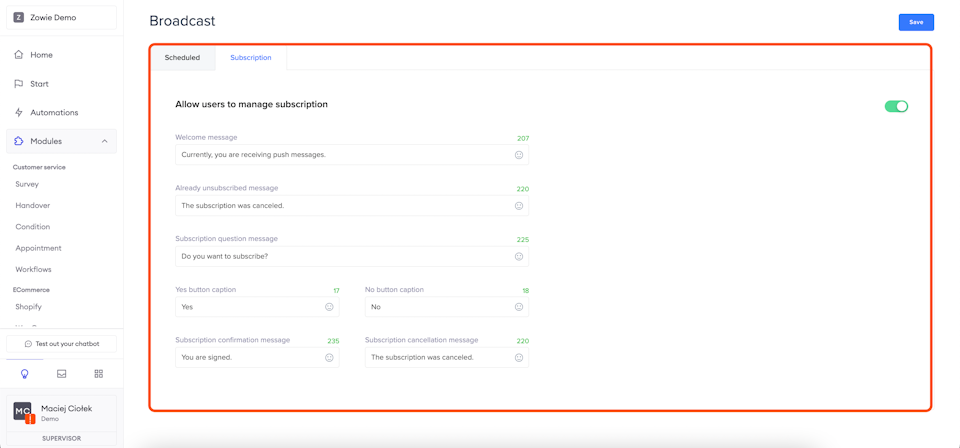
Allow your customers to decide whether they want to receive broadcasts from you or not. To do that, go to the Subscription tab and fill in the fields appropriately.
The Welcome message field is the first message sent to the customer when they access the subscription menu and have not resigned from their subscription.
The Already unsubscribed message field is the first message sent to the customer when they access the subscription menu and have already resigned from their subscription.
The Subscription question message is sent after the first message, regardless of whether it was the Welcome message or the Already unsubscribed message.
Yes and No button captions are used to save the user's decision, and Subscription confirmation message and Subscription cancellation message to confirm it.
One-time notification
AttentionThis article section is related only to bots running on the Facebook Messenger platform.
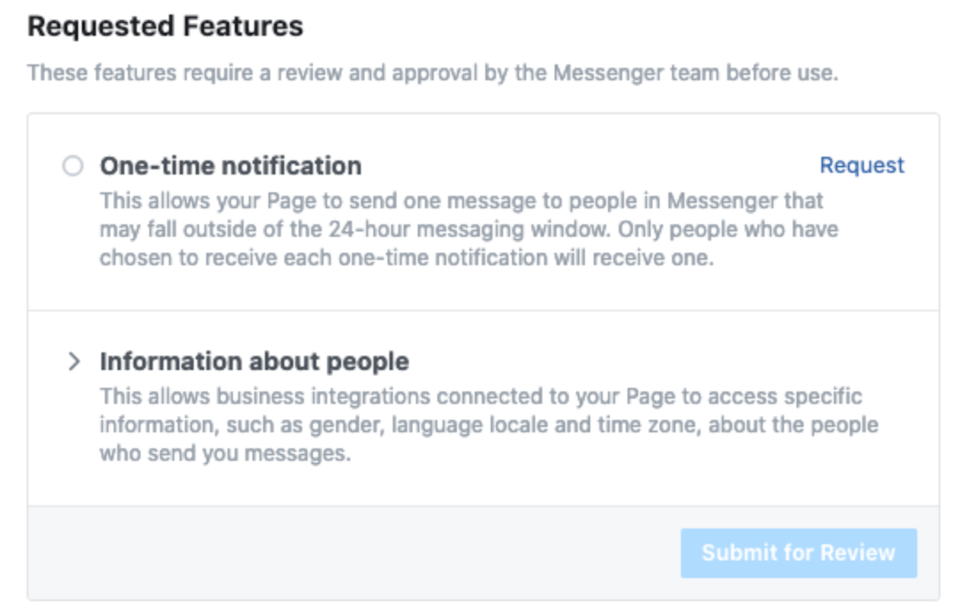
To be able to gather permissions for sending One-time Notification messages, you need to configure your Facebook Page to support the One-time Notification API. To request permission to use the API, you should go to your Page's Settings > Advanced Messaging > Requested features and click the "Request" button in the One-time Notification section. After doing so you will be able to use One-time Notifications.
Updated over 1 year ago