
Queues
What are Queues?
Queues allow you to create discrete departments or teams dedicated to specific issues. By default, every new Zowie workspace comes with one Queue preconfigured – the General Queue and it's to where all new threads are routed.
Why use Queues?
Queues are an important part of setting up an efficient and scalable configuration of Zowie Inbox. They allow you to establish different groups for different types of tickets (based on channel, topic, etc.), organize your agents around the different queues based on priority, and report on how agents are performing across each.
How to access Queues?
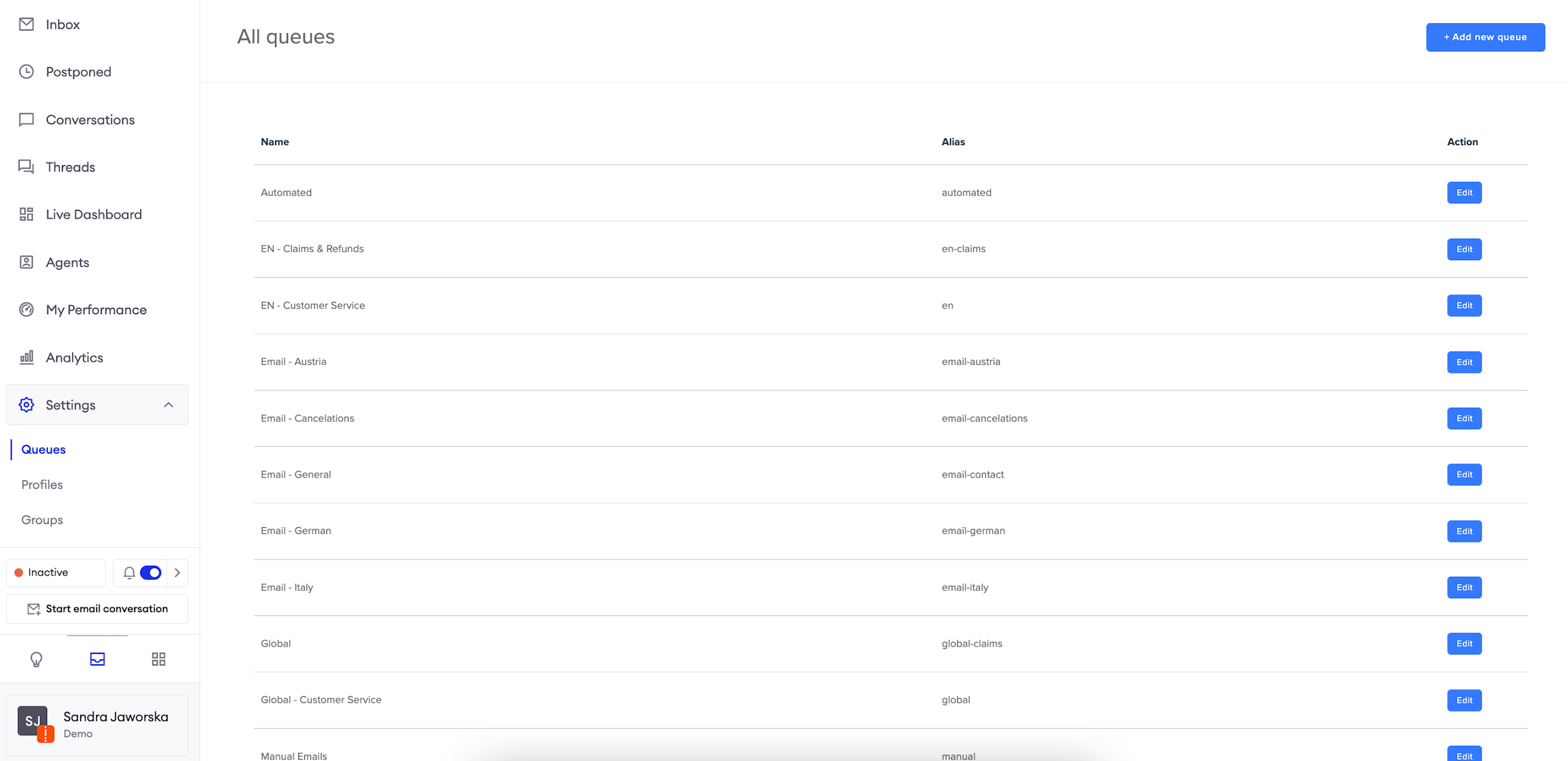
In order to find queues, please go to Inbox > Settings > Queues.
General
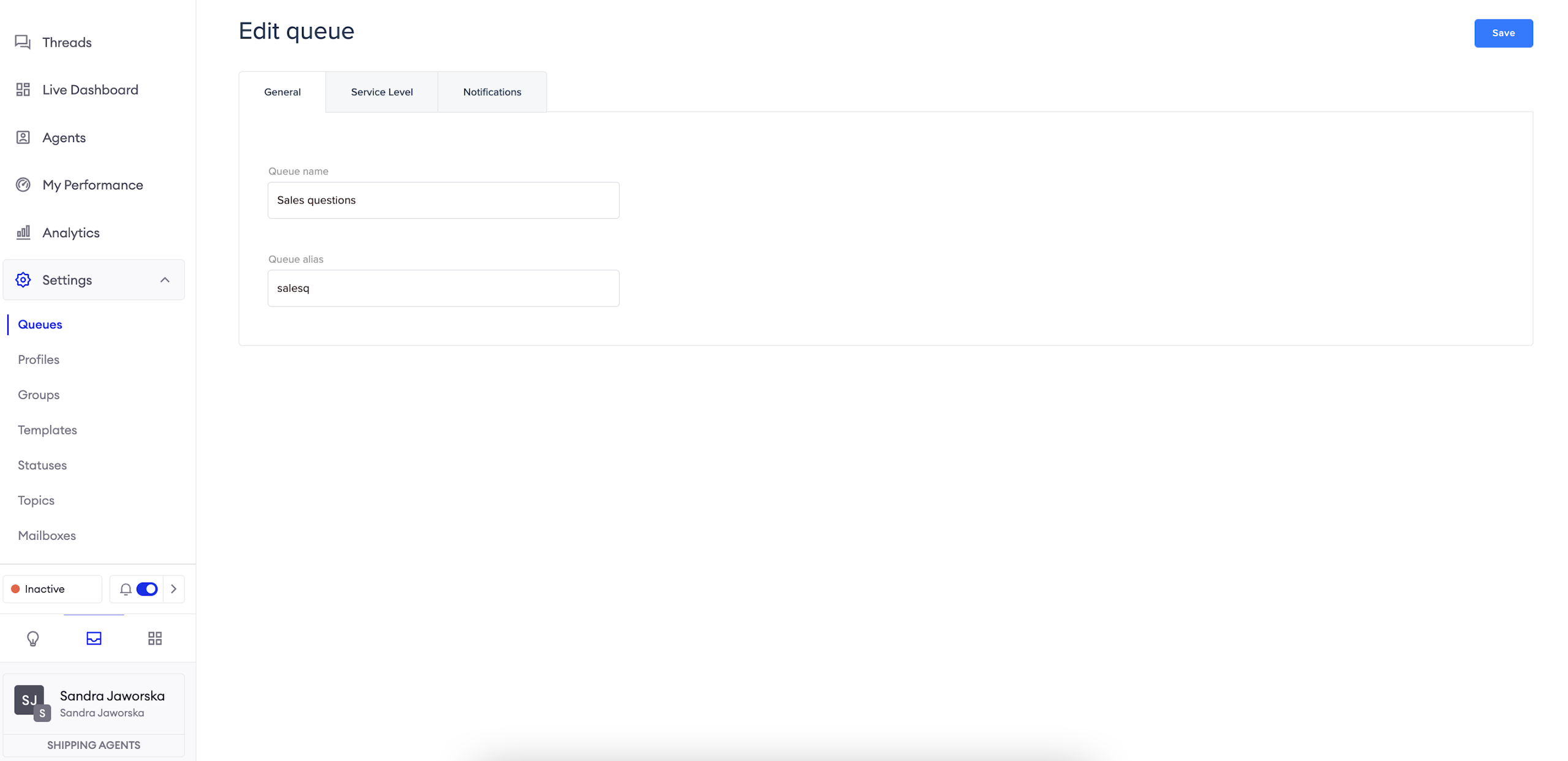
The General configuration allows you to set the name of the queue, as well as it's alias (ID), which can be used to pass threads to it through the Handover module.
AttentionRemember that the alias and the queue name in the Handover module have to be exactly the same and are case sensitive.
Service level
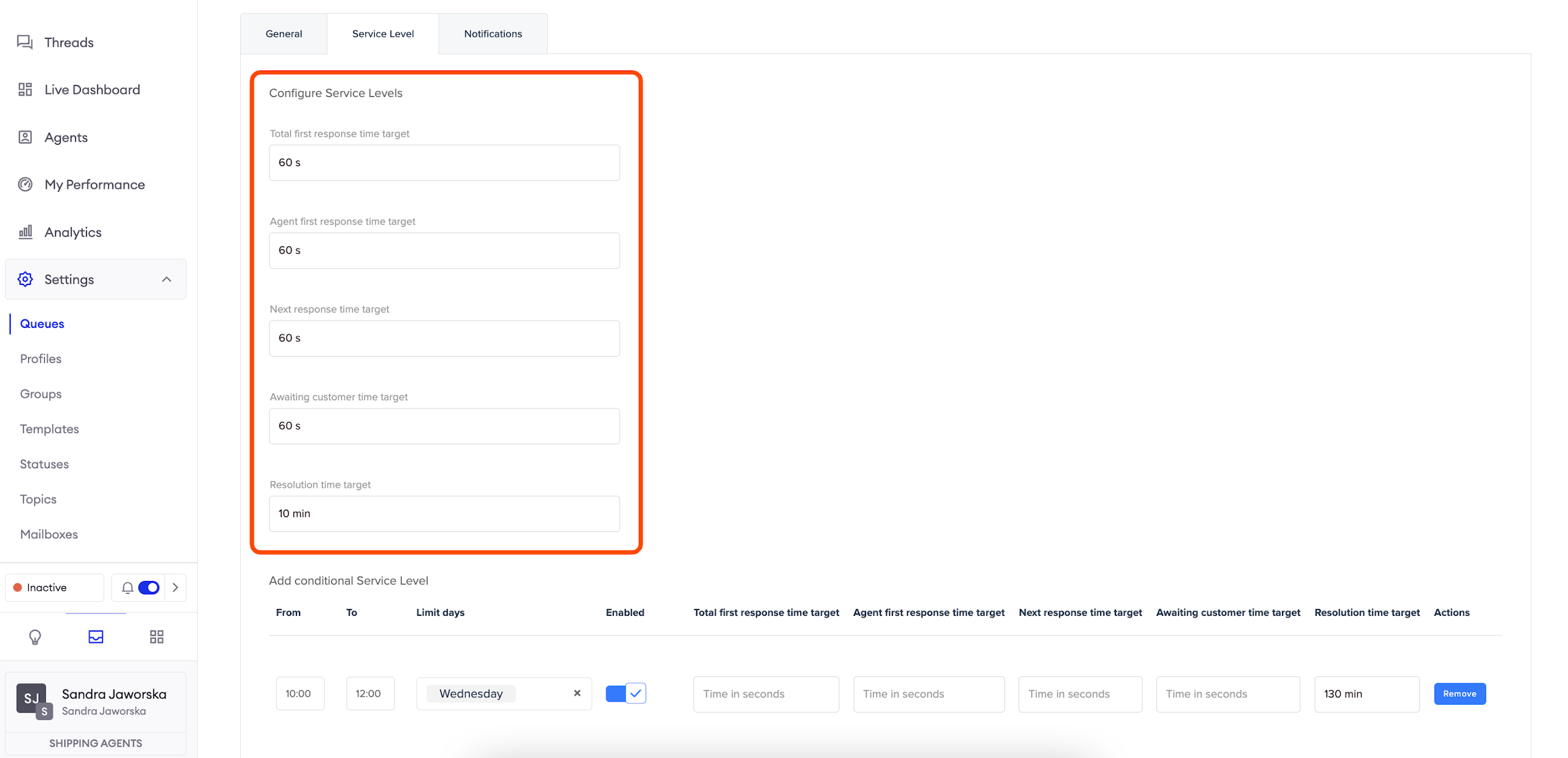
You can configure the response time to which you oblige your customer service agents as part of the Service Level Agreement.
_Total first response time: _you can choose in how many seconds all agents contributing to a conversation should provide the first response to the user. If they exceed the number, we will find these statistics further in the Analytics;
Agent first response time: you can define how long it should take a single agent to provide the customer with an answer;
Next response time target: you can choose how long at the maximum the users should wait for the agent's next response (a message sent after the user's message);
_Awaiting customer time: _you can choose how long Agents should wait for user's message;
_Resolution ti_me: you can choose what should be the maximum time of resolving a thread by your agents.
Conditional Service Level
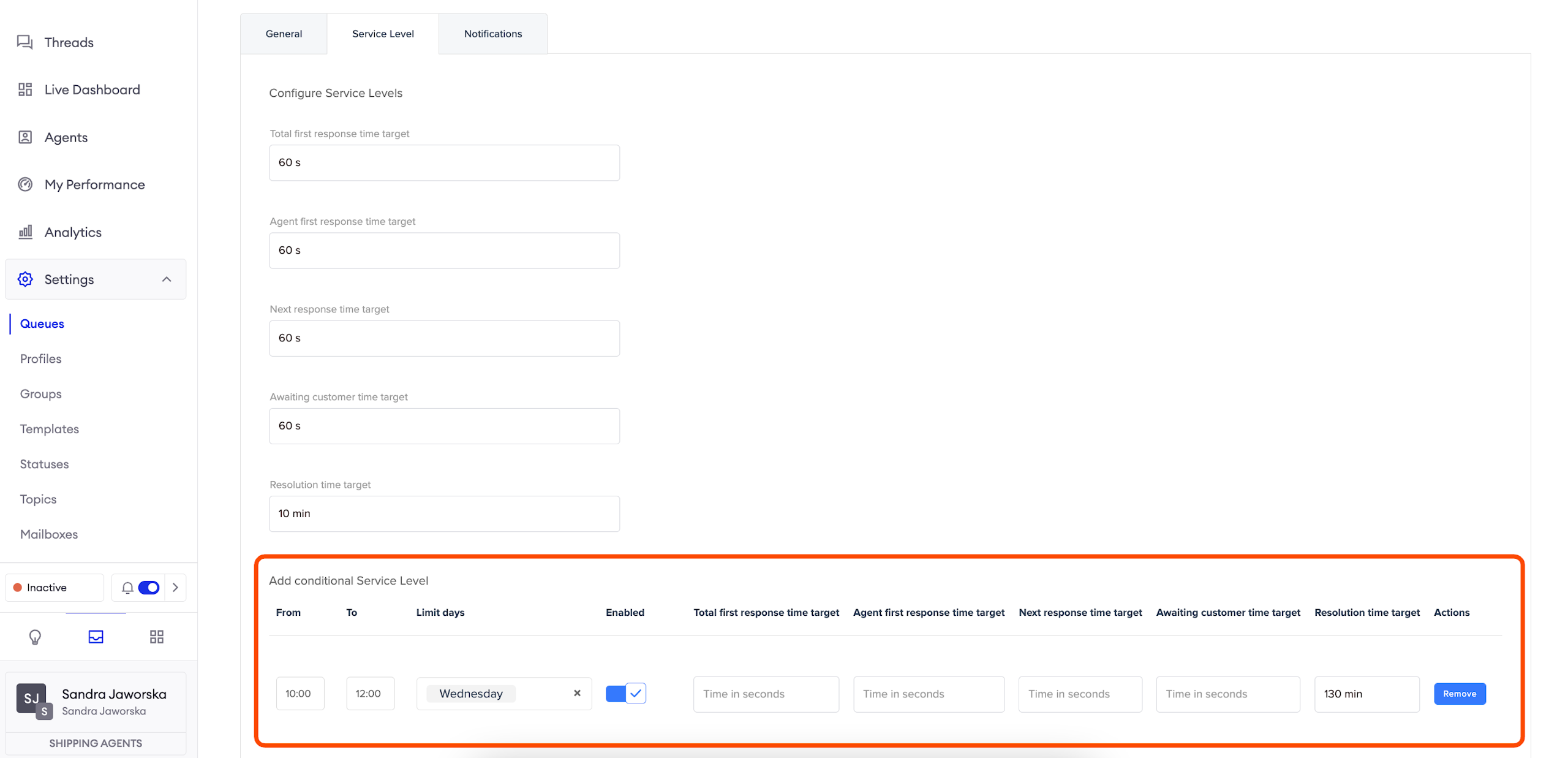
This section allows you to adjust the service level of different metrics according to your need.
Firstly, you need to select when the condition should take place (From, To, Limit days fields). Then decide what should happen and click "Save".
In the example presented on the screenshot, we decided to add 2 hours of the resolution time between 10:00 and 12:00 on Wednesdays because that's when our Agents have regular trainings.
Notifications
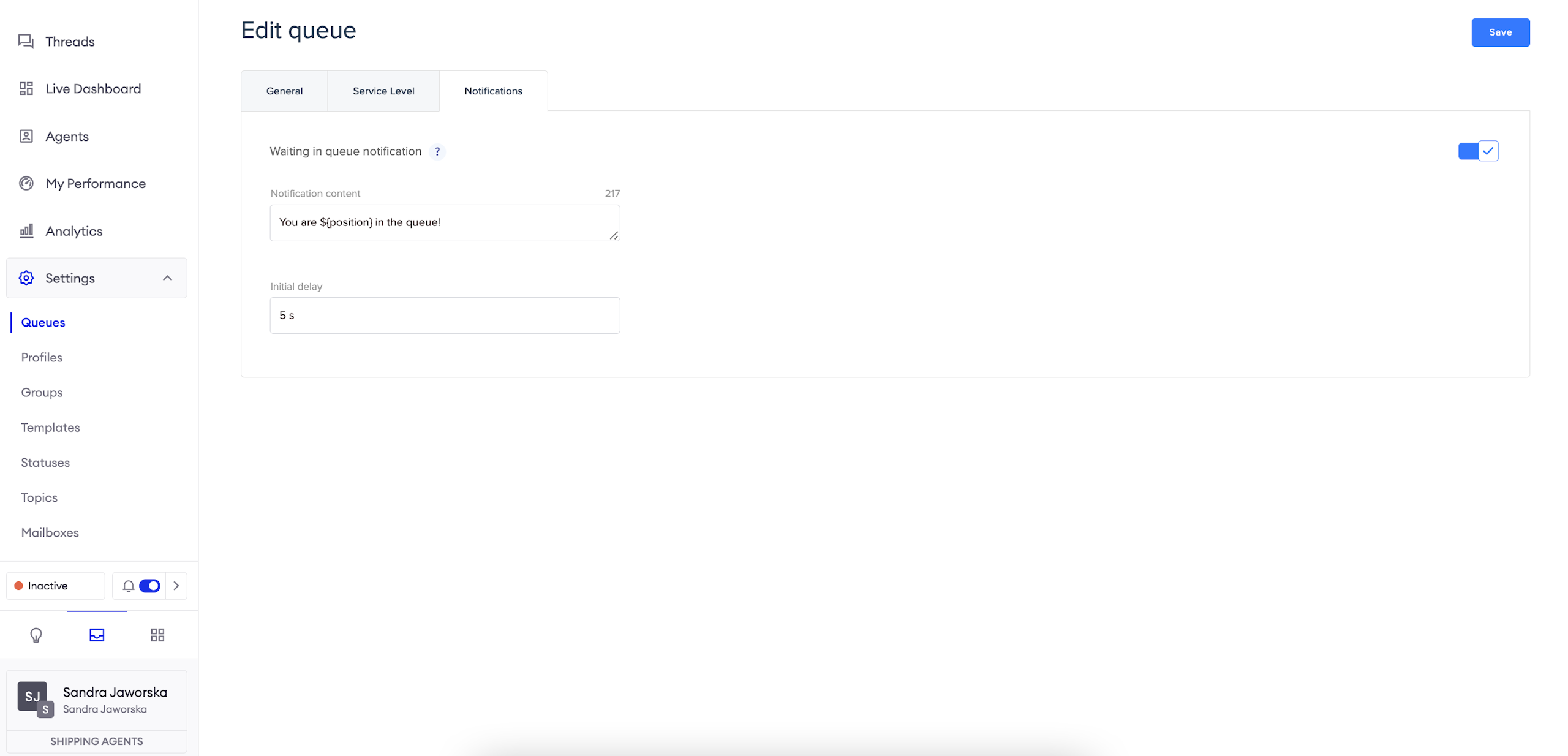
Notifications feature allows you to notify your users of their current position in the queue.
In order to configure it, please click the grey button on the right side and type the message you want to show to your users.
Remember to use ${position} if you want the chatbot to automatically show the user's position in the Queue!
If you want to show this message to the user after some delay, insert an appropriate value in the Initial delay section.
Updated over 1 year ago