
Conversations section
What is the Conversations section?
A Conversation contains both automated interactions (a user and the chatbot) and chats with your agents. This panel gathers all those interactions into one place for your convenience.
Why use the Conversations section?
From this view in Zowie Inbox, you are able to filter to find conversations based on a range of criteria, review conversations that took place with your chatbot to gain further context, and act on any conversation that needs further resolution.
How to access the Conversations section?
To access the Conversations section, while in the Zowie Inbox interface, select Conversations from the main navigation panel.
AttentionIf you have trouble finding anything, make sure you have correct permissions and belong to the Profile with access.
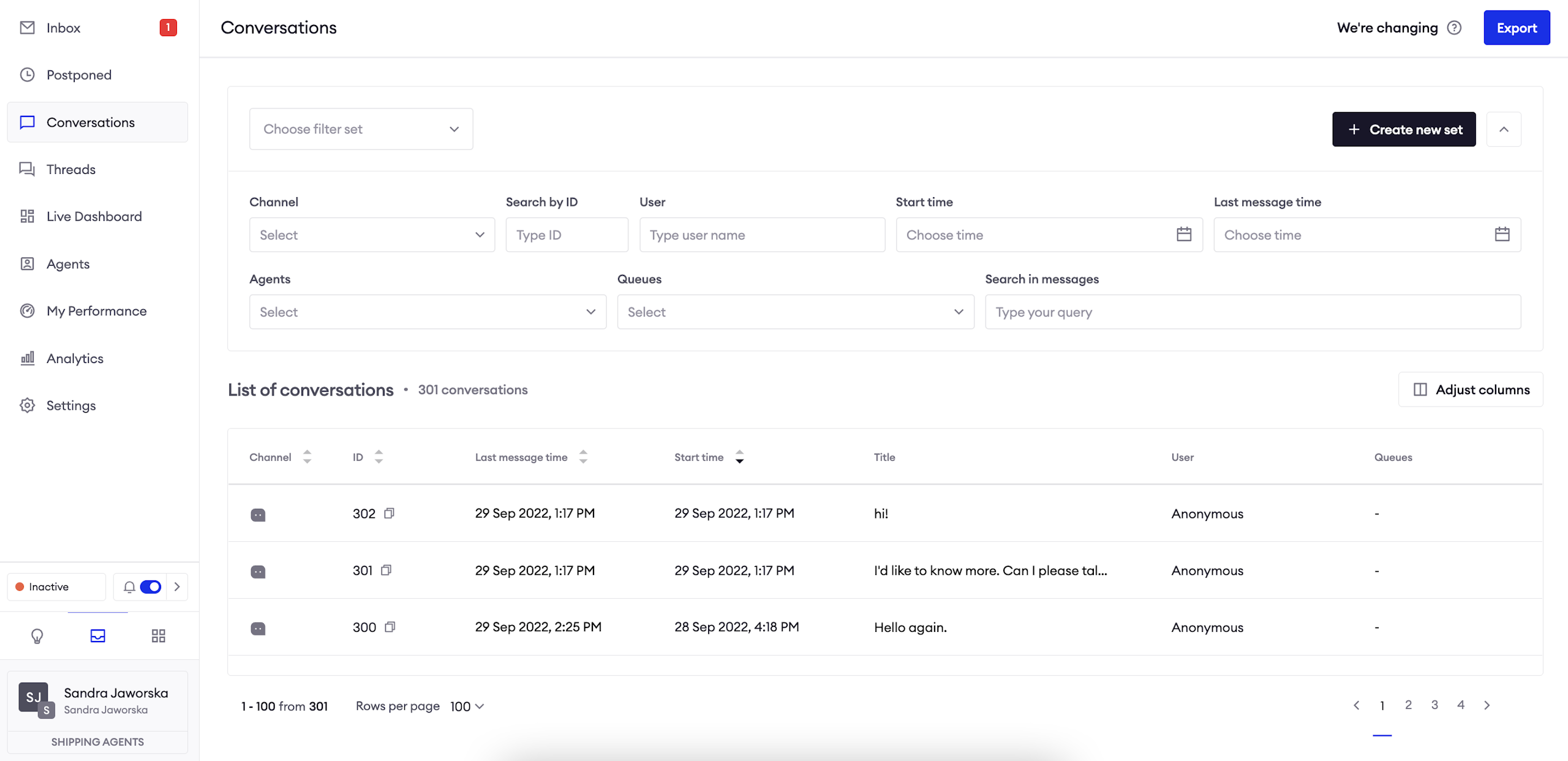
View the list of Conversations
The list of conversations displays all conversations that match the current filter. The page allows you to adjust how many rows per page you want to see.
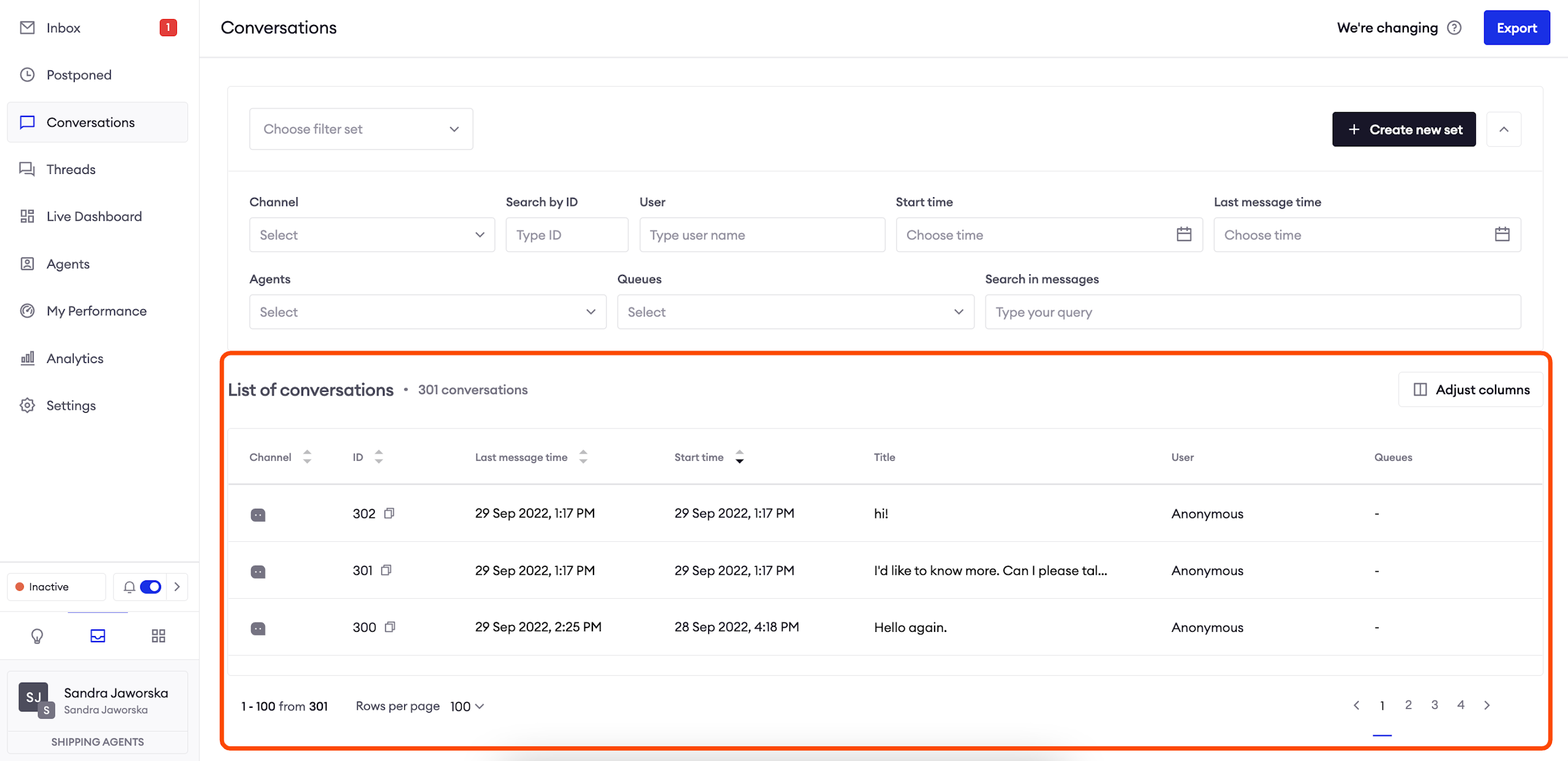
Export the list of Conversations
In order to export the list of conversations, click on the "Export" button in the top right corner.
AttentionThe exported file has .csv format.
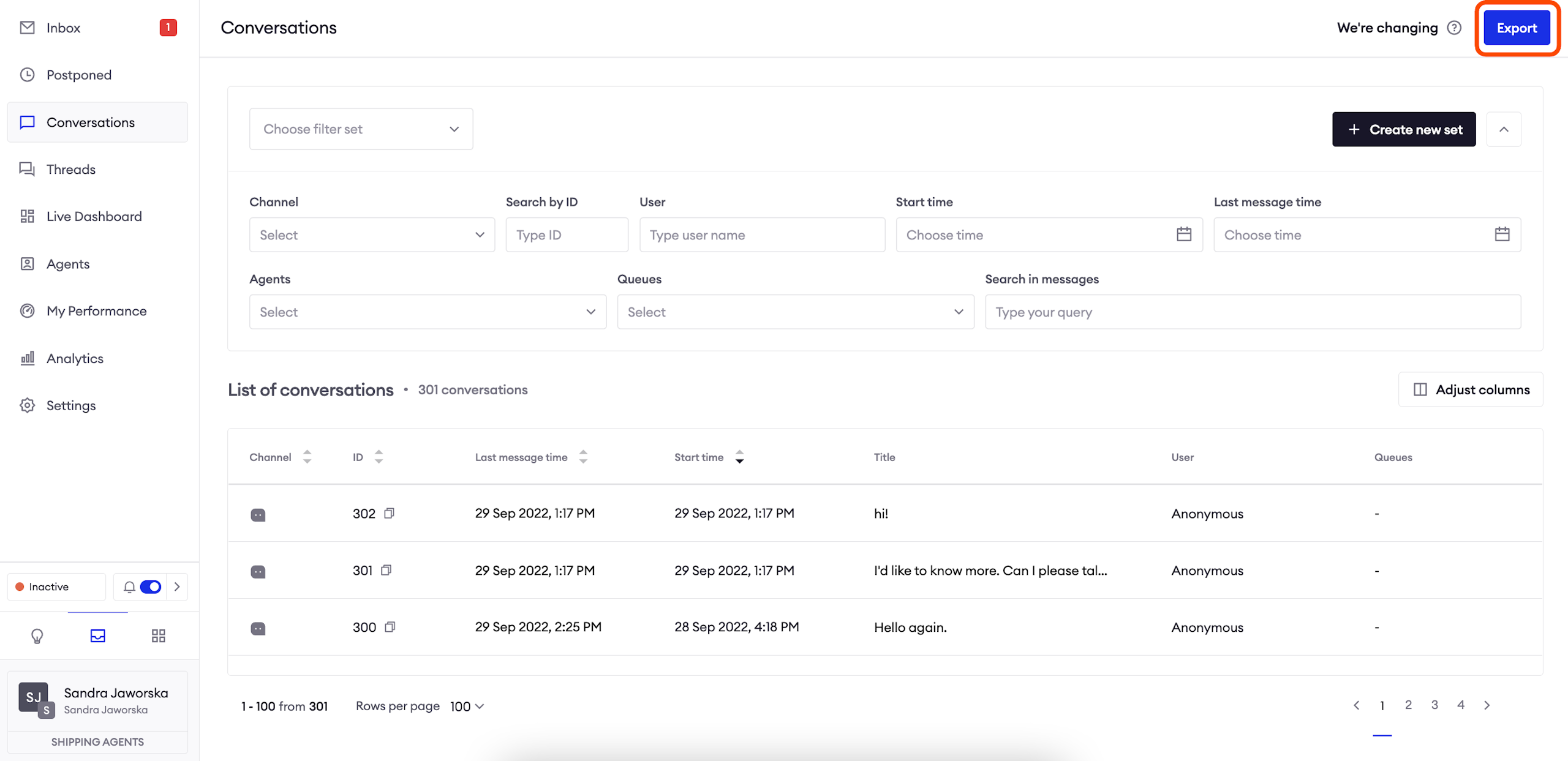
Adjust columns
In order to access this window, click on the "Adjust columns" button on the right.
This functionality allows you to change the order in which the columns are displayed on the list of conversations, as well as check which columns you want displayed.
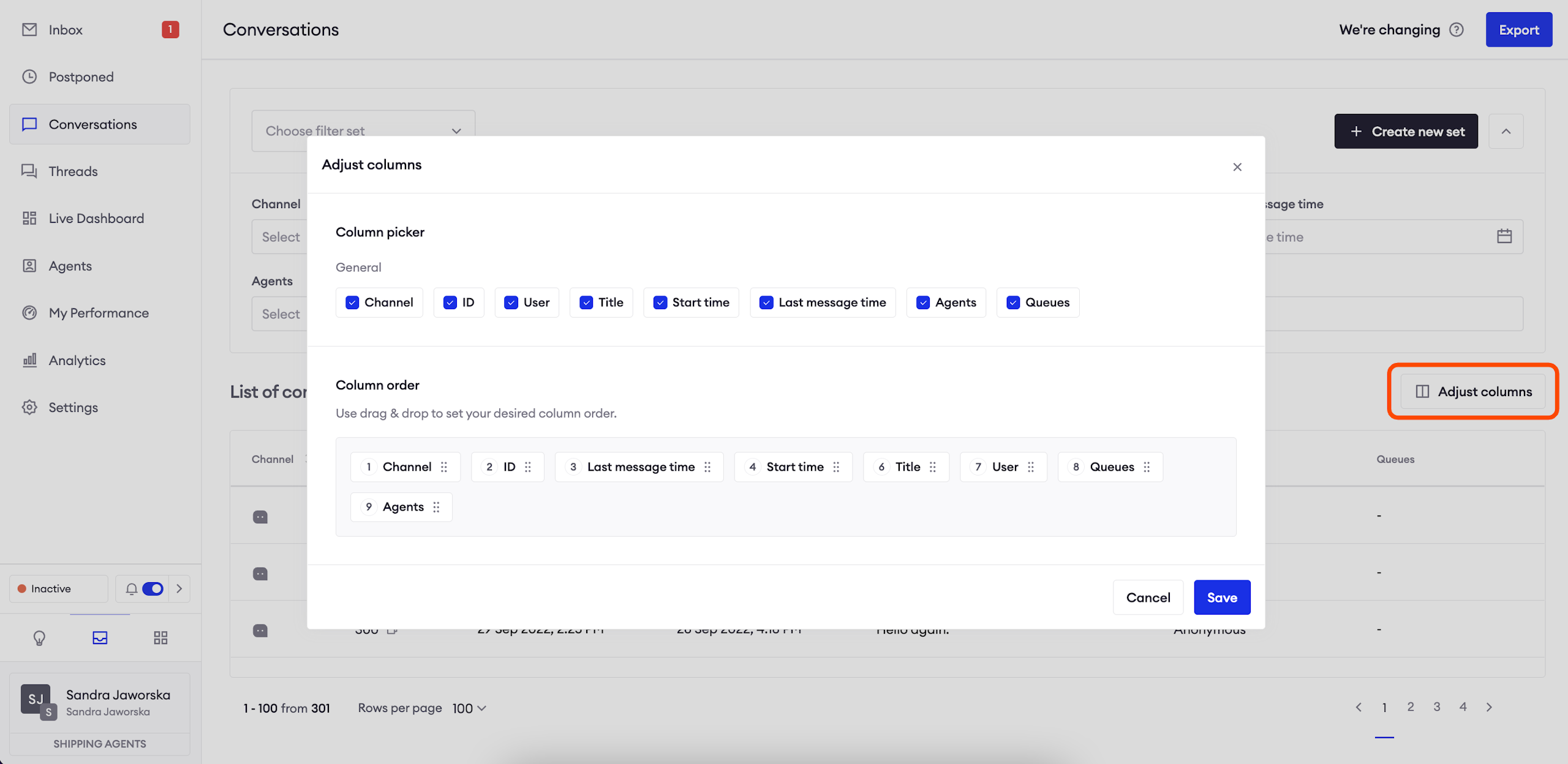
Filter the list of Conversations
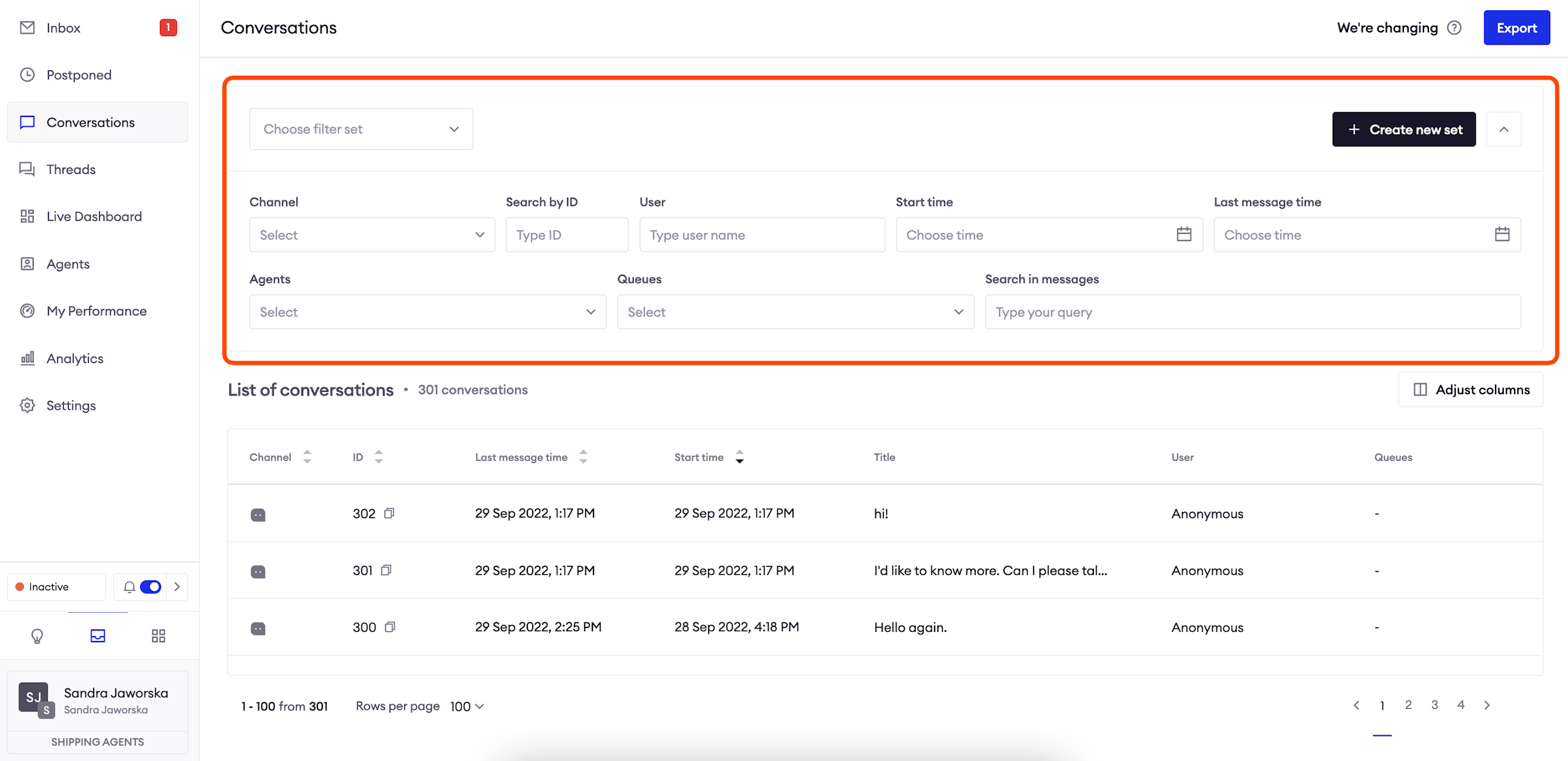
Available filters
Channel filters by the source of the conversation.
Search by ID allows you to type conversation ID and find it.
User will help you find conversations with a particular user.
Start time and Last message time allow you to pick date ranges.
Agents and Queues limit the list to conversations assigned to a particular agent and queue.
Search in messages allows you to type a text and find an exact match in all available conversations.
Create a filter set
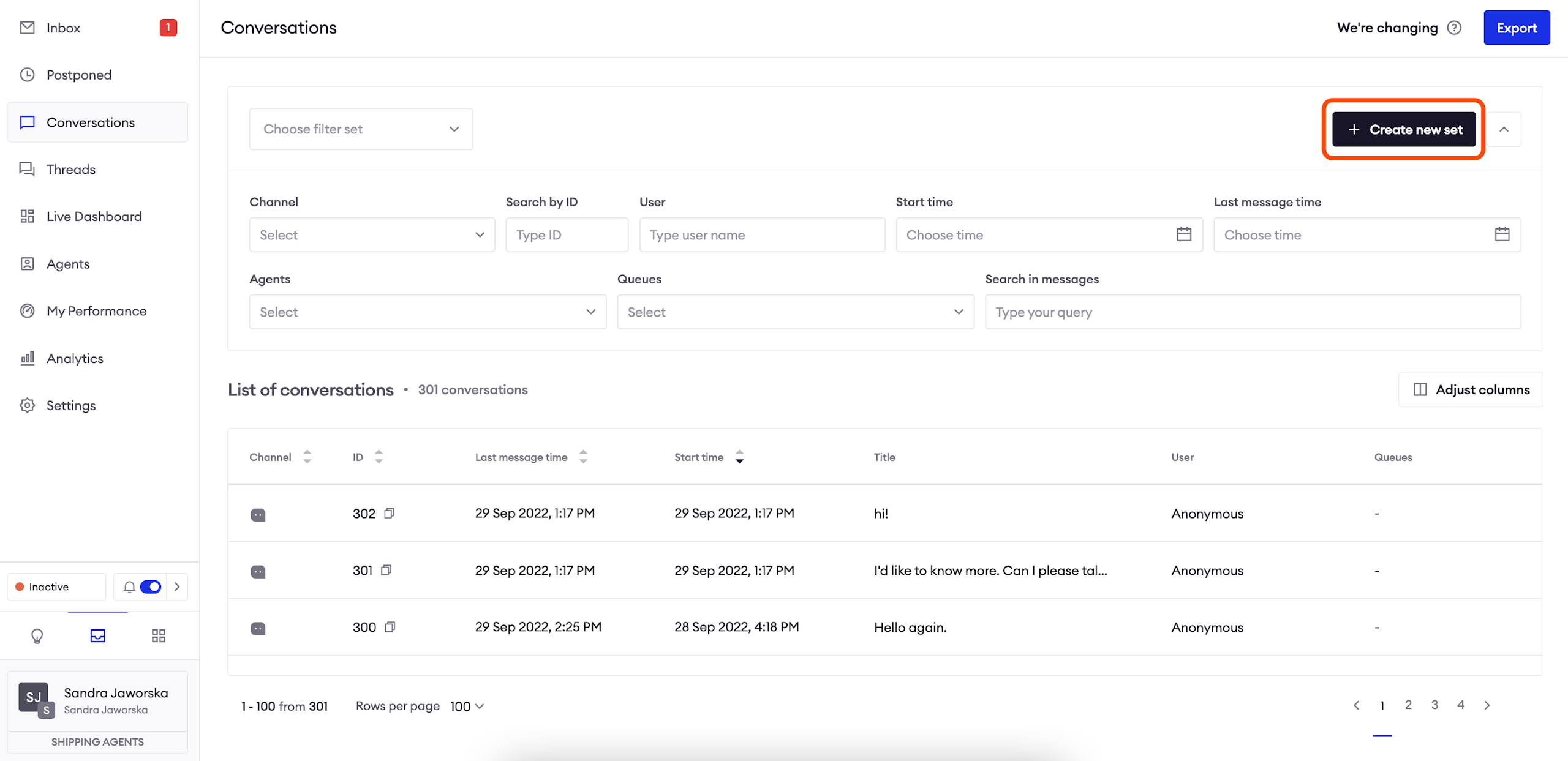
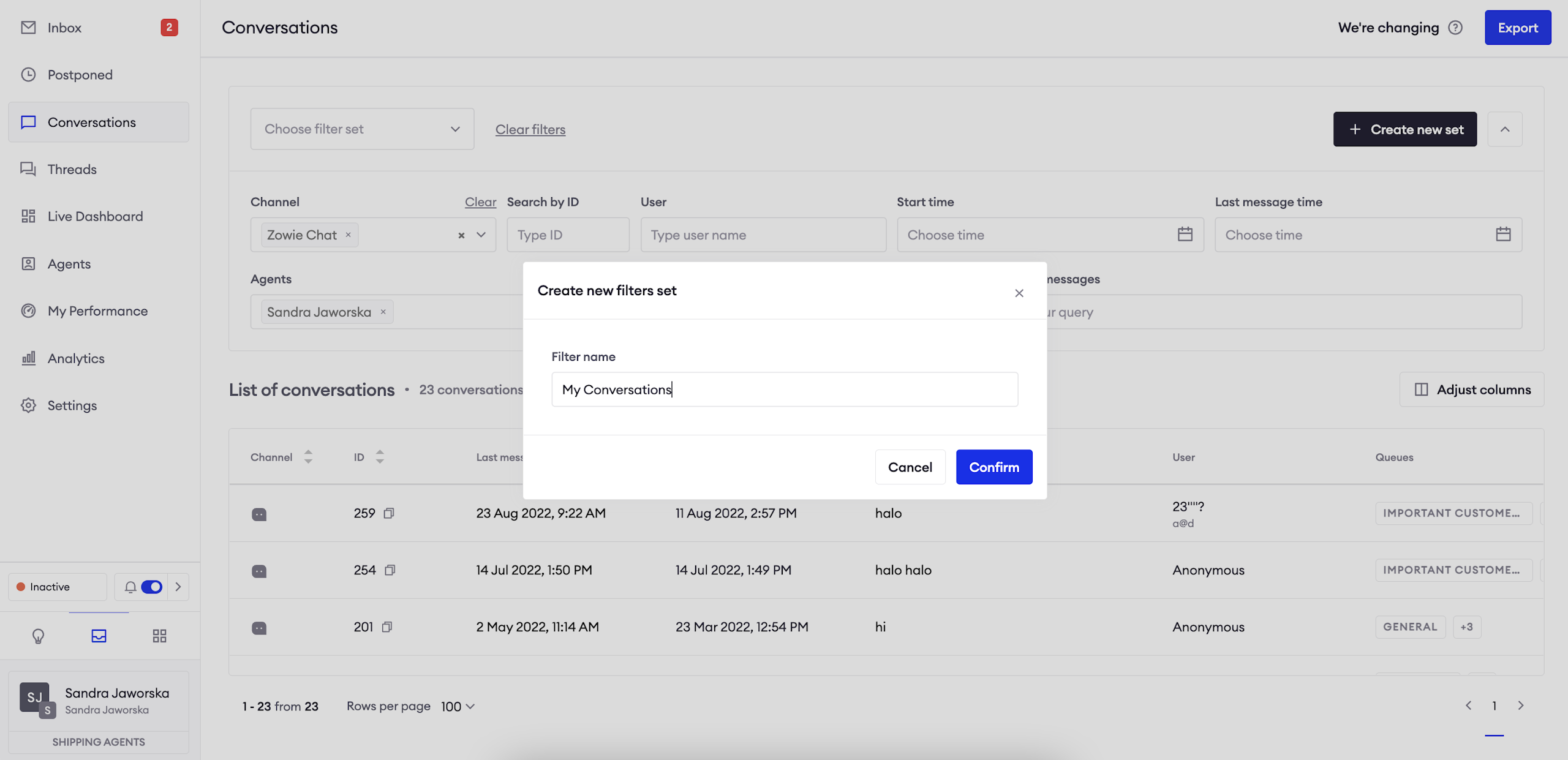
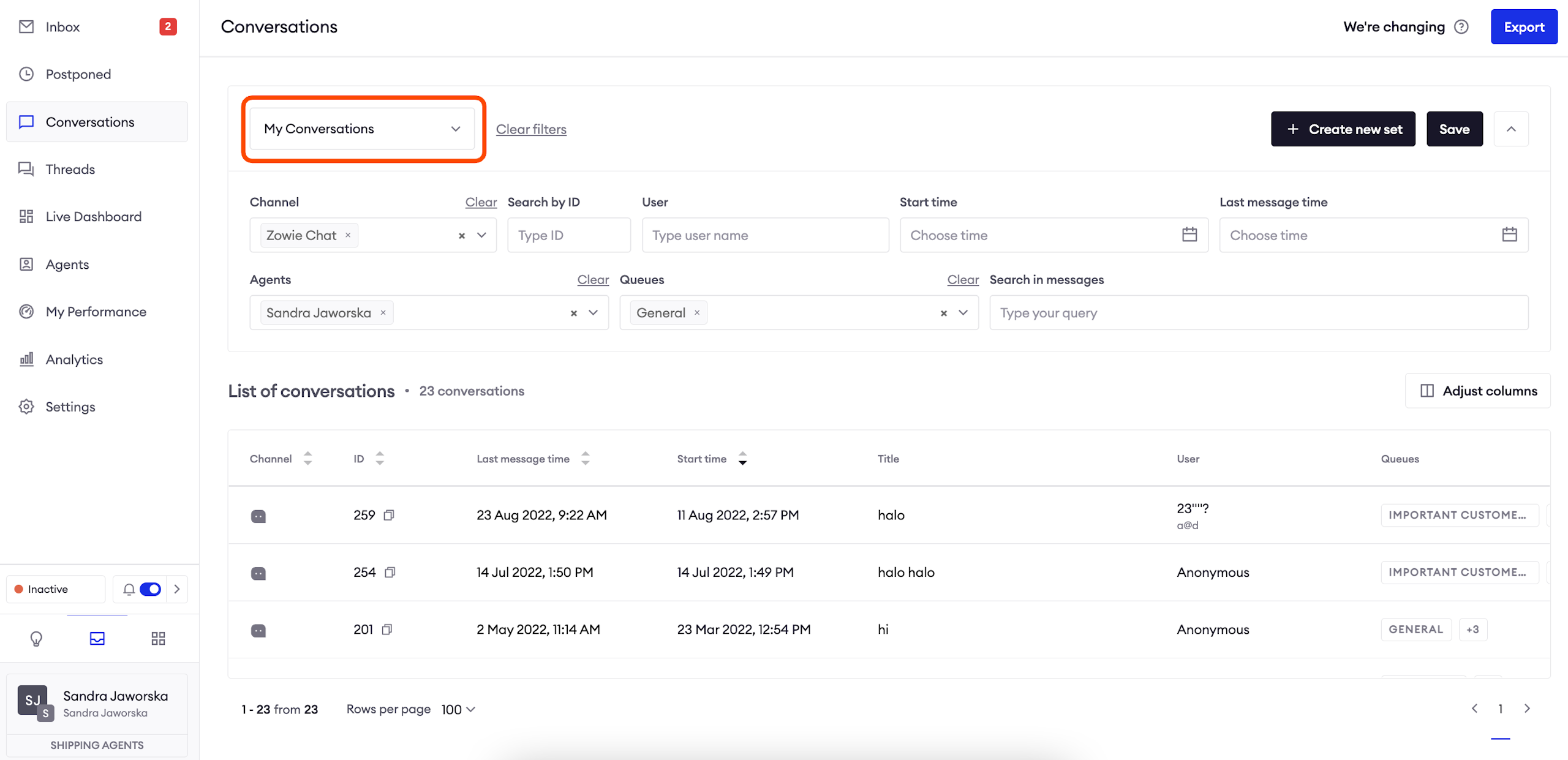
You will find this option useful if you often use the same filter to find relevant conversations.
In order to set it up, select desired filters, click on the "+ Create new set" button, type a new and save. Now it's available for you to choose in the main view.
Preview a Conversation
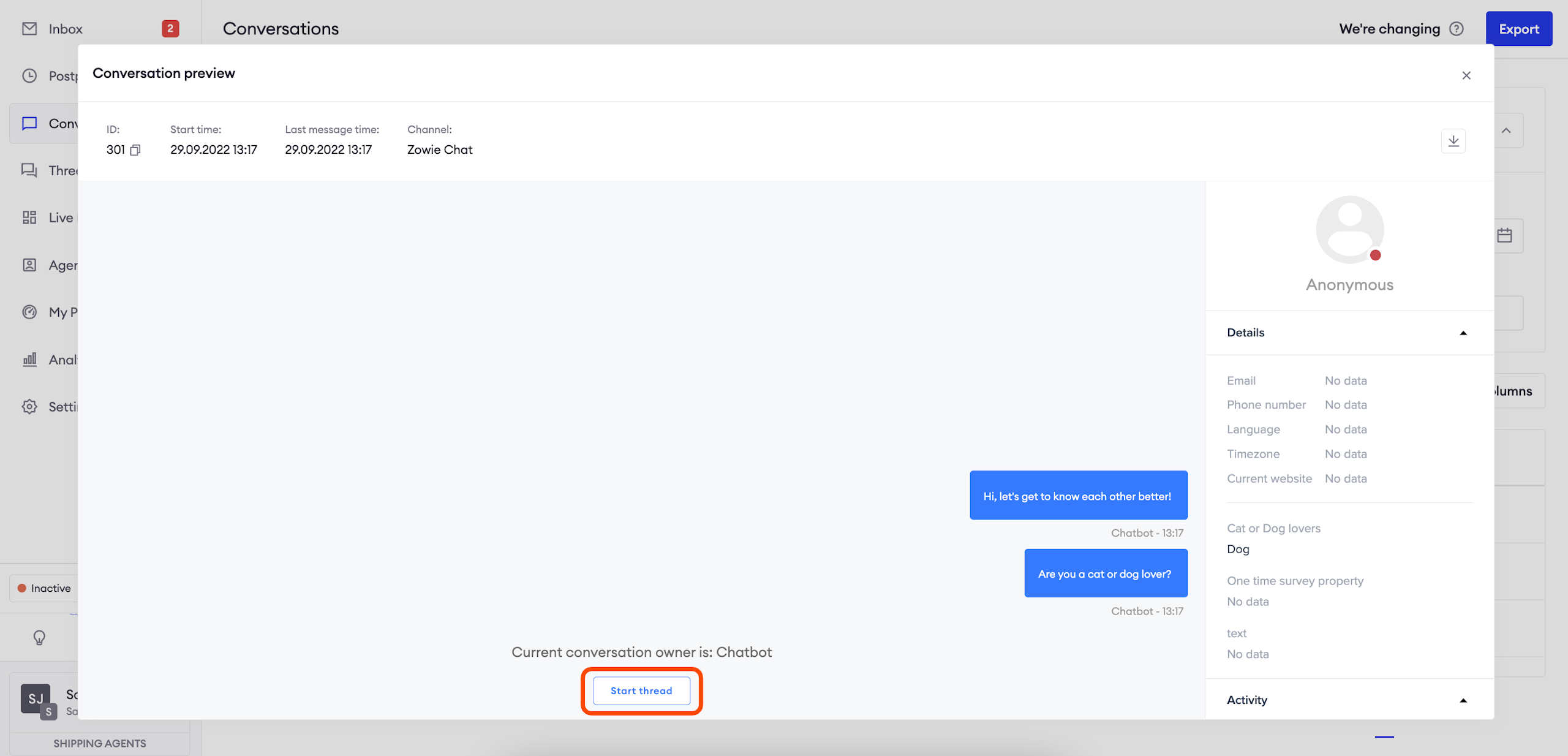
In order to preview a conversation, click on it on the list of conversations.
This view doesn't differ from what you can see in the Inbox, except for the fact that it's impossible to send new messages unless you assign the conversation to yourself (Start thread).
Updated over 1 year ago