
Start Section
What is the Start section of Zowie?
The Start section is where the default scenarios of the chatbot are configured. It determines how your chatbot greets users, how interactions are finished, and how the chatbot responds if it doesn't recognize user inputs.
Why use the Start section?
It's important to configure this section in a way that aligns with your brand voice and helps users feel comfortable interacting with your virtual assistant.
How to access the Start section
To access it, simply click Start in the main navigation panel.
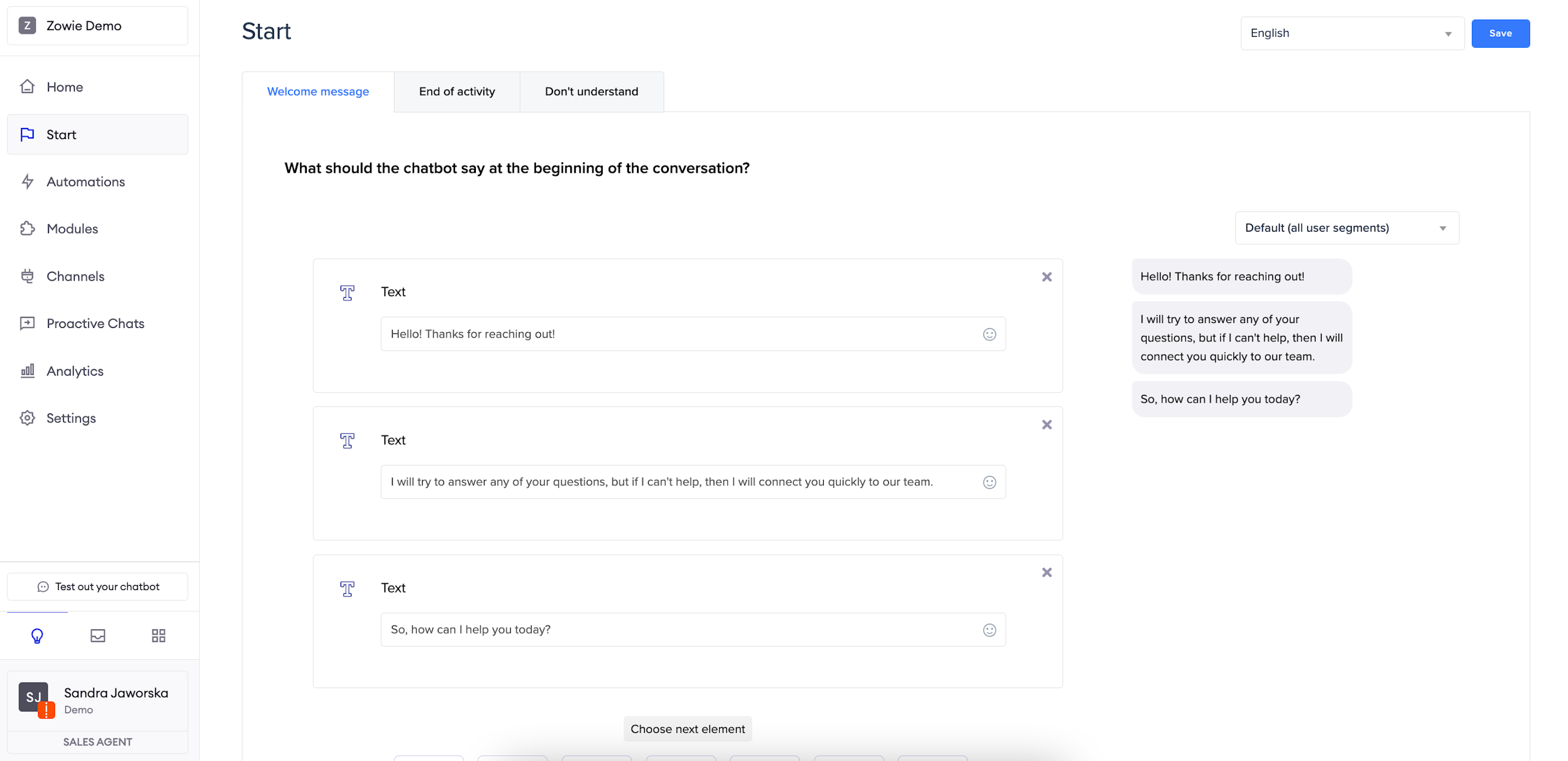
Configure the Welcome message
This is where you can configure what message to display after users start interacting with your chatbot (for example, open the Zowie widget on your webpage or start a conversation on Messenger).
Our Creator feature allows you to build your chatbot messages. If you want to add buttons to this Menu, we recommend adding them in later stages of chatbot performance, once it learns to understand users better.
AttentionRemember to configure content for each Segment you want to use. Otherwise, the chatbot will use the default Segment.
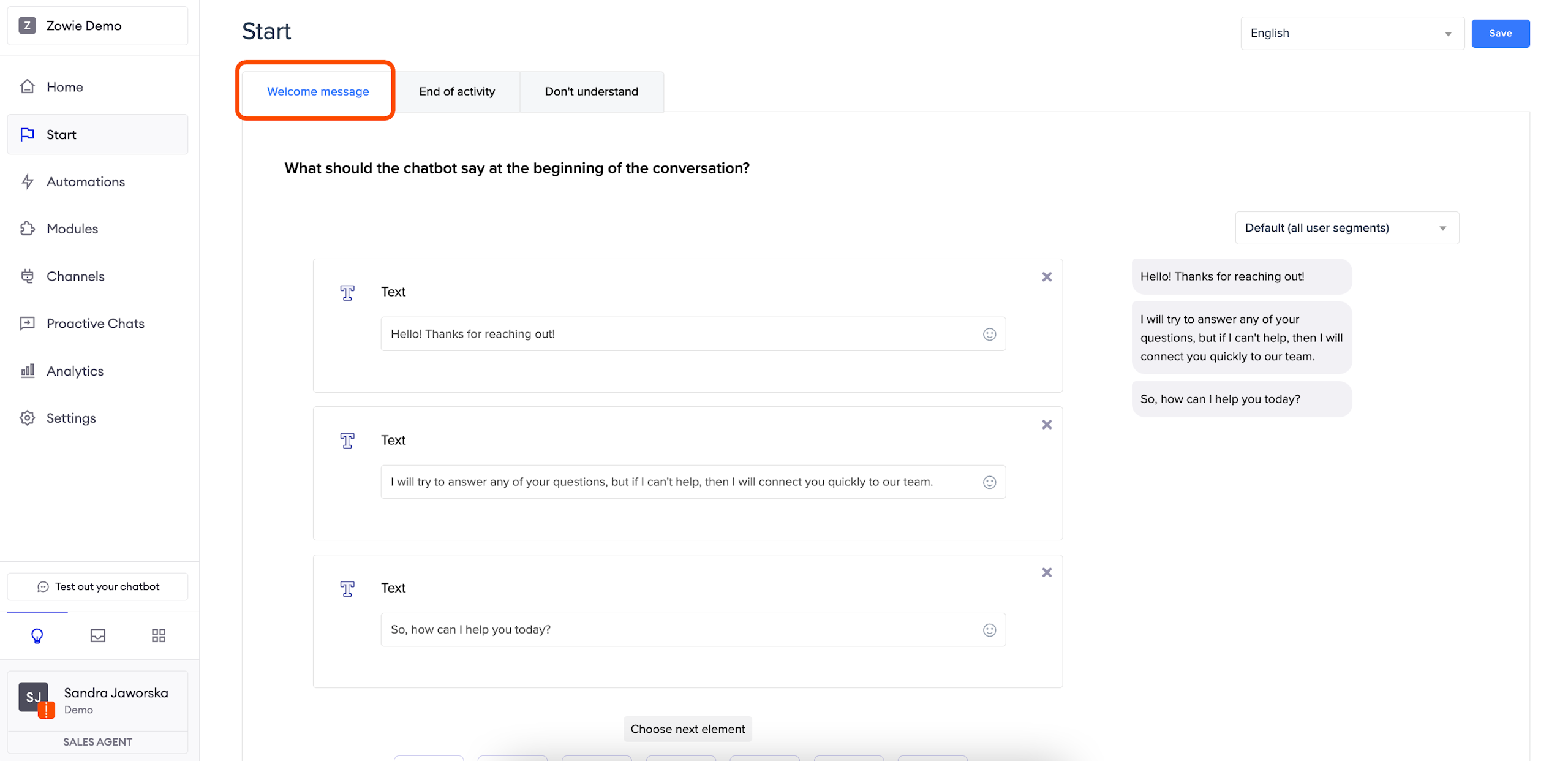
Configure the End of activity content
The End of activity content is displayed when the chatbot finishes a user interaction (e.g. responds with an automation or finishes a module's flow). When you create Automations, you can decide whether you want the user to see the End of activity content after that interaction with the chatbot is finished.
By default, most Modules will take the user to the _End of Activity _content when they’re finished. However, some (such as Handover or Survey) allow you to override this setting and define another Module to follow up with.
Users can continue triggering automations and various plugins after the _End of activity _content is displayed. You should treat this as a chance to encourage users to keep interacting with the chatbot. Use the Creator menu to configure this content.
AttentionRemember to configure content for each Segment you want to use. Otherwise, the chatbot will use the default Segment.
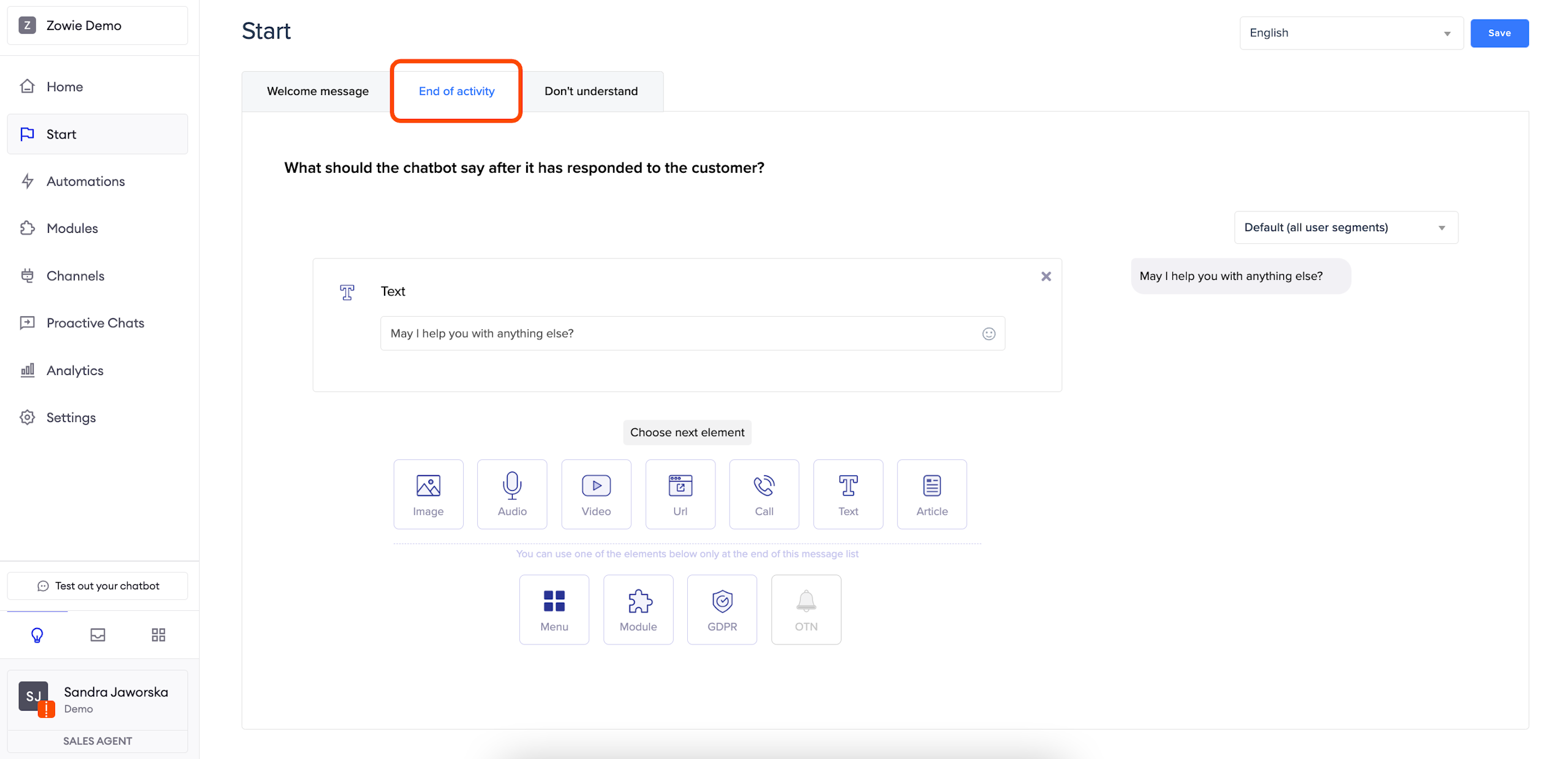
Configure the Don't understand section
The message configured in this section will be displayed if the chatbot doesn’t recognize user input and doesn’t know how to proceed with the conversation (for example, which Automation to trigger, and in case of Topic Suggestions - if the user clicks on "Other").
Use the Creator menu to configure this content.
AttentionRemember to configure content for each Segment you want to use. Otherwise, the chatbot will use the default Segment.
Updated over 1 year ago