
Handover
What is the Handover module?
The Handover module allows your chatbot to pass customer threads to a human Agent for personalized support at the right moments.
Why use Handovers?
Handovers allow your team to engage agents at the right moments, such as when the user explicitly requested contact with a human agent or a case is too complex to be handled via Automation. This is an important part of the configuration of Zowie, as it supports a tailored user experience for your customers.
How to access the Handover module?
To access the Handover Module, navigate to Customers Service Modules > Handover from the menu bar.
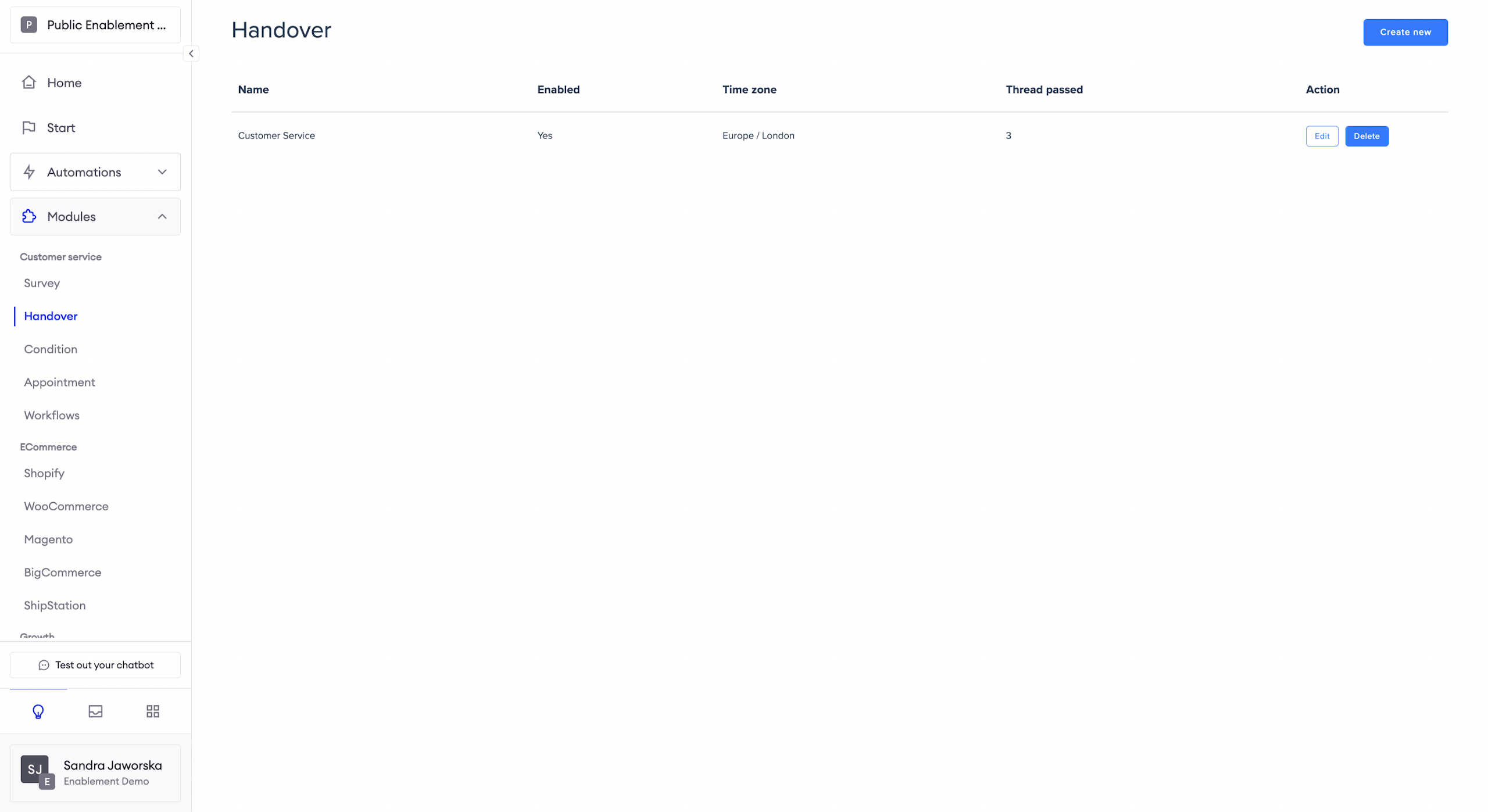
Basic configuration - General tab
In the first tab, you can configure some basic behavior of your Handover.
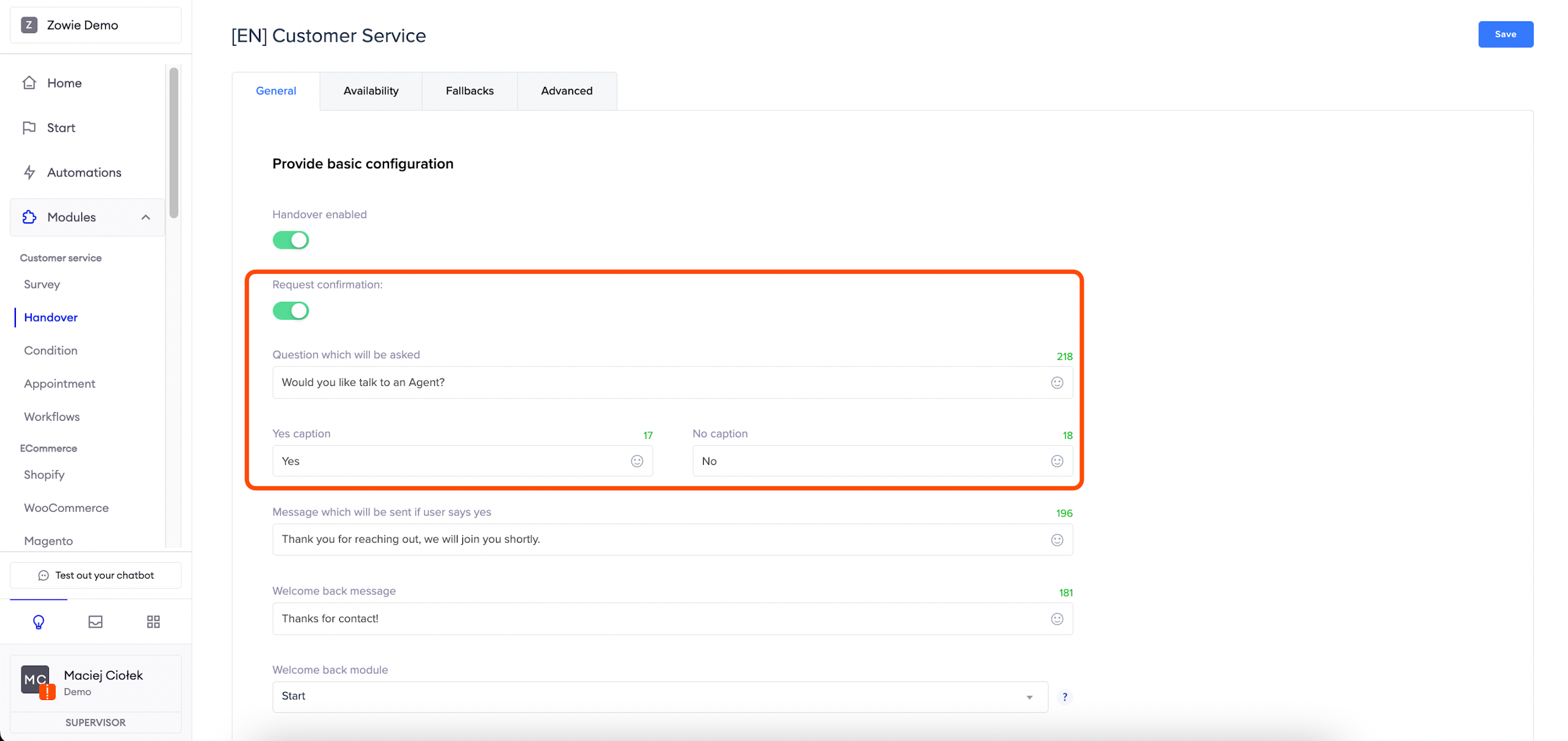
Request confirmation indicates whether or not the user should confirm they want to speak with an agent before Zowie passes the conversation to a human agent. To enable this, simply toggle the setting on.
Then, fill in the Question which will be asked and add the two options.
ExampleYou can ask Would you like to be connected with an agent?
Finally, complete the Yes caption and No caption. Typically these can be labeled with just “Yes” and “No” but you can adjust the labels to align with your brand voice as needed.
Please remember that you can always modify and change the wording of your configuration.
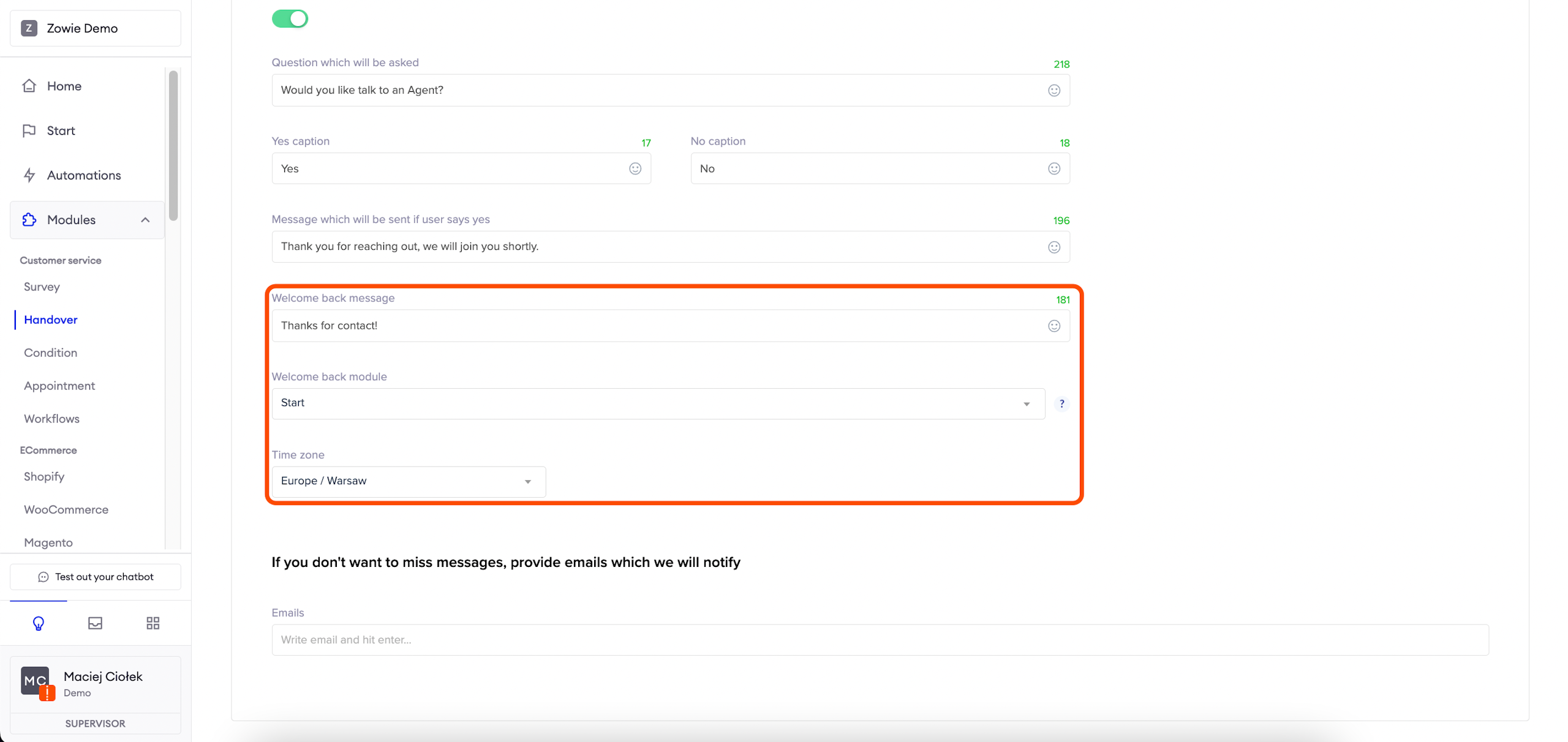
Message which will be sent if the user says yes is a message informing the user that they are currently waiting for a human agent, effectively making the chatbot unresponsive.
ExampleA representative will join you shortly. Please don’t close the chat!
Welcome back message is a message thanking the user for contacting customer service, displayed after the user finishes a conversation with a human and comes back to the chatbot.
ExampleThank you for contacting us!
Welcome back module is the module that the user will be forwarded to after the agent closes the conversation with them.
Time zone selector allows you to choose the timezone for the handover's availability. The default timezone is detected from the workspace admin browser.
Email notifications
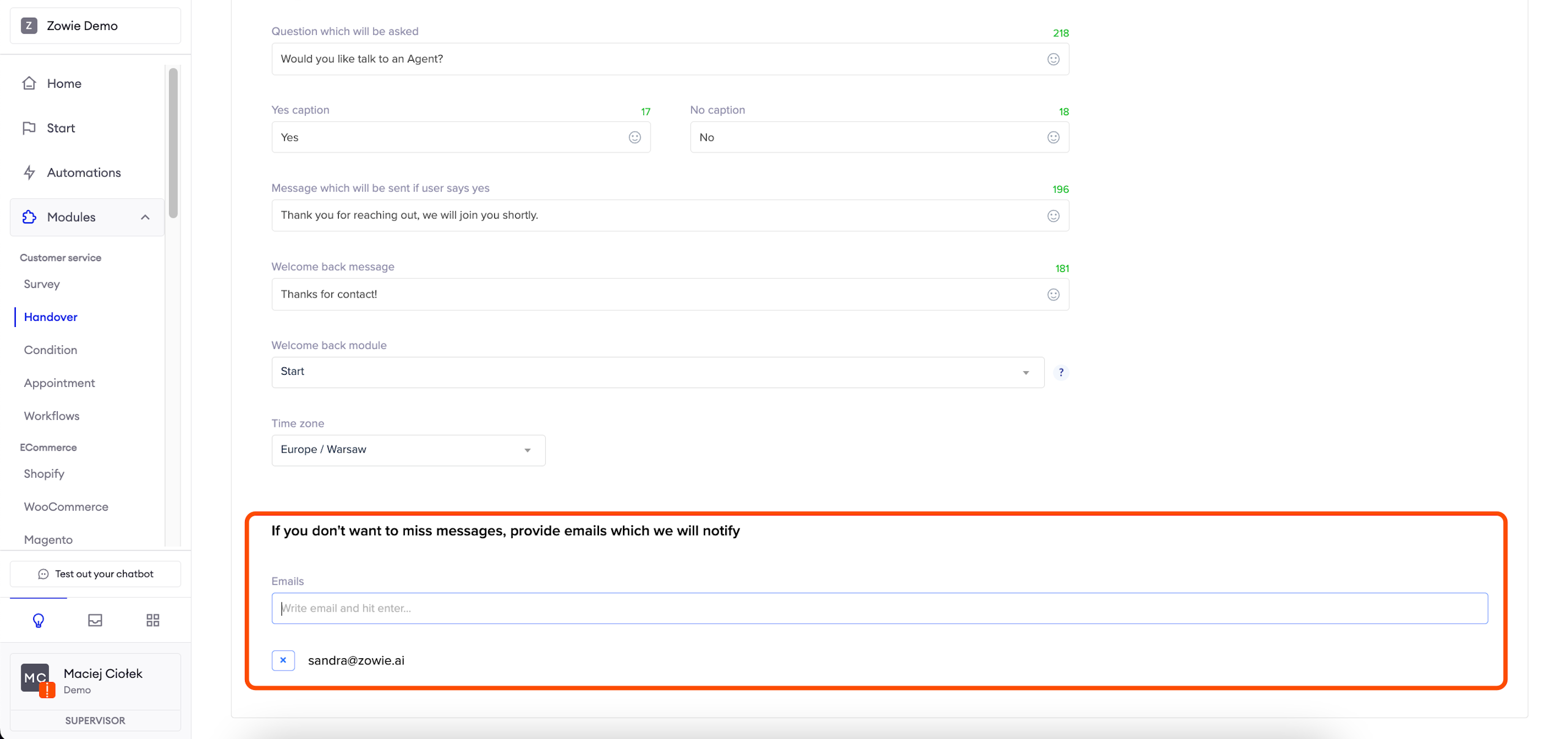
If you don't want to miss messages, provide emails which we will notify
In this section, you can add your email address to which notifications will be sent when the user requests contact with a human agent. To enable this option, type the e-mail address and hit enter to add it to the list.
Availability tab
In the Availability tab, you can configure your customer service team working hours. Moreover, it is possible to configure content sent to users when they are trying to contact Agents outside of their working hours.
Please note:during Daylight Savings, the hours of Handover will be automatically migrated to the correct time, eliminating the need for any manual changes.
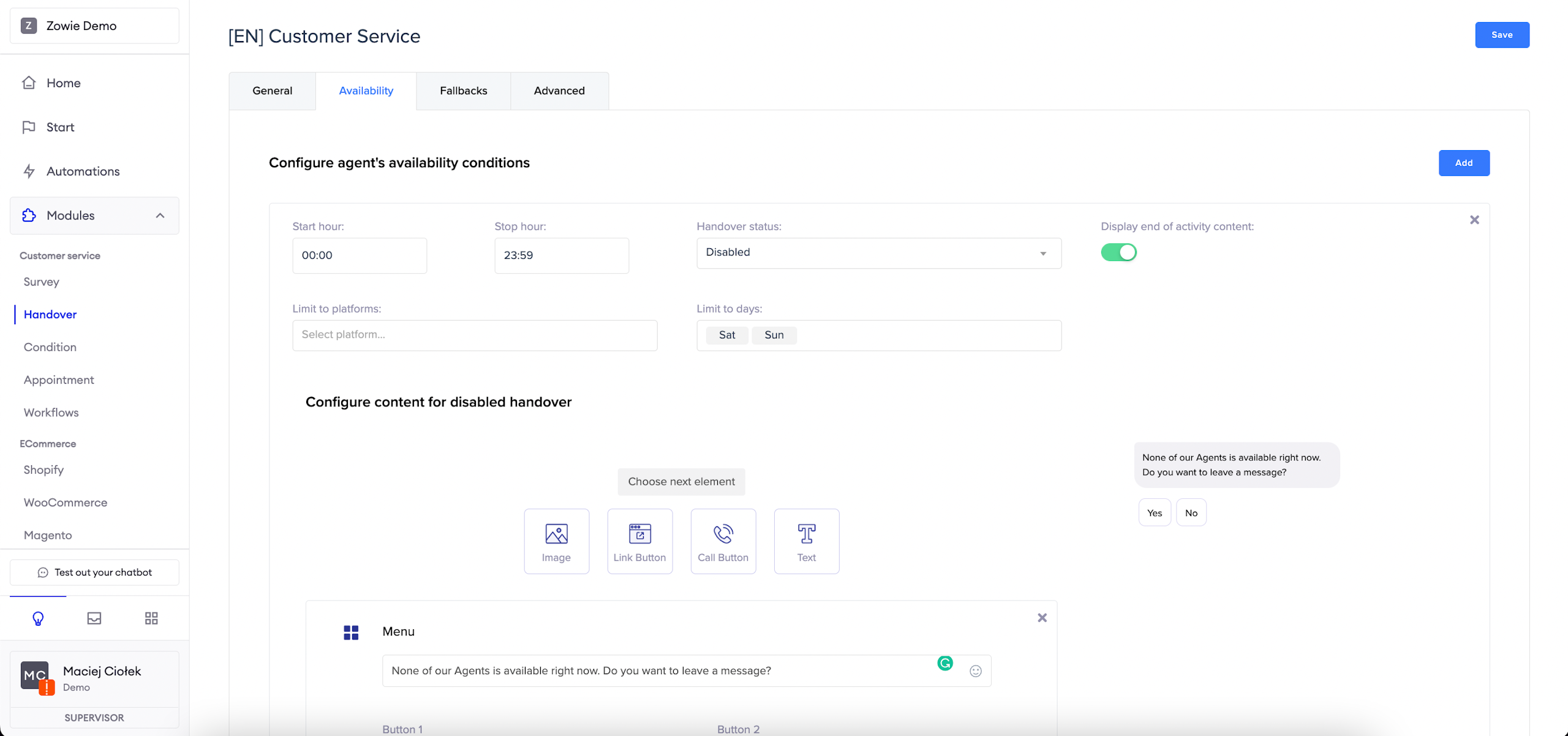
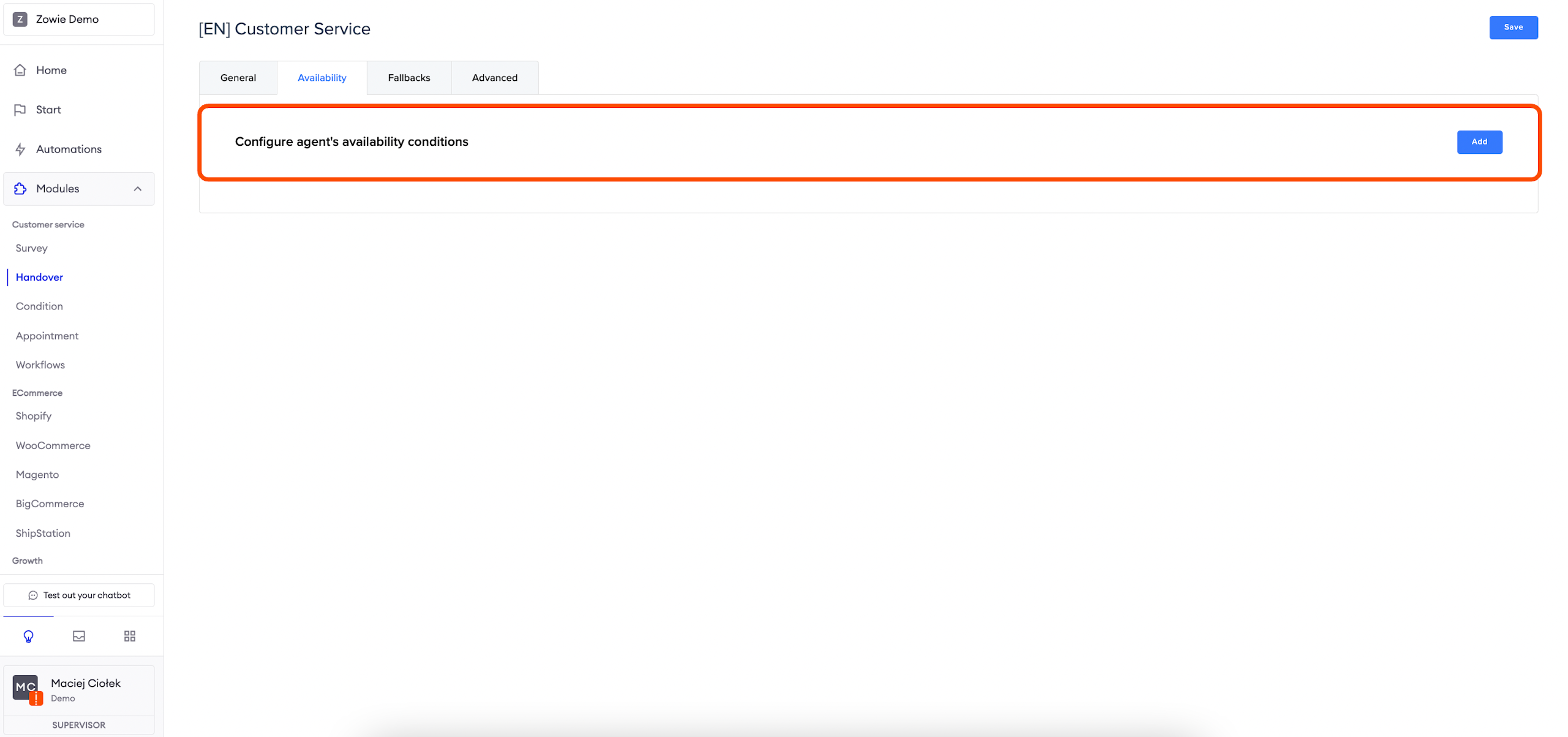
Configuring availability
If you want to enable availability conditions to Handover, click "Add" in Availability Tab.
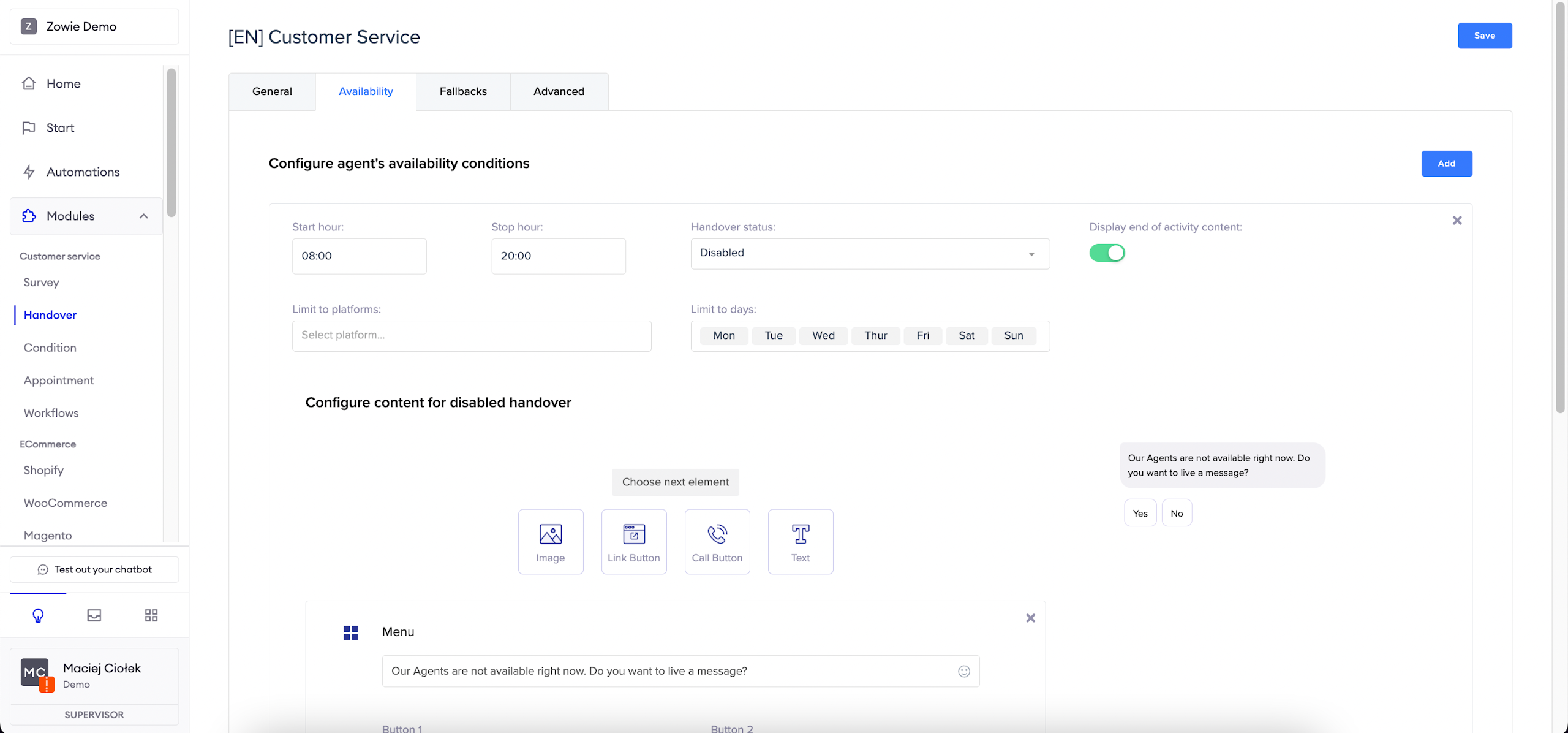
Handover status: disabled
AttentionDisabled status for Handover is recommended when you provide users with creating tickets possibility.
When you choose to use Disabled status for your handover, after users contact your team outside of their working hours, they will get notified that the team is off and they can create a ticket or contact you later.
If you want your handover to be disabled for a specific time frame, you need to:
- set the time when you do not offer live chat support;
- choose Handover status as Disabled;
- create content for users informing why the connection with an agent was not successful;
- if you are currently using an email ticket creation, you can create a Menu element that allows the user to leave a message by filling in the Survey module.
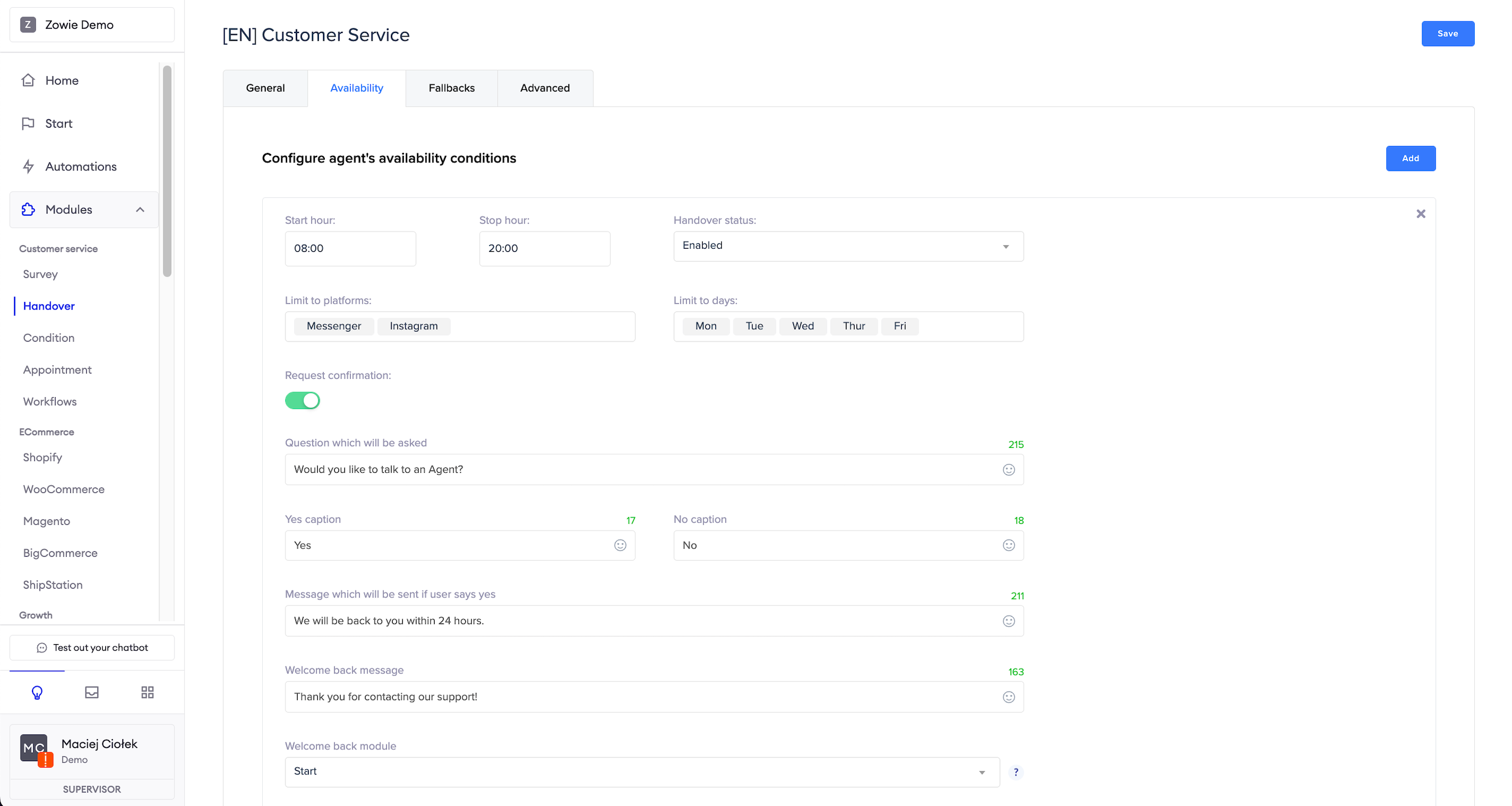
Handover status: enabled
Enabled status for Handover is recommended when:
- you are offering live chat on social media channels where chat history is saved for users;
- you do not have the tickets option enabled.
When you choose to use Enabled status for your handover, after users contact your team outside of their working hours, they will get notified that the team is off now and will get back to them later with the answer.
ImportantIf users leave a message for an agent, they can’t interact with the chatbot until the agent will mark this conversation as "done" during working hours.
If you choose the Handover to be enabled for a specific time, you need to:
- set the time when you do not offer live chat support;
- choose Handover status as Enabled;
- set limits to platforms;
- create content for users informing the connection with an agent was not successful and that you will get back to them later with the answer;
- enable request confirmation of connecting to an Agent later (optional);
- configure welcome content when Agent joins the conversation.
Fallbacks
Fallbacks are scenarios that will trigger to provide a personalized experience to your customers in certain conditions when Handovers occur.
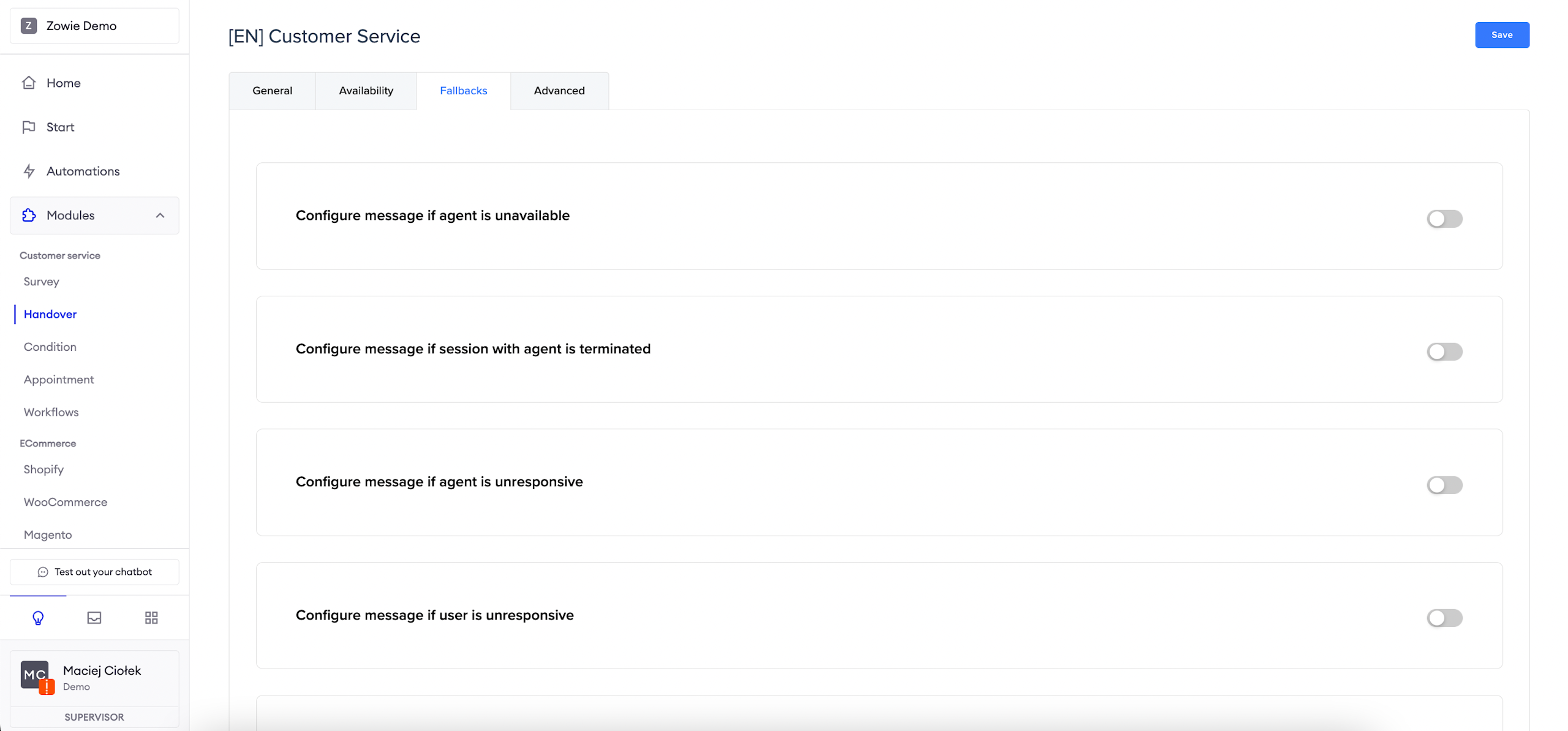
Configure message if agent is unavailable
AttentionThis feature works only for integrations with Altar, Zendesk, SalesForce and Livechat.
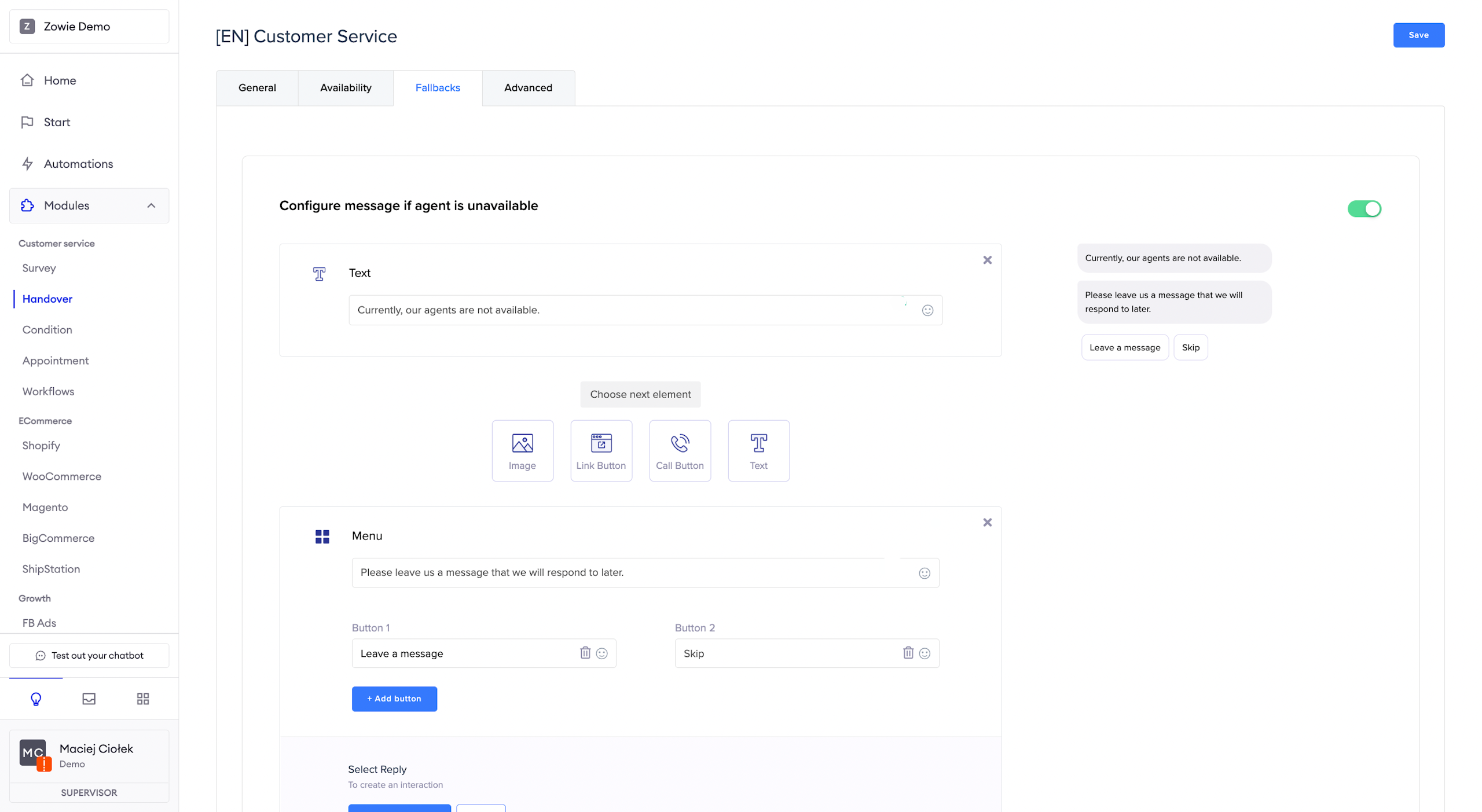
You can set up a message that will appear when none of the agents are available at the moment.
Example:Currently, our agents are not available. Please leave us a message that we will respond to later.
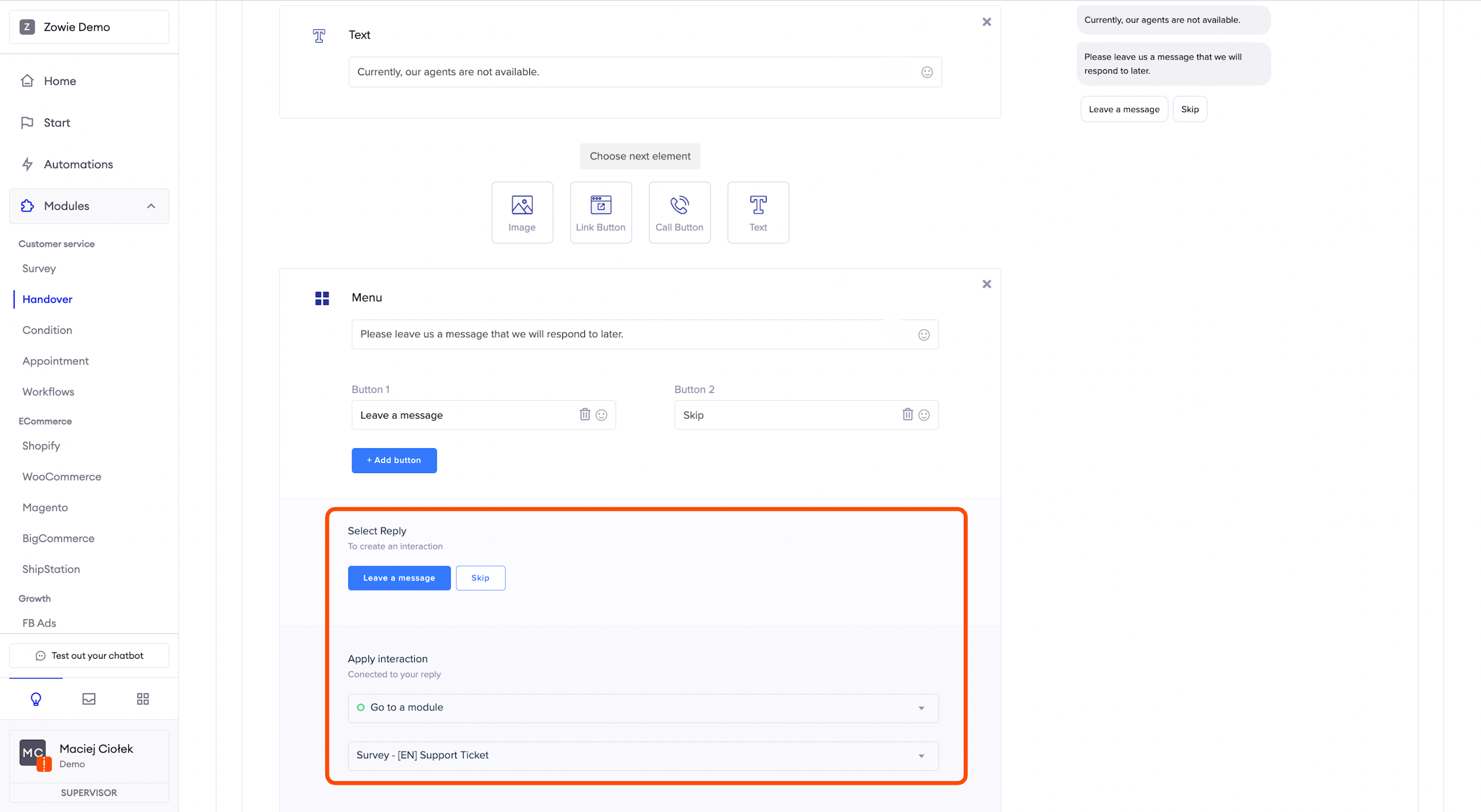
After this message, enable the Menu element that will let the user go to the Survey module through the button.
Configure message if session with agent is terminated
AttentionThis feature works only for integrations with Altar and the Salesforce Service Cloud.
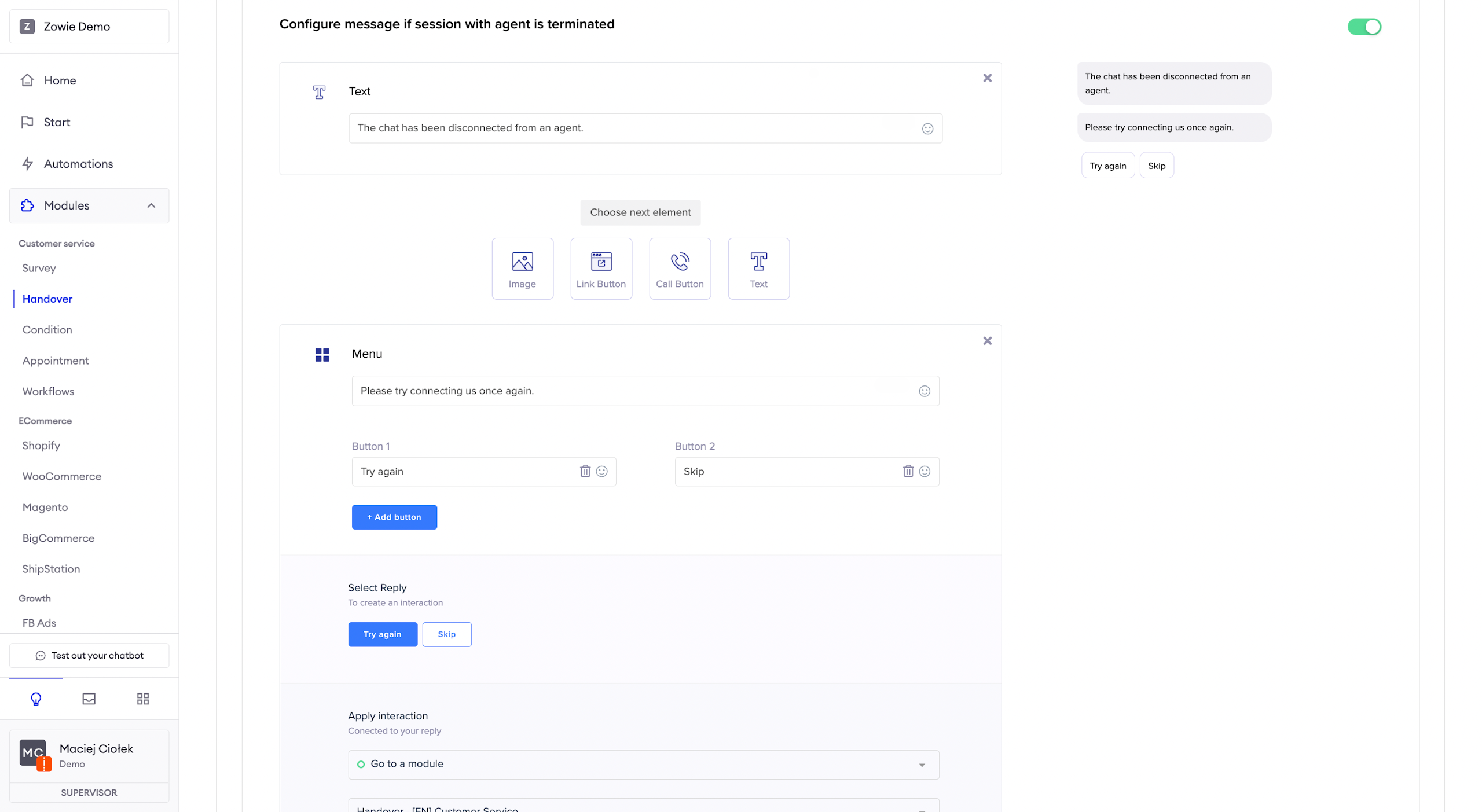
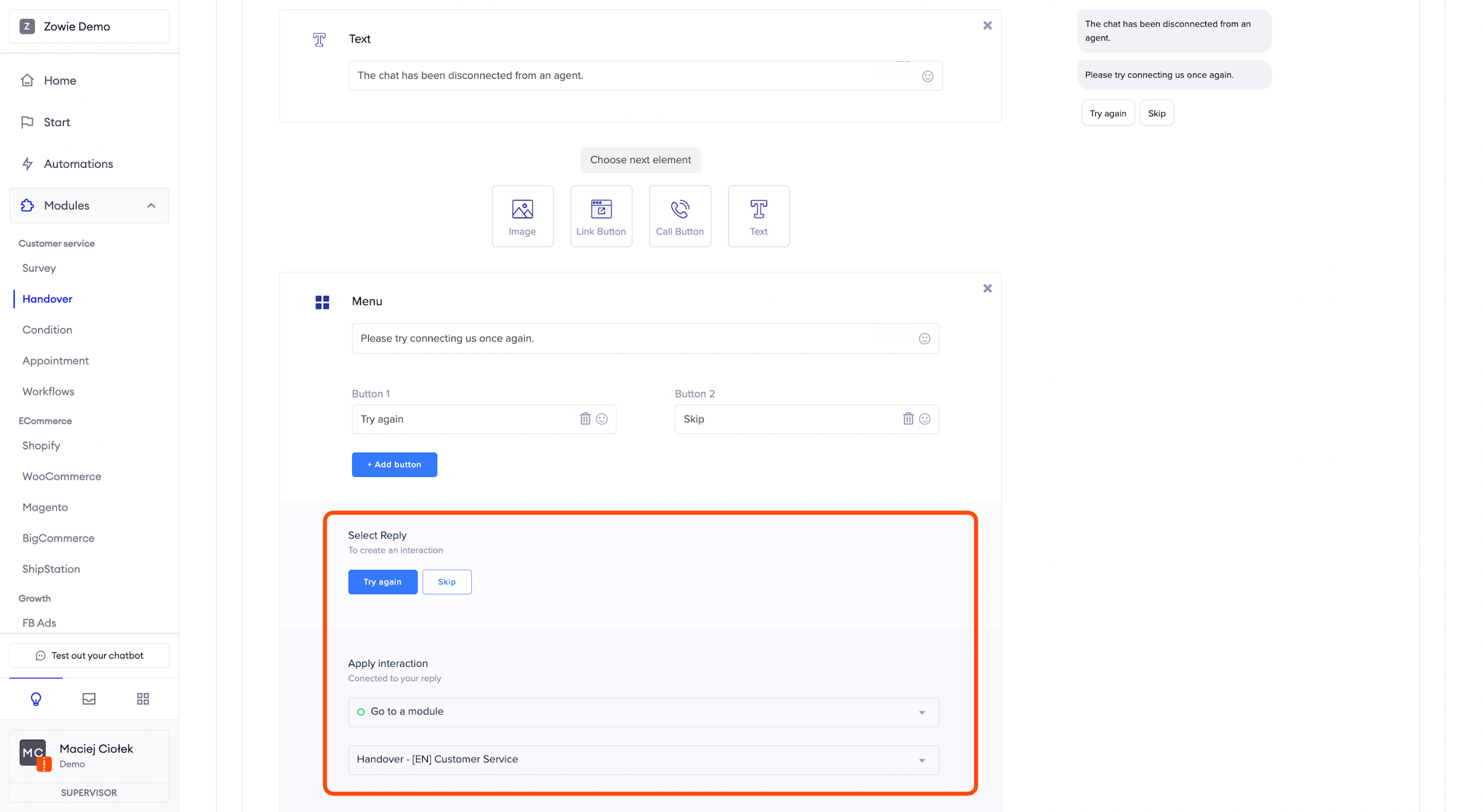
You can set up a message that will appear when the chat is disconnected from an agent.
ExampleThe chat has been disconnected from an agent. Please try connecting us once again.
After this message, please enable the Menu element that will let the user connect to the Handover through the button.
Configure message if agent is unresponsive
AttentionThis feature works only for Zowie Inbox.
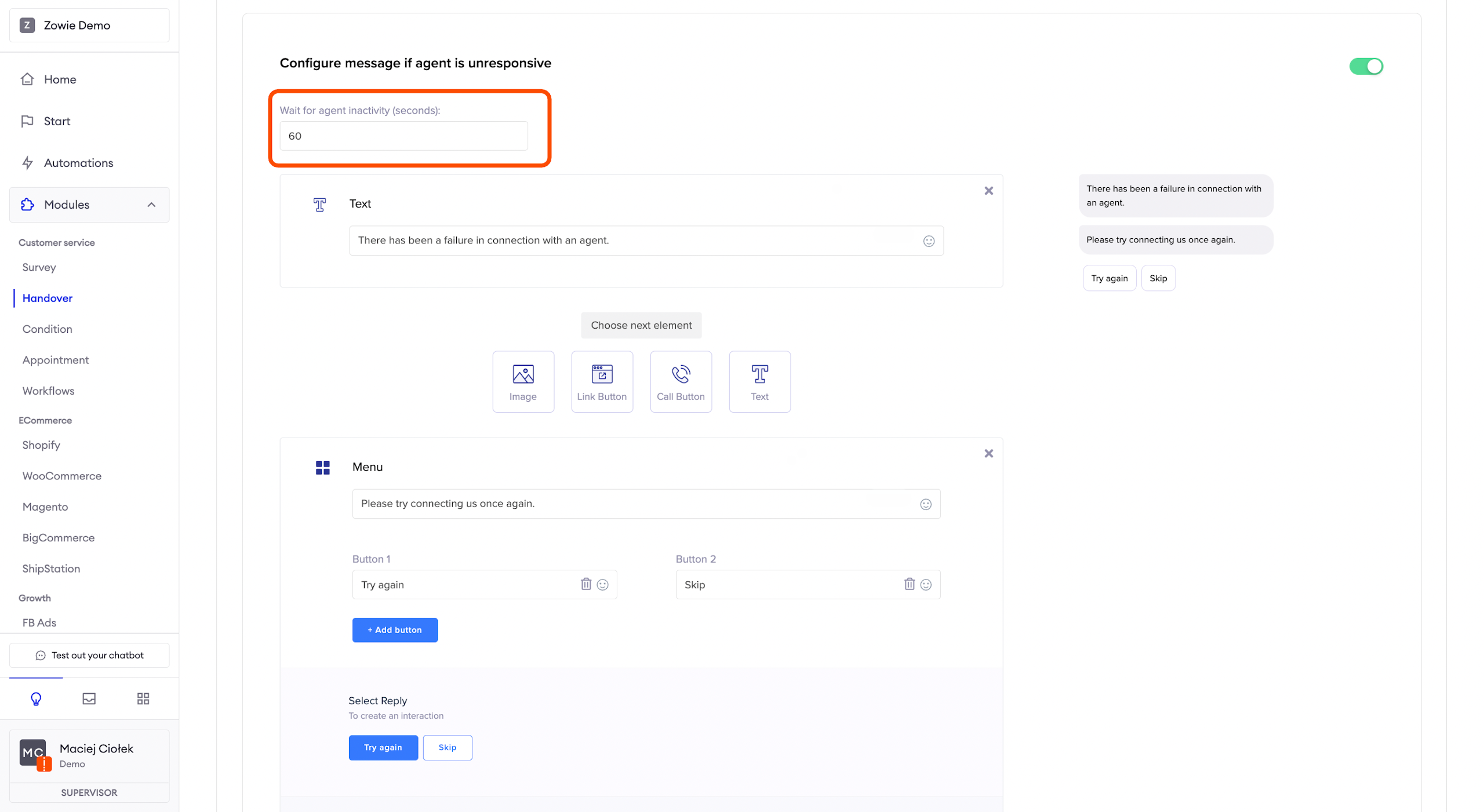
First, configure the time of agent inactivity after which the chatbot sends the message. It starts counting from when the user is already assigned to the agent or has already opened the chat. After setup time users will be deleted from the queue. It does not count after the agent sends any message and stops replying after.
Configure a message that will appear when the user is handed over to an agent and there is no interaction from the agent within the time that you've set up.
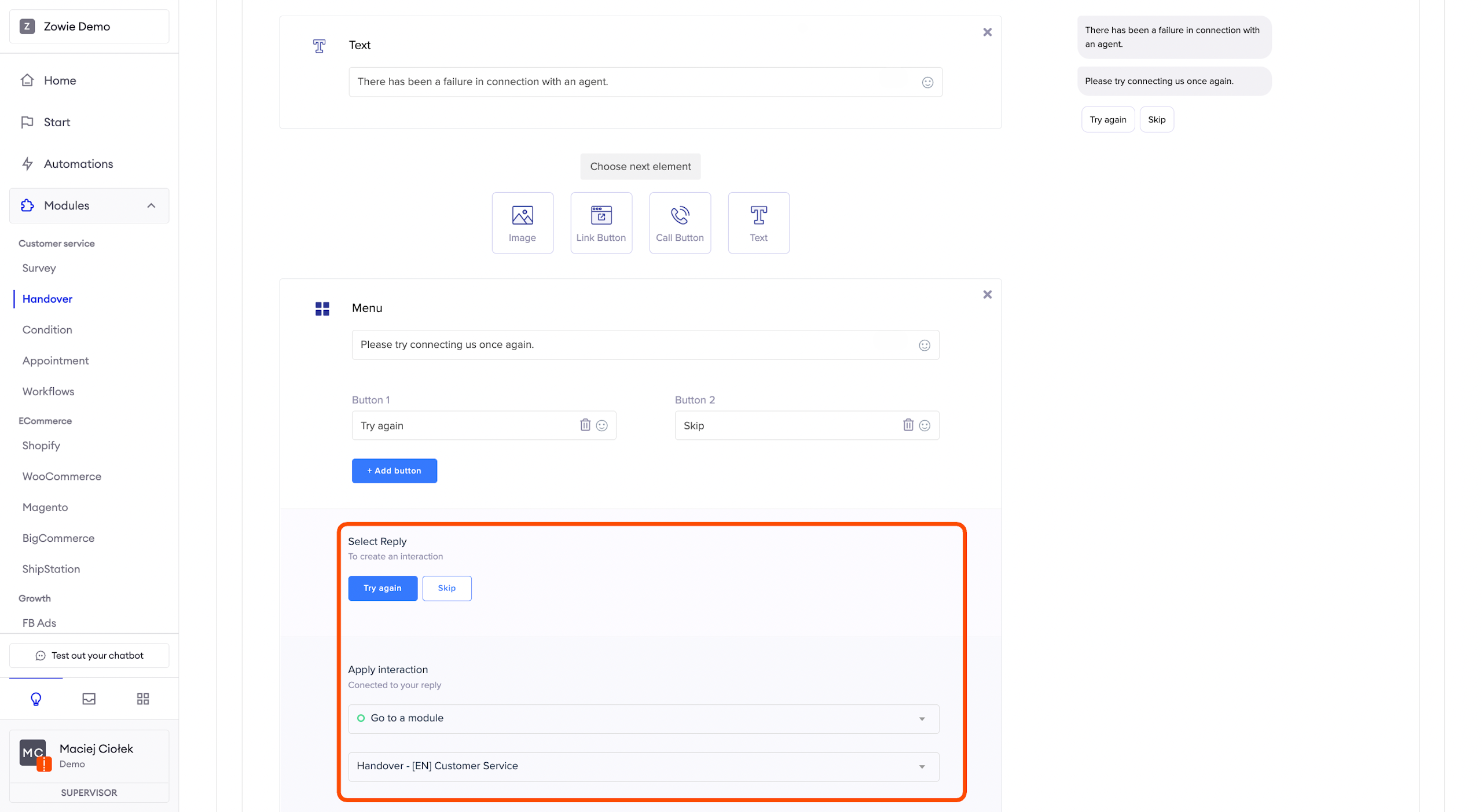
ExampleThere has been a failure in connection with an agent. Please try connecting us once again.
After this message, please enable the Menu element that will let the user connect to the Handover again through a button.
Configure message if user is unresponsive
AttentionThis feature works only for Zowie Inbox.
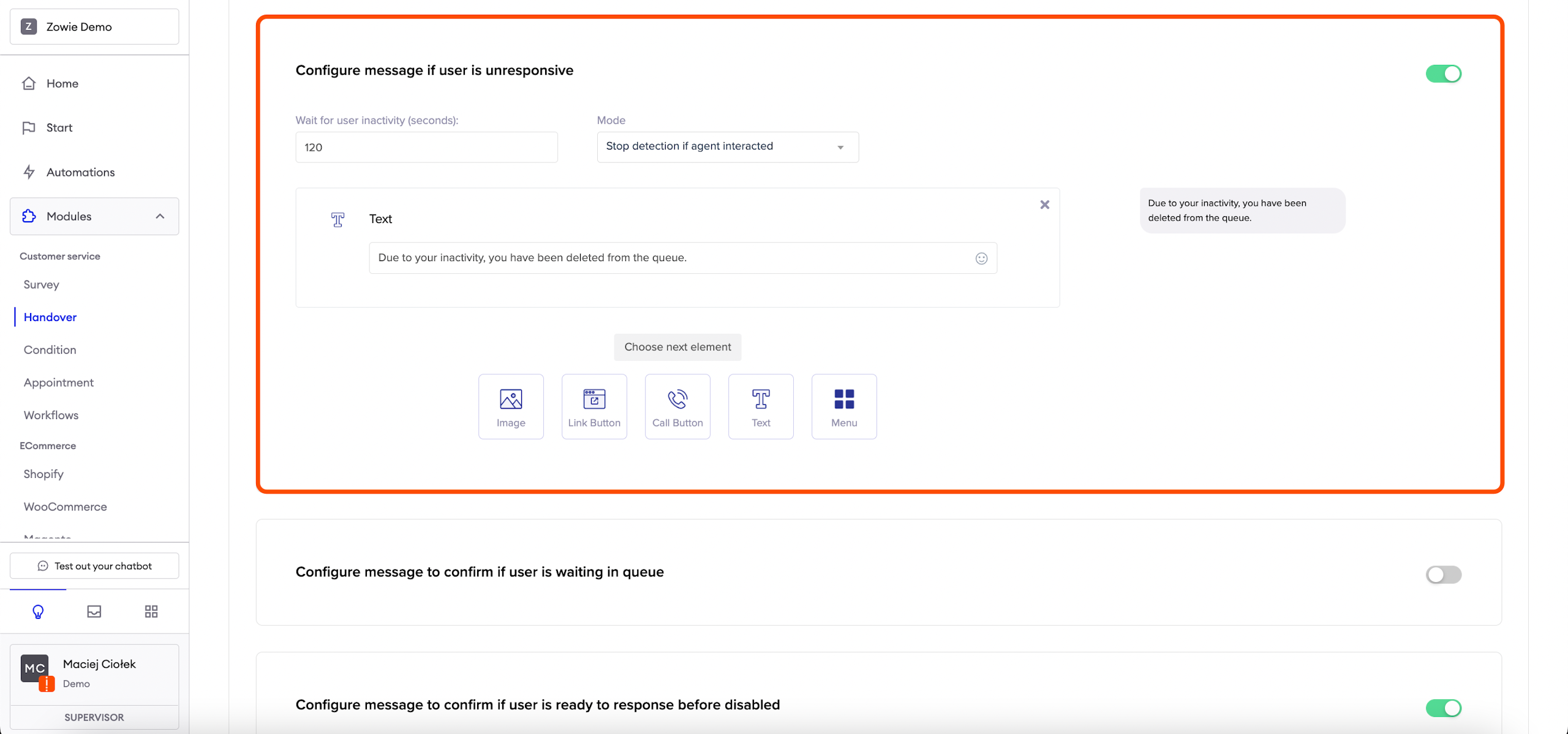
You can set up a message that will appear when the user was assigned to the agent, but there is no interaction from the user’s side within the setup time. After setup time users will be deleted from the queue.
Using the dropdown list, you can choose if you want to stop or continue detection after the agent interacted with the user.
Configure message if the user is waiting in a queue
AttentionThis feature works only for Zowie Inbox.
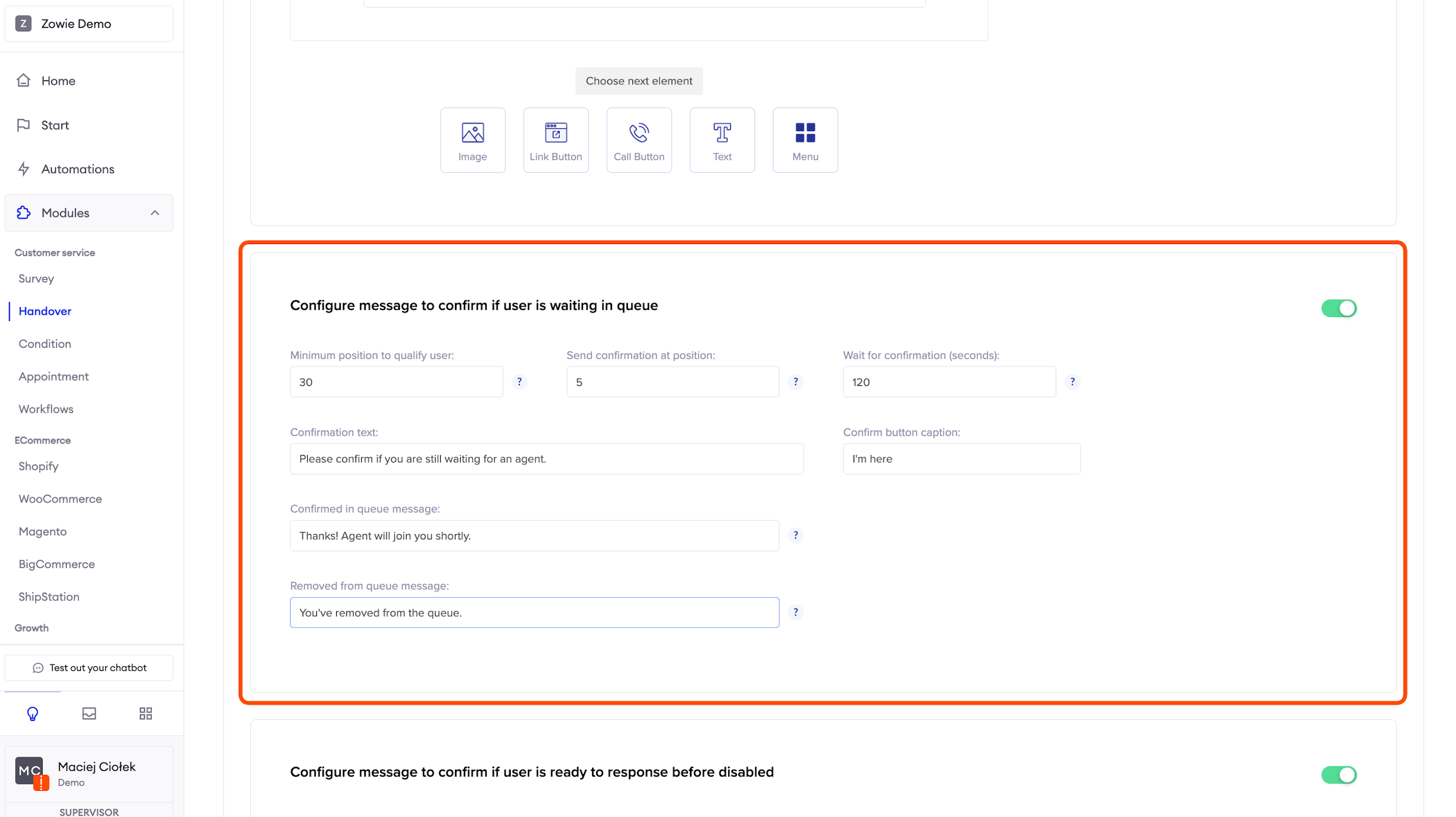
You can send out confirmation in order to check whether the user is still waiting for an agent in the queue. In order to qualify a user for the checkout, we need to set a minimum position in the queue.
Minimum position: How long does the queue need to be for a user to qualify for the confirmation mechanism? It means that we only want to send out the confirmation to those people that have joined us at the minimum position of 20.
Send confirmation: What spot does a user need to have in the queue to receive the confirmation message? It means that on the position of 5 we will send out the confirmation to ask if they are still waiting (if they joined us at the position of minimum 20).
Wait for confirmation: How long should we wait for the confirmation before directing the user back to the chatbot?
Configure message to confirm if user is ready to response before disabled
AttentionThis feature works only for Zowie Inbox.
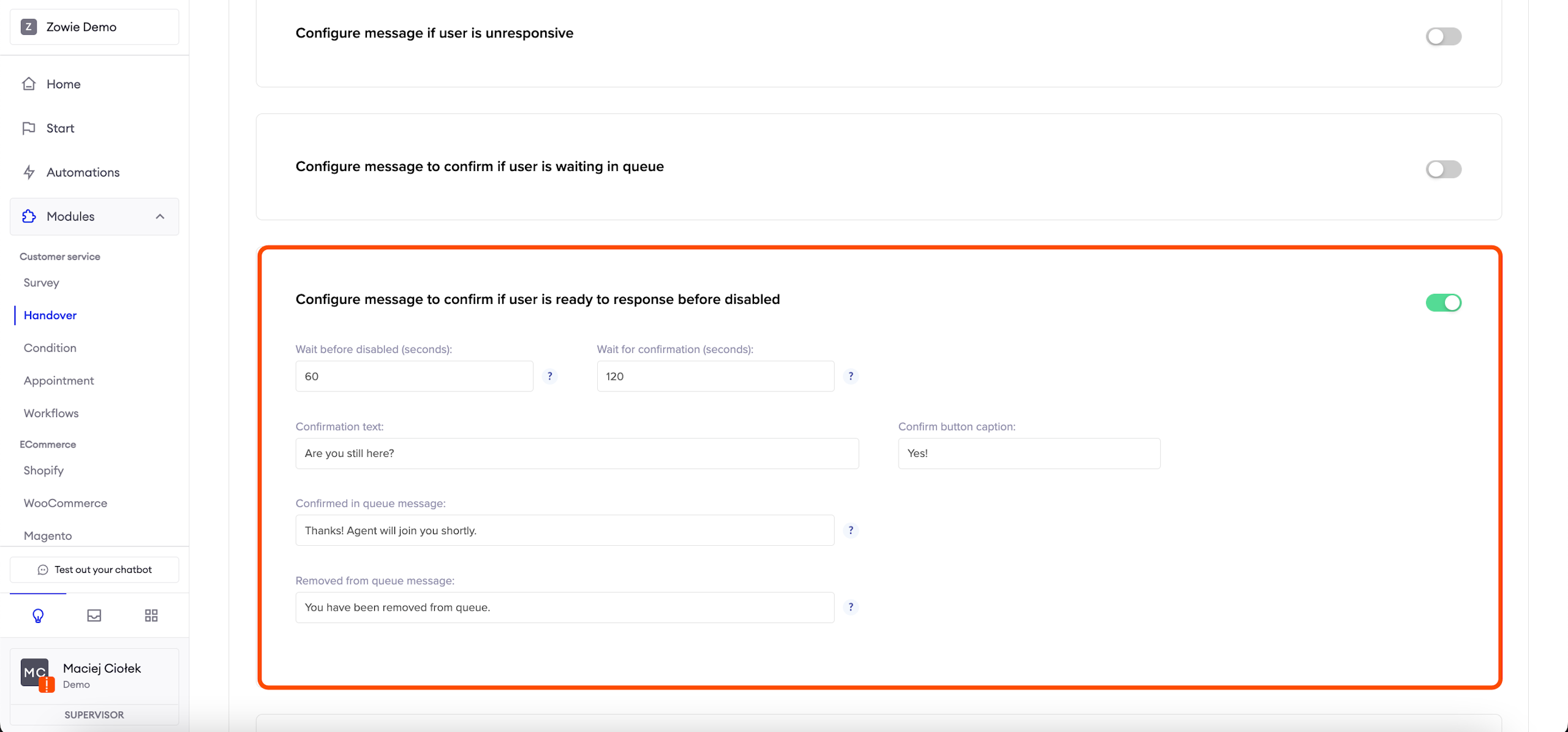
You can send message to the user that asks if they are ready to response before deleting them from the queue due to no answer or action.
Wait before disabled: How long should we wait before asking user to confirm that they will respond before disabled state? It means how long should we wait before confirming if they are still there, on the chat window.
Wait for confirmation: How long should we wait for the confirmation before coming back to a chatbot? It means how long we are willing to wait for the answer before deleting them from the queue and forwarding to chatbot.
Configure message to confirm if user is waiting in postpone
AttentionThis feature works only for Zowie Inbox.
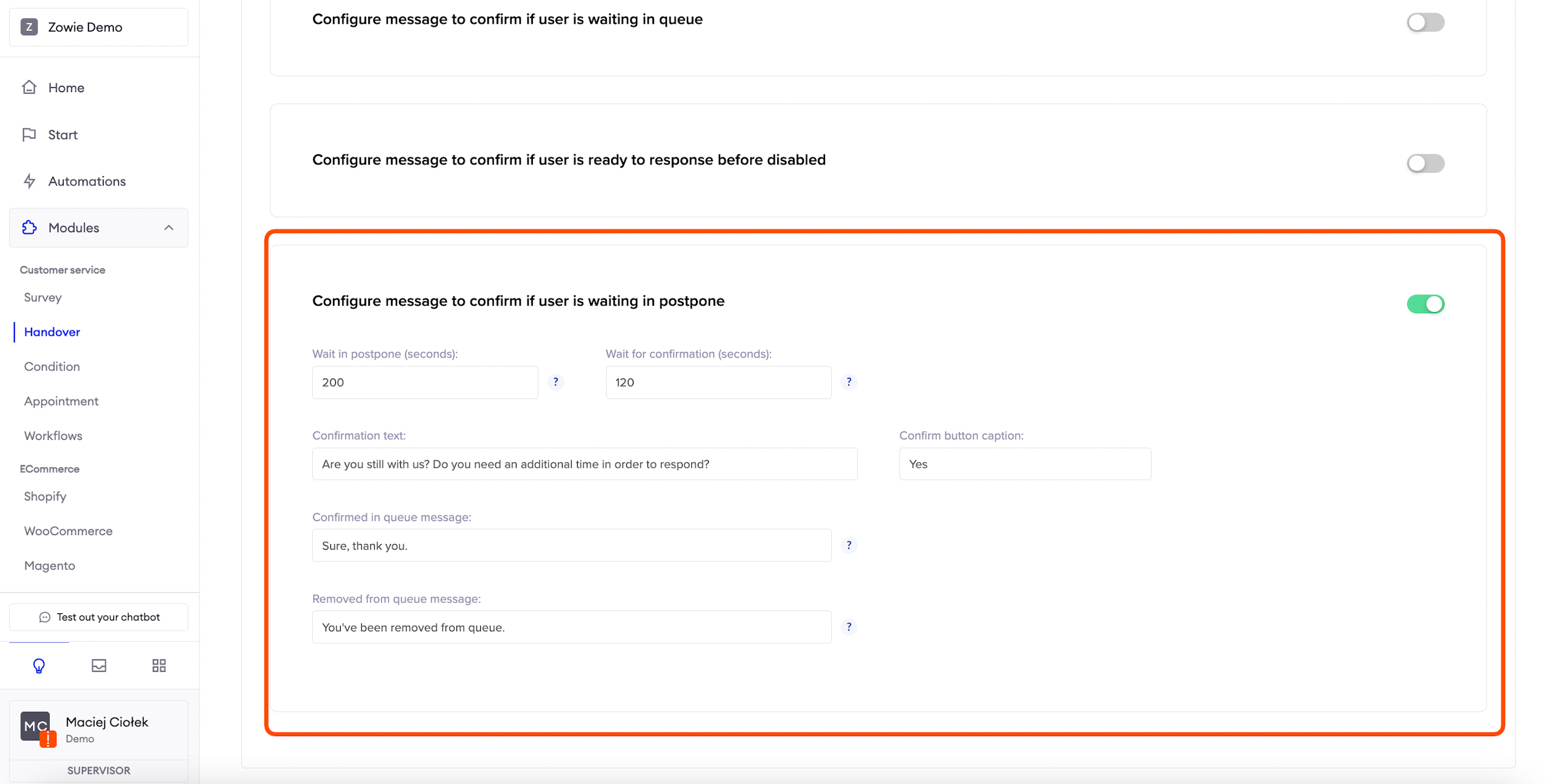
You can send a message to the user that was forwarded to the postpone tab by an agent due to a long time of waiting for their response.
You can ask them if they are still with us, if there is no action from their side - we can remove them from postponement and forward to the chatbot.
Wait in postpone: How long should we wait before asking the user to confirm in postpone state? It means how long should we wait before confirming if they are still there, on the chat window.
Wait for confirmation: How long should we wait for the confirmation before coming back to a chatbot? It means how long we are willing to wait for the answer before deleting them from the queue and forwarding to the chatbot.
Configure Advanced Settings
Advanced
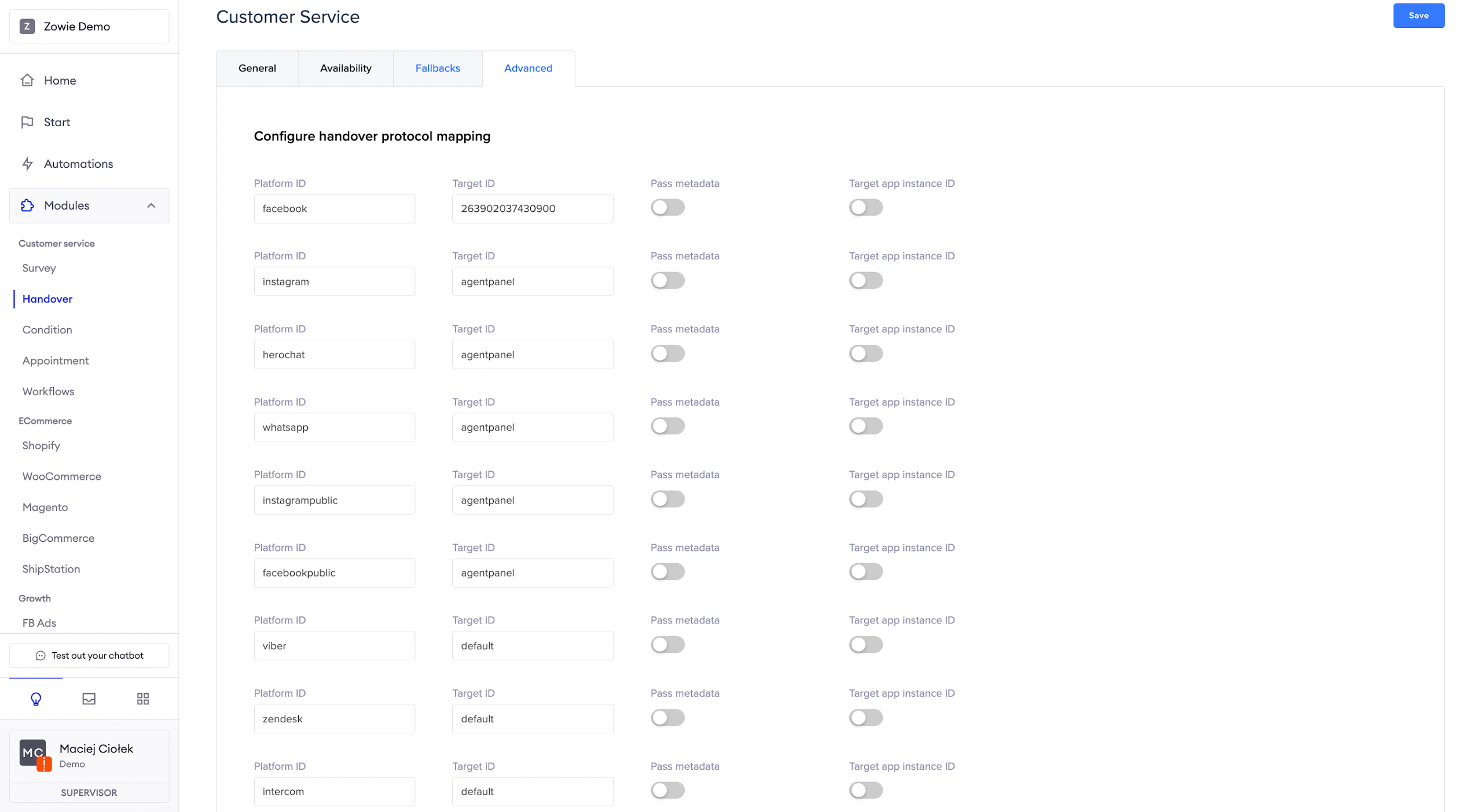
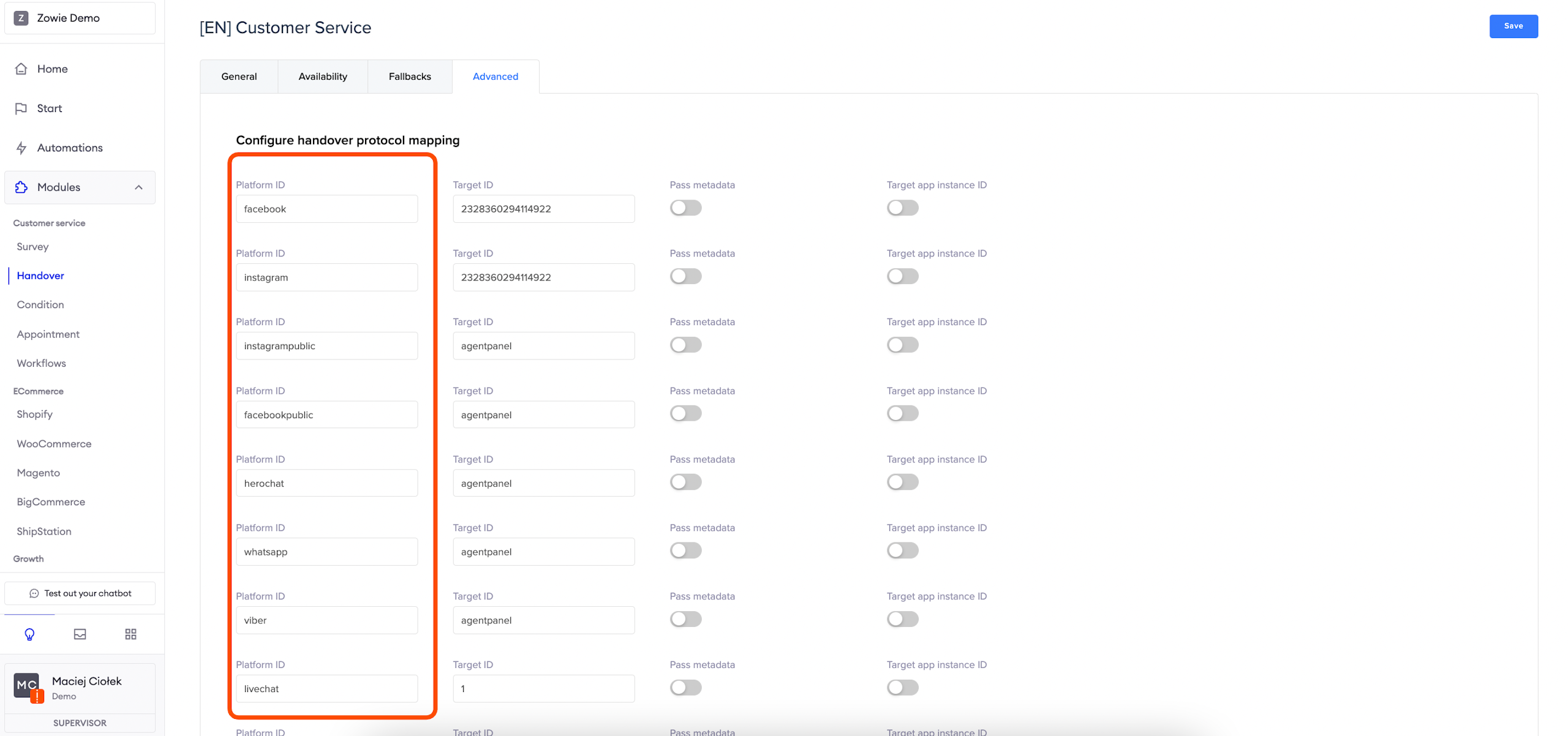
Handover protocol mapping in the Advanced tab ensures that the conversations are correctly passed to a human agent in various channels.
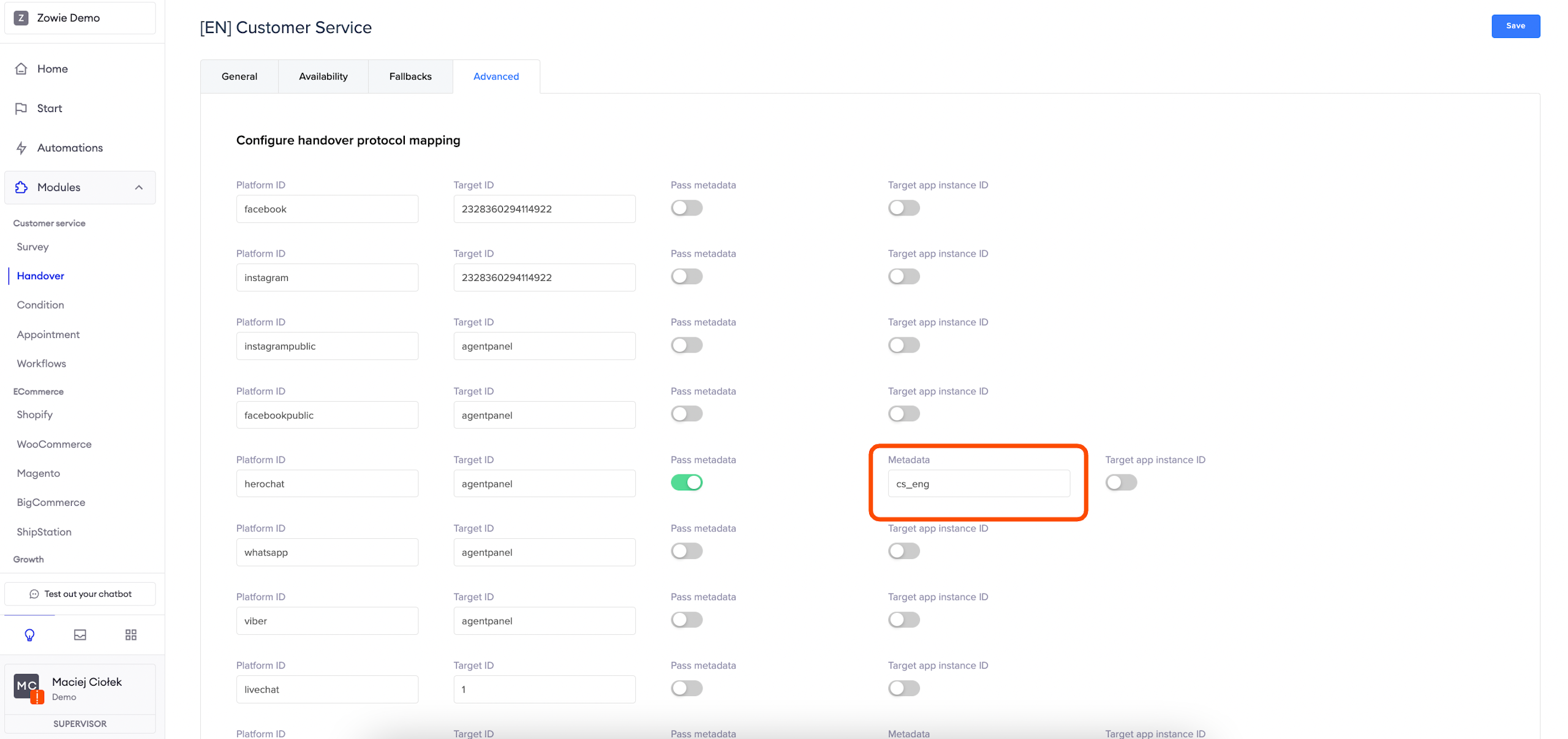
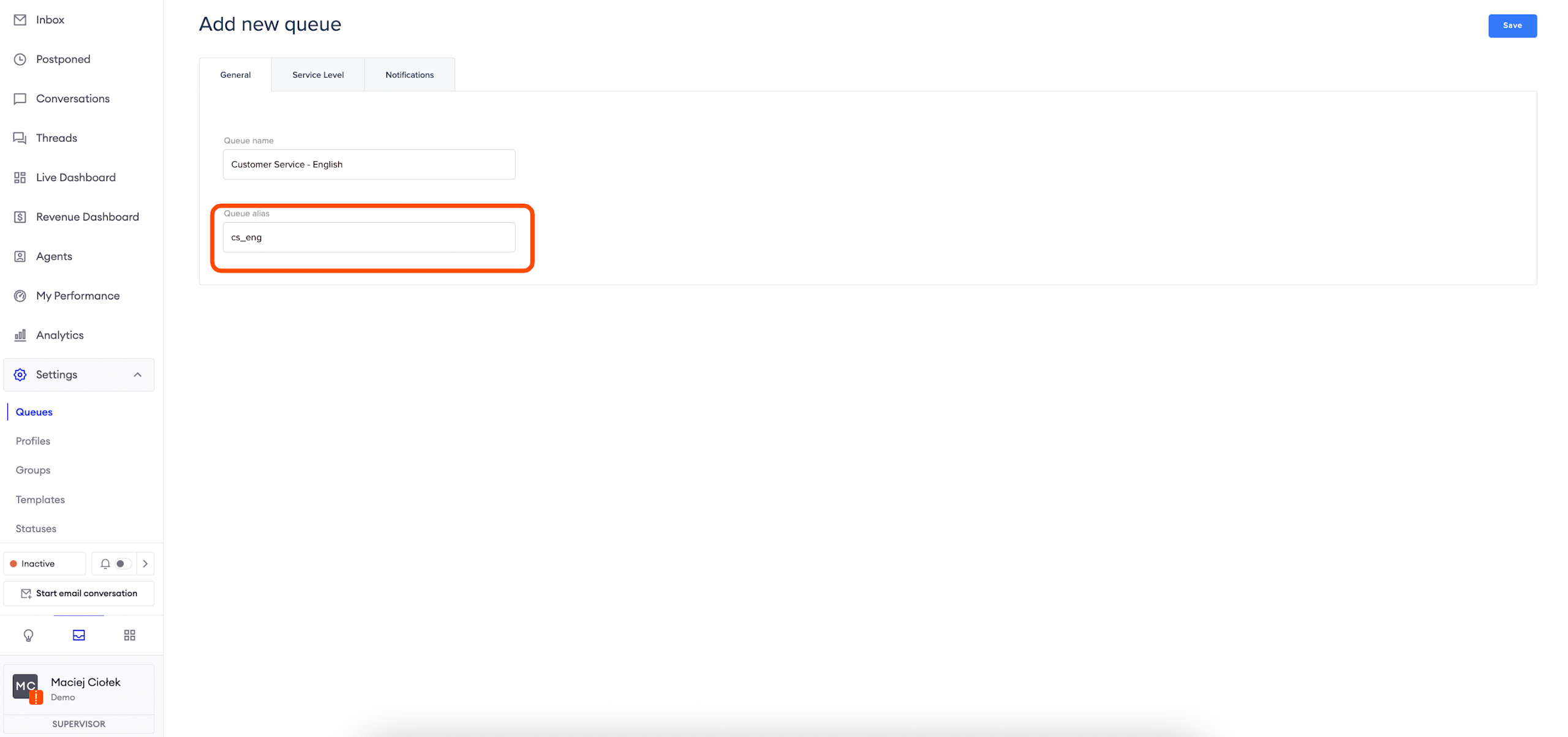
If you enable "Pass metadata" and put here an alias from the Queue, this Handover's messages will be sent to that particular Queue.
Platform ID
In this section you can leave the suggested channels or override them with a new one.
InformationHerochat refers to Zowie Widget.
Target ID
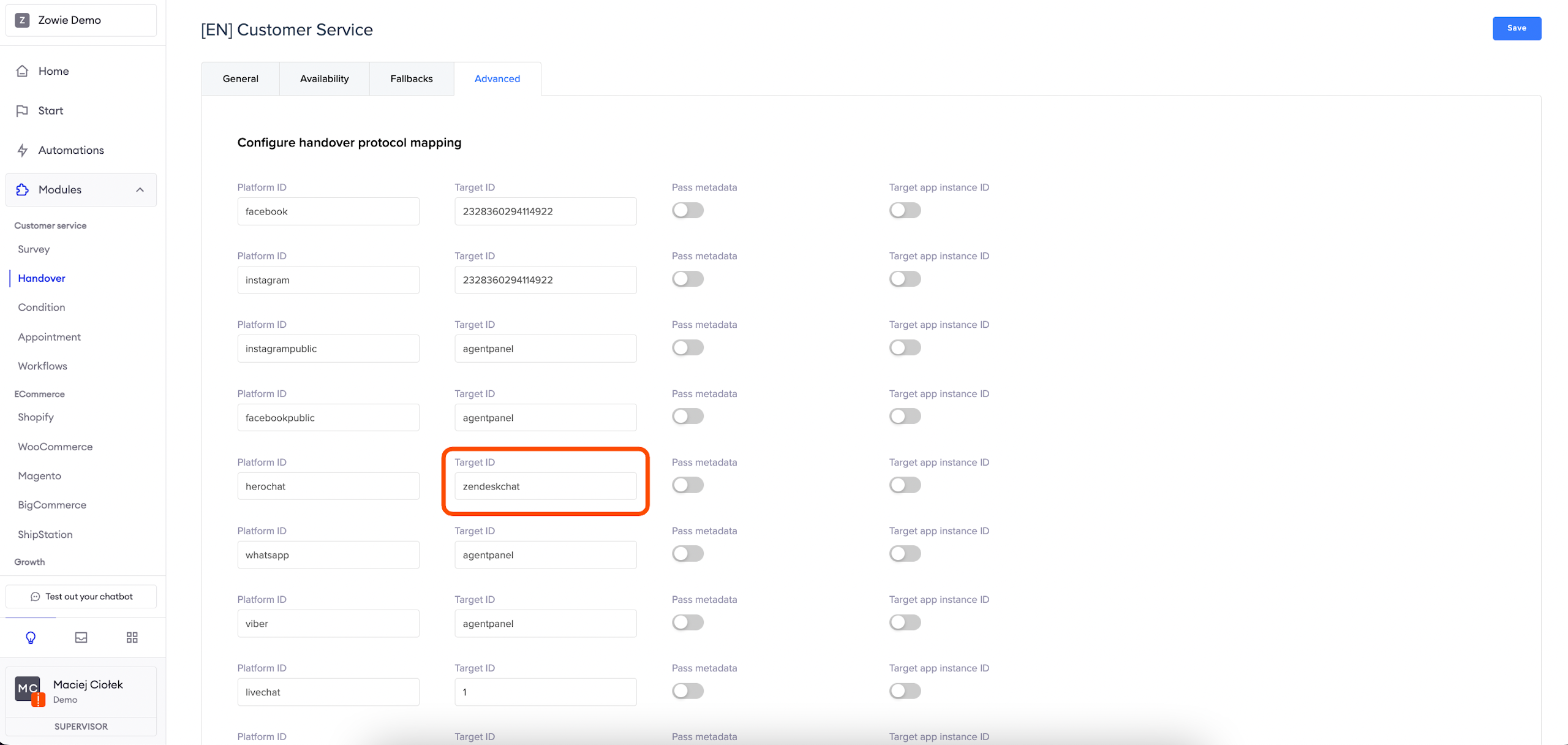
This section allows you to configure to which Inbox the chatbot should pass threads from the Handover module.
Agentpanel type of target refers to Zowie Inbox, so if you need to connect the Handover coming through the Zowie Widget to a different Inbox, for example, Zendesk Live Chat, override agent panel configuration with zendeskchat target.
ImportantTo pass threads from the Handover on Facebook or Instagram to Zowie Inbox, change Target ID to 2328360294114922.
Pass metadata
In order to pass threads to specific Queues, enable the Pass Metadata switch and populate the Metadata field with the Queue's alias.
AttentionBy default, all threads from the instances of the Handover module will be passed to the General Queue.
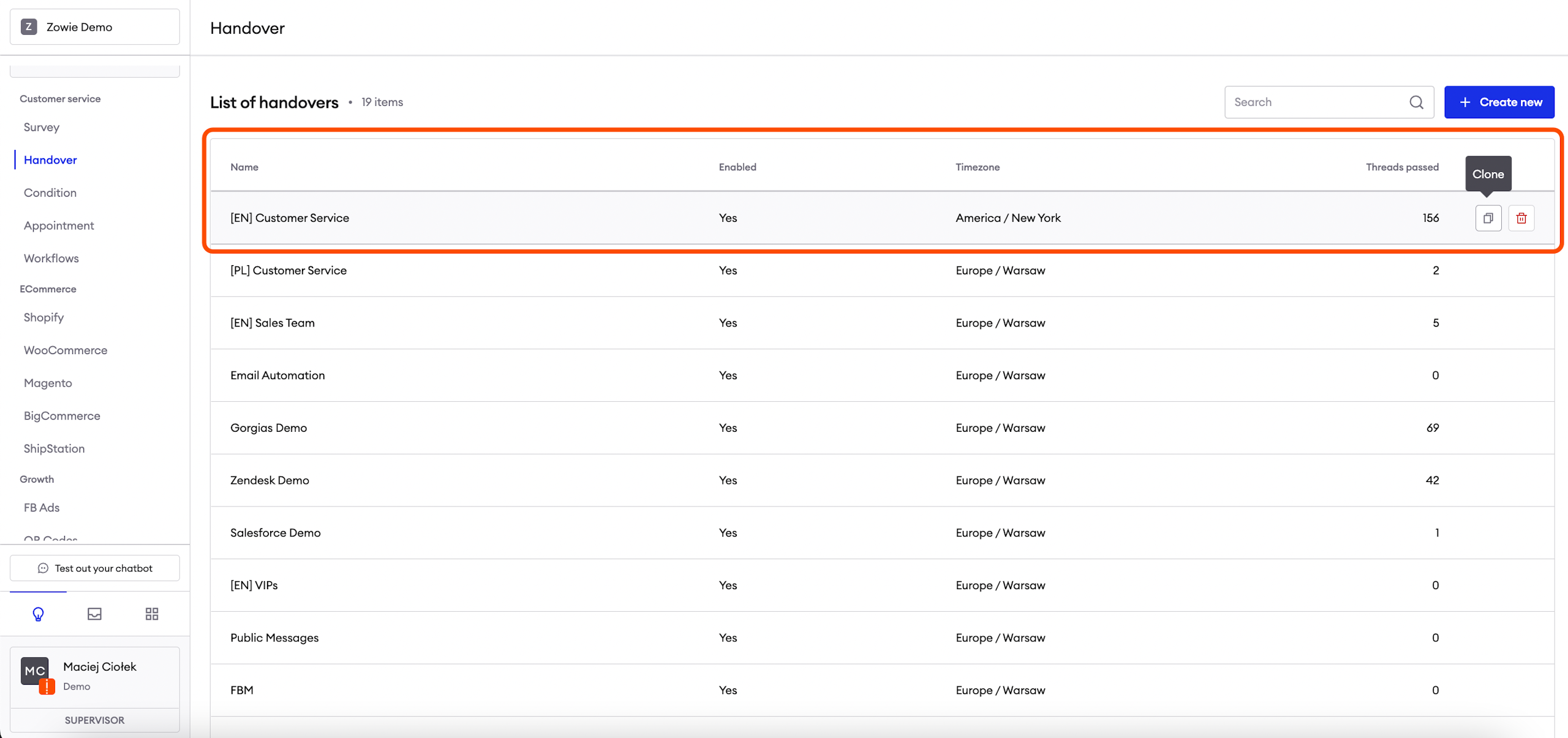
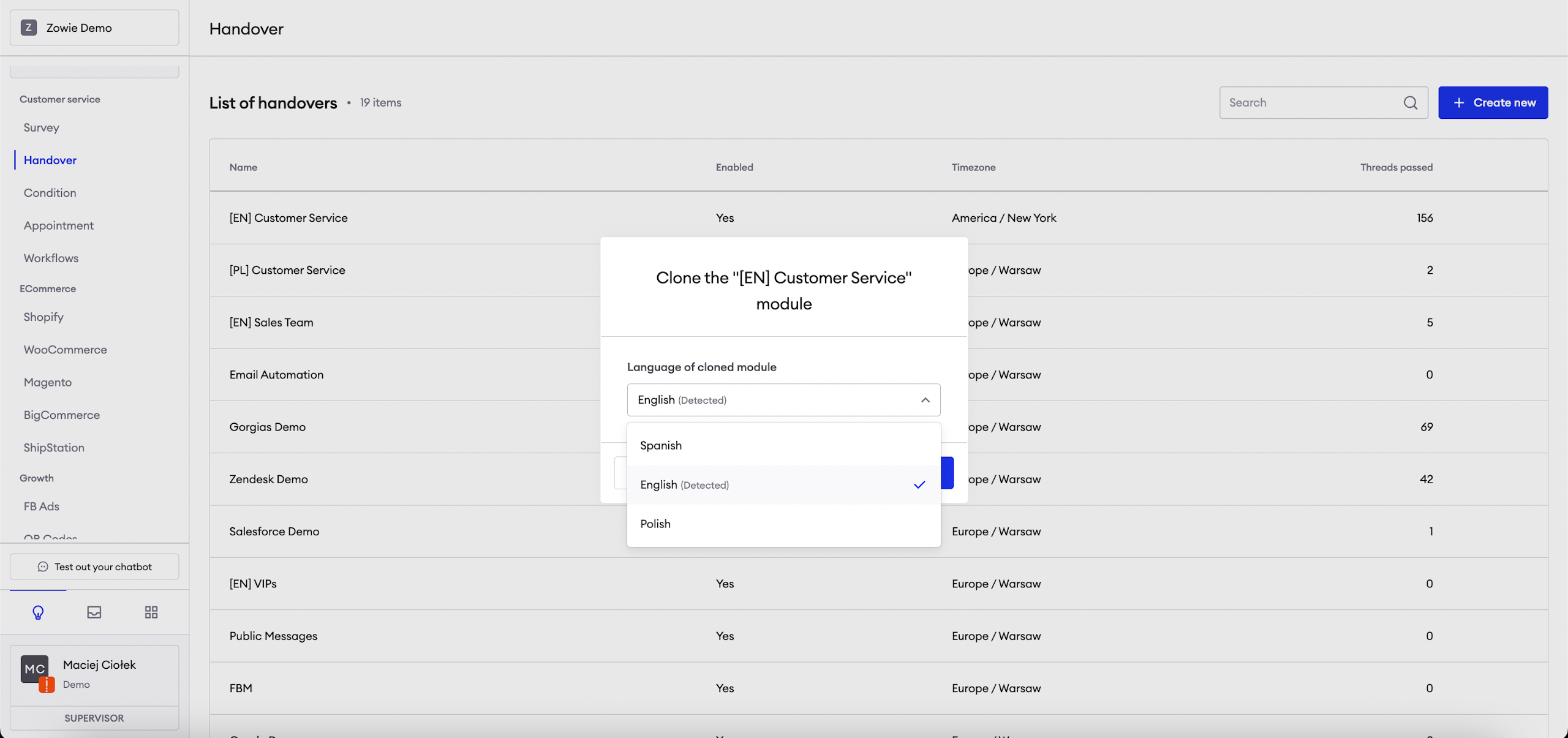
Cloning and translating the Handover Module
In order to translate Handover Module, you need to have regions enabled with at least two regions. Our script recognizes the initial language and translates all relevant user inputs.
Updated over 1 year ago