
Connect
Connect to the Zowie MCP server
The Zowie MCP server runs on Zowie's side, not on your computer. It works in any AI client that lets you type in the address of an MCP server and then sign in. There is nothing from Zowie to install, nothing from Zowie to run on your machine, and no API key to generate.
How the connection works, whatever you use
Wherever you are, it is the same three steps:
- Paste your Zowie server URL into whatever the client calls custom connector, MCP server or add server. Copy it from the Zowie app — Automate → MCP — where it is shown with a copy button, already correct for your account. Paste it whole, exactly as shown.
- Sign in with your own Zowie account in the browser window the client opens. This uses OAuth, the standard "sign in with your account" flow you already know from other sites. In practice it means you sign in on a Zowie page in your browser instead of handing your password to the AI client.
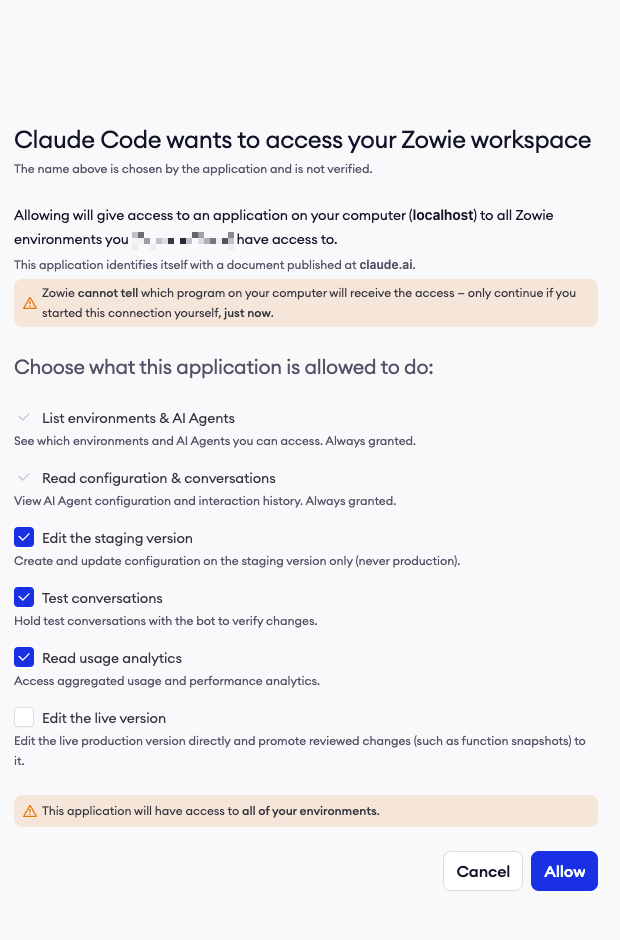
- Approve the access you want to grant. Zowie shows you a screen listing the permissions the client has asked for, and you tick the ones you are willing to give. That screen is called the consent screen. See Permissions and versions for what each permission covers.
If you cannot open the Zowie app right now, these are the two addresses it hands out:
| Region | Server URL |
|---|---|
| EU | https://eu1-mcp.api.getzowie.com/mcp |
| US | https://us1-mcp.api.getzowie.com/mcp |
That is the whole connection. From then on the client can see your Zowie environments and AI agents, and it acts strictly as you. It has the same access and the same limits you have when you log in to the Zowie app yourself.
The rest of this page is only about where you type the URL in each client. If your client is not listed but lets you add a remote MCP server and sign in to it, the three steps above are all you need.
Before you start
Take the URL from the Zowie app, not from memory. Open Automate → MCP and use the copy button. The page shows the one address that is right for your account, so there is no region to work out and nothing to append. An address you typed yourself, or one borrowed from a colleague on another account, is the most common reason a connection never gets past the first step.
Where the sign-in happens. Even if you normally open Zowie at an address with your company's name in it, for example acme.app.getzowie.com, the sign-in window for MCP opens at eu1.app.getzowie.com or us1.app.getzowie.com. That is expected, and it is the same account you already have. Check the address bar for one of those two, then sign in with your usual credentials, or with Sign in with SSO if your company uses single sign-on. Being already signed in at the other address does not carry over, so expect to sign in once here.
Who you sign in as. The connection uses your own Zowie account. Everything the AI client does, it does as you: it sees only the environments and AI agents you have access to, and it cannot do anything your permissions do not allow.
Grant only what you need. On first connection, Zowie shows a consent screen listing the permissions the client is asking for. You can reconnect later and grant more.
Set up your client
The three steps above are the same everywhere. These tabs are only about where the URL goes in each one. If you haven't used terminal applications before, we recommend starting with web or desktop version of Claude.
Claude Team or Enterprise
Individual members cannot add a custom connector. An organization owner adds it once for everyone.
Owner, once per organization:
- Open Organization settings → Connectors.
- Click Add → Custom → Web.
- Paste the Zowie server URL and save.
Every member, afterwards:
- Open Customize → Connectors.
- Find the Zowie connector and click Connect.
- Sign in with your Zowie account and approve the permissions.
Each member signs in with their own Zowie account, so each member sees exactly the environments and AI agents they are entitled to. The owner adding the connector does not grant anyone access to Zowie data.
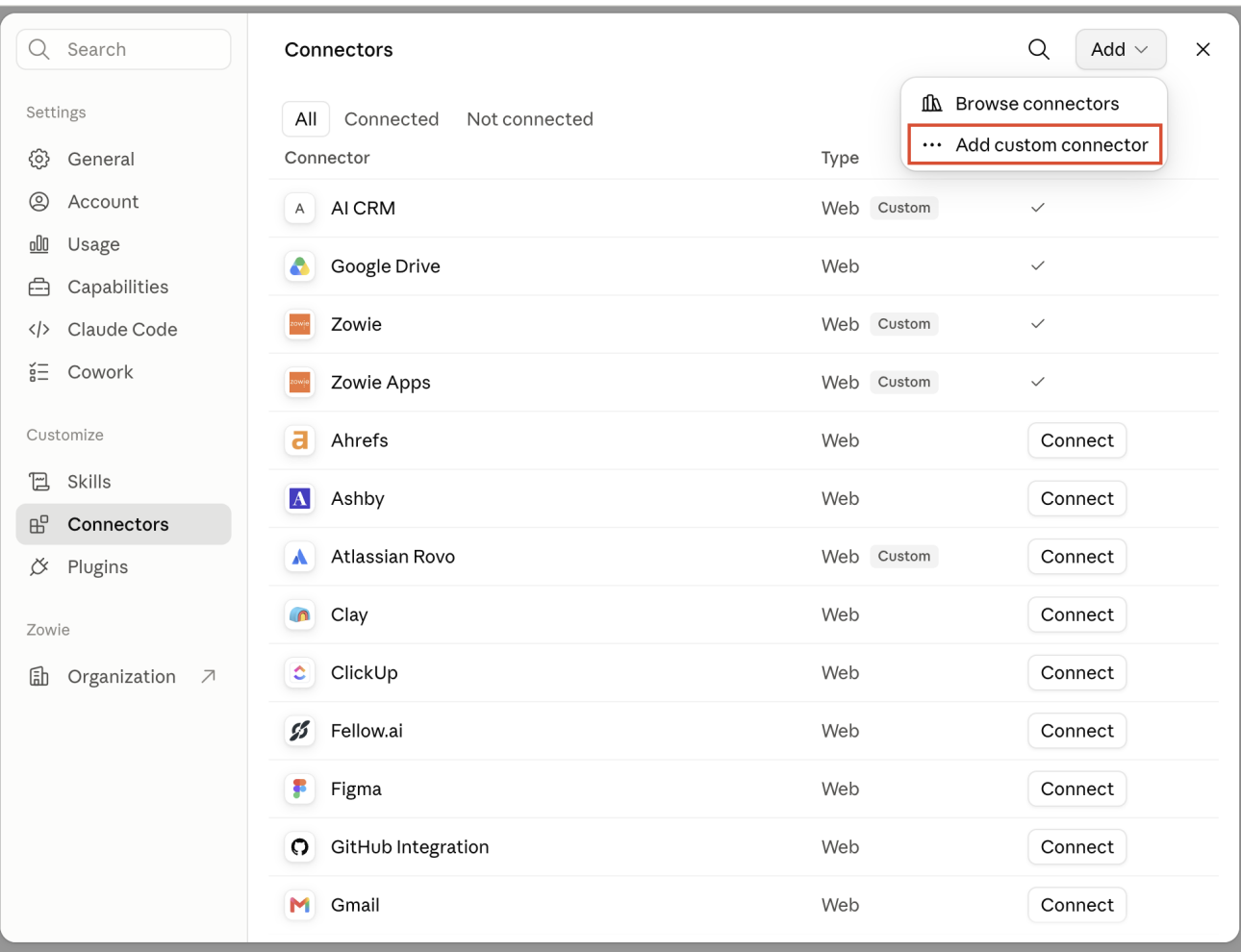
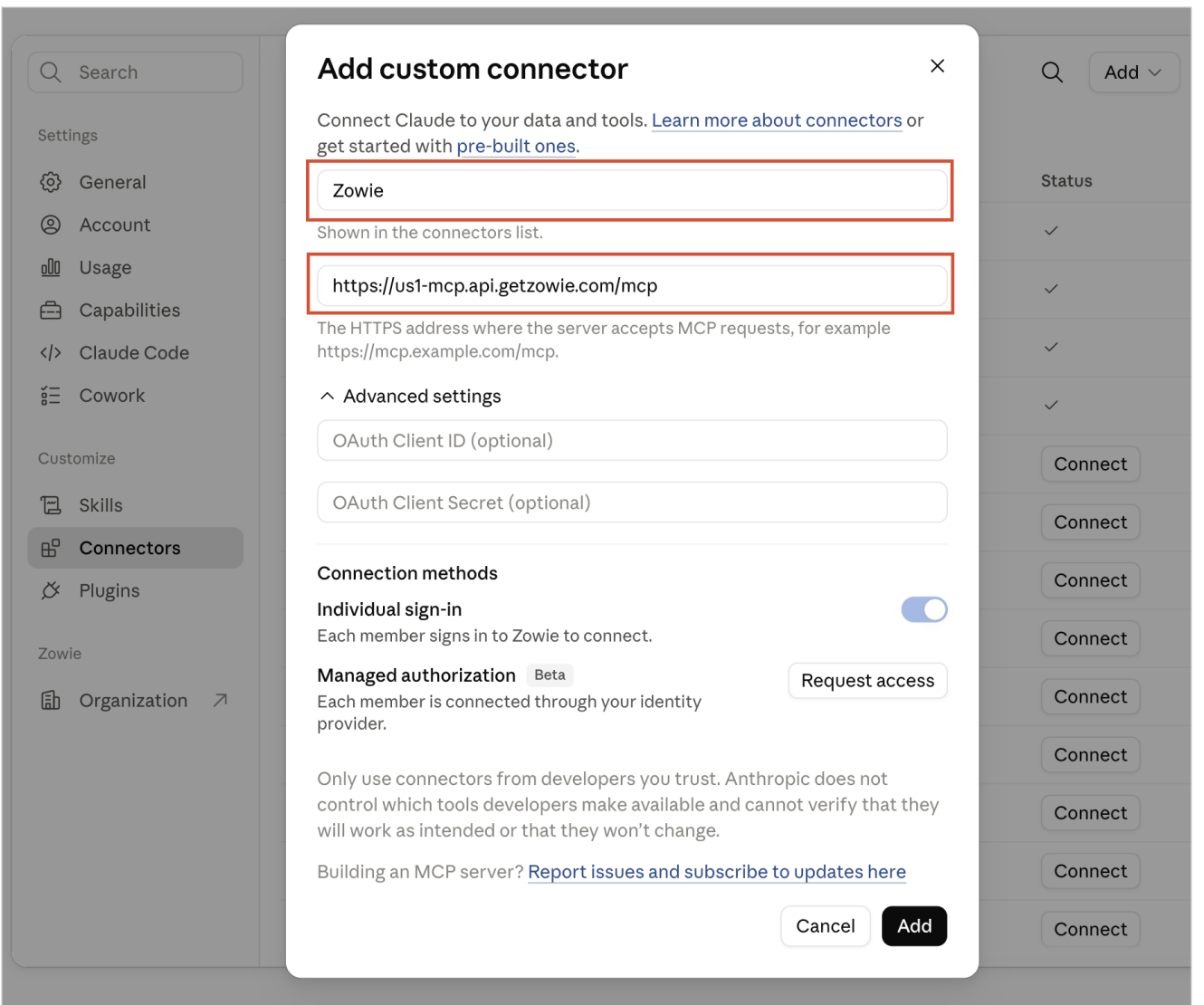
If you do not see an Add button, you are not an owner of your Claude organization. Ask whoever administers Claude at your company to add the connector.
Claude Desktop
Same connector, added from the app: Settings → Connectors → Add → Add custom connector, then the Zowie server URL. On Team and Enterprise the owner gate above applies here too. A connector you already added on claude.ai shows up here as well, so you do not add it twice.
Cowork
Cowork uses the same connectors as the rest of Claude, so there is nothing Zowie-specific to install. Add the Zowie connector the normal way: on claude.ai if you are on Free, Pro or Max, or through your organization owner on Team and Enterprise. Then, in Cowork, open the Customize panel in the left sidebar and switch it on. Once you have authorized it, Claude can use the Zowie tools in any Cowork session. You can change which tools are enabled for a given session from the Customize menu or from the chat bar.
Approving changes in Cowork. Cowork asks for your approval, task by task, before it uses a tool that changes something. So the first time a task wants to change anything in Zowie, you get a prompt. Whether you can tick Allow for all tasks depends on your organization. The setting is called Allow "Always allow" for connector tools and lives in Organization settings → Cowork, under Permissions. If it is off, the option is greyed out and every task asks again. This is a control on Claude's side. It is separate from the Zowie consent screen and from the per-agent setting described in Permissions and versions, and all three have to allow a change before it can happen.
Claude Code is a tool you run in a terminal on your own machine. It connects from there and handles the sign-in for you. Installation instructions can be found in the official docs.
-
Register the server, using the URL from Automate → MCP:
claude mcp add --transport http zowie https://eu1-mcp.api.getzowie.com/mcpBy default this registers the server for the current project only. Add
--scope userto have it available in every project you work in:claude mcp add --transport http zowie --scope user https://eu1-mcp.api.getzowie.com/mcp -
Start Claude Code in that directory and run the
/mcpcommand from inside of the session. -
Pick zowie from the list and choose to authenticate. Your browser opens the Zowie sign-in page.

-
Sign in and approve the permissions. Claude Code saves the access token it gets back, which is the credential proving you signed in, and renews it for you. You should not need to repeat this.
-
Run
/mcpagain. The server shows as connected, andclaude mcp listlists it.

If the connection ever stops working, run /mcp, select the Zowie server and sign in again. To remove it, claude mcp remove zowie.
-
Install the Codex command-line tool:
npm install -g @openai/codex. More detailed installation instructions can be found in the official docs. -
Register the server, using the URL from Automate → MCP:
codex mcp add zowie --url https://us1-mcp.api.getzowie.com/mcp -
Codex works out that the server needs signing in and prints a web address. Open it, sign in to Zowie and approve the permissions.
-
Check the result with
codex mcp list. The server shows asenabledwithOAuth.
[SCREENSHOT: Zowie consent screen opened from the Codex flow]
If the sign-in step is ever skipped, or the access token expires, run it again on its own:
codex mcp login zowie-
Open the Command Palette (
Cmd/Ctrl+Shift+P) and run MCP: Add Server.
-
Choose HTTP and paste the Zowie server URL.

-
Choose whether to save it for this workspace or for your user profile.
-
VS Code opens a browser window for the Zowie sign-in. Approve the permissions.
-
Open Copilot Chat in agent mode. The Zowie tools appear in the tool picker.
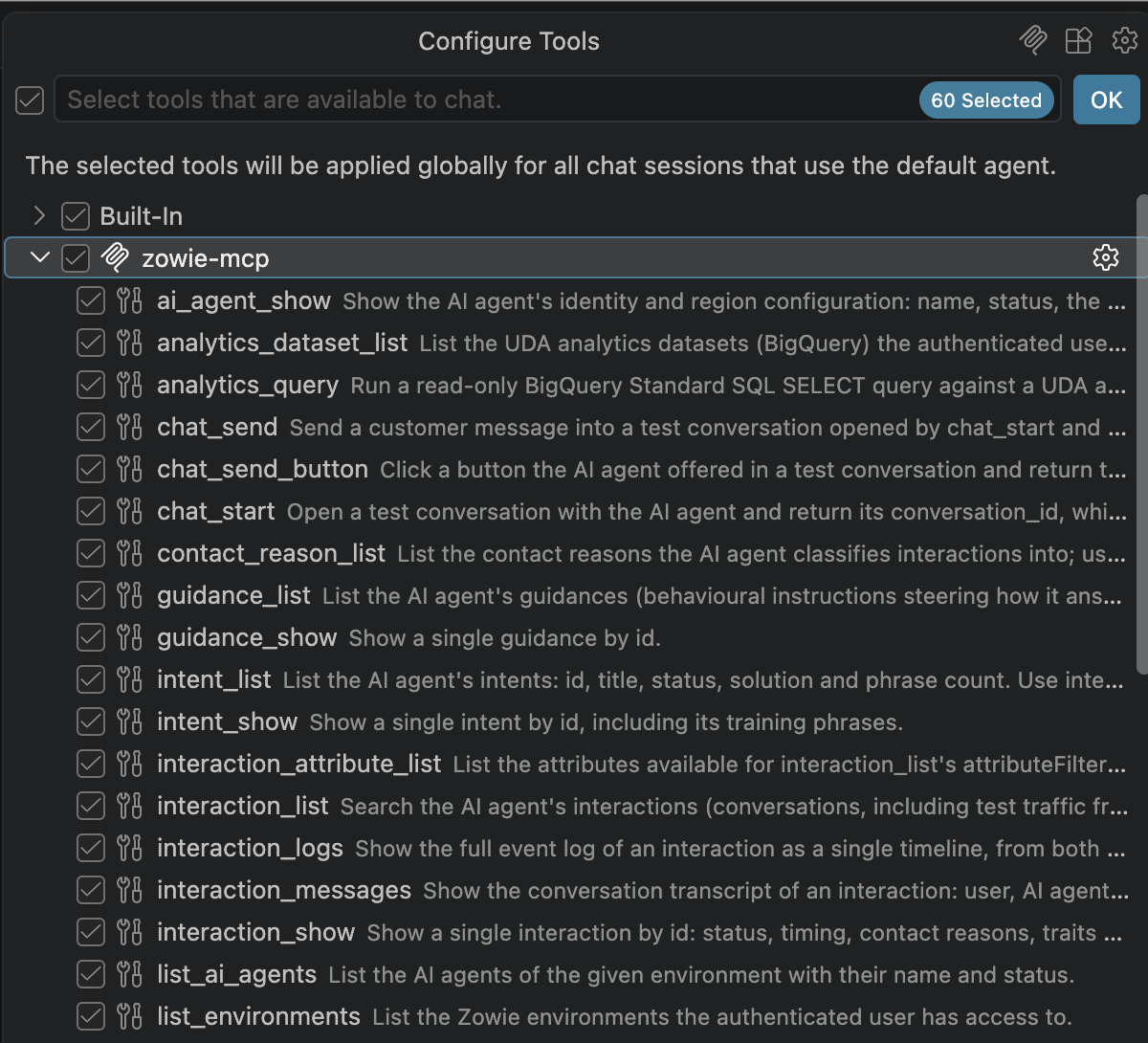
The GitHub Copilot coding agent, the one that runs in the cloud and opens pull requests, cannot use the Zowie server. It does not support servers that require you to sign in.
-
Install the Gemini command-line tool:
npm install -g @google/gemini-cli. More detailed installation instructions and prerequisites can be found in the official docs. -
Register the server, using the URL from Automate → MCP:
gemini mcp add --transport http --scope user zowie https://eu1-mcp.api.getzowie.com/mcpWithout
--scope userthe server is saved for the current project only. -
Start
gemini -
From inside of the gemini terminal application, run
/mcp auth zowie. Your browser opens the Zowie sign-in page. Sign in and approve the permissions. -
Check the result with
gemini mcp list.
Not supported today
ChatGPT cannot connect to the Zowie MCP server yet. The way it registers a custom app relies on a sign-in method that Zowie does not accept today. Codex, OpenAI's other client, works — see the Codex tab above.
Microsoft 365 Copilot and the Windows Copilot app cannot connect to the Zowie MCP server. Neither lets you simply type in the address of an MCP server of your choice. You would have to publish Zowie through Microsoft's partner programme first. Microsoft's registration also requires a client secret, which is a shared password between the AI client and the server, and our sign-in flow deliberately does not use one.
Copilot Studio looks close to compatible, but nobody has tested it from start to finish yet, so we are not describing the steps here.
Troubleshooting
Open the one that matches what you are seeing.
The client says it could not connect, right after pasting the URL
Copy the URL again from Automate → MCP and paste it whole. A truncated address, or one for a different region than the account you sign in with, fails at this point.
The sign-in page shows a different address than the one I normally use
That is expected. Signing in for MCP always happens at the regional address, and it is the same account.
The sign-in window opens but the connector stays disconnected
Make sure you signed in to the same region as the URL, because an EU account cannot authorize the US server. Also check that you did not fill in an OAuth Client ID or Client Secret. Zowie does not use them.
Claude has no button for adding a connector
You are on Team or Enterprise, so an owner has to add it first.
The Zowie tools do not appear in my Cowork session
Open the Customize panel in the left sidebar and check that the Zowie connector is switched on for that session.
Cowork keeps asking me to approve the same change
Your organization has Allow "Always allow" for connector tools turned off in Organization settings → Cowork → Permissions, so Allow for all tasks is unavailable.
The client says it cannot see any environments
Your Zowie account has access, but either the connection was approved with read permissions only, or the AI agent's own setting blocks it. Reconnect and grant the permission you need, and check the per-agent setting described in Permissions and versions.
Telling us what is missing
When something in Zowie is missing, wrong or confusing, you can report it from inside the conversation where you hit it. The server has a built-in report_feedback tool, so you can say something like "report this to Zowie: the agent could not find X" and it reaches the team that builds the server. The whole session travels with the report: what you asked, and what the tools returned. That is usually far more useful to us than a description written from memory an hour later.
Your Zowie contact is the other route, and the better one if something is urgent or account-specific.
Updated 16 days ago