
Build a custom visual aid
Build your own visual aid as a web page.
A custom visual aid is a web page that Conversation SDK shows in the conversation in an iframe. You can build it with any technology: plain HTML, React, Vue or any other framework. You host it yourself, and your process shows it with ui.showVisualAid(url). See UI methods.

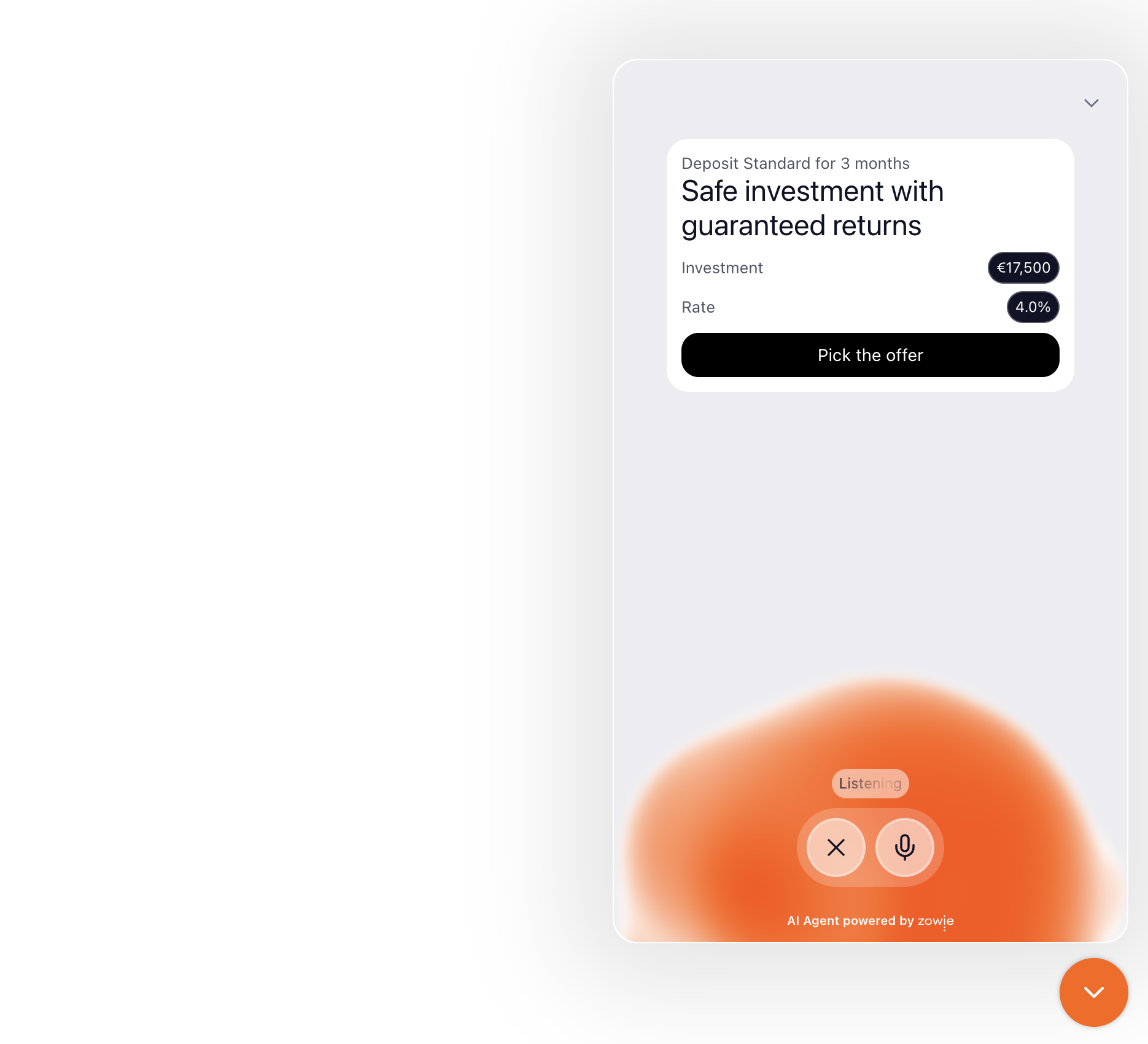
How it works
- A Script Block in your process calls
ui.showVisualAid(url). The URL points to your page and carries the data the page needs. - Conversation SDK loads the URL in an iframe and adds the
surfaceparameter, which tells your page whether it is shown in text chat or in Hello. - Your page reads its data from the URL and renders the content.
- Your page talks to Conversation SDK with
postMessage: it reports its height, sends a message as the customer, or closes itself.
Step 1: Report the height
In text chat, the iframe has no height of its own. Your page must report its content height, and the visual aid appears only after it does. Send a postMessage to the parent window:
window.parent.postMessage(
  { type: "visualAidResize", height: 320 },
  "*"
);
Here is the simplest working visual aid, a static card that reports its height (open example):
<!DOCTYPE html>
<html lang="en">
<head>
  <meta charset="UTF-8" />
  <meta name="viewport" content="width=device-width, initial-scale=1.0" />
  <title>Hello Visual Aid</title>
  <style>
    *, *::before, *::after { box-sizing: border-box; margin: 0; padding: 0; }
    body { font-family: -apple-system, system-ui, sans-serif; background: transparent; }
    .card {
      margin: 0 8px 12px;
      padding: 20px;
      max-width: 360px;
      border-radius: 12px;
      background: #f9fafb;
    }
    .card h1 { font-size: 16px; font-weight: 600; margin-bottom: 4px; }
    .card p { font-size: 14px; color: #6b7280; }
  </style>
</head>
<body>
  <div class="card">
    <h1>Hello from a visual aid!</h1>
    <p>This content is rendered inside the conversation.</p>
  </div>

  <script>
    var height = Math.ceil(document.documentElement.scrollHeight);
    if (window.parent !== window) {
      window.parent.postMessage(
        { type: "visualAidResize", height: height },
        "*"
      );
    }
  </script>
</body>
</html>
Show it from a Script Block in your process:
ui.showVisualAid("https://demos.getzowie.com/lfilipiuk/step1.html");Step 2: Pass data
Your page gets its data from the URL. You can use any query parameter, several parameters or a hash fragment. We recommend JSON encoded in a data parameter.
In the Script Block, encode the data into the URL:
const data = { name: "Alex", message: "Your return has been processed." };
const encoded = encodeURIComponent(JSON.stringify(data));
ui.showVisualAid(`https://demos.getzowie.com/lfilipiuk/step2.html?data=${encoded}`);
On your page, read it back (open example):
var raw = new URLSearchParams(window.location.search).get("data");
var data = null;
if (raw) {
  try {
    data = JSON.parse(decodeURIComponent(raw));
  } catch (e) {}
}
Step 3: Adapt to the channel
Conversation SDK adds a surface parameter to your URL: chat in text chat, hello in Hello. You don't pass it yourself.
Use surface when your page should look different in each channel (chat example · hello example):
var surface = new URLSearchParams(window.location.search).get("surface");
document.body.classList.add(surface === "hello" ? "is-hello" : "is-chat");
Step 4: Talk back to the conversation
Your page can act in the conversation:
- Send a message as the customer, for example when they click a button. It works in both channels.
window.parent.postMessage(
  { type: "visualAidSendMessage", text: "I'd like to return this order" },
  "*"
);- Close the visual aid in Hello, for example after the customer confirms something.
window.parent.postMessage(
  { type: "visualAidHide" },
  "*"
);
Full example: order summary
A complete visual aid that reads its data, adapts to the channel and reports its height (open example):
<!DOCTYPE html>
<html lang="en">
<head>
  <meta charset="UTF-8" />
  <meta name="viewport" content="width=device-width, initial-scale=1.0" />
  <title>Order Summary</title>
  <style>
    *, *::before, *::after { box-sizing: border-box; margin: 0; padding: 0; }
    body { font-family: -apple-system, system-ui, sans-serif; background: transparent; }
    .card { max-width: 360px; margin: 0 8px 12px; border-radius: 12px; overflow: hidden; }
    .card--chat { background: #f9fafb; }
    .card--hello { background: #f0f9ff; }
    .header { padding: 16px 20px; border-bottom: 1px solid #f3f4f6; display: flex; justify-content: space-between; align-items: center; }
    .header h2 { font-size: 16px; font-weight: 600; }
    .badge { padding: 2px 10px; border-radius: 999px; font-size: 12px; font-weight: 500; background: #d1fae5; color: #065f46; }
    .items { padding: 0 20px; }
    .item { display: flex; justify-content: space-between; padding: 12px 0; border-bottom: 1px dashed #e5e7eb; }
    .item:last-child { border-bottom: none; }
    .total { display: flex; justify-content: space-between; padding: 14px 20px; border-top: 1px solid #e5e7eb; font-weight: 700; }
  </style>
</head>
<body>
  <div id="app"></div>

  <script>
    var params = new URLSearchParams(window.location.search);

    var raw = params.get("data");
    var data = null;
    if (raw) {
      try { data = JSON.parse(decodeURIComponent(raw)); } catch (e) {}
    }

    var surface = params.get("surface");
    var app = document.getElementById("app");

    if (data) {
      var style = surface === "hello" ? "hello" : "chat";
      var itemsHtml = (data.items || []).map(function (item) {
        return '<div class="item"><span>' + item.name + '</span><span>' + item.price + '</span></div>';
      }).join("");

      app.innerHTML =
        '<div class="card card--' + style + '">' +
          '<div class="header">' +
            '<h2>' + data.orderNumber + '</h2>' +
            '<span class="badge">' + data.statusLabel + '</span>' +
          '</div>' +
          '<div class="items">' + itemsHtml + '</div>' +
          '<div class="total"><span>Total</span><span>' + data.total + '</span></div>' +
        '</div>';
    }

    var height = Math.ceil(document.documentElement.scrollHeight);
    if (window.parent !== window) {
      window.parent.postMessage(
        { type: "visualAidResize", height: height },
        "*"
      );
    }
  </script>
</body>
</html>
The Script Block that shows it:
const data = {
  orderNumber: "ORD-2024-78432",
  statusLabel: "Shipped",
  items: [
    { name: "Wireless Headphones", price: "$79.99" },
    { name: "Phone Case - Clear", price: "$24.99" },
  ],
  total: "$104.98",
};
const encoded = encodeURIComponent(JSON.stringify(data));
ui.showVisualAid(`https://demos.getzowie.com/lfilipiuk/step4.html?data=${encoded}`);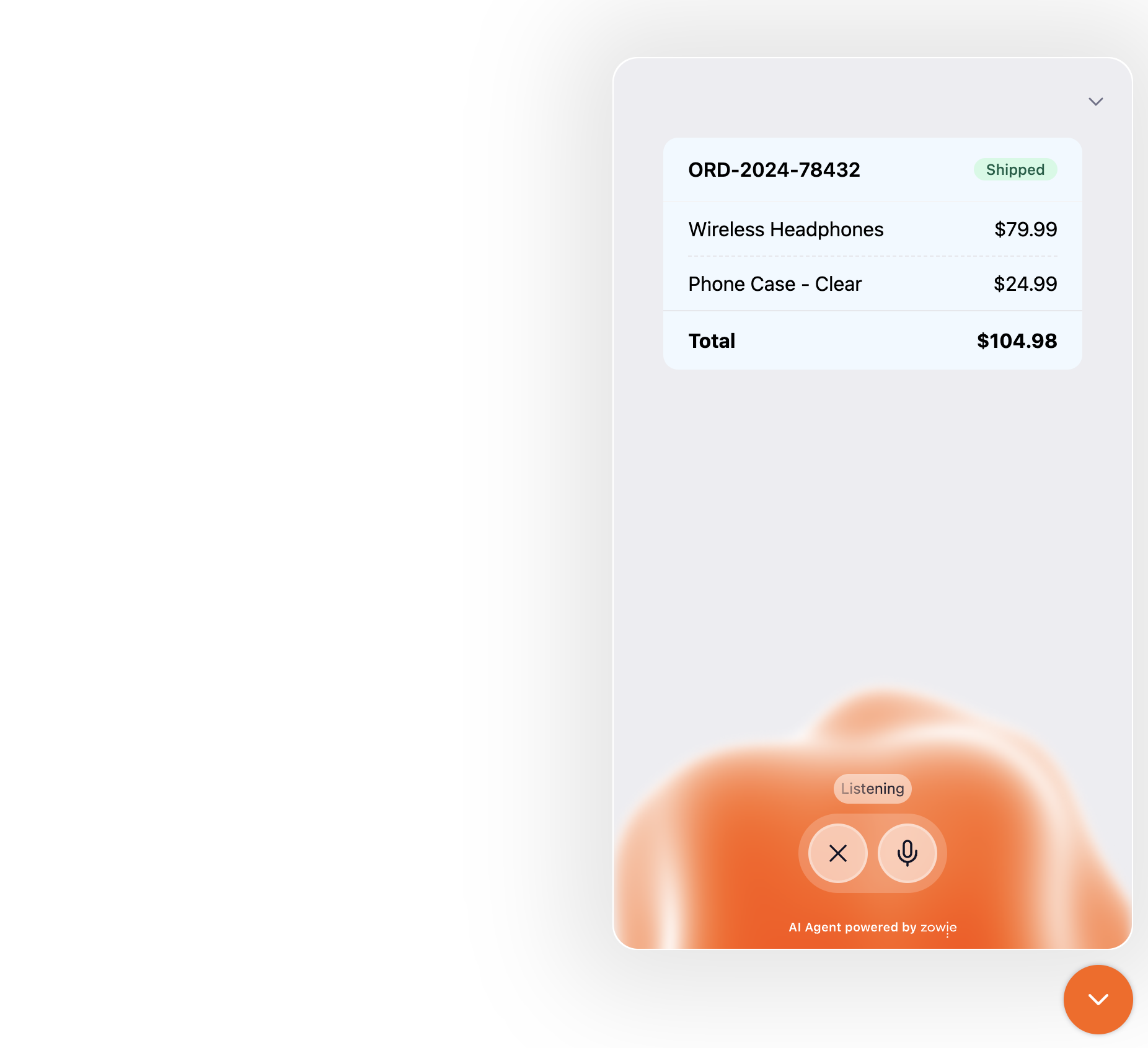
Reference
Messages from your page
Send them with window.parent.postMessage(message, "*").
type | Fields | Text chat | Hello | What it does |
|---|---|---|---|---|
visualAidResize | height: number | ✓ | Sets the height of the visual aid in pixels. Required in text chat. | |
visualAidSendMessage | text: string | ✓ | ✓ | Sends text as a message from the customer. |
visualAidHide | None | ✓ | Closes the visual aid. |
URL parameters
| Parameter | Added by | Description |
|---|---|---|
surface | Conversation SDK | chat in text chat, hello in Hello. |
| Your own data | You | Any parameters you put in the URL in ui.showVisualAid(). |
Hosting
- HTTPS: host the page on a secure URL.
- Embedding allowed: the page must not block iframes, for example with
X-Frame-Options: DENY. - Public: the page loads in the customer's browser or app, so it must be reachable from the internet.
- Camera, microphone and location: the iframe allows these browser features, so your page can ask the customer for them.
Updated 34 minutes ago