
Widget
Using JavaScript code snippet
Zowie Chat can be embedded on a given website by including the following code snippet in its <body> section:
<script type="text/javascript">
  (function(d, s, id, cb) {
    var js = d.createElement(s);
    var n = d.createElement("div");
    n.id = id;
    if (js.readyState) {js.onreadystatechange = function() {if (js.readyState === "loaded" || js.readyState === "complete") {js.onreadystatechange = null; cb();}};
                       } else {js.onload = function(){cb();};}
    js.src = "${URL}";
    document.body.appendChild(js);
    document.body.appendChild(n);
  })(document, "script", "chatbotize", function() {
    Chatbotize.init({
      instanceId: "${INSTANCE_ID}",
      startOnOpen: true,
      headerMode: "white"
    });
  });
</script>
Please make sure that you have your ${INSTANCE_ID} and ${URL} provided.
After including the snippet in the website’s source, the widget will appear in its default position (bottom-right corner of the website.)
Using Google Tag Manager
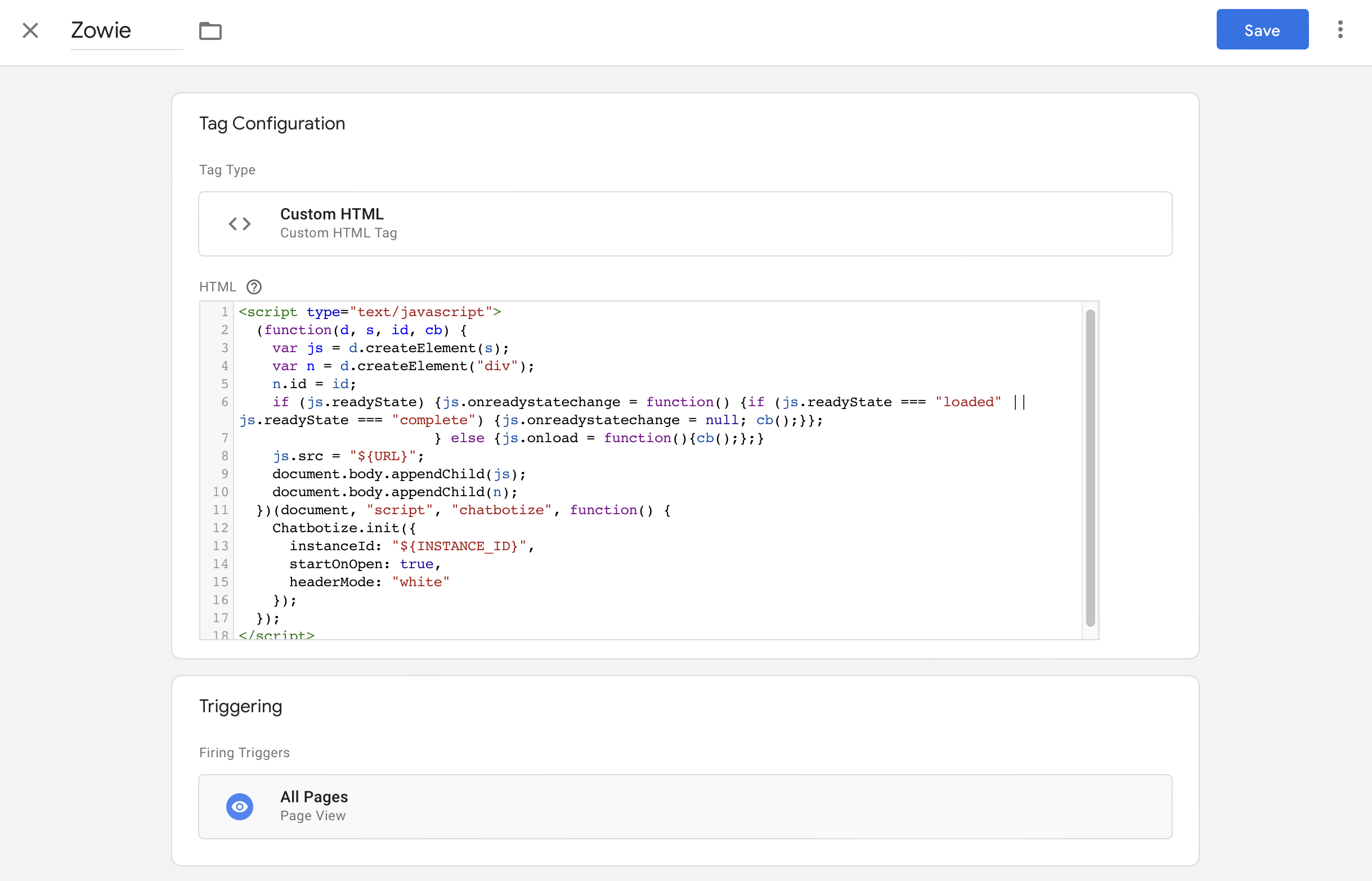
The aforementioned code can also be embedded using Google Tag Manager, if it is used in the organization. Create a new snippet and paste the code into it. Finally, publish the snippet, and the widget will appear in its default position. Make sure to replace ${INSTANCE_ID} and ${URL} with actual values.
Widget customization
You can customize Zowie Widget configuration via the Zowie Admin Panel.
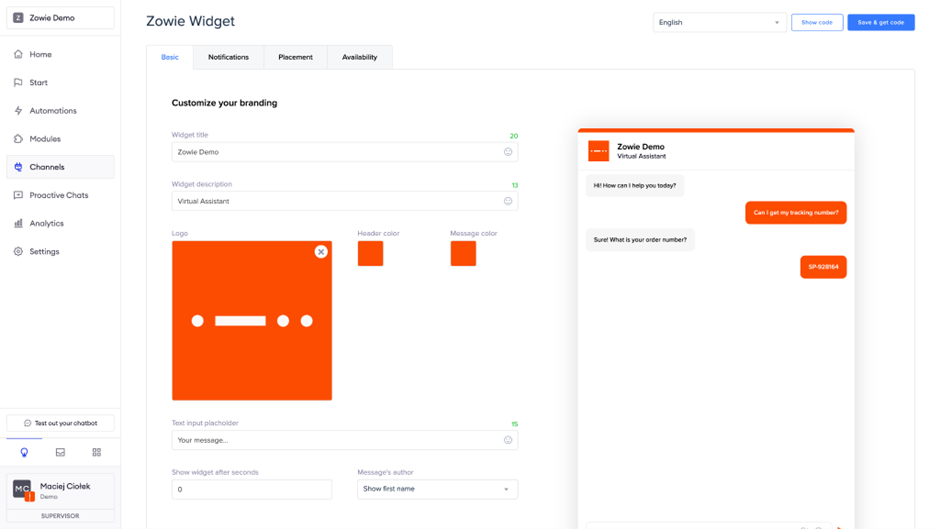
For more advanced options, you can use our Zowie Widget JS SDK.
Zowie Widget vs Page Speed
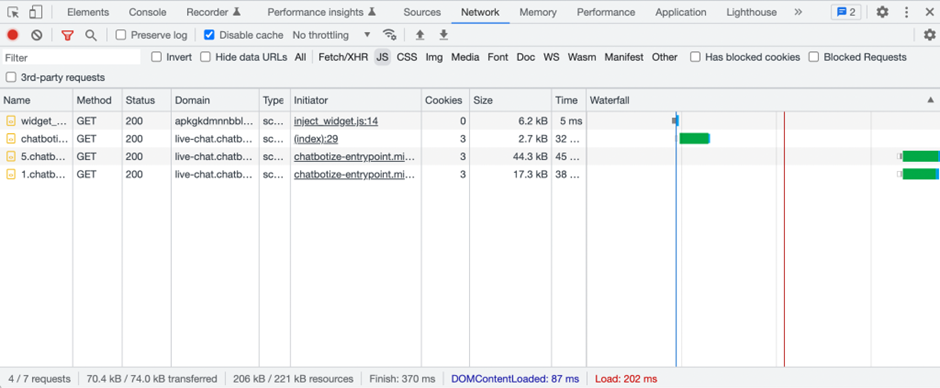
We invested a lot of time and effort to make sure that we offer the most lightweight widget for ecommerce. The widget is loaded using code-splitting technology and maximum loaded size at page load is only 70kB.
Updated about 1 year ago